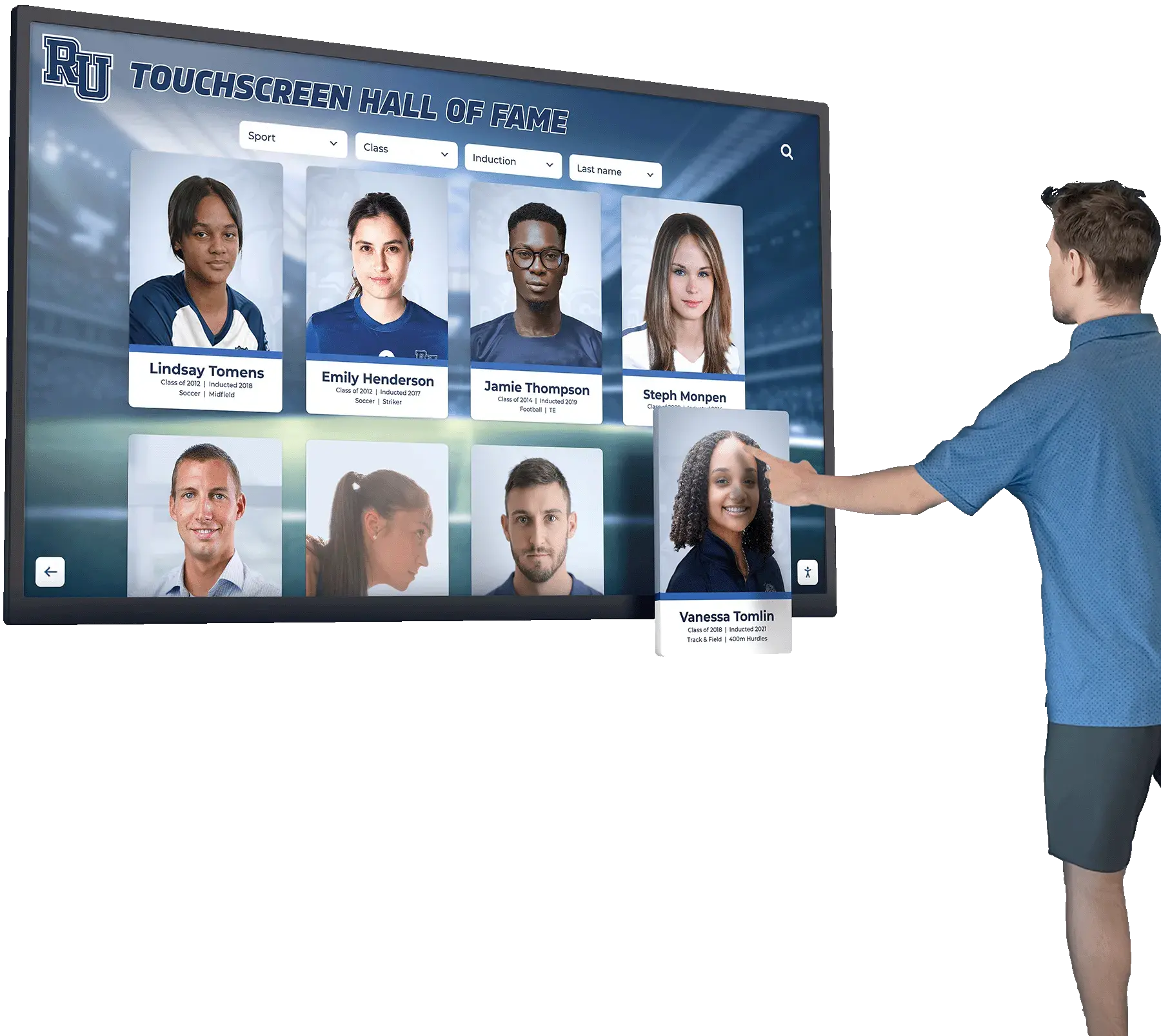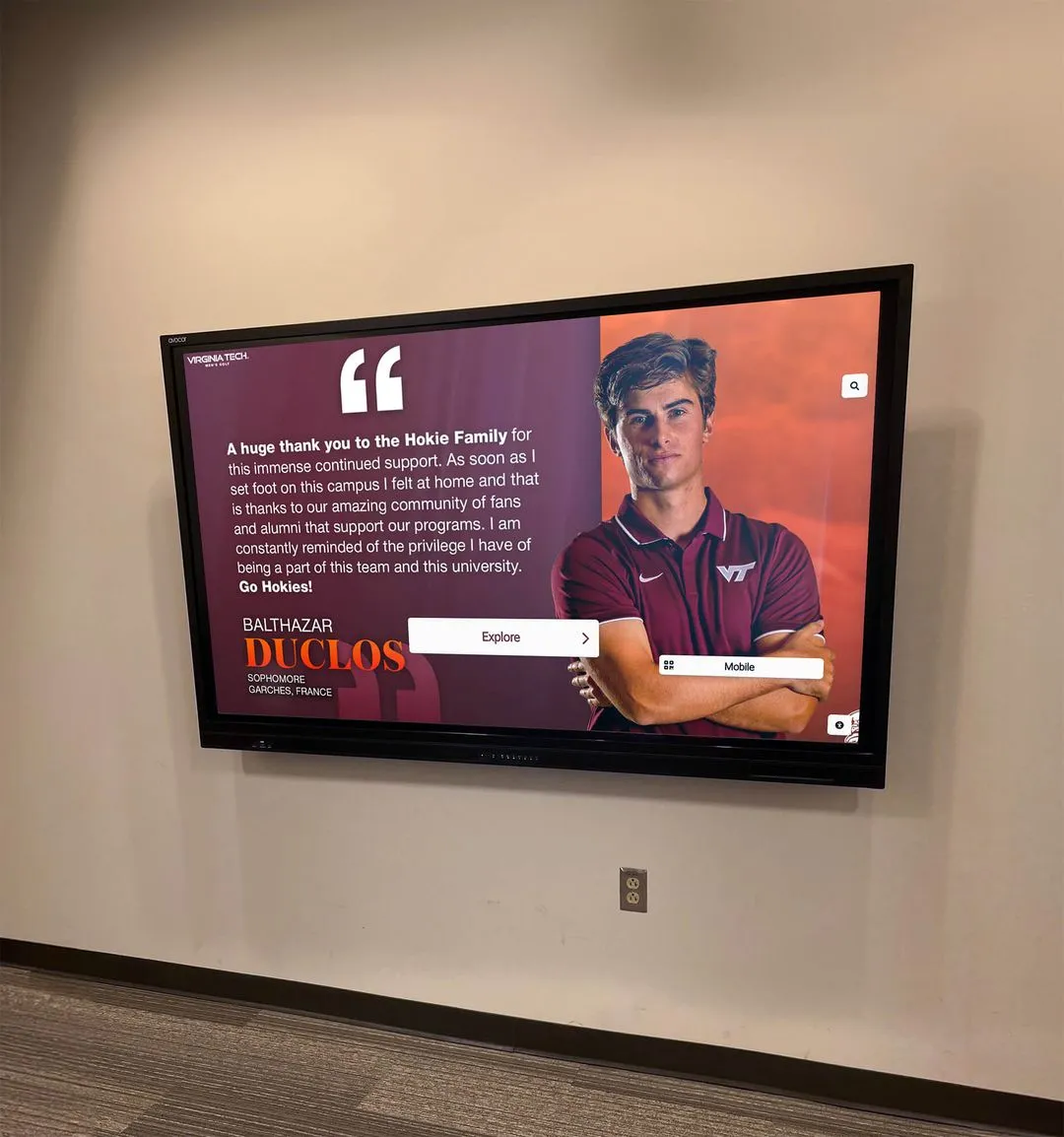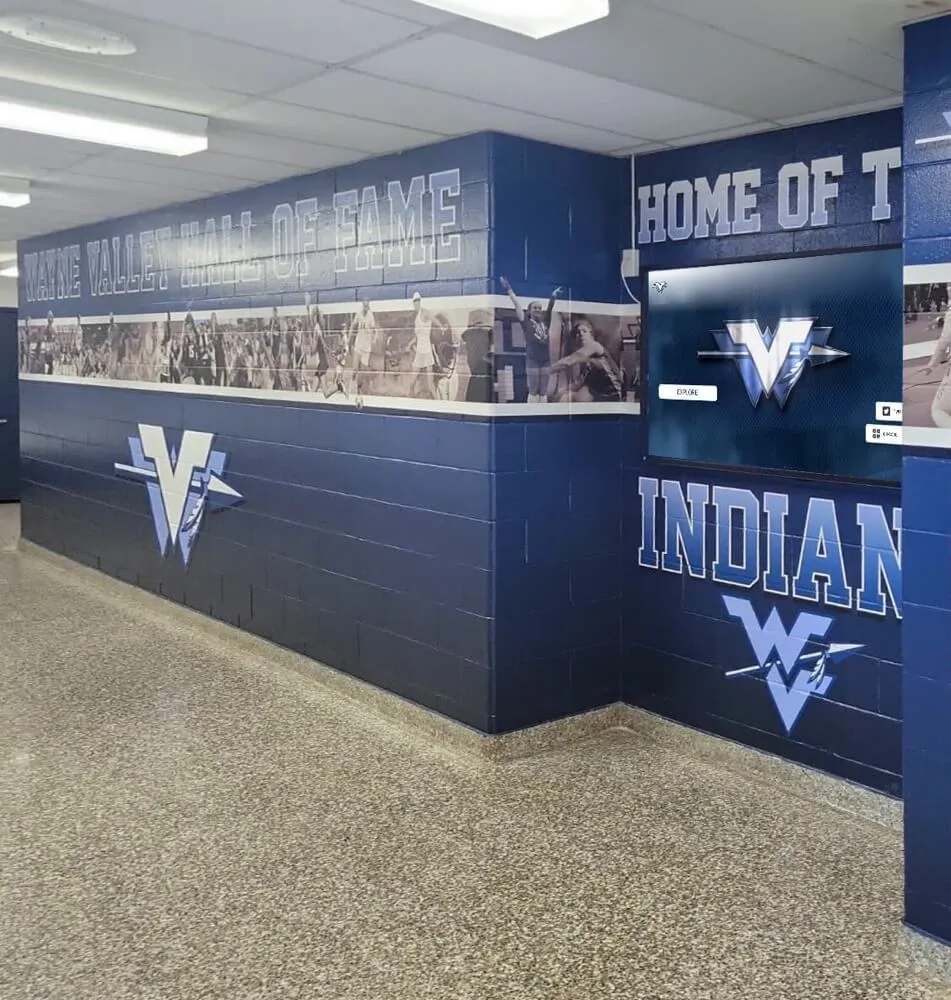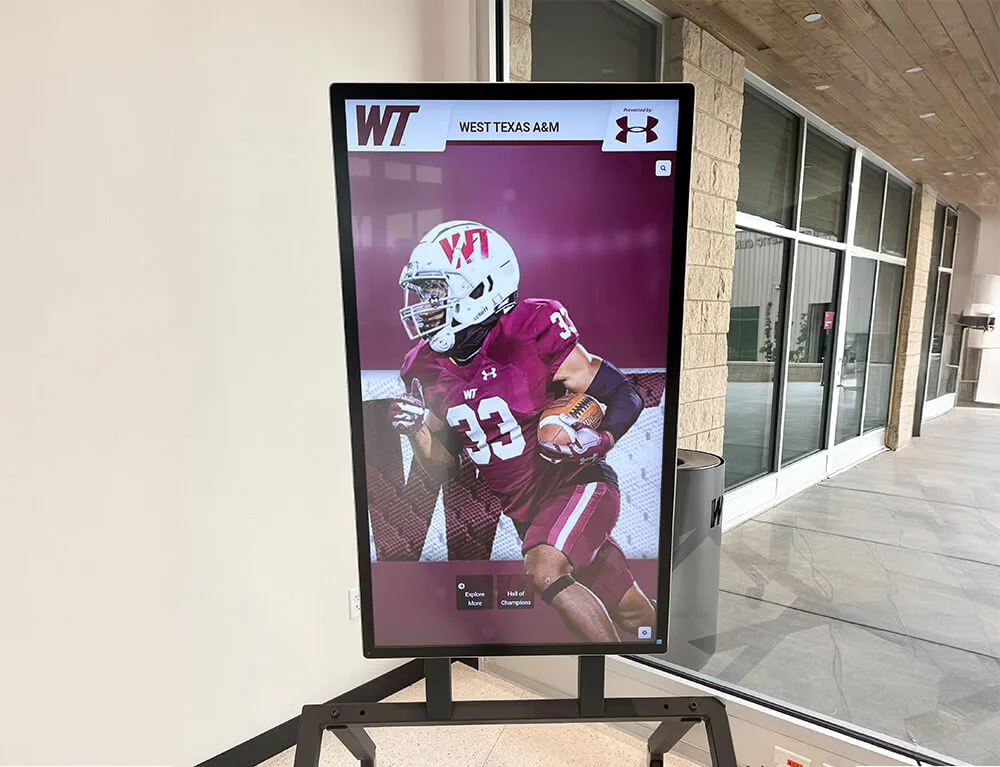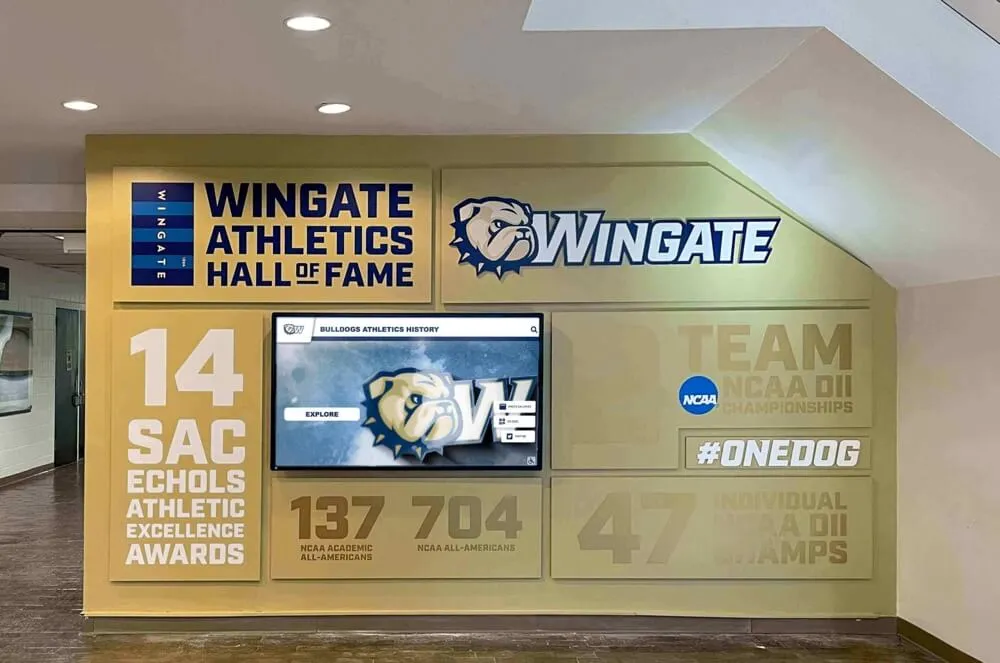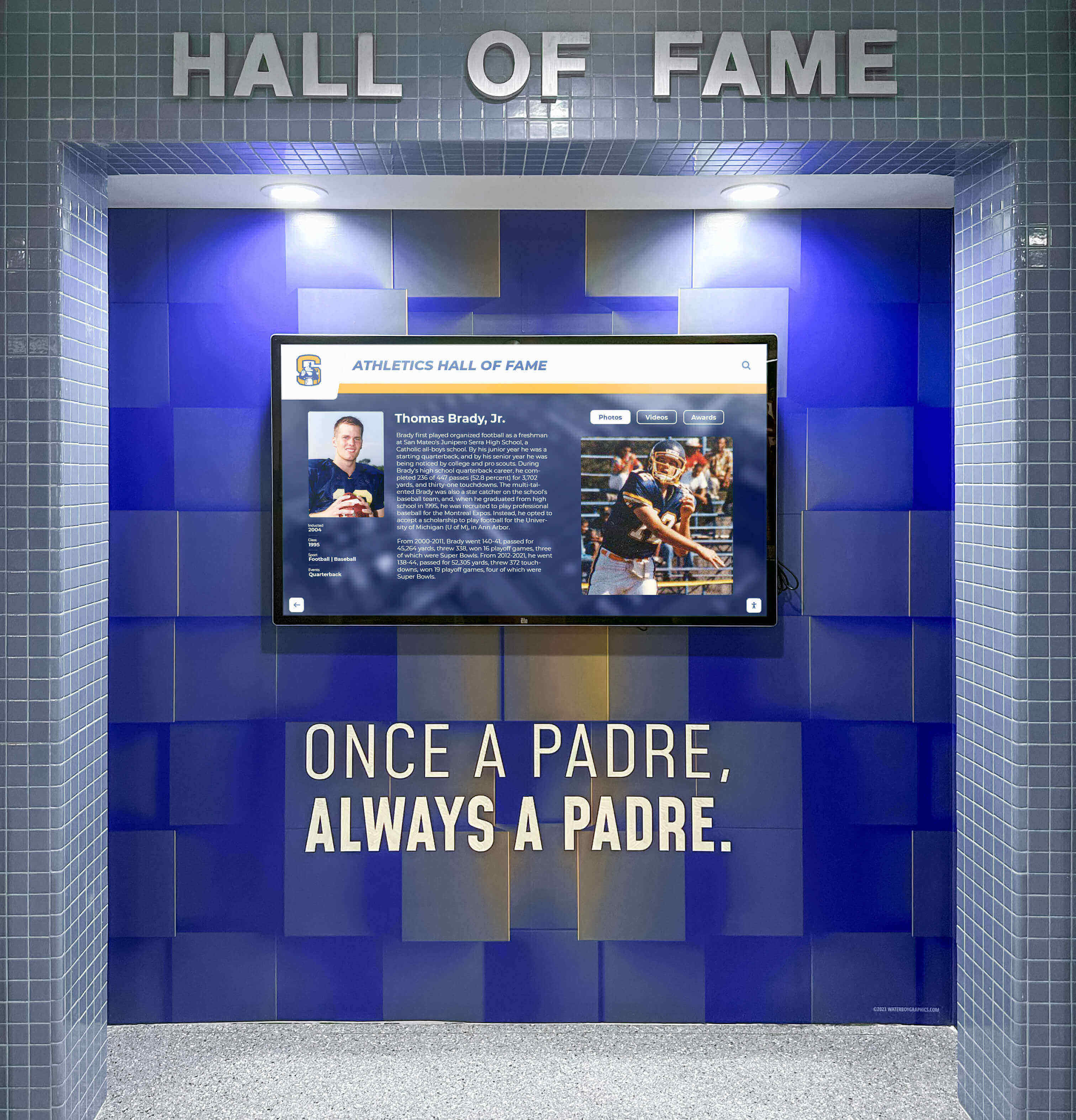
Intent: decide — A touchscreen recognition display installed in your school lobby or gymnasium can develop screen burn-in when static interface elements—navigation menus, fixed logo bars, or unchanging content borders—remain on screen for extended hours without movement. This checklist helps school administrators, athletic directors, and IT staff prevent that outcome through three levers: scheduling, layout design, and regular monitoring.
Recognition displays run longer than most people realize. A school lobby kiosk that powers on at 7 a.m. and powers off after the evening athletic event logs twelve or more hours daily. When the same header graphic and navigation chrome appear every one of those hours, the panel starts to show it. The good news is that structured prevention—timed schedules, rotating content, and periodic visual checks—keeps panels healthy for the full commercial-grade lifespan vendors specify, typically seven to ten years.
This guide walks through every prevention step in checklist format so your team can work through it systematically and revisit it each semester.
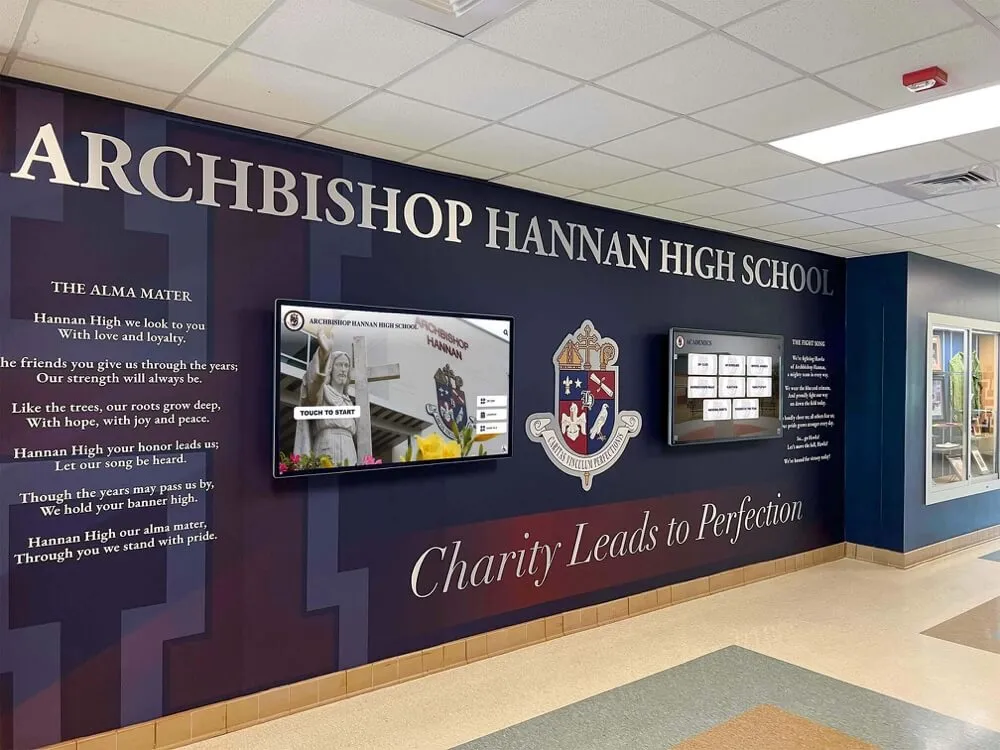
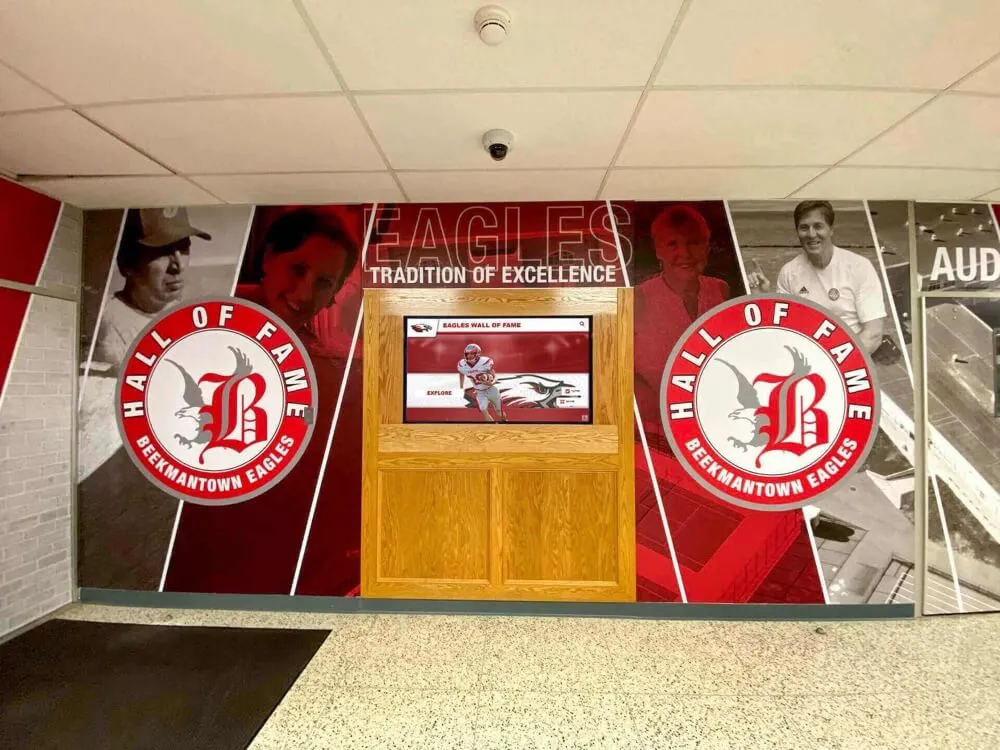
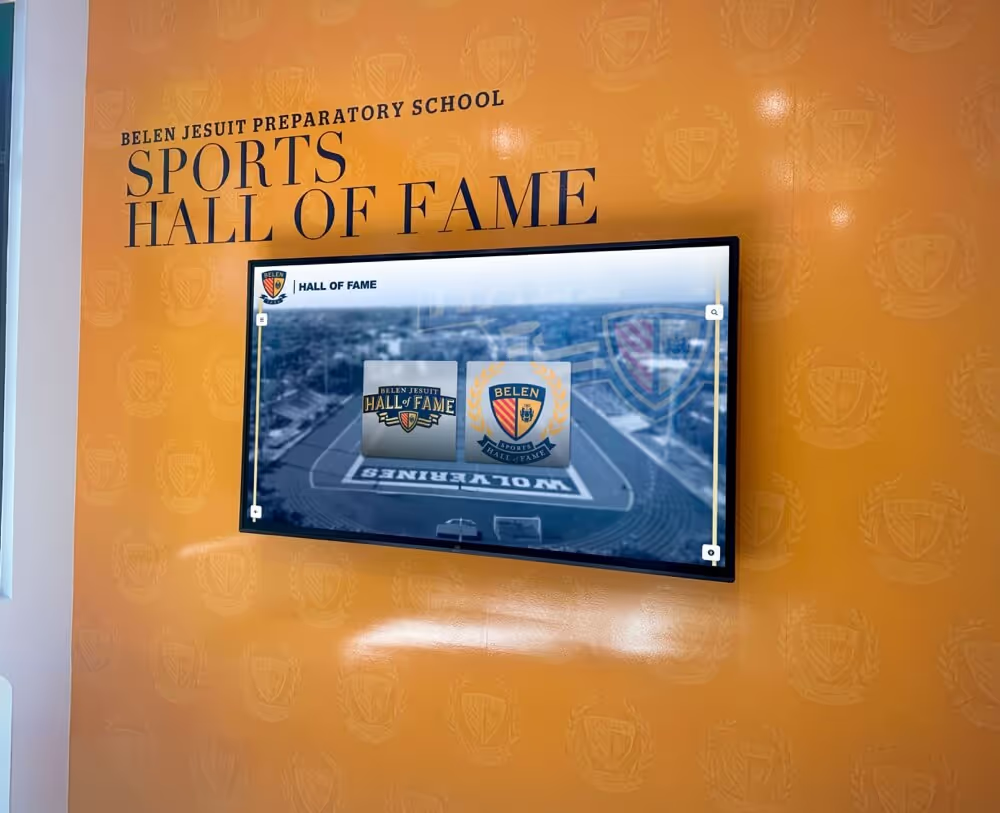
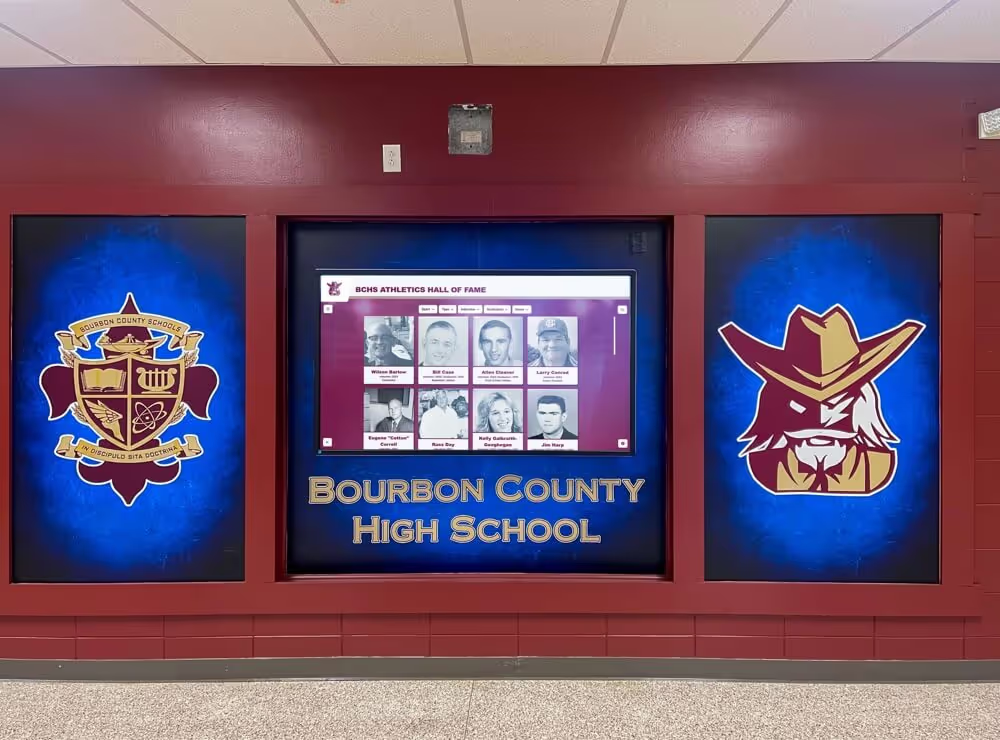
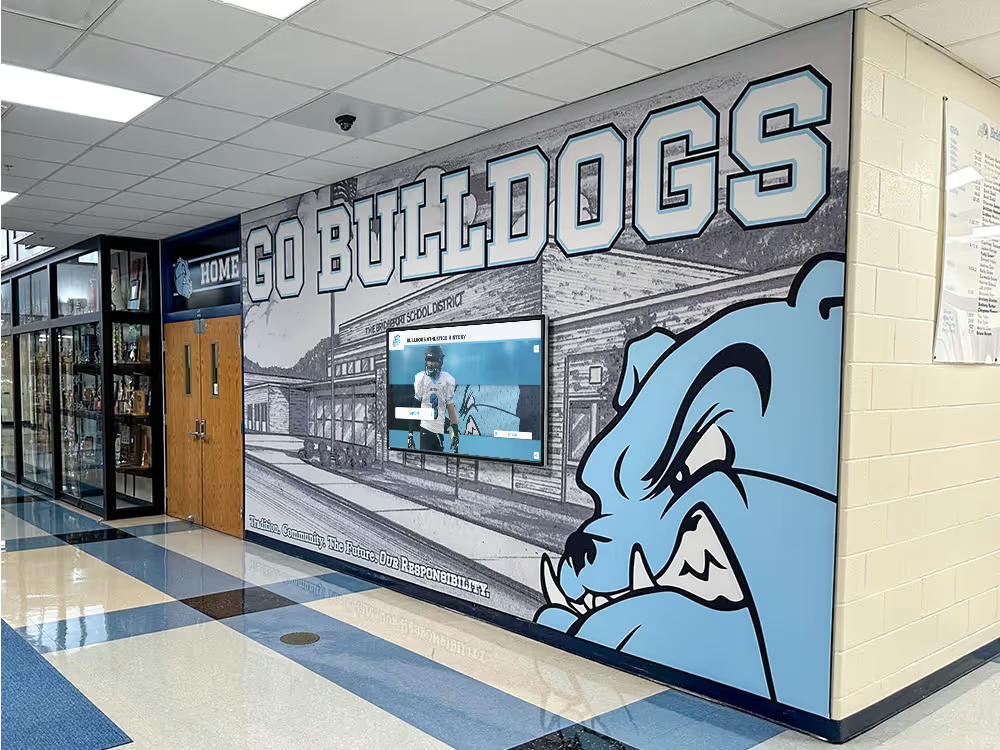
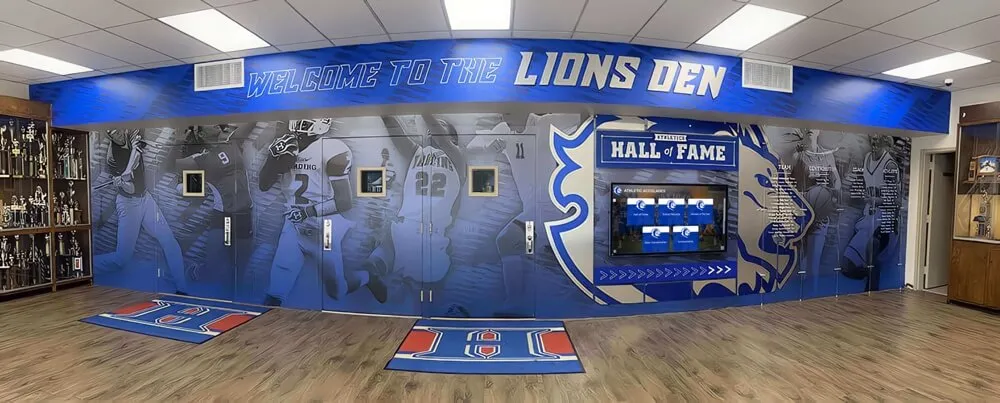
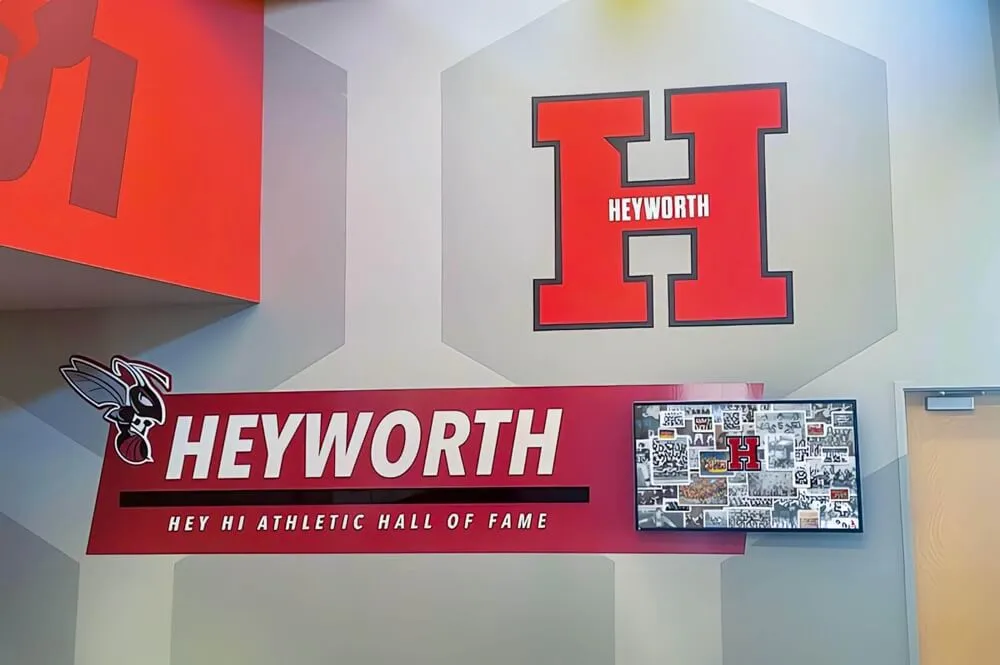
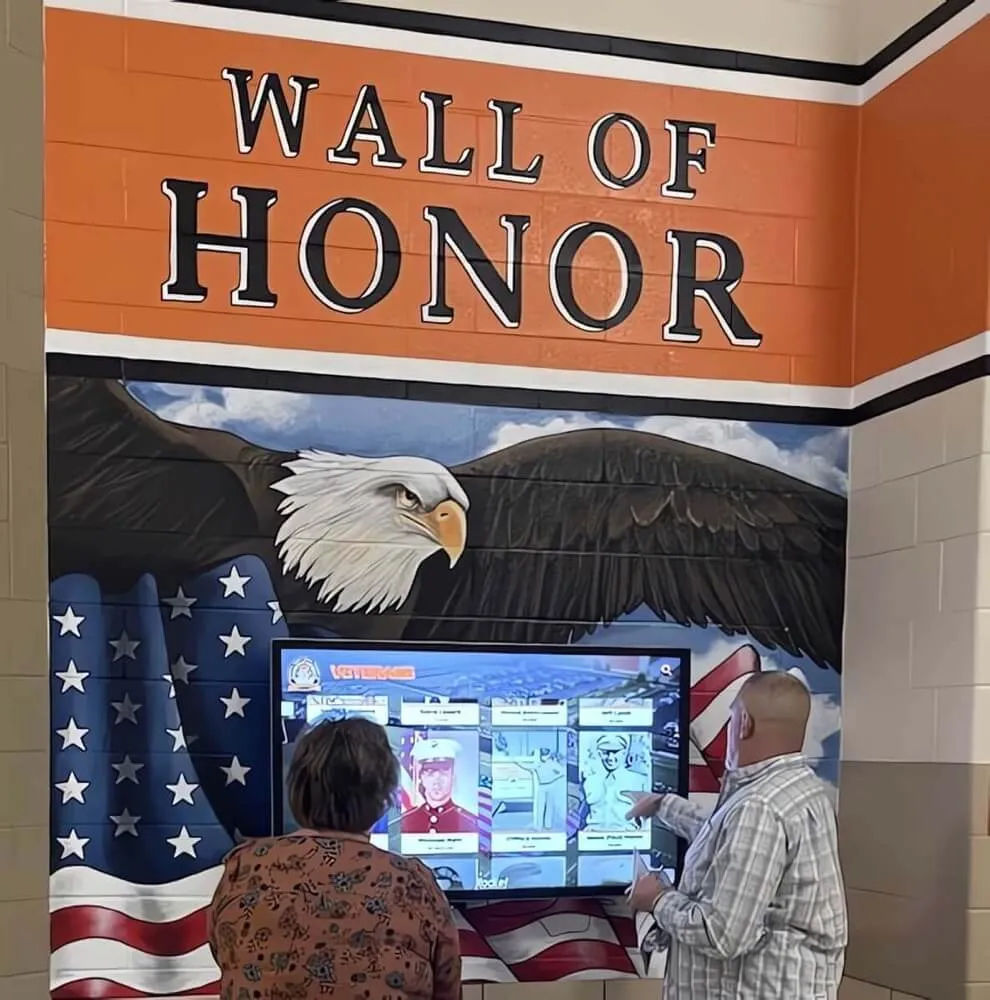
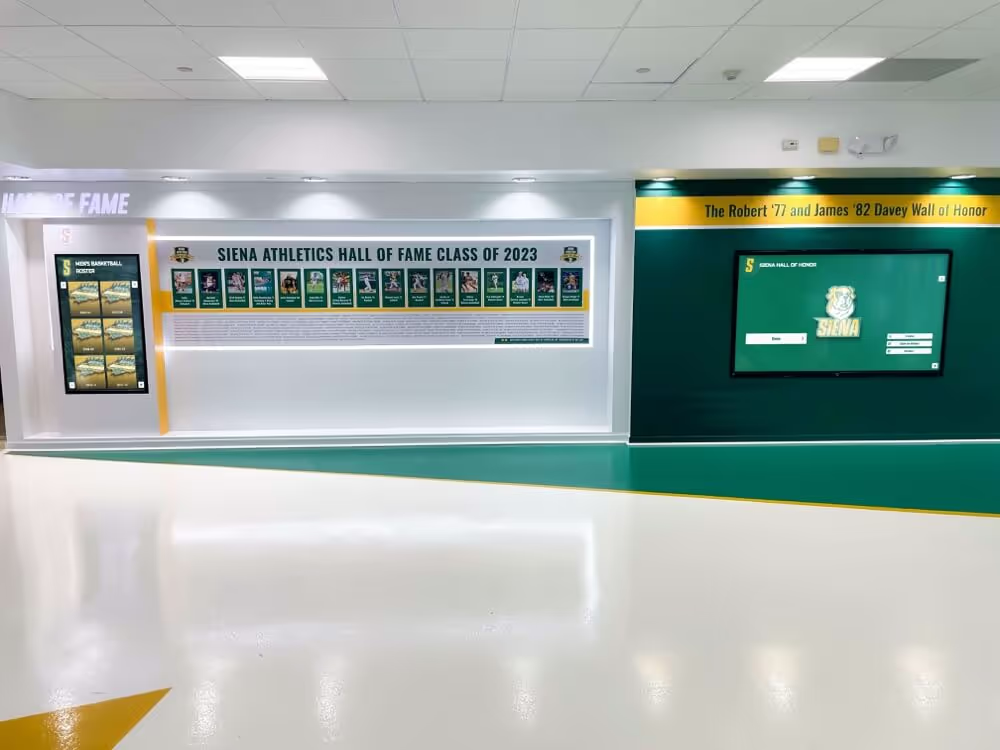
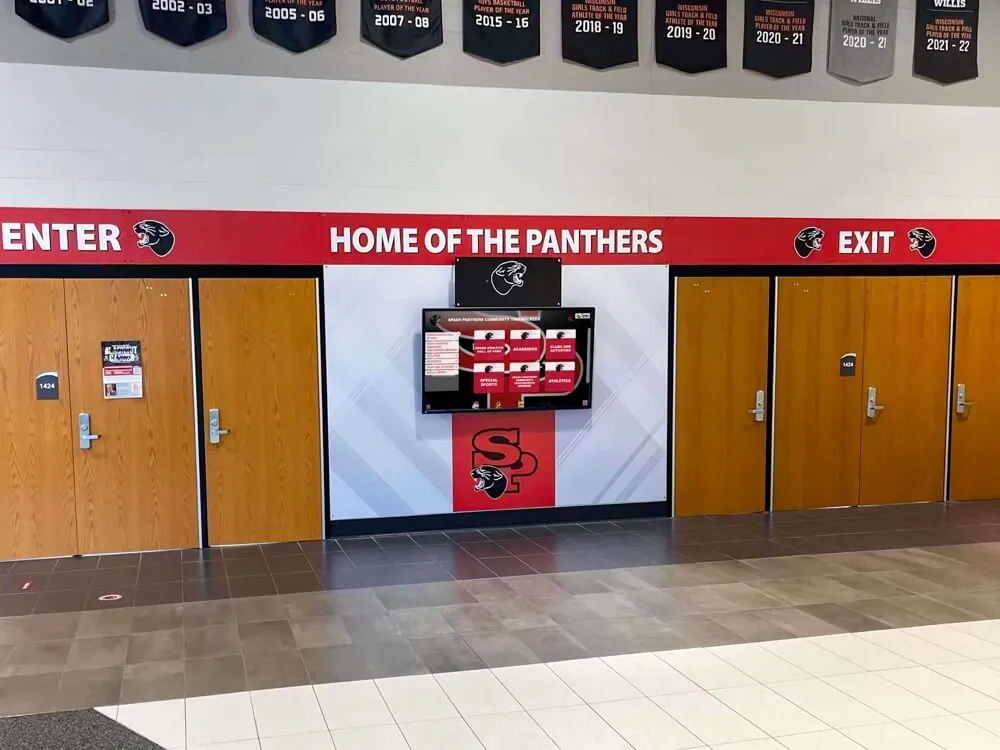
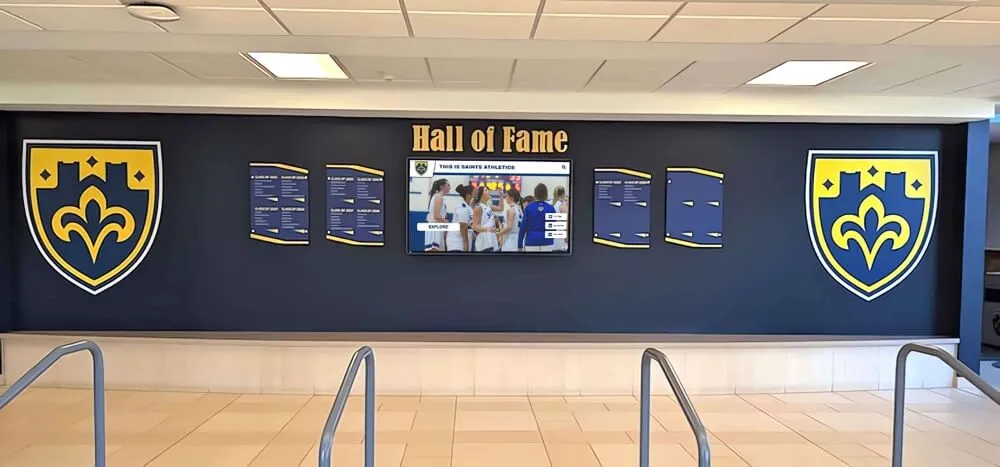
A school’s touchscreen recognition display is the most-viewed piece of hardware in a lobby or athletic hallway. Families glance at it during events. Prospective students stop at it during tours. Athletes walk past it every practice day. That visibility is exactly what recognition administrators want—and exactly what makes burn-in prevention worth managing proactively. A permanently ghost-imaged navigation bar on an otherwise vibrant hall-of-fame display undermines the impression the recognition program is meant to create.
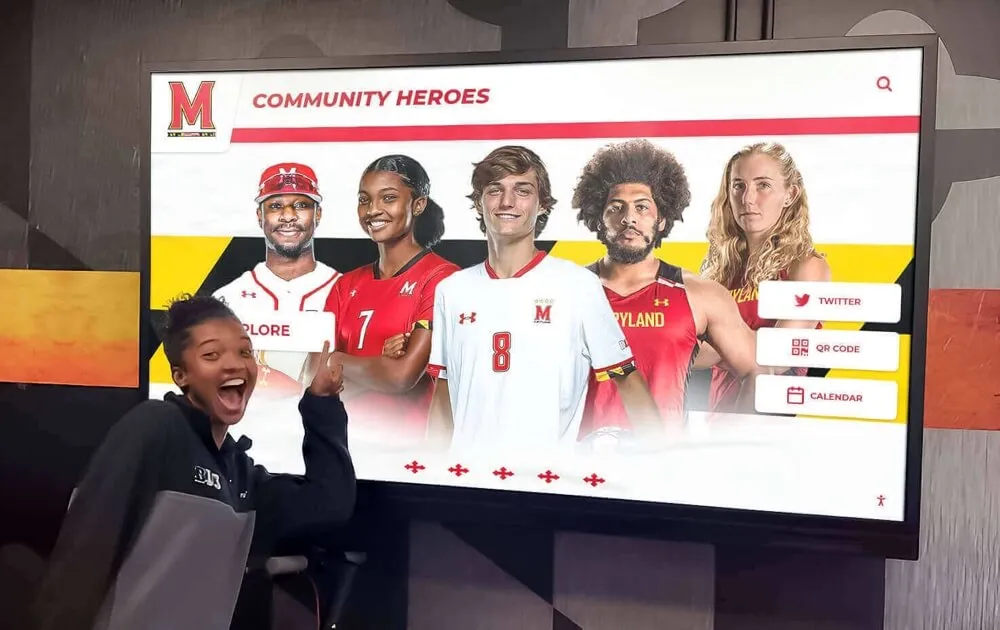
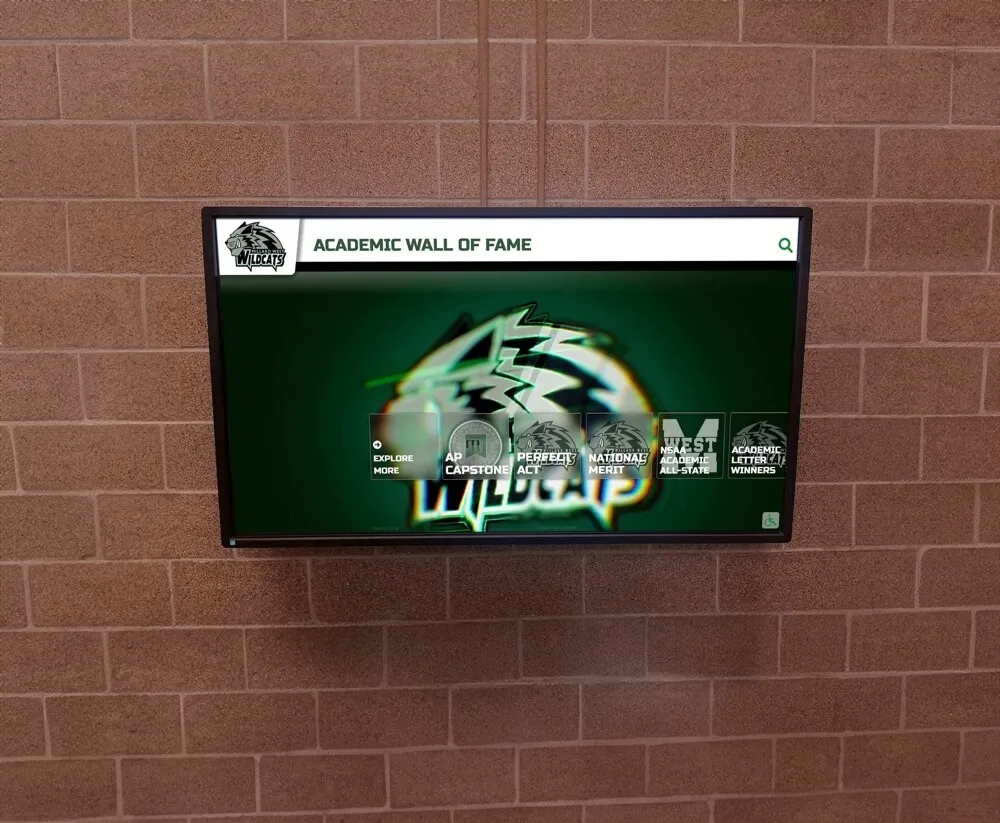
Touchscreen awards displays installed in high-traffic school spaces face a different set of stressors than standard commercial digital signage because the content mix is richer—photos, statistics, video clips, and interactive menus coexist on the same panel—and audience interaction patterns are less predictable. Both factors influence how you configure scheduling and layouts.

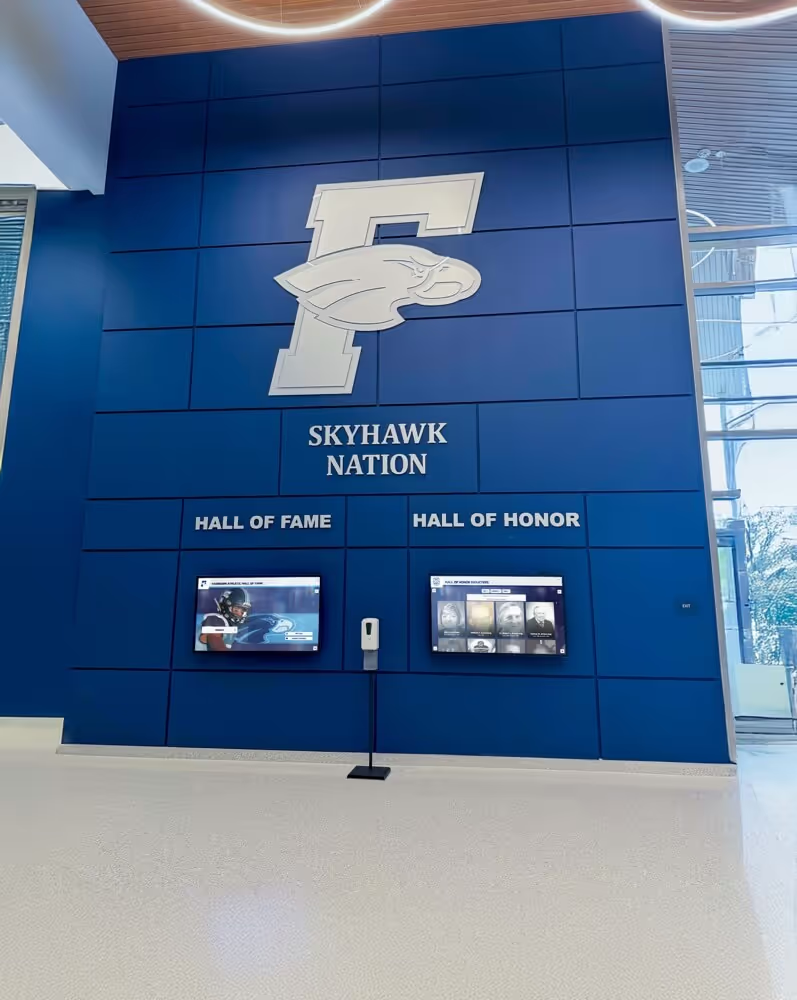
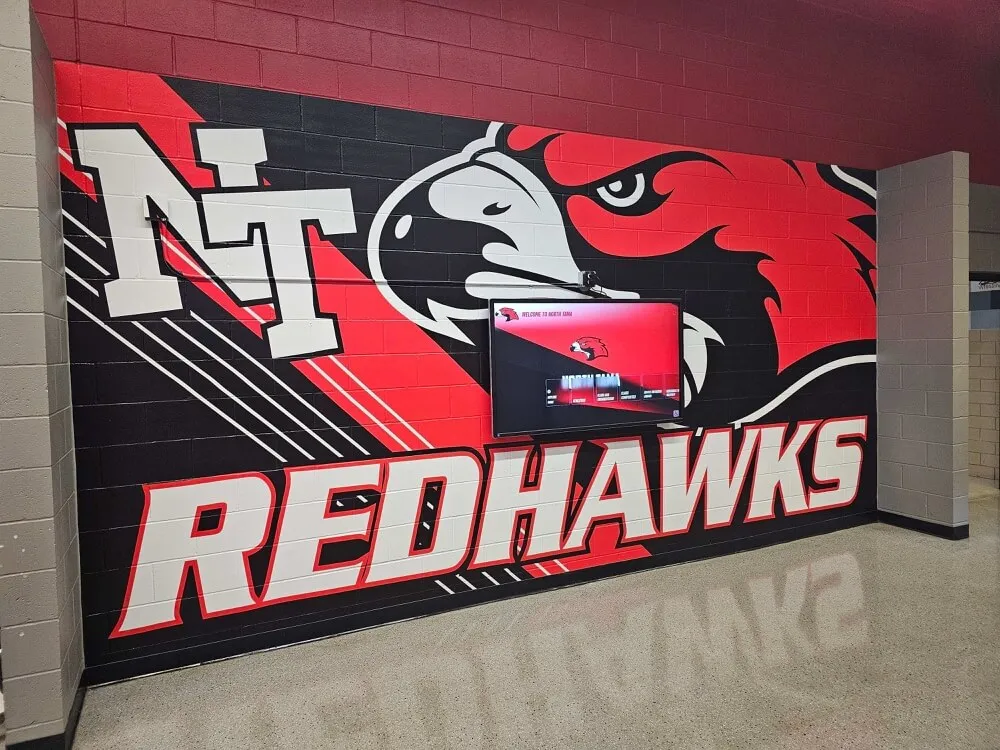
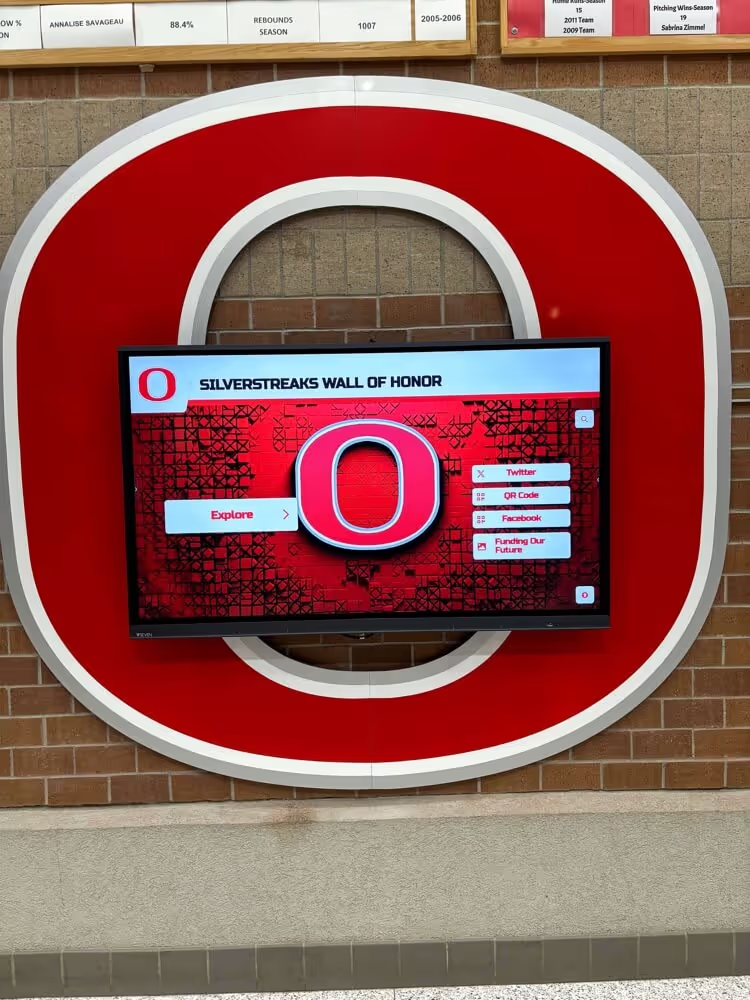
Recognition displays in school lobbies and athletic hallways run long hours and benefit from structured burn-in prevention routines to protect both the hardware investment and the quality of the recognition experience.
What Causes Screen Burn-In on Recognition Displays
Screen burn-in—sometimes called image retention or image persistence—occurs when a static image element occupies the same pixel location for an extended period. The electrical charge driving those pixels becomes uneven, and the ghost of that image can remain visible even when different content plays. On modern commercial LCD and IPS panels, this process is slower than on OLED or older plasma technology, but it is not impossible, especially in high-brightness environments or continuous-operation installations.
For recognition displays specifically, the highest-risk elements are:
- Fixed navigation bars that appear in the same position on every screen
- Persistent logo watermarks or school crests locked to one corner
- Static background frames or colored borders that never move
- Always-visible idle or attract screens with the same graphic layout
Dynamic content—rotating athlete profiles, scrolling record boards, video highlights—creates far less risk because pixel loads shift constantly. The prevention checklist below is designed around minimizing dwell time for high-risk static elements while preserving the rich recognition content that makes these displays worth having.
Section 1: Scheduling Checklist
Scheduling is the highest-impact burn-in prevention layer because it controls cumulative on-time, the single biggest driver of long-term panel stress.
1.1 Power Scheduling
- Set a daily auto-on/auto-off schedule aligned to building hours. If the lobby opens at 7:00 a.m. and clears by 9:00 p.m., program the display to match—do not leave it running overnight or on weekends when no one is present.
- Configure weekend and holiday schedules separately. Many commercial display systems allow day-of-week overrides. A Friday-evening athletic event may justify extended hours; a Sunday morning does not.
- Add a midday brightness reduction window. If natural light floods the lobby at midday and staff compensate by pushing brightness to maximum, set an automatic brightness reduction during low-traffic midday windows to reduce pixel stress.
- Verify the schedule survives a power cycle. After every planned power outage, maintenance window, or firmware update, confirm the schedule was not reset to factory defaults.
1.2 Screen Saver and Idle Configuration
- Activate the built-in screen saver after 3–5 minutes of idle touch input. The screen saver should display moving content—a slow pan of athlete photos, a rotating logo animation, or a gentle slideshow—not a static black screen or a fixed image.
- Confirm the screen saver displaces high-risk static elements. If your platform’s attract screen shows a fixed school logo centered on a dark background for hours, replace it with a content rotation that keeps pixels moving.
- Test screen saver exit behavior. A single touch should immediately return visitors to the recognition interface without lag or error screens. If the resume screen itself has a static confirmation prompt, reduce its timeout to under ten seconds.
1.3 Brightness Management
- Match ambient light conditions, not the maximum setting. Commercial panels often ship at 75–100% brightness. In an interior hallway with controlled lighting, 50–60% brightness is typically sufficient and extends panel life.
- Use automatic brightness sensors where the panel supports them. Sensors reduce brightness when the lobby is dim—evenings, overcast days—without requiring manual adjustment.
- Set brightness no higher than necessary for the installation location. Recognition displays in varied environments require different calibration; a naturally lit atrium and a windowless trophy room have different ambient needs, so calibrate for each location rather than applying a single school-wide standard.
Section 2: Layout Checklist
Content layout determines which pixels work hardest. A recognition platform that bakes static interface chrome into every screen is harder to protect than one that keeps chrome minimal and shifts it between views.
2.1 Navigation and Interface Design
- Audit your platform’s idle screen for static elements. Count how many elements in the default attract or idle view never move. Each is a burn-in risk candidate.
- Choose a platform that animates navigation elements. Subtle animations—a gently sliding menu, a pulsing call-to-action—distribute pixel load more evenly than rigid static menus.
- Avoid full-screen overlays that sit idle. If your platform shows a “Touch to Begin” screen between sessions and that screen is static, request a dynamic version or configure the auto-idle timer to skip it and proceed directly to content rotation.
2.2 Content Rotation Strategy
A core principle for recognition displays: rotating content protects hardware. The same content rotation that keeps recognition fresh for returning visitors also keeps pixel loads shifting constantly.
- Configure an attract-mode rotation covering all major content categories. Athlete profiles, record boards, team history pages, and sponsor recognition should all cycle on the idle screen—not just the most recently added content.
- Set rotation intervals between 8 and 15 seconds. Shorter intervals can make text illegible for passers-by; longer intervals increase static pixel dwell time.
- Include video content in the rotation where available. Even a 30-second highlight clip breaks static image retention risk across many pixels simultaneously.
- Periodically audit rotation coverage. As new inductees are added, confirm they enter the rotation. Platforms that auto-rank or auto-surface new content reduce this audit burden significantly.
2.3 Fixed Graphic Elements
- Move school crests and mascot logos off the primary display position. Use a version of your recognition platform that places branding in headers or footers that animate in and out rather than sitting permanently in one corner.
- Use full-bleed athlete photos as backgrounds rather than solid colored panels. A photo background shifts the dominant pixel color constantly as content rotates, while a solid branded color locks pixels into the same state indefinitely.
- Avoid hard-coded color bars at screen edges. Left-rail and right-rail navigation sidebars with solid colors are among the most common burn-in culprits on recognition installations. If your platform supports a full-width layout, prefer it.
| Element | Burn-In Risk | Recommended Approach |
|---|---|---|
| Fixed logo in corner | High | Animate in/out, or embed in rotating header |
| Static color sidebar | High | Replace with full-width layout |
| Rotating athlete photos | Low | Keep in rotation; vary display duration |
| Video content | Very Low | Include in idle rotation |
| “Touch to Begin” prompt | Medium | Set short timeout; animate the prompt |
| Scrolling record board | Low | Movement distributes pixel load |
Section 3: Monitoring Checklist
Prevention schedules and layout configurations reduce risk, but monitoring confirms whether they are working and catches early retention before it becomes permanent.
3.1 Weekly Visual Inspection
- View the display from two meters away after at least four hours of operation. Early image retention often manifests as a faint ghost visible in ambient light but invisible up close.
- Navigate to a solid white or gray screen to check for ghosting. Most commercial display management panels include a color test mode; a pure white screen makes ghost images immediately apparent.
- Check all four screen quadrants. Navigation menus typically anchor to top or bottom edges; logos tend to sit in corners—those four quadrants receive the most static-element stress.
- Log findings in a simple maintenance record. Even a brief entry (“no ghosting observed, 2026-08-04”) creates a baseline for future comparisons. If ghosting appears, the log helps estimate when it started.
3.2 Monthly Burn-In Remediation Test
Modern commercial LCD panels support temporary image retention reversal through a process sometimes called panel conditioning or screen refresh.
- Run the display manufacturer’s built-in pixel refresh cycle monthly. This cycle runs pixels through high-stress patterns to redistribute charge. Most commercial displays allow scheduling this during off-hours.
- After the refresh cycle, run a full white screen for 20–30 minutes. This secondary step often clears mild image persistence the automated cycle did not fully address.
- Document whether retention improved after conditioning. If retention persists after two consecutive conditioning cycles, escalate to the display vendor—some panels qualify for warranty replacement if burn-in occurs within the rated commercial operating period.
3.3 Quarterly Settings Audit
- Reconfirm the power schedule is active and accurate. Daylight saving time transitions and firmware updates have both been known to reset or corrupt scheduled settings.
- Verify the screen saver is triggering at the configured idle timeout. Sit near the display without touching it for the full timeout period and confirm the saver activates on schedule.
- Check brightness levels against seasonal ambient changes. A lobby that is dimly lit in winter may receive substantially more natural light in spring; recalibrate brightness to match.
- Review content rotation logs if your platform provides them. Confirm that the idle rotation is cycling all content categories and that no single image has been occupying the screen for a disproportionate share of time.
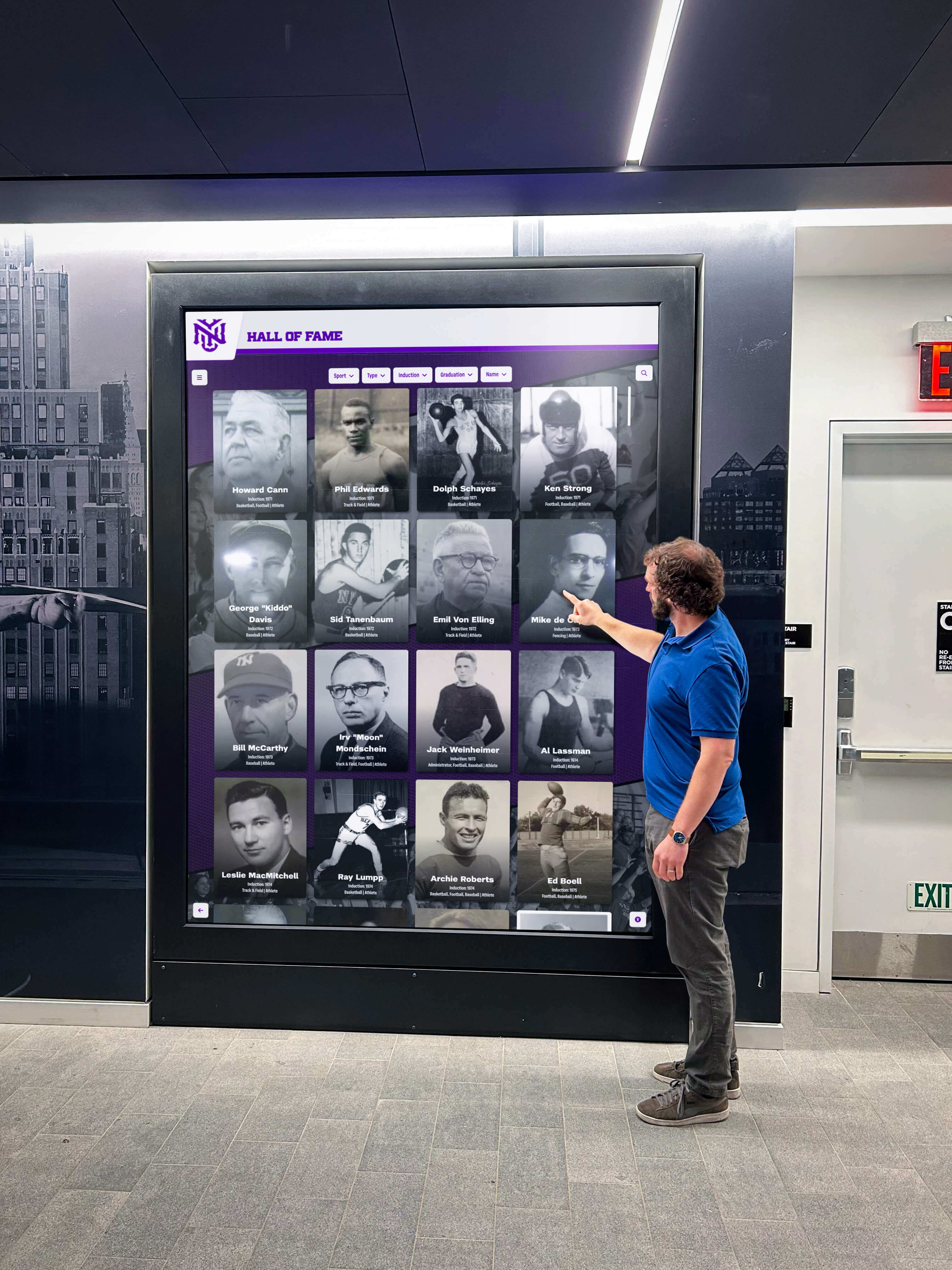
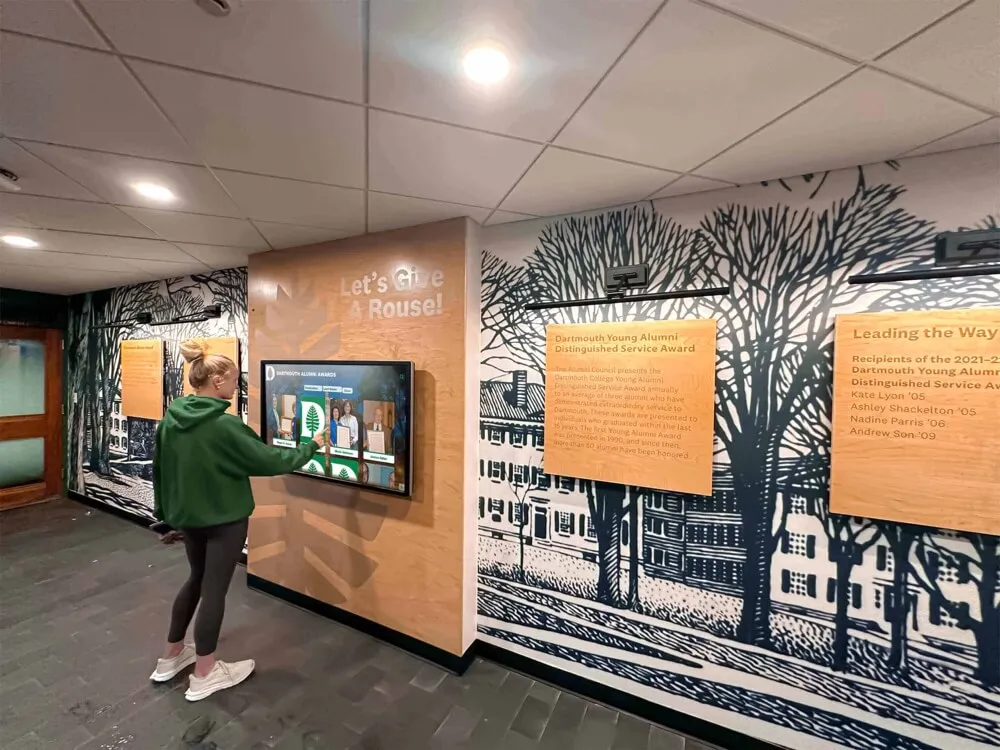
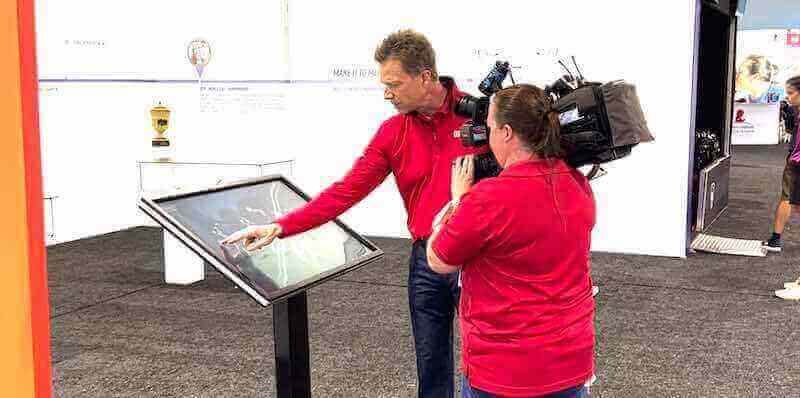
Lobby recognition displays that attract sustained visitor interaction benefit from thoughtful content rotation—keeping engagement high while also distributing pixel load to protect long-term display health.
Choosing a Platform That Builds In Protection
Prevention checklists are easier to follow when the recognition platform itself is designed with display longevity in mind. Several platform-level features significantly reduce burn-in risk without requiring manual intervention every week.
Dynamic content surfacing. Platforms that automatically surface new or recently updated recognition content ensure the idle rotation never stalls on the same profiles week after week. This keeps pixel loads varied even when administrators are busy with other priorities.
Web-based architecture. Web-based recognition platforms update content remotely without requiring anyone to touch the physical display, which means schedule adjustments, rotation changes, and layout tweaks can happen from a desk—removing the friction that causes settings to drift. Rocket Alumni Solutions uses a web-based platform where coaches and administrators update record boards, add new inductees, and publish announcements from any device, keeping idle-screen content fresh without on-site intervention.
Scheduled publishing. When coaches and recognition administrators can schedule content to publish and expire automatically, the rotation stays fresh without manual updates—directly reducing static-content dwell risk.
ADA-compliant minimal-chrome layouts. Platforms built to WCAG 2.1 AA accessibility standards typically use clean, minimal interface designs with high-contrast text on variable backgrounds rather than heavy branded chrome—a design approach that coincidentally reduces burn-in risk by minimizing persistent static elements.
When comparing recognition platforms for your school, consider how each handles content rotation on the idle screen, whether it supports power scheduling, and whether its default layout leaves large static areas at screen edges. A detailed school touchscreen platform comparison covering display quality and software support can help frame those questions across multiple vendors.
Special Considerations for Athletic Facilities
Athletic facilities present specific burn-in challenges beyond standard lobby installations. Record boards that update infrequently, permanent mascot branding occupying large screen areas, and displays that run through multi-hour events without interaction all increase risk.
Campus recognition installations share many features with athletic hallway setups—continuous operation, high-traffic periods interspersed with extended quiet stretches, and a mission to surface the right content for the right visitor. The idle behavior during those extended quiet periods is where burn-in risk concentrates most.
For gymnasium and athletic hallway installations specifically:
- Set the idle rotation to include record board pages alongside athlete profiles. Record boards with dynamic stat formatting involve many simultaneously changing numbers—exactly the kind of mixed pixel activity that distributes load.
- Configure event-mode brightness increases to trigger only during scheduled game hours. Many facilities increase brightness for evening events and forget to reduce it afterward; connecting brightness to an event schedule prevents unintended overnight overexposure.
- Install displays away from HVAC vents and exterior windows. Temperature cycling and direct sunlight accelerate the physical degradation that makes image retention harder to reverse.
- Plan for summer maintenance windows. Many school facilities run minimal activity from June through August—that quiet period is the best time to run extended panel conditioning cycles and perform hardware inspections.
Country club and member recognition displays running in similarly continuous-use environments have found that pairing scheduled maintenance windows with content audits—reviewing what is in the idle rotation and pruning outdated material—accomplishes two goals in one workflow. Schools can apply the same principle: use the summer maintenance window to condition panels and refresh recognition content simultaneously.
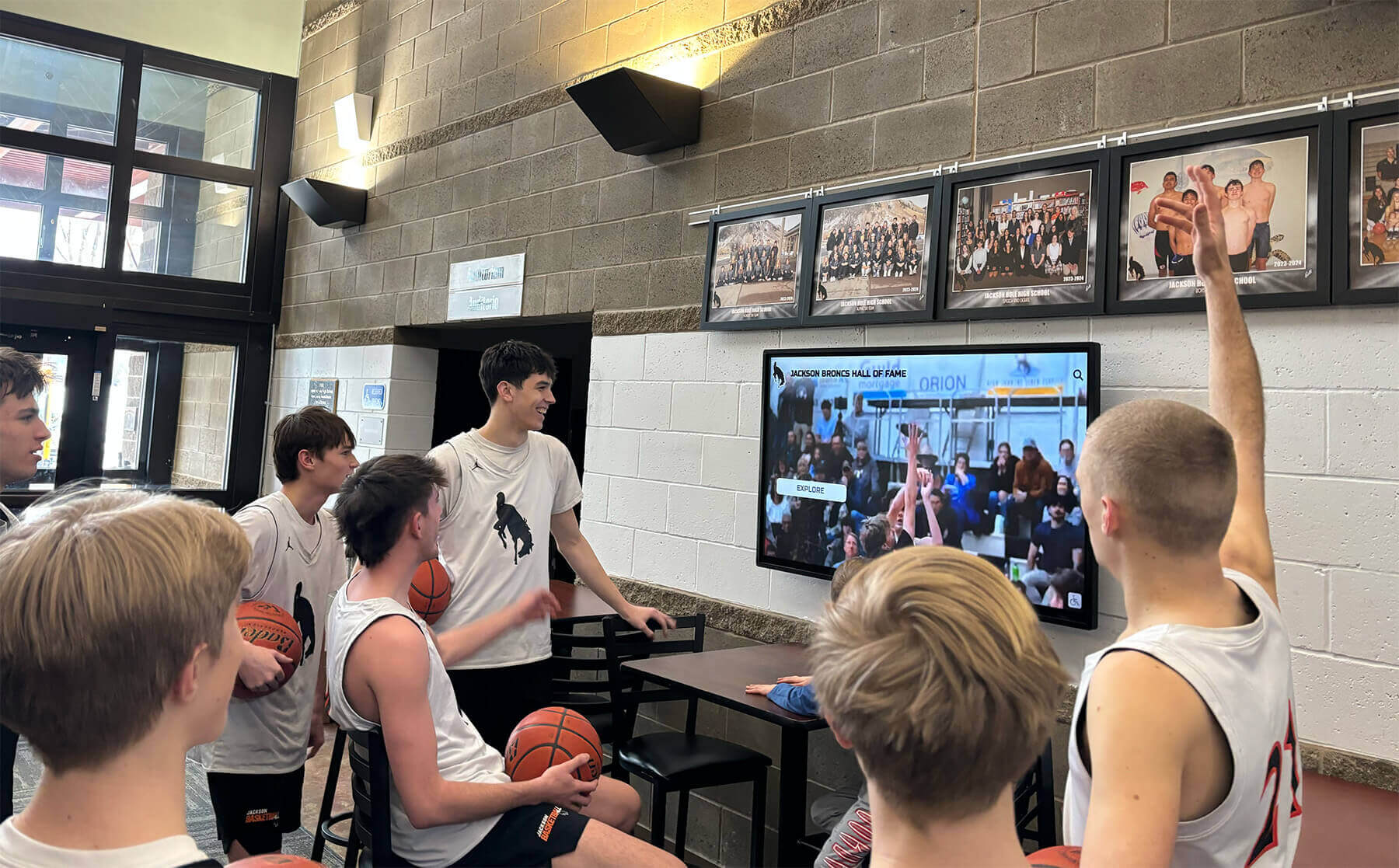
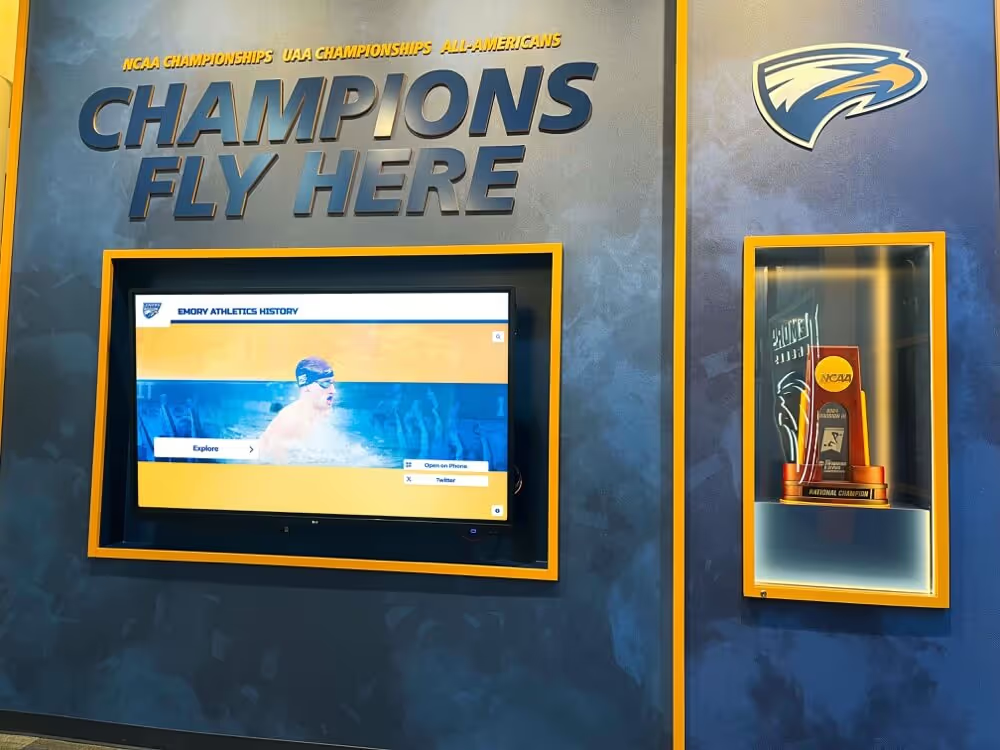
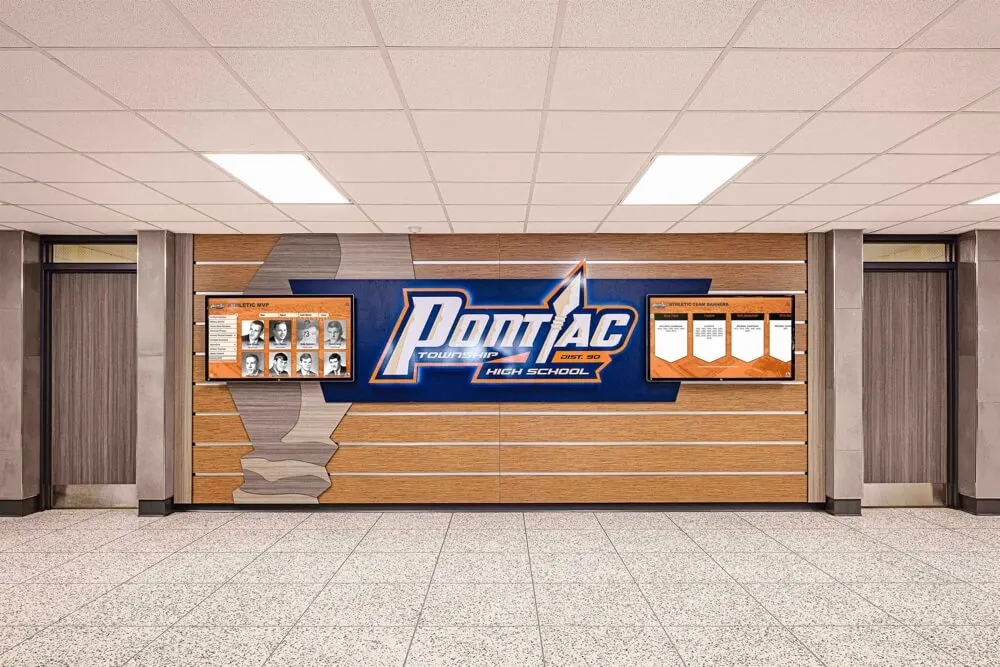
Athletic facility displays that cycle through game highlights, record boards, and athlete profiles keep pixel loads varied—protecting panel longevity while delivering the engaging recognition experience athletes and families expect.
Frequently Asked Questions
Q: How long until a recognition display develops burn-in if prevention steps are skipped?
There is no universal timeline—it depends on panel type, operating hours, brightness level, and how static the content is. Commercial LCD panels in a managed-brightness environment with rotating content may show no retention for five or more years. The same panel running at maximum brightness with a fixed menu bar for twelve hours daily can show measurable ghosting within months. Prevention costs almost nothing in staff time; remediation or early replacement costs considerably more.
Q: Can burn-in on an LCD display be reversed?
Mild temporary retention on LCD panels can often be reversed using the manufacturer’s pixel refresh cycle and extended white-screen sessions. True permanent burn-in, more common on OLED, cannot be reversed through software. Most commercial LCD and IPS panels used in recognition kiosks are relatively resistant to permanent burn-in under normal managed conditions, which is why the monthly conditioning routine matters—catching early retention before it becomes permanent.
Q: Should we turn the display off every night, or is sleep mode enough?
A full power-off is preferable for longevity. Sleep or standby modes still maintain some panel power states and, on some hardware, keep backlight components partially active. Scheduling a hard power cycle via the display’s built-in scheduler or a smart power controller gives the panel a true rest period. If the building’s power schedule is unreliable, a managed power strip that enforces the schedule at the outlet level provides a reliable fallback.
Q: Our recognition platform shows a static “touch to start” screen. Is that a problem?
Yes, if that screen runs for more than a few minutes between interactions. Request a dynamic attract mode from your platform provider, or configure the idle timeout to skip the static prompt and cycle directly into content rotation. Many web-based platforms allow this through an administrative setting rather than a code change—worth a support ticket if it is not immediately obvious.
Q: Does running video content reduce burn-in risk?
Yes, significantly. Video frames cycle through pixel states continuously, distributing load across the entire panel rather than concentrating it in fixed positions. Including even short video clips—highlight reels, induction ceremony moments, program history segments—in the idle rotation is one of the most effective content-level burn-in prevention steps available.
Q: How do employee recognition displays and law firm recognition walls compare to school athletic displays in burn-in risk?
The hardware physics are identical. What differs is the content refresh rate. Corporate recognition displays often update inductee content quarterly; country club and organization recognition installations may update seasonally. School athletic displays, by contrast, can update content weekly—new record board entries, current-season awards, and schedule changes. More frequent content updates mean more varied pixel activity and, generally, lower burn-in risk when the platform surfaces that variety in its idle rotation. Schools that maintain active recognition programs are actually in a favorable position relative to venues with slower content cycles.
Summary Checklist at a Glance
Use this quick-reference table at the start of each semester review:
| Area | Checklist Item | Frequency |
|---|---|---|
| Scheduling | Verify auto-on/off schedule is active and correct | Quarterly |
| Scheduling | Test idle screen saver trigger | Quarterly |
| Scheduling | Calibrate brightness for seasonal ambient changes | Quarterly |
| Layout | Audit idle rotation for static element dwell time | Each Semester |
| Layout | Confirm all recognition categories in idle rotation | Each Semester |
| Layout | Review fixed graphic placements for high-risk positions | Annually |
| Monitoring | Visual inspection for ghosting (white screen test) | Weekly |
| Monitoring | Run panel conditioning cycle | Monthly |
| Monitoring | Review platform content rotation logs | Monthly |
| Platform | Confirm remote content management access works | Quarterly |
| Platform | Review scheduled publishing queue | Monthly |
A touchscreen recognition display is a long-term investment in your school’s culture of recognition. Following this touchscreen recognition display screen burn-in prevention checklist each semester across all display locations—whether a single lobby kiosk or a distributed network of athletic hallway panels—protects that investment while keeping the recognition experience sharp for every visitor who stops to engage with it. The schools that treat their displays as managed infrastructure, rather than set-and-forget hardware, are the ones whose recognition programs still look as vibrant in year eight as they did on day one.
If your school is evaluating recognition platforms that combine rich content rotation, remote management, and long-term hardware compatibility—or if your current platform lacks the scheduling and layout flexibility this checklist requires—a personalized walkthrough can help you identify what to look for.
Schedule a demo with Rocket Alumni Solutions to see how web-based recognition technology keeps your touchscreen displays performing at their best—and your community engaged—year after year.