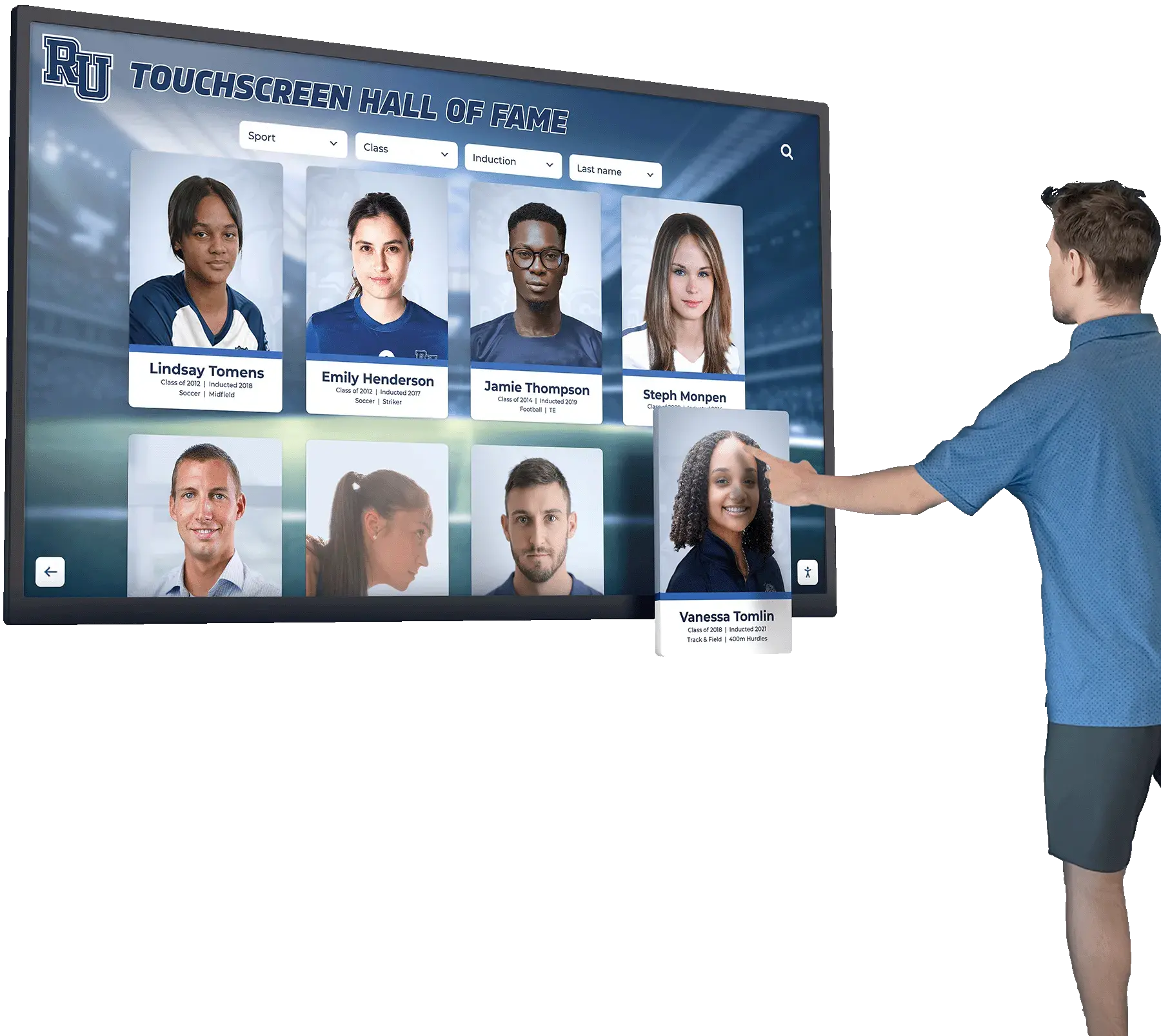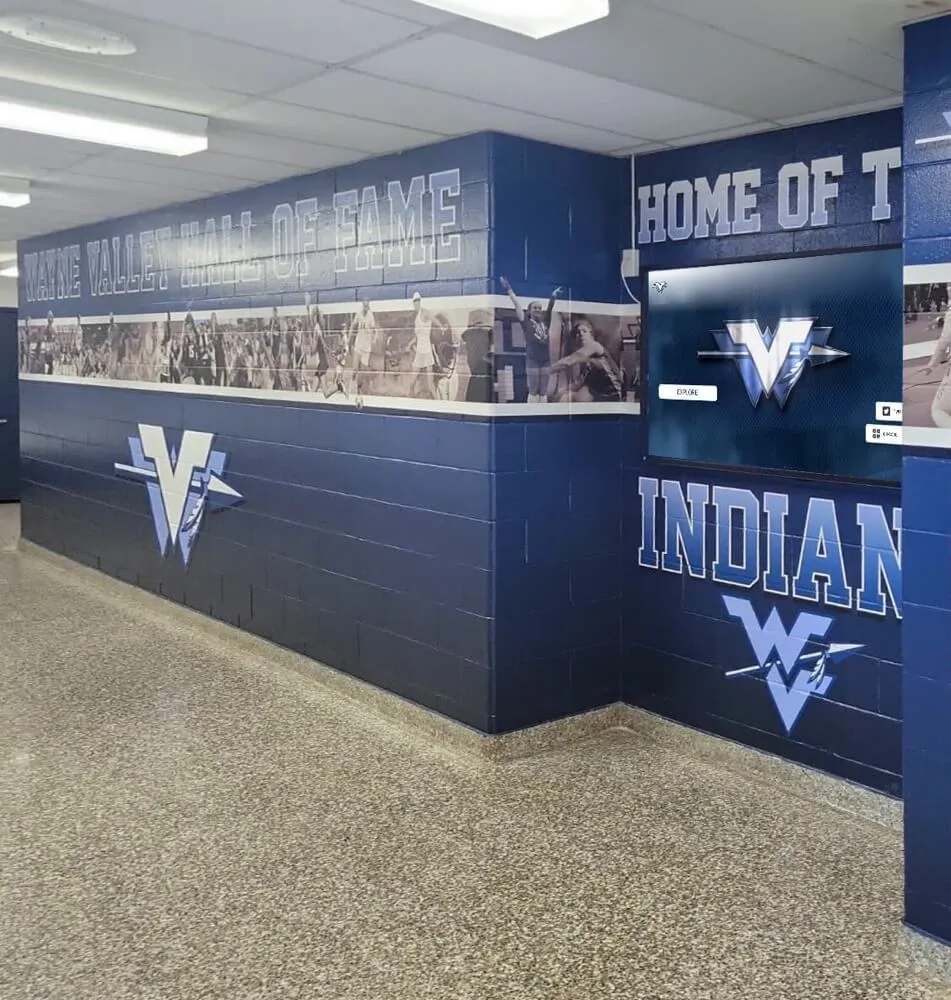
Intent: decide — A touchscreen recognition display running at maximum brightness from 6 a.m. to 10 p.m. seven days a week wastes energy, strains the backlight, and often looks worse than a display tuned to the room’s actual ambient light. A screen brightness schedule solves all three problems at once: it keeps lobby and hallway recognition displays readable for visitors and athletes, reduces the electricity draw during low-traffic hours, and distributes backlight wear more evenly across the panel’s service life.
This guide is written for school administrators, athletic directors, facilities managers, and recognition program coordinators who manage one or more touchscreen recognition displays—hall of fame kiosks, wall-of-honor screens, athletic records boards, or lobby announcement displays. You do not need an IT background to apply these settings; most modern recognition platforms and commercial display controllers expose brightness scheduling through a calendar interface or a simple time-based rule.
The following sections explain why brightness scheduling matters for each of the three goals, how ambient light varies across common school display locations, a numbered setup process you can follow in one work session, reference tables for common scheduling windows, and a Q&A covering the questions facilities teams ask most often.
School recognition displays are among the hardest-working screens in a building. Unlike a classroom projector that runs for fifty-minute periods, a lobby hall-of-fame kiosk may power on before the first bus arrives and stay lit through an evening athletic awards ceremony. That continuous demand is exactly why a thoughtful touchscreen recognition display screen brightness schedule delivers a measurable return on a small investment of setup time.
Before diving into setup steps, it helps to understand what a brightness schedule actually controls and what it does not. The schedule adjusts the LCD or LED backlight intensity—the light source behind the panel—not the screen’s color temperature or content. Dimming the backlight reduces luminance (how bright the display appears to a viewer) without changing colors, sharpening fonts, or affecting touchscreen sensitivity. Content remains fully visible and interactive at any brightness setting within the display’s useful range.
For schools exploring which display platforms best support automated brightness management, the guide at best touchscreen hall of fame options for 2026 compares modern recognition systems on features including remote scheduling and brightness control.

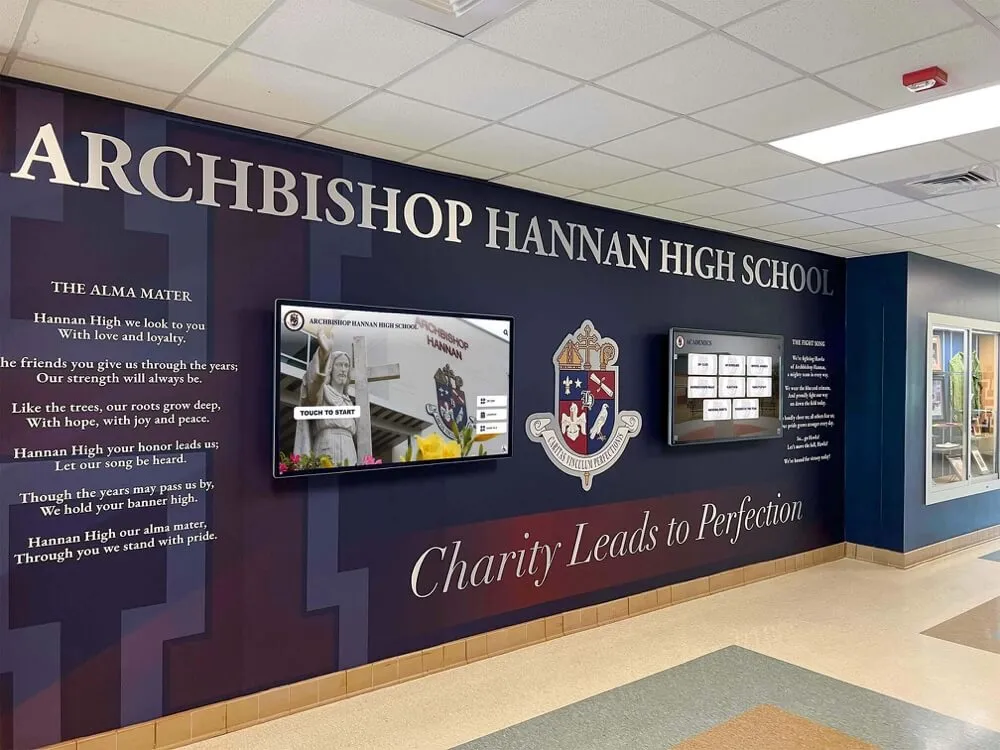
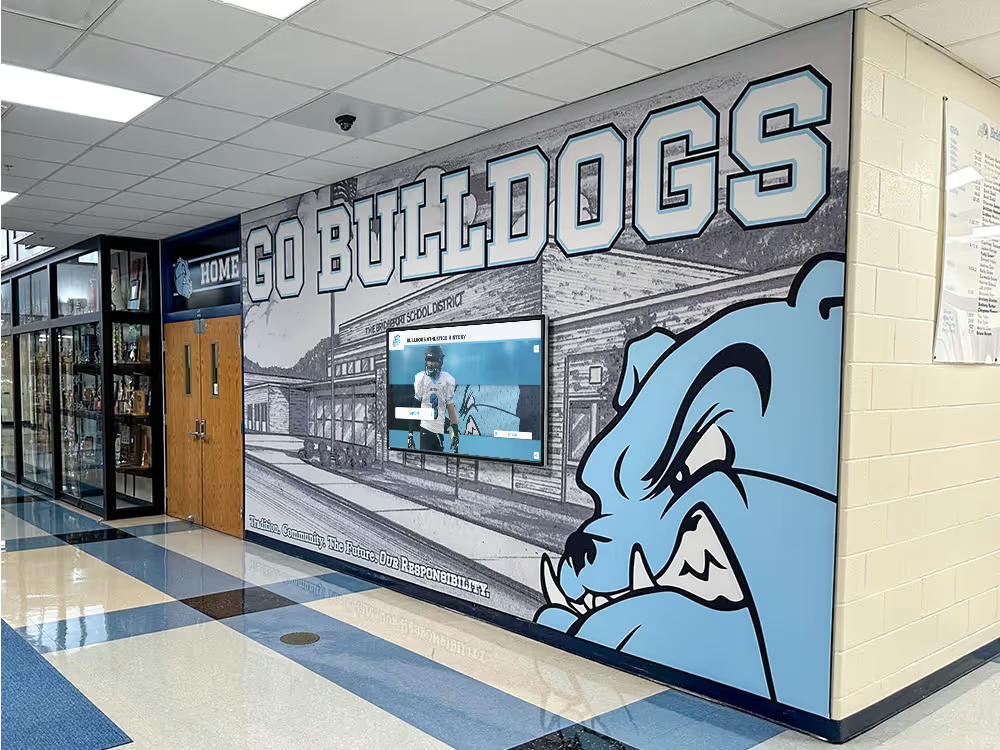
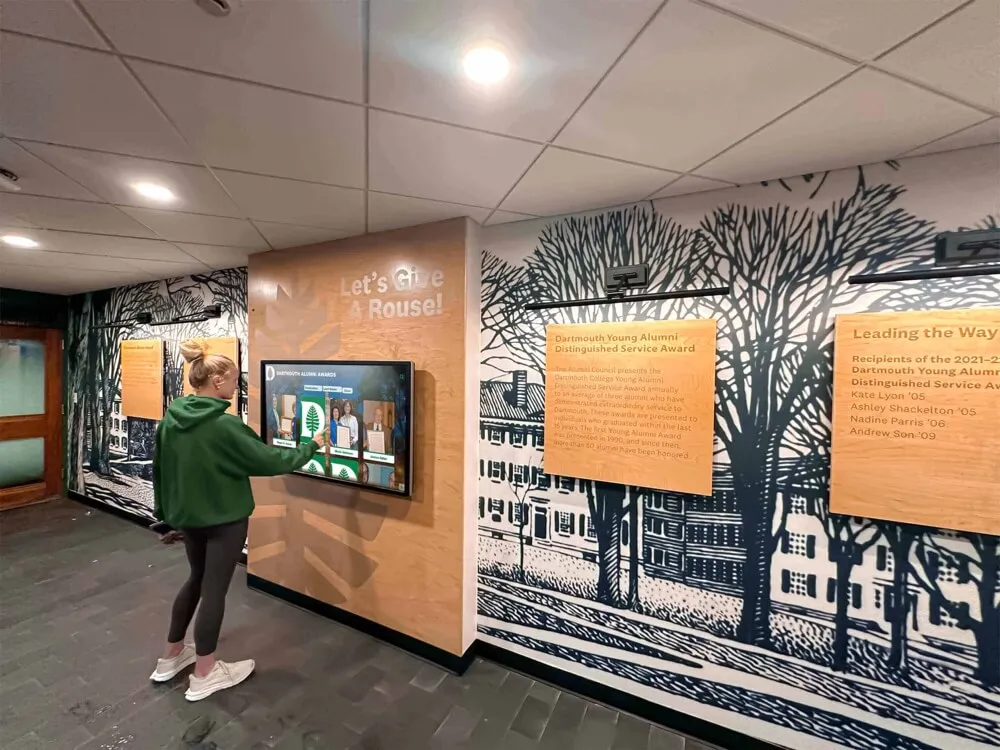
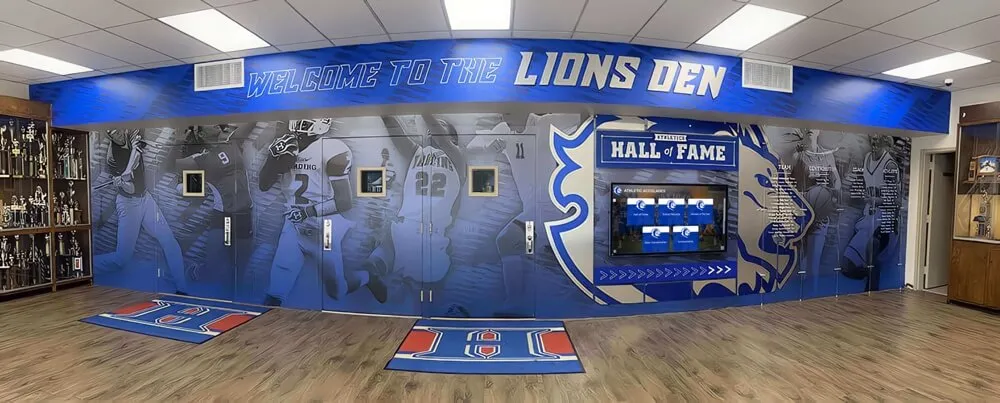
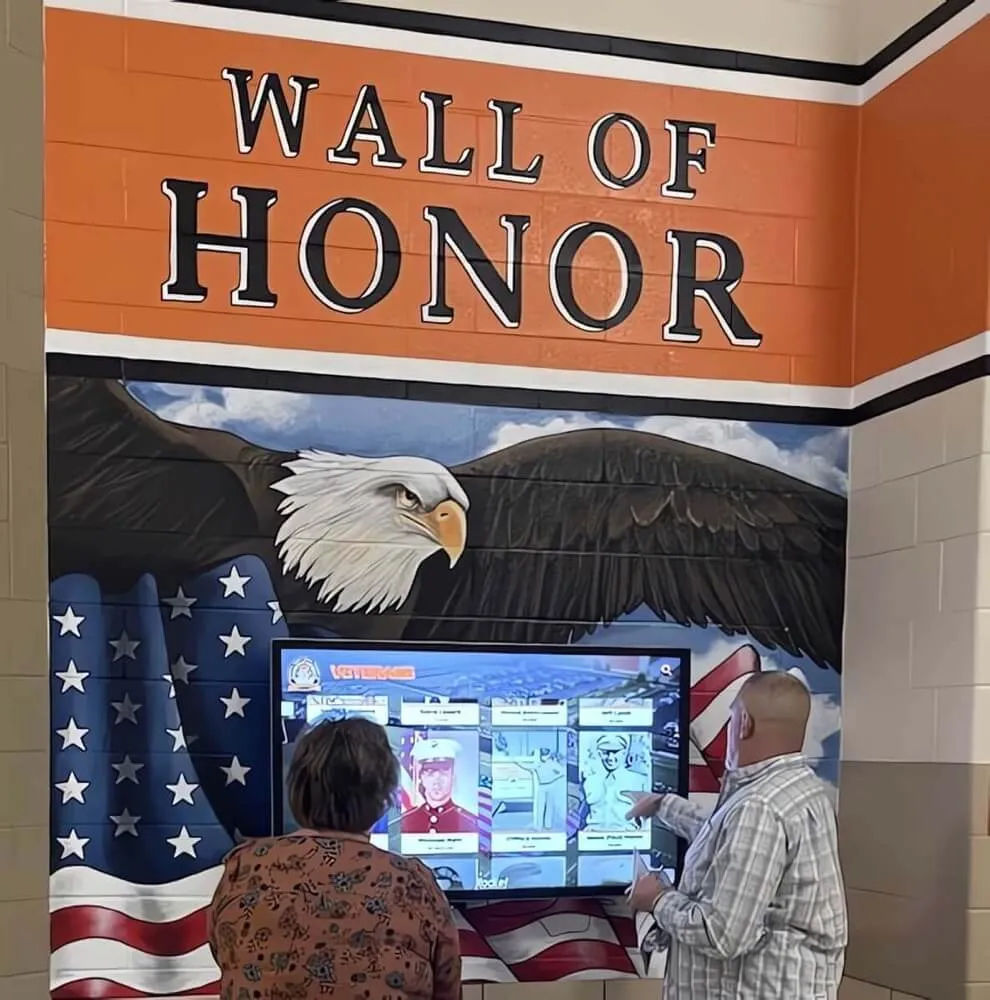
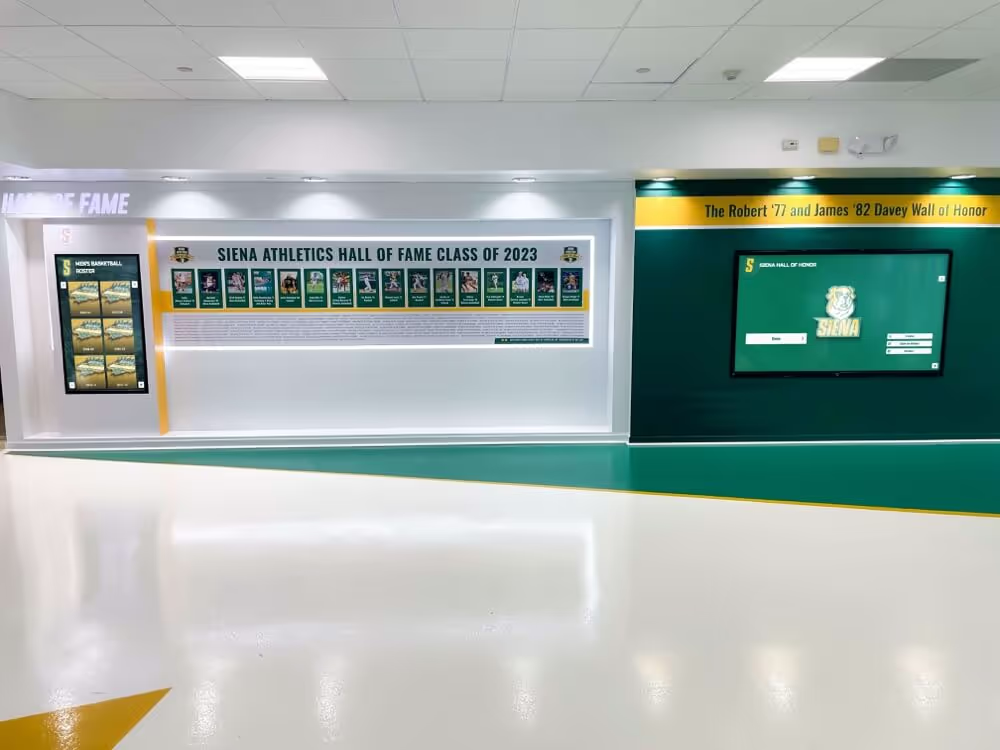
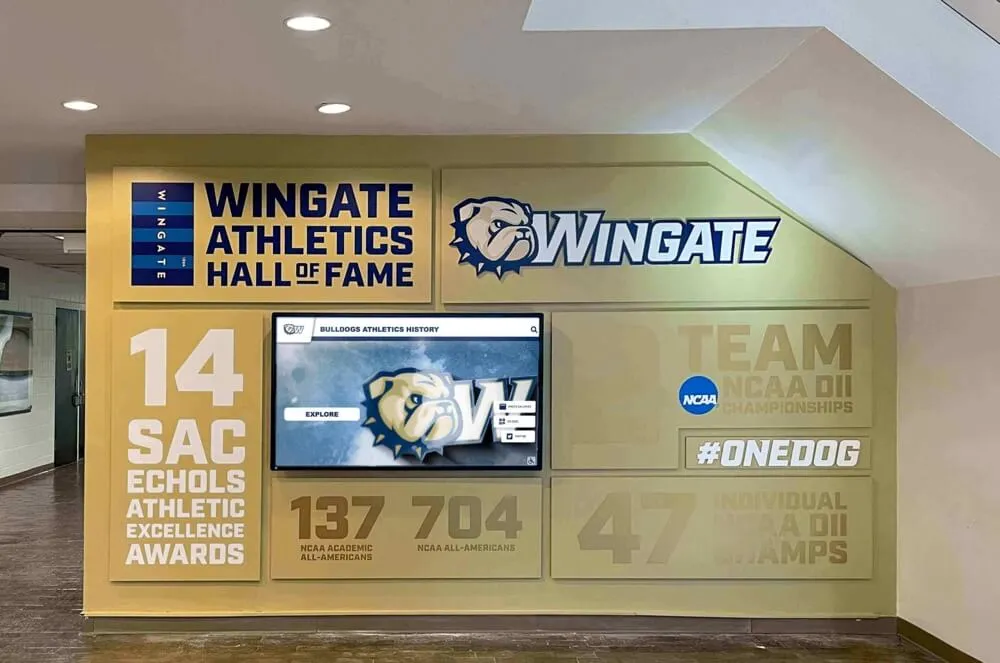
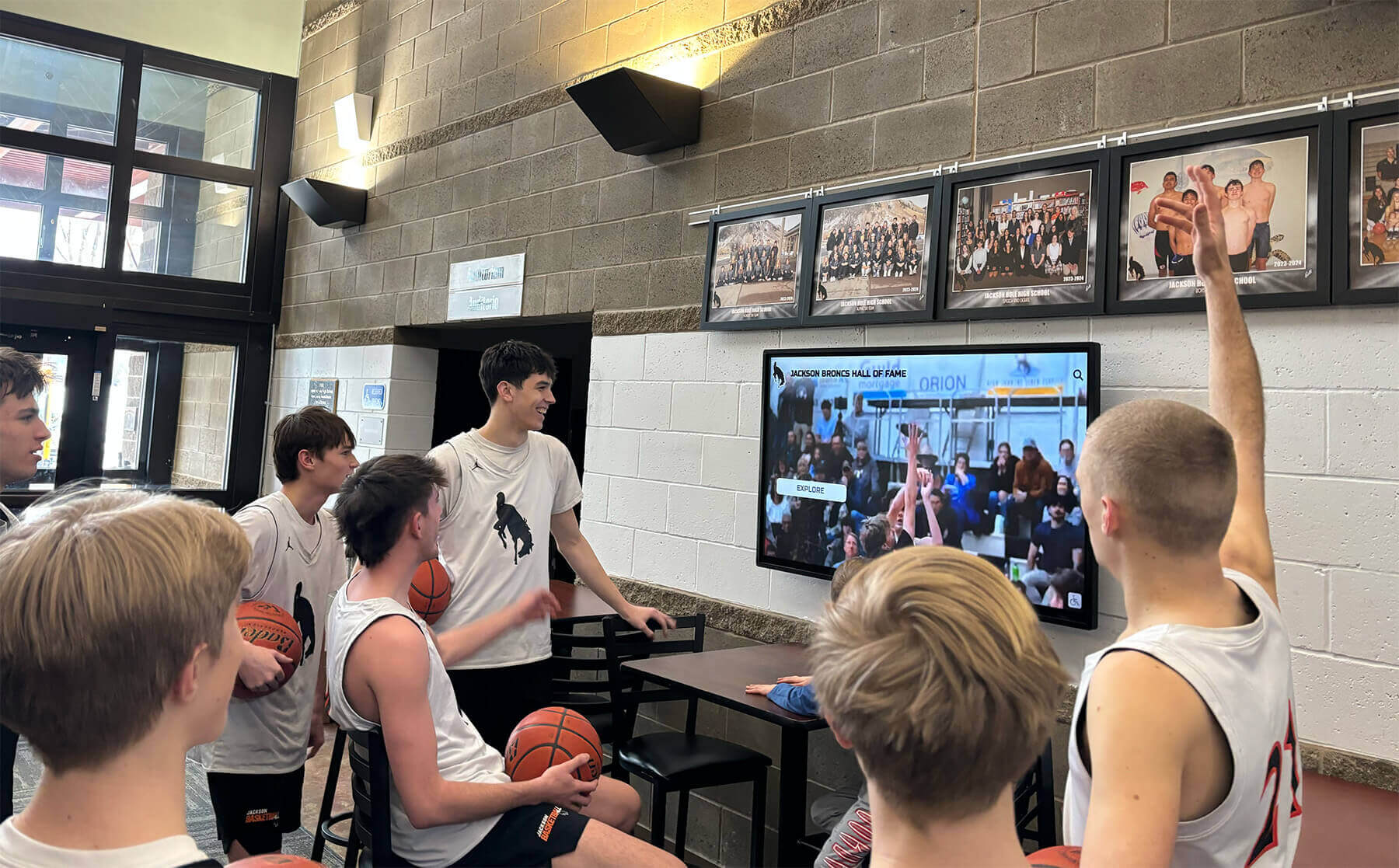
Lobby recognition displays serve peak traffic in bursts—before school, at lunch, after practice, and during evening events. A brightness schedule calibrated to those windows looks better and costs less to operate than a flat maximum-brightness setting.
Why Brightness Scheduling Matters for School Recognition Displays
Three independent goals align behind a single brightness schedule. Understanding each goal separately makes it easier to set thresholds that balance all three without making compromises you will later regret.
Readability: Matching Output to Ambient Light
The human eye adapts to ambient light. A lobby display that looks crisp at 400 nits during a bright afternoon will appear painfully over-lit on an overcast morning and will look dim inside a gymnasium with only overhead court lighting after dark. Neither extreme serves the athletes and families who interact with the display.
Readability is not simply a matter of “brighter is better.” Beyond a certain luminance threshold relative to the surrounding room, glare overtakes clarity. Text on a 600-nit display in a dimly lit hallway at 7 p.m. creates more eye strain than the same text on a 200-nit display, because the contrast between the bright screen and its dark surround forces continuous pupil adjustment.
A scheduled brightness profile that steps down in the evening—typically from a daytime setting to a reduced evening setting during athletic events and activities—keeps text readable for visitors browsing inductee profiles without overwhelming the ambient environment.
Energy: Reducing Operating Costs Over the School Year
Backlight power consumption scales roughly in proportion to brightness level. A commercial display drawing a certain number of watts at 100% brightness will draw significantly less at 50%. Across a 200-day school year with a typical operating window of twelve or more hours per day, that difference accumulates into a meaningful reduction in the display’s contribution to the building’s electricity bill.
Schools that operate multiple recognition displays—a lobby kiosk, a hallway panel outside the gymnasium, and a trophy-corridor display—multiply these savings across each unit. Booster clubs and athletic departments funding display programs through contributions often find that projected energy savings help justify the operating cost to administrators and finance committees. For guidance on how booster organizations structure procurement and ongoing equipment costs, booster club procurement card policies outline typical approval workflows relevant to display program budgets.
Panel Care: Distributing Backlight Wear
Every display backlight has a finite service life measured in hours of operation at rated brightness. Running at 100% continuously does not just waste energy—it depletes backlight life faster than the manufacturer’s rated hours, which are typically calculated at a moderate brightness level.
Brightness scheduling extends panel service life in two ways. First, it reduces the total number of hours the backlight operates at peak intensity. Second, it allows the backlight to operate at lower intensity during low-traffic periods, which generates less heat and reduces the thermal stress that accelerates component aging. For schools that want to maximize the lifespan of a capital investment, a well-designed brightness schedule is one of the lowest-cost maintenance interventions available.
Panel care also includes avoiding static content at high brightness for extended periods. Recognition displays that show a fixed screen—such as an athlete-of-the-month card or a standings board—during overnight hours combine high brightness with static content, creating conditions that accelerate image retention (sometimes called burn-in) on certain panel technologies. A brightness schedule that reduces intensity during unattended overnight hours significantly lowers this risk. For a full checklist on preventing image retention, the companion guide to screen burn-in prevention for touchscreen recognition displays covers panel-specific strategies alongside brightness management.
Understanding Ambient Light in Common School Display Locations
No single brightness schedule fits every installation location. The table below describes how ambient light typically varies in the locations where schools most often install recognition displays, along with the scheduling implications for each.
| Location | Daytime Ambient | Evening Ambient | Scheduling Notes |
|---|---|---|---|
| Main lobby (exterior windows) | High — direct or indirect daylight | Low to moderate — interior lighting only | Widest brightness range needed; daytime may require near-maximum output |
| Athletic hallway (interior, no windows) | Moderate — overhead fluorescent | Low — reduced to security lighting after hours | Daytime setting can be moderate; evening setting should drop significantly |
| Gymnasium lobby | Moderate — overhead lighting, variable by event | High during events, low after close | Schedule must account for evening event peaks; event mode is useful |
| Trophy corridor (alcove) | Low to moderate — limited natural light | Very low — minimal corridor lighting | Lower baseline brightness appropriate; sharp contrast with surroundings at night |
| Library or media center entrance | Moderate — diffused interior lighting | Low — reduced hours | Consistent moderate setting often sufficient; fewer dramatic transitions needed |
| Cafeteria or commons | Variable — high at lunch, low off-hours | Rare | Two-period schedule (active hours vs. closed) usually sufficient |
This location analysis should be the first step before configuring any brightness schedule. Walk each display location at different times of day and take note of visible glare, washout, or eye strain—those observations are more useful than any generic threshold.
Step-by-Step: Building Your School Recognition Display Brightness Schedule
The following process applies to any recognition display platform that supports time-based brightness rules. If your display uses dedicated hardware scheduling (built into the display’s on-screen menu), the interface will differ from a software-based platform, but the decision sequence is the same.
Step 1: Inventory Every Display and Its Location Type
List each recognition display in your building along with its location type using the categories above. A lobby kiosk and a gymnasium hallway panel will have different schedules, so treat each as a separate configuration rather than applying one global setting everywhere.
For each display, note:
- Whether the display is touchscreen interactive or view-only
- Whether the space has exterior windows or relies entirely on interior lighting
- The display’s normal operating start and end times
- Any recurring evening events (games, induction ceremonies, award nights) that change traffic patterns
Step 2: Identify Your Platform’s Brightness Controls
Modern recognition platforms typically offer brightness scheduling through one of three mechanisms:
On-screen display (OSD) timer: Built into the display hardware itself. Access through the physical button menu. Allows setting brightness values for defined time windows. Requires physical access to each display to configure or change.
Content management system (CMS) scheduling: Available in web-based recognition platforms. Brightness is set as part of a content schedule in the same interface used for athlete profiles, records boards, and announcements. Changes apply remotely without visiting the display.
Operating system power plan: On kiosk PCs running Windows or Linux, a power management profile can dim the backlight at defined times independently of the recognition software. Useful as a fallback when the CMS does not include native brightness scheduling.
The choice between these mechanisms is primarily about convenience and consistency. Web-based versus native app touchscreen software affects how accessible brightness scheduling controls are across multiple display locations—an important consideration for schools managing displays in several buildings.
Step 3: Define Your Time Windows
Start with four time windows and refine from there. Most school recognition displays need no more than five distinct brightness settings to serve all daily periods.
| Time Window | Typical School Period | Starting Brightness Target |
|---|---|---|
| Early morning | Before first bell, custodial and staff arrival | 40–60% |
| School day | First bell through final bell | 80–100% |
| After school / early evening | Athletics, clubs, tutoring programs | 70–85% |
| Evening events | Games, ceremonies, induction nights | 80–100% |
| After-hours / overnight | Building closed, security only | 10–20% or scheduled off |
These starting targets are not universal specifications—they are a reasonable starting point for calibration. The actual values that produce readable, glare-free content depend on your specific panel’s luminance output and the ambient light levels in your installation.
Step 4: Calibrate by Standing at the Display
Set your starting brightness values for each window and then physically observe the display during each period before finalizing. Stand where visitors and students typically stand—approximately three to five feet from the screen—and assess:
- Can you read athlete names and statistics without straining?
- Does the screen create visible glare against the surrounding environment?
- Does the brightness feel appropriate relative to the room, or does it dominate the space in a way that draws attention away from content?
Adjust in 5% increments until each window feels calibrated. This calibration step takes less than thirty minutes per display location and should be repeated once per semester as seasonal light changes affect ambient conditions.
Step 5: Add Event Overrides
Most school recognition displays see predictable traffic spikes for scheduled events: home games, hall-of-fame induction nights, award banquets, and open house evenings. These events often take place in the evening, when the default after-hours brightness setting would be too low for a lobby full of visitors.
Configure an event override—a temporary brightness increase applied to specific dates or date ranges—in advance of scheduled events. If your platform does not support date-specific overrides natively, a simple manual override process (staff member sets brightness to event level before the event, returns to schedule after) is an acceptable backup.
Club highlights and digital recognition displays often feature event-specific content alongside athletics—scheduling event brightness overrides for club recognition nights and academic award ceremonies follows the same pattern.
Step 6: Document the Schedule
Record every brightness setting, time window, and override rule in a single document stored with the display’s other maintenance records. Include:
- Display location and model
- Brightness values for each configured window
- Event override process (who sets it, when, how to return to schedule)
- Date of last calibration check
- Next scheduled calibration review
This documentation ensures that a new facilities staff member or administrator can maintain the schedule without requiring institutional memory.
Step 7: Review Seasonally
School buildings experience different ambient light conditions in each season. A north-facing lobby receives less natural light in December than in June; a gymnasium hallway receives none year-round but the ambient artificial lighting may be adjusted by facilities staff. Schedule a brief calibration review at the start of each semester—three reviews per year is sufficient for most installations.
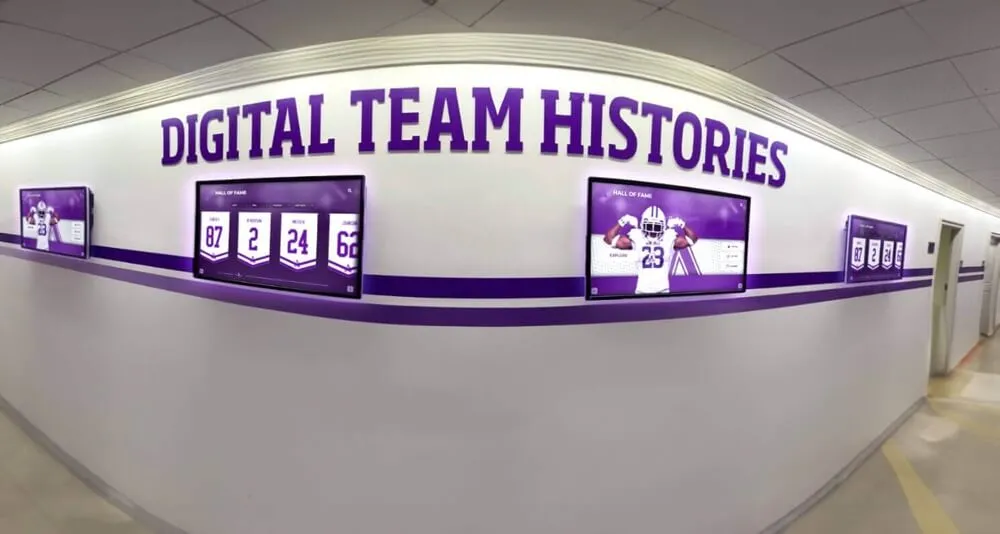
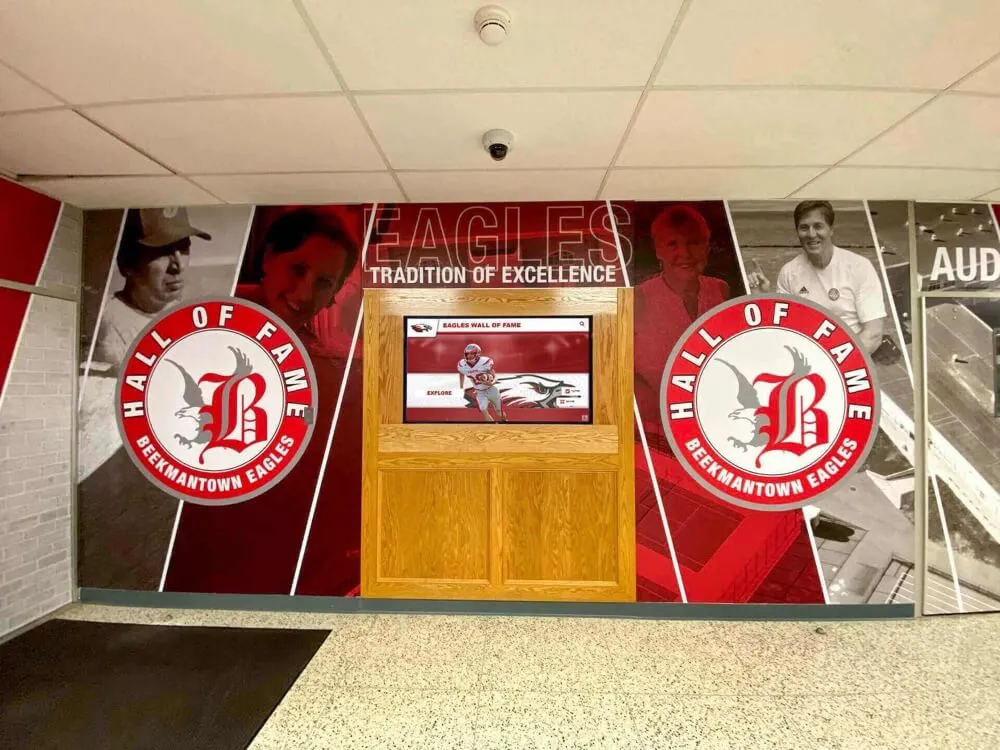
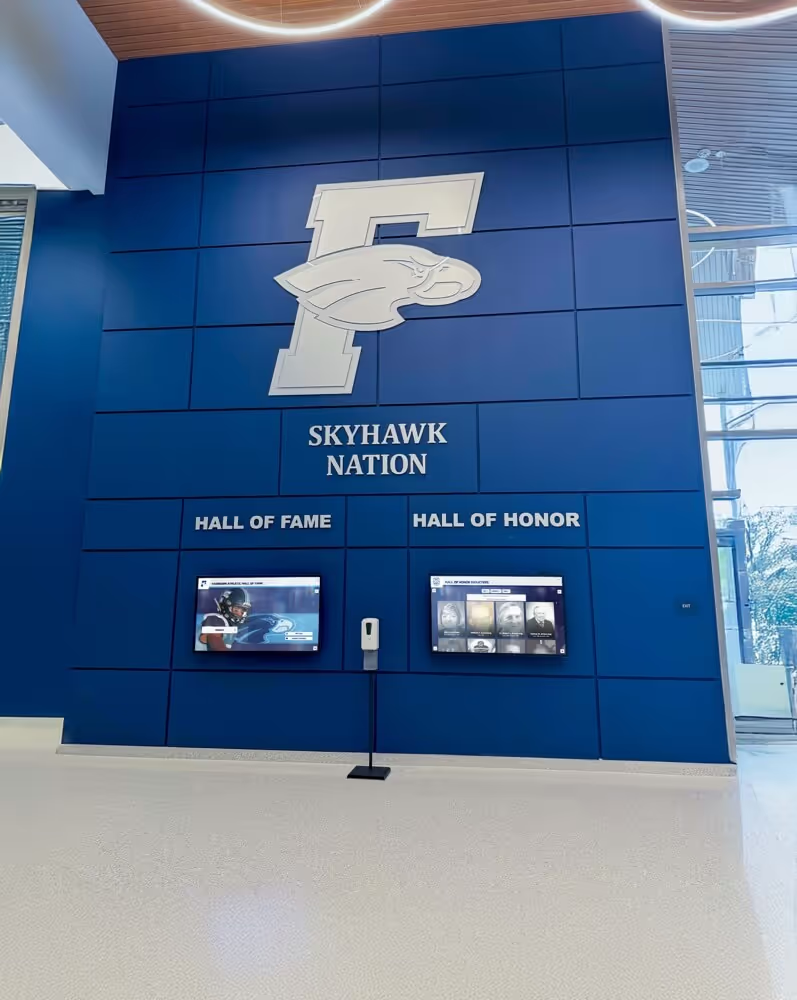
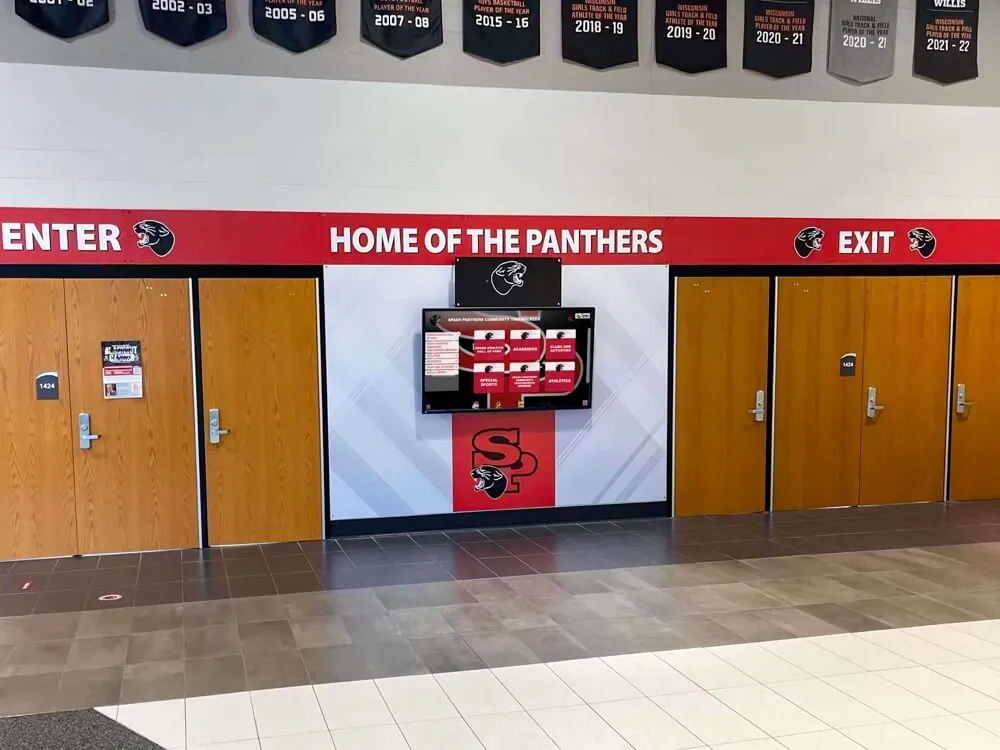
Athletic corridor displays serve steady traffic during school hours and peak traffic on game nights. A brightness schedule that accounts for both periods avoids the compromise of picking a single setting that serves neither well.
Brightness Scheduling Across the Academic Calendar
Beyond daily schedules, the academic calendar creates predictable patterns that should inform how you configure event overrides and seasonal reviews.
September through November (fall athletic season): Football, cross-country, soccer, and volleyball programs generate high evening traffic. Lobby and hallway recognition displays see regular game-night peaks. Athletic records displays for fall sports see active updates as season statistics accumulate. Brightness schedules need reliable event override coverage for this period.
December through January (winter season and holiday break): Basketball, wrestling, and swimming programs dominate. Evening games and induction ceremonies continue. Holiday break may create an extended period where HVAC is reduced and building occupancy drops to near zero—an appropriate window to schedule minimum brightness or full off-hours mode to reduce energy draw and thermal load simultaneously. Wrestling season events, including high school wrestling rankings updates, often drive hallway traffic on match nights when coaches and athletes check current standings.
February through April (late winter and spring): Spring athletic season begins alongside indoor events including academic awards, scholarship recognition nights, and spring induction ceremonies. The transition from winter to spring light levels is among the most dramatic across a school year—a calibration check in early March prevents displays that were correctly set for February from appearing washed out in April.
May and June (end-of-year and graduations): End-of-year events generate sustained high traffic over several weeks. If recognition displays are used in conjunction with graduation or awards ceremony programming, verify that event-mode brightness is scheduled for the full duration of each ceremony window. For displays featuring academic honor programming alongside athletics, digital signage content ideas for screens and kiosks offers guidance on managing content timing during high-attendance events.
Summer (July through August): Many schools run summer athletic programs, camps, and facility tours during this period. Building climate control may operate on reduced schedules, raising ambient temperatures that compound with display heat output. Summer is also the appropriate window for scheduled maintenance including vent cleaning, fan inspection, and physical display inventory—tasks that pair naturally with a brightness schedule review before the fall season.
Energy Impact: What Brightness Scheduling Actually Changes
The energy relationship between brightness and power consumption varies by display technology and model. Rather than stating specific watt reductions that would not apply universally, the following framework helps you estimate the impact for your specific installation.
Find your display’s power specification at rated brightness. Most commercial display specification sheets publish a typical power draw and a maximum power draw. The rated power draw is usually measured at or near maximum brightness.
Estimate power at reduced brightness. LCD displays do not reduce power consumption in perfect linear proportion to brightness reduction—dimming from 100% to 50% typically reduces backlight power by 40–55% depending on the backlight driver design, but total display power includes the panel, controller, and compute module, which draw a relatively fixed amount regardless of brightness. A reasonable working estimate is that a 50% brightness reduction yields a 20–35% reduction in total display power.
Apply operating hours and days. Multiply the estimated power reduction by the number of reduced-brightness hours per day and the number of school-year operating days. This gives an annual energy reduction estimate you can report to administrators or booster program committees as part of a facilities efficiency summary.
For a display that runs on reduced brightness for several overnight and early-morning hours each school day, the annual savings can offset a portion of the routine maintenance budget—a useful data point when facilities teams justify time invested in scheduling configuration and seasonal review.
Panel Care: Brightness Scheduling as Preventive Maintenance
The backlight lifespan benefit of brightness scheduling is often underemphasized relative to the energy savings angle. For schools aiming to maximize the service life of a recognition display investment, panel care is the most compelling reason to implement a schedule.
Backlight hours and brightness intensity are related but not equivalent. A display operated at 80% brightness for twelve hours accumulates twelve hours of backlight time toward its rated service life. But the thermal stress on backlight components scales with intensity—operation at 100% generates more heat than operation at 70%, and sustained heat is the primary mechanism of backlight degradation. A schedule that reduces peak-intensity hours without simply replacing them with equal low-intensity hours extends effective service life beyond what raw operating-hour estimates predict.
Overnight periods represent the highest-leverage scheduling window. A recognition display that runs at 100% from midnight to 6 a.m. in an empty building accumulates six hours of maximum-intensity backlight wear with zero visitor benefit. Reducing brightness to a minimal level—or scheduling a full power-off during these hours if the platform supports it—eliminates that wear entirely. Even a modest schedule with a single after-hours reduction captures a significant share of the available panel-care benefit.
Static content and high brightness combine to increase image retention risk. Image retention (sometimes called burn-in, though the mechanisms differ by panel type) occurs when a static high-contrast image remains on screen at high brightness for extended periods. Athletic records boards and standings displays are particularly susceptible because they often show the same layout for days at a time. Reducing brightness during unattended overnight hours addresses both the energy and the panel-care dimension simultaneously.
See How Recognition Platforms Handle Brightness Scheduling
Rocket Alumni Solutions' web-based recognition platform includes remote brightness scheduling alongside unlimited inductee profiles, auto-ranking records boards, and scheduled content publishing. Schedule a demo to see how the full platform works.
Book Your DemoBrightness Scheduling Maintenance Checklist
Use this checklist each semester to confirm that your brightness schedule remains calibrated and functioning as intended.
Before the School Year (August)
- Review operating-hours documentation for each display and confirm accuracy for the new academic year bell schedule
- Walk each display location and observe brightness at each configured time window; adjust if environmental changes (new window film, lighting renovations, furniture rearrangement) affect ambient conditions
- Confirm that event override process is documented and accessible to all staff members who manage display operations
- Verify that all scheduled rules are active in the CMS or OSD and have not been reset during any summer maintenance or software updates
Fall Semester Review (October or November)
- Confirm that evening event overrides are correctly applied for fall athletic schedule
- Observe at least one evening game-night and one standard after-school period to assess brightness calibration against real visitor traffic
- Check that after-hours reduction is active and observe the display at a low-traffic period to confirm the reduced brightness is appropriate for building security lighting levels
Winter Break Preparation (December)
- Set minimum-brightness or scheduled-off rules for holiday break period when building occupancy is minimal
- Confirm HVAC schedule with facilities staff and note any periods where building temperature may vary—a display running on minimal brightness in a cold building raises no thermal concerns, but returning to full brightness in a building that has not yet warmed to normal operating temperature is worth noting in the review log
- Document any panel observations from the first semester: unusual fan noise, thermal shutdowns, display color shifts that may indicate developing backlight issues
Spring Semester Review (February or March)
- Walk display locations during peak daylight hours—spring sun angles differ significantly from winter—and adjust daytime brightness if washout or glare has changed from the fall calibration
- Update event override calendar for spring athletic season and end-of-year ceremony schedule
- Verify that overnight and weekend schedules are active and have not been overridden manually and left at a non-scheduled value
End of Year (May or June)
- Conduct full review of the annual energy draw if metered data is available; note any periods where scheduling compliance was interrupted
- Record any panel observations that should inform the summer maintenance inspection
- Update documentation with any changes made during the school year so the starting point for next August review is accurate
Frequently Asked Questions
Q: What brightness percentage should a lobby recognition display run during the school day?
There is no universal answer, because luminance output in nits varies by panel model—a 70% setting on one display may produce more light than 90% on another. The practical approach is calibration: set the display to a candidate value, stand where visitors typically stand at midday, and assess readability and glare. Most school lobby displays with moderate natural light calibrate comfortably between 65% and 85% of maximum during school hours.
Q: Will dimming the display affect touchscreen responsiveness?
No. Backlight brightness and touchscreen sensitivity are independent systems. A display at 20% brightness responds to touch inputs identically to the same display at 100% brightness. If you observe touchscreen performance changes that correlate with brightness changes, the cause is unrelated to the brightness schedule itself and warrants separate investigation.
Q: Can I schedule a complete power-off overnight instead of just dimming?
Most commercial recognition display platforms support scheduled power-off and power-on. If yours does, overnight power-off during empty building periods is the most effective combination of energy savings and panel care. The considerations are: startup time (some kiosk platforms take several minutes to reach a fully operational state after power-on), content synchronization (cloud-connected platforms that sync new athlete content during overnight hours need the display to remain on during the sync window), and security (some facilities prefer a display showing a dim standby image to a completely dark screen in a lobby).
Q: How often does the brightness schedule need to be reviewed?
Twice per year is sufficient for most installations: once in August before the fall semester and once in February at the start of the spring semester. A third check in May is worthwhile if your school runs evening events through June. Each review should include physical observation of the display at each configured brightness level, not just a software-side check of the schedule rules.
Q: Does brightness scheduling affect the display warranty?
Brightness scheduling itself does not void warranties. Operating displays continuously at maximum brightness and without proper ventilation more often contributes to warranty service situations than any scheduling practice. Review your display manufacturer’s documentation for any stated limitations on operating hours or brightness levels that apply to warranty coverage.
Q: What should I do if the display is in a location with highly variable light—like an atrium with skylights?
Highly variable ambient light is the use case where automatic brightness adjustment (sometimes called ambient light sensing) is most valuable. Some commercial display panels include an ambient light sensor that adjusts brightness continuously rather than on a fixed schedule. If your current platform supports this feature, enabling it alongside a time-based schedule provides the best of both approaches. If automatic sensing is not available, configure a more granular time-based schedule—four or five distinct windows rather than two—to approximate continuous adjustment using fixed time blocks.
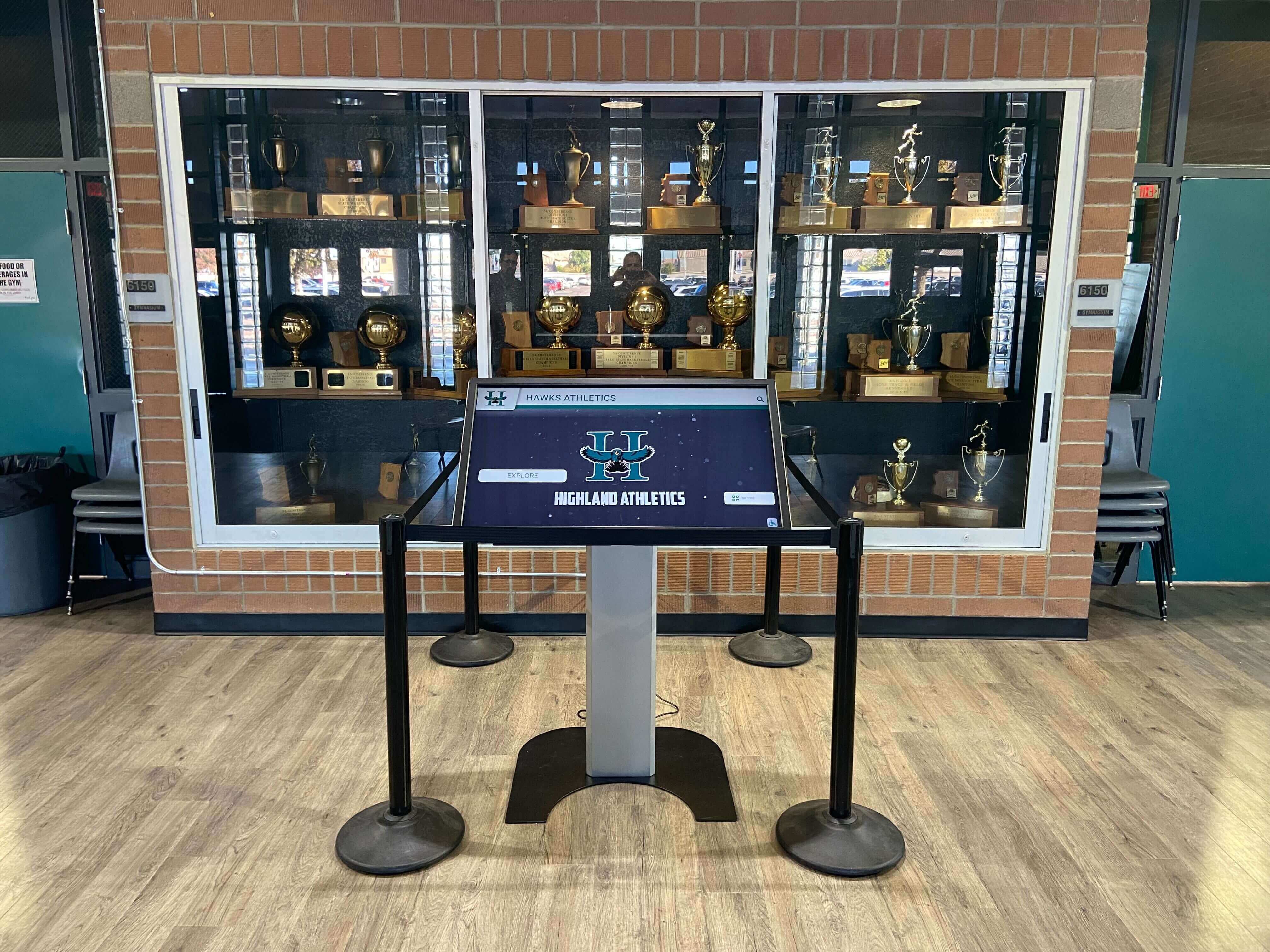
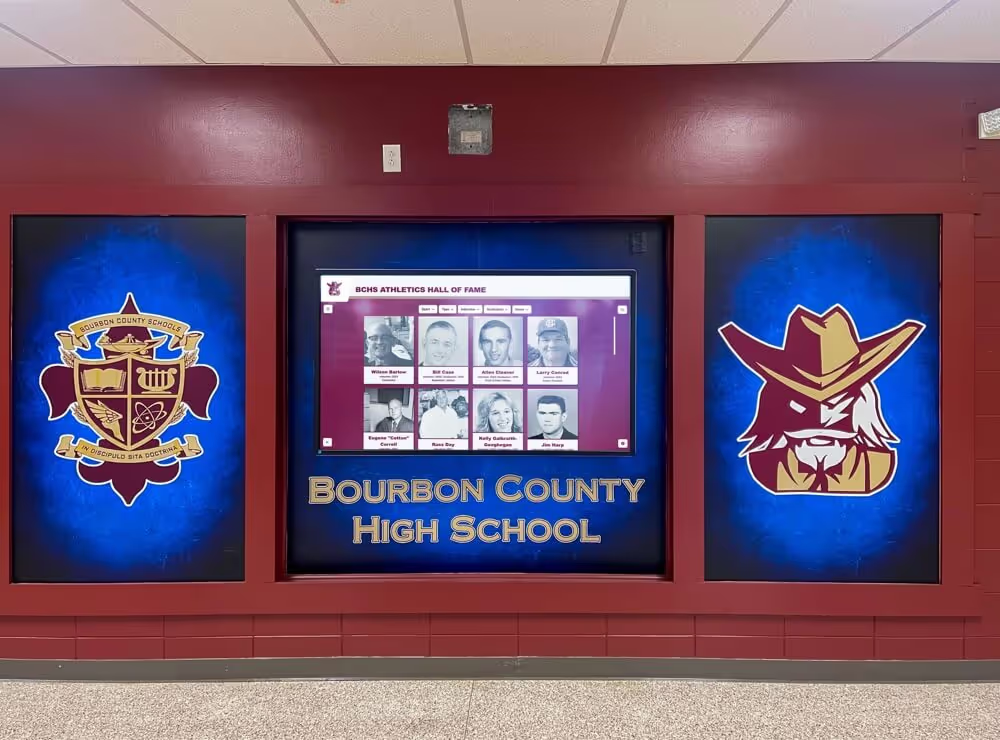
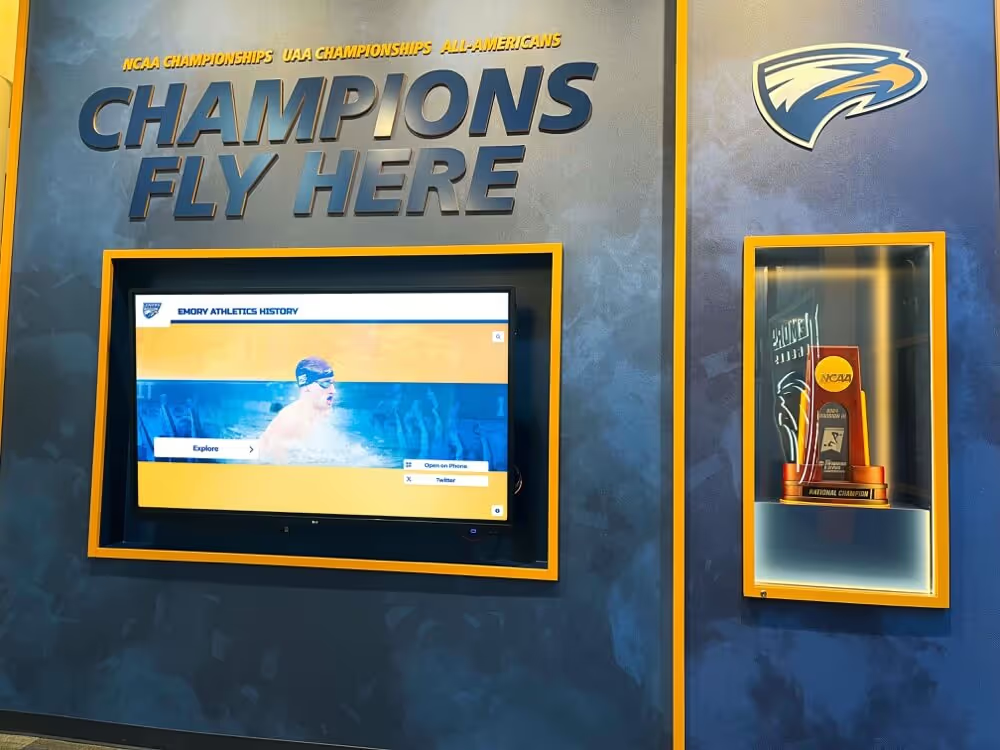
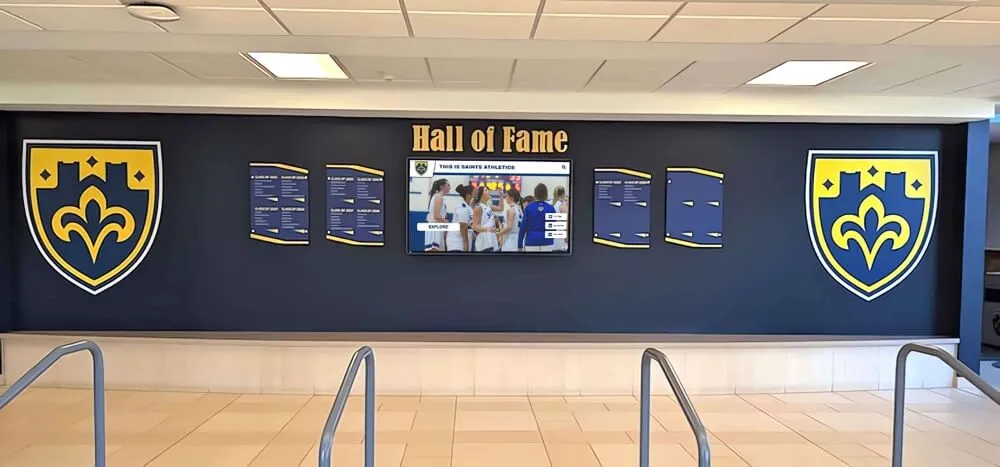
Trophy corridor kiosk installations operate in consistent low-ambient-light environments—the most predictable location for brightness schedule calibration, and among the most affected by the contrast between a bright screen and a dimly lit alcove.
Choosing a Platform That Supports Brightness Scheduling
Not all recognition display platforms expose brightness scheduling with the same level of control. When evaluating platforms for a new installation or a replacement system, these capabilities directly affect how well you can implement the schedule described in this guide.
Remote CMS access to brightness controls. A platform that requires physical access to each display to adjust brightness settings significantly increases the labor cost of seasonal calibration. Web-based platforms that provide remote brightness control allow an administrator to update every display from a single browser session.
Time-based scheduling with date-range overrides. The combination of a recurring time-based schedule and the ability to set date-specific overrides covers the full range of school-year scenarios. A platform that supports only a fixed schedule requires manual intervention for every event night.
Logging and confirmation. Some platforms log when scheduled brightness transitions occur, providing confirmation that the schedule is running as configured. This logging is particularly useful after software updates or connectivity interruptions that may have reset schedule rules.
Integration with content scheduling. A platform that manages brightness alongside content publishing allows a single scheduler to set both content and brightness for an event in one workflow—reducing the chance that content is updated for an evening ceremony but brightness is inadvertently left at the overnight minimum.
For schools evaluating display hardware and software together, comparing web-based and native app touchscreen software identifies the access and scheduling implications of each architecture. The digital hall-of-fame display guide for 2026 provides a current-year overview of platforms that have earned adoption across school athletic programs. For schools managing multiple displays across athletic, club, and academic recognition programs, club highlights and digital recognition displays addresses how multi-location brightness and content scheduling works in practice.
Summary: What a Brightness Schedule Accomplishes
A properly configured touchscreen recognition display screen brightness schedule achieves three goals through a single set of platform settings:
Readability improves because brightness adapts to the ambient conditions visitors actually encounter, rather than competing with or disappearing into the surrounding light environment. Athletes browsing inductee profiles after practice and families navigating to a ceremony see content that is clearly legible without glare.
Energy costs decrease because backlight intensity drops during periods with no visitors to serve—overnight, during holiday breaks, and during early-morning pre-occupancy periods. Across a full school year, these reductions accumulate meaningfully and are documentable through metered data.
Panel care extends service life by reducing the total hours of peak-intensity backlight operation and the thermal stress associated with it. Overnight reductions specifically reduce image retention risk for displays that show static recognition content.
The setup process—inventory, control identification, window definition, calibration, event overrides, and documentation—requires one work session and a brief revisit each semester. For school facilities teams already managing display maintenance, adding brightness scheduling to the routine is among the highest-return low-effort interventions available.
For digital signage content strategies that take full advantage of well-scheduled, properly calibrated recognition displays, digital signage content ideas for screens and kiosks covers how content timing and brightness work together to maximize visitor engagement at peak periods.
Ready to Upgrade Your School's Recognition Display Platform?
Rocket Alumni Solutions provides a web-based touchscreen recognition platform with remote brightness scheduling, unlimited inductee capacity, auto-ranking records boards, and a remote CMS for content updates without touching physical hardware. Book a demo to see the full platform in action and discover how it fits your school's recognition program.
Book Your Demo