Intent: decide — Every update pushed to a school lobby touchscreen recognition display is a public act. The moment a new content package goes live, hundreds of students, families, and community members will see it — and any error, broken link, outdated photo, or missing permission is equally visible.
A release readiness checklist turns a pressured last-minute launch into a predictable, repeatable process. It shifts the question from “Did we forget anything?” to “Did every gate pass?” That shift matters whether you are an athletic director refreshing record boards before the season opener, an alumni coordinator publishing the newest Hall of Fame class, a facilities manager swapping out a sponsor panel, or an IT technician pushing a content update from a remote CMS.
This touchscreen recognition display release readiness checklist gives school administrators, athletic leaders, archives staff, booster leaders, facilities teams, and school IT a single go/no-go reference organized into seven gates: content, hardware, network, permissions and ownership, accessibility, rollback planning, and stakeholder sign-off. Work through every gate before publishing a lobby update and you send community recognition to the screen the right way — warm, accurate, and ready.
When any gate returns a “no,” the content update pauses. That discipline is what separates a display that builds trust from one that quietly erodes it. A well-managed lobby touchscreen is one of the most visible expressions of digital warming — continuously surfacing personalized recognition that tells community members their achievements and contributions still matter here.

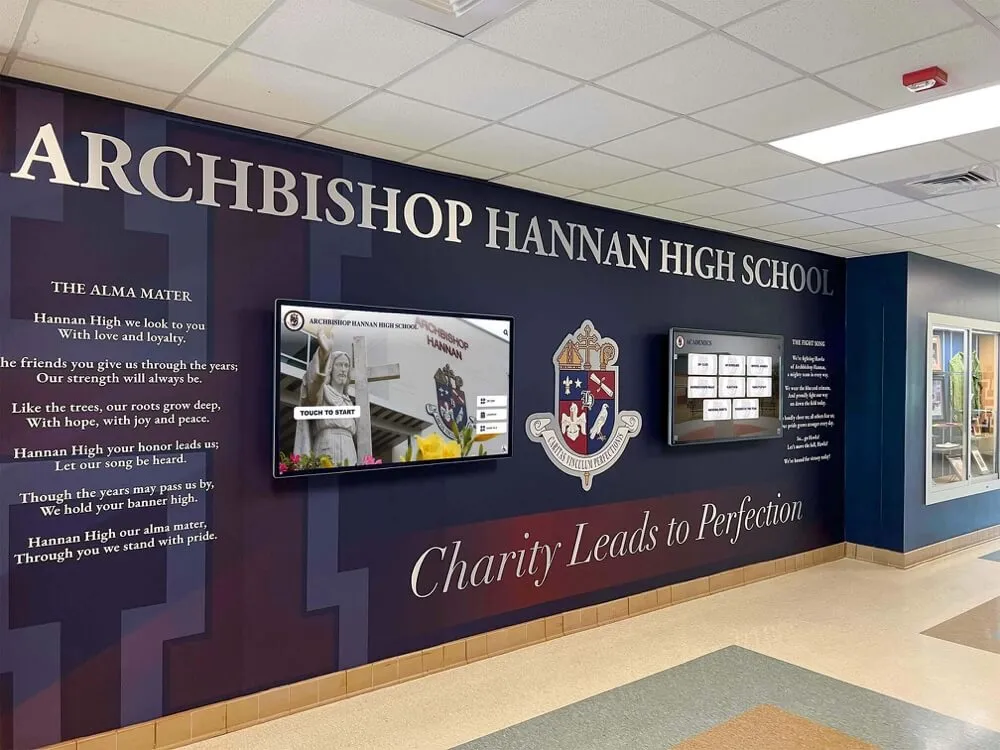
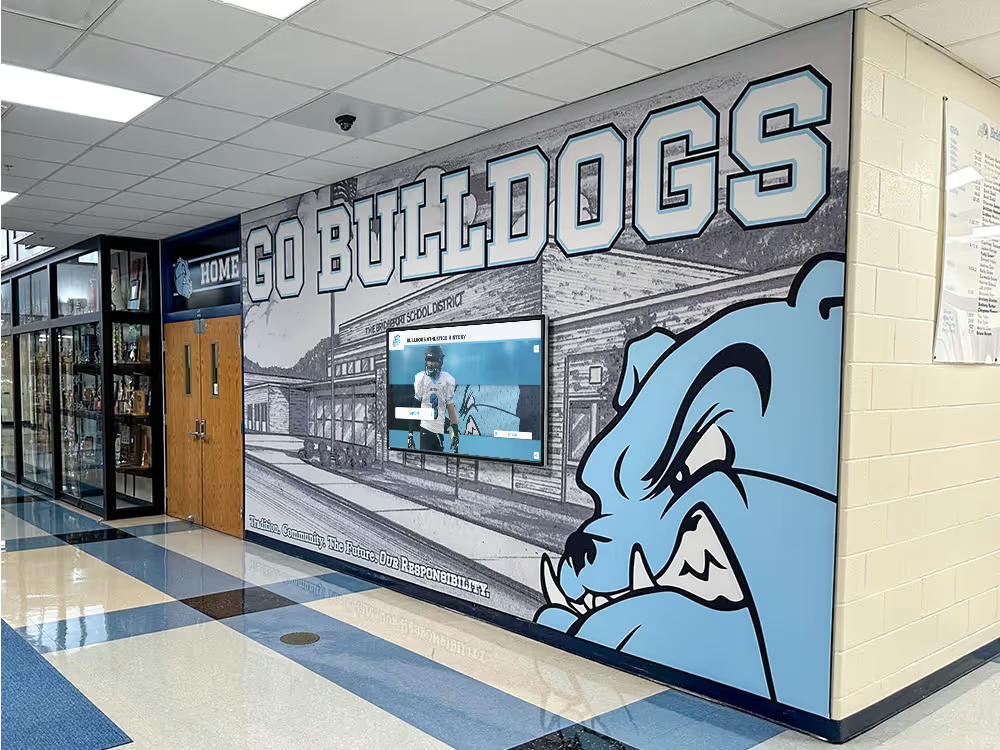
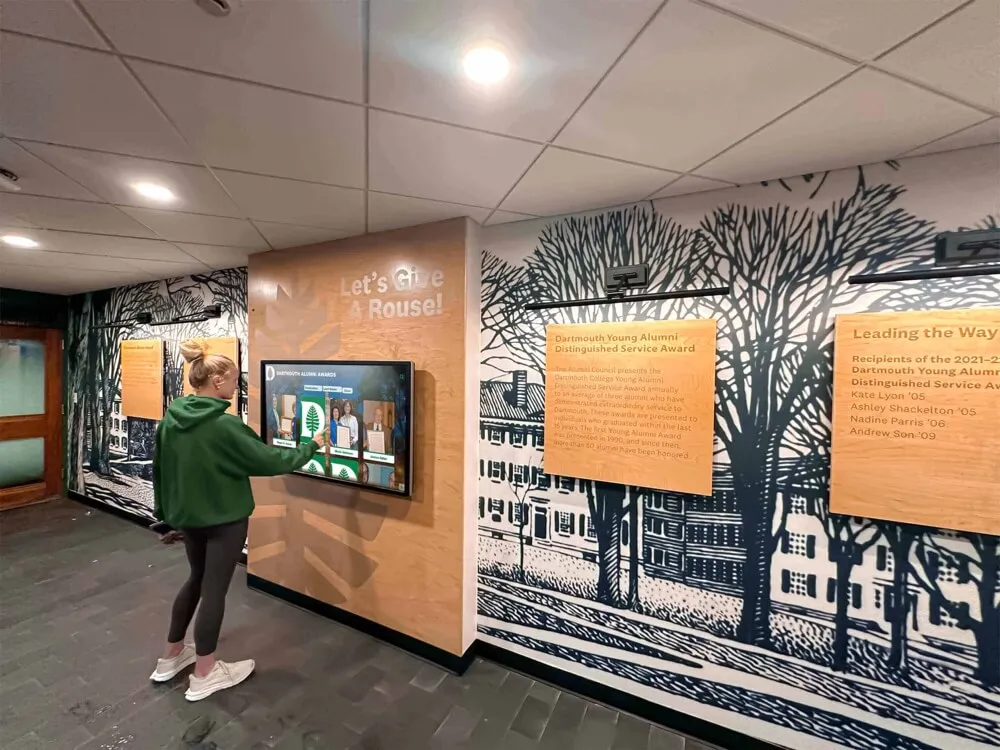
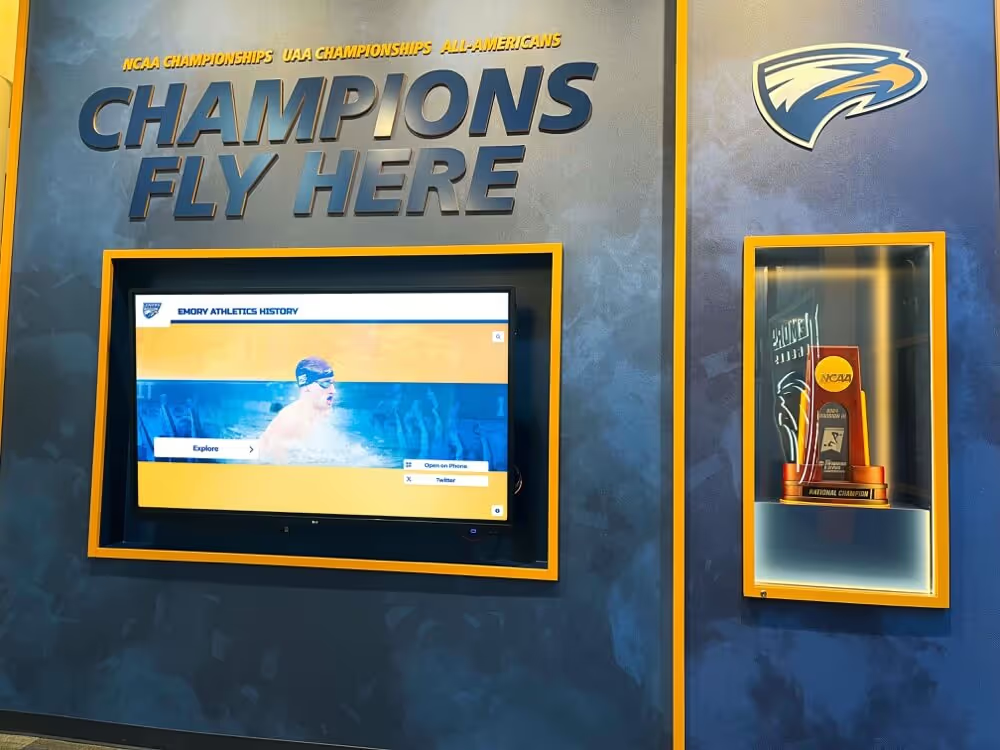
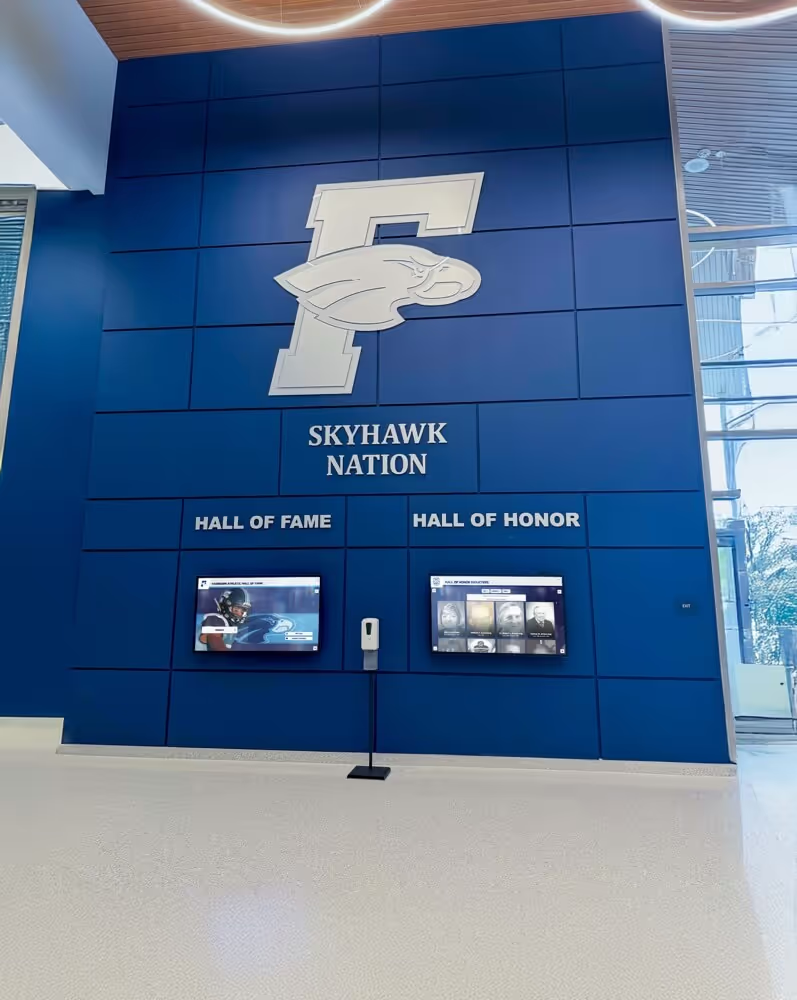
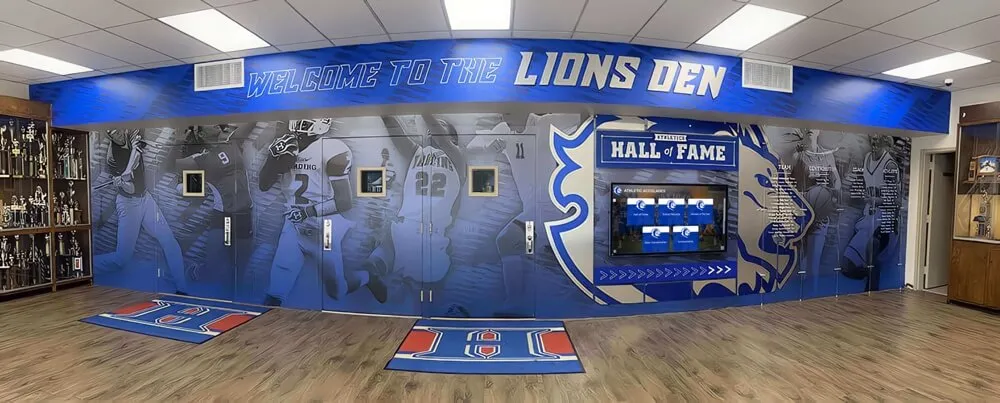
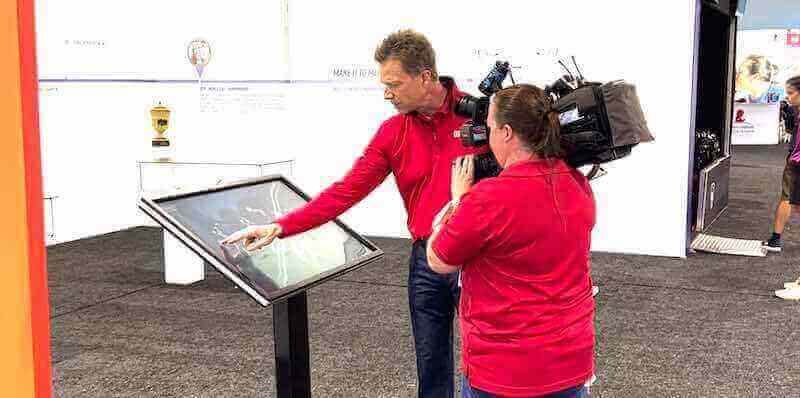
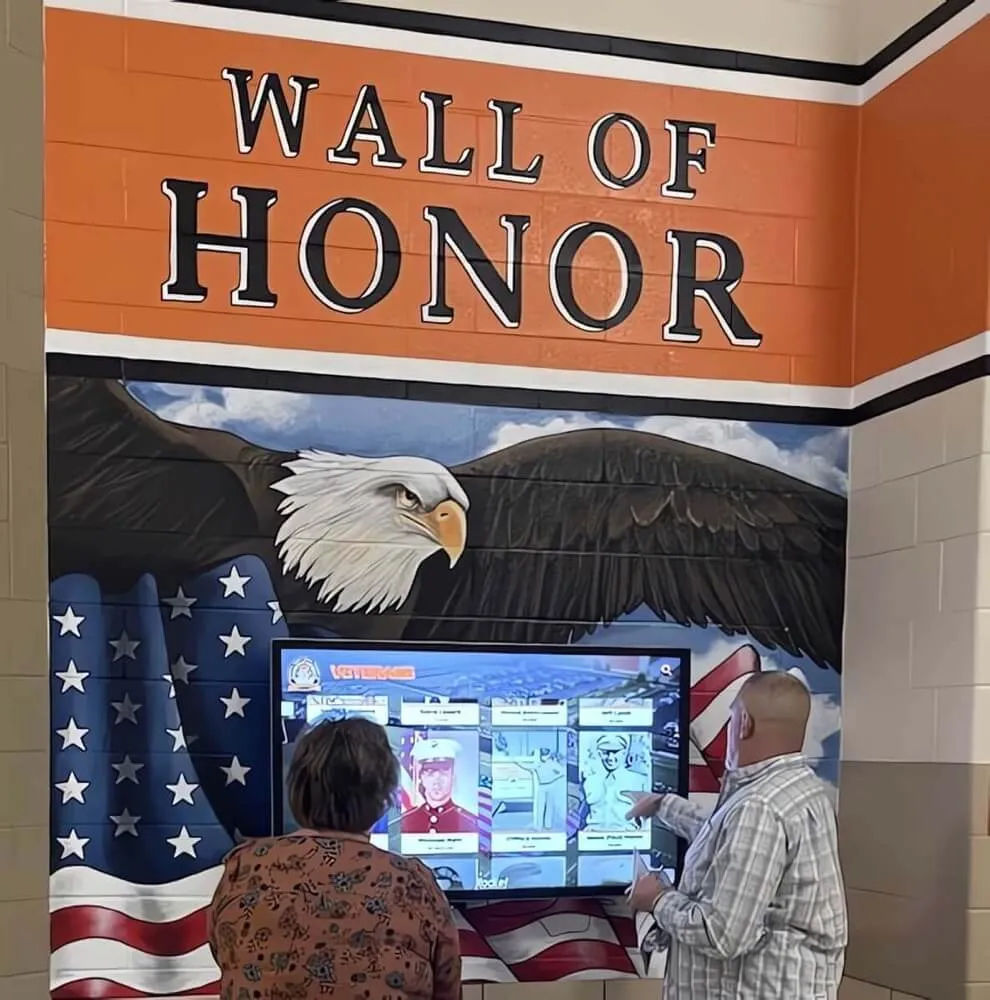
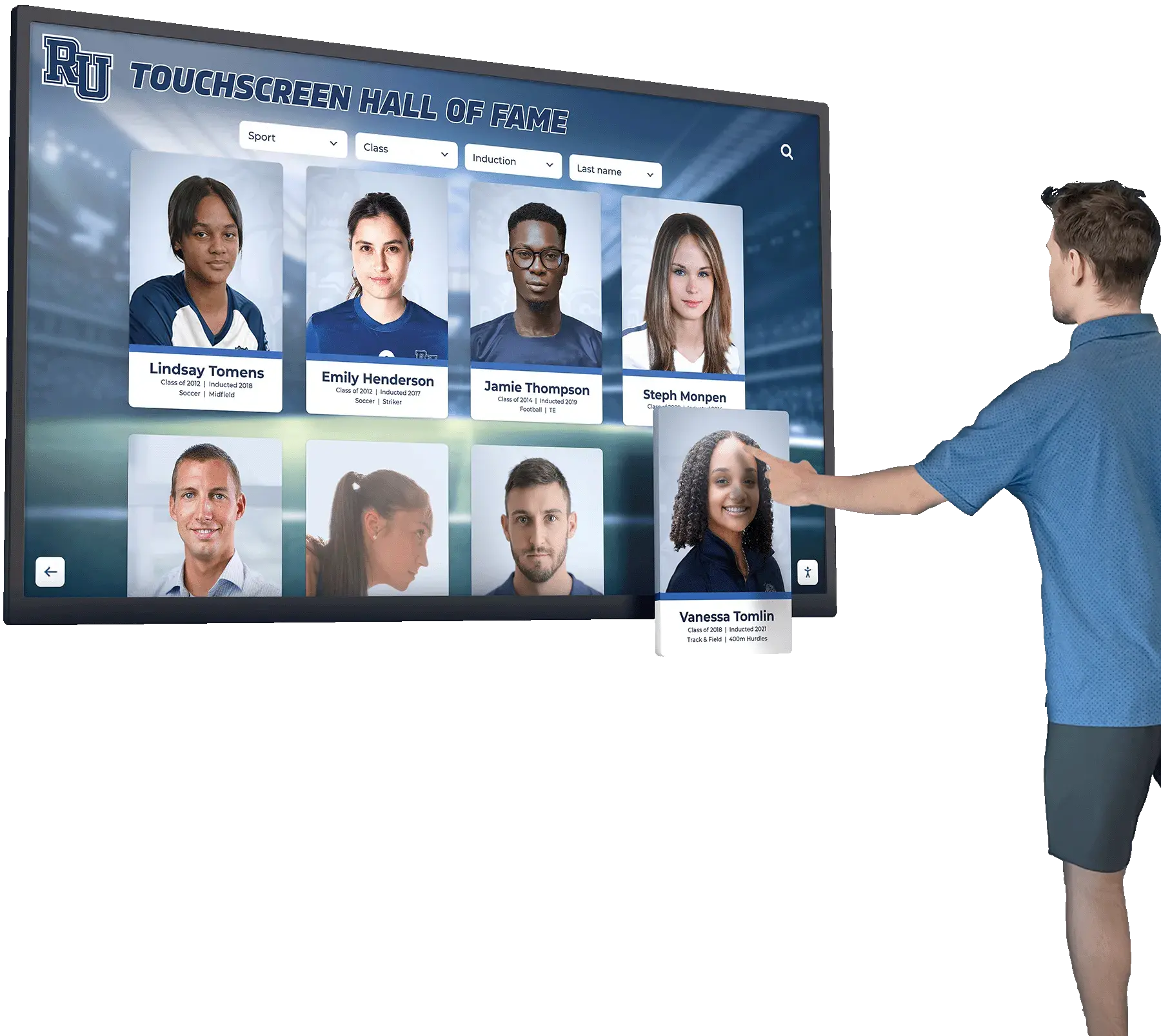
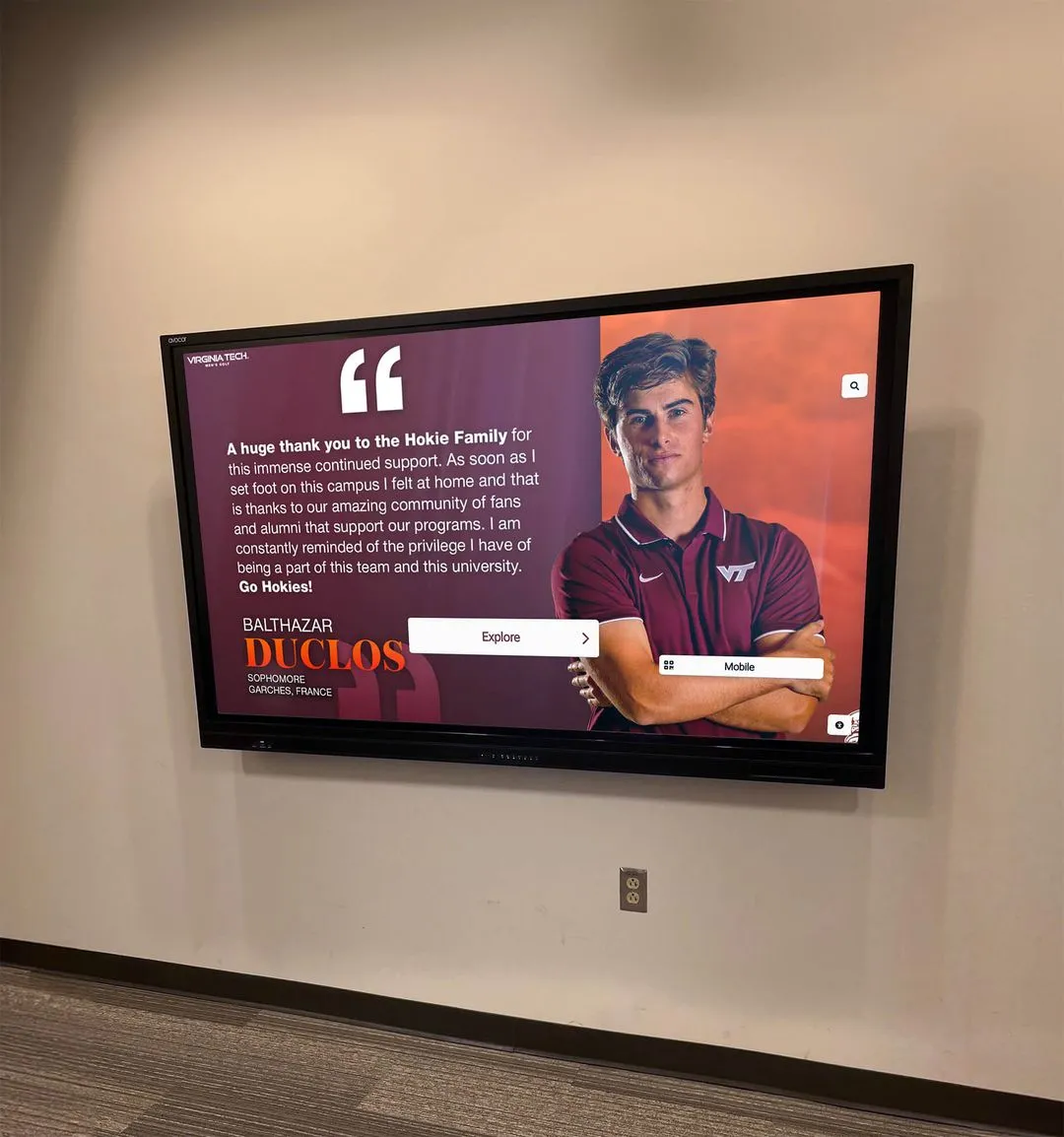
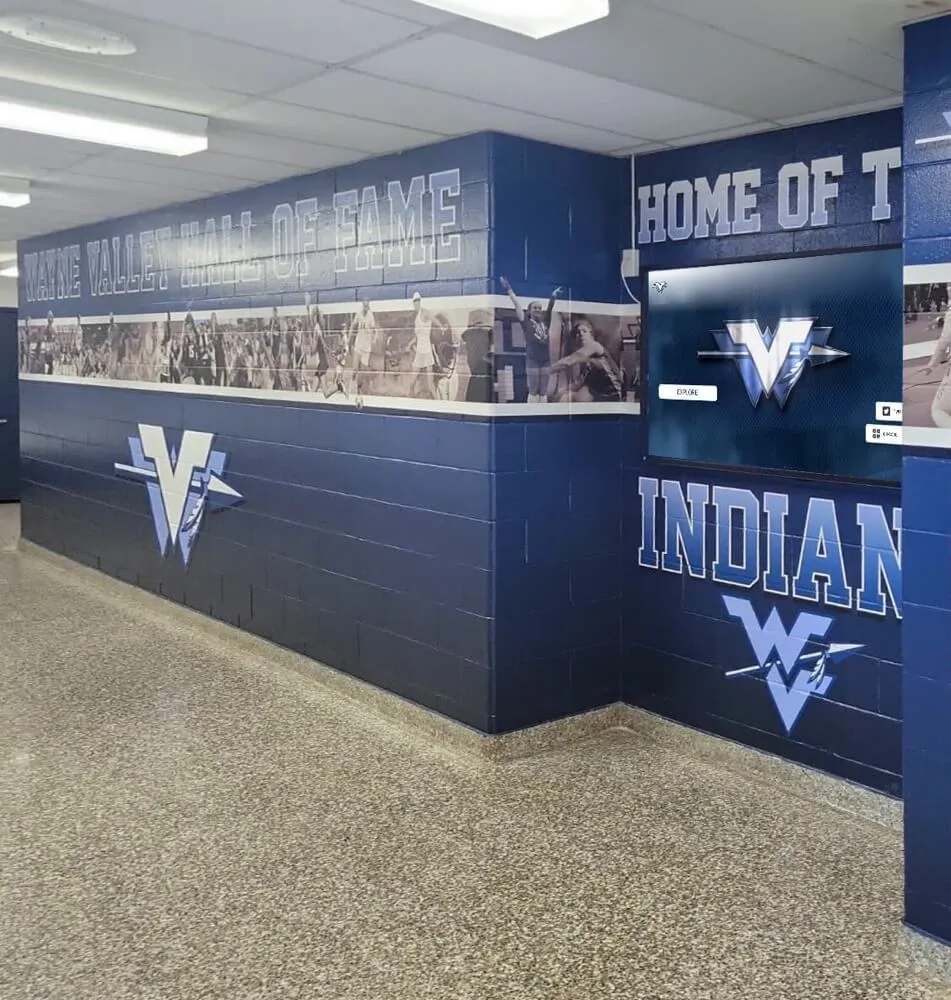
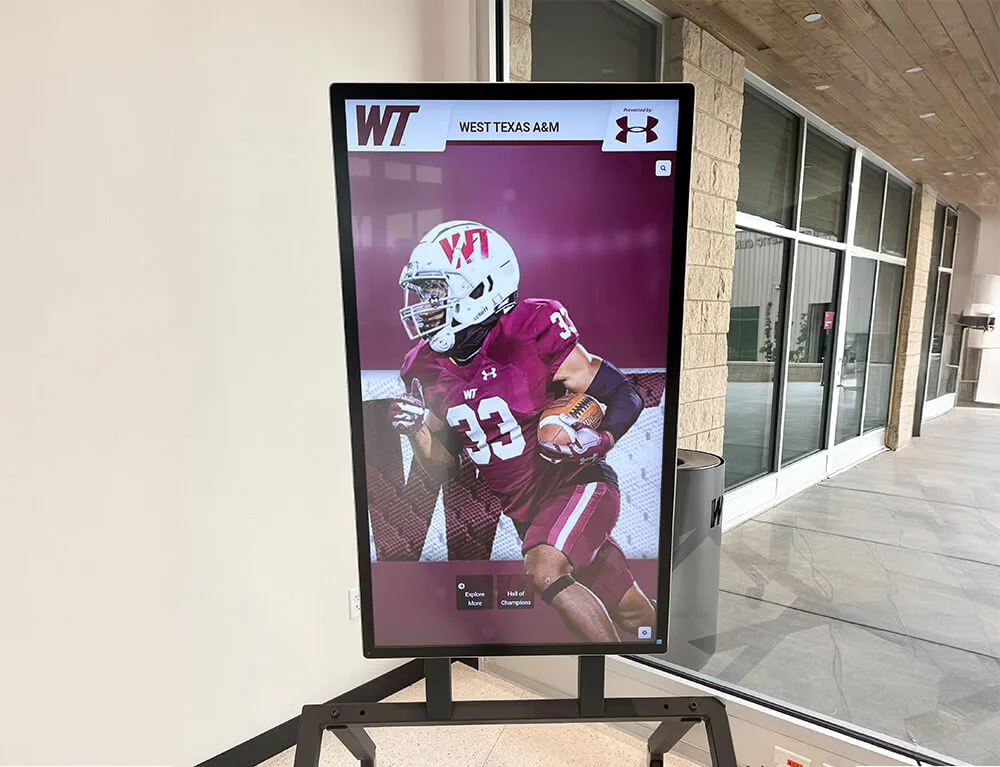
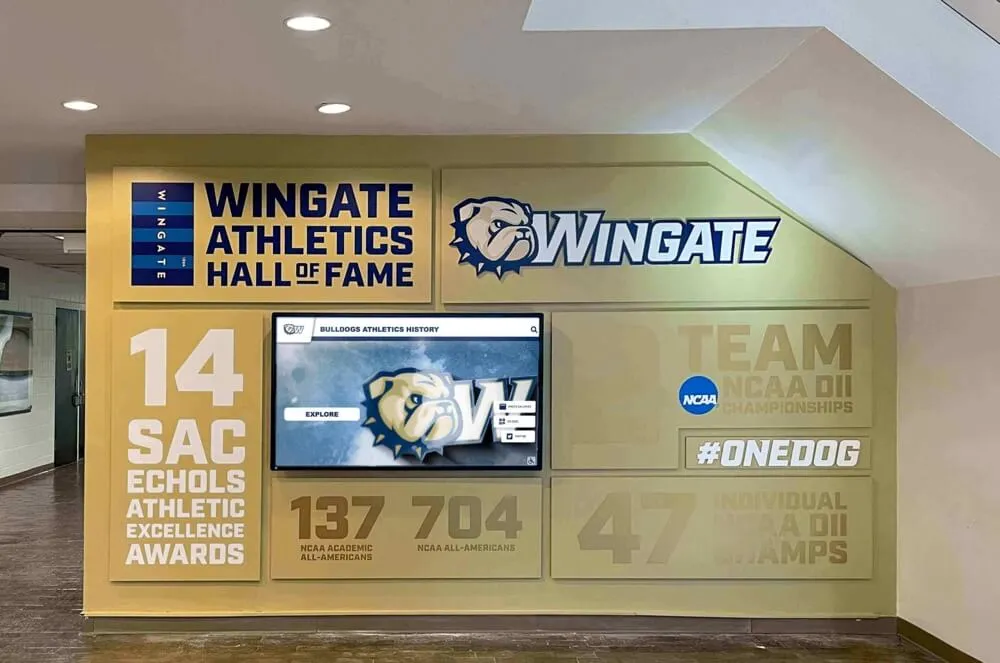
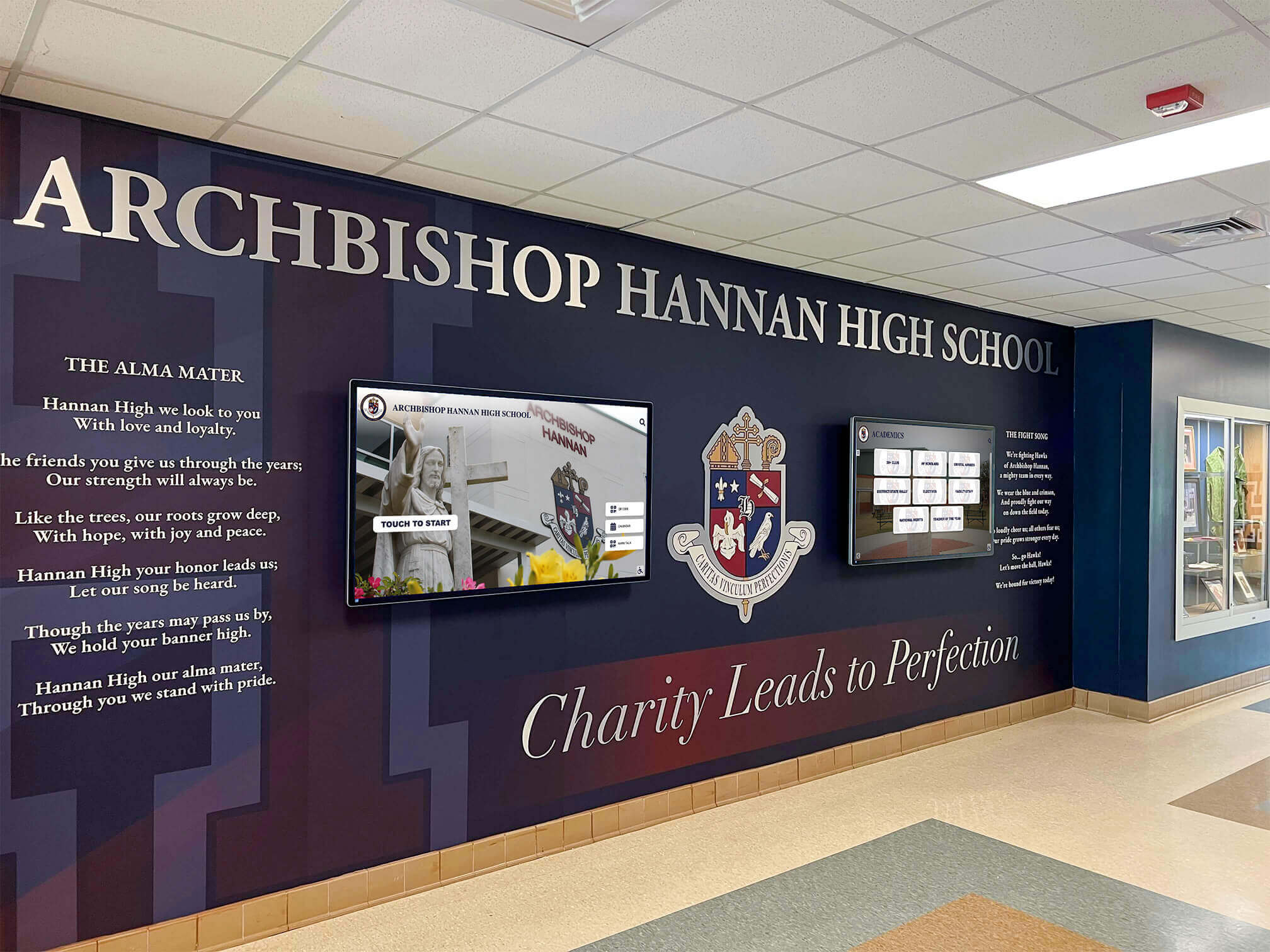
A lobby touchscreen is the first point of contact between your school's recognition program and every visitor — release readiness protects that impression
Quick-Reference Go/No-Go Summary
Use this table at the start of every release review. All seven gates must show Go before publishing.
| Gate | Focus area | Common failure point |
|---|---|---|
| A — Content | Accuracy, freshness, media | Outdated athlete records, broken links |
| B — Hardware | Screen, kiosk, peripherals | Unresponsive touch zones, display burnout |
| C — Network | Connectivity, offline mode, QR codes | CMS sync failure, QR code redirect errors |
| D — Permissions | Media releases, sponsor rights | Unlicensed photo, lapsed sponsor contract |
| E — Accessibility | WCAG 2.1 AA, captions, contrast | Missing alt text, low-contrast text overlay |
| F — Rollback | Backup, restore path | No saved snapshot of previous content |
| G — Stakeholder | Admin, AD, IT, facilities sign-off | Missing one approver before go-live |
Gate A: Content Readiness
Content is what visitors actually experience. An outdated record board, a misspelled athlete name, or a photo from the wrong year erodes community trust faster than almost anything else.
Accuracy and Freshness
- All athlete names, graduation years, and sport designations are current and verified against official school records
- Record board statistics reflect the most recent completed season, not a prior year’s data
- Hall of Fame inductee dates, class years, and biographical details match official induction documentation
- Any upcoming-event banners, sponsor campaigns, or seasonal messaging carry accurate dates
- Retired or transferred athletes are removed or appropriately marked if your policy requires it
- Memorial tributes have been reviewed by administration before display
Media Integrity
- All photos display at correct resolution — no pixelated or stretched thumbnails
- Videos play without error at lobby screen resolution and volume settings
- No placeholder images or “coming soon” frames remain in the published content set
- Sponsor logos match the current approved file provided by the sponsor
- QR codes resolve to correct landing pages and have been tested on at least two mobile devices
For an athletic director’s perspective on keeping recognition records current between seasons, see the AD-focused update process guide at Digital Record Board.
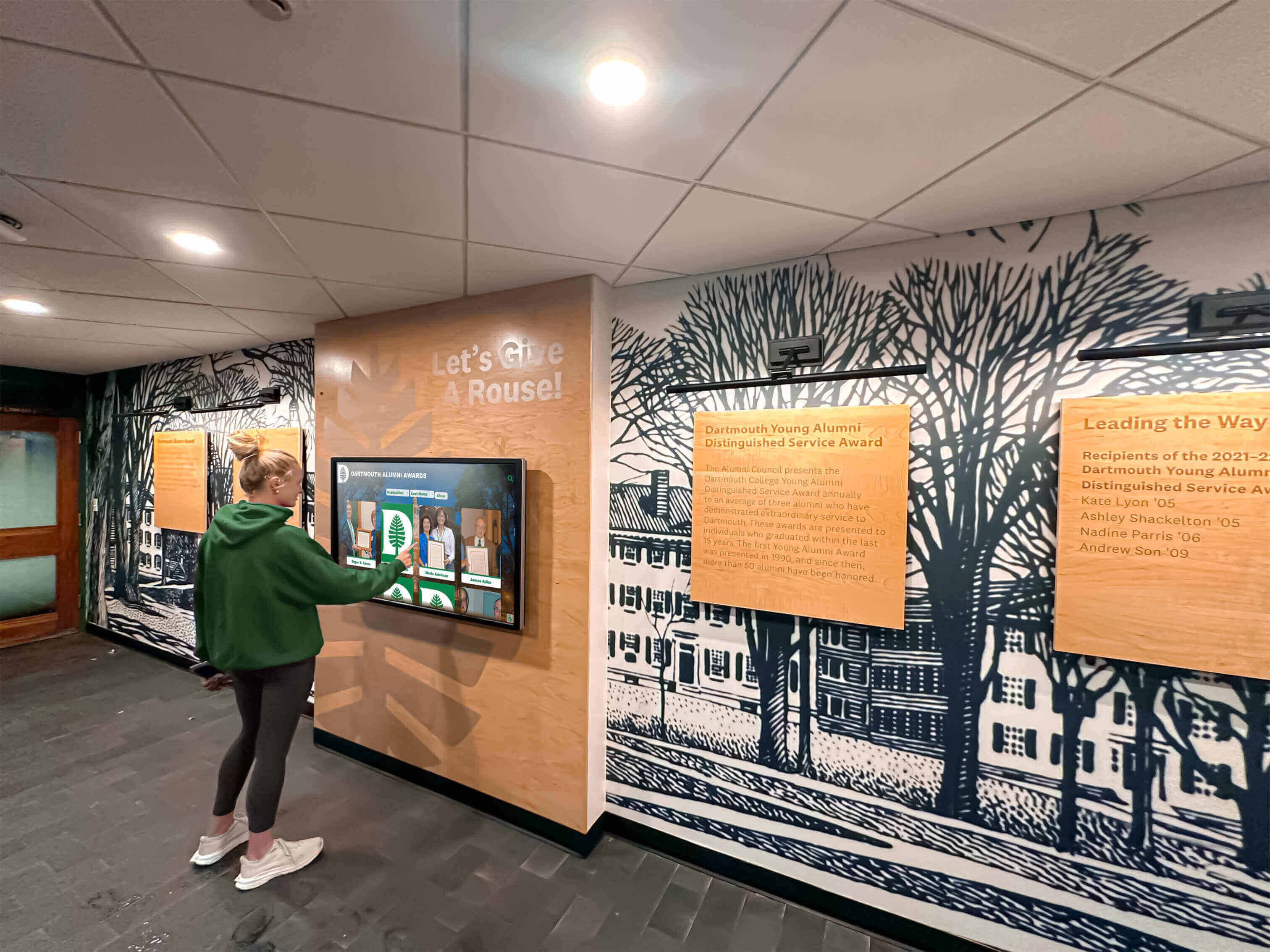
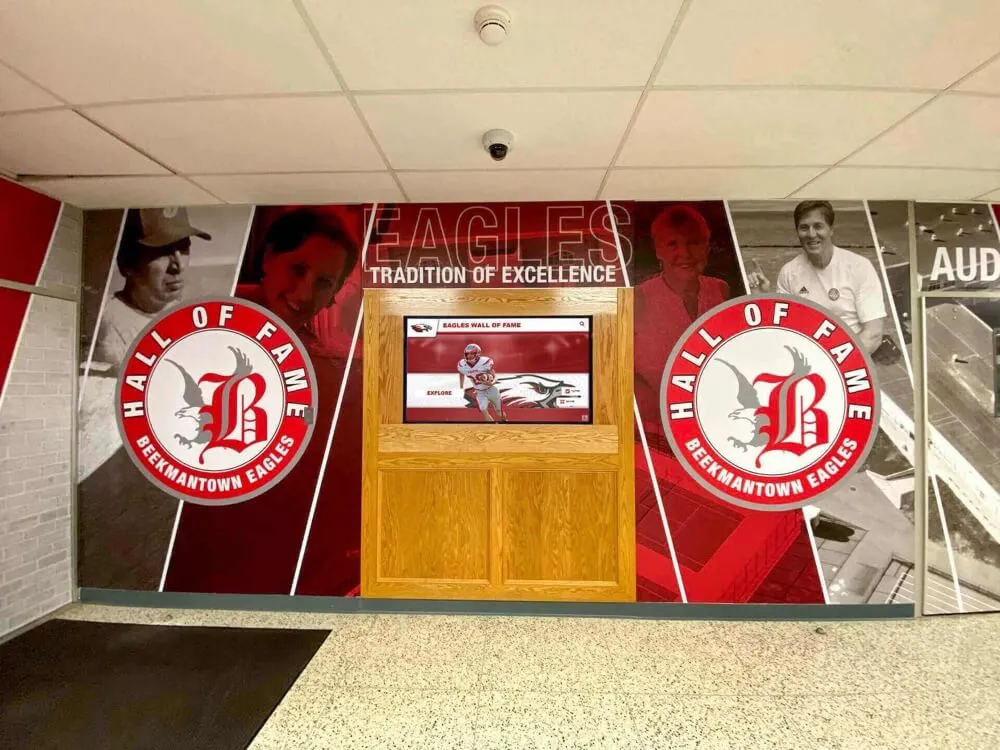
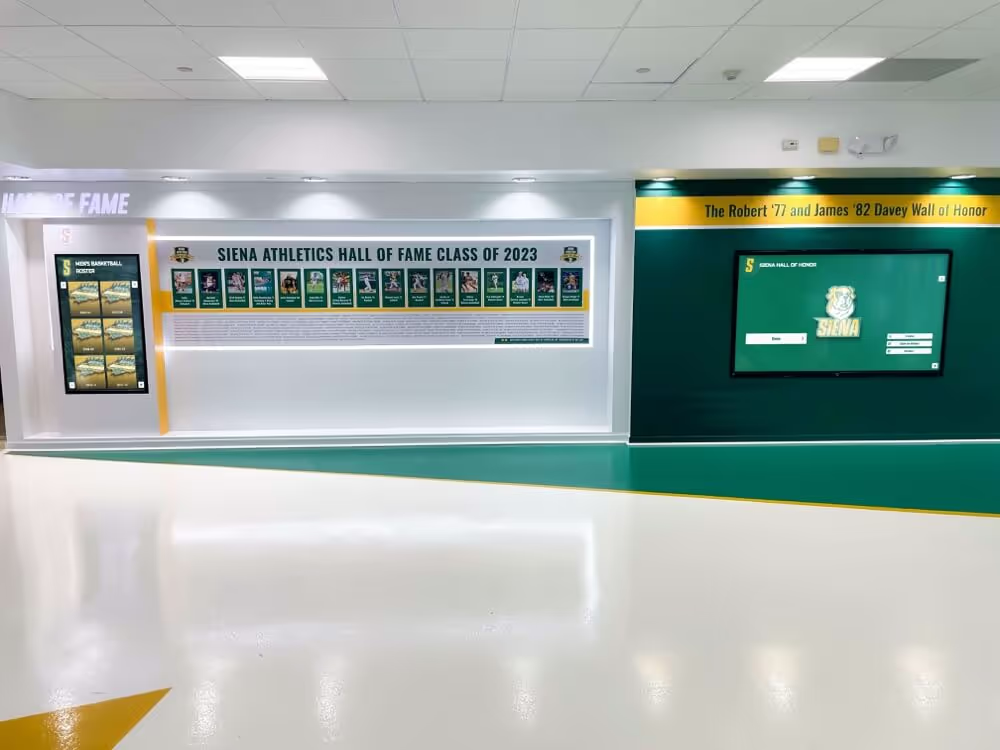
Accurate, current content is what makes community members stop and engage — stale data turns a warm recognition moment cold
Gate B: Hardware and Display Readiness
The best content fails if the screen displays it poorly. Hardware checks take less than ten minutes but catch problems that otherwise wait until a parent delegation tours the lobby.
Screen and Display Condition
- Screen powers on and displays the home state within 60 seconds of startup
- All touch zones respond accurately across the full screen surface, including corners and edges
- Brightness is set appropriately for lobby ambient lighting — not washed out, not causing glare on the protective glass
- Display is free of dead pixels, persistent burn-in areas, or color bleed visible at normal viewing distance
- Screen enclosure or kiosk cabinet is clean, securely mounted, and free of tampering signs
Peripherals and Physical Environment
- Any external speakers produce clear audio at lobby-appropriate volume
- Wayfinding signage pointing visitors to the display is accurate — especially if the display moved locations recently
- Physical ADA accommodation features — accessible height, knee clearance if applicable — are unobstructed
- Power supply and cable management show no exposed wiring or tripping hazards
- The display area is clean, adequately lit, and free of objects blocking the screen or touch surface
For guidance on maintaining the athletic facility environment surrounding your lobby display, this athletic facility maintenance checklist from Digital Record Board is a useful companion reference.
Gate C: Network and Connectivity Readiness
School lobby displays often rely on continuous CMS connections for remote updates and QR code traffic routing. A failed network test before go-live prevents a content push that simply never arrives on screen.
Online Connectivity
- Display device connects successfully to the designated school network segment
- Remote CMS dashboard confirms the device is active and shows “last seen” within the past 24 hours
- Content sync completes without error messages in the CMS activity log
- Scheduled publishing rules — for alumni events, seasonal banners, or sponsor rotations — are confirmed active and set to the correct time zone
Offline Behavior
- Content displays correctly when the network connection is intentionally interrupted for 60 seconds, simulating a brief outage during a lobby event
- Cached content shows the correct fallback screen, not a blank or error state
- Offline mode does not surface expired promotional content that was removed from the live content set
QR Code and Mobile Access
- All QR codes in the published content set scan successfully with at least one iOS device and one Android device
- Scanned QR codes route to the correct destination URLs — not cached old destinations from a prior content version
- QR code destination pages load within five seconds on a standard school network connection
- Mobile landing pages are readable at phone screen scale with no horizontal scroll required
QR codes and mobile access extend lobby recognition beyond the physical screen — community members who scan can share individual athlete or alumni profiles, making each recognition moment travel further than the lobby itself.
Gate D: Permissions and Ownership
A school lobby display is a public communication platform. Content that appears there requires documented permission — for photos, for student and alumni likenesses, for sponsor assets, and for third-party media.
Photo and Media Releases
- Photo releases are on file for all student-athletes and alumni whose images appear in this content update, in accordance with your school’s media consent policy
- Any images sourced from outside the school’s own archives carry documented license or release
- Video testimonials or interviews include signed release from all on-screen participants
- If your district has a digital media retention policy, content has been reviewed for compliance before display
Consult your district’s legal or communications team for guidance specific to your student data and media consent requirements — this checklist flags the questions, not the legal standard.
Sponsor and Partner Content
- Each sponsor panel uses the logo and messaging version provided in the sponsor’s current contract year
- No sponsor’s campaign end date has passed — check contract renewal dates before publishing
- Sponsor acknowledgment language has been reviewed against contractual terms to avoid misrepresentation
- Any removed sponsor has been cleared from the content set and no residual branding remains
For broader context on the physical archive materials stored alongside lobby displays, this athletic memorabilia checklist at Hall of Fame Wall addresses the physical side of facility recognition management.
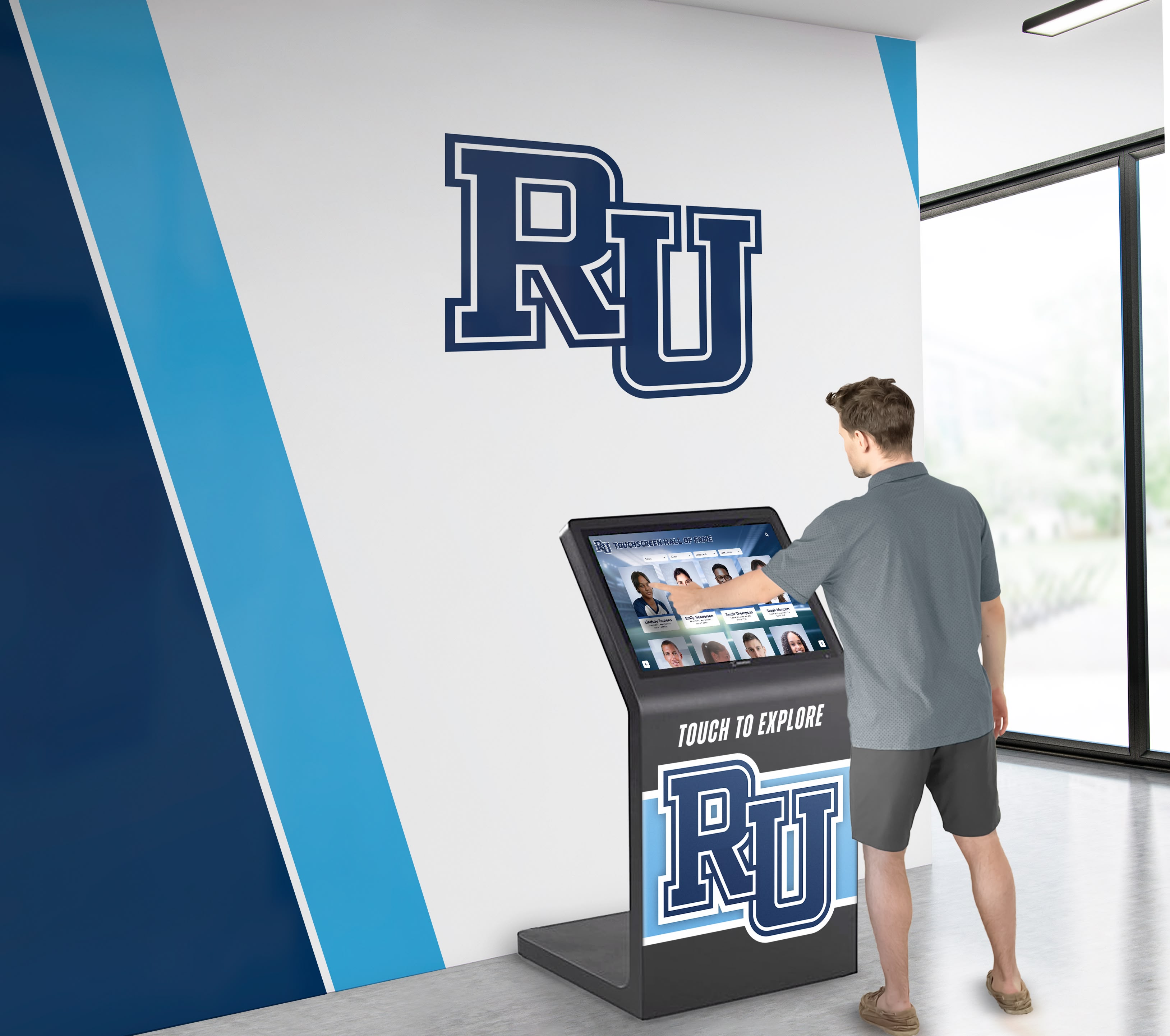
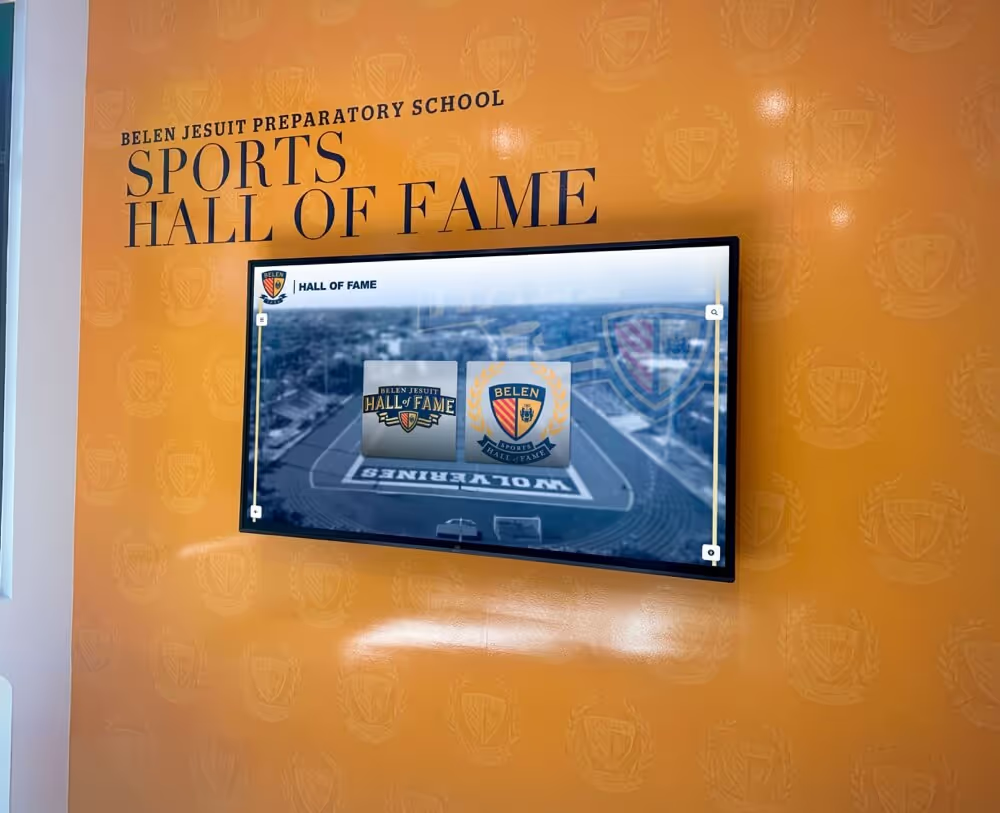
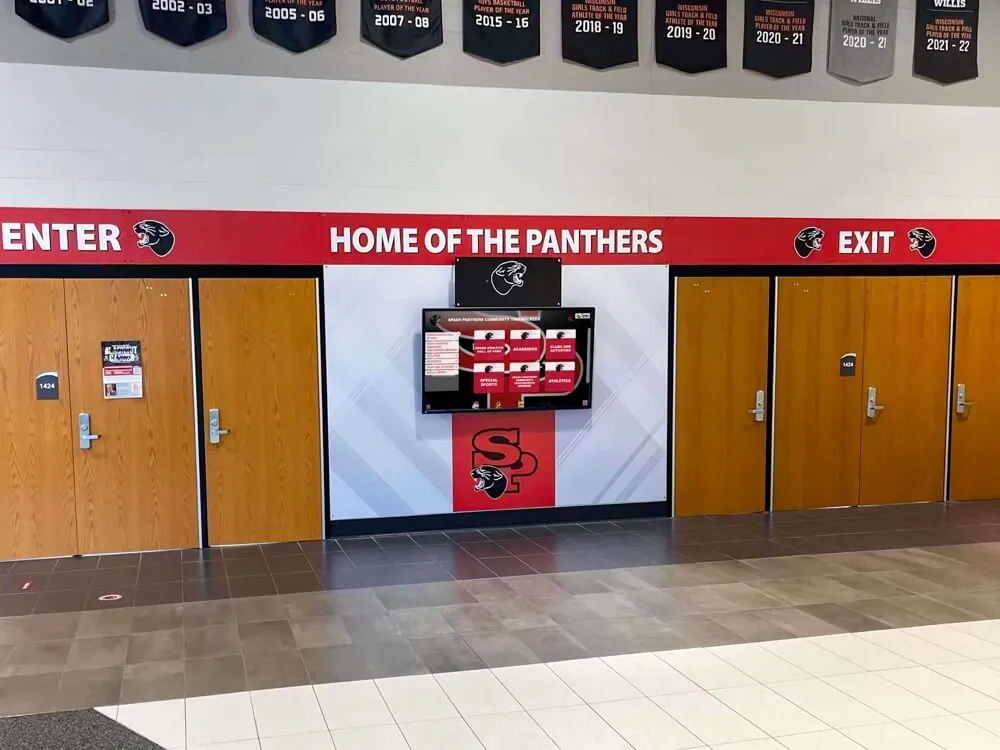
Every profile on a public lobby display represents a real person whose image and story deserve appropriate permission and care
Gate E: Accessibility Readiness
School lobby displays serve every member of the community — students with visual impairments, families who use assistive technology, and visitors of all ages. WCAG 2.1 AA compliance is the baseline; checking these items before go-live means no visitor is excluded from the recognition experience.
Visual Accessibility
- All text meets a minimum 4.5:1 contrast ratio against its background (3:1 for large text above 18pt)
- Font sizes are readable at arm’s length from the screen — typically 24pt minimum for body text on lobby displays
- Alt text or descriptive labels are set for all images in the CMS so screen-reader-compatible interfaces can describe them
- Color is never the sole indicator of meaning — no status indicators or interactive elements rely only on color to distinguish themselves
Interactive and Motor Accessibility
- Touch targets — buttons, navigation items, athlete profile cards — are at least 44×44 pixels per WCAG 2.5.5 guidance
- All interactive paths through the content are keyboard-navigable if a keyboard or switch device is connected
- Time-limited interactive sequences include a mechanism to extend or pause — no content auto-advances without a reset option available to the user
- Where the display incorporates video, captions are enabled and accurate
The ADA accessibility checklist for digital recognition displays from Touch Hall of Fame provides a deeper technical reference for teams conducting formal accessibility reviews before a major content release.
Gate F: Rollback and Recovery Readiness
Things go wrong. A rollback plan means that when something does go wrong after publishing, your team can restore the prior content state in minutes rather than hours — before a ceremony, a board visit, or a campus tour turns a content error into a visible problem.
Content Backup
- A snapshot of the current live content set — taken before applying this update — is saved and labeled in the CMS with today’s date and a brief update description
- The backup is stored in a location accessible to at least two staff members, not solely on the device managing the display
- The backup includes all media files (images, videos), not only text and configuration data
Restore Procedure
- At least one staff member has confirmed they know the step-by-step process to restore the backup snapshot in the CMS
- The restore procedure is documented and accessible to the facilities team and IT in a shared location — not solely in one person’s email inbox
- An emergency contact chain is established: who calls whom if a display shows incorrect content during a weekend event or after-hours ceremony
Preview and Staging
- If your CMS supports a preview or staging mode, the full content update was reviewed in preview before pushing to the live lobby display
- Anyone named in the content had an opportunity to flag factual errors during the preview window
Gate G: Stakeholder Sign-Off
Recognition content in a school lobby represents the whole institution. The final gate ensures the right people have reviewed and approved the update before it goes public.
| Approver role | Scope of review | Sign-off required? |
|---|---|---|
| School administrator (principal or designee) | Overall content accuracy, memorial content, public messaging | Yes |
| Athletic director | Athlete records, record board statistics, season accuracy | Yes for athletic content |
| Alumni or archives coordinator | Hall of Fame inductee data, historical content | Yes for archive content |
| IT or technology coordinator | Network readiness, CMS configuration, QR codes | Yes |
| Facilities manager | Hardware condition, physical accessibility, cable safety | Yes |
| Booster leader or development office | Sponsor panels, fundraising messaging | Yes for sponsor content |
Not every update requires all six approvers — calibrate the sign-off list to the scope of the change. A minor caption correction may require only IT and one content owner; a full Hall of Fame class release warrants all relevant approvers.
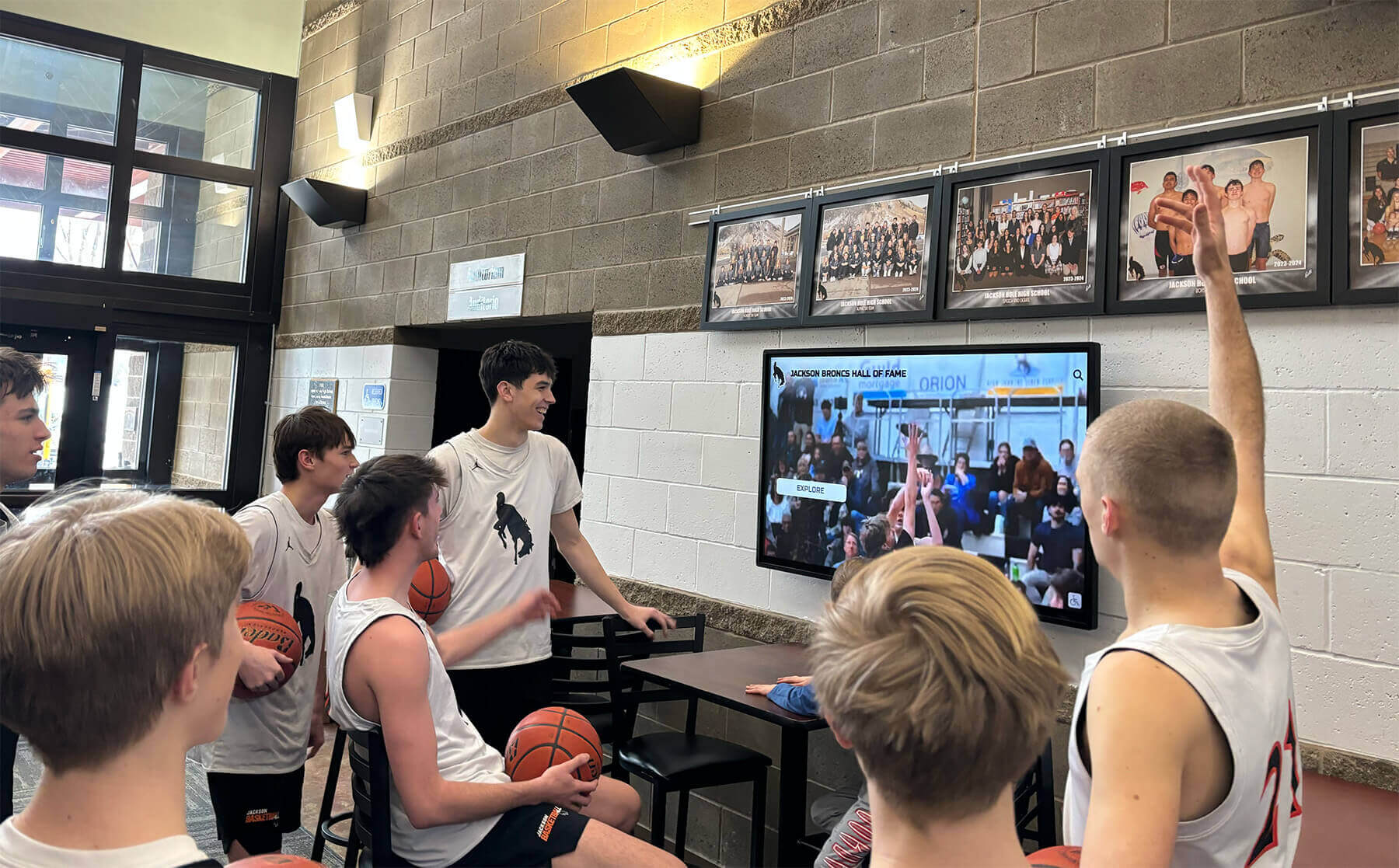
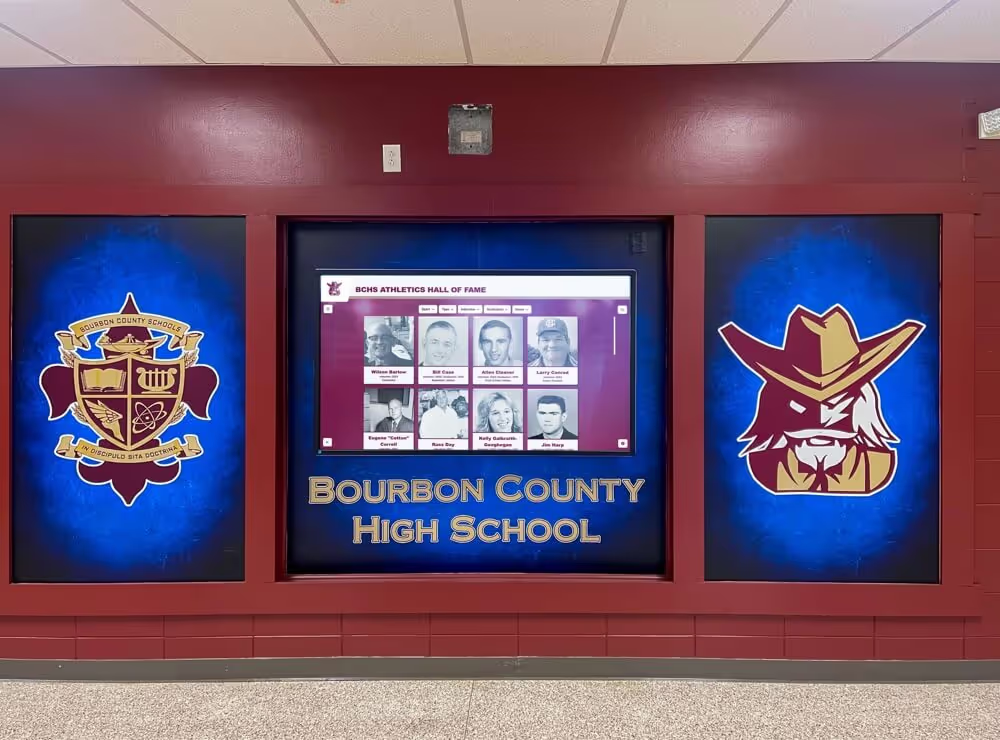
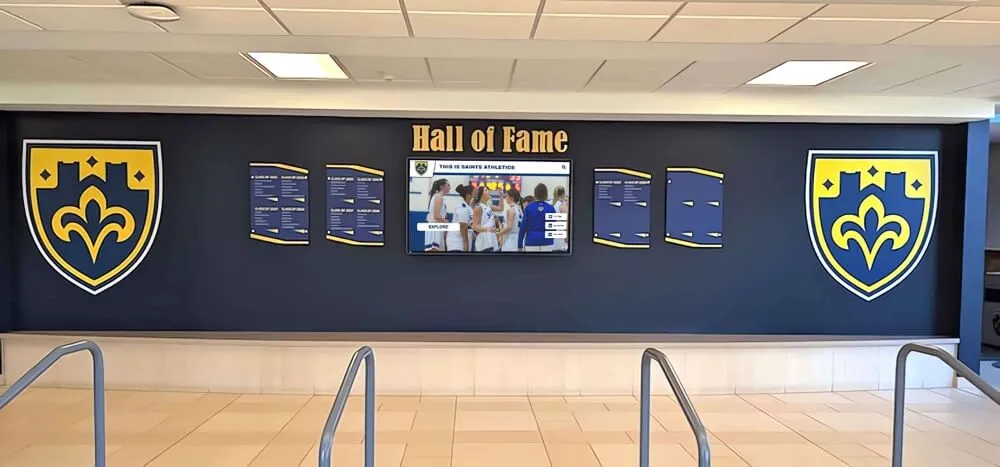
Stakeholder sign-off ensures the community sees a unified, accurate recognition experience every time the screen updates
For branding context surrounding your touchscreen in the broader athletic facility, this resource on athletic facility branding in schools, gyms, and lobbies is worth reviewing as part of stakeholder conversations about lobby presentation.
After Go-Live: First 72-Hour Monitoring Checklist
Release readiness does not end at publication. The first 72 hours after a content update are when most issues surface in real conditions.
- Walk the lobby and view the display in person within 24 hours of go-live
- Verify that scheduled content rotations — sponsor swaps, seasonal banners, auto-ranking record updates — triggered correctly at their set times
- Check the CMS activity log for sync errors or delivery failures since publication
- Collect informal feedback from front-office staff and lobby monitors — they notice display issues before any report reaches IT
- Confirm that newly inducted or newly recognized community members have been notified and given a chance to view their profile
- Archive the completed go/no-go checklist for this release in a shared folder for future audit reference
Integrating the Checklist Into Your Content Calendar
The touchscreen recognition display release readiness checklist works best when it becomes part of your existing planning cycle rather than a last-minute scramble.
Seasonal transition points — the opening of fall, winter, and spring athletic seasons — are natural moments to run a full checklist, update record boards, and confirm sponsor panels reflect current agreements.
Hall of Fame induction cycles typically generate the most complex releases: new inductee profiles, historical archive additions, updated record boards, and often fresh sponsor panels. Schedule checklist completion at least 72 hours before any induction ceremony so issues surface before family members and alumni arrive in the lobby.
District technology update windows can push CMS or platform changes that affect how content renders. Coordinate with IT to run Gate B (hardware) and Gate C (network) immediately after any platform upgrade to confirm display behavior is unchanged.
Alumni reunion and homecoming events drive elevated lobby traffic and new visitors who have not seen the display before. Pre-event is an ideal time to run a full seven-gate review. The alumni reunion planning checklist at Touch Hall of Fame helps sequence recognition content updates against broader event planning timelines.
Championship banners and physical display materials adjacent to your touchscreen carry their own inspection requirements. Before a major recognition launch, reviewing this championship banner inspection checklist alongside your digital release checklist ensures the full lobby environment — both screen and surround — is ready at the same time.
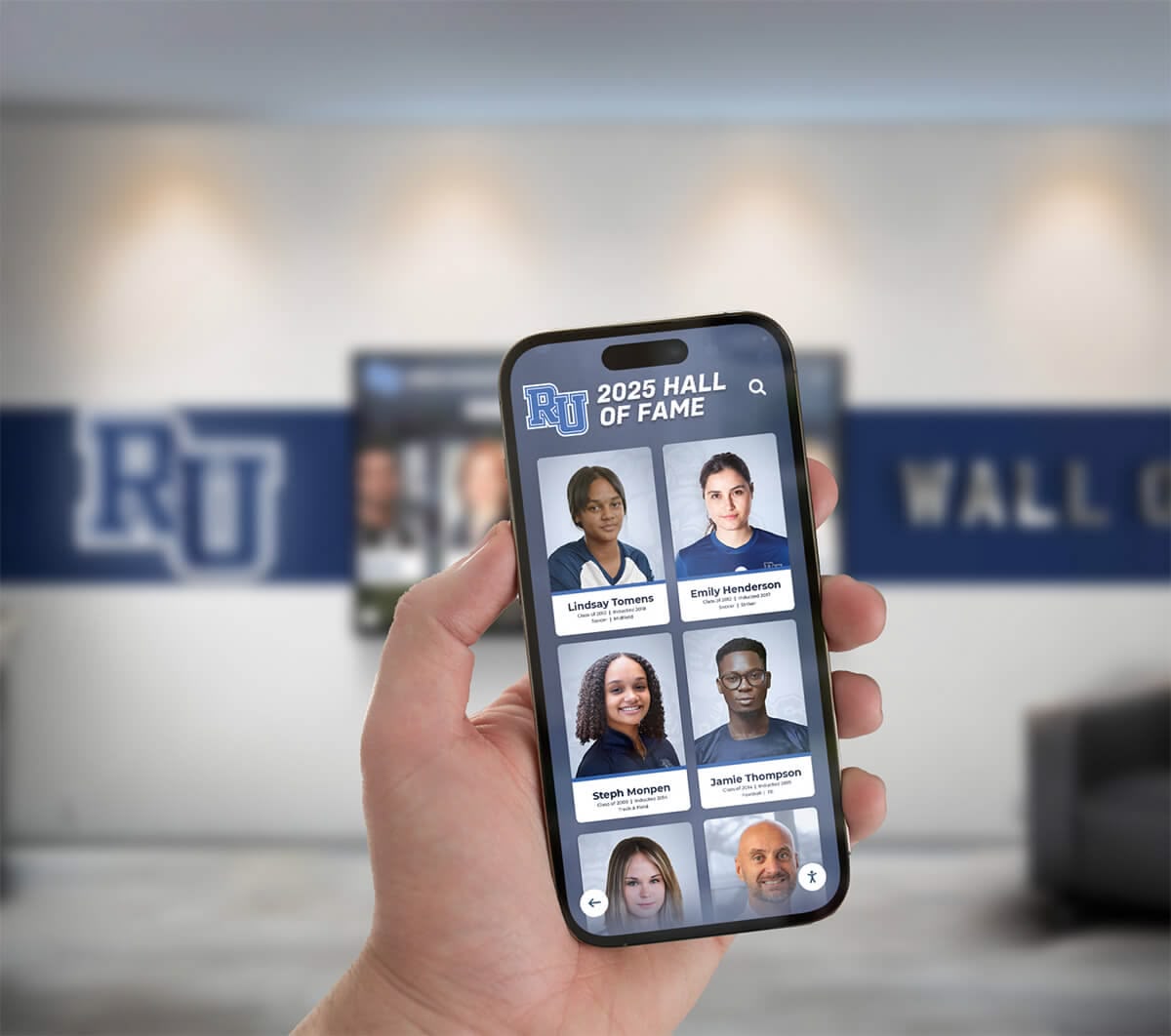
QR code access lets community members carry lobby recognition with them — verifying QR destinations in Gate C protects that extended reach
Frequently Asked Questions
How often should a school run this release readiness checklist? Run the full checklist for every substantive content update — seasonal record board refreshes, new Hall of Fame class publications, sponsor changes, and memorial additions. For minor corrections such as a single caption fix or a date change, a lightweight version covering Gates A, D, and G is typically sufficient. Consult your district’s change management policy for guidance on what triggers a full review.
Who owns the release readiness checklist process? Ownership typically sits with whoever manages the CMS — often an athletic director, alumni coordinator, or IT specialist depending on the school. In practice, the checklist works best when one named person is responsible for collecting sign-offs from all gate owners before publishing, even if the gate owners themselves perform their own checks.
What if our display does not support offline mode? If the display shows a blank screen or error state during a network interruption, note that as a platform gap and plan for it operationally — for example, scheduling content updates only during low-traffic lobby hours. Web-based recognition platforms with built-in CMS sync and offline caching reduce this risk without requiring separate technical configuration.
Does this checklist apply to multi-screen lobby installations? Yes — run Gate B (hardware) and Gate C (network) for each individual screen in a multi-screen installation. Content, permissions, accessibility, rollback, and stakeholder gates typically apply to the content set as a whole unless different screens display different content, in which case separate content reviews are warranted.
How should schools handle a recognized athlete who requests their profile be removed? Treat that request as a permissions event that triggers an abbreviated release cycle — remove the profile, save a new content snapshot, and confirm the removal with the relevant stakeholder before republishing. Consult your school’s data privacy officer if student records are involved, and build a removal request workflow into your district’s broader digital recognition governance policy.
What is the best way to manage the rollback archive as content changes month after month? Keep a running log in your CMS or a shared drive folder: one labeled snapshot per release, named with date and a brief description of the update. After 12 months, older snapshots can move to cold storage while the six most recent versions remain immediately accessible. Most web-based recognition platforms store content revisions without additional storage cost.
How do physical archive materials near the display relate to digital release readiness? Physical memorabilia, trophies, and archive materials stored near a lobby touchscreen can affect the display environment through humidity, pests, and cleaning chemicals. This athletic memorabilia pest management checklist covers the archival side of lobby recognition management and complements the digital release process.
See a Lobby Display Built for Confident, Repeatable Updates
Rocket Alumni Solutions gives school administrators, athletic directors, and IT teams a web-based recognition platform with remote CMS, scheduled publishing, offline-capable display, ADA WCAG 2.1 AA compliance, and rollback-ready content management — everything this checklist requires, in one system. Request a demo to see how your school lobby can stay current, accessible, and fully controlled.
Request Your DemoA lobby touchscreen that passes every gate on this checklist does more than avoid errors — it earns the trust that makes community members stop, engage, and return. That consistent warmth, renewed with every well-managed update, is what transforms a recognition display from a digital fixture into a living part of your school’s community identity.