



Intent: compare — Organizations implementing public-facing touchscreen displays need reliable kiosk browser apps that lock down devices, prevent unauthorized access, and deliver seamless user experiences. The right kiosk software transforms Android tablets, iPads, and computers into secure, single-purpose displays perfect for schools, museums, retail environments, and recognition systems.
While Fully Kiosk Browser has dominated the kiosk software market, its annual subscription costs, limited features in free versions, and platform restrictions drive many organizations toward free alternatives offering comparable functionality without recurring fees. The Rocket Touchscreen app for Android and similar solutions for Mac provide fully locked down browser experiences specifically optimized for interactive displays and digital recognition systems.
This comprehensive guide examines the best free touchscreen kiosk apps available for download in 2025, comparing features, security capabilities, and use cases to help organizations select optimal solutions for their specific needs without overpaying for unnecessary premium features.
The kiosk software landscape has evolved dramatically as organizations increasingly deploy public touchscreen displays for interactive engagement. Schools implementing digital hall of fame systems, museums creating visitor information kiosks, and businesses deploying self-service terminals all share common requirements: secure device lockdown, intuitive browser-based interfaces, and reliable operation without constant supervision.
What we call “digital warming”—transforming cold, impersonal spaces into engaging, personalized community experiences—depends on touchscreen kiosks that encourage exploration rather than frustrate visitors with technical failures or security vulnerabilities. Kiosk browser software fundamentally shapes whether displays achieve engagement goals or become underutilized technology investments gathering dust in facility corners.

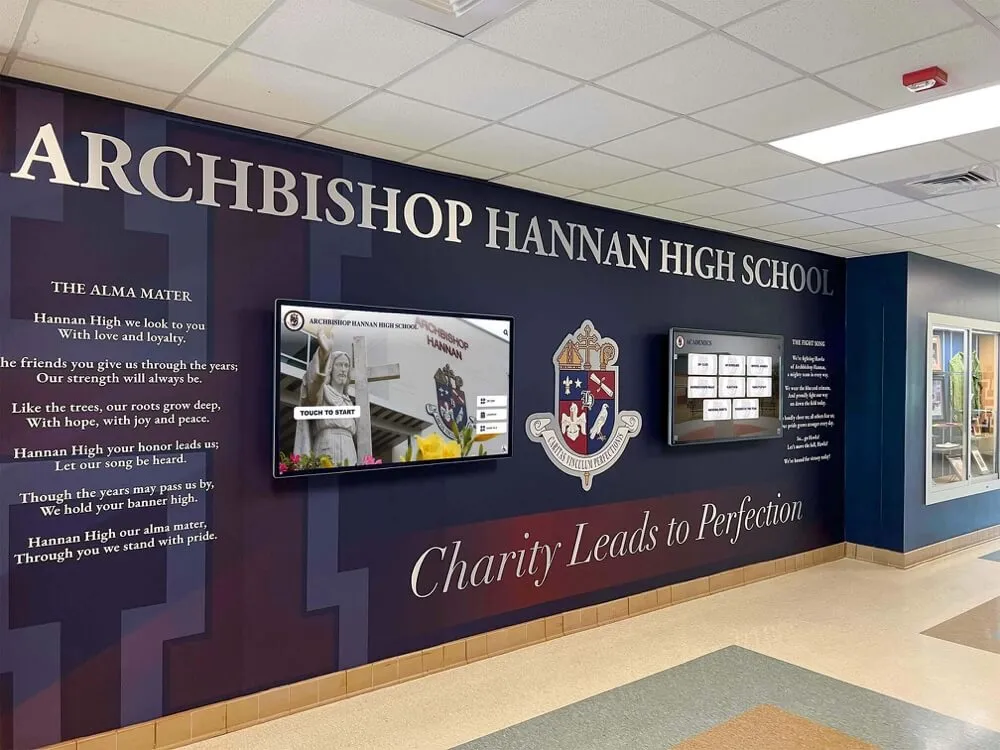
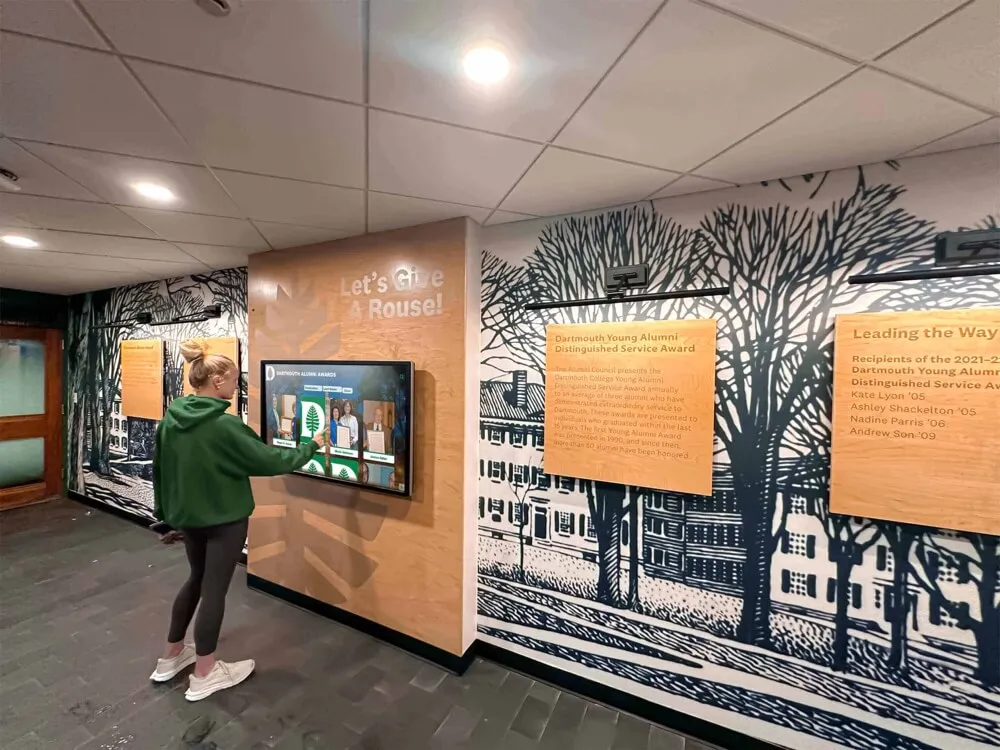
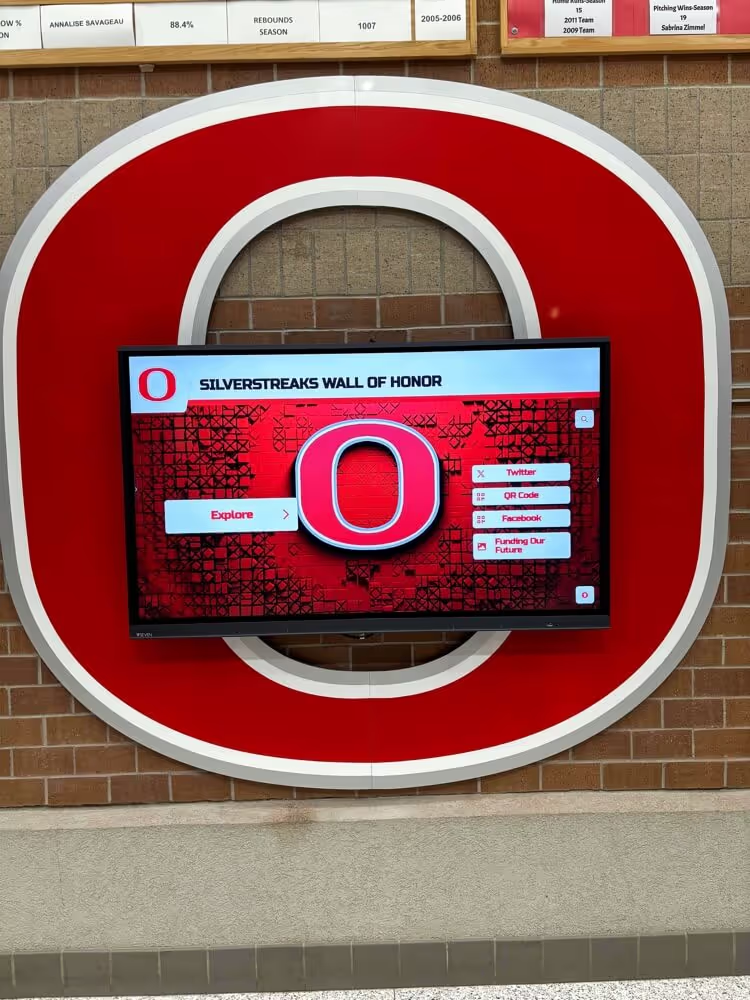
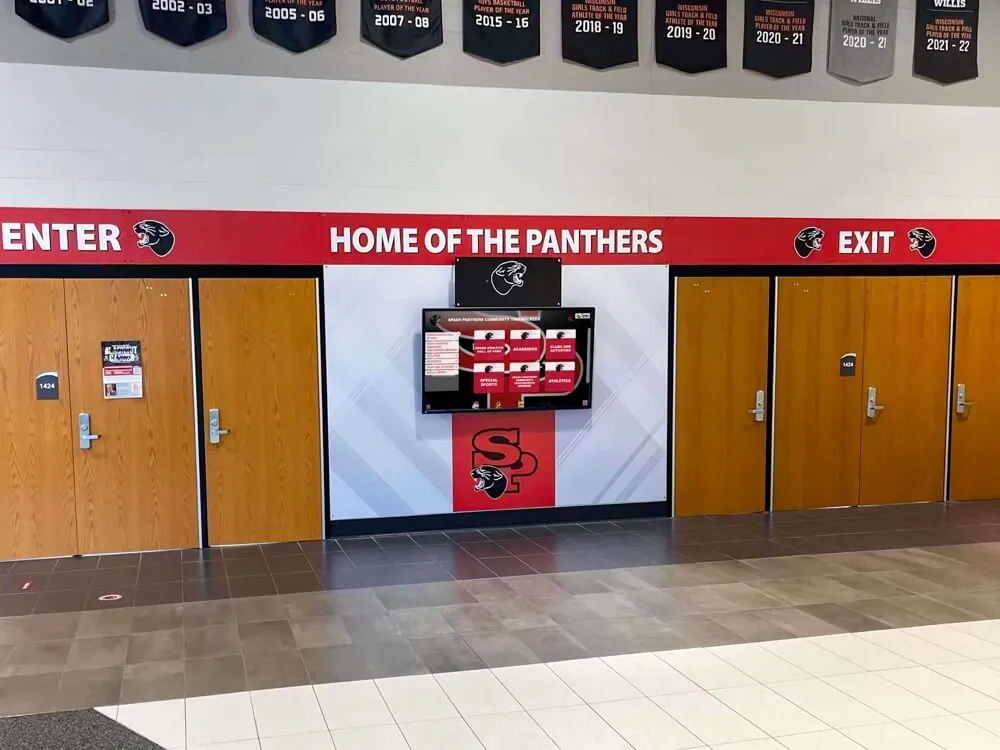
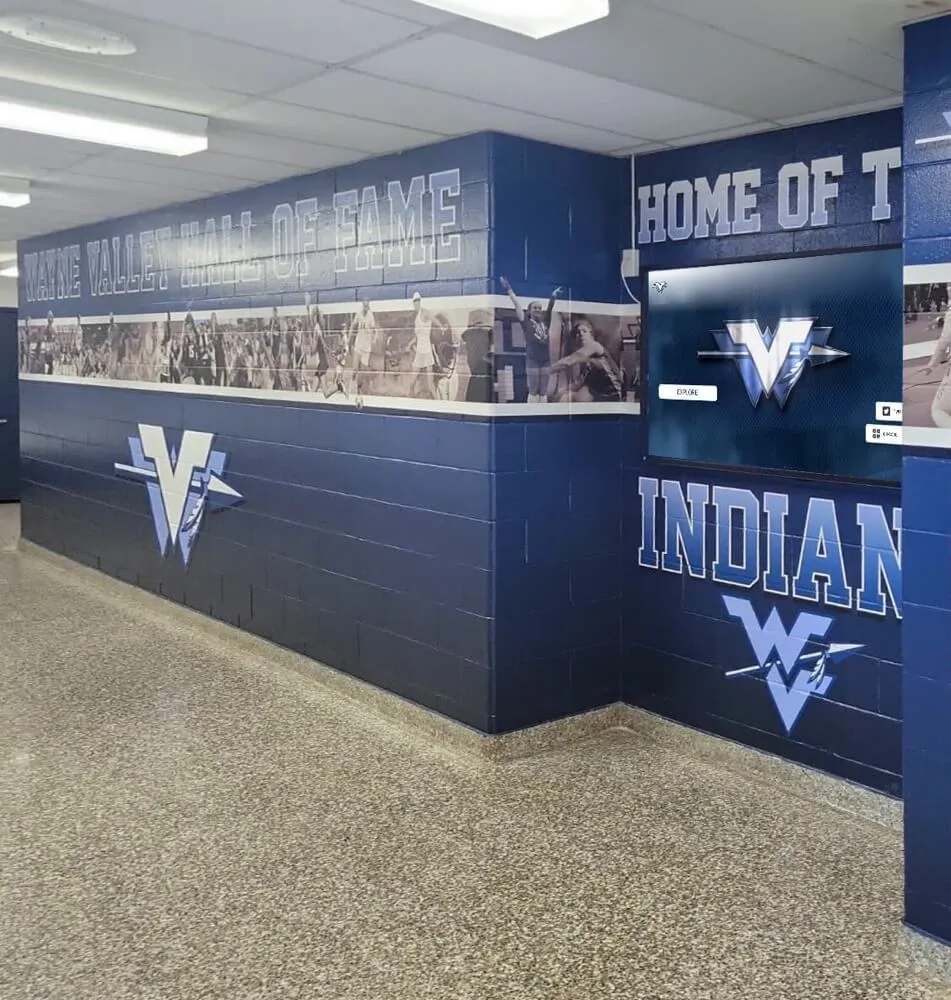
Modern touchscreen kiosk apps enable secure, engaging public-facing displays for schools and organizations
Understanding Touchscreen Kiosk Browser Applications
Touchscreen kiosk apps transform standard tablets, computers, and displays into locked-down, single-purpose devices that restrict users to authorized content and prevent unauthorized system access.
Core Functions of Kiosk Mode Software
Effective kiosk applications provide several essential capabilities:
Browser Lockdown and Restriction Kiosk browser apps restrict devices to display only approved websites or web applications, preventing users from accessing device settings, switching applications, or navigating to unauthorized sites. This browser lockdown creates secure public-facing displays that maintain intended functionality while preventing misuse or tampering.
Navigation and Control Disabling Professional kiosk software disables browser navigation bars, address fields, right-click menus, and keyboard shortcuts that might enable users to exit kiosk mode or access system functions. Organizations implementing interactive touchscreen software require these restrictions to maintain display security and intended user experiences.
Session Management and Auto-Reset Quality kiosk applications automatically clear browsing data, reset to home screens after periods of inactivity, and ensure each user session starts fresh without residual data from previous interactions. This session management proves critical for public displays where privacy and clean experiences matter.
Remote Management Capabilities Advanced kiosk solutions enable remote configuration, content updates, monitoring, and troubleshooting without requiring physical access to devices. Organizations managing multiple displays across campuses or facilities benefit tremendously from centralized remote management reducing maintenance overhead.
Scheduled Operation and Power Management Sophisticated kiosk apps support scheduled display activation and deactivation, automatic reboot cycles, and power management ensuring displays operate during intended hours while conserving energy and extending hardware lifespan.
Kiosk Mode Security Requirements
Public-facing displays face unique security challenges requiring systematic protection:
Physical Security Controls Kiosk software must prevent users from exiting applications, accessing device settings, force-quitting applications, or manipulating physical buttons (home, volume, power) that might enable unauthorized access. Solutions achieving true device lockdown implement comprehensive physical control restrictions.
Network and Data Security Organizations handling sensitive information through kiosk displays—donor recognition, alumni profiles, student information—require kiosk software implementing secure connections, data encryption, and controlled network access preventing unauthorized data interception or system compromise.
Content and Site Restriction Effective kiosk browsers implement whitelisting allowing only approved websites or blacklisting preventing access to inappropriate sites. Educational institutions and public facilities particularly value content filtering ensuring displays serve intended purposes without exposing users to problematic content.
Update and Maintenance Security Kiosk deployments require secure update mechanisms allowing authorized administrators to modify configurations and content while preventing unauthorized changes. Role-based access controls and secure authentication prove essential for maintaining long-term security.
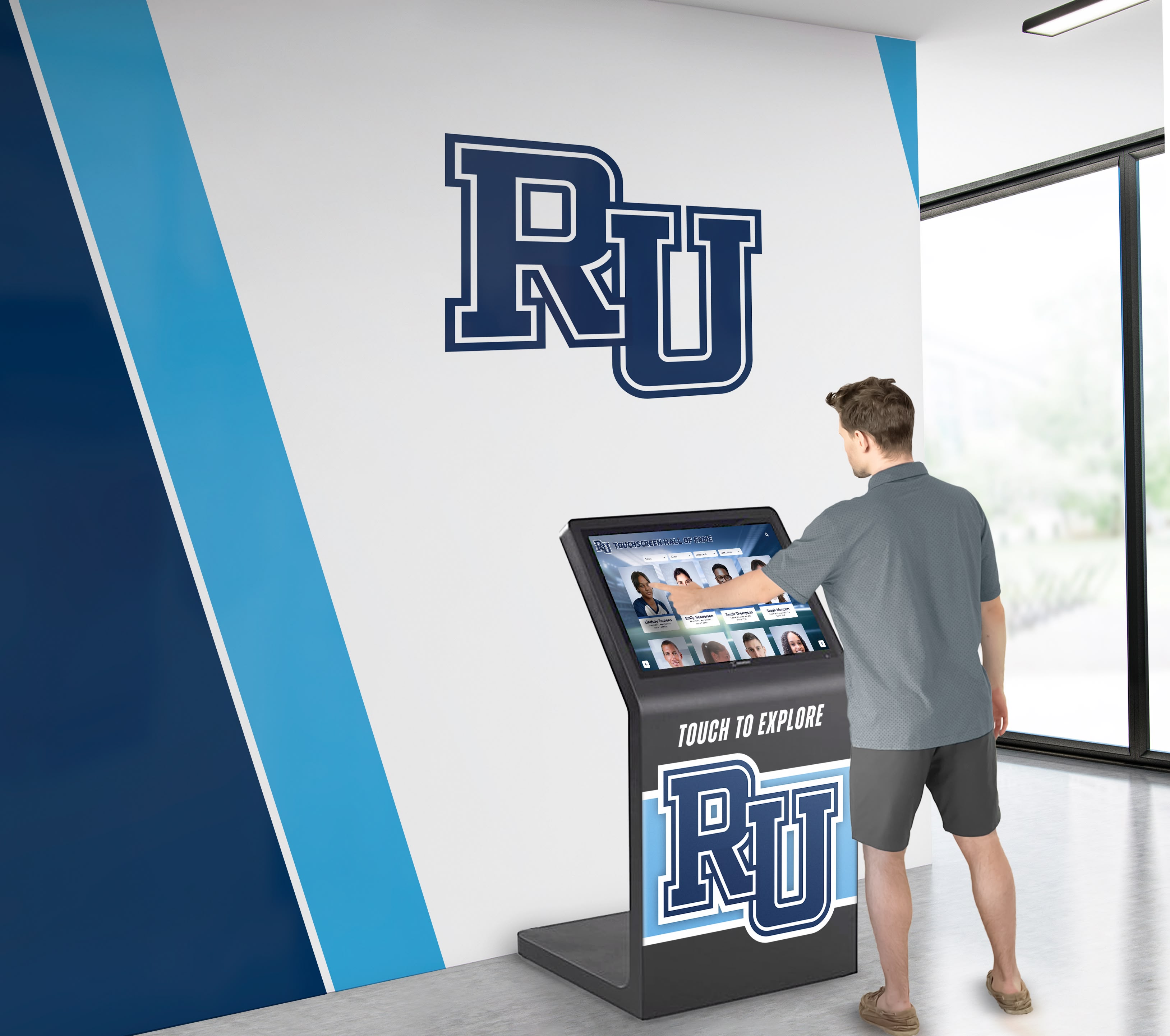
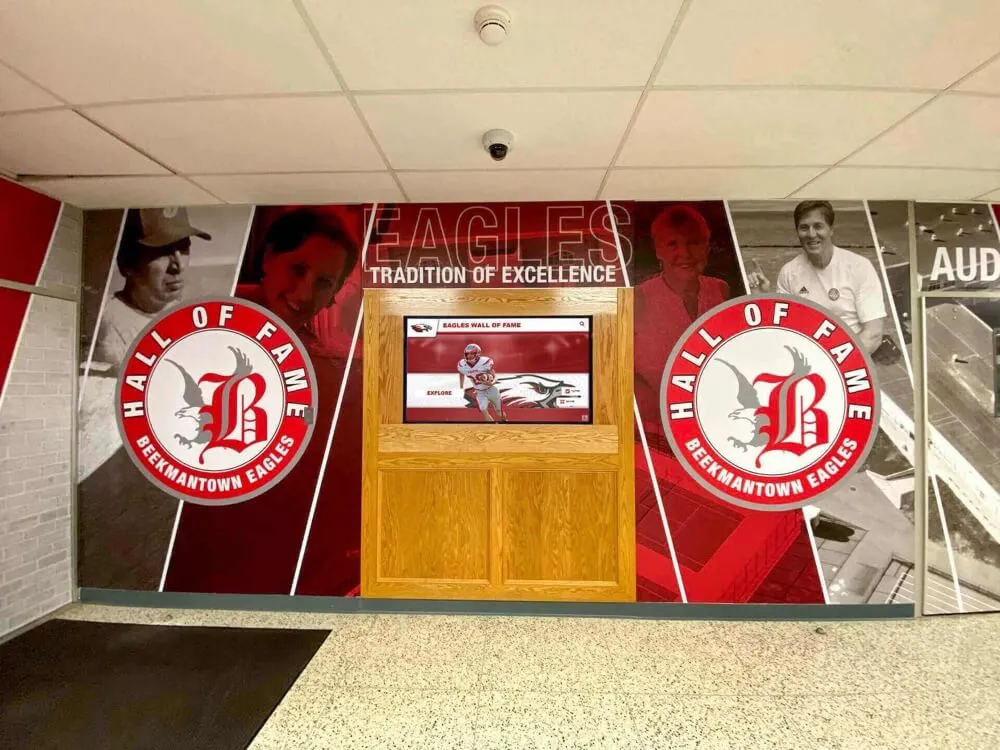
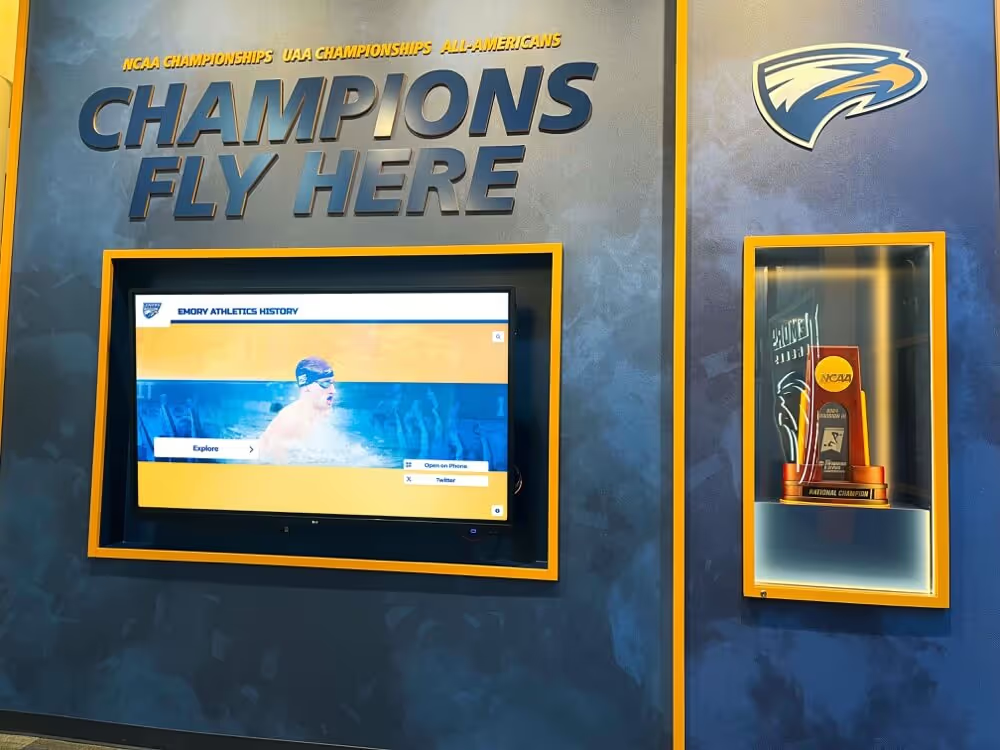
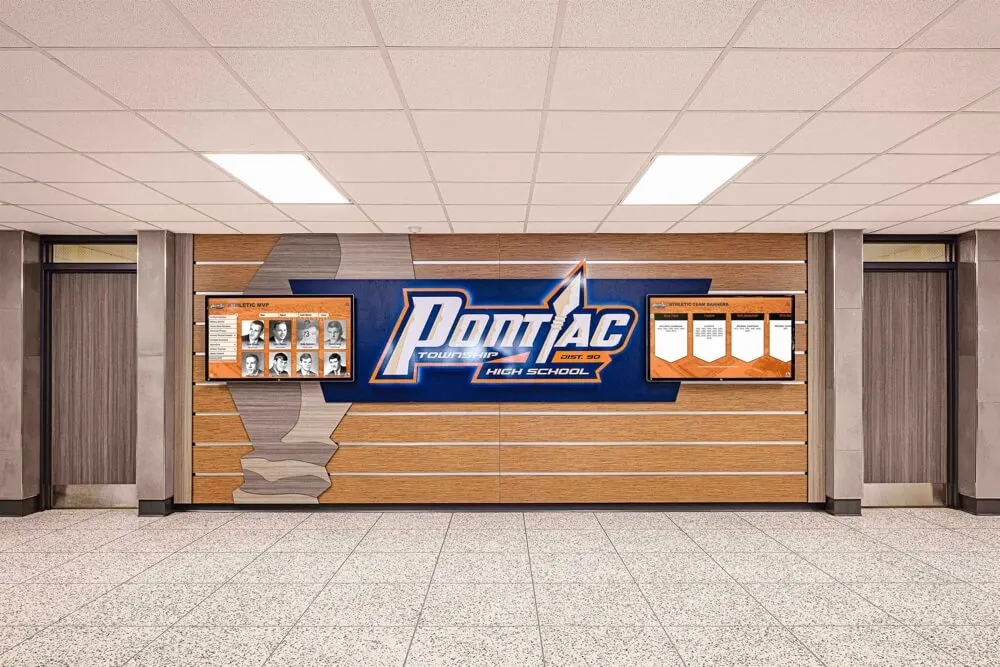
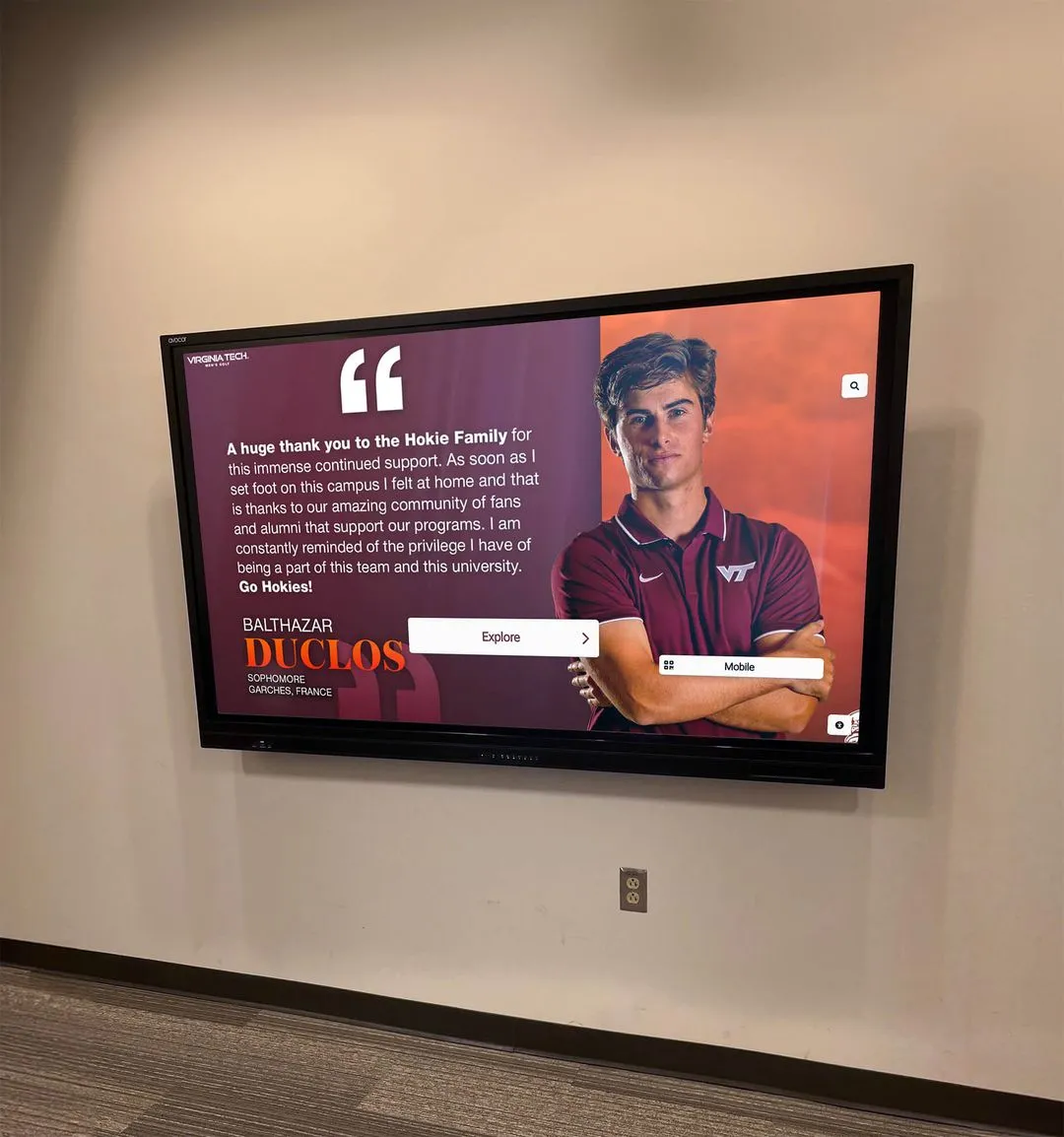
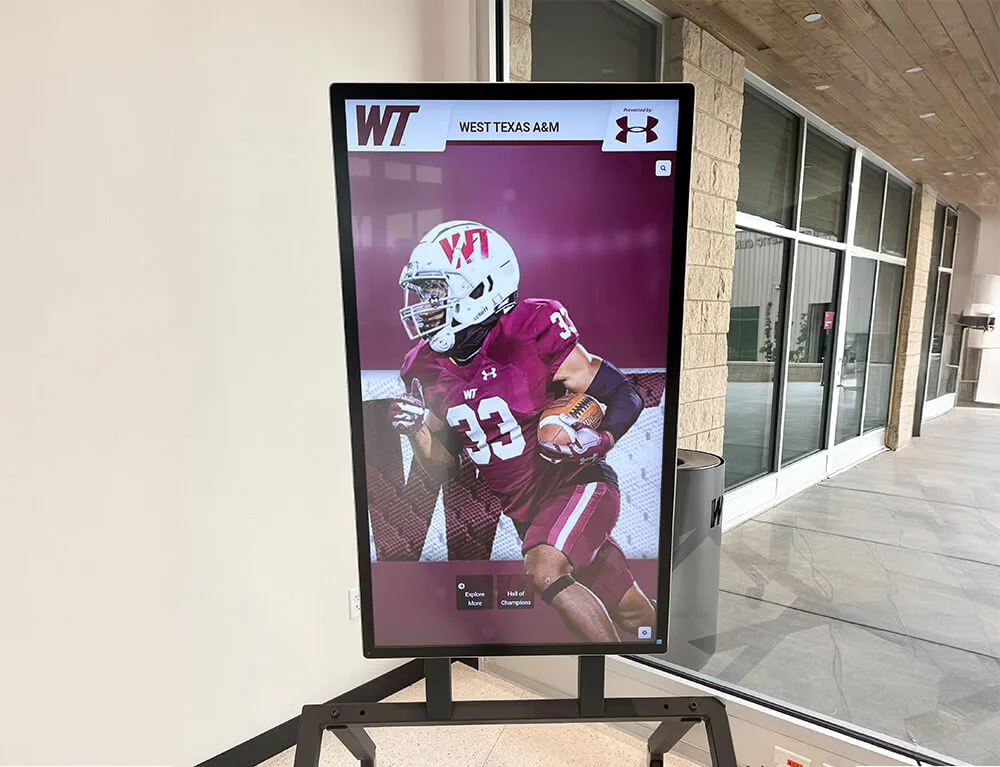
Secure kiosk apps enable confident public deployment without supervision concerns
The Rocket Touchscreen App: Free Android Kiosk Solution
The Rocket Touchscreen app provides a free, purpose-built kiosk solution for Android devices designed specifically for displaying Rocket Alumni Solutions recognition systems.
Key Features and Capabilities
Rocket Touchscreen delivers comprehensive kiosk functionality without subscription costs:
Free Download and Unlimited Use Unlike Fully Kiosk Browser requiring annual subscriptions for full features, Rocket Touchscreen provides completely free downloads with unrestricted functionality for displaying Rocket Alumni Solutions touchscreen sites. Organizations implementing digital recognition displays eliminate recurring software costs while maintaining professional, secure kiosk deployments.
Simple Site ID Configuration Setup requires only entering your unique Rocket Alumni Solutions Site ID, which the app remembers and automatically loads upon launch. This simplified configuration enables non-technical staff to deploy and manage kiosk displays without specialized expertise or complex setup procedures.
Optimized for Android Devices The app supports compatible Android devices including tablets and large-format displays, providing optimized rendering for touchscreen recognition systems in schools, universities, athletic facilities, and alumni centers.
App Pinning for Secure Kiosk Mode Rocket Touchscreen leverages Android’s app pinning feature, which locks devices to display only the app while preventing users from accessing other applications, settings, or system functions. This native Android security feature provides reliable kiosk lockdown without requiring complex third-party management systems.
Demo Mode for Testing Organizations evaluating kiosk solutions can activate demo mode to explore app functionality using example recognition content before obtaining their own Site ID. This testing capability enables informed decisions about kiosk deployments and recognition system implementations.
No Data Collection or Third-Party Sharing The app collects no user data and shares no information with third parties, addressing privacy concerns essential for educational institutions and organizations handling sensitive community information. The Google Play Store listing explicitly confirms “no data collected” and “no data shared with third parties.”
Regular Updates and Support Rocket Alumni Solutions maintains the app with regular updates including Android 15 support as of August 2025, ensuring compatibility with current devices and operating systems without requiring users to manage complex update processes.
Ideal Use Cases for Rocket Touchscreen
Several organizational contexts particularly benefit from this purpose-built kiosk app:
School and University Recognition Displays Educational institutions implementing athletic halls of fame, academic recognition programs, or alumni showcase systems use Rocket Touchscreen to transform Android tablets and displays into dedicated recognition kiosks in lobbies, hallways, and gathering spaces.
Athletic Facilities and Sports Recognition Sports organizations showcasing team histories, athlete profiles, record boards, and championship celebrations deploy Rocket Touchscreen on large touchscreen displays in athletic facilities, creating engaging experiences celebrating program excellence without ongoing software subscription costs.
Alumni Centers and Engagement Spaces Universities and schools maintaining dedicated alumni spaces use the app to provide always-on access to digital alumni directories, distinguished graduate profiles, and interactive historical archives strengthening alumni connections and institutional pride.
Museum and Cultural Institution Displays Organizations implementing Rocket Alumni Solutions for historical preservation, community recognition, or cultural heritage displays leverage the free app to create secure public access points without investing in expensive kiosk management platforms.
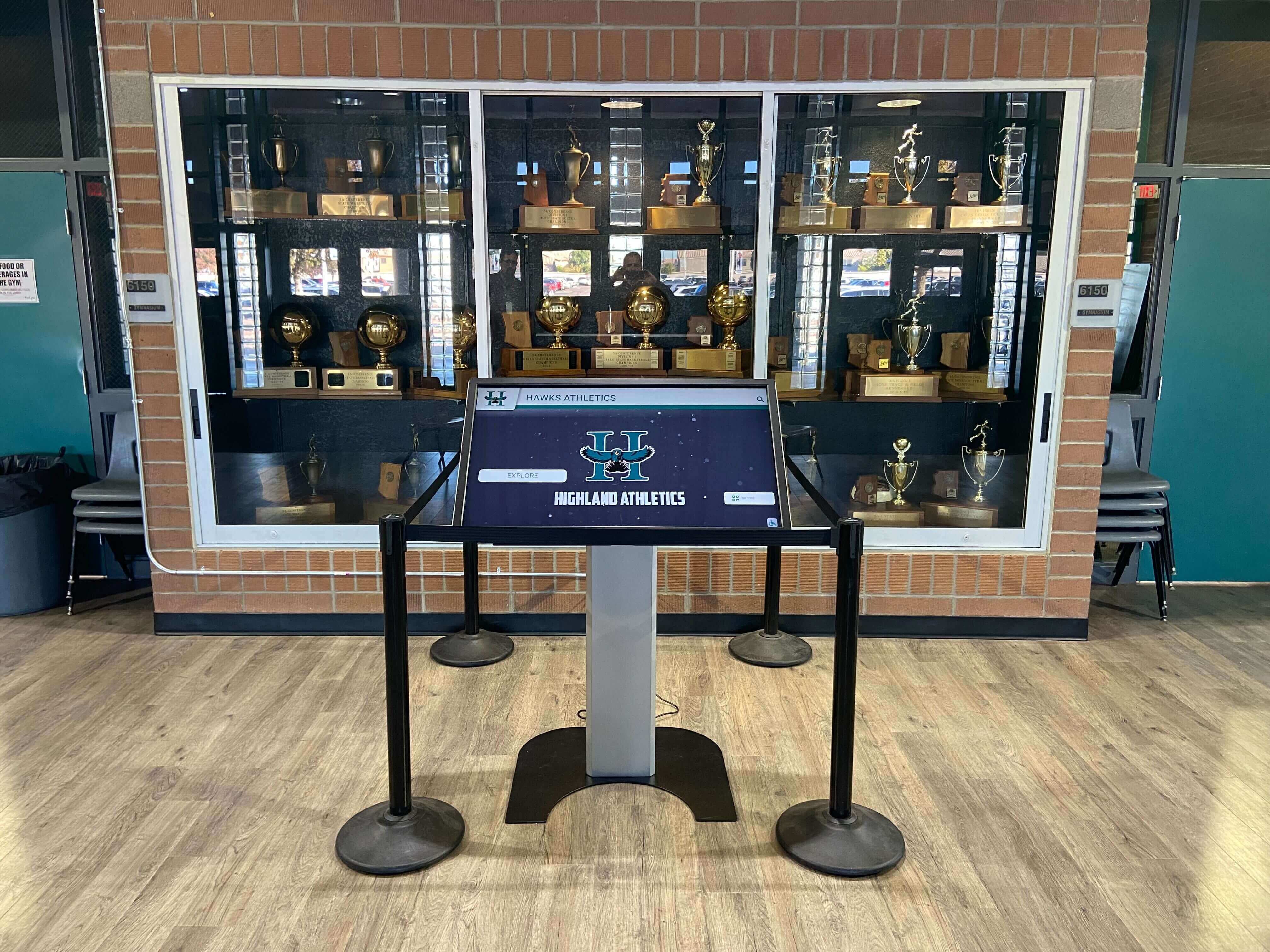
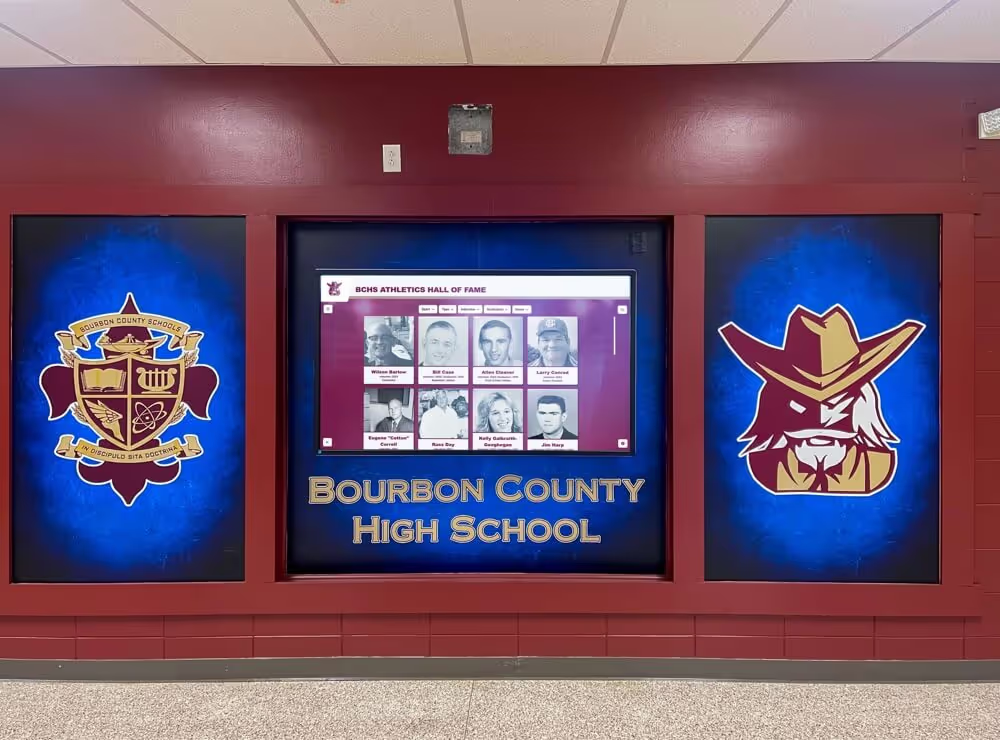
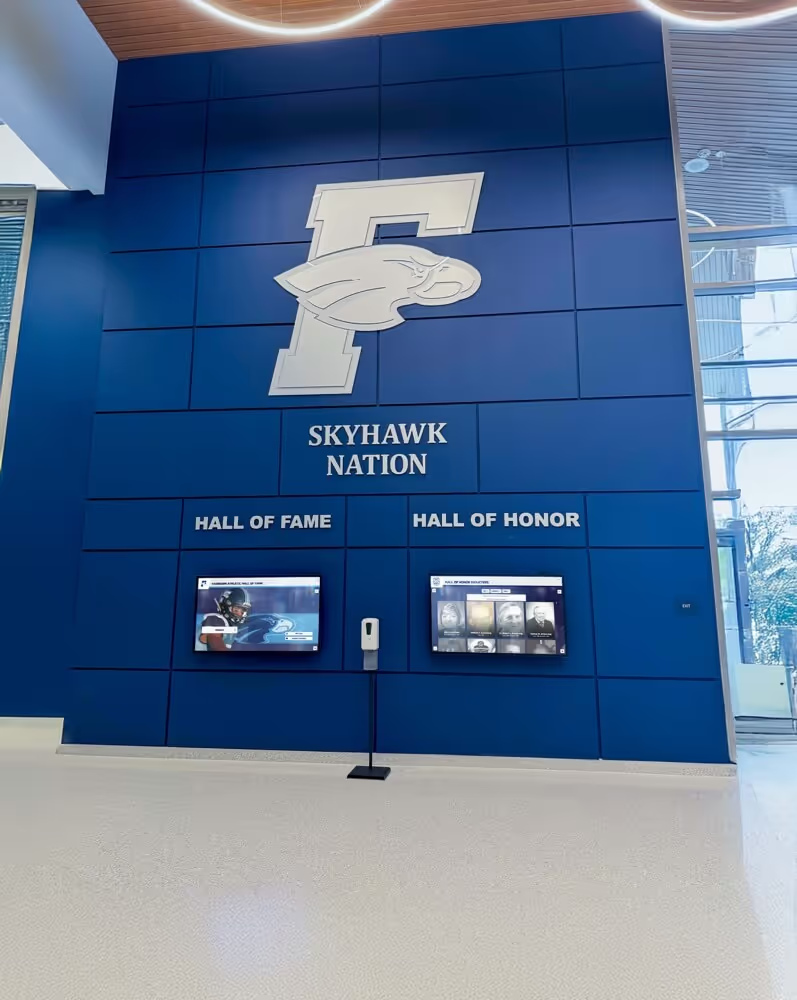
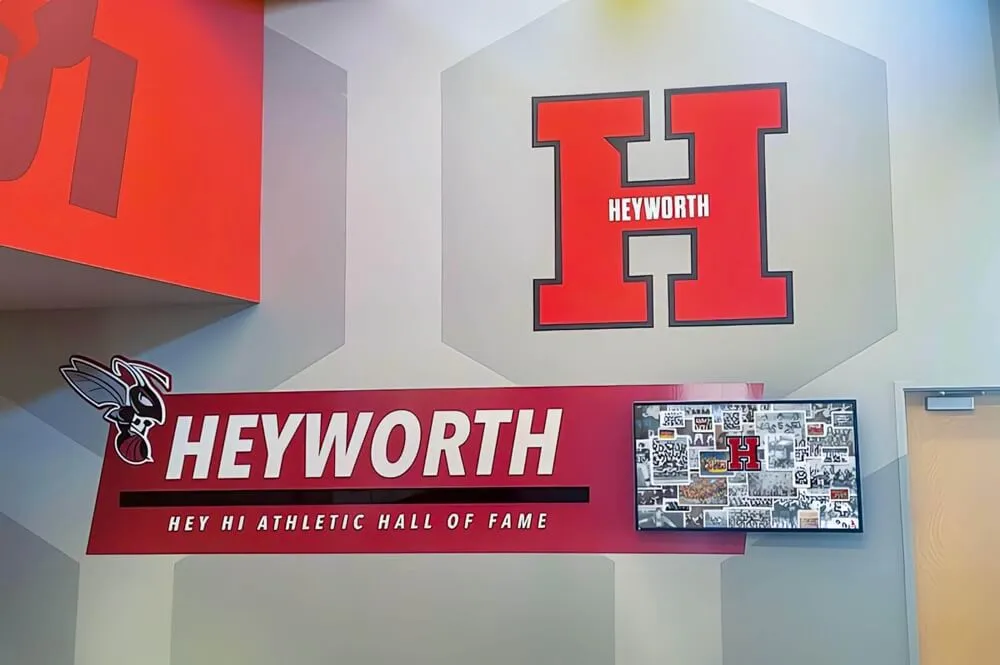
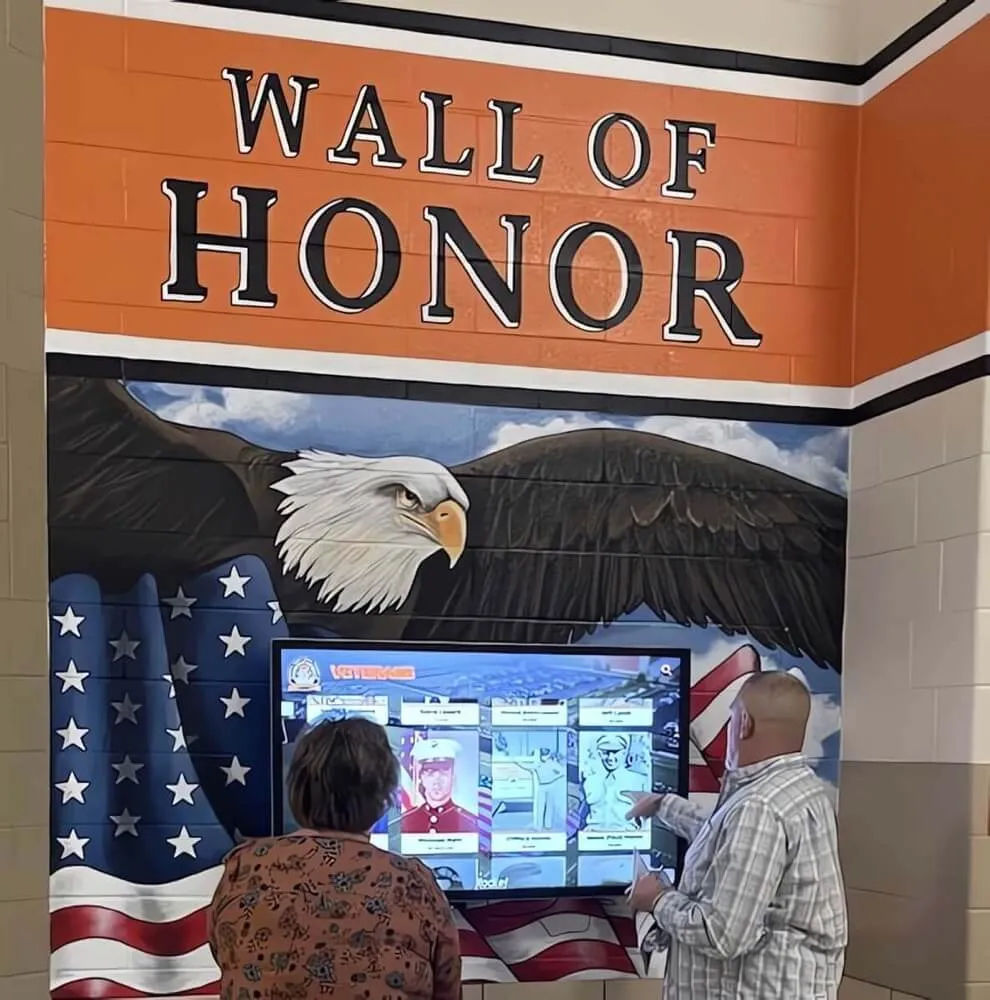
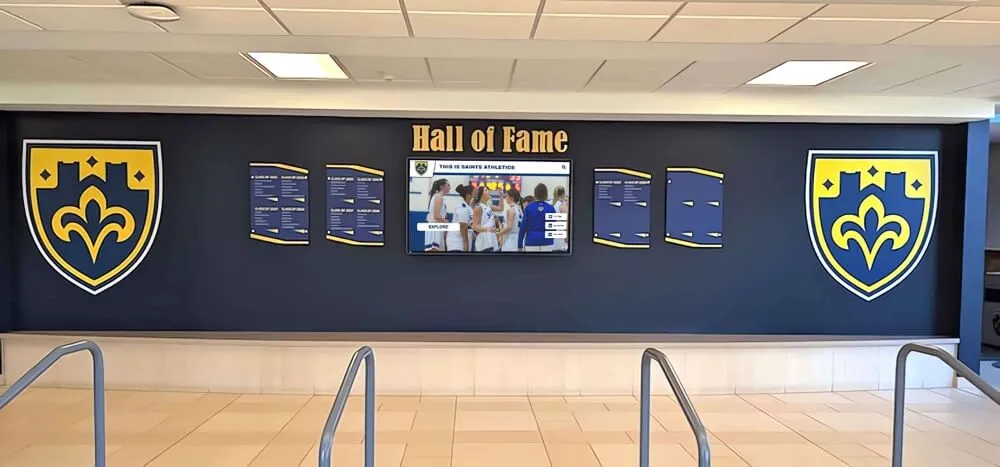
Purpose-built kiosk apps integrate seamlessly with recognition displays in educational environments
Fully Kiosk Browser: Features, Limitations, and Costs
Fully Kiosk Browser represents the most widely known Android kiosk solution, but its feature set and pricing model present significant considerations.
Fully Kiosk Browser Capabilities
The application provides comprehensive kiosk functionality across free and paid tiers:
Device Lockdown and App Restriction Fully implements thorough device lockdown preventing users from exiting the browser, accessing device settings, or launching other applications. Organizations seeking true kiosk mode security find Fully’s restrictions comprehensive compared to basic browser solutions.
Motion Detection and Screensaver Premium versions include motion detection automatically waking displays when visitors approach and activating screensavers during idle periods. This automation creates more responsive user experiences while conserving display power during inactive periods.
Remote Administration Interface Paid Fully licenses include remote administration capabilities enabling organizations to manage multiple kiosk deployments centrally, updating configurations, monitoring device status, and troubleshooting issues without physical access to displays.
Extensive Configuration Options Fully provides granular control over nearly every aspect of kiosk behavior including page refresh intervals, allowed gestures, hardware button behavior, and display settings. This flexibility accommodates diverse use cases from simple webpage displays to complex interactive applications.
Peripheral and Hardware Integration Advanced Fully features support barcode scanners, NFC readers, external sensors, and specialized hardware integration valuable for retail, inventory, and specialized industrial kiosk applications.
Significant Limitations and Challenges
Several factors complicate Fully Kiosk Browser deployment:
Subscription Costs and Licensing According to Capterra’s 2025 pricing information, Fully Plus (the full-featured version) requires annual subscriptions, with costs multiplying across multiple devices. Organizations deploying numerous kiosks face substantial recurring expenses that free alternatives eliminate. Basic features remain available in the free version, but critical functionality including motion detection requires paid licenses.
Poor Remote Administration Experience User reviews consistently cite “very poor remote admin options” with “some options not working properly” according to feedback compiled by Capterra. For organizations requiring centralized management of distributed kiosk deployments, these remote administration limitations create operational friction and increased maintenance burden.
Large File Transfer Issues The platform experiences difficulties “transferring large files,” limiting usefulness for kiosk applications requiring substantial media content or regular updates of high-resolution images and videos common in digital recognition displays.
Screen Unlock Delays and Limitations When using unlock screen features, “some functionality like NFC scan or hardware barcode scan are not available until the device is manually unlocked,” with automatic screen unlocking taking “3-4 seconds on some devices.” These delays degrade user experiences in high-traffic kiosk environments where immediate responsiveness matters.
Android 5 Support Ending Fully announced that Android 5 support ends by December 2025, though existing installations continue functioning without further updates. Organizations maintaining older hardware face eventual upgrade requirements or migration to alternative solutions.
Feature Complexity and Learning Curve The extensive configuration options creating Fully’s flexibility simultaneously introduce complexity requiring technical expertise for optimal deployment. Non-technical staff may struggle with initial setup and ongoing management compared to simpler purpose-built solutions.
When Fully Remains Appropriate
Despite limitations, certain use cases justify Fully Kiosk Browser:
Complex Peripheral Integration Needs Organizations requiring deep hardware integration with barcode scanners, specialized sensors, or custom peripherals may need Fully’s advanced hardware support unavailable in simpler kiosk solutions.
Multi-Purpose Kiosk Deployments Facilities requiring single devices to serve multiple kiosk functions—rotating between different web applications, handling diverse content types, or supporting varied use cases—benefit from Fully’s flexibility despite complexity and cost.
Environments With Technical Support Organizations maintaining in-house IT staff capable of managing complex configurations and troubleshooting remote administration challenges may successfully leverage Fully’s capabilities despite documented limitations.
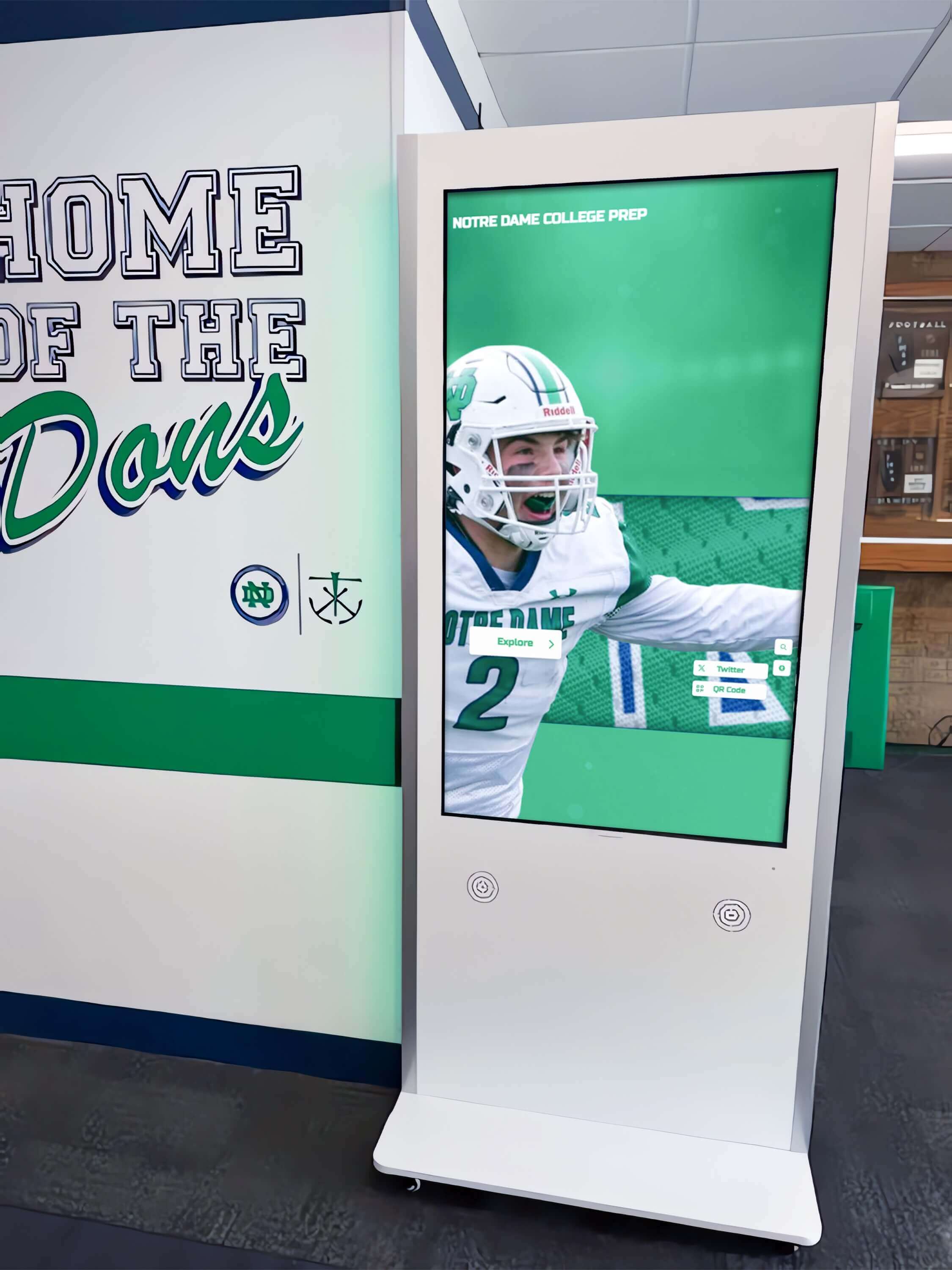
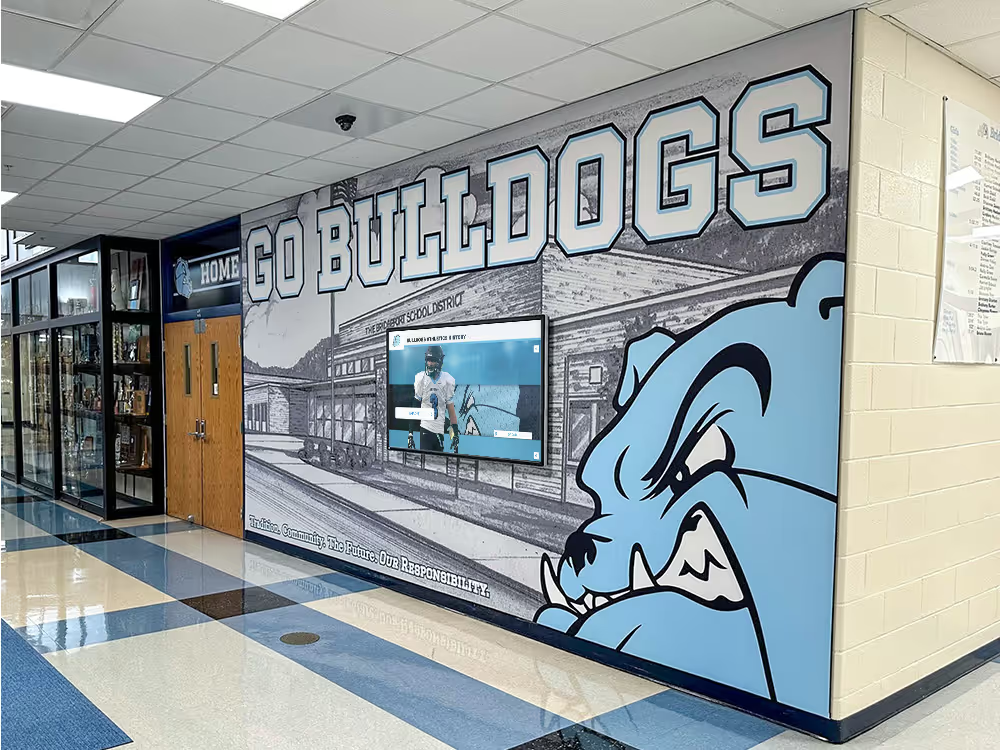
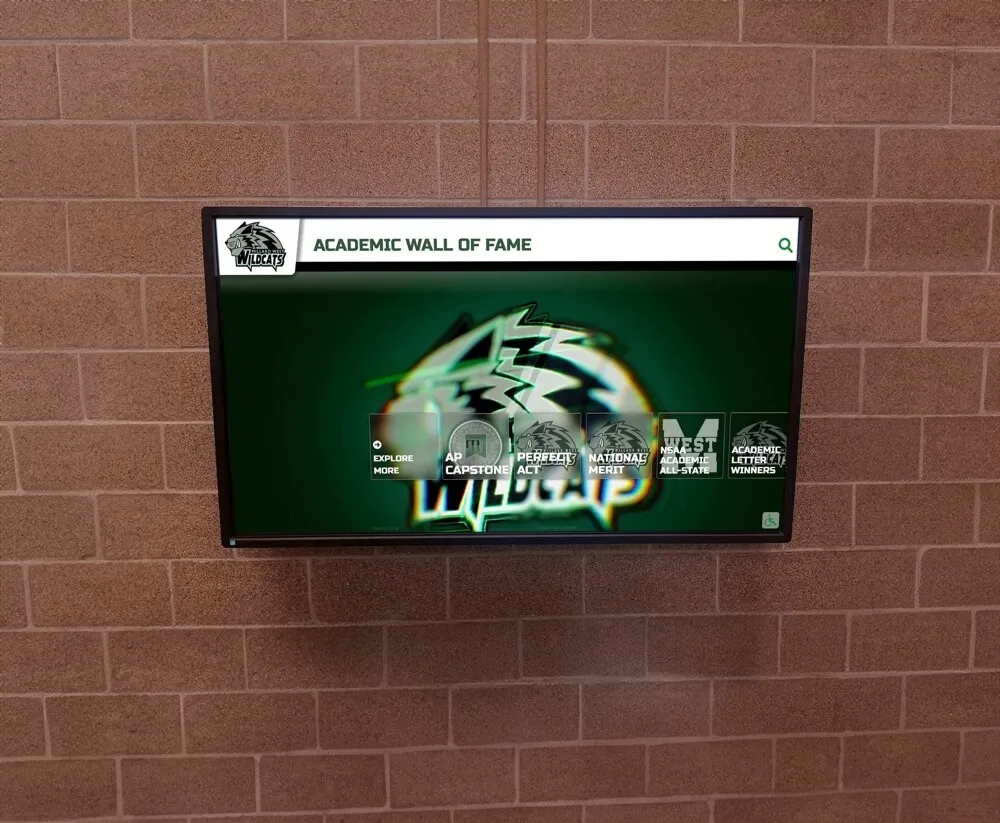
Professional kiosk software ensures reliable operation of public-facing touchscreen displays
Mac Kiosk Mode Solutions
Organizations deploying touchscreen displays on Mac hardware require platform-specific kiosk solutions.
Dedicated Mac Kiosk Applications
Several applications provide Mac-specific kiosk functionality:
Kiosk by mackiosk.com Available through the Mac App Store, this dedicated application easily turns any Mac into a standalone kiosk featuring full-screen web browser display with powerful yet accessible features. Organizations can restrict sites through whitelist or blacklist configuration while preventing users from switching applications or exiting kiosk mode.
The application supports schools, museums, hotels, churches, and libraries requiring secure public internet access through Mac computers. Pricing and feature details are available through the Mac App Store listing.
eCrisper Kiosk Software eCrisper specializes in turning Macs into secure public access internet kiosks used by schools, museums, hotels, churches, and libraries. The software automatically closes browser windows, deletes cookies and cache, and returns to home pages when sessions end, ensuring privacy between users.
This commercial solution provides professional-grade kiosk management for organizations requiring reliable Mac-based kiosk deployments with comprehensive session management and security features.
Browser-Based Mac Kiosk Mode
Chrome and other browsers provide basic kiosk capabilities on Mac:
Chrome Kiosk Mode on Mac
Organizations can launch Chrome in kiosk mode on macOS by opening Chrome from the command line with the --kiosk parameter. However, this approach opens URLs in app mode rather than true kiosk mode, requiring additional fullscreen activation (ctrl + cmd + f) to achieve desired display behavior.
This browser-based approach provides basic lockdown suitable for controlled environments but lacks comprehensive security and management features required for truly public-facing deployments.
Mac Parental Controls for Kiosk Lockdown Organizations can leverage Mac’s built-in Parental Controls to create kiosk accounts with locked-down configurations restricting application access, website access, and system functions. This native macOS approach provides adequate security for supervised environments without requiring third-party software purchases.
Mac MDM Solutions for Enterprise Kiosk Deployment
Organizations managing multiple Mac kiosks across facilities benefit from mobile device management platforms:
Apple Single App Mode Supervised Mac devices can operate in Single App Mode through MDM platforms, forcing selected applications to open while preventing use of other apps. This approach provides enterprise-grade lockdown for organizations already managing Mac fleets through MDM infrastructure.
Commercial MDM Platforms Supporting Mac Kiosk Enterprise MDM solutions like Scalefusion support kiosk mode across Android, Apple iOS, macOS, and Windows devices, providing unified management for organizations deploying diverse hardware platforms. These comprehensive platforms justify costs for large-scale deployments but may prove excessive for organizations with limited kiosk needs.
Mac Kiosk Considerations for Recognition Displays
Organizations implementing touchscreen recognition systems on Mac hardware should consider:
Limited Native Touch Support Macs require external touchscreen displays or third-party touch overlay solutions, as most Mac computers lack native touchscreen hardware. This limitation affects total cost of ownership compared to Android tablets with integrated touchscreens.
Web-Based Recognition Platform Advantages Purpose-built recognition platforms like Rocket Alumni Solutions running through browsers on Mac kiosk software benefit from native web compatibility without requiring platform-specific application development, simplifying cross-platform deployment strategies.
Investment in Mac Hardware and Software Mac-based kiosk deployments require both Mac hardware (typically Mac Minis for dedicated kiosk installations) and commercial kiosk software licenses. Organizations should compare total costs against Android-based alternatives offering lower hardware and software expenses.
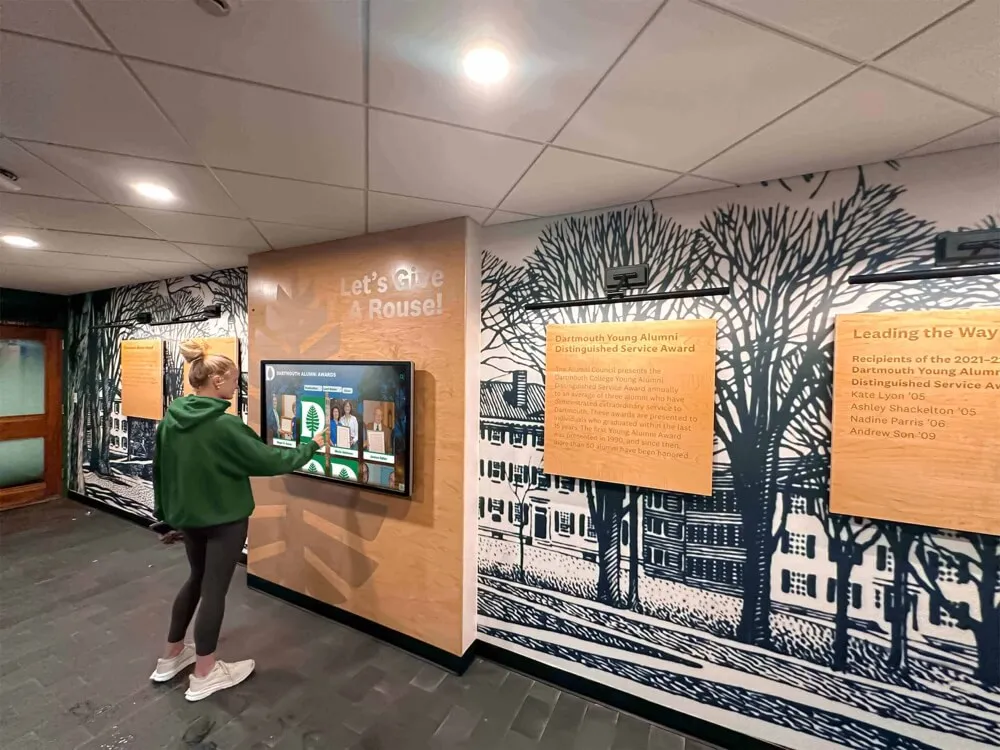
Cross-platform kiosk solutions enable flexible hardware deployment matching organizational preferences
Additional Free and Low-Cost Kiosk Alternatives
Several alternatives to Fully Kiosk Browser provide viable options for organizations seeking cost-effective kiosk solutions.
Android Kiosk Alternatives
AirDroid Business MDM AirDroid Business provides mobile device management capabilities including Android Chrome kiosk mode restricting devices to exclusively access Chrome browser with approved content. The platform helps organizations fully control Android devices, transforming them into single or multi-app kiosk modes.
The solution particularly suits businesses deploying self-ordering kiosks, ATMs, and POS systems requiring reliable lockdown with remote management capabilities. Pricing follows typical MDM subscription models, with some plans offering free tiers for limited device quantities.
STAROS by Glory Star STAROS represents a powerful kiosk mode and lockdown solution enabling businesses to comprehensively control self-service kiosks. The platform offers flexible modes including media player, browser, full-screen browser, single app, and multi-app configurations accommodating diverse kiosk use cases.
Glory Star positions STAROS for commercial touchscreen kiosk deployments requiring professional-grade management without Fully Kiosk Browser’s specific feature set and pricing structure.
KioWare for Android KioWare secures Android tablets into purposed devices or kiosks with central server management, providing enterprise-grade lockdown for organizations requiring sophisticated device management across distributed kiosk deployments. The commercial platform caters to organizations prioritizing security and management capabilities over cost minimization.
WebFrame Kiosk (iOS/iPadOS) Organizations deploying iPad-based kiosks can leverage WebFrame Kiosk, which turns iOS devices into single-purpose kiosks with full-screen browser display eliminating address bars and navigation elements. This solution fills the iOS kiosk market segment for organizations preferring Apple tablets over Android devices.
Windows and Linux Kiosk Solutions
Porteus Kiosk Porteus Kiosk represents a lightweight Linux operating system specifically designed for kiosk applications, restricting devices to web browser use only. The browser lockdown prevents users from tampering with settings or downloading software, creating secure public internet terminals.
This Linux-based solution particularly appeals to organizations comfortable with Linux administration seeking cost-effective kiosk operating systems eliminating Windows licensing expenses. The open-source nature enables technical organizations to customize kiosk environments matching specific requirements.
Chrome Kiosk Mode (ChromeOS) Organizations should note that Google is ending Chrome Apps support, with user-installed Chrome Apps ending in July 2025 and kiosk-mode support for Chrome Apps ending completely in July 2026. Schools and organizations relying on ChromeOS kiosk modes for specialized applications face migration to web-based alternatives or different kiosk platforms.
Browser Native Kiosk Modes Standard browsers including Google Chrome and Microsoft Edge offer basic kiosk modes launching full-screen, locked browser windows. While suitable for controlled environments with supervision, these native browser modes lack comprehensive security, remote management, and advanced features required for truly public-facing, unsupervised kiosk deployments.
Comparing Free vs Paid Kiosk Software
Organizations should systematically evaluate kiosk software based on actual needs:
Feature Requirements Assessment Most recognition displays, information kiosks, and standard interactive installations require only basic kiosk functionality: browser lockdown, session reset, and reliable operation. Organizations implementing best practices for touchscreen software should honestly assess whether advanced paid features provide sufficient value to justify subscription costs.
Management Scale Considerations Single-kiosk or small deployments rarely justify expensive MDM platforms or premium kiosk software subscriptions. Organizations managing dozens of distributed kiosks across multiple locations gain more value from centralized remote management justifying commercial platform investments.
Technical Support Availability Organizations with limited in-house IT expertise benefit from simpler kiosk solutions requiring minimal configuration and maintenance. Purpose-built apps like Rocket Touchscreen designed specifically for recognition displays eliminate complexity while delivering required functionality.
Long-Term Cost Projection Annual subscription costs compound over multi-year kiosk deployments. Organizations should calculate five-year total cost of ownership comparing free alternatives to paid solutions, often finding free options provide substantially better value unless specialized features prove genuinely essential.
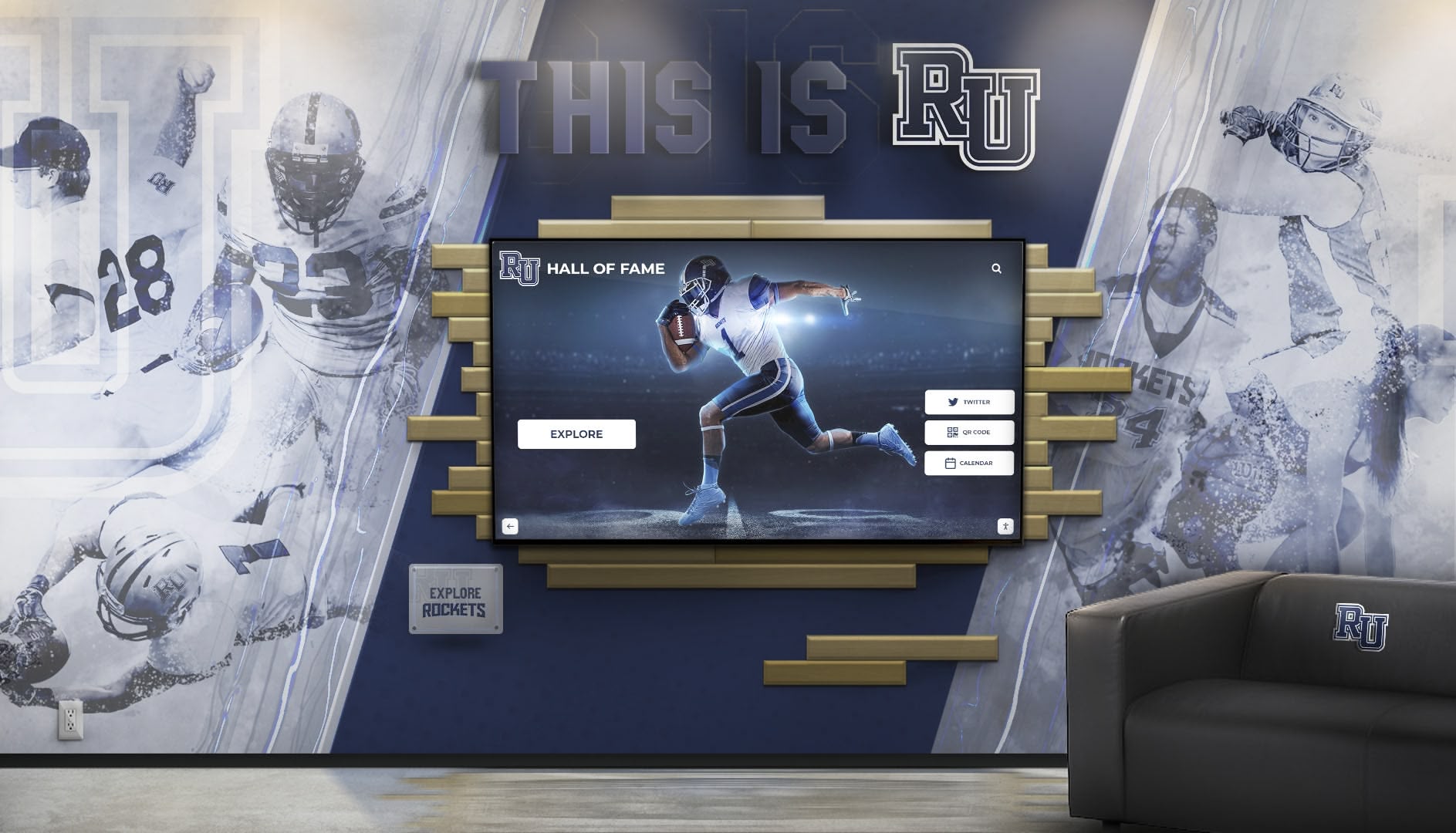
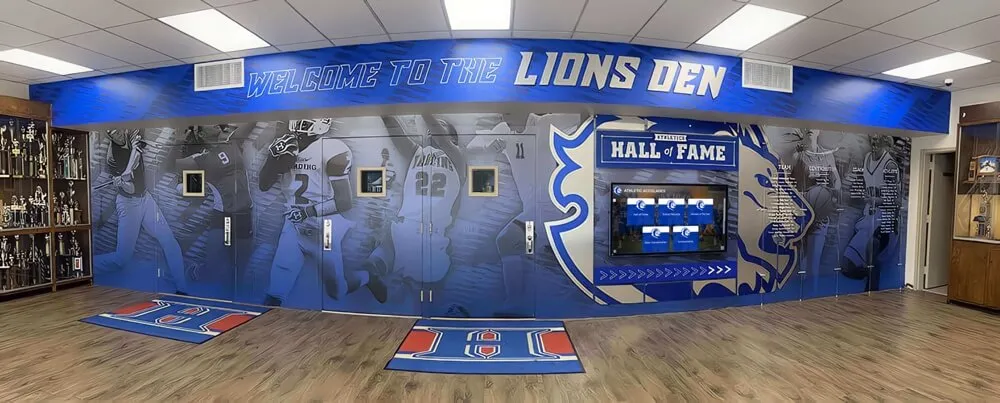
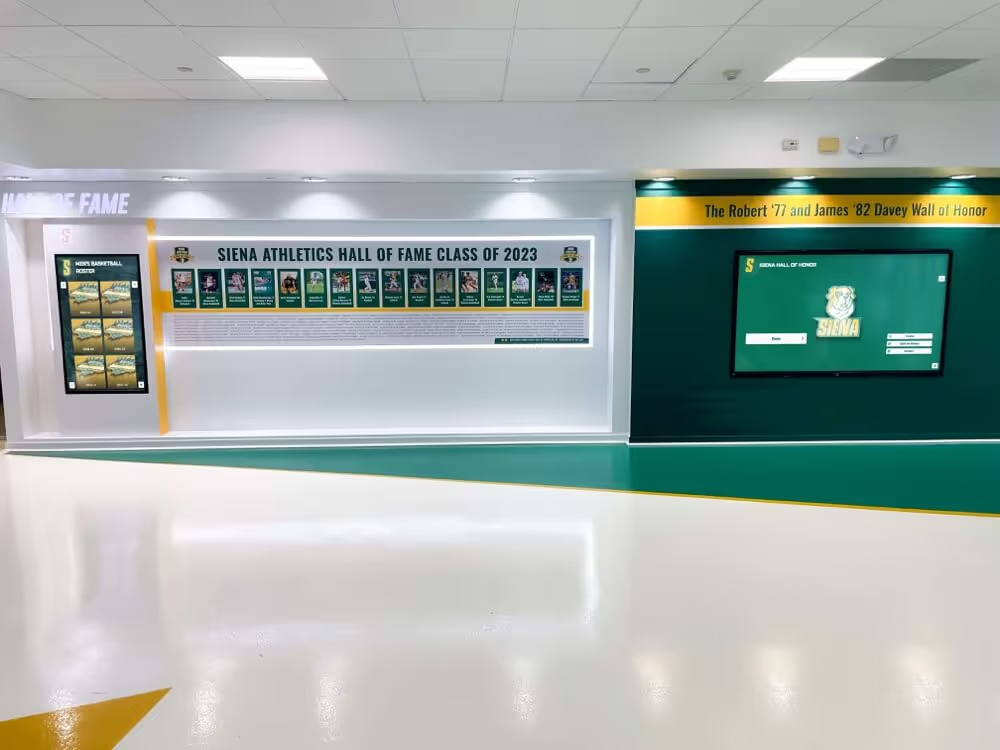
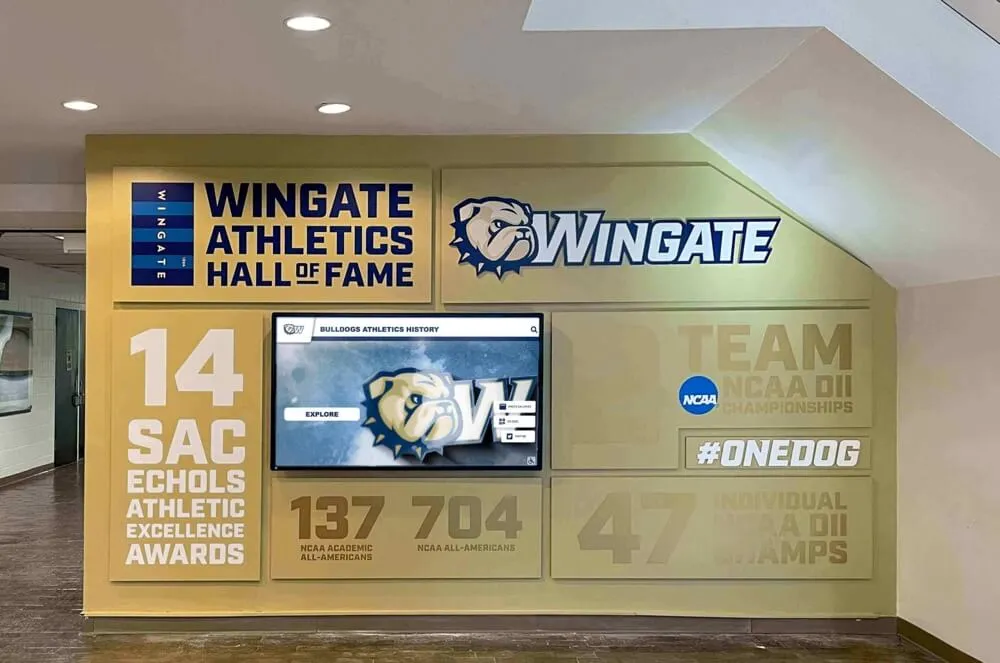
Professional kiosk deployments integrate recognition technology with facility design and branding
Implementing Secure Kiosk Deployments
Successful kiosk implementations require systematic planning addressing security, usability, and operational requirements.
Hardware Selection for Kiosk Applications
Appropriate hardware selection fundamentally impacts kiosk success:
Screen Size and Resolution Public touchscreen kiosks typically require 24" to 55" displays depending on viewing distance, available space, and content type. Recognition displays showcasing photos, videos, and detailed profiles benefit from larger screens supporting comfortable viewing and interaction by multiple simultaneous users.
Touchscreen Technology and Durability Capacitive touchscreens provide responsive, accurate touch recognition suitable for high-traffic public environments. Commercial-grade touchscreens designed for continuous operation withstand heavier use than consumer tablets, justifying higher initial investments for permanent installations.
Mounting and Physical Security Professional kiosk enclosures and secure mounting systems protect hardware from theft, vandalism, and accidental damage while providing proper ventilation and cable management. Organizations implementing digital hall of fame installations should invest in appropriate physical infrastructure matching facility aesthetics while ensuring hardware security.
Device Performance Requirements Kiosk applications displaying multimedia content, high-resolution images, or complex web interfaces require adequate processing power and memory. Budget tablets may struggle with content-rich recognition platforms, while mid-range commercial Android tablets or small-form-factor PCs provide reliable performance at reasonable costs.
Network and Connectivity Planning
Reliable connectivity proves essential for web-based kiosk applications:
Wired vs Wireless Network Connections Wired ethernet connections provide more reliable connectivity than WiFi for permanent kiosk installations, eliminating wireless signal variability and reducing network troubleshooting requirements. Organizations should install wired connections whenever facility infrastructure permits.
Cellular Backup Connectivity Critical kiosk deployments in locations lacking reliable wired or wireless connectivity benefit from cellular backup connections ensuring operation during network outages. Outdoor kiosks, temporary installations, or facilities with unreliable infrastructure particularly value cellular redundancy.
Content Caching and Offline Functionality Kiosk applications supporting offline operation or local content caching continue functioning during network interruptions, providing better user experiences in environments with connectivity concerns. Organizations implementing high-availability recognition systems should prioritize platforms supporting offline capabilities.
Security Configuration Best Practices
Comprehensive security requires systematic attention to multiple dimensions:
Device Physical Security Secure mounting, locked enclosures, and physical access restrictions prevent hardware theft, unauthorized USB device connections, and tampering with device buttons or ports. Public kiosk security begins with proper physical protection.
Operating System Hardening Disable unnecessary services, remove unused applications, implement automatic security updates, and configure user accounts with minimal privileges reducing attack surfaces and limiting potential compromise impacts.
Application and Content Security Implement HTTPS for all web connections, configure strict content security policies, whitelist allowed websites, and regularly update kiosk applications and browser software addressing known vulnerabilities.
Session Management and Privacy Configure kiosks to automatically clear browsing data, reset to home screens after defined inactivity periods, and log out any authenticated sessions protecting user privacy between interactions.
Network Security Controls Isolate kiosk devices on separate network segments, implement firewall rules restricting outbound connections to required destinations only, and monitor kiosk network traffic identifying potential security incidents or misuse.
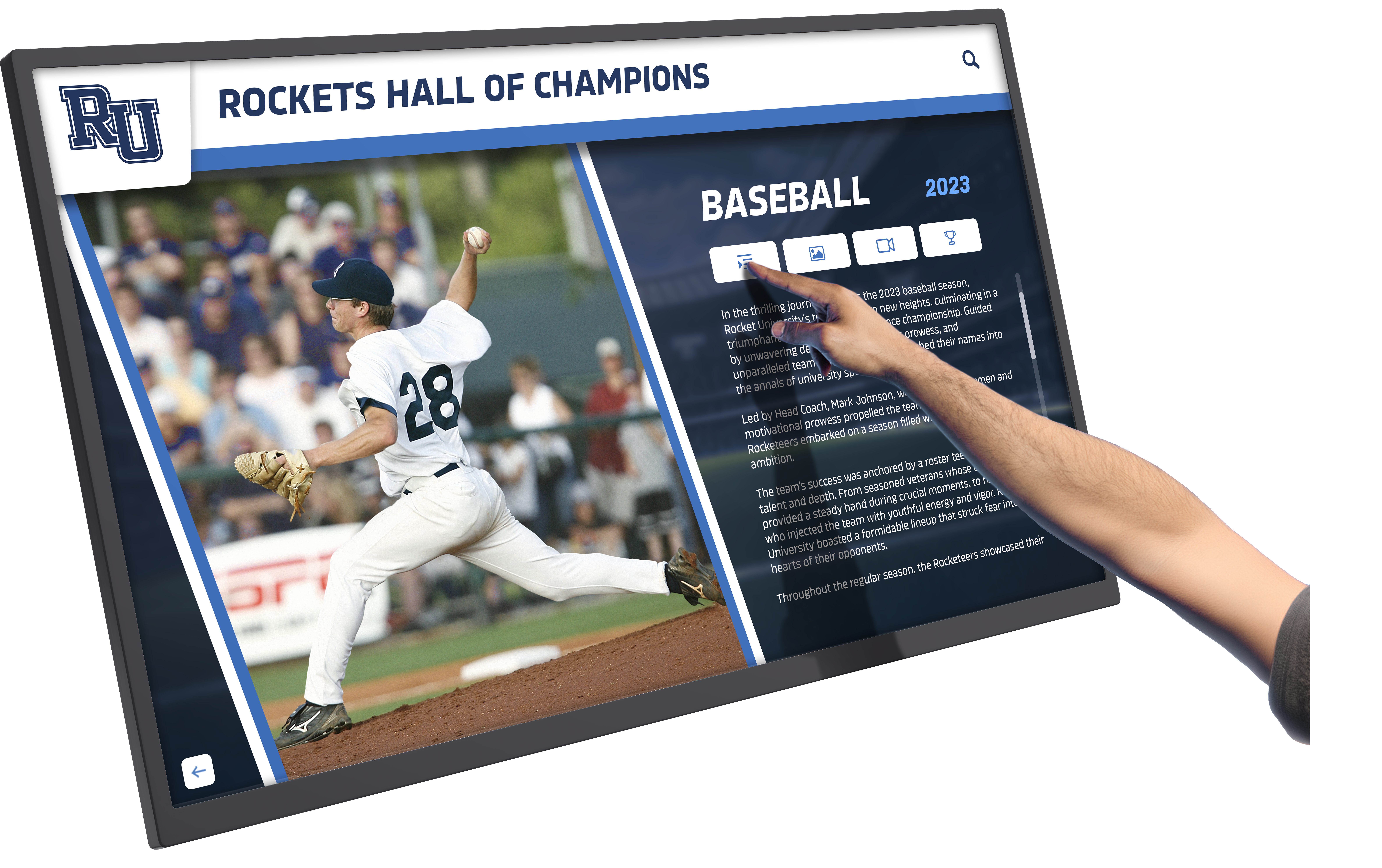
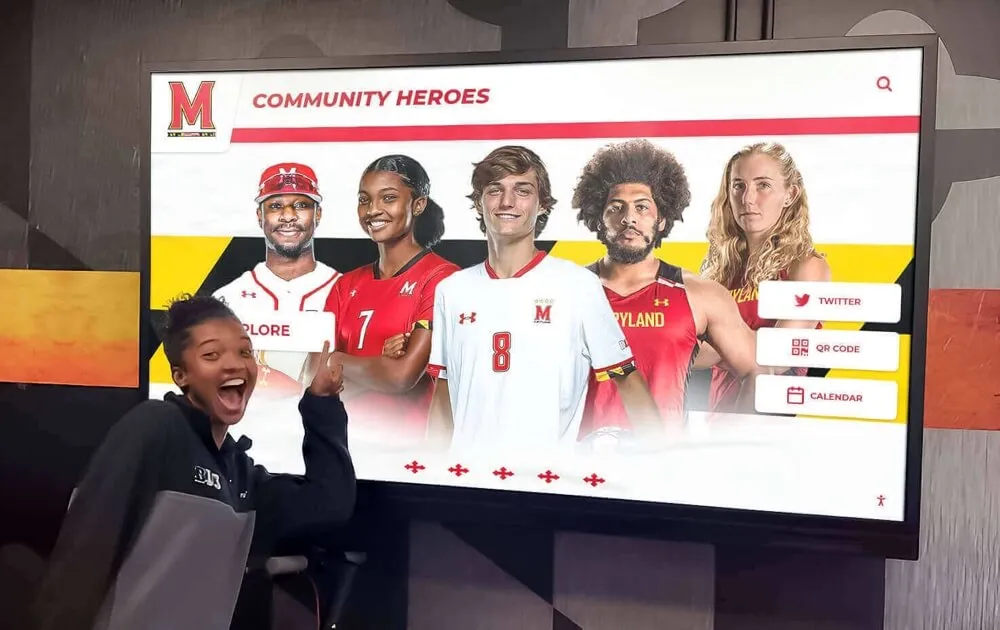
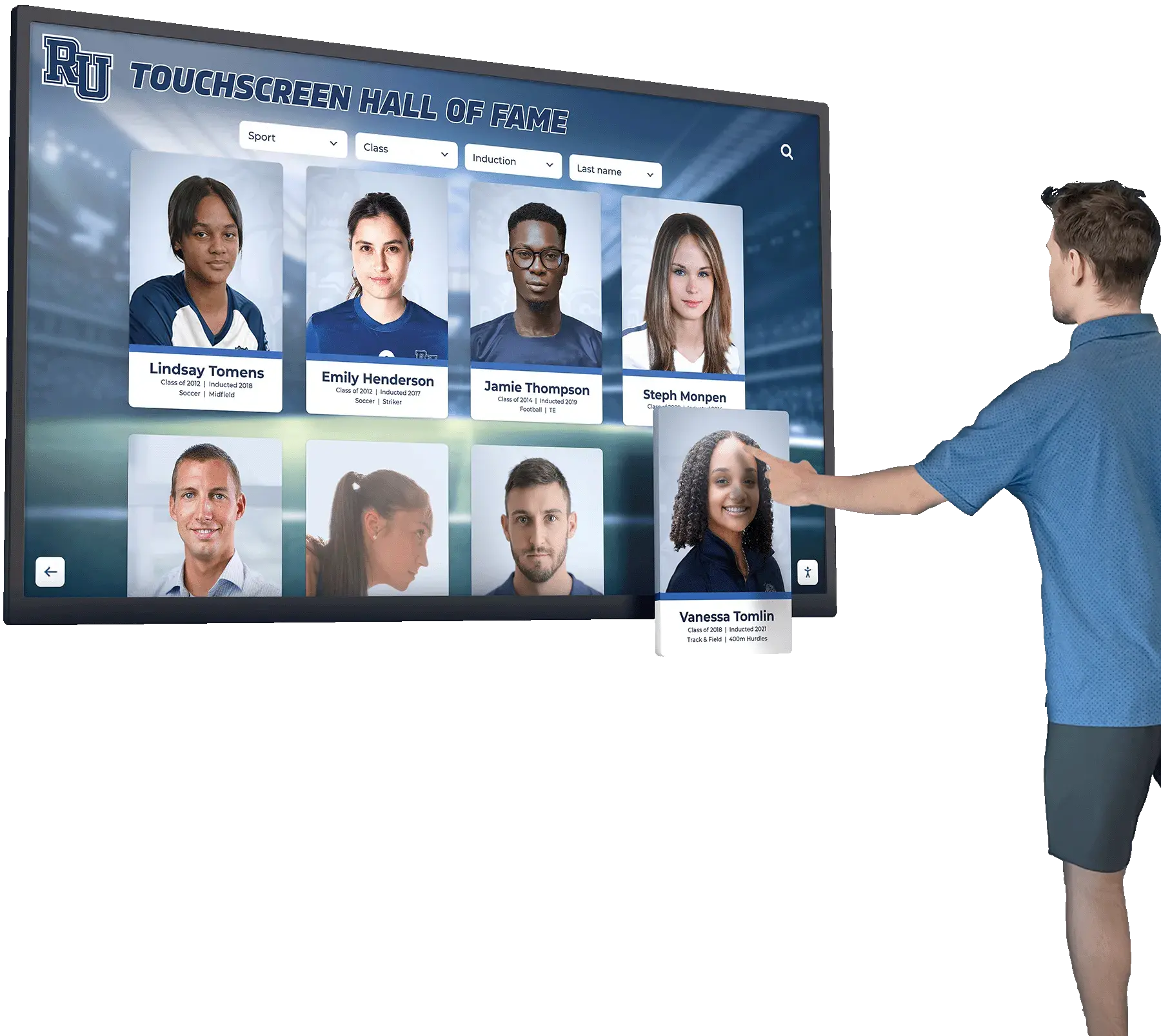
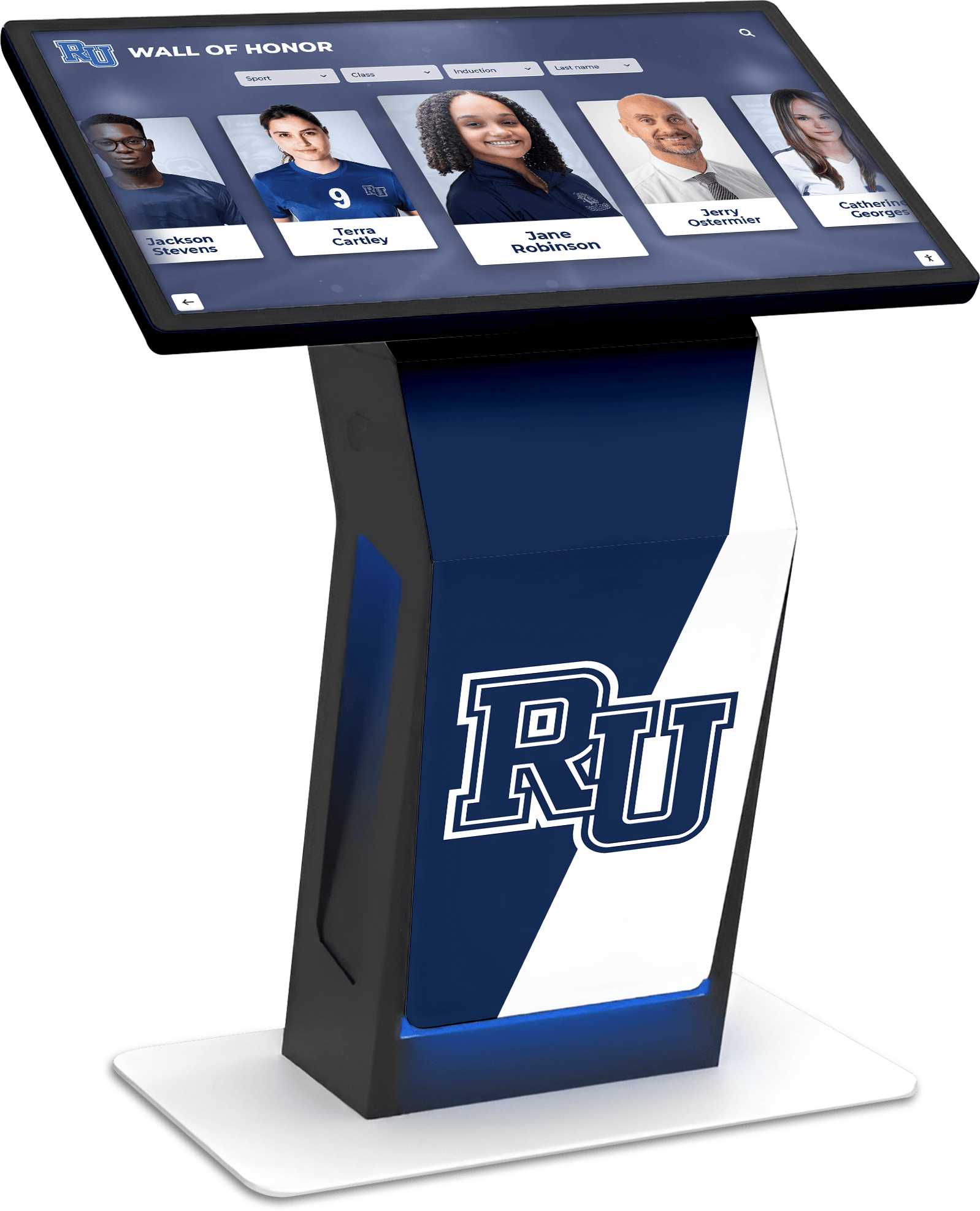
Intuitive touchscreen interfaces encourage exploration when backed by secure kiosk software
Integrating Kiosk Software with Recognition Platforms
Purpose-built recognition systems like Rocket Alumni Solutions optimize for kiosk deployment through web-based architecture and touch-optimized design.
Web-Based Recognition Platform Advantages
Several benefits emerge from browser-based recognition systems:
Universal Platform Compatibility Web-based recognition platforms run on any device supporting modern web browsers—Android tablets, iPads, Mac computers, Windows PCs, and Linux systems—without requiring platform-specific applications. This universal compatibility enables organizations to choose hardware based on preferences and budgets rather than software platform constraints.
Simplified Kiosk Software Requirements Browser-based recognition systems require only basic kiosk browser capabilities: full-screen display, navigation lockdown, and session management. Organizations avoid complex application installation, platform-specific updates, and compatibility challenges inherent to native application approaches.
Remote Content Management Cloud-based content management enables authorized staff to add new inductees, update profiles, schedule publications, and modify recognition content from any internet-connected device without requiring physical access to kiosk hardware. This remote management proves invaluable for organizations managing distributed recognition displays across campuses or multiple facilities.
Consistent Cross-Platform Experience Web-based platforms deliver identical user experiences across diverse hardware, ensuring consistent recognition presentation whether accessed via physical touchscreen kiosks, personal mobile devices, or remote web browsers. This consistency strengthens brand identity while simplifying user education and support.
Rocket Alumni Solutions and Kiosk Integration
Rocket Alumni Solutions specifically optimizes for kiosk deployments:
Purpose-Built Touch Optimization Unlike generic content management systems adapted for touchscreen use, Rocket interfaces incorporate extensive touch optimization including appropriately sized interactive elements, touch-friendly navigation patterns, gesture recognition for browsing, and visual feedback confirming interactions creating native-quality experiences through web technologies.
Unlimited Content Without Performance Degradation Digital recognition systems accumulate extensive content over time as organizations add decades of historical archives alongside ongoing recognition. Rocket platforms accommodate unlimited inductees, photos, videos, and content without performance degradation, ensuring kiosk responsiveness regardless of archive size.
ADA WCAG 2.1 AA Accessibility Compliance As the only web-based touchscreen platform achieving full WCAG 2.1 AA compliance, Rocket prioritizes inclusive design ensuring recognition serves all community members including those with disabilities. Public-facing kiosk installations particularly benefit from comprehensive accessibility features addressing diverse user needs.
QR Code Mobile Integration Physical kiosk displays integrate QR codes enabling visitors to continue exploration on personal mobile devices, combining public touchscreen experiences with convenient mobile browsing. This hybrid approach extends engagement beyond fixed installations while accommodating visitors preferring personal device interaction over public touchscreens.
Multi-Generational Intuitive Design Recognition interfaces designed for intuitive interaction accommodate all age groups and technical comfort levels from digital natives to older alumni less familiar with touchscreens. Familiar browse-and-tap patterns require minimal instruction while supporting sophisticated discovery for engaged users.
Social Sharing and Extended Reach Recognized members share digital profiles celebrating achievements with extended networks via social media, email, and messaging. Recognition extends far beyond physical kiosk locations, building pride and institutional connection among distributed communities unable to regularly visit campuses.
Operational Benefits of Integrated Solutions
Organizations combining purpose-built recognition platforms with appropriate kiosk software experience several advantages:
Simplified Vendor Management Working with recognition platform providers offering complementary kiosk applications (like Rocket Touchscreen) reduces vendor coordination complexity, eliminates compatibility concerns between disparate systems, and provides unified support addressing both content and kiosk software issues.
Optimized Performance and Reliability Recognition platforms tested and optimized specifically for kiosk deployment deliver more reliable operation than generic websites displayed through kiosk browsers. Purpose-built systems account for touchscreen interaction patterns, extended uptime requirements, and public-facing use cases from initial design.
Reduced Training Requirements Staff managing recognition content through intuitive web interfaces require minimal training on kiosk-specific aspects when systems design explicitly for simple kiosk deployment. This simplified management enables delegation to non-technical staff without extensive IT involvement.
Long-Term Platform Evolution Recognition platforms maintained by specialized providers benefit from ongoing enhancement, emerging technology integration, and continuous improvement based on user feedback across hundreds of installations. This sustained evolution ensures kiosk deployments remain current and engaging over multi-year operational timeframes.
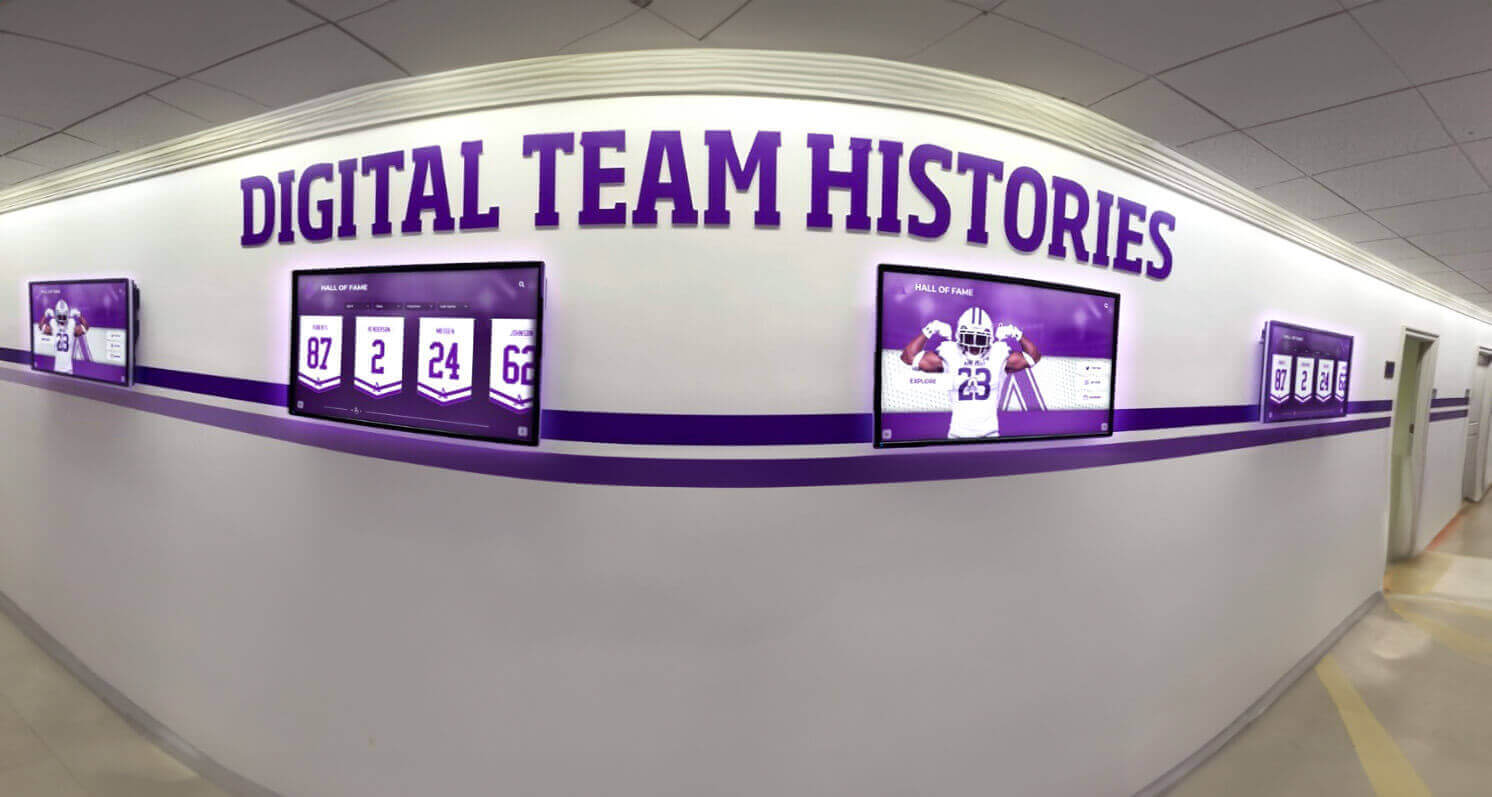
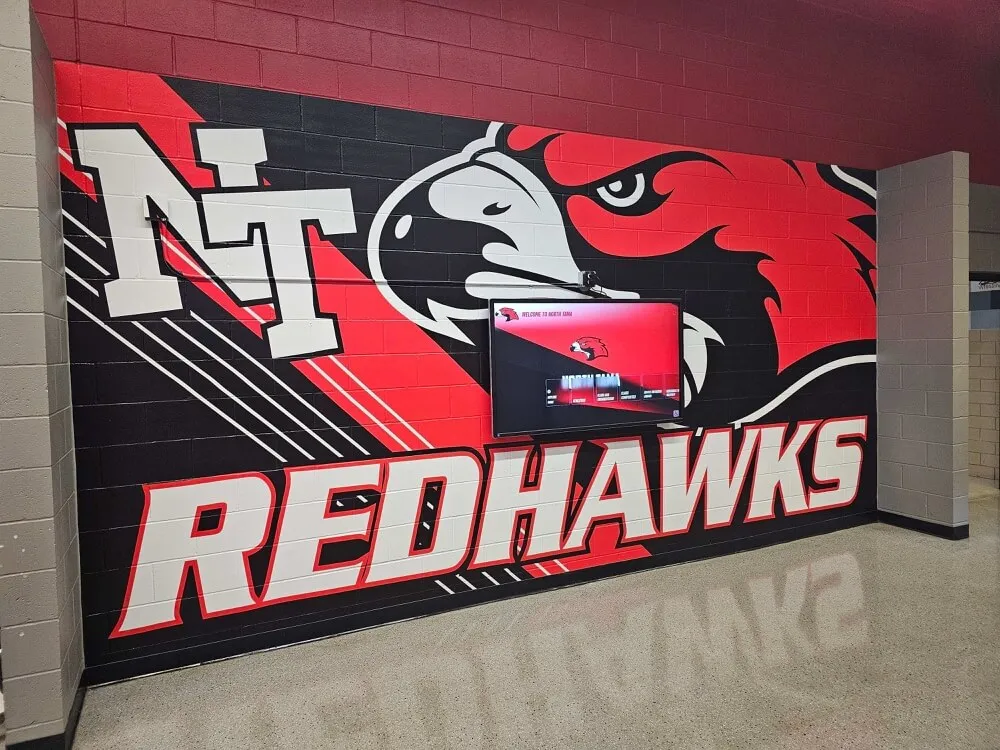
Coordinated kiosk deployments create comprehensive recognition experiences across facility spaces
Best Practices for Kiosk Software Selection
Choosing appropriate kiosk software requires systematic evaluation aligned with organizational needs and priorities.
Assessing Actual Feature Requirements
Organizations often overpay for unnecessary capabilities:
Core vs Premium Features Most educational recognition displays, alumni kiosks, and information systems require only core kiosk functionality: reliable browser lockdown, automatic session reset, basic remote monitoring, and stable operation. Advanced features like motion detection, peripheral integration, or sophisticated MDM capabilities rarely justify premium software subscriptions for straightforward recognition kiosks.
Simplicity vs Flexibility Trade-offs Highly configurable platforms like Fully Kiosk Browser provide extensive flexibility at the cost of complexity requiring technical expertise for proper deployment. Organizations with limited IT resources benefit from simpler, purpose-built solutions like Rocket Touchscreen designed specifically for common use cases without requiring extensive configuration.
Single-Purpose vs Multi-Function Deployment Kiosks serving single, focused purposes—displaying recognition content, providing information, showcasing achievements—need less sophisticated software than devices serving multiple rotating functions. Purpose-built apps excel for focused use cases while flexible platforms serve diverse changing requirements.
Cost-Benefit Analysis Framework
Organizations should evaluate total cost of ownership against delivered value:
Five-Year TCO Calculation Compare cumulative costs over five years including initial licensing, annual subscriptions, hardware requirements, installation, training, and ongoing support. Free kiosk solutions eliminating subscription costs often provide substantially better value unless premium features prove genuinely necessary.
Labor and Management Costs Factor staff time for initial configuration, ongoing content management, troubleshooting, and technical support. Simpler kiosk solutions requiring minimal management offset higher per-device software costs for complex platforms demanding significant administrative attention.
Opportunity Costs of Delayed Deployment Complex kiosk platforms requiring extensive setup, testing, and configuration delay recognition system launches, postponing community engagement benefits and advancement opportunities. Simpler solutions enabling faster deployment often provide better overall value through earlier realization of recognition benefits.
Testing and Proof-of-Concept Approaches
Validate kiosk software suitability before full deployment:
Pilot Installations Deploy single test kiosks using candidate software platforms, gathering real user feedback, observing interaction patterns, and identifying technical issues before committing to large-scale rollouts. Pilot testing reveals practical operational challenges not apparent from vendor demonstrations or documentation review.
User Experience Evaluation Observe how actual users—students, alumni, visitors matching target audiences—interact with test kiosks. Note frustration points, successful discovery patterns, engagement duration, and spontaneous feedback revealing whether kiosk software delivers intended user experiences.
Operational Stress Testing Run pilot kiosks for extended periods under realistic conditions, evaluating reliability, identifying failure modes, assessing maintenance requirements, and validating remote management capabilities before deploying across multiple locations.
Staff Management Assessment Have intended kiosk managers—administrators, facilities staff, content coordinators—use administrative interfaces, perform routine updates, and troubleshoot common issues verifying that chosen software matches organizational technical capabilities.
Download Free Touchscreen Kiosk Software Today
Transform Android tablets into secure, engaging recognition kiosks with the free Rocket Touchscreen app. No subscriptions, no complexity—just reliable kiosk functionality designed specifically for digital recognition displays.
Download for Android Schedule DemoConclusion: Choosing Kiosk Software Serving Your Mission
Selecting appropriate touchscreen kiosk browser software significantly impacts operational costs, user experiences, and long-term satisfaction with public display deployments. Organizations implementing digital recognition systems, information kiosks, or interactive displays need reliable device lockdown, intuitive operation, and secure public-facing functionality without unnecessary complexity or excessive costs.
The kiosk software market offers diverse options from free purpose-built apps like Rocket Touchscreen to commercial platforms like Fully Kiosk Browser and comprehensive MDM solutions. Each approach provides different feature sets, cost structures, and complexity levels serving different organizational needs and priorities.
Fully Kiosk Browser dominated the Android kiosk market for years, but its annual subscription requirements, documented remote administration challenges, and feature complexity drive many organizations toward simpler free alternatives providing adequate functionality without recurring costs. The free Rocket Touchscreen app specifically optimized for recognition displays eliminates subscription expenses while delivering reliable kiosk operation for schools, universities, athletic departments, and alumni organizations.
Mac-based kiosk deployments require platform-specific solutions ranging from dedicated applications like Kiosk by mackiosk.com and eCrisper to browser-based approaches and enterprise MDM platforms. Organizations should evaluate whether Mac hardware advantages justify higher kiosk software costs compared to Android alternatives with lower total ownership expenses.
The right kiosk software depends on specific context—required security features, management scale, available technical expertise, budget constraints, and integration with recognition platforms or content systems. Educational institutions implementing straightforward recognition kiosks frequently find free purpose-built solutions provide optimal value. Organizations requiring advanced peripheral integration, complex multi-function deployments, or sophisticated centralized management may justify commercial platform investments despite higher costs.
What we call “digital warming”—transforming cold, static spaces into engaging, personalized community experiences—depends on reliable touchscreen kiosks that encourage exploration rather than frustrate visitors with technical failures or security concerns. Kiosk browser software enabling secure, intuitive operation proves fundamental to creating recognition experiences that honor excellence while building engaged, connected communities where members feel valued.
Organizations implementing digital recognition should prioritize user experience over technical elegance, assess actual feature requirements honestly without paying for unnecessary capabilities, test solutions through pilot deployments before large-scale commitments, and select partners or platforms committed to ongoing innovation ensuring kiosk systems remain secure and engaging for years to come.
Whether choosing free apps like Rocket Touchscreen, commercial solutions like Fully Kiosk Browser, dedicated Mac kiosk software, or comprehensive MDM platforms, the goal remains constant: creating secure, reliable, engaging public touchscreen experiences celebrating achievements and building vibrant communities through digital recognition that truly warms up cold spaces with personalized, meaningful content.
Ready to deploy touchscreen kiosks? Download the free Rocket Touchscreen app from Google Play, explore best practices for touchscreen software selection, or learn about comprehensive touchscreen software solutions for schools and organizations implementing digital recognition systems.
Disclaimer: This comparison is based on publicly available information as of November 2025. All product names and trademarks belong to their respective owners. Rocket Alumni Solutions is not affiliated with or endorsed by Fully Kiosk Browser, AirDroid, STAROS, mackiosk.com, eCrisper, or other mentioned companies. Comparative statements reflect Rocket Alumni Solutions’ interpretation of available data and may change over time. This content was produced by Rocket Alumni Solutions.
Sources
- Fully Kiosk Browser Official Site
- AirDroid Business - Chrome Kiosk Mode for Android
- Capterra - Fully Software Reviews and Pricing 2025
- Rocket Touchscreen on Google Play
- STAROS Kiosk Lockdown by Glory Star
- Porteus Kiosk - Linux-based Kiosk Software
- mackiosk.com - Kiosk for Mac
- eCrisper - Mac Kiosk Software
- TouchPoint K-12 - Google Ending Chrome Apps Kiosk Mode
- Scalefusion - Chrome Kiosk Mode Guide