Before accepting a school lobby athletic recognition touchscreen for deployment, run a school lobby recognition display MediaCapabilities decodingInfo test to confirm the device browser can decode the specific codec, bitrate, resolution, and framerate used in your recognition videos. The browser’s Web MediaCapabilities API returns three boolean values—supported, smooth, and powerEfficient—for each video configuration you supply. A supported: false result means the device cannot decode the format at all and the configuration must be rejected or replaced. smooth: true and powerEfficient: true indicate browser predictions of smooth, hardware-accelerated playback, but those predictions may initially be optimistic before local playback statistics have accumulated on that device. The API covers unencrypted file configurations only, and physical playback acceptance on the actual installed hardware remains a required separate step regardless of what the API returns.
School lobby recognition displays depend on video playback to bring athletic achievement to life—championship highlight reels, induction ceremony footage, and archived game clips that connect visitors to decades of school pride. When a kiosk device lacks hardware support for the codec or cannot sustain the required bitrate at the display’s native resolution, that video either refuses to play or drops frames in ways that undermine the recognition experience. Running a MediaCapabilities decodingInfo check before the installation is accepted gives IT staff and athletic directors objective data on which video configurations the device can actually support.

A school lobby recognition display lives or dies on smooth video playback—codec compatibility checks before acceptance prevent the silent failures that erode visitor engagement from day one.
What the MediaCapabilities API Does and What decodingInfo Returns
The MediaCapabilities.decodingInfo() method, available on navigator.mediaCapabilities, accepts a configuration object describing a media file and returns a Promise that resolves to an object with three boolean properties: supported, smooth, and powerEfficient.
supported:trueif the browser can decode the described configuration at all.falseis an immediate rejection criterion—the device cannot play this format.smooth:trueif the browser predicts it can decode and render the content without dropped frames. This prediction is based on device capability data and any available local playback history.powerEfficient:trueif the browser predicts the decoding will use hardware acceleration rather than relying entirely on software decoding, which consumes more CPU and battery.
The configuration object you pass must specify type: "file" for unencrypted media (omit keySystemConfiguration), along with a video object that includes contentType (a valid MIME type with codec parameter), width, height, bitrate in bits per second, and framerate in frames per second. An example query for an H.264 recognition video at 1080p and 30 fps looks like this:
const config = {
  type: "file",
  video: {
    contentType: "video/mp4; codecs=avc1.42E01E",
    width: 1920,
    height: 1080,
    bitrate: 5000000,
    framerate: 30
  }
};

navigator.mediaCapabilities.decodingInfo(config).then(result => {
  console.log("Supported:", result.supported);
  console.log("Smooth:", result.smooth);
  console.log("Power efficient:", result.powerEfficient);
});
The API does not test actual file playback. It reports the browser’s capability estimate based on the hardware profile and any prior playback data available on that device. On a freshly provisioned kiosk, smooth and powerEfficient may reflect general device-class estimates rather than measured playback behavior. That is why physical playback acceptance remains a required step after the API check.
Why Format Decisions Made at Digitization Affect Lobby Acceptance
The codec and container decisions made when recognition videos are created or converted upstream have direct consequences for lobby display acceptance. Athletic archive video digitization standards address the file format choices—container formats, codec selection, and quality parameters—that determine whether archived footage remains broadly playable across different display hardware over time.
When a school archives championship footage at a high bitrate in a container that older kiosk browsers cannot decode, the video may play correctly on a modern laptop but fail silently on the lobby touchscreen running a fixed browser version. Checking decodingInfo against the specific output parameters from your digitization workflow, before the recognition display is accepted, surfaces those mismatches early.
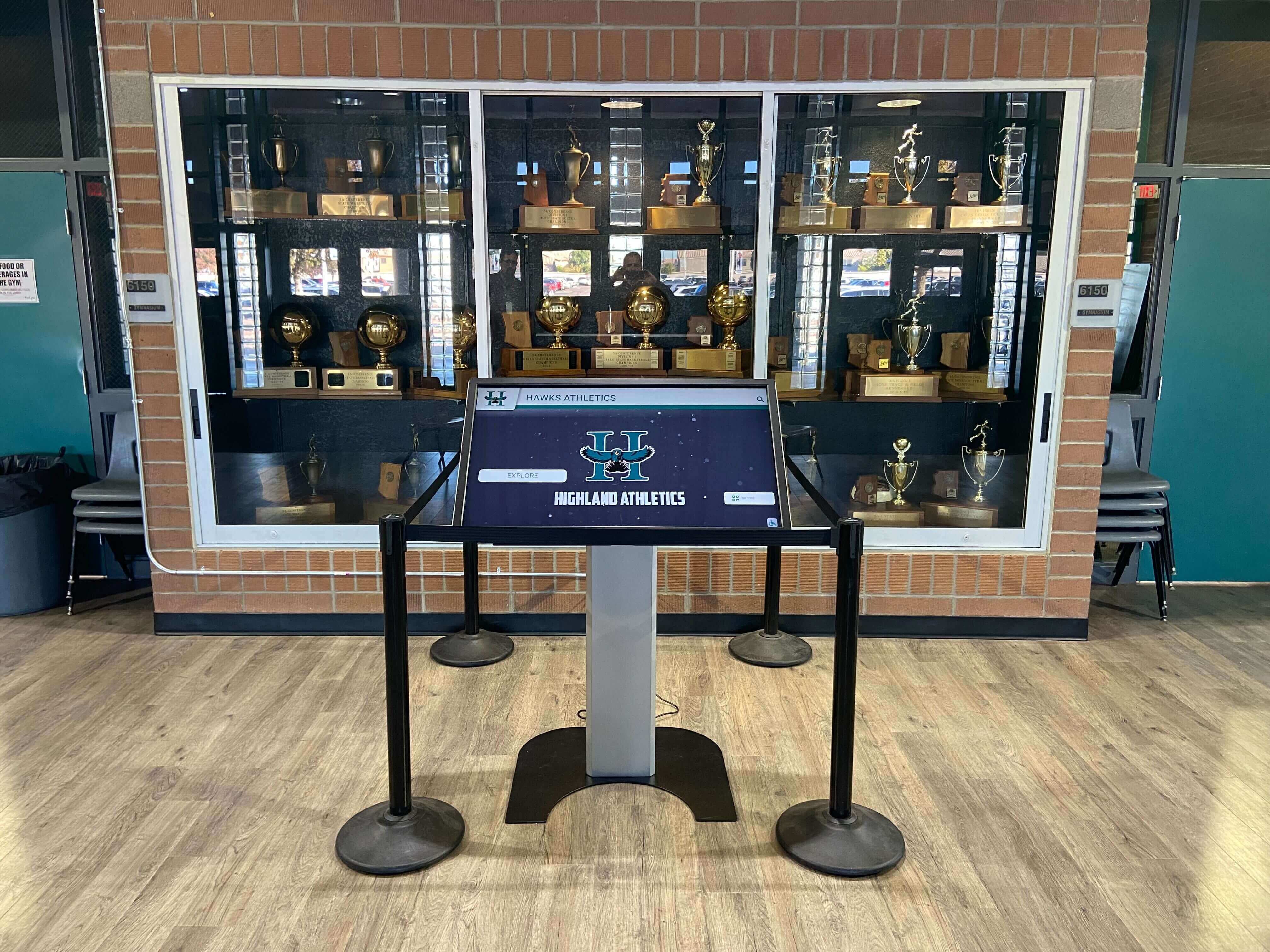
The browser embedded in a lobby kiosk may run a fixed version that lacks support for newer codec profiles—decodingInfo checks at acceptance reveal gaps before they reach visitors.
Numbered Workflow: Running a MediaCapabilities Decoding Check
Complete these steps in order. Steps 1 through 3 can be completed before the display device is installed; steps 4 through 6 require access to the actual kiosk browser.
Inventory your recognition video files. List every video asset the recognition display will play. For each file, record: container format (MP4, WebM, MOV), codec and profile (H.264 Baseline/Main/High, H.265, VP9, AV1), resolution width and height in pixels, bitrate in bits per second, and framerate. Your video editing or transcoding software can export this metadata, or use a command-line tool such as
ffprobefrom the FFmpeg suite:ffprobe -v quiet -print_format json -show_streams yourfile.mp4.Identify the display device browser and version. On the kiosk, navigate to
about:versionorchrome://version(for Chromium-based kiosk browsers) and record the browser and version string. Some kiosk operating systems lock the browser to a specific version that may not support newer codec profiles like AV1 or HEVC in software decode paths.Build a decodingInfo query for each unique configuration. For each distinct combination of codec, resolution, bitrate, and framerate in your inventory, write a separate
decodingInfocall using thetype: "file"configuration. Group by unique parameter set—a display that plays five videos all encoded identically requires only one query, not five.Run queries from the kiosk browser’s developer console. On the lobby device, open developer tools (if enabled on the kiosk profile) or use a test page served from the local network. Paste each
decodingInfocall and record the three boolean results for each configuration. If developer tools are locked on the kiosk, serve a small HTML test page that callsdecodingInfofor each configuration and writes results to the page body.Apply the decision table below to each result. Configurations where
supported: falsemust be replaced with a decodable alternative before acceptance. Configurations wheresmooth: falserequire a physical playback test to determine whether actual dropped-frame rates are within acceptable limits for the recognition experience.Complete physical playback acceptance on the installed device. For each configuration that passed the API check, play the actual video file on the actual device in its final installation environment—lobby ambient light, display orientation, and any concurrent system processes that run on the kiosk during normal operation. Record whether playback is visually smooth at the intended viewing distance. A
supported: true, smooth: trueresult from the API does not substitute for this observation.
Decision Table: Interpreting decodingInfo Results
Use this table to determine the correct action for each video configuration you test.
supported | smooth | powerEfficient | Decision | Required Action |
|---|---|---|---|---|
false | any | any | Reject configuration | Re-encode video in a supported codec and profile; do not accept the display until all assets pass |
true | false | false | Conditional — test required | Run physical playback test; note that smooth may improve as device accumulates playback data, but do not rely on this |
true | false | true | Conditional — test required | Hardware path available; run physical playback test to confirm frame rate under load |
true | true | false | Likely acceptable | Software decode path; monitor CPU usage during playback; confirm during physical acceptance |
true | true | true | Likely acceptable | Hardware-accelerated decode predicted; complete physical playback acceptance to confirm |
The smooth: true and powerEfficient: true results represent browser predictions, not measurements. On a newly provisioned kiosk, those predictions are based on general device capability profiles rather than observed playback history on that specific unit. Accept them as screening criteria, not as guarantees.
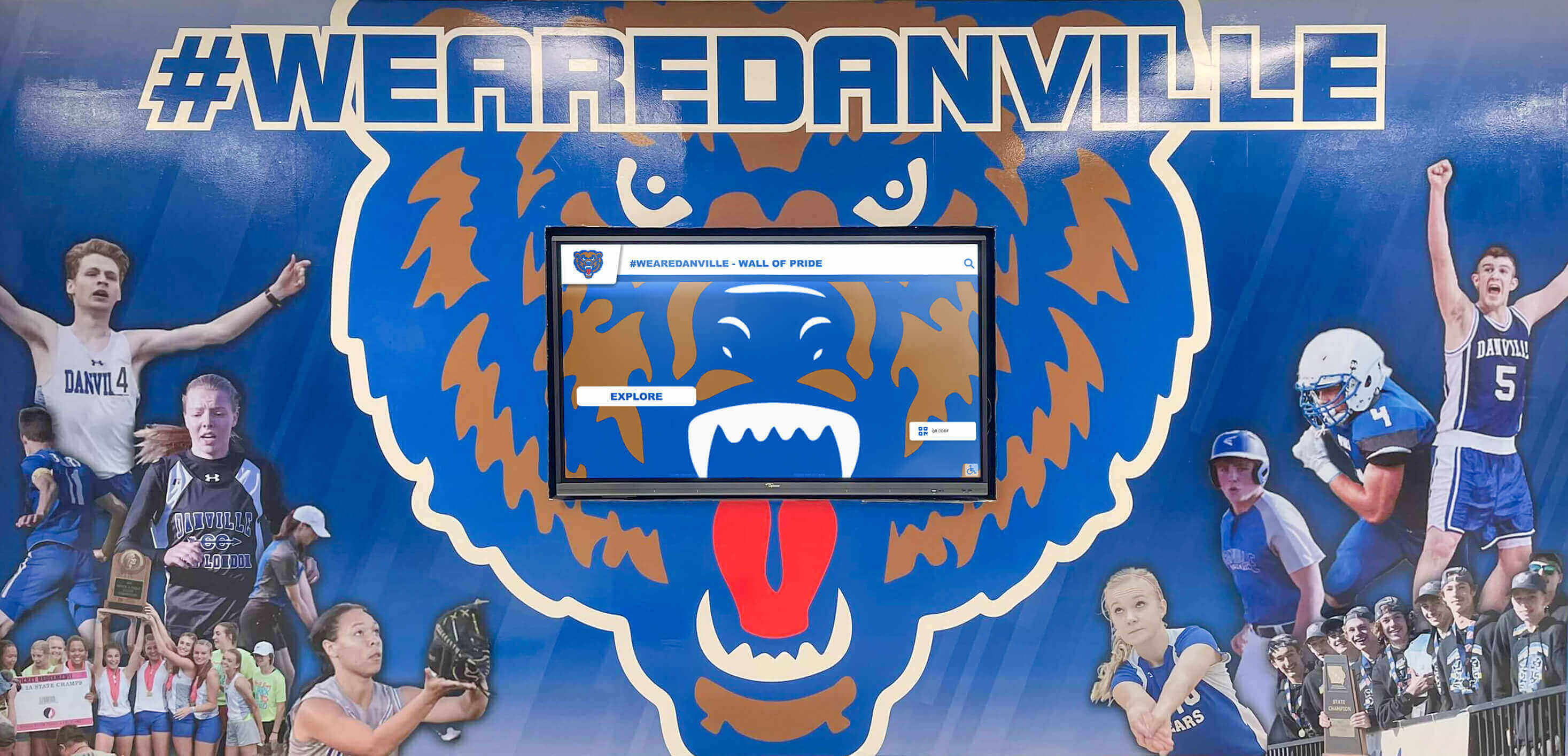
A recognition display integrated with school identity graphics depends on reliable video playback—codec compatibility determines whether that playback holds up under real lobby conditions.
Pre-Acceptance Checklist
Complete all items before signing off on a lobby recognition touchscreen installation.
| Item | Check | Notes |
|---|---|---|
| Video asset inventory complete | ☐ | Codec, container, resolution, bitrate, framerate recorded for every asset |
| decodingInfo query run on actual kiosk browser | ☐ | Not on a desktop browser—must match the installed device’s browser version |
supported: true confirmed for all video configurations | ☐ | Any false result blocks acceptance until assets are re-encoded |
| Physical playback test completed for each unique configuration | ☐ | Observed on the actual device in final installed position |
Frame drop assessment completed for smooth: false results | ☐ | Acceptable only after physical test confirms playback quality |
| CPU and thermal behavior observed during extended playback | ☐ | Kiosk running a continuous recognition loop may thermal-throttle after sustained load |
| Display configured for unencrypted file assets only | ☐ | decodingInfo tests unencrypted configurations; DRM-protected content requires separate capability checks |
| Browser version documented | ☐ | Required for interpreting results and for future re-testing after software updates |
| Re-test scheduled after any browser or OS update | ☐ | Capability results can change when the browser version changes |
For recognition displays that will also show picture-in-picture video during live events or visitor interaction sessions, the school recognition video picture-in-picture test for shared touchscreen kiosks describes how to verify that the browser’s Picture-in-Picture API works alongside the main recognition video stream—a separate capability check from decodingInfo that addresses overlay playback scenarios.
Comparing Codec Check Approaches: API Versus Manual Playback Versus Static Configuration
Schools and AV integrators use three general approaches to verify codec compatibility before accepting a recognition display. Each has trade-offs.
MediaCapabilities decodingInfo API queries the browser’s capability model programmatically for a specific codec, bitrate, resolution, and framerate combination. It returns results per-configuration without playing any video, and it runs in seconds across an entire asset inventory. The limitation is that results reflect estimates, not measurements, and the smooth and powerEfficient predictions may be optimistic at initial provisioning.
Manual playback testing plays each actual video file on the actual device and observes the result. It is the most direct evidence of real-world behavior and the mandatory final step regardless of what decodingInfo returns. The limitation is time: testing every combination of video asset, ambient condition, and concurrent kiosk process takes significantly longer than an API query. For a large recognition library, manual testing of every individual asset is not feasible—using decodingInfo to screen configurations first makes manual testing manageable.
Static configuration lists document which codec profiles and bitrate ranges are known to work on a specific device model, maintained manually by the integrator or vendor. These are useful reference materials but do not account for browser version changes, firmware updates, or thermal conditions during extended operation.
The recommended approach combines all three: use decodingInfo to screen configurations before installation, use physical playback to confirm a representative sample from each passing configuration group, and maintain a static configuration record for future reference.
If your school’s recognition assets include physical banner or signage elements alongside the digital display, acceptance testing applies to both systems independently. The championship banner welded seam acceptance checklist describes the physical inspection criteria for fabric championship banners before they are hung in the same lobby space—a parallel acceptance discipline for the non-digital components of the recognition environment.
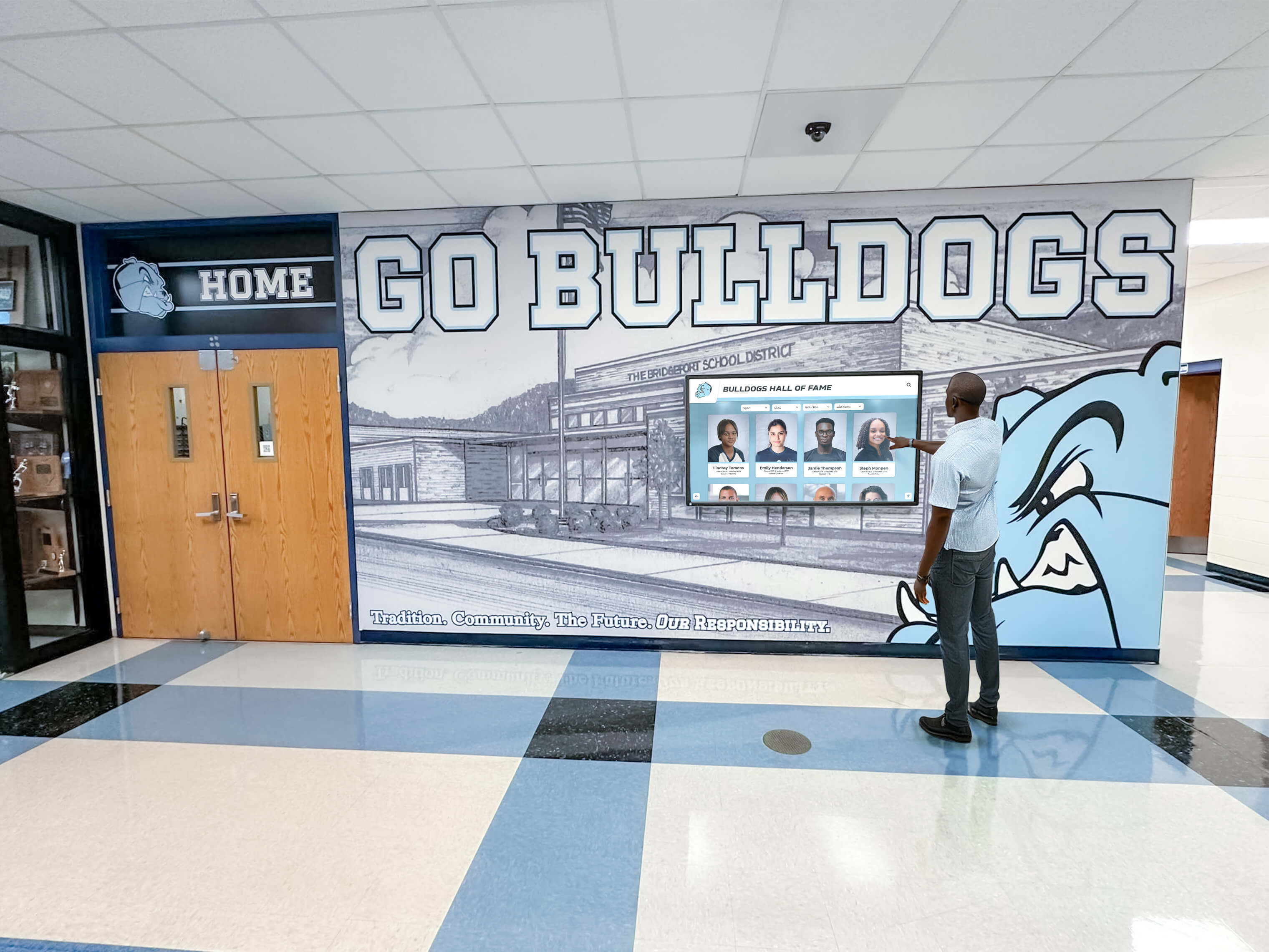
Visitors interact with recognition displays expecting smooth, responsive video—the decodingInfo check is the first of several steps that ensure the device is ready before visitors arrive.
Motion Blur and Additional Video Acceptance Tests
MediaCapabilities decodingInfo addresses codec and bitrate compatibility but does not evaluate display panel motion handling. For athletic recognition content—fast-cut sports highlights, scrolling athlete name rosters, animated trophy graphics—motion blur on the display panel itself can degrade the viewing experience even when the device decodes the video without dropped frames. The recognition display motion-blur test for schools describes how schools evaluate sports video and animated graphics for motion clarity before approving an installation.
Running a motion blur evaluation alongside the MediaCapabilities check covers two distinct acceptance dimensions: whether the device can decode the video format, and whether the display panel can render fast motion cleanly. Both are relevant for school lobby athletic recognition content.
Ongoing Monitoring After Acceptance
Accepting a recognition display at installation is not the final milestone for video playback reliability. Browser updates on kiosk operating systems can change codec support, hardware decode paths can be affected by driver updates, and thermal conditions during sustained lobby operation differ from conditions during a brief acceptance test. A scheduled monitoring plan catches regressions before they affect visitors.
The touchscreen recognition display synthetic monitoring plan describes how to set up automated checks that detect display outages before school events—the same infrastructure can include periodic synthetic video playback tests that alert IT staff when a codec that was previously supported stops decoding correctly after a software update.
Re-run the decodingInfo test suite whenever the kiosk browser version changes. Save your original test queries and results so you have a baseline to compare against future results. A configuration that returned supported: true, smooth: true on the original browser version may return different results on a newer or older browser, and those changes are not always announced in release notes.
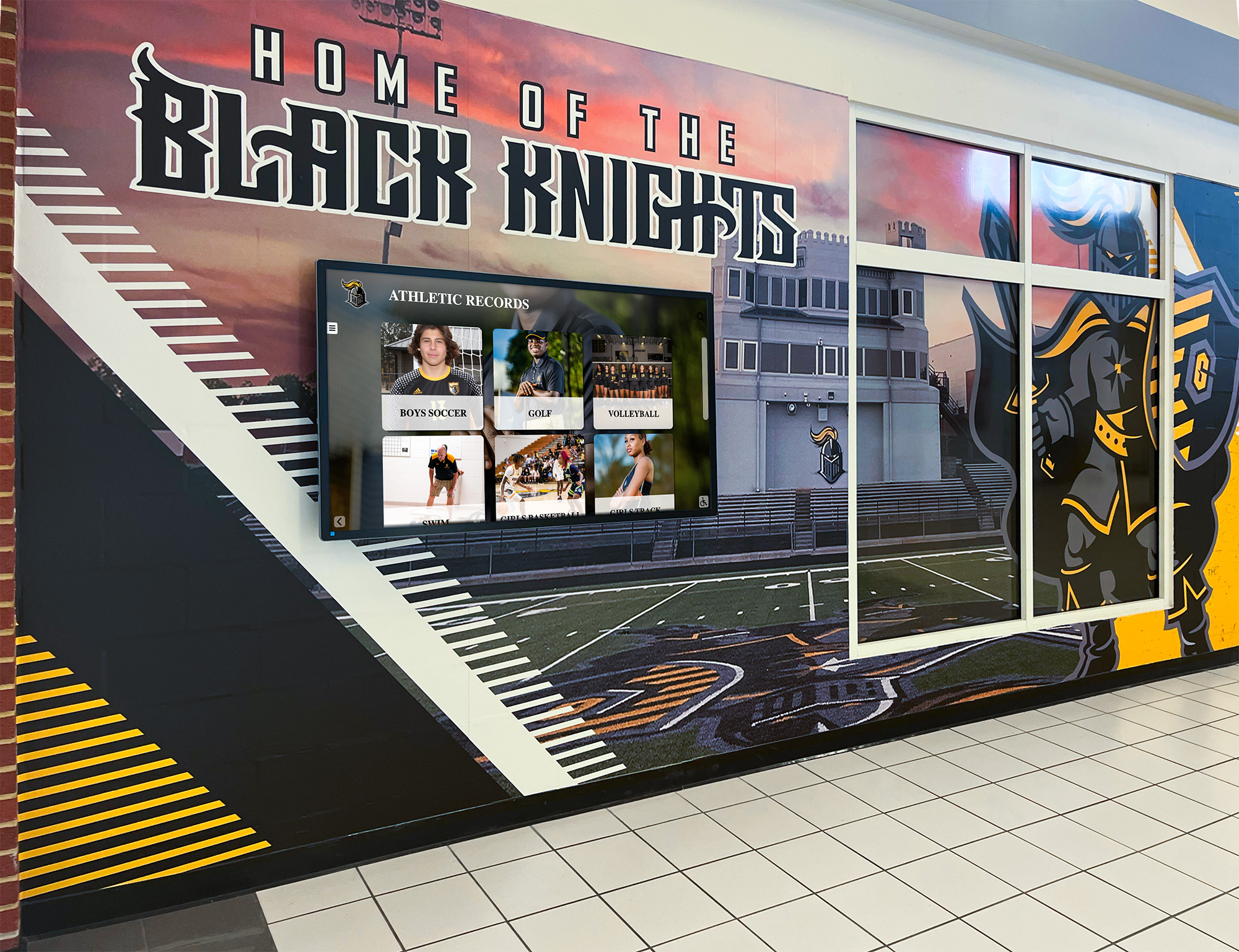
Acceptance testing at installation is the starting point—ongoing monitoring ensures that the video capabilities confirmed at acceptance remain intact as the kiosk software evolves.
Frequently Asked Questions
Does decodingInfo work in all kiosk browsers?
The MediaCapabilities API is supported in Chromium-based browsers from version 66 onward and in Firefox from version 63. Many school lobby kiosks run a locked Chromium-based browser. Check your device’s browser version against the API’s support baseline before relying on the results. If the browser does not implement the API, navigator.mediaCapabilities will be undefined—your test script should check for that condition and fall back to manual playback testing for that device.
Can I run decodingInfo on a desktop computer and apply the results to the kiosk? No. Hardware decode paths, GPU capabilities, and browser feature flags differ between device types. A result obtained on a development laptop does not describe the kiosk device’s capabilities. The test must run on the actual installed browser on the actual kiosk hardware.
What does smooth: false mean in practice?
It means the browser predicts it may not sustain the required framerate without dropping frames. This may or may not be perceptible during actual playback, depending on the content type and the degree of degradation. smooth: false is a flag requiring a physical playback test to determine whether the playback quality meets the school’s acceptance standard. It is not an automatic rejection if physical testing confirms acceptable visual quality.
Why might powerEfficient: true appear with smooth: false?
powerEfficient: true indicates the browser expects to use a hardware decode path. smooth: false indicates the browser predicts that even with hardware decoding, the configuration may exceed what the device can sustain at the specified bitrate and framerate. This combination can occur when a hardware decoder supports the codec but is limited in the bitrate range it can handle smoothly. Reducing the video bitrate and re-running the query may produce a smooth: true result at a lower bitrate, which then becomes the accepted maximum for that codec profile on that device.
Does the API cover audio compatibility?
Yes. The decodingInfo configuration accepts an audio object in addition to video, with its own contentType, channels, bitrate, and samplerate fields. For recognition videos that include audio commentary or music, include the audio configuration alongside the video configuration to confirm both components are decodable. An audio configuration that returns supported: false is a blocking issue even if the video check passes.
If we re-encode video to a lower bitrate for compatibility, does that reduce recognition quality? It depends on the original content and the encoding settings. Reducing bitrate at a fixed resolution increases compression artifacts, which may be visible on the large lobby display at close viewing distances. Test the re-encoded file physically on the display at the normal viewing distance before accepting the revised configuration. For archival recognition content, maintain the original high-bitrate master file alongside any compressed derivative versions to preserve quality for future use—consistent with the source preservation principles in athletic archive video digitization workflows.
How often should we re-run the decodingInfo test suite? After any kiosk operating system update, browser version change, or video asset addition. Also run it after any hardware component replacement such as a graphics card or motherboard swap. Add it to your annual technology audit for the recognition display as a baseline check independent of software changes.
Is supported: true alone sufficient to accept the video configuration?
Not by itself. supported: true means the browser can decode the format but does not indicate whether playback will be smooth. A supported: true, smooth: false result still requires a physical playback test. supported: true is a necessary condition for acceptance; it is not sufficient on its own.
See Rocket Alumni Solutions' Athletic Recognition Display Platform in Action
Rocket Alumni Solutions builds school lobby athletic recognition displays with web-based content management, WCAG 2.1 AA accessibility, and unlimited inductee capacity. Ask about video playback support, codec compatibility, and device acceptance workflows during a live demo.
Book a Rocket Demo