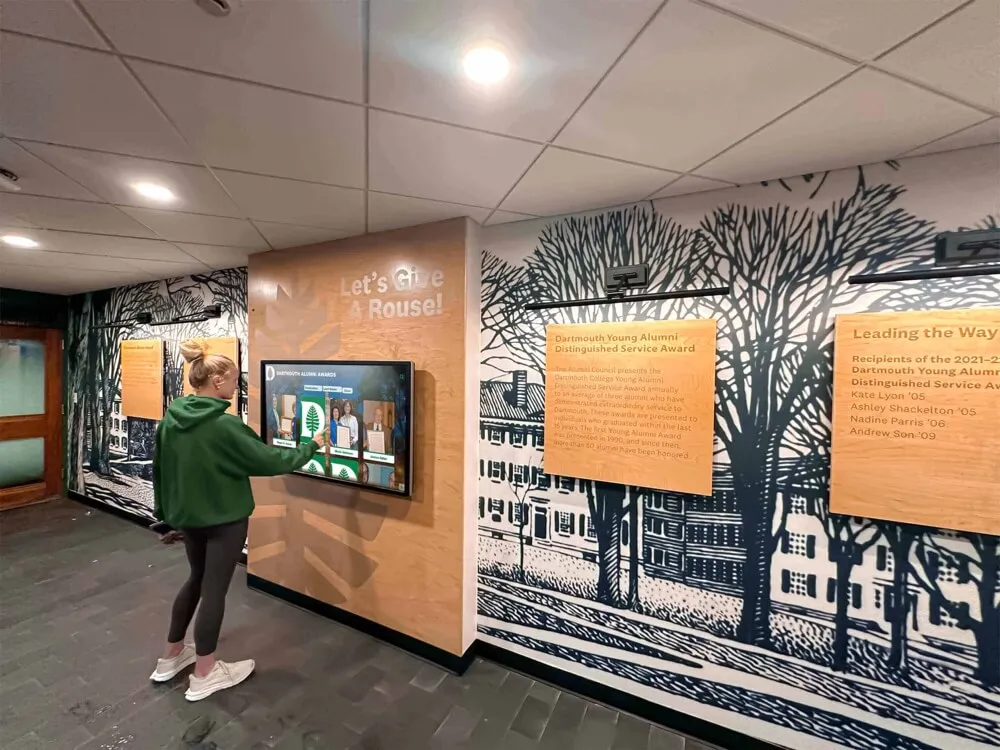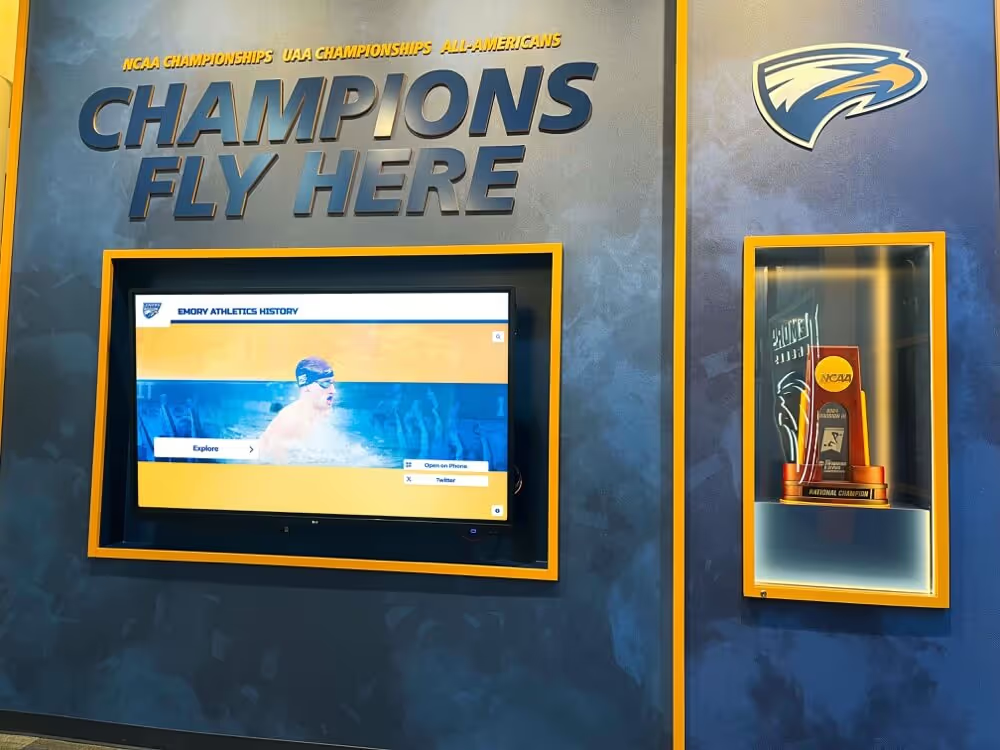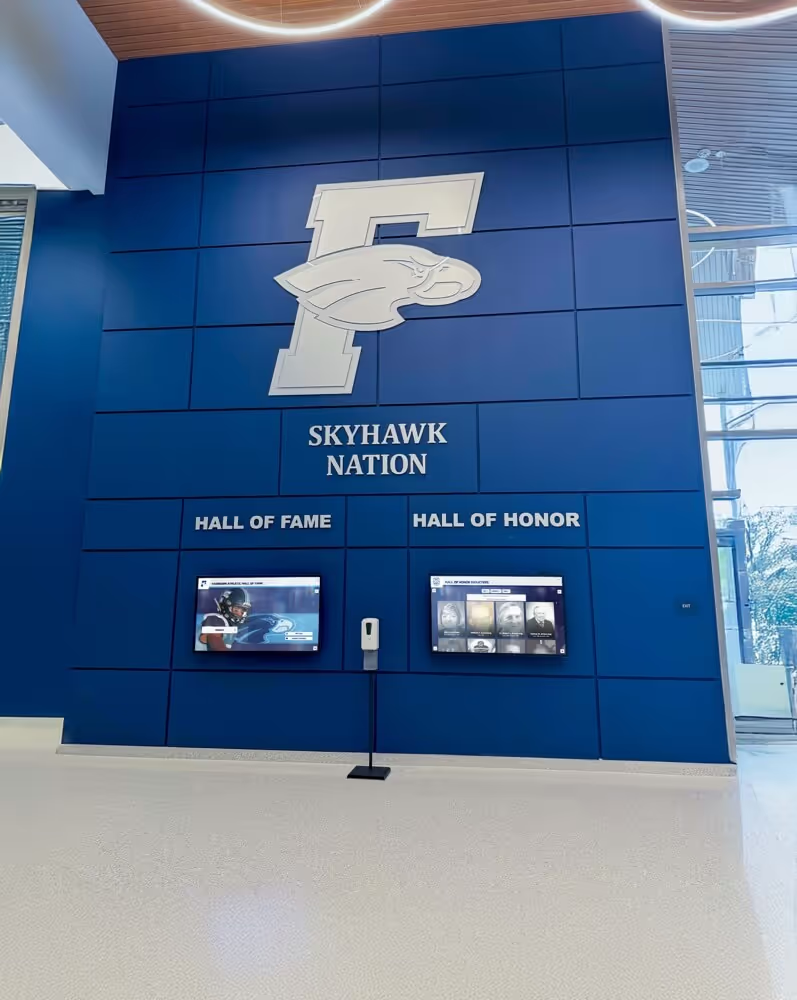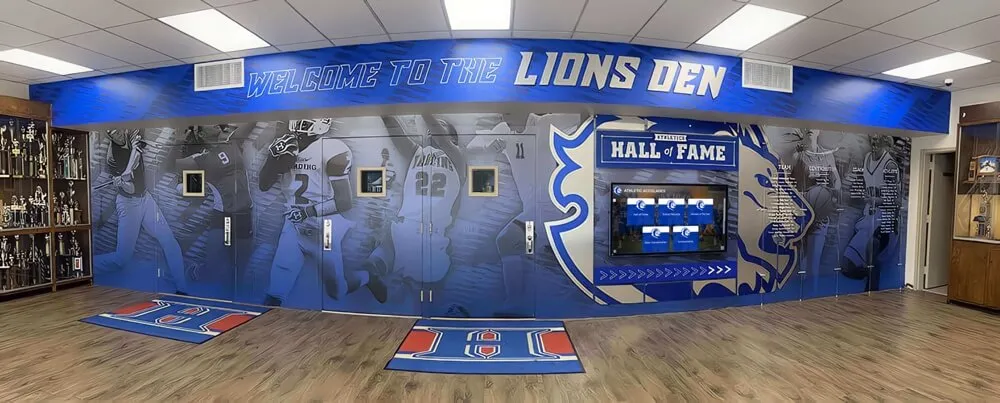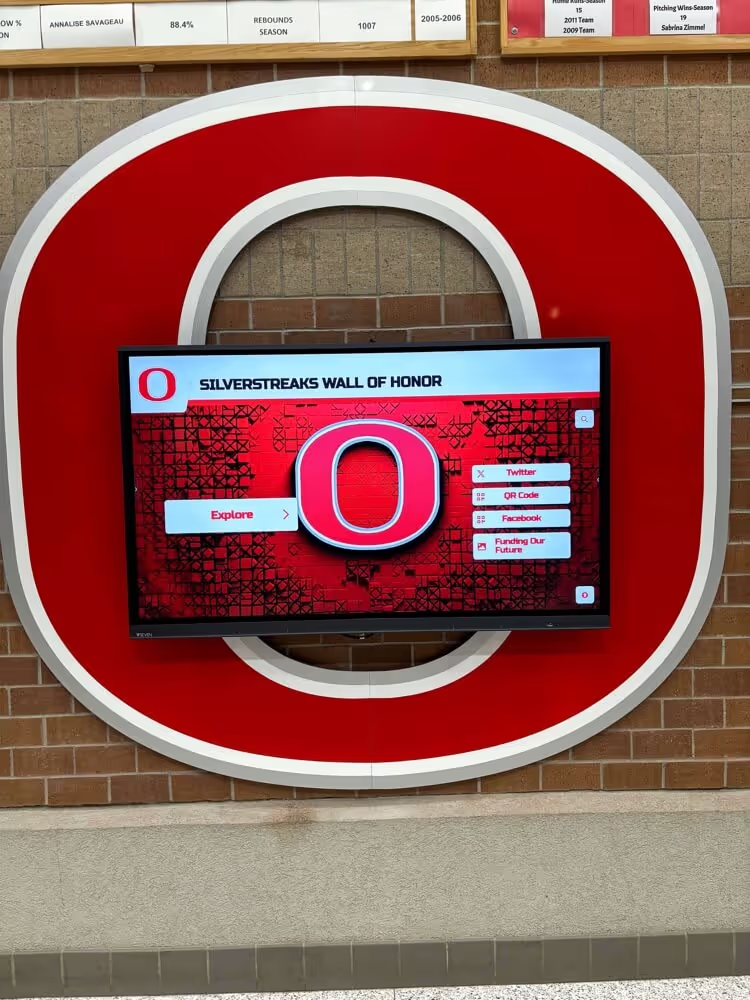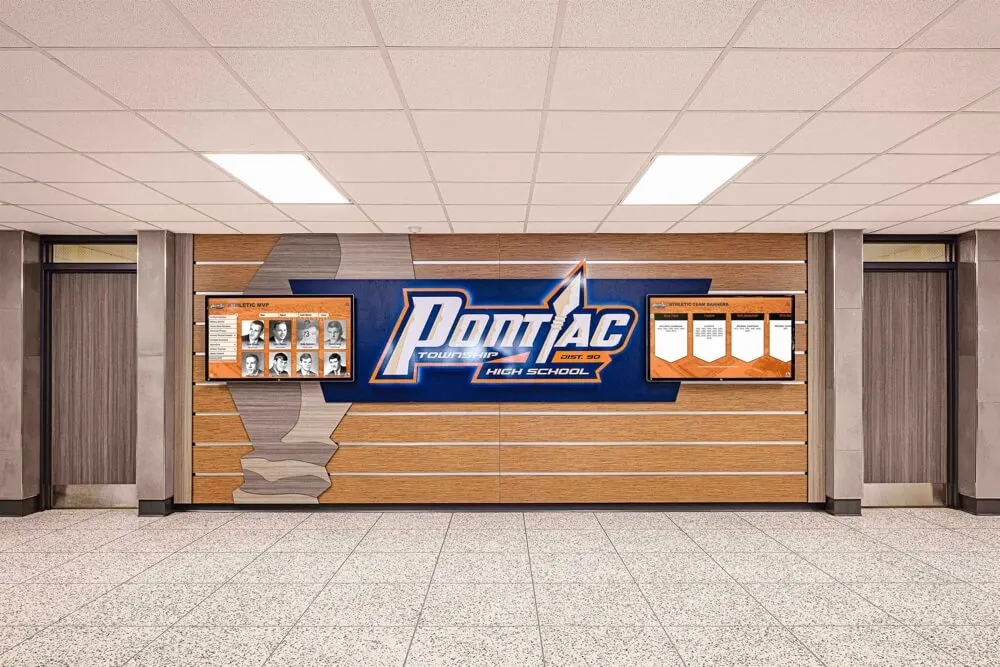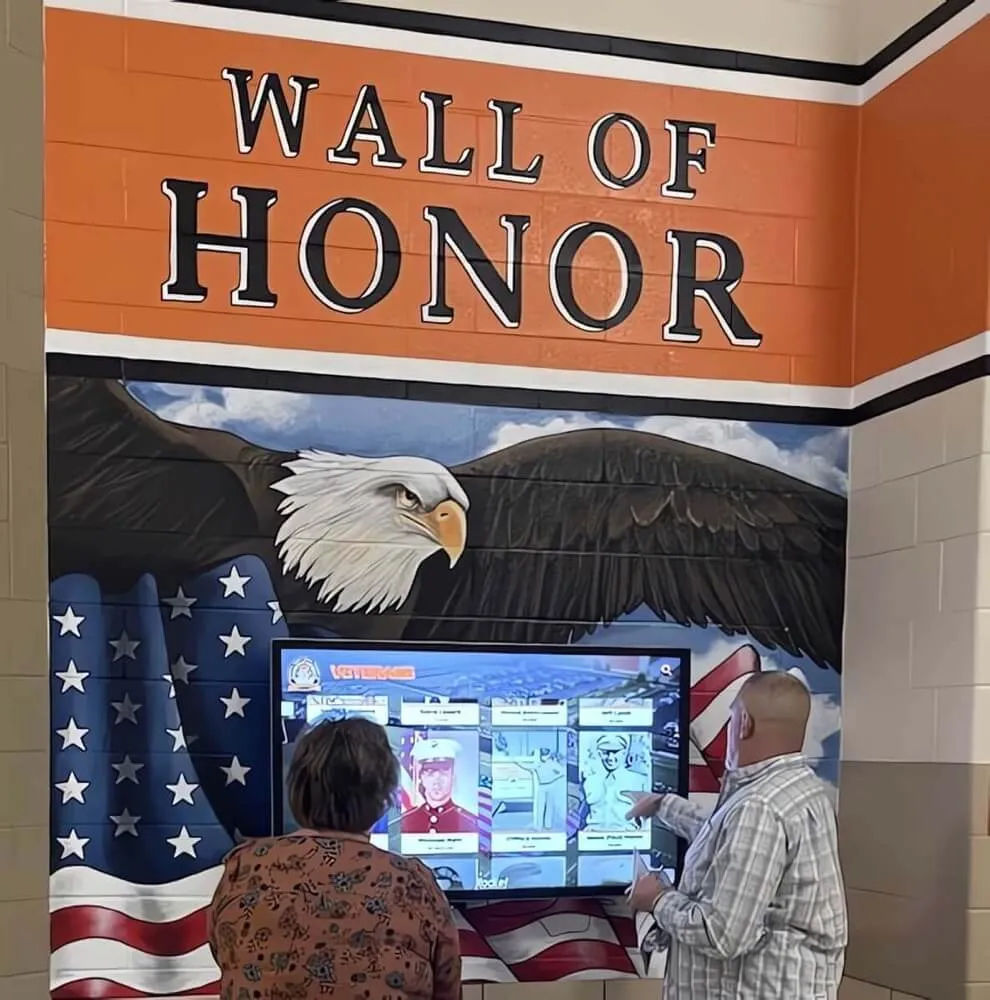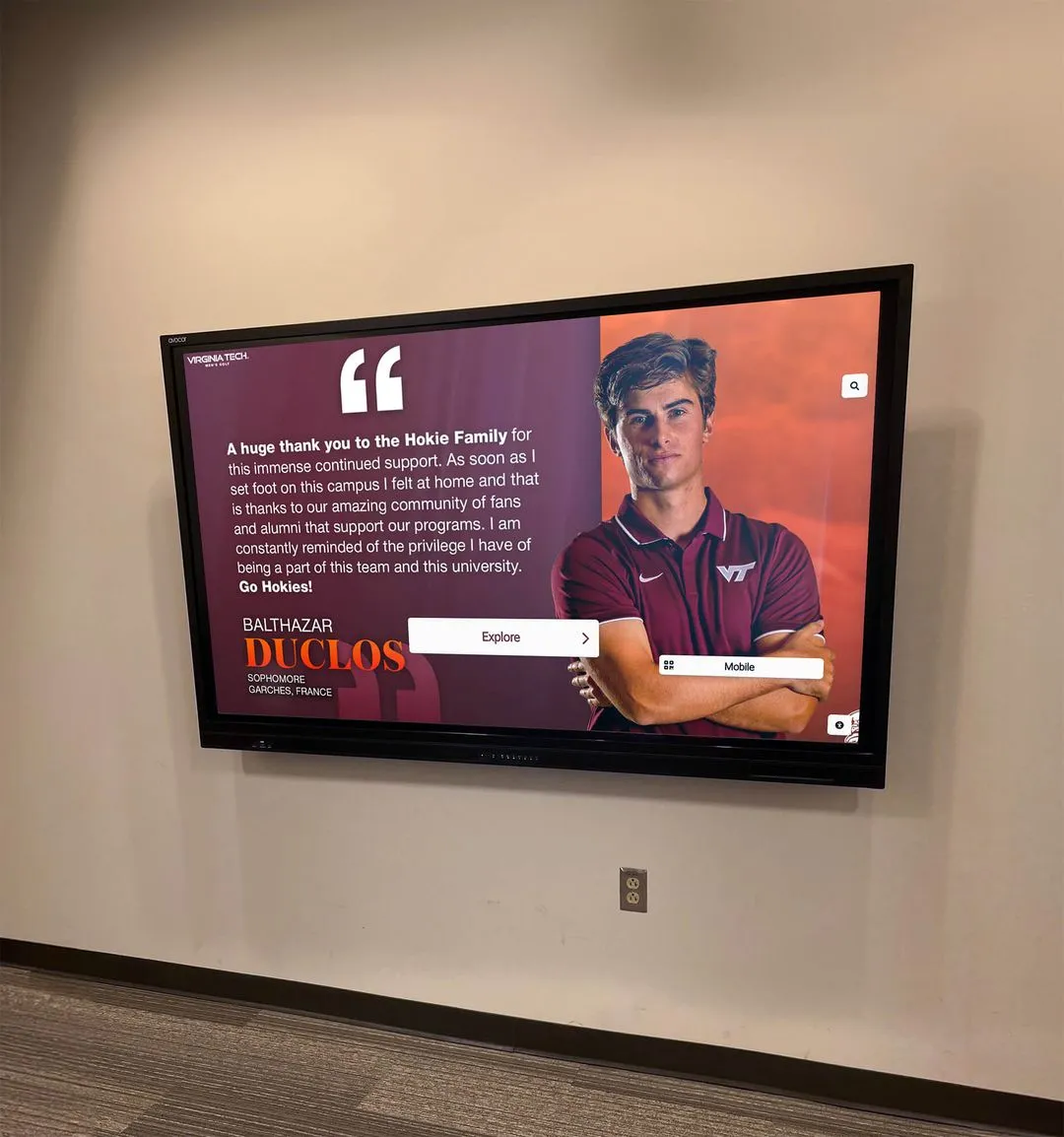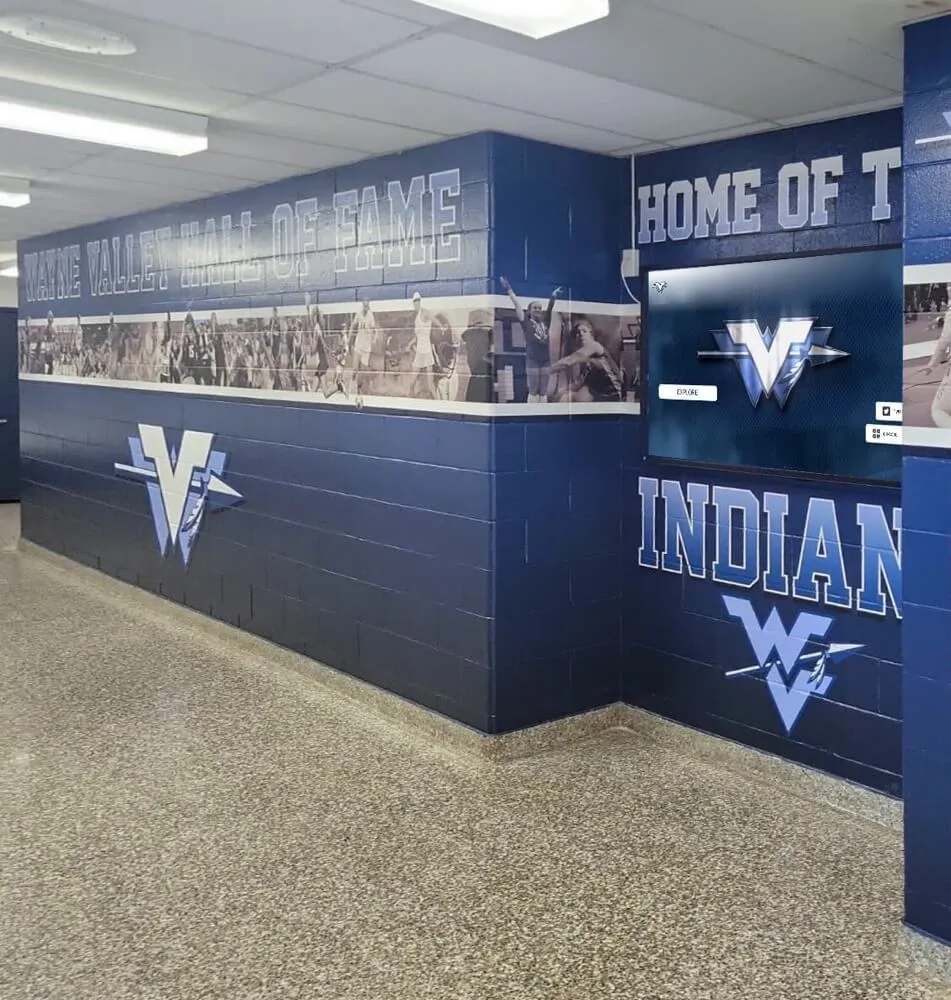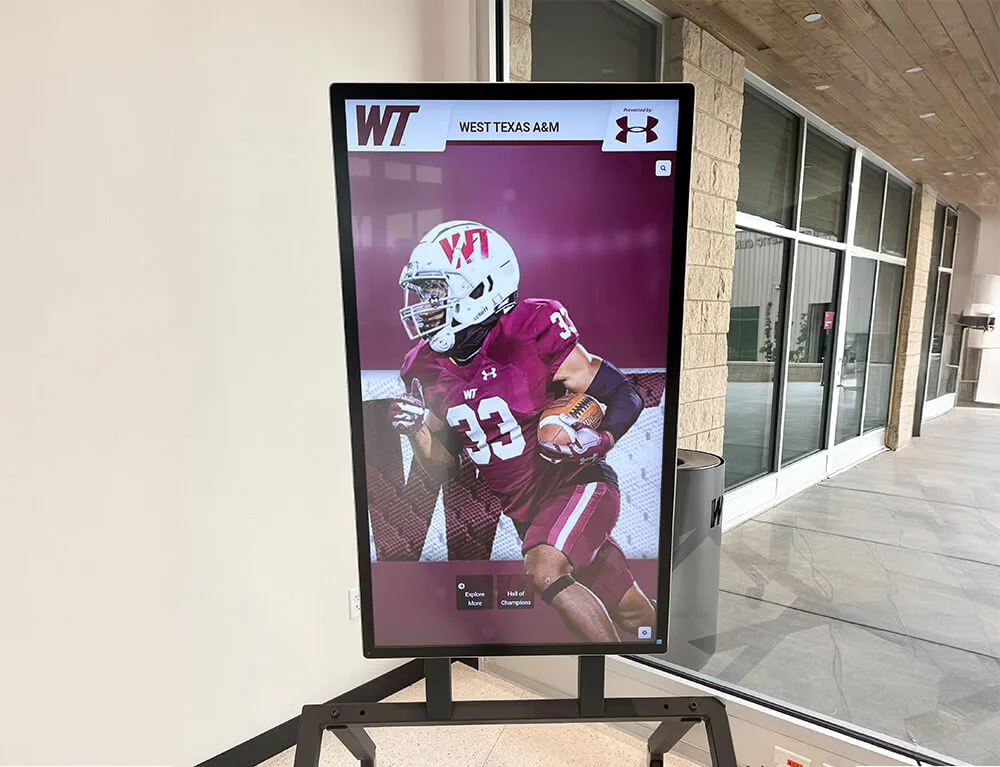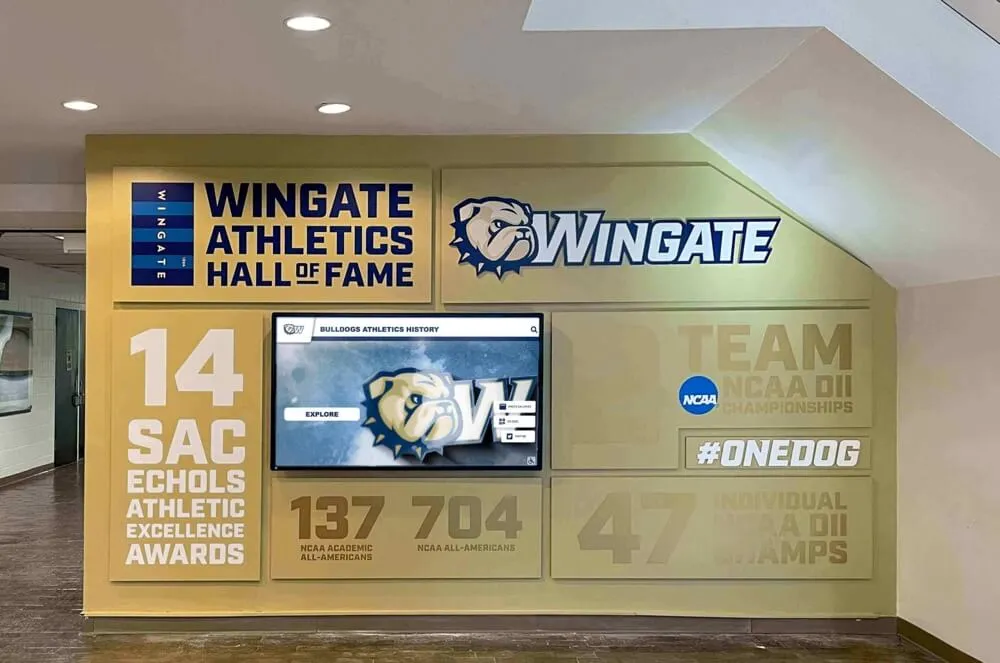
Before any school lobby athletic recognition display goes live, run a view transition reduced-motion test to confirm that the browser’s native animation honors the operating system’s accessibility setting. When a visitor taps an athlete card in a team-grid view and the display animates to the full athlete profile, that animation must either cut or simplify itself automatically for any user whose device is configured to prefer reduced motion. Skipping this step means the recognition display may trigger vestibular discomfort for visitors with motion sensitivities — a gap that contradicts the welcoming purpose of a school hall of fame.
This checklist targets the native View Transition API, which controls how the browser moves DOM content between two rendered states. It does not address manual CSS animations, JavaScript libraries, or proprietary player transitions that recognition display vendors may implement separately. Every test step assumes a school-owned or custom-integrated system that exposes the browser’s native View Transition API. If your vendor manages the display software entirely and does not expose this layer, coordinate with them to confirm how reduced motion is handled on their hardware.
When a school athletic recognition display uses the browser’s View Transition API to animate the move from a team grid to an individual athlete profile, that animation must degrade gracefully for visitors whose devices are set to minimize motion. This guide gives athletic directors, recognition-content administrators, IT staff, and facilities partners a structured workflow for testing that behavior before the display opens to the school community.

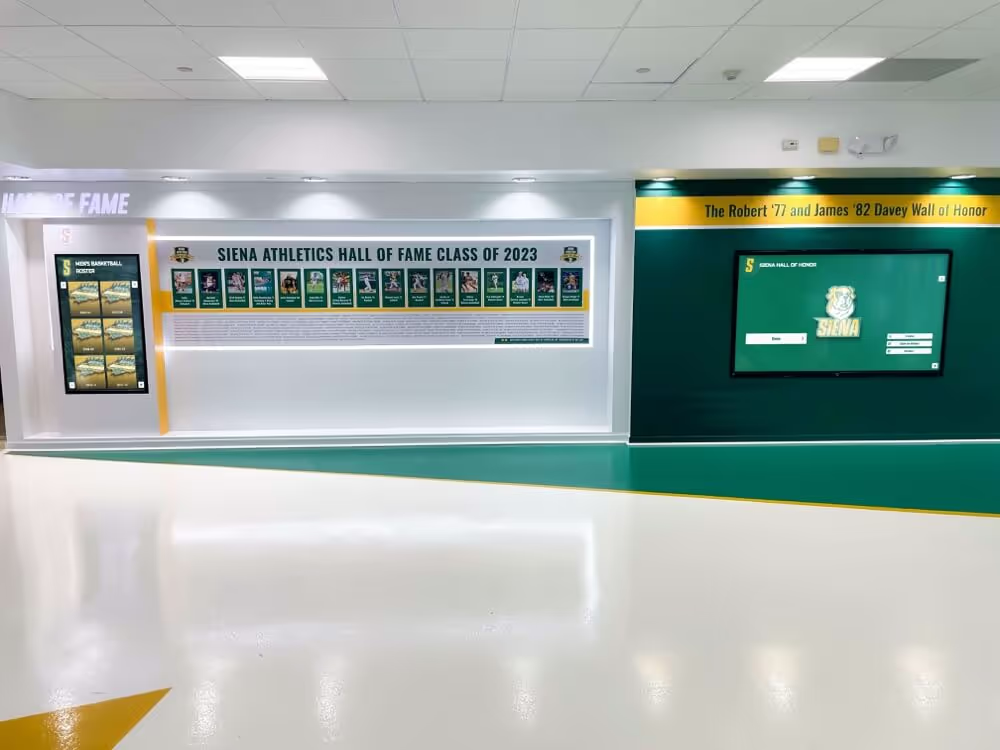
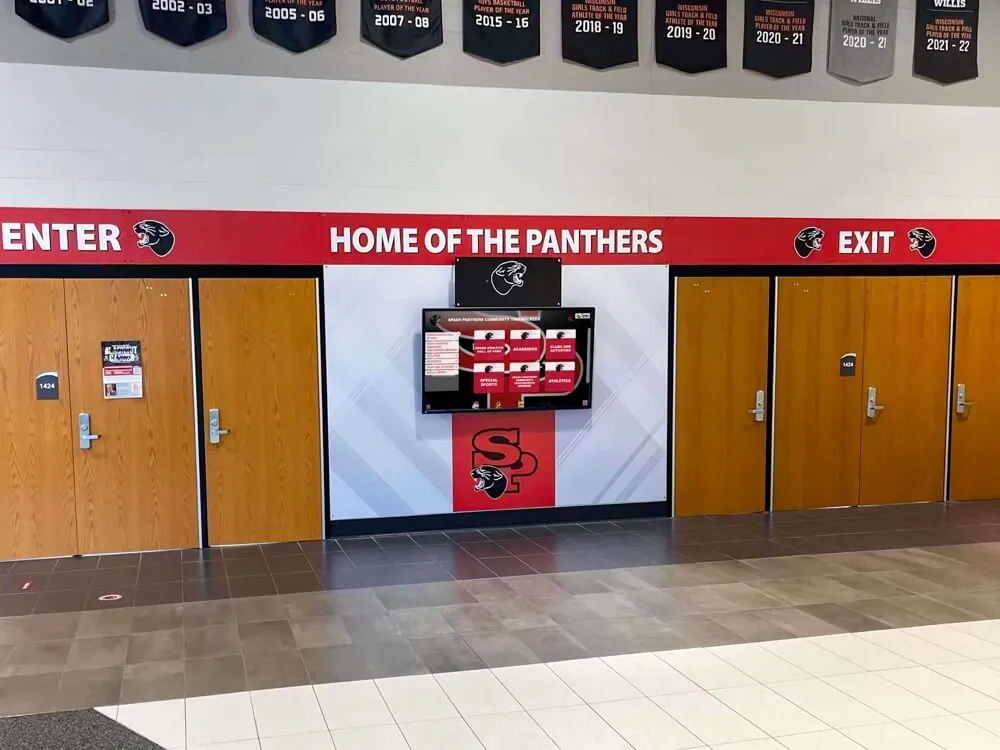
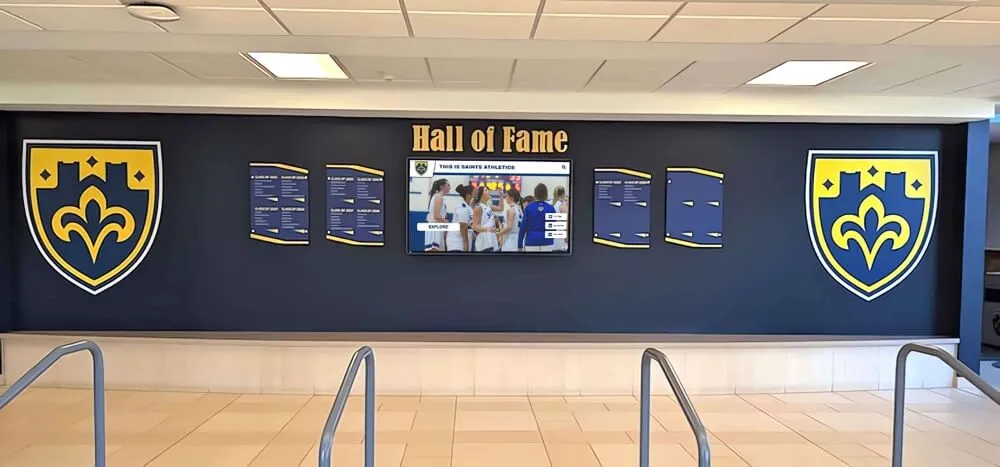
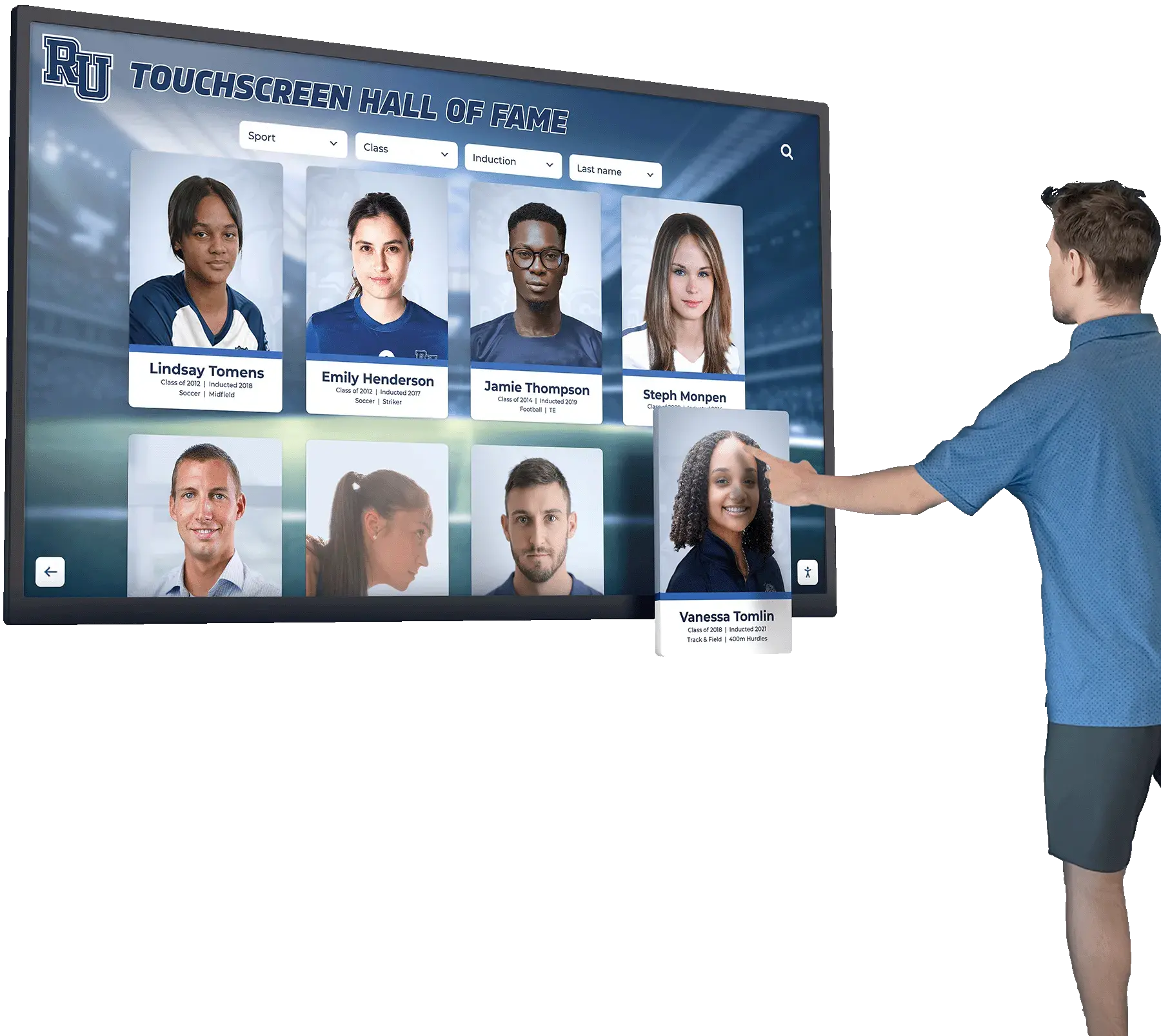
The tap from a team-grid card to an individual athlete profile is the primary navigation transition that the View Transition API animates — and the primary target for reduced-motion testing before acceptance.
What the View Transition API Is — and What It Is Not
The View Transition API is a browser-native capability that creates an animated crossfade, slide, or custom animation whenever the DOM shifts from one rendered state to another. For a school recognition display, the API handles the moment a visitor selects a player card in the team list and the screen transitions to that athlete’s full profile showing career statistics, awards, and archived photographs.
The API is not a JavaScript animation library layered on top of the browser. It is not the same as CSS transitions or keyframe animations applied to individual DOM elements. It is also not automatic for every navigation — a developer must explicitly call document.startViewTransition() with a callback function to trigger it.
Many recognition display systems have view changes that look animated but are built with standard CSS transitions or JavaScript without using the View Transition API at all. This checklist applies only when the underlying system explicitly uses the View Transition API. If you are unsure, ask your IT contact whether document.startViewTransition() is called in the system code. The browser console check in Step 2 of the numbered workflow confirms this on the physical device.
When the Reduced-Motion Check Applies: Decision Table
Use this table during the installation planning stage to determine which test steps apply to your specific recognition display setup.
| Condition | Applies? | Action |
|---|---|---|
System uses document.startViewTransition() for grid-to-profile navigation | Yes | Run all checklist steps |
| System uses CSS transitions only, no View Transition API | No | Test the @media (prefers-reduced-motion) override on those CSS transitions instead |
| Vendor manages all display software with no source access | Partial | Request vendor’s reduced-motion test results; run Steps 6–7 to observe behavior on hardware |
| Cross-document MPA transitions between separate HTML pages are used | Yes | Apply the @view-transition CSS at-rule; same reduced-motion CSS rules apply |
| Kiosk browser is Chrome 111+, Firefox 131+, or Safari 18+ | Required | Confirm browser version before running the full test |
| Kiosk browser is an older version without View Transition API support | Skip API steps | Verify the skipTransition() fallback or capability-check logic is in place |
How the Browser Creates a View Transition
When document.startViewTransition() is called with a callback that updates the DOM — for example, replacing the team grid with an athlete profile — the browser follows a six-step sequence:
- It captures a screenshot of the current page state.
- It runs the callback to update the DOM.
- It captures a screenshot of the new page state.
- It creates a pseudo-element tree overlaying the page to animate between the two captured states.
- The animation plays.
- The pseudo-elements are removed and the new page becomes fully interactive.
The startViewTransition() call returns a ViewTransition object with three promise properties: updateCallbackDone resolves when the DOM update callback completes, ready resolves when the pseudo-element tree is created and the animation is about to start, and finished resolves when the animation ends and the transition is complete.
The pseudo-element tree sits above all other page content. Two pseudo-elements are directly relevant to reduced-motion testing: ::view-transition-old(root) holds the outgoing screenshot and ::view-transition-new(root) holds the incoming screenshot. Both receive a default crossfade animation from the browser unless overridden. Any custom slide, zoom, or reveal animation applied to these pseudo-elements must also be overridden inside a @media (prefers-reduced-motion: reduce) block.
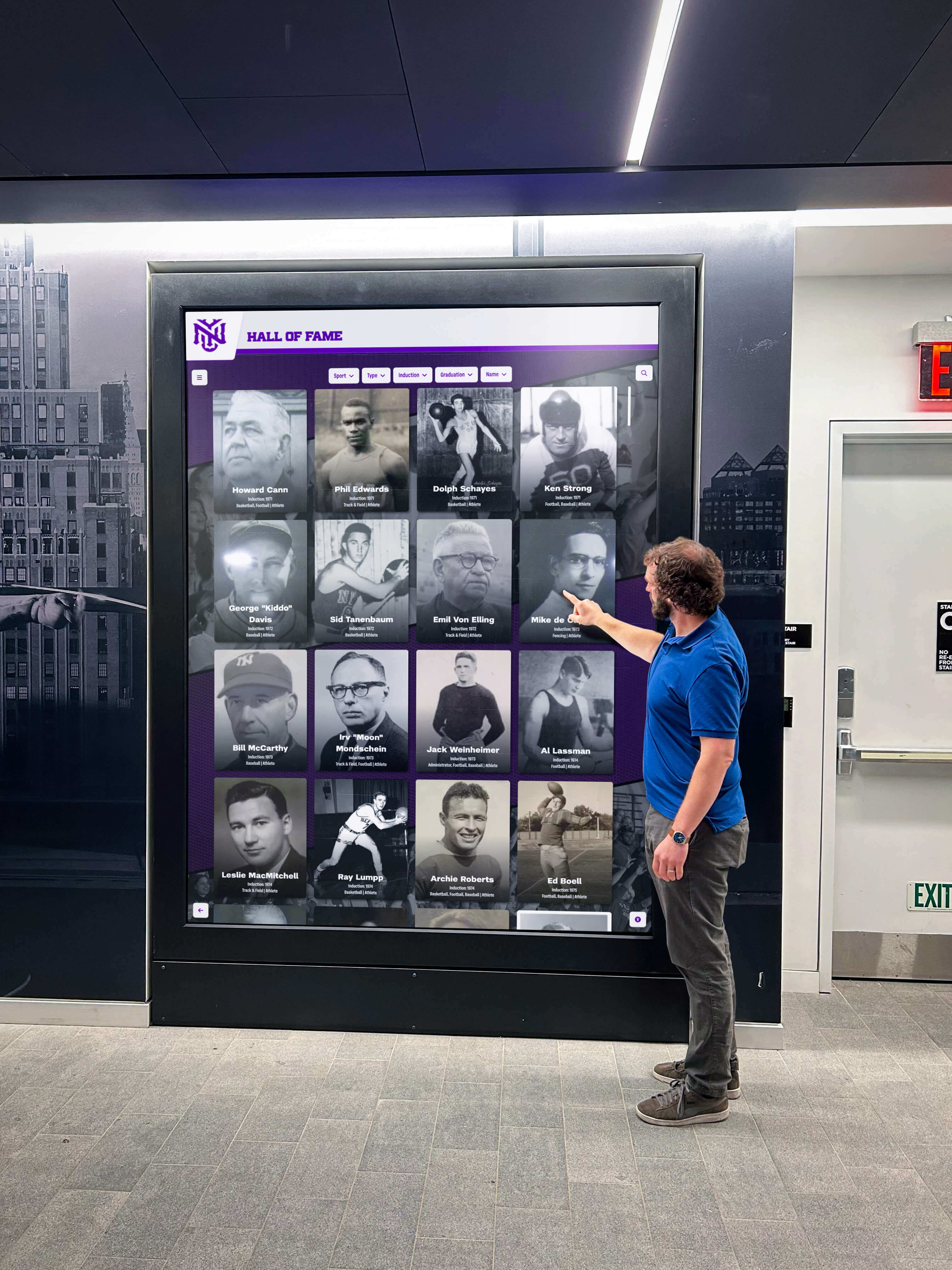
Lobby recognition displays serve visitors with diverse motion sensitivities — confirming reduced-motion behavior before the acceptance sign-off ensures the animation setting respects each visitor's accessibility needs from day one.
Reduced-Motion CSS for View Transition Pseudo-Elements
The prefers-reduced-motion CSS media query reads the motion preference configured in the device operating system and exposes it to the browser. When the preference is set to reduce, any styles inside a @media (prefers-reduced-motion: reduce) block apply automatically — no JavaScript detection is required.
For View Transition pseudo-elements, the pattern is to zero out or simplify the animation properties on ::view-transition-old() and ::view-transition-new() inside that media block. Below is a generic example for a school-owned custom recognition system — actual implementation must match the project’s existing CSS structure and transition names:
/* Default: slide animation from team grid to athlete profile */
::view-transition-old(root) {
  animation: slide-left 0.4s ease-in-out;
}

::view-transition-new(root) {
  animation: slide-right 0.4s ease-in-out;
}

/* Reduced-motion override: instant cut, no spatial movement */
@media (prefers-reduced-motion: reduce) {
  ::view-transition-old(root),
  ::view-transition-new(root) {
    animation: none;
  }
}
With animation: none applied, the browser still executes the full View Transition sequence — it captures snapshots, runs the DOM update callback, and removes the pseudo-elements when done — but the visual result is an instant cut rather than an animated slide. The athlete profile appears immediately. The DOM update still completes; only the visible motion is removed.
An alternative is to replace the slide with a short opacity change rather than a hard cut. A transition lasting 50–100 ms that changes only opacity is generally acceptable under reduced-motion guidelines because it involves no spatial displacement. This is an example duration, not a universal standard — confirm the appropriate value with the system developer:
@media (prefers-reduced-motion: reduce) {
  ::view-transition-old(root) {
    animation: fade-out 0.08s linear;
  }
  ::view-transition-new(root) {
    animation: fade-in 0.08s linear;
  }
}
Both patterns — instant cut and short fade — are technically valid. Document the chosen approach in the display’s technical specification and confirm it during the acceptance walkthrough.
Building accessibility into recognition displays at the acceptance stage rather than retrofitting it later aligns with the broader approach described in the Hall of Fame Accessibility Checklist: Making School Recognition Usable for Every Visitor.
The skipTransition() Fallback
The ViewTransition object returned by document.startViewTransition() exposes a skipTransition() method. Calling it aborts the visual animation while still allowing the DOM update callback to run to completion. The display moves to the new state — the athlete profile — without any animated crossfade or slide.
This method is useful in two scenarios on a school recognition display.
Scenario 1 — Programmatic reduced-motion bypass. If the system is designed to detect window.matchMedia('(prefers-reduced-motion: reduce)').matches in JavaScript before starting the transition, a positive result can call skipTransition() immediately rather than relying on CSS alone. This belt-and-suspenders approach handles cases where a CSS override might be absent on a specific screen configuration.
Scenario 2 — Error recovery. If the DOM update callback throws an error, calling skipTransition() on the transition object ensures the display does not freeze on the animated overlay while the error resolves.
The following is a generic pattern for illustration purposes only, intended for a school-owned custom system — do not assume any specific recognition display platform implements or exposes this approach without confirming with the system’s developer:
// Generic example — school-owned custom system only
const transition = document.startViewTransition(() => {
  showAthleteProfile(athleteId);
});

if (window.matchMedia('(prefers-reduced-motion: reduce)').matches) {
  transition.skipTransition();
}
Browser Support
The View Transition API for same-document transitions — the pattern used when a team grid and an athlete profile live within the same browser page — reached Baseline 2025 status, meaning it is available across all major current browser versions. Current support includes Chrome 111 and later, Firefox 131 and later, and Safari 18 and later.
Cross-document transitions, used when navigating between entirely separate HTML files, require the @view-transition CSS at-rule to opt in and have a different support timeline. Confirm the specific browser version installed on the kiosk before relying on either pattern — managed kiosk hardware often runs locked browser versions that may not reflect the current release.
For kiosk hardware with an older browser where the API is absent, calling document.startViewTransition throws a TypeError. A school-owned custom system should include a capability check. This is a generic example for illustration purposes:
// Generic example — school-owned custom system only
if ('startViewTransition' in document) {
  document.startViewTransition(() => showAthleteProfile(athleteId));
} else {
  // Fallback: direct DOM update with no animation
  showAthleteProfile(athleteId);
}
Verifying motion behavior pairs naturally with verifying visual accessibility at other display conditions — the Digital Hall of Fame Reflow Accessibility Test at 400% Zoom covers the complementary browser zoom check for recognition displays.
Rapid Repeated Navigation
A school lobby touchscreen is a public device. Visitors tap through athlete profiles quickly, and multiple students or family members may interact with the display in succession. Rapid tapping — selecting an athlete, then immediately selecting another before the first transition completes — creates a concurrency condition that View Transition implementations must handle cleanly.
The browser tracks the currently running transition through the document.activeViewTransition property. When a second call to document.startViewTransition() occurs before the first transition’s animation has finished, the browser cancels the first transition and begins the new one. From the visitor’s perspective, this may appear as a brief visual stutter. The cancellation itself is expected behavior — it is not an error — but the visual outcome must be tested to confirm no frozen overlay or stuck pseudo-element results.
Test rapid repeated navigation on the physical kiosk by opening browser DevTools to monitor console errors, then tapping between at least five athlete cards in under two seconds. The display should show the last selected athlete profile, return to a fully interactive state without delay, and leave no ::view-transition pseudo-element visible in the DOM after all transitions complete. If the display freezes or an overlay persists, the transition logic likely needs to call skipTransition() on document.activeViewTransition before starting each new transition.
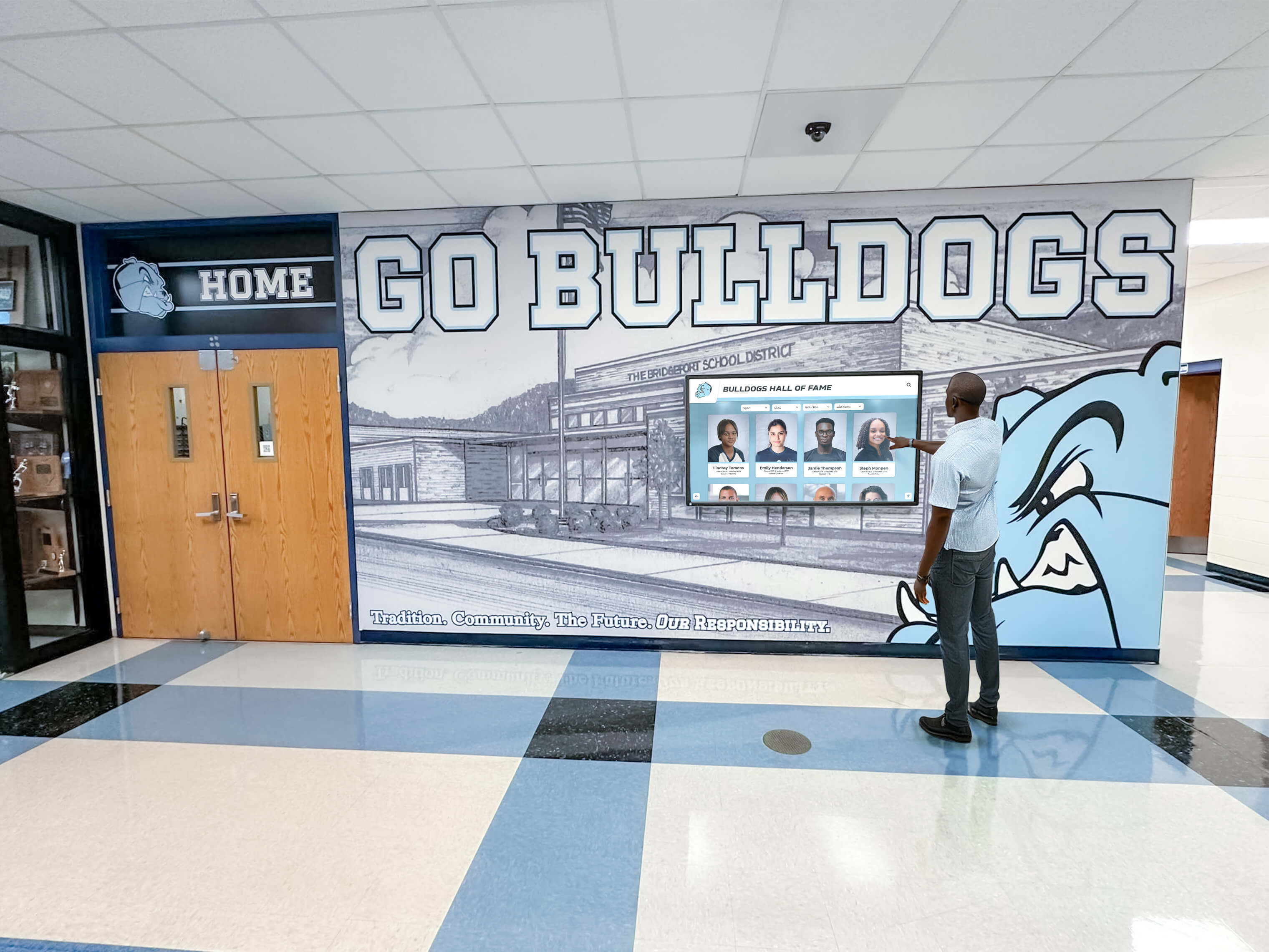
Public hall of fame displays must handle rapid, repeated navigation — students and families frequently tap quickly through athlete profiles, and the View Transition logic must recover cleanly between each selection.
Numbered Test Workflow
Run these steps in order on the physical kiosk hardware using the actual installed browser. Do not substitute a desktop development browser — reduced-motion behavior, browser version, and OS accessibility settings must match the deployed device.
Step 1 — Confirm the browser version. Open the browser About page or run a version check in the browser console. Verify the browser is Chrome 111+, Firefox 131+, or Safari 18+. If the browser is below these versions, skip to Step 7 and verify the capability-check fallback instead.
Step 2 — Confirm View Transition API availability.
In the browser console, type 'startViewTransition' in document and confirm it returns true. A false result means the API is not present and the CSS pseudo-element steps do not apply to this browser.
Step 3 — Enable the OS reduced-motion setting. On the kiosk device, navigate to the operating system’s accessibility settings and enable reduced motion (Motion on iOS and macOS under Accessibility; Display → Display size and text → Remove animations on Android; Ease of Access → Display on Windows). Return to the recognition display.
Step 4 — Navigate from team grid to an athlete profile. Tap any athlete card in the team grid and observe the transition. With reduced motion enabled, the display should cut instantly to the athlete profile or use only a brief opacity change. Any visible slide, zoom, scale, or rotate animation lasting more than a fraction of a second is a test failure.
Step 5 — Inspect the pseudo-element CSS in DevTools.
In browser DevTools, open the Elements panel. Trigger the transition and observe the ::view-transition pseudo-element tree while the transition runs. Confirm that ::view-transition-old(root) and ::view-transition-new(root) show animation: none or a simplified animation under the prefers-reduced-motion: reduce block.
Step 6 — Verify skipTransition() behavior if implemented.
With reduced motion still enabled, watch the browser console during navigation. If the system calls skipTransition() when reduced motion is detected, confirm the method executes without throwing errors and that the athlete profile appears immediately after the tap.
Step 7 — Rapid navigation stress test. Disable reduced motion in the OS settings and return to the display. Rapidly tap five or more athlete cards in under two seconds. Confirm the display shows the last selected athlete profile, returns to a fully interactive state, and shows no frozen animation overlays after the sequence ends.
Step 8 — Document results.
Record the browser version, OS reduced-motion state tested during each step, animation behavior observed, and whether animation: none was confirmed in DevTools. Note any failures, the specific pseudo-element or method call involved, and the step number where the failure occurred.
Recognition Content Completeness Before the Transition Test
View transitions animate whatever content is already loaded in the DOM. If athlete profiles are incomplete — missing images, placeholder names, or unstructured award records — the transition animates the placeholder state rather than the polished profile. Confirm recognition content is complete before running the transition test so the workflow tests the real display experience, not an interim build state.
The Athletic Website Content Checklist: Teams, Records, Awards, Sponsors, and Alumni covers what complete athletic recognition content includes across categories. The Hall of Fame Profile Data Dictionary Template: Standardize Names, Teams, Awards, and Media provides a field-by-field structure for ensuring each athlete profile contains all required data before the display goes live.
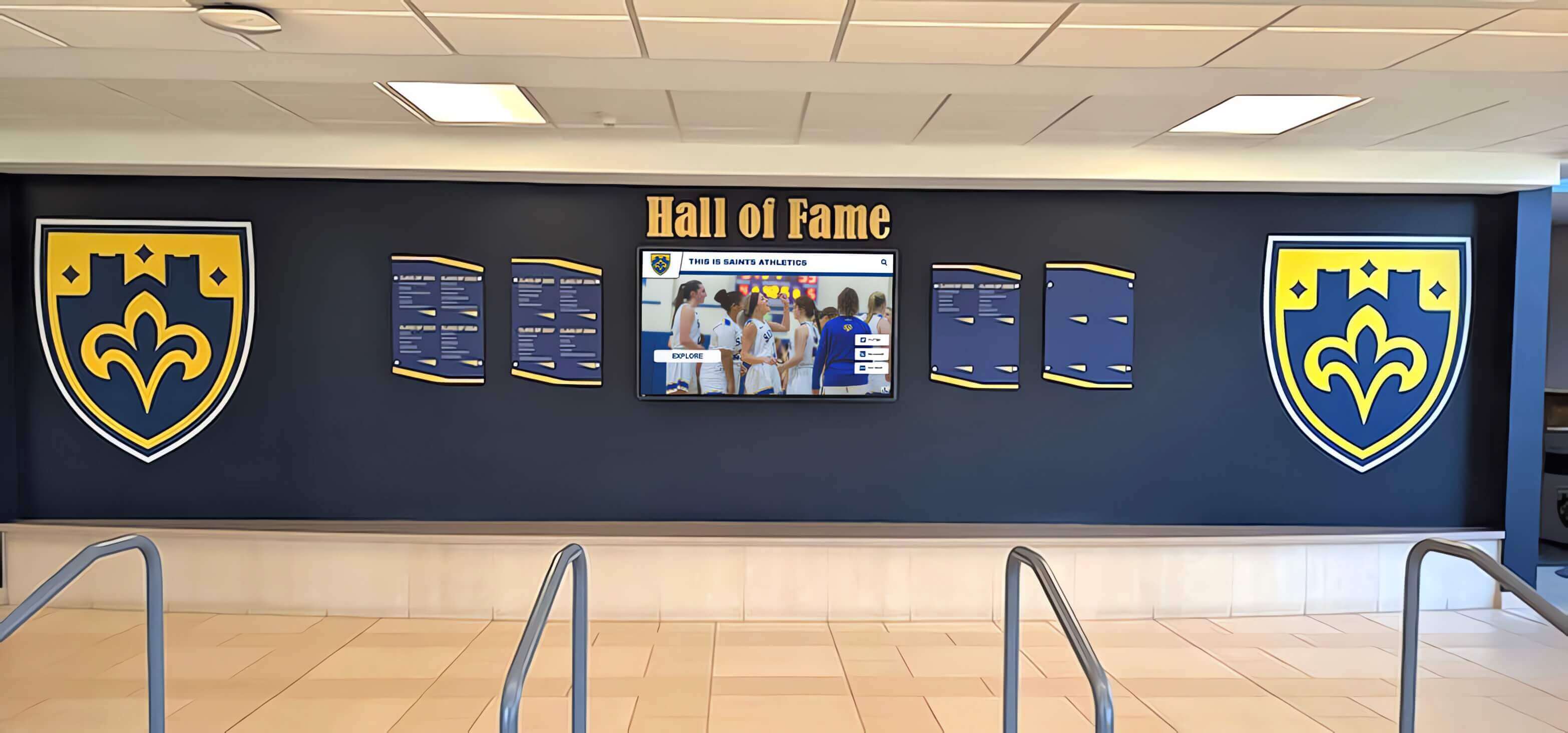
Recognition displays must carry accurate, complete athlete data before transition testing begins — the View Transition API animates whatever content is in the DOM, including placeholder or incomplete records.
Copyable Acceptance Checklist
Copy this checklist into the school’s installation sign-off document. Mark each item before the recognition display is accepted for public use.
Browser and API
- Browser confirmed as Chrome 111+, Firefox 131+, or Safari 18+ on the physical kiosk hardware
-
'startViewTransition' in documentreturnstruein the kiosk browser console -
document.activeViewTransitionproperty is accessible, confirming the full ViewTransition interface is present
Reduced-motion CSS
- OS reduced-motion accessibility setting was enabled during the CSS test
- Team-grid-to-profile transition produces no slide, zoom, scale, or rotate animation under reduced-motion setting
-
::view-transition-old(root)showsanimation: noneor a short-duration opacity-only animation in DevTools -
::view-transition-new(root)showsanimation: noneor a short-duration opacity-only animation in DevTools - If named transitions (
view-transition-name) are applied to individual athlete card elements, each named pseudo-element pair was also checked underprefers-reduced-motion: reduce
skipTransition() fallback
- If
skipTransition()is implemented, no console errors were thrown during reduced-motion conditions - Athlete profile DOM update completes even when the transition animation is skipped
Rapid navigation
- Five-card rapid-tap test completed without a frozen animation overlay
- Display returns to a fully interactive state after the rapid-tap sequence
- No
::view-transitionpseudo-element visible in the DOM after all transitions complete
Content and data
- All athlete profiles display complete content during the transition test — no placeholder names, images, or award records
- Award and record data verified accurate before transition test
Pairing this checklist with an Athletic Award Data Quality Audit: Reconcile Names, Titles, Dates, and Display Records before the acceptance walkthrough ensures both the recognition content and the transition behavior are ready for the school community.
Recognition Display Platform Questions for Vendors
Recognition display software ranges from fully managed vendor platforms to school-owned custom web applications. The test steps above apply most directly to school-owned or custom systems where IT staff have access to the browser and the source code. For fully managed vendor platforms, the relevant questions to ask before acceptance are:
- Does the platform use the browser’s View Transition API for profile navigation animations?
- Does the platform include a
prefers-reduced-motionCSS override for view transition pseudo-elements? - Is
skipTransition()called or equivalent behavior triggered when reduced motion is detected? - What browser version is installed on the kiosk hardware, and is it within the supported range for the View Transition API?
Rocket Alumni Solutions provides a web-based athletic recognition platform built on accessible, standards-based browser technology. The platform’s remote content management system allows IT staff and athletic directors to update athlete profiles, award records, and team histories without physical access to the kiosk hardware — so recognition content stays current and accurate year-round, ensuring the display is always test-ready.
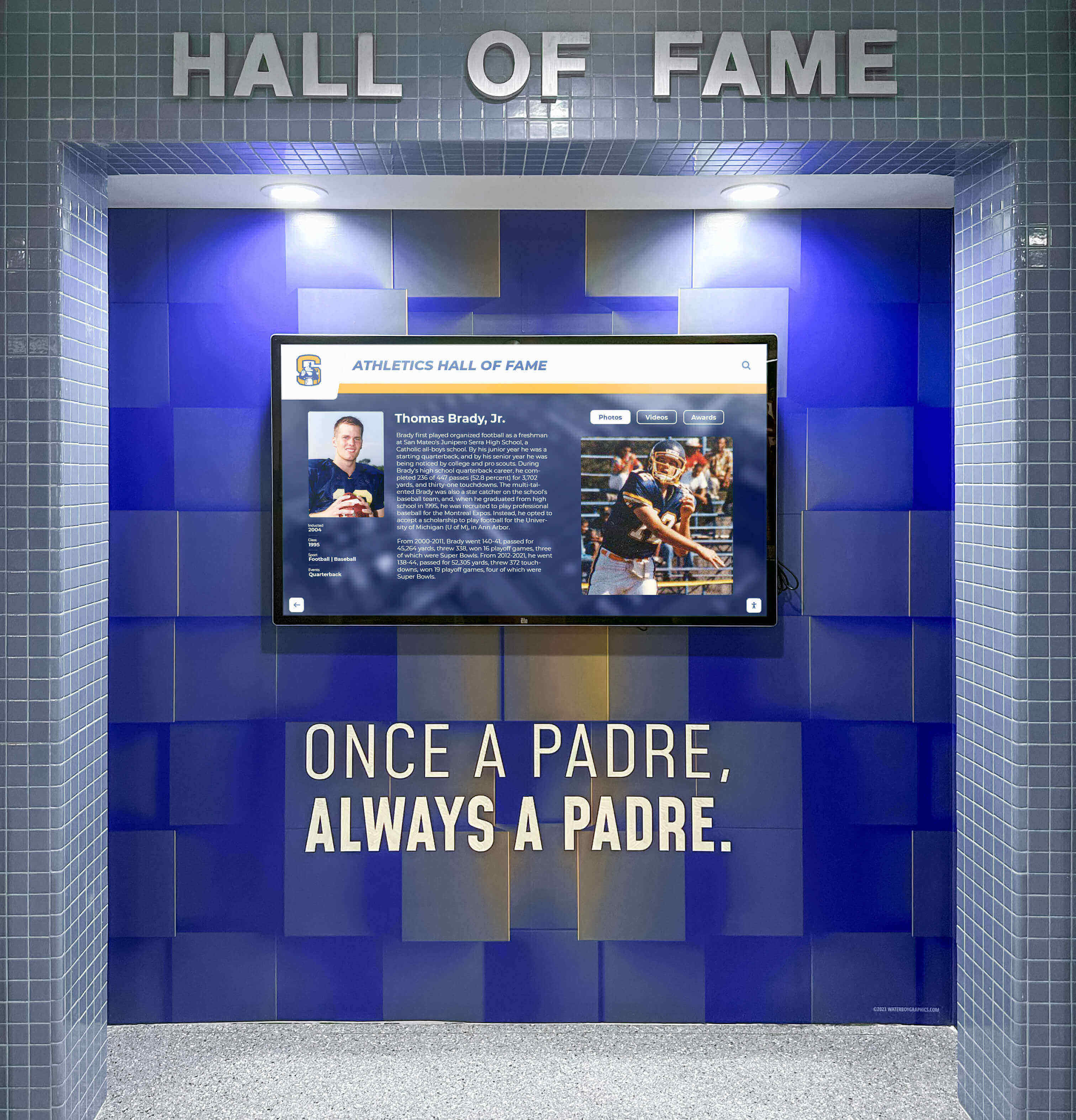
Acceptance testing must occur on the actual installed kiosk hardware — browser version, operating system motion settings, and kiosk configuration all affect View Transition API behavior in ways a development environment cannot replicate.
Frequently Asked Questions
What is the difference between the View Transition API and an ordinary CSS animation on a recognition display?
A CSS transition or keyframe animation applies to individual DOM elements that already exist on screen. The View Transition API applies to a screenshot of the entire rendered page state, creating animated pseudo-elements that sit above the page content and animate between the outgoing and incoming screenshots. On a recognition display, a CSS transition might animate a photo fading in, while the View Transition API animates the entire move from team grid to athlete profile as a unified visual event.
Does the View Transition API apply to all school recognition display systems?
No. The API must be explicitly implemented by the system’s developer using document.startViewTransition(). Many recognition display systems use standard CSS transitions or JavaScript animations instead. The 'startViewTransition' in document console check in Step 2 of the workflow confirms whether the API is present in the kiosk browser.
What happens if the kiosk browser does not support the View Transition API?
A browser without View Transition API support will throw a TypeError if document.startViewTransition() is called without a capability check. A well-implemented school-owned custom system includes an if ('startViewTransition' in document) check and falls back to a direct DOM update with no animation. Verify the fallback is in place on kiosk hardware running older browser versions.
How does the reduced-motion check apply to named view transitions?
When view-transition-name is assigned to specific elements — for example, each athlete card might receive a unique transition name to animate distinctly from the page background — the pseudo-elements created for those named elements are ::view-transition-old(card-name) and ::view-transition-new(card-name). Each named pseudo-element pair must independently receive the animation: none override inside the prefers-reduced-motion: reduce block. Applying the override only to ::view-transition-old(root) and ::view-transition-new(root) leaves named elements unaffected.
Who sets the reduced-motion preference on a school lobby kiosk?
On a managed school kiosk, the IT department typically configures the operating system’s accessibility settings through a device management policy. On unmanaged hardware, the default OS setting applies. For the acceptance test, verify the behavior both with reduced motion enabled and with it disabled to confirm the display handles both states correctly.
Is the View Transition API stable enough for school recognition display use?
Same-document view transitions reached Baseline 2025 status — meaning support across Chrome, Firefox, and Safari in their current major versions. The API is no longer experimental in supported browsers. Kiosk hardware locked to older browser versions may not have support; confirm the browser version on the physical device before the acceptance walkthrough, as described in Step 1.
Closing
A school recognition display that animates the move from team grid to athlete profile creates a warmer, more engaging experience for students, families, coaches, and alumni. That same animation must respect the diversity of every visitor who interacts with a public lobby display — including those whose devices are configured to minimize motion for medical or neurological reasons.
The View Transition API provides the browser-native tools to do both: deliver a polished animation for visitors who want it and an accessible instant-cut or short fade for those who need it. Testing reduced-motion behavior before the acceptance sign-off, verifying skipTransition() as a fallback, and stress-testing rapid navigation all take under an hour on the physical hardware. Running those steps is straightforward; skipping them means the recognition display may quietly fail a segment of the community it exists to celebrate.
See How Rocket Builds Recognition Displays That Last
Rocket Alumni Solutions designs web-based athletic recognition displays on accessible, standards-based browser technology — so your school's hall of fame honors every athlete, past and present, without leaving any visitor behind. Request a custom demo and see the platform built for school communities.
Request Your Custom Demo