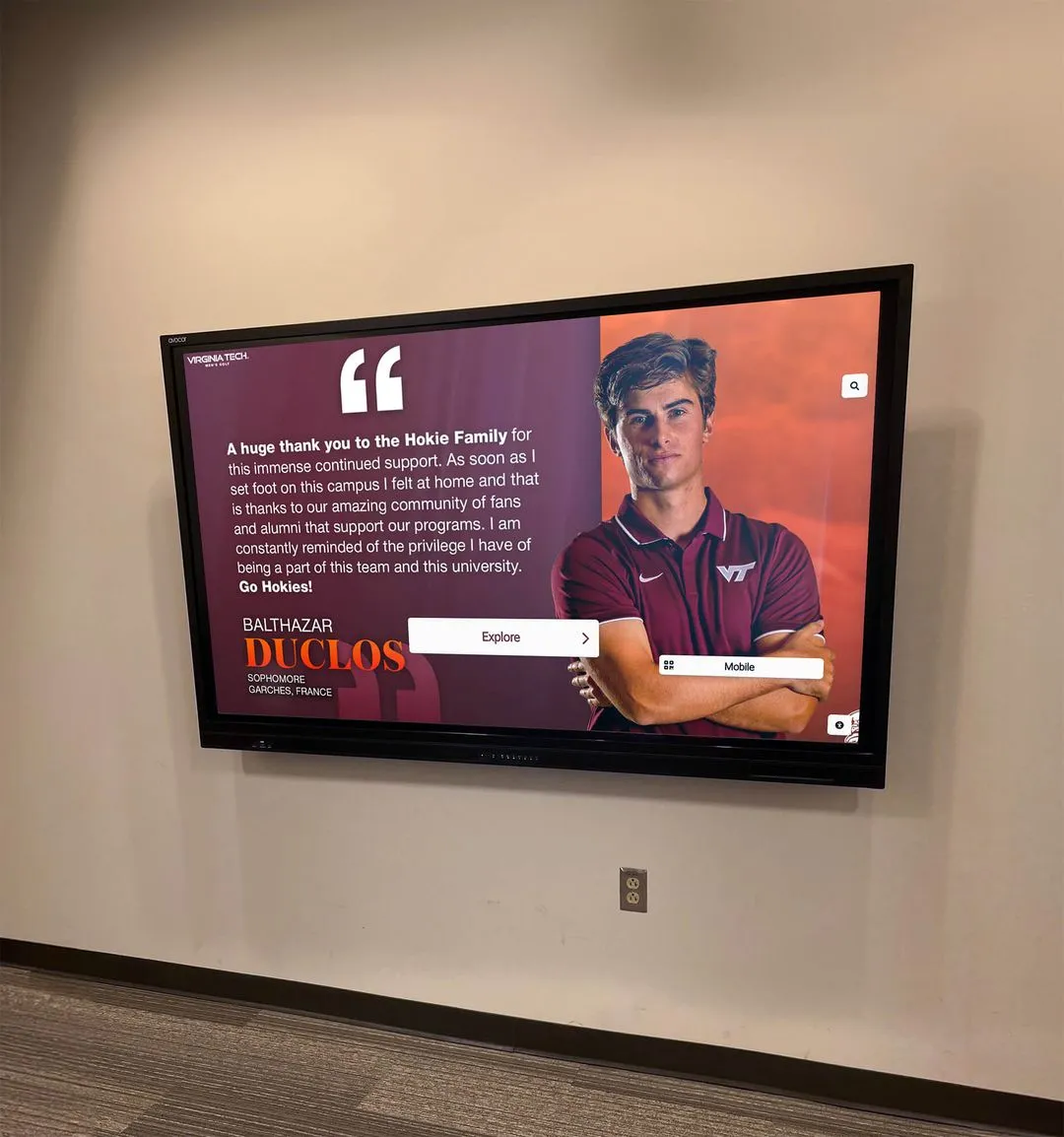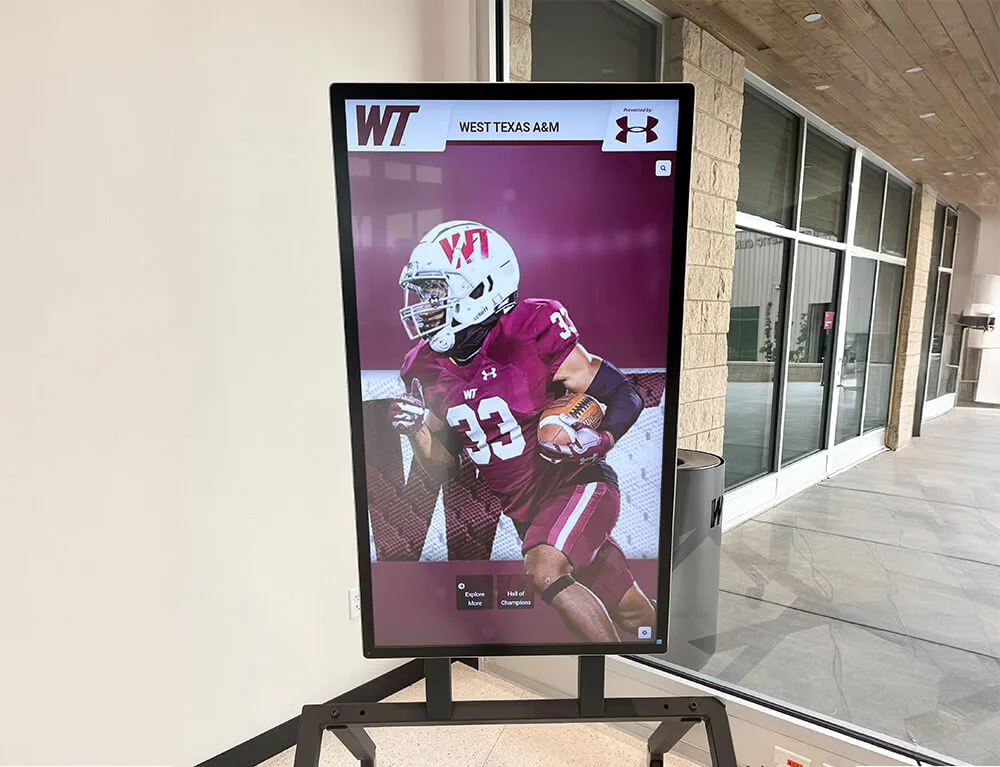
Intent: decide — Recognition display SNMP trap validation is the process of confirming that a school lobby or athletic hallway kiosk correctly sends unsolicited alert messages to a designated network management station when key events occur—including the display going offline, internal temperature exceeding a threshold, or a power event interrupting operation. Without validated traps, a display can fail silently between the moment a heat-related shutdown or connectivity loss begins and the moment a staff member notices the blank screen, often during a public event. This guide gives school IT coordinators, AV technicians, network administrators, and facilities managers a structured checklist to verify that every alert type is correctly configured, correctly transmitted, and correctly received before a recognized student, championship team, or donor wall goes dark at the worst possible moment.
A validated SNMP trap workflow means the IT team learns about a recognition display problem from a monitoring dashboard at 9 a.m. on a Tuesday, not from an athletic director at 6 p.m. on a championship banquet night. The checklist below makes that the default outcome rather than the lucky one.
School recognition programs represent sustained community investment — championship banner wording decisions, donor wall installations, and athletic hall of fame inductee ceremonies take months to plan. The display hardware anchoring those programs is expected to perform on demand. SNMP trap validation is the process that turns that expectation into a testable, documented guarantee rather than a hope.

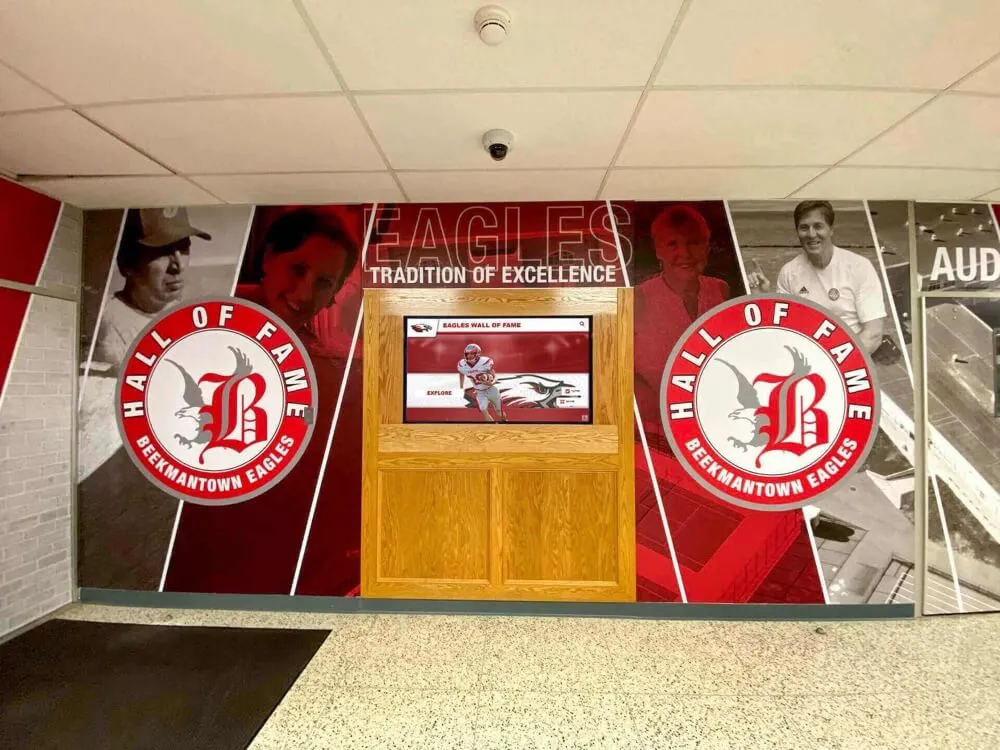
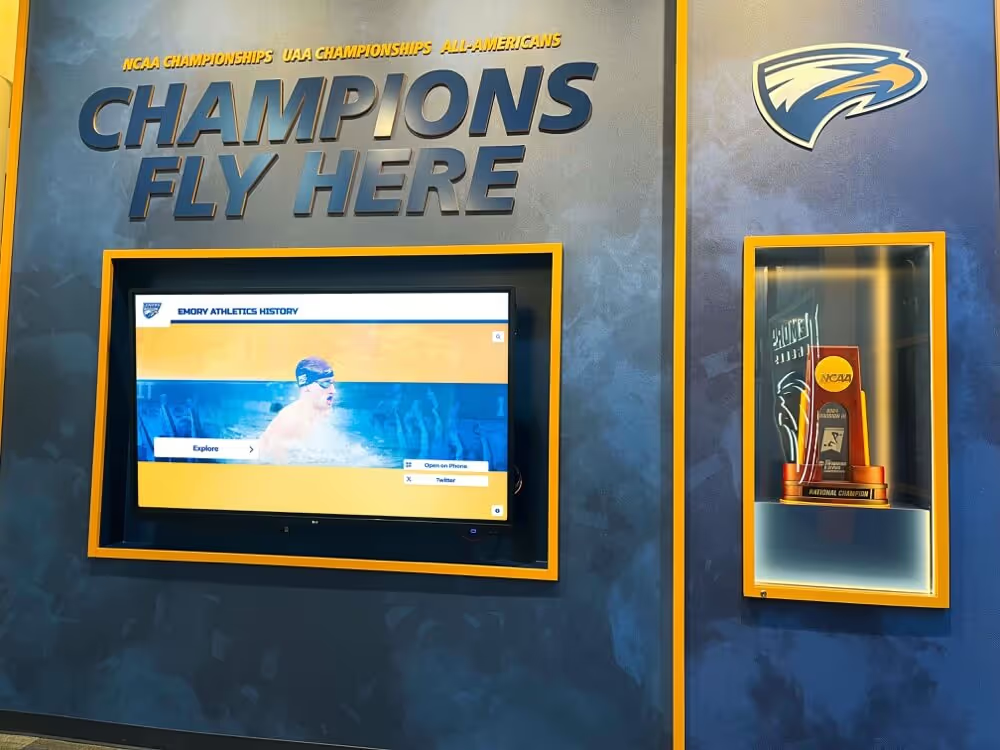
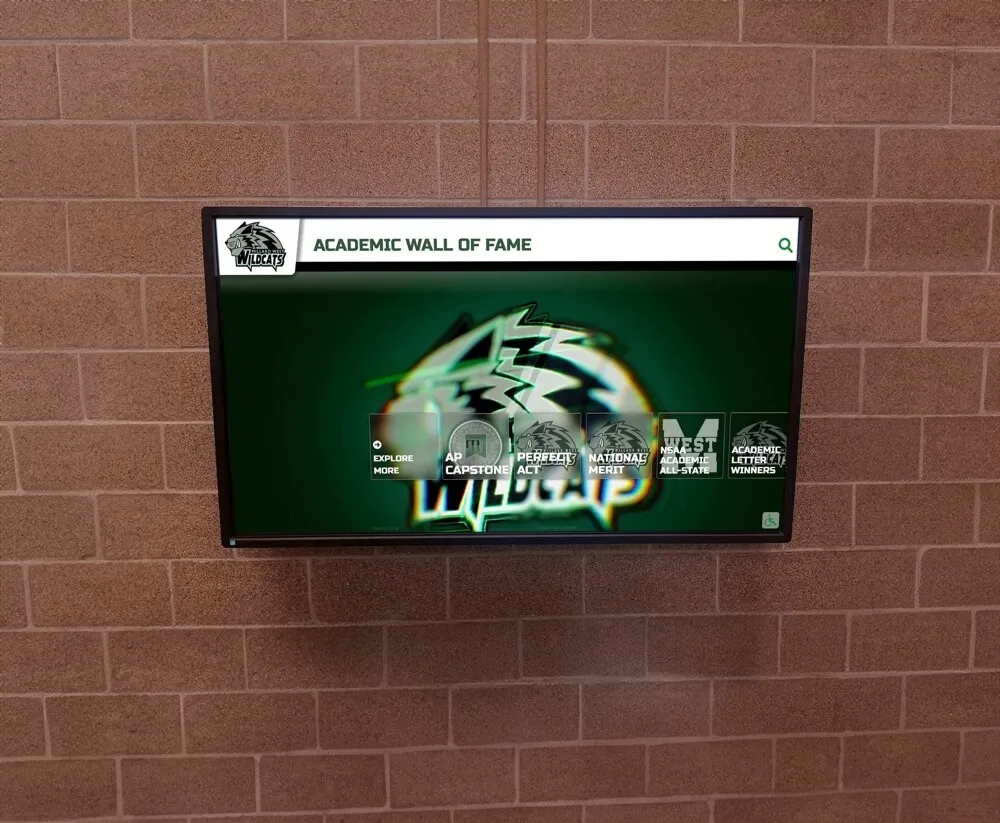
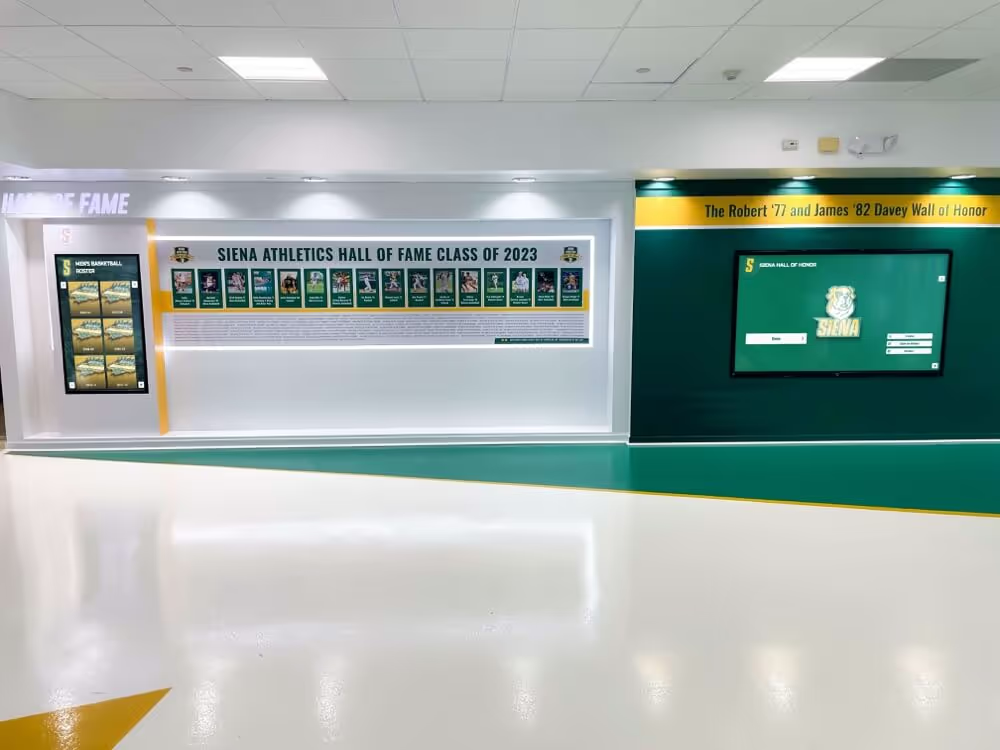
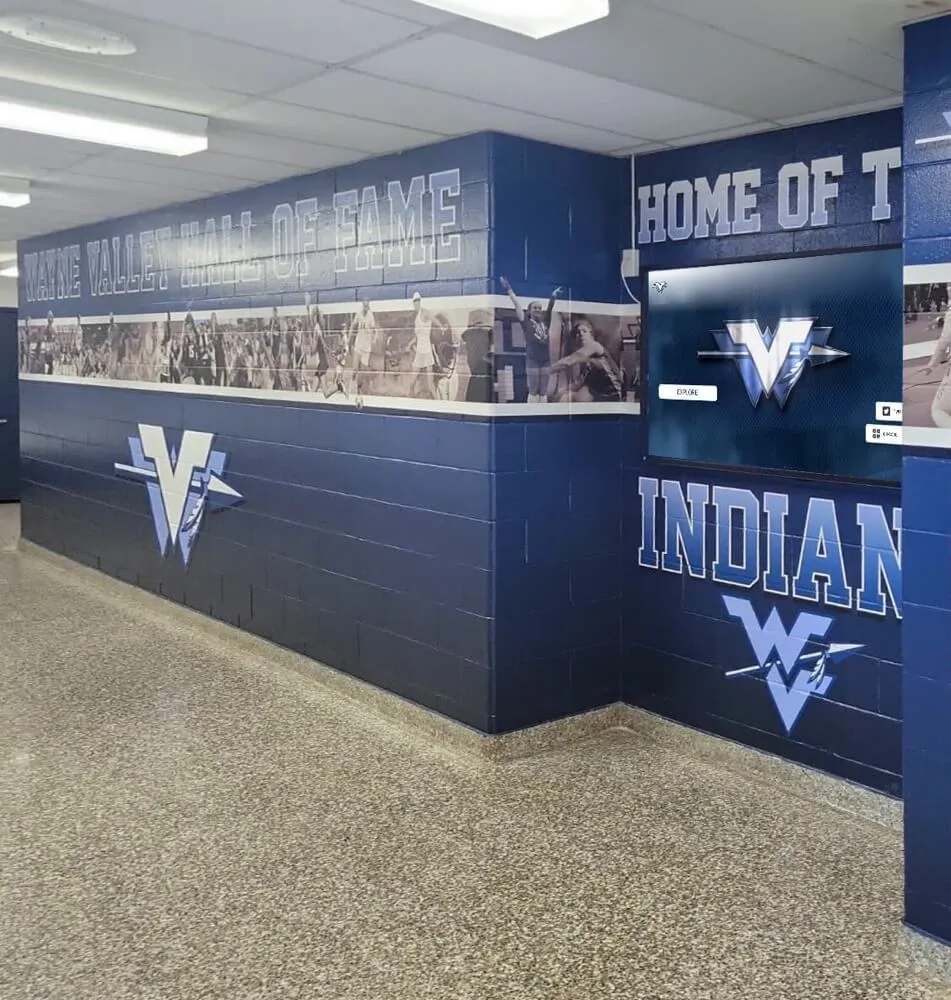
Athletic hallway recognition displays operate continuously through school days and evening events — SNMP trap validation confirms the monitoring infrastructure catches offline, thermal, and power events before they become public failures.
What SNMP Trap Validation Means for Recognition Displays
SNMP (Simple Network Management Protocol) operates in two modes for network device monitoring: polling and traps. Polling means a management station periodically queries a device to check its status — a method that introduces latency between when an event occurs and when the management station learns about it. Traps are the inverse: the device itself sends an unsolicited notification to a designated trap receiver the moment an event meets a configured threshold.
For a recognition display operating in a school lobby or gymnasium hallway, SNMP traps provide three categories of proactive alert:
Offline and connectivity alerts: When the display’s network stack detects a link failure, a managed shutdown, or a software crash that triggers an unexpected restart, the SNMP agent sends a trap before connectivity is fully lost. Common trap types include coldStart (agent initialized — often indicating a reboot), warmStart (agent re-initialized without full reboot), linkDown (network interface went inactive), and vendor-specific traps for CMS agent disconnection.
Thermal and environmental alerts: Many kiosk-grade displays and the server-class hardware running inside them expose temperature sensor readings as SNMP OIDs (Object Identifiers). When a sensor reading crosses a vendor-defined or administrator-configured threshold, the SNMP agent sends a threshold-crossing trap to the receiver. This alert can arrive before the hardware protection circuit triggers an automatic shutdown — giving the IT team time to intervene.
Power events: Displays connected to a monitored UPS or smart PDU receive power event traps when the upstream power device detects input power loss, a switch to battery, low battery state, or an overload condition. Validating power event traps confirms the monitoring chain extends from the UPS through the network to the IT team’s alert destination.
Validation means testing all three categories actively — not reading the configuration and assuming it works.
Why Standard VLAN Monitoring Is Not Sufficient
A recognition display that responds to pings from the management workstation appears healthy in a basic network status check. SNMP trap validation reveals whether the display will actually tell you when something is wrong. A display can stop responding to pings at the same moment it stops responding to visitor interactions — meaning the first notification the IT team receives is already a full outage rather than an early warning.
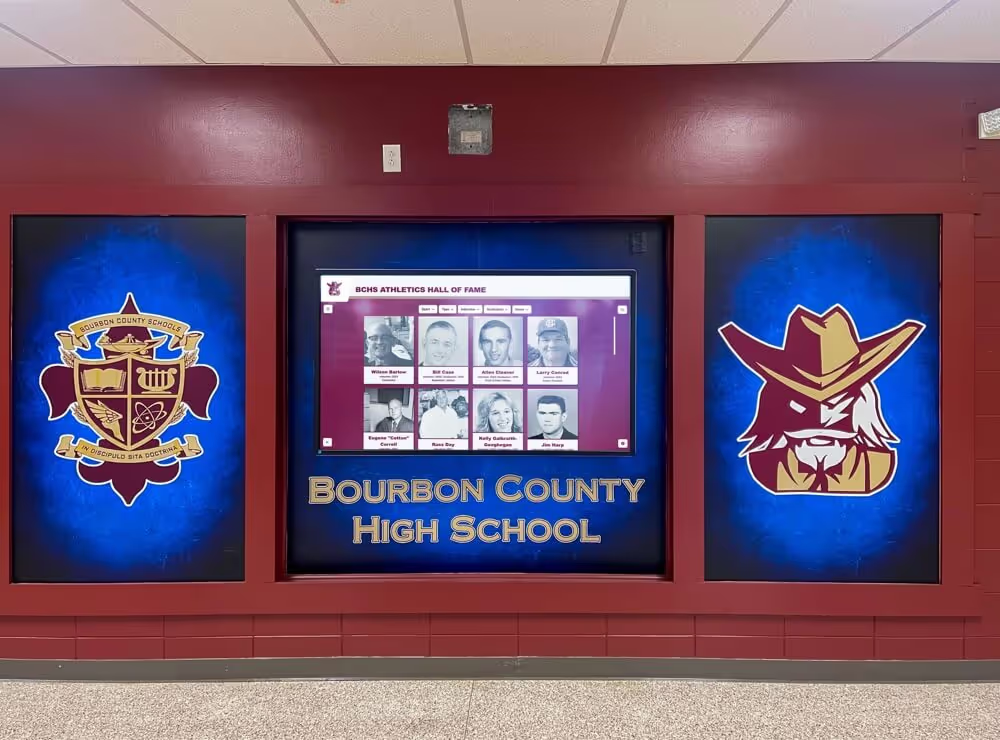
Digital hall of fame installations built around athletic archives and institutional history carry a public-facing obligation that basic uptime monitoring alone cannot fulfill. The communities that stop in front of these displays — alumni attending reunions, families at athletic banquets, students during passing periods — notice when the screen is dark. Trap-based monitoring closes the gap between event and notification.
Prerequisites: What You Need Before You Test
Collect the following before running any trap validation step. Missing any of these will produce ambiguous results that look like trap failures but may be infrastructure gaps.
SNMP agent capability on the display hardware: Confirm that the kiosk operating system or the embedded management interface exposes an SNMP agent. Windows-based kiosk PCs support SNMP via the Windows SNMP Service (Control Panel → Programs → Windows Features). Linux-based kiosk systems use
net-snmp(snmpd). Some proprietary media player hardware exposes read-only SNMP via the vendor’s management firmware.SNMP version decision (v2c or v3): SNMPv2c uses community strings for authentication — simple to configure but transmits credentials in plaintext. SNMPv3 adds authentication (MD5 or SHA) and encryption (DES or AES) and is the recommended version for school networks subject to security audit requirements. Decide which version your environment uses before configuring agents and receivers.
Trap receiver address and port: The IP address and UDP port (default: 162) of the network management system (NMS) or trap receiver that will collect and process trap messages. Common receivers include LibreNMS, Zabbix, Nagios, PRTG Network Monitor, and SolarWinds. The receiver must be reachable from the display’s IP subnet — verify routing from the display VLAN to the management VLAN before testing.
MIB files for the display hardware: Trap types from vendor hardware are defined in vendor-specific MIBs (Management Information Base files). Obtain the MIB files for your kiosk PC hardware (typically from the hardware vendor’s support portal) and load them into your NMS before testing. Without the correct MIBs, the NMS may receive traps but display them as raw OID numbers rather than human-readable event descriptions.
A trap capture tool: For validation testing, a lightweight trap capture utility confirms that traps are being sent even if the NMS has not been fully configured to process them. Tools:
snmptrapd(part of the net-snmp package, available for Linux and Windows), Trap Receiver (standalone Windows utility), or the trap capture feature in PRTG. Running this capture tool on a workstation during validation gives direct visibility into what the display is actually sending.Temperature OID for the display hardware: Identify the specific SNMP OID exposing temperature sensor data for your hardware. For Intel-based kiosk PCs, tools such as Open Hardware Monitor expose sensor data via WMI, which can be polled by SNMP extensions. For displays with embedded management firmware, the temperature OID is listed in the vendor’s MIB. Without the correct OID, thermal threshold traps cannot be configured.
UPS or PDU SNMP credentials (if power event traps are in scope): Obtain the SNMP community string or SNMPv3 credentials for the UPS or smart PDU serving the display circuit.
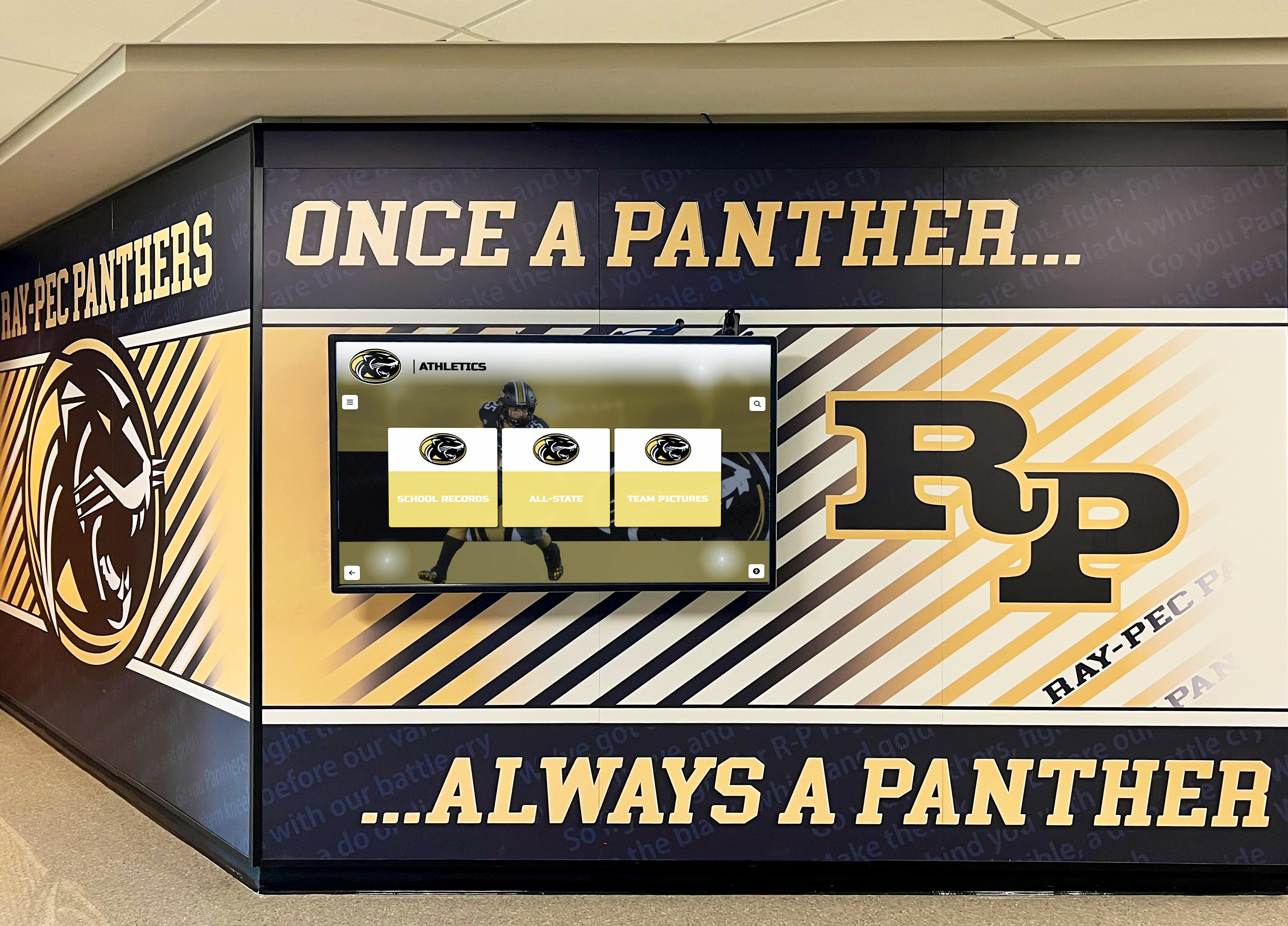
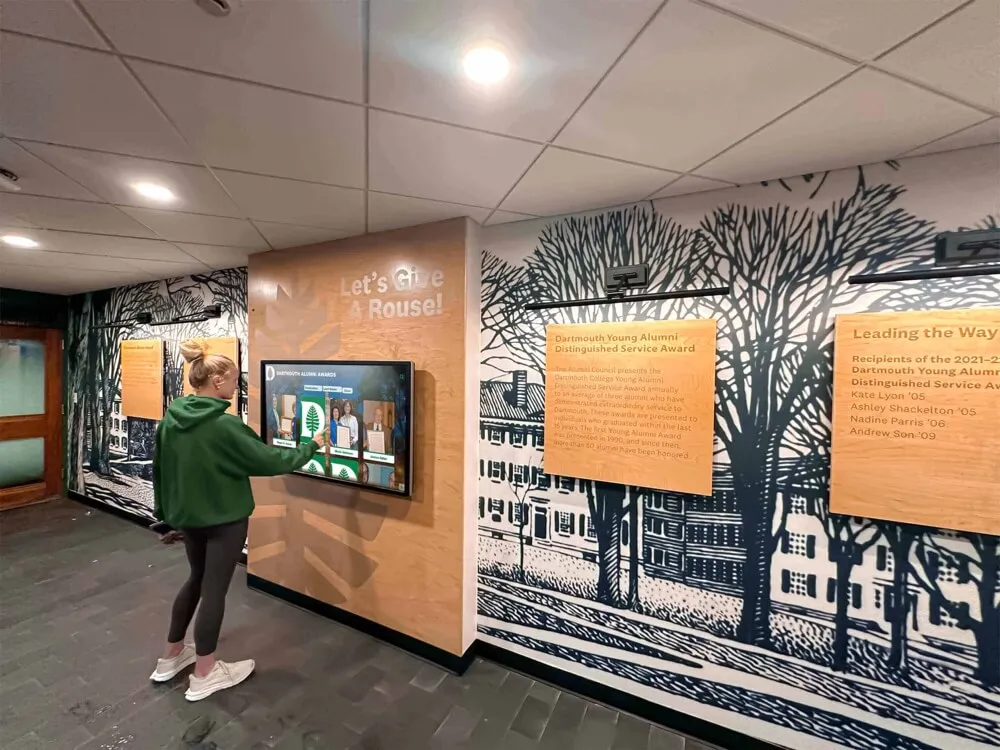
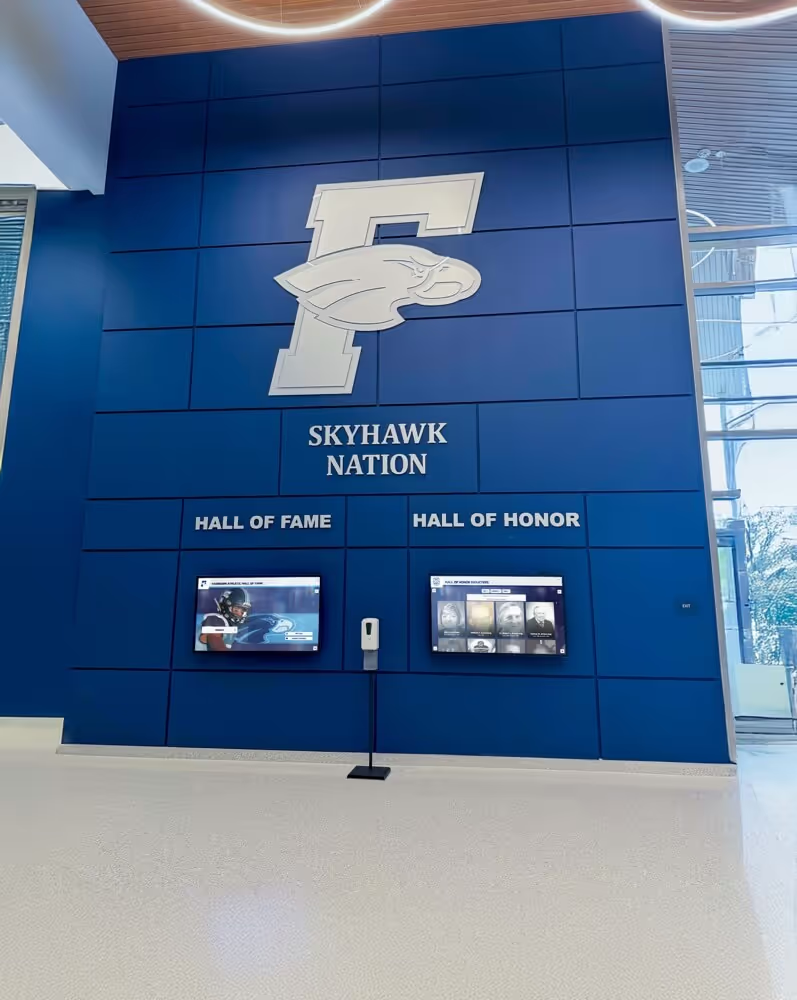
Recognition displays in school hallways operate alongside other network-connected infrastructure — confirming SNMP trap coverage for each display ensures the monitoring architecture keeps pace with the recognition program's visibility in the building.
The SNMP Trap Validation Checklist: Step-by-Step
Work through these steps in order. Each step has a clear pass condition and a fail condition. A fail at any step indicates a gap requiring remediation before the display’s monitoring posture is considered validated.
Step 1 — Verify SNMP Agent Configuration on the Kiosk
Connect to the kiosk PC via remote desktop or local terminal and confirm the SNMP agent is installed, running, and configured to send traps to the correct receiver.
Windows-based kiosk (Windows SNMP Service):
Open Services (services.msc) and confirm the SNMP Service is running. Then open the SNMP Service properties dialog (right-click → Properties → Traps tab):
- Community name: Must match the community string configured in the trap receiver (commonly
publicfor read-only, though using a non-default community name is recommended for security). - Trap destinations: The IP address of the trap receiver must appear in the list. Verify the address is correct — a transposed octet is a common source of trap delivery failures.
To verify agent operation at the command line:
snmpwalk -v2c -c <community-string> <kiosk-IP> 1.3.6.1.2.1.1
A response returning system description, uptime, and contact information confirms the agent is reachable and responding.
Linux-based kiosk (net-snmp):
Check agent status:
systemctl status snmpd
Review /etc/snmp/snmpd.conf and confirm:
rocommunity <community-string> <management-VLAN-subnet>is present (or SNMPv3 user configuration if using v3).trap2sink <receiver-IP> <community-string>(for SNMPv2c) ortrapsess -v3 -u <user> -a <auth-protocol> -A <auth-password> -x AES -X <priv-password> <receiver-IP>(for SNMPv3) is configured.- After any configuration change, restart the agent:
systemctl restart snmpd.
Pass condition: The SNMP agent is running, the trap destination IP matches the receiver, and the community string (or SNMPv3 credentials) matches what is configured on the receiver side.
Fail condition: The SNMP Service is stopped or not installed; the trap destination is missing or incorrect; the community string does not match the receiver. Do not proceed to Step 2 until the agent configuration is confirmed — later steps will produce false failures if the agent is not functional.
Step 2 — Confirm Trap Receiver Reachability
Before testing any trap type, verify that the display can reach the trap receiver’s UDP port 162. SNMP traps use UDP and receive no acknowledgment from the receiver — a misconfigured receiver never tells the sender it missed a trap. This step confirms delivery infrastructure is sound.
From the kiosk (or a test host in the same subnet):
# Test UDP reachability to trap receiver port 162
nc -u -z -v <receiver-IP> 162
On Windows, use PowerShell:
Test-NetConnection -ComputerName <receiver-IP> -Port 162
Note: SNMP uses UDP, and Test-NetConnection tests TCP by default. For a more accurate UDP test, send a test trap (covered in Step 3) and watch for receipt on the receiver side.
On the trap receiver (running snmptrapd for capture):
snmptrapd -f -Lo -c /etc/snmp/snmptrapd.conf
This starts snmptrapd in the foreground with logging to the console. Leave this running during Steps 3 through 5 to observe received traps in real time.
Firewall and routing check: Confirm that the path between the kiosk subnet and the management subnet (where the trap receiver lives) allows UDP traffic on port 162. Inter-VLAN routing must be active, and any stateful firewall between the two subnets must explicitly permit UDP 162 from the display IP range to the receiver IP. Stateful firewalls that track TCP sessions do not automatically permit UDP return traffic — a rule allowing inbound UDP 162 to the receiver from the kiosk subnet is required.
Pass condition: The test trap is visible on the receiver console within 5 seconds of transmission. No firewall drops appear in firewall logs for UDP 162 from the kiosk subnet.
Fail condition: No trap appears on the receiver console. Check the routing path with traceroute from the kiosk subnet to the receiver IP; confirm UDP 162 is permitted in ACLs or firewall policies at every hop.
Step 3 — Test Offline and Device-Down Traps
Offline detection traps confirm that the monitoring infrastructure knows when a recognition display stops being reachable — before a staff member discovers the blank screen.
coldStart trap (reboot detection):
The SNMP agent sends a coldStart trap automatically when it initializes. Trigger it by restarting the SNMP agent service on the kiosk (not rebooting the hardware — a service restart generates a warmStart or coldStart depending on agent implementation):
Windows: net stop snmp && net start snmp
Linux: systemctl restart snmpd
On the receiver console, observe a trap with OID 1.3.6.1.6.3.1.1.5.1 (coldStart) or 1.3.6.1.6.3.1.1.5.2 (warmStart). The receiving timestamp and sending IP address should match the kiosk.
linkDown trap (network interface failure):
Configure the SNMP agent to send linkDown traps when the network interface transitions to a down state. On a Windows kiosk, this is enabled in the SNMP Service properties; on Linux, set monitor -r 10 -e linkDownTrap ifOperStatus .1.3.6.1.2.1.2.2.1.8 != 1 in snmpd.conf.
To test without physically disconnecting the cable, disable the network adapter in the operating system (Device Manager on Windows; ip link set eth0 down on Linux with a secondary management path available). Observe the linkDown trap on the receiver, then re-enable the interface and observe linkUp.
Heartbeat / connectivity watchdog (NMS-side):
Beyond agent-initiated traps, configure the NMS to generate an alert when the display stops responding to ICMP polls — typically a “host down” alert triggered after 2–3 consecutive polling failures. This alert fires even when the SNMP agent is completely offline (hardware failure, complete power loss). Set the polling interval to 60 seconds and the host-down threshold to 3 consecutive failures — a 3-minute detection window balances sensitivity against false positives from brief network transients.
Pass condition: coldStart trap received within 10 seconds of agent restart; linkDown trap received within the polling interval after interface disable; NMS generates a host-down alert within 3–5 minutes of the display becoming unreachable.
Fail condition: No traps received after agent restart — return to Step 1 to verify trap destination configuration. No host-down alert generated — check NMS polling configuration and confirm the kiosk IP is actively monitored.
Step 4 — Validate Thermal Threshold Traps
Thermal traps are the highest-value alert for recognition displays. A trap that fires at 80% of the hardware’s maximum operating temperature gives the IT team time to intervene before the display shuts down — during preparation for a public event, not during it.
Locate the temperature OID:
For the kiosk PC, identify temperature sensor OIDs from the vendor MIB. On Intel-based systems running Windows, the HOST-RESOURCES-MIB does not expose hardware sensor temperatures directly — use the SNMP extension for Open Hardware Monitor, which maps CPU, GPU, and motherboard temperatures to a custom OID tree. Alternatively, IPMI-capable server-class hardware in rack-mount display systems exposes temperature via the ENTITY-SENSOR-MIB.
Confirm the OID is accessible:
snmpget -v2c -c <community-string> <kiosk-IP> <temperature-OID>
The response should return a numeric value representing the current temperature (typically in tenths of degrees Celsius — a value of 420 means 42.0°C).
Configure a threshold trap:
In net-snmp on Linux:
monitor -r 60 -e temperatureThresholdTrap <temperature-OID> > <threshold-value>
Where threshold-value is expressed in the OID’s native units. Set the threshold to 80% of the display manufacturer’s published maximum operating temperature, expressed in the same unit scale as the OID output.
On Windows, use a third-party SNMP extension or a script-based watchdog that queries the temperature value and sends a trap via snmptrap when the threshold is crossed:
snmptrap -v2c -c <community-string> <receiver-IP> 0 1.3.6.1.4.1.99999.1.1.1 1.3.6.1.4.1.99999.1.1.1.1 s "Temperature threshold exceeded"
Test the thermal threshold trap:
Artificially raising the CPU temperature in a production environment is impractical. Use a simulation approach:
- Temporarily lower the trap threshold below the current ambient temperature reading for the temperature OID.
- Wait for the next monitoring cycle (typically 60 seconds).
- Observe the threshold-crossing trap on the receiver.
- Restore the threshold to the operational value.
Alternatively, on supported hardware, run a CPU stress test for 2–3 minutes using a tool such as Prime95 or stress-ng to raise the CPU temperature organically, then observe whether the threshold trap fires at the expected temperature.
Pass condition: A threshold-crossing trap is received by the NMS within two monitoring cycles of the temperature value exceeding the configured threshold. The NMS generates an alert, and the alert includes the kiosk IP and the temperature OID value.
Fail condition: No trap received at threshold crossing — verify that the monitor directive in snmpd.conf is syntactically correct, that the threshold value is in the correct unit scale, and that the SNMP agent has been restarted after the configuration change.
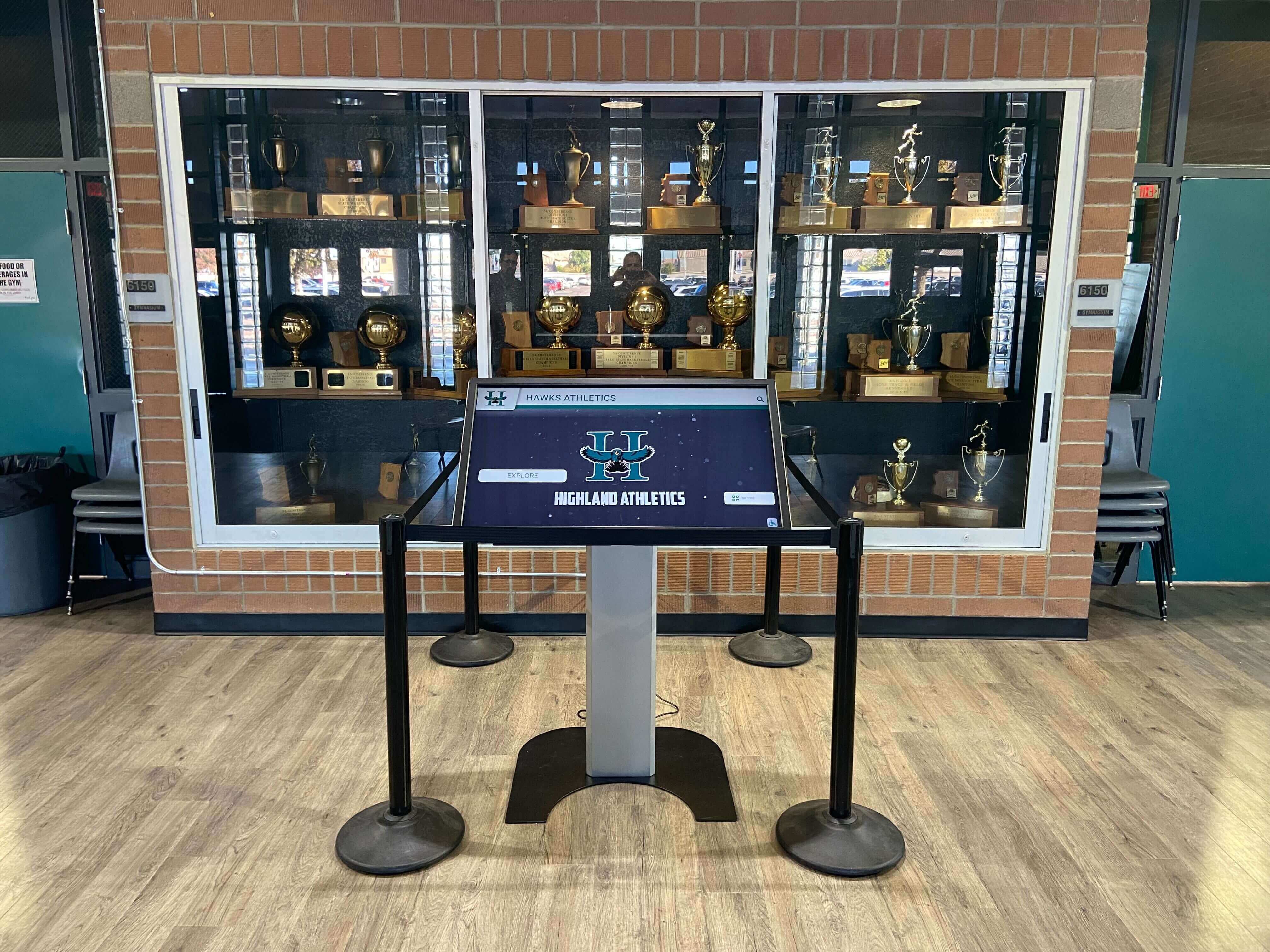
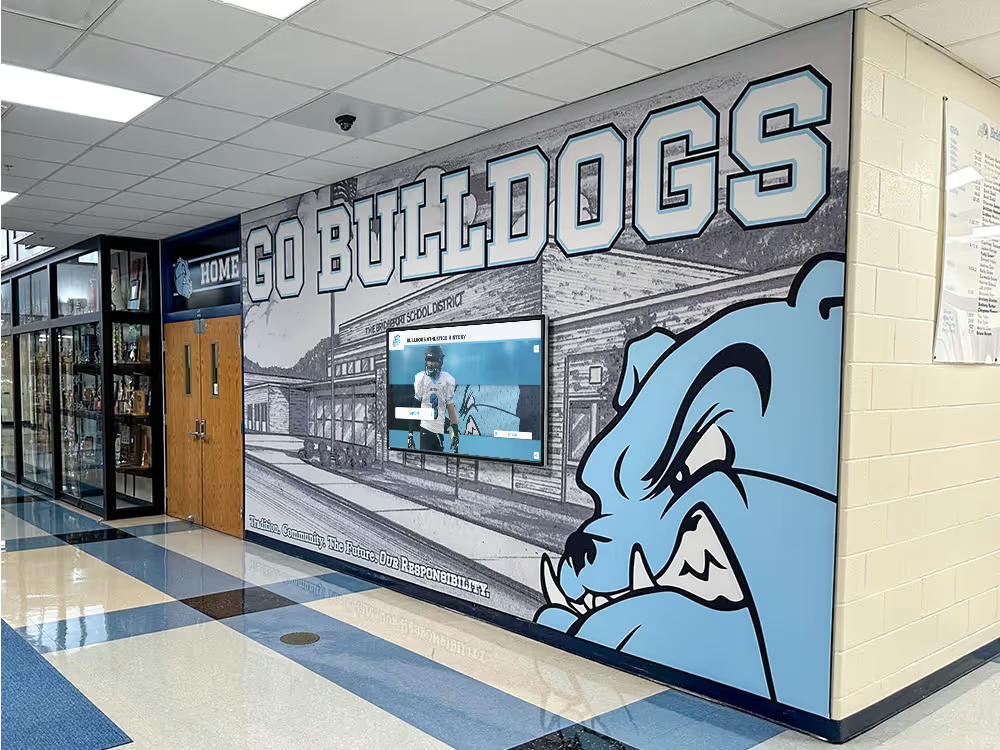
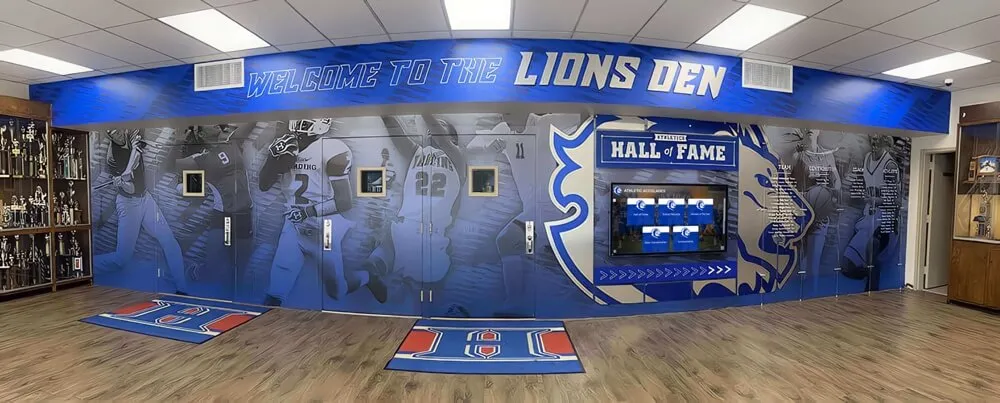
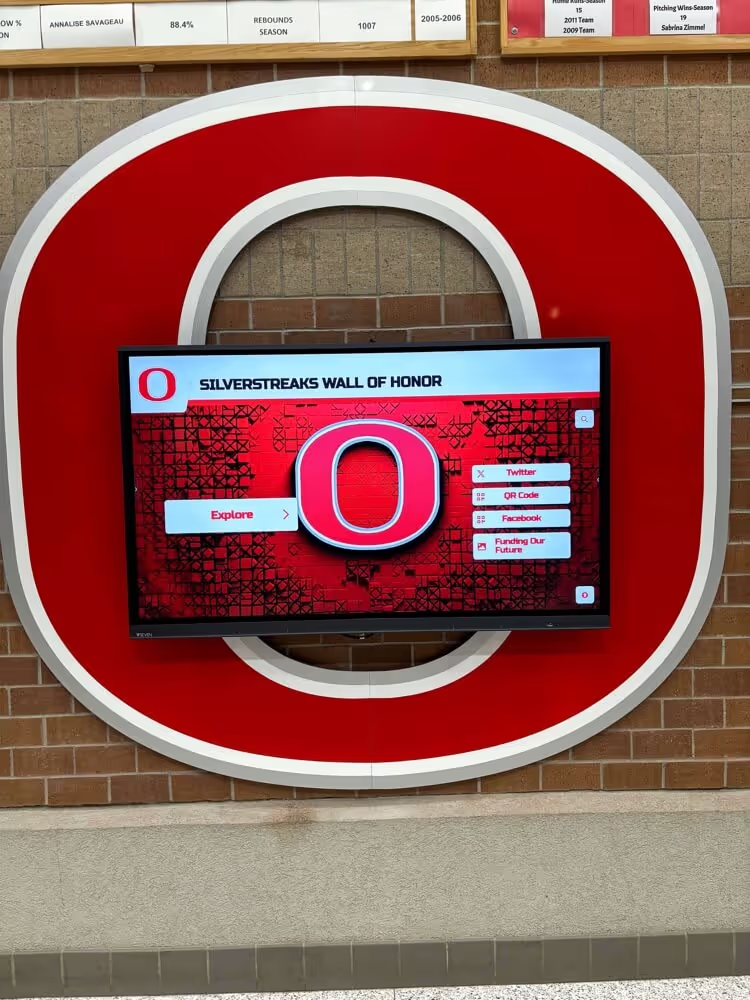
Recognition kiosks embedded in trophy case enclosures face specific thermal risk from limited enclosure airflow — SNMP thermal threshold traps provide the earliest possible warning before hardware protection circuits trigger a visible shutdown during a scheduled event.
Step 5 — Check Power Event Traps
Power event traps originate from the UPS or smart PDU serving the display circuit, not from the display itself. Validating this alert chain confirms the monitoring architecture captures power events before the display loses power entirely.
Identify the UPS/PDU SNMP endpoint:
Obtain the IP address and SNMP credentials for the UPS or smart PDU supplying the display circuit. Common UPS vendors with SNMP support include APC (using the POWERNET-MIB), Eaton (using the XUPS-MIB), and CyberPower (using the POWERMIB). Load the appropriate MIB into the NMS before testing.
Standard UPS trap types to validate:
| Trap Name | OID (APC PowerNet-MIB example) | Event Condition |
|---|---|---|
upsAlarmOnBattery | .1.3.6.1.4.1.318.1.1.1.11.1.1.0 | Input power lost; UPS on battery |
upsAlarmLowBattery | .1.3.6.1.4.1.318.1.1.1.11.1.2.0 | Battery charge below low threshold |
upsAlarmInputBad | .1.3.6.1.4.1.318.1.1.1.11.1.3.0 | Input voltage out of acceptable range |
upsAlarmOutputOverload | .1.3.6.1.4.1.318.1.1.1.11.1.4.0 | UPS output load exceeds rated capacity |
upsDiagnosticTestPassed | .1.3.6.1.4.1.318.1.1.1.7.2.3.0 | Self-test completed successfully |
Specific OIDs vary by UPS firmware version — verify against the MIB file for your exact hardware.
Test procedure:
Most managed UPS devices support a simulated power failure test through the management interface (not SNMP — typically an HTTP management console). Initiating a self-test or a controlled “on battery” simulation causes the UPS to send the upsAlarmOnBattery trap without actually cutting power to the display. Consult your UPS management documentation for the self-test command.
For smart PDUs, confirm that outlet-level power traps are configured to include the outlet serving the display. An over-temperature or over-current condition on the PDU outlet should generate a trap associated with that outlet’s identity — not a generic chassis-level alert that requires manual correlation to identify which device is affected.
Pass condition: The UPS on-battery trap is received by the NMS within 30 seconds of the self-test initiation. The NMS correctly identifies the trap source as the UPS serving the display circuit.
Fail condition: No UPS trap received — verify SNMP trap destination configured in the UPS management interface, confirm UDP 162 is permitted from the UPS management IP to the NMS, and confirm the correct MIB is loaded in the NMS.
Step 6 — Confirm Alert Delivery and Escalation Paths
Traps arriving at the NMS are useless if they do not produce notifications that reach a human who can act on them. This step validates the full alert chain from trap receipt to IT staff notification.
NMS alert rule verification:
In the NMS (LibreNMS, Zabbix, PRTG, or equivalent), confirm that alert rules exist for each trap type validated in Steps 3 through 5:
- Host-down alert for recognition display IP(s)
- Thermal threshold alert tied to temperature OID
- UPS on-battery and low-battery alerts
- Link-down alert for display network interface
Each alert rule should specify a contact or contact group — the IT coordinator responsible for display infrastructure, not the generic NMS admin inbox that receives all alerts from all systems.
Notification channel testing:
Most NMS platforms allow sending a test notification for a specific alert rule without triggering the underlying monitored condition. Use this feature to confirm:
- Email: test alert email is received in the designated inbox (check spam filters)
- SMS/push: test notification delivered to the recipient’s mobile device
- Slack or Teams: test alert posted to the correct channel
Escalation path:
Define what happens if the primary contact does not acknowledge the alert within a defined window. For recognition displays, a 30-minute unacknowledged alert should escalate to a secondary contact — facilities coordinator, athletic director, or AV supervisor — who can confirm whether the display requires immediate physical intervention.
Pass condition: Test notifications are delivered to all configured channels within 5 minutes. Escalation contacts are defined and reachable.
Fail condition: Test notifications are not delivered — check notification transport configuration (SMTP credentials, API keys for SMS/push integrations). Escalation path is undefined — assign secondary contacts before considering validation complete.
Common SNMP Trap Misconfiguration Patterns
| Misconfiguration | Symptom | Resolution |
|---|---|---|
| Trap destination IP points to a decommissioned NMS | Traps sent but never received; monitoring gap undetected | Audit SNMP trap destination on every display after any NMS IP change |
| Community string mismatch between agent and receiver | Receiver silently discards traps (SNMPv2c drops on community mismatch) | Confirm community string is identical on both sides — case-sensitive |
| UDP 162 blocked by inter-VLAN firewall ACL | No traps received despite correct agent configuration | Add explicit permit rule: UDP from display subnet to NMS IP on port 162 |
| Temperature OID in wrong unit scale (°C vs. tenths of °C) | Threshold never triggers or triggers immediately | Read raw OID value and divide by 10 if vendor uses deci-degree units |
| MIB not loaded in NMS | Traps received but displayed as raw OIDs with no description | Load vendor MIB files; restart NMS trap processing daemon |
| SNMPv3 auth/priv password mismatch | Agent generates traps; receiver decryption fails silently | Regenerate SNMPv3 user with matching credentials on agent and receiver |
| linkDown trap disabled on Windows SNMP Service | No interface-down notification when display NIC fails | Enable “Send trap for: Link Down” in SNMP Service Traps tab |
| NMS alert rule exists but no contact assigned | Alert fires in NMS but no notification sent | Assign contact groups to every alert rule for display hosts |
| UPS trap destination not configured in UPS management interface | Power events never reach NMS | Log into UPS web console and add NMS IP as trap receiver |
| STP convergence delay causes false linkDown on reboot | Spurious linkDown followed by linkUp on every display restart | Enable portfast on the access port; add suppression for linkDown–linkUp pairs within 60 seconds |
SNMPv2c vs. SNMPv3 for School Recognition Displays
| Feature | SNMPv2c | SNMPv3 |
|---|---|---|
| Authentication | Community string (plaintext) | Username + authentication protocol (MD5 or SHA) |
| Encryption | None — all traffic readable on the network | Optional — AES-128 or DES for privacy |
| Trap authentication | Community string validated at receiver | Auth hash prevents spoofed traps |
| Configuration complexity | Low — one community string on both sides | Moderate — user, auth protocol, passwords, privacy settings |
| Audit suitability | May not satisfy district security audit requirements | Recommended for environments subject to security audit |
| Supported by school-grade managed switches | Yes — universally supported | Yes — supported on most managed switches sold after 2010 |
| Recommended for recognition displays | Use only on isolated management VLANs | Recommended for displays on shared or guest-accessible segments |
See How Rocket Alumni Solutions Supports School IT Teams
Rocket Alumni Solutions recognition platforms are designed for school network environments — with clear connectivity documentation, remote CMS diagnostics, and device health visibility that complement your SNMP monitoring workflow. See the platform's network management features in a live walkthrough.
Schedule a Platform DemoIntegrating SNMP Alerts with the School Event Calendar
Recognition displays carry their highest stakes during scheduled community events: athletic banquets, spring induction ceremonies, homecoming halls-of-fame nights, and senior recognition evenings. The risk window for a display failure is not evenly distributed across the academic year — it concentrates around these events.
An SNMP monitoring workflow that is validated annually but not actively reviewed before events misses the point. Build event-aware alert management into the workflow:
- 48 hours before any major recognition event: Confirm all trap rules are active and no alerts are currently suppressed in maintenance mode. Run a test trap from each display to confirm end-to-end delivery.
- 24 hours before the event: Verify that thermal readings from the display hardware are in the normal range and trending stable. A temperature that has been rising across the previous week may be approaching the threshold trap even before the event day.
- Day of the event: Confirm HVAC is active at the display location. Check the NMS for any overnight alerts that may have been sent outside business hours and not yet acknowledged.
- After the event: Review the NMS event log for any alerts generated during the event window. A trap that fired and resolved on its own during an event may indicate a thermal or connectivity transient that warrants investigation before the next event.
Booster club and athletic program infrastructure at many schools shares facilities management responsibilities across teams that may not all be aware of a recognition display’s network monitoring posture. Designating a single contact for display SNMP alerts — and confirming that person reviews the NMS before every major event — closes the notification gap that organizational handoffs create.
Connecting SNMP Monitoring to Recognition Program Reliability
A recognition program’s credibility rests on the consistency of its display. A digital history archive that showcases fifty years of athletic achievement, donor recognition, and community history needs the hardware presenting it to work every time a community member stands in front of it — not just most of the time.
Donor recognition wall installations carry a specific obligation: donors whose names and contributions are displayed on a recognition wall notice when the display is dark. The gap between “the display failed” and “the donor noticed” may be minutes at a high-traffic installation. SNMP trap validation shortens the gap between when the failure begins and when the IT team knows — which directly protects the community relationships the recognition program is built to honor.
Athletic hall of fame touchscreen accessibility audits and recognition display graphic standards ensure the program looks right when the display is operating. SNMP monitoring ensures the display is operating to begin with. Both layers of quality assurance are necessary; neither replaces the other.
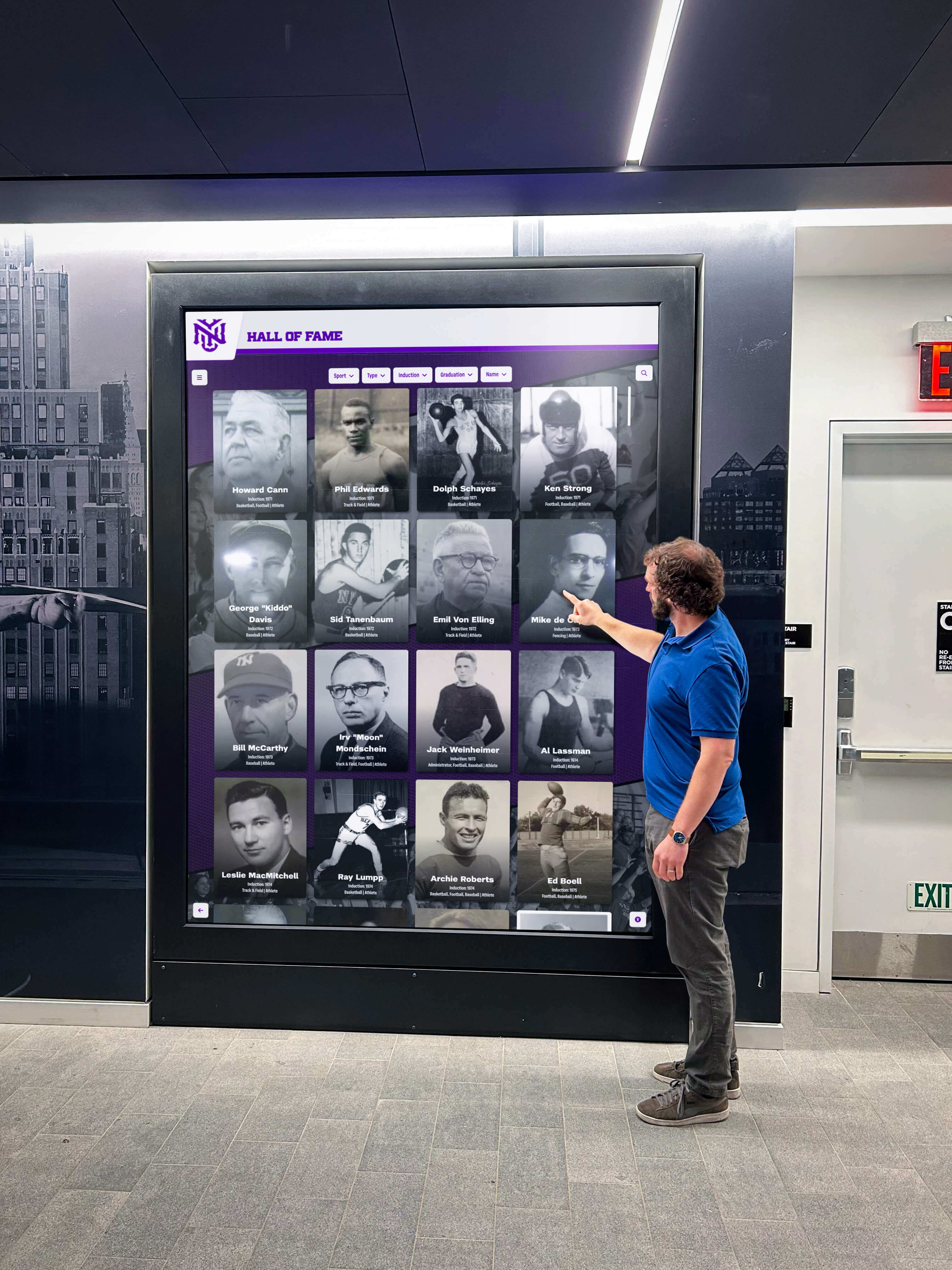
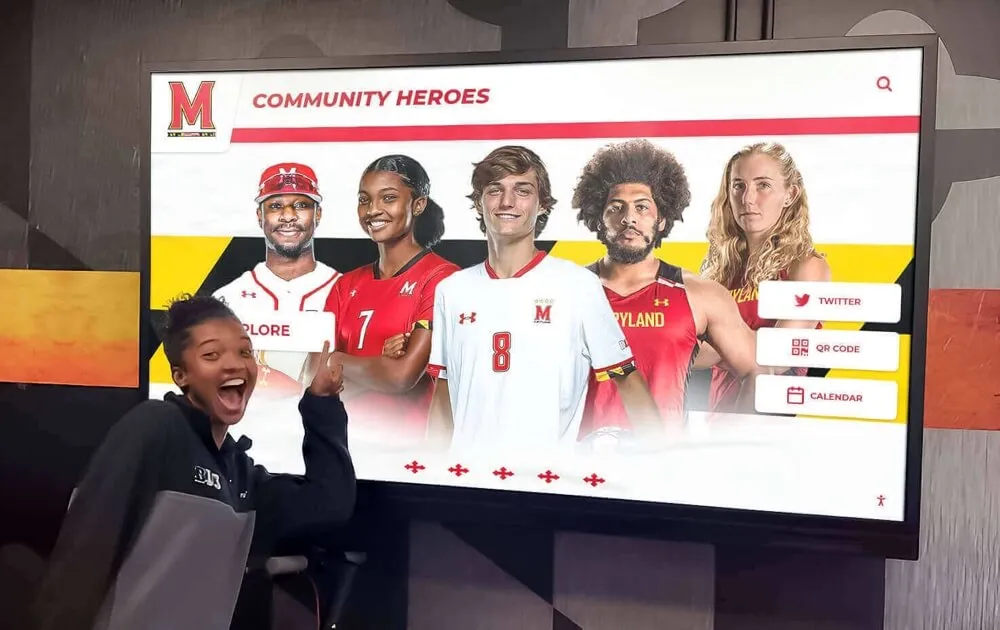
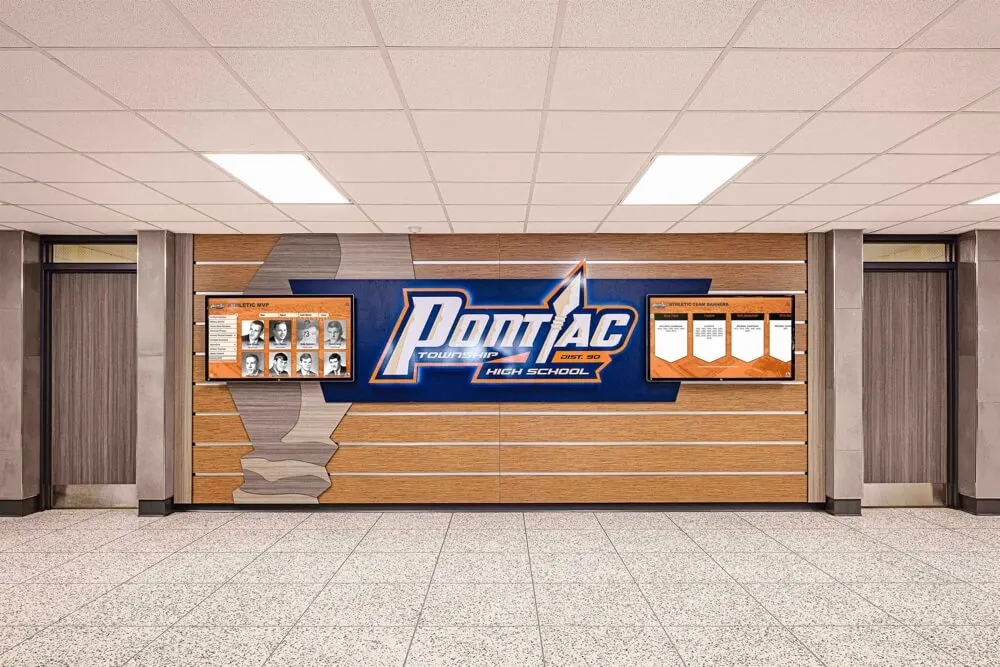
The community members who stop in front of a recognition display during events and daily school life have a reasonable expectation that it will be working — SNMP trap monitoring ensures the IT team knows about failures before visitors do.
Frequently Asked Questions
Q: What is the most common reason SNMP traps from recognition displays are never received by the NMS?
The most common cause is a UDP 162 block at the inter-VLAN routing boundary. Many school networks apply stateful firewall policies between VLANs that permit established TCP sessions but do not explicitly permit UDP from the display subnet to the NMS subnet. SNMP traps use UDP and do not establish sessions — they are one-way transmissions that require an explicit permit rule, not a stateful permit for established traffic. Check inter-VLAN ACLs or firewall policies before assuming the SNMP agent configuration is wrong.
Q: Our recognition display uses a proprietary media player, not a standard PC. Does it support SNMP traps?
Proprietary media players vary significantly. Many mid-range commercial media players expose SNMP read-only polling (GET operations) but do not send traps. In those cases, configure NMS-side polling-based alerts: poll the device’s key OIDs on a 60-second interval and trigger an alert when polling fails or a threshold is crossed. Polling-based alerts have a detection latency equal to the polling interval, which is acceptable for most recognition display monitoring scenarios.
Q: How do we handle SNMP trap monitoring for displays on isolated network segments or PVLAN configurations?
SNMP traps originating from an isolated secondary VLAN port travel through the promiscuous uplink to the router, then through the routed path to the NMS. If inter-VLAN routing and firewall ACLs are correctly configured for the display’s primary VLAN, trap delivery follows the same path as HTTP and DNS traffic. The isolation at the PVLAN layer does not affect trap delivery because traps are routed through the promiscuous port uplink, not forwarded between isolated peers. Validate PVLAN uplink connectivity before testing traps.
Q: Should we use SNMPv2c or SNMPv3 for recognition display trap monitoring?
Use SNMPv3 for any display on a shared or mixed-use network segment. SNMPv2c community strings are transmitted in plaintext and can be captured by any device on the path between the display and the NMS. For displays on isolated management VLANs accessible only to IT staff, SNMPv2c is operationally acceptable but SNMPv3 remains the better long-term choice as audit requirements evolve. The configuration overhead for SNMPv3 is modest compared to the security improvement.
Q: What polling interval should we use for temperature OID monitoring?
60 seconds is a standard polling interval for temperature monitoring. It provides sufficient resolution to catch a rising temperature curve before it reaches the threshold, without generating unnecessary SNMP traffic on a shared management network. For displays in locations with known thermal risk — south-facing lobbies, gymnasiums, enclosed trophy cases — reduce the interval to 30 seconds during the spring and summer months when ambient temperatures are highest.
Q: Can we monitor CMS connectivity through SNMP rather than through the CMS platform’s own diagnostics?
Yes, using a custom SNMP extension script. Configure the monitoring agent to run a connectivity check against the CMS hostname every 60–120 seconds and expose the result (reachable/unreachable) as an integer OID value. Set a threshold trap for when that OID transitions to the unreachable state. This approach works for any service that can be probed via a shell command, not just the CMS platform. The CMS platform’s own diagnostics panel remains the more reliable source for CMS-layer connectivity detail — SNMP extension monitoring captures the network-layer connectivity piece.
Q: How does SNMP trap validation relate to academic recognition program planning?
SNMP trap validation is most directly an IT function, but recognition program coordinators benefit from knowing that the monitoring infrastructure has been validated. Academic recognition programs at the secondary level schedule display-dependent ceremonies well in advance — confirming to program coordinators that the monitoring infrastructure is validated and event-ready is a concrete assurance that the display will support the ceremony rather than become a crisis during it.
Quick-Reference Validation Checklist
Use this table as your validation sign-off record. Complete all steps before considering SNMP trap monitoring validated for a recognition display installation.
| Validation Step | Pass Condition | Status |
|---|---|---|
| Step 1: SNMP agent running | Agent responds to snmpwalk; trap destination configured | |
| Step 1: Credentials verified | Community string or SNMPv3 credentials match on agent and receiver | |
| Step 2: Trap receiver reachable | UDP 162 permitted from display subnet to NMS; test trap received | |
| Step 3: coldStart trap | Trap received within 10 seconds of agent restart | |
| Step 3: linkDown trap | Trap received within 60 seconds of interface disable | |
| Step 3: Host-down alert | NMS alert fires within 3–5 minutes of display becoming unreachable | |
| Step 4: Temperature OID readable | snmpget returns current temperature value | |
| Step 4: Threshold trap fires | Threshold-crossing trap received within two monitoring cycles | |
| Step 5: UPS trap destination set | UPS management console shows NMS IP as trap receiver | |
| Step 5: On-battery trap received | Trap received within 30 seconds of self-test initiation | |
| Step 6: NMS alert rules defined | Alert rules exist for all four alert types; contacts assigned | |
| Step 6: Notifications delivered | Test alerts reach all configured channels (email, SMS, Slack) | |
| Step 6: Escalation path defined | Secondary contact assigned for unacknowledged alerts | |
| Event prep: 48h pre-event check | All rules active; test trap confirmed; no suppressed alerts |
When SNMP trap validation is complete, the IT team knows about recognition display offline, thermal, and power events before the community does — protecting the athletic history and recognition content that students, families, and alumni rely on every time they walk past the screen.
A recognition display that has passed SNMP trap validation is one whose monitoring posture matches its community visibility. The IT team will know about a thermal threshold crossing, a link failure, or a power event within minutes — not after a family arriving for an athletic banquet discovers a blank screen where the championship history should be.
If your school is evaluating recognition platforms and wants to understand how platform architecture, remote CMS diagnostics, and device health visibility complement your SNMP monitoring workflow, a guided demonstration provides the network-level detail your IT team needs before deployment.
Schedule a demo with Rocket Alumni Solutions to see how schools use a web-based, remotely managed recognition platform to keep their display infrastructure performing reliably — with the monitoring transparency to validate that performance across every alert type and every event on the calendar.
Related resources: athletic booster club fundraising ideas that depend on reliable recognition displays — creative donor wall designs for schools and nonprofits — digital hall of fame ARIA and accessibility audit workflow — digital history archive guide for recognition programs