Intent: decide — A school recognition display that loads athlete portraits halfway, stalls on video tributes, or shows blank panels where alumni photos should appear is exhibiting one of the most misdiagnosed failure modes in school digital display networks: a Path MTU Discovery (PMTUD) breakdown. The packets carrying large image and video frames arrive at the network boundary, get silently discarded because they cannot be fragmented, and the display never receives the signal it needs to complete the load. No error message appears. No link indicator goes dark. The content simply never finishes rendering.
This checklist walks school IT coordinators, AV technicians, and athletic directors through a recognition display path MTU discovery test: from understanding why the failure mode exists in school environments, through numbered ping and firewall checks, to the specific configuration changes that resolve it without disrupting the rest of the network.
Running a recognition display path MTU discovery test takes roughly 20–30 minutes and eliminates one of the most common causes of partial media loads and intermittent content failures — before more expensive hardware replacements or platform support calls are attempted.

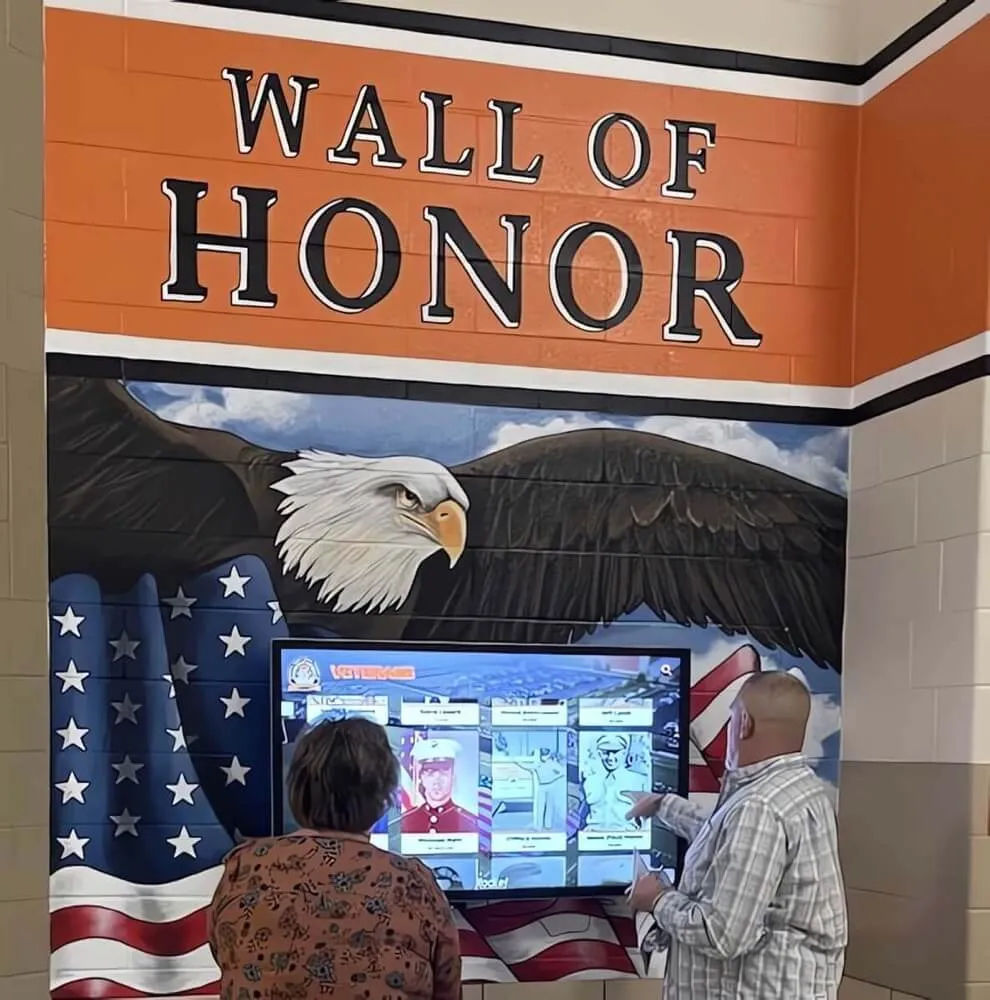
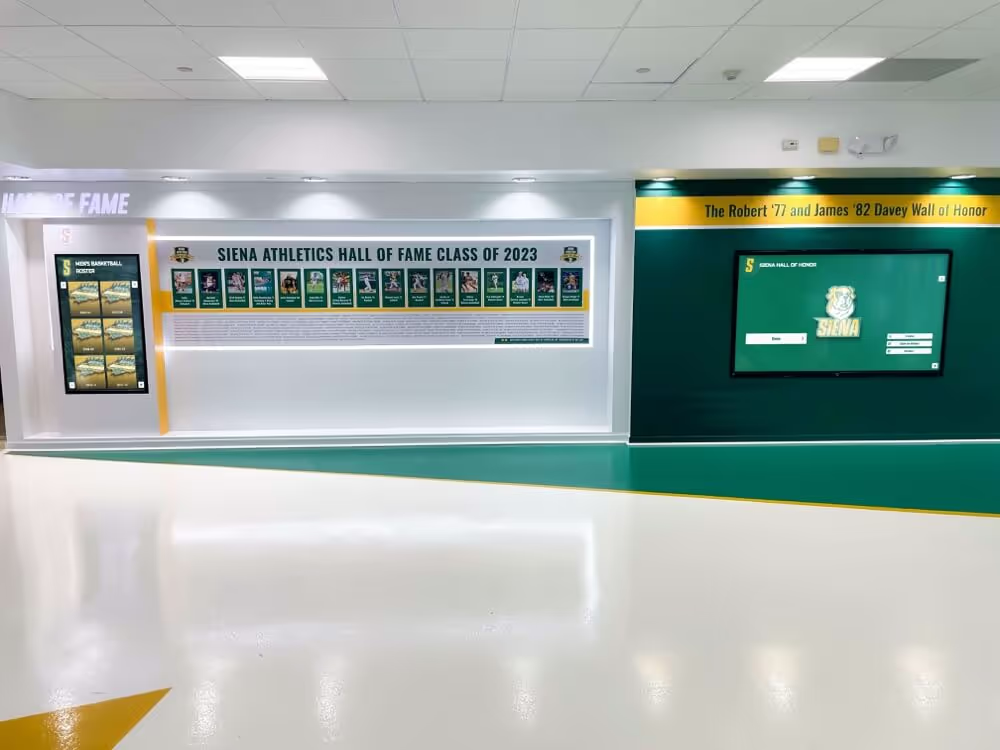
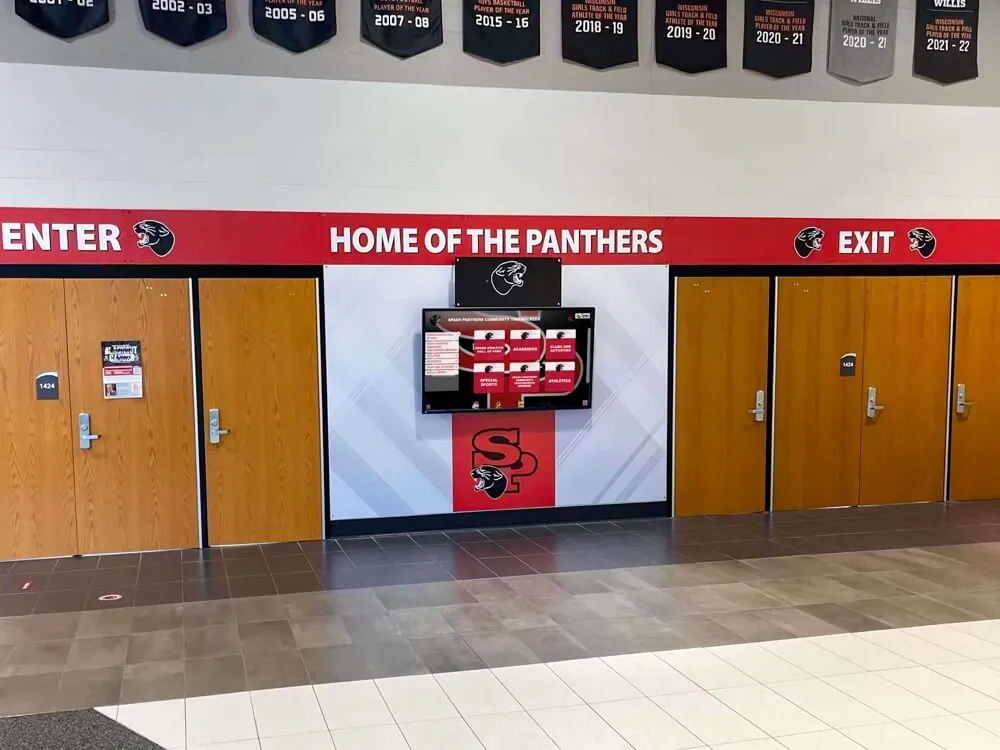
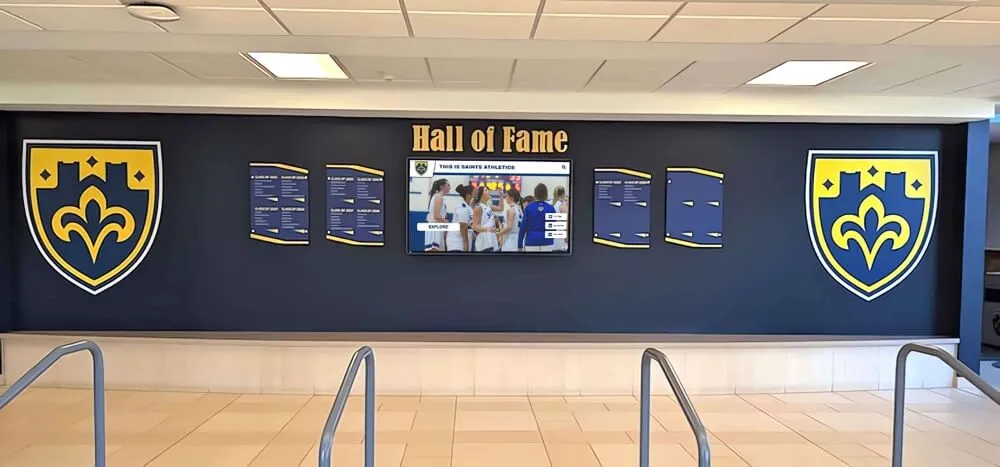
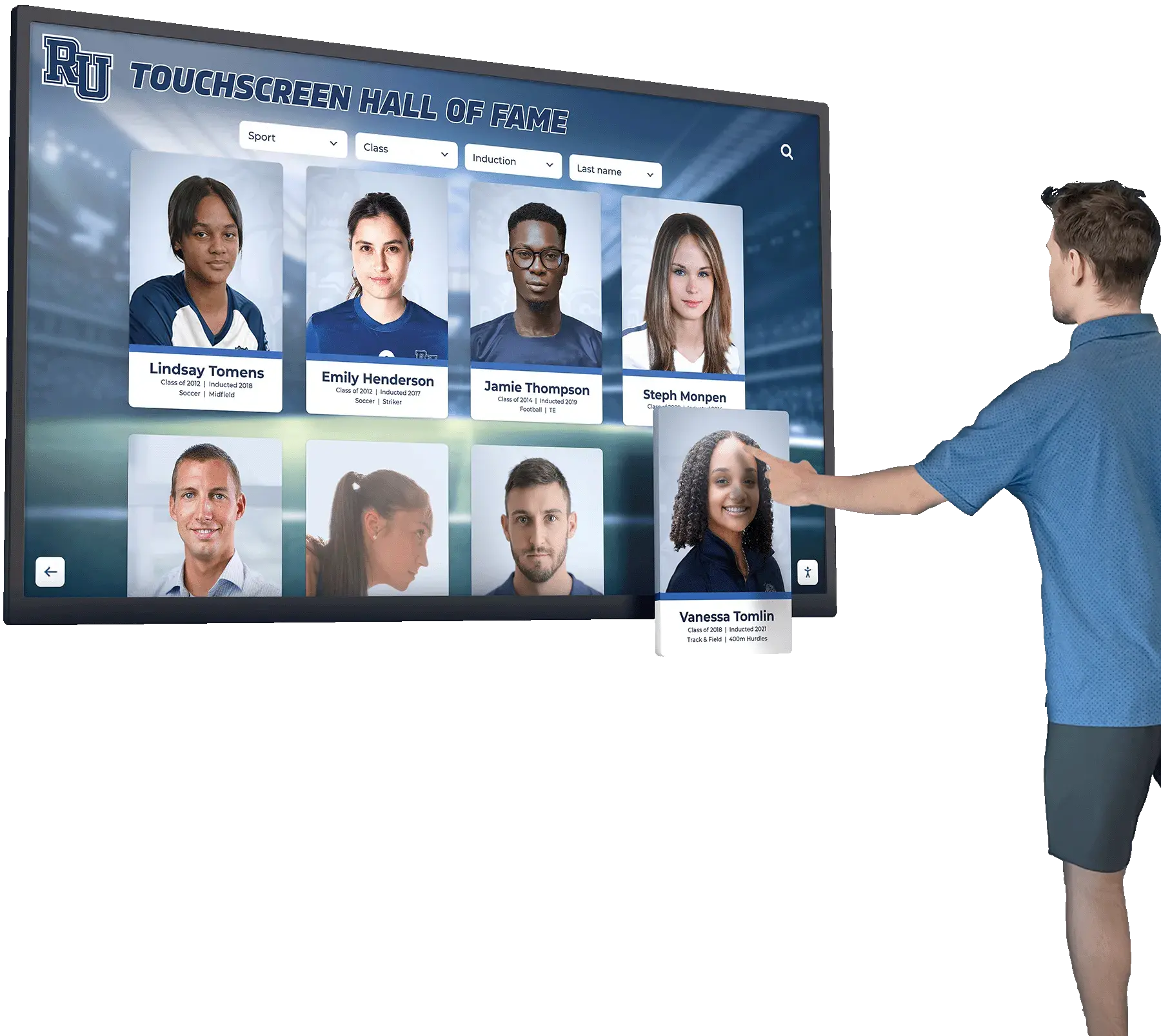
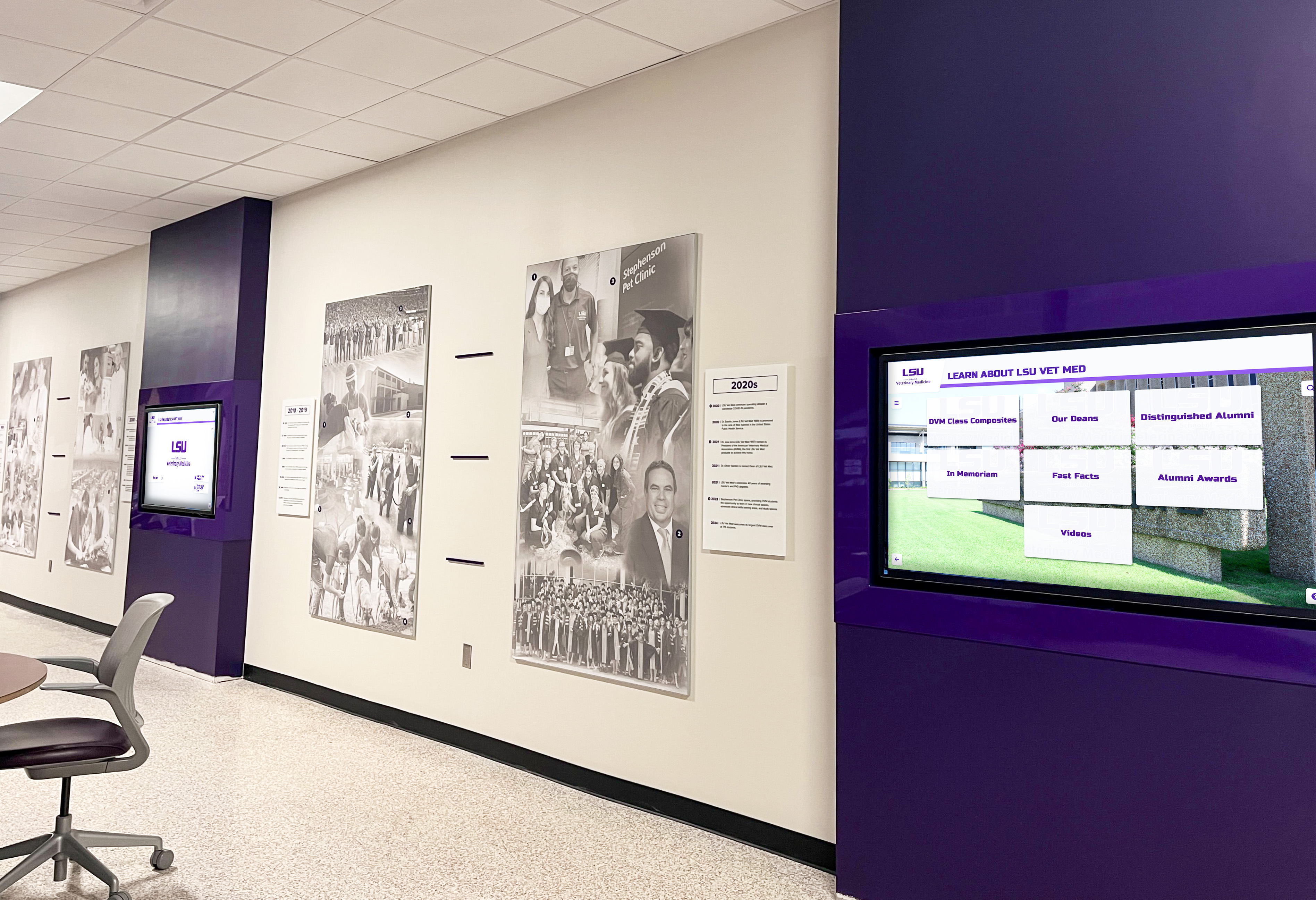
Multi-panel recognition installations carrying high-resolution images and video depend on Path MTU Discovery functioning correctly — when PMTUD is broken by a firewall rule, large media frames are silently dropped and content fails to load
What Path MTU Discovery Is
Path MTU Discovery is the TCP mechanism by which two networked devices determine the largest packet size that can travel the entire path between them without requiring fragmentation. When a packet is too large for any link along the route, the router at that link is supposed to send an ICMP Type 3 Code 4 message (“Fragmentation Needed and Don’t Fragment bit was Set”) back to the sender, which then retransmits using a smaller packet size. When that ICMP feedback message is blocked by a firewall, the sender never learns it needs to reduce its packet size, retransmits the same oversized packet, and the packets are dropped indefinitely — a condition known as an MTU black hole.
For a recognition display loading a 3 MB athlete portrait gallery or streaming a video tribute, the consequence is predictable: the first few packets of a TCP session arrive (small packets used in the handshake), but the large data frames carrying actual media content never complete. The display shows a partial load, a spinner, or nothing at all.
How PMTUD Failures Cause Media Loading Failures on School Networks
School networks introduce PMTUD complications that general-purpose office networks rarely face:
| Symptom on the Recognition Display | Likely PMTUD-Related Cause |
|---|---|
| Athlete portrait images load as gray placeholders | Large image frames dropped after TCP handshake succeeds |
| Video tribute starts buffering and never completes | Streaming payload packets exceed path MTU; ICMP feedback blocked |
| Content management system dashboard loads but media assets do not | CMS HTML (small packets) succeeds; media binaries (large packets) fail |
| Display works on the office Wi-Fi but fails on the lobby Ethernet run | Different MTU settings on different network segments |
| Problem appears only for remote-hosted content, not locally cached | Remote-to-display path crosses a WAN link with a different MTU |
| Rebooting the display temporarily resolves loading, then it recurs | TCP session restarts with clean MTU negotiation; oversized packets dropped again on next large load |
School networks compound the problem because they often include multiple segments with different MTU values: a standard Ethernet MTU of 1500 bytes on the campus LAN, a lower MTU on a WAN uplink or ISP circuit, and a further-reduced MTU when a VPN tunnel is in use. Each layer reduction subtracts overhead from the usable payload size. A recognition display fetching media content from a cloud-hosted platform crosses all of those boundaries — and only needs one of them to block ICMP feedback to trigger an MTU black hole.
Interactive touchscreen recognition storytelling applications that deliver high-resolution athlete portraits, video highlights, and archive imagery are the highest-risk recognition display category: every user interaction triggers a new large-payload fetch, and each one can fail silently if PMTUD is broken.
Before Running the Test: What to Gather
Collect the following before opening any terminal:
- Display IP address — visible in the display’s network settings panel or your DHCP server’s lease table
- CMS or content platform hostname — the domain or IP address of the server delivering media to the display
- Network path description — whether the display is on a local VLAN, routes through a VPN, or reaches the content platform over a WAN circuit
- Firewall platform and access — the make and model of the perimeter firewall and whether you have administrative access to review ICMP rules
- A workstation on the same VLAN — for initial tests before SSH access to the display is confirmed
- Switch port information — the managed switch port the display connects to, in case jumbo frames are enabled
Having a workstation on the same network segment as the display lets you confirm whether the problem is path-wide or specific to the display device’s own MTU configuration.
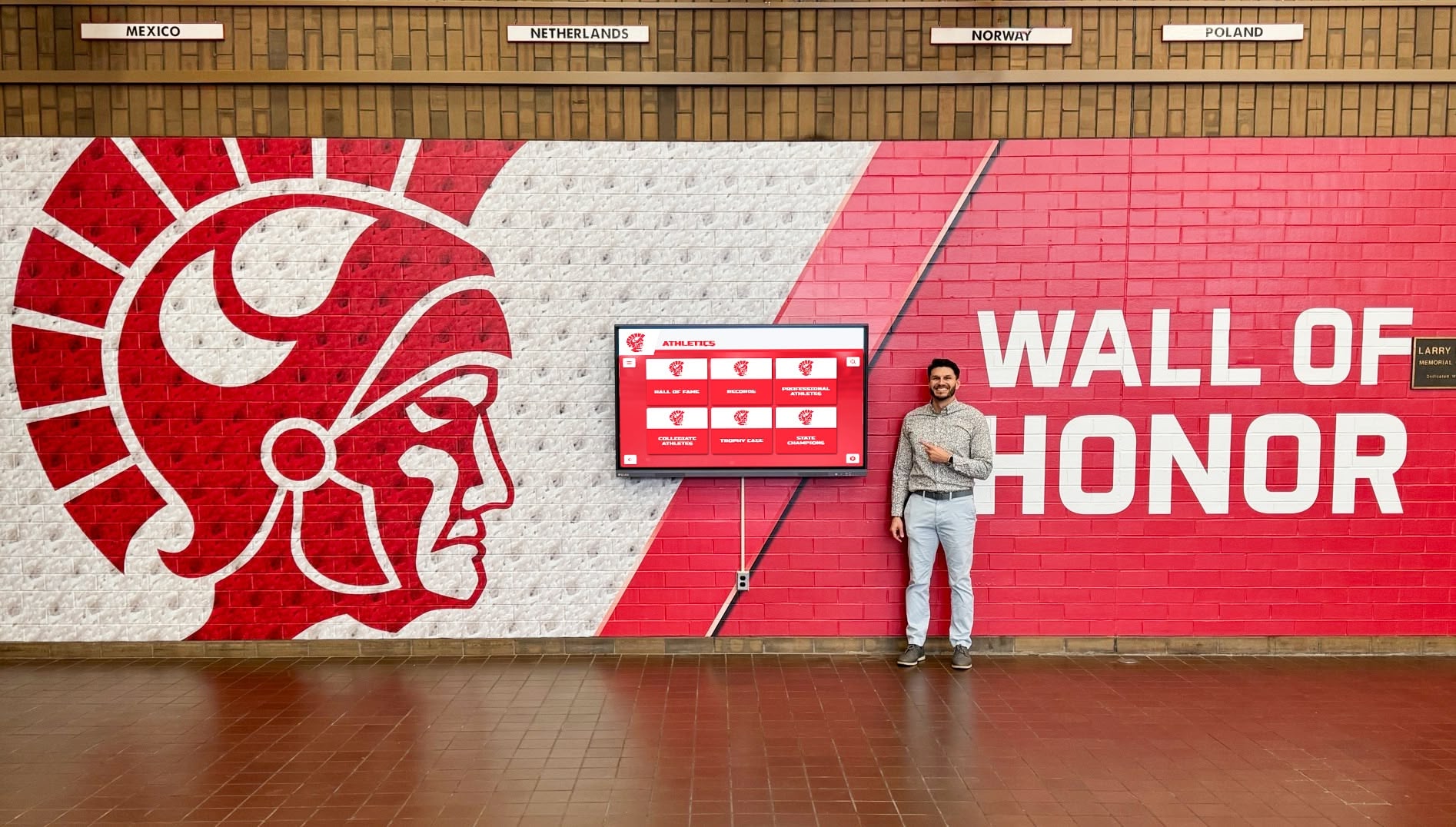
Recognition displays that serve large image and video content require a clear PMTUD path — a school IT administrator can run the full checklist below in under 30 minutes from a workstation on the same network segment
Recognition Display Path MTU Discovery Test: Numbered Checklist
Work through these steps in sequence. Each step produces a result that determines whether to proceed to the next step or move directly to resolution.
Step 1 — Identify the MTU Setting on the Display’s Network Interface
On Linux-based media players (common in commercial display systems):
ip link show eth0
Look for the mtu value in the output. The standard Ethernet MTU is 1500. A value below 1500 on the display itself (such as 1492 from a PPPoE session, or 1400 from a VPN adapter) indicates the display has already inherited a reduced MTU from its network configuration.
On Windows-based media players:
netsh interface ipv4 show interfaces
Check the MTU column for the relevant interface. A value of 1500 is standard. A lower value indicates a configured reduction or an inherited tunnel MTU.
On display systems without shell access:
Proceed to Step 2 using a workstation on the same VLAN.
Step 2 — Run a Fragmentation-Sensitive Ping Test from a Workstation
This is the core test for detecting an MTU black hole. Send a large ICMP packet with the Don’t Fragment (DF) bit set and step the size down until packets succeed.
On Linux or macOS:
ping -M do -s 1472 <content-platform-IP>
The -s 1472 size plus 28 bytes of ICMP/IP header equals 1500 bytes — the standard Ethernet MTU. If this fails with Message too long or the ping simply times out without a response, the path has an MTU constraint at or below 1500 bytes.
Step down and retry:
ping -M do -s 1452 <content-platform-IP>
ping -M do -s 1400 <content-platform-IP>
ping -M do -s 1350 <content-platform-IP>
The largest size that succeeds identifies the effective path MTU minus 28 bytes. Note this value — you will need it in Step 6.
On Windows:
ping -f -l 1472 <content-platform-IP>
ping -f -l 1452 <content-platform-IP>
ping -f -l 1400 <content-platform-IP>
The -f flag sets the Don’t Fragment bit. A timeout or “Packet needs to be fragmented but DF set” response confirms the path MTU is below the tested size.
Expected healthy result: all sizes up to 1472 succeed with normal round-trip times. Problem confirmed result: sizes above a specific threshold time out or return fragmentation-needed errors that do not result in smaller retransmissions — indicating an MTU black hole.
Step 3 — Verify ICMP Type 3 Code 4 Is Not Blocked
This step confirms whether the firewall is discarding the ICMP feedback that makes PMTUD work.
Check the perimeter firewall’s outbound ICMP policy:
Log in to the firewall management interface and review the rule governing ICMP traffic from the internal network to external addresses (or to the content platform’s subnet, if hosted internally).
Look specifically for rules that:
- Block all ICMP outbound
- Block ICMP by type (Type 3 is “Destination Unreachable,” which includes Code 4 “Fragmentation Needed”)
- Use a generic “deny ICMP” rule intended to reduce exposure to ICMP-based reconnaissance
What a blocking rule looks like on common platforms:
| Firewall Platform | Overly Broad Rule to Check For |
|---|---|
| Cisco ASA / Firepower | access-list outside_in deny icmp any any |
| pfSense / OPNsense | Floating rule blocking ICMP on WAN or LAN interface |
| Fortinet FortiGate | Firewall policy with ICMP service group set to deny |
| Palo Alto | Security policy blocking icmp application without exception for type 3 |
| Sophos XG | IPS policy blocking ICMP floods without allowlist for unreachable messages |
A firewall that blocks all ICMP will block ICMP Type 3 Code 4 messages. The fix is not to allow all ICMP — it is to add a specific allow rule for ICMP Type 3 Code 4 (“Fragmentation Needed”) in both directions between the display network segment and the content platform. The IETF recommendation in RFC 4821 describes Packetization Layer Path MTU Discovery as an alternative that does not rely on ICMP, but school networks running standard TCP without that feature enabled require ICMP Type 3 Code 4 to pass.
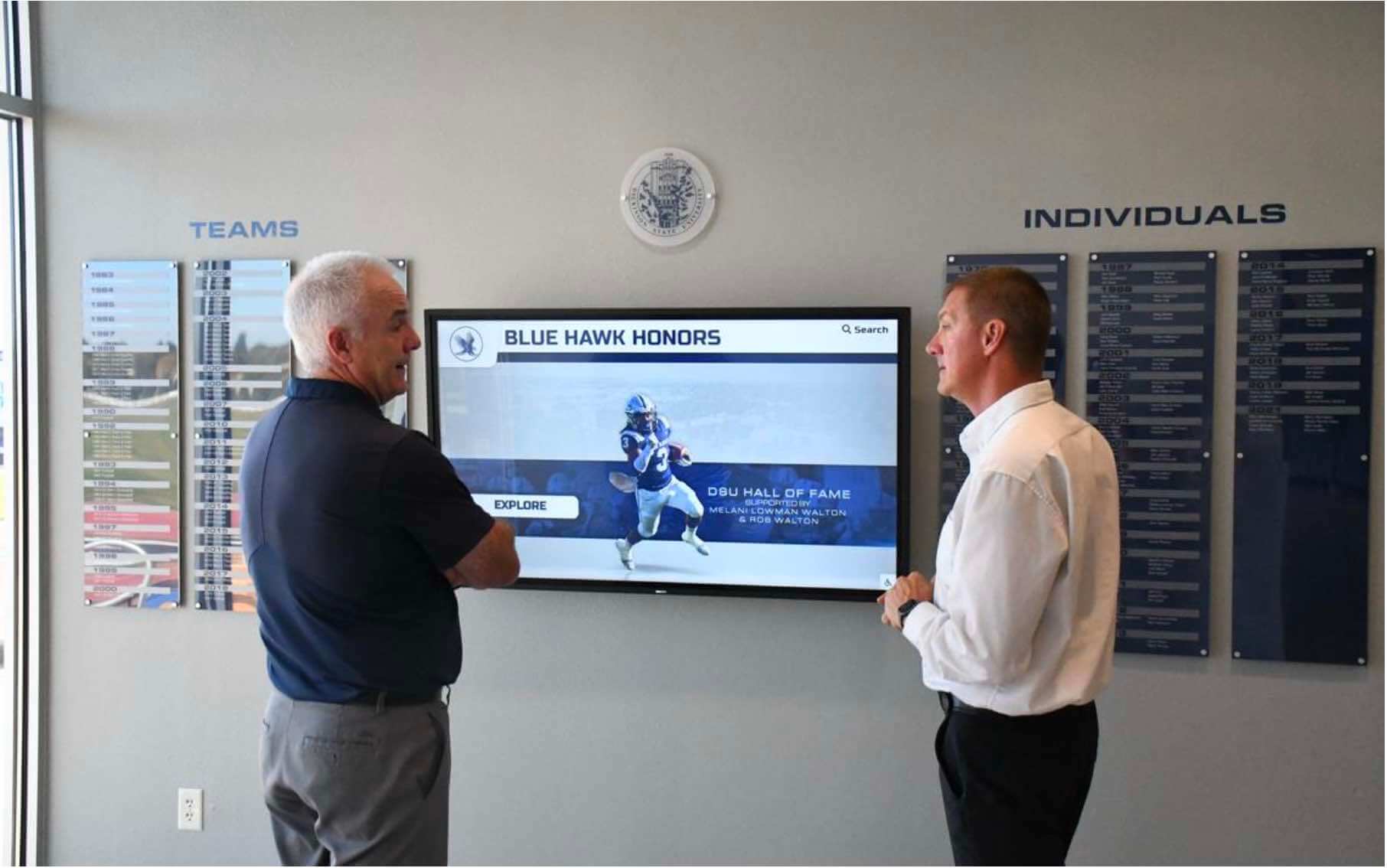
Confirming that ICMP Type 3 Code 4 passes through the school firewall is the most commonly missed step in recognition display network troubleshooting — it requires firewall access, not just access to the display or switch
Step 4 — Check the MTU at the Uplink Interface
If the ping test from Step 2 succeeded at 1472 but recognition display media still fails to load, the problem may be on the uplink toward the content platform rather than on the display’s local segment.
Check the router or firewall’s WAN interface MTU:
ip link show wan0 # Linux-based router
Or check the WAN interface configuration in the firewall GUI. Common reduced-MTU scenarios:
- DSL/PPPoE circuits: MTU of 1492 rather than 1500 (8-byte PPPoE overhead)
- MPLS WAN links: MTU varies by provider; commonly 1500, sometimes 1496 or lower
- IPsec VPN tunnels: Overhead reduces usable MTU by 50–100 bytes; effective payload MTU is typically 1400–1450 depending on cipher suite and encapsulation
- SD-WAN appliances: Add their own encapsulation overhead; check the appliance documentation for the effective payload MTU
Building directory touchscreen wayfinding systems installed alongside recognition displays often share the same network segment and uplink path. If wayfinding displays with large floor-plan image assets are also showing partial loads, that corroborates a path-wide MTU problem rather than a display-specific configuration issue.
Step 5 — Run the Ping Test from the Display Device Directly
If the workstation-side test from Step 2 succeeded but the display still fails, the display itself may have a misconfigured MTU — lower than the path MTU, causing it to send oversized packets that the path cannot handle, or higher than the path MTU with the DF bit set by the application.
SSH into the display’s media player (Linux) or use a local terminal session (Windows) and run the same fragmentation-sensitive ping from the device:
ping -M do -s 1472 <content-platform-IP>
Compare the result to the workstation result from Step 2:
| Workstation Result | Display Result | Diagnosis |
|---|---|---|
| Succeeds at 1472 | Succeeds at 1472 | No path MTU problem; investigate application-layer configuration |
| Succeeds at 1472 | Fails at 1472 | Display-local MTU misconfiguration or NIC setting issue |
| Fails at 1452 | Fails at 1452 | Path-wide MTU constraint affecting all devices on the segment |
| Fails at 1452 | Fails at 1400 | Display has a lower effective MTU than the rest of the segment |
Step 6 — Resolve the MTU Mismatch or Firewall Block
Resolution A — Clamp TCP MSS at the firewall (preferred for school networks)
Rather than reconfiguring MTU on every device, most school network firewalls support TCP MSS clamping — a feature that intercepts TCP SYN packets and reduces the Maximum Segment Size (MSS) advertised by each endpoint to a value that fits within the path MTU. This resolves PMTUD failures without requiring ICMP Type 3 Code 4 to pass through the firewall.
The MSS value to set is: path MTU − 40 bytes (20 bytes IP header + 20 bytes TCP header).
For a path MTU of 1452 (PPPoE circuit): set MSS clamp to 1412. For a path MTU of 1400 (VPN tunnel): set MSS clamp to 1360.
On pfSense / OPNsense: Firewall → Settings → Advanced → MSS Clamping.
On Cisco ASA: sysopt connection tcpmss 1412 in global configuration mode.
On Fortinet FortiGate: set per-interface under config system interface → tcp-mss.
Resolution B — Allow ICMP Type 3 Code 4 through the firewall
Add an explicit allow rule for ICMP Type 3 Code 4 in both directions between the display VLAN and the content platform. This is the architecturally correct fix but requires careful scoping to avoid unintentionally opening broader ICMP paths.
Resolution C — Set the display NIC MTU to match the path MTU
If only the display device has a lower effective MTU (Step 5 comparison showed the display fails at a lower size than the workstation), set the display’s NIC MTU to the confirmed path MTU:
ip link set eth0 mtu 1452 # Linux
netsh interface ipv4 set subinterface "Ethernet" mtu=1452 store=persistent # Windows
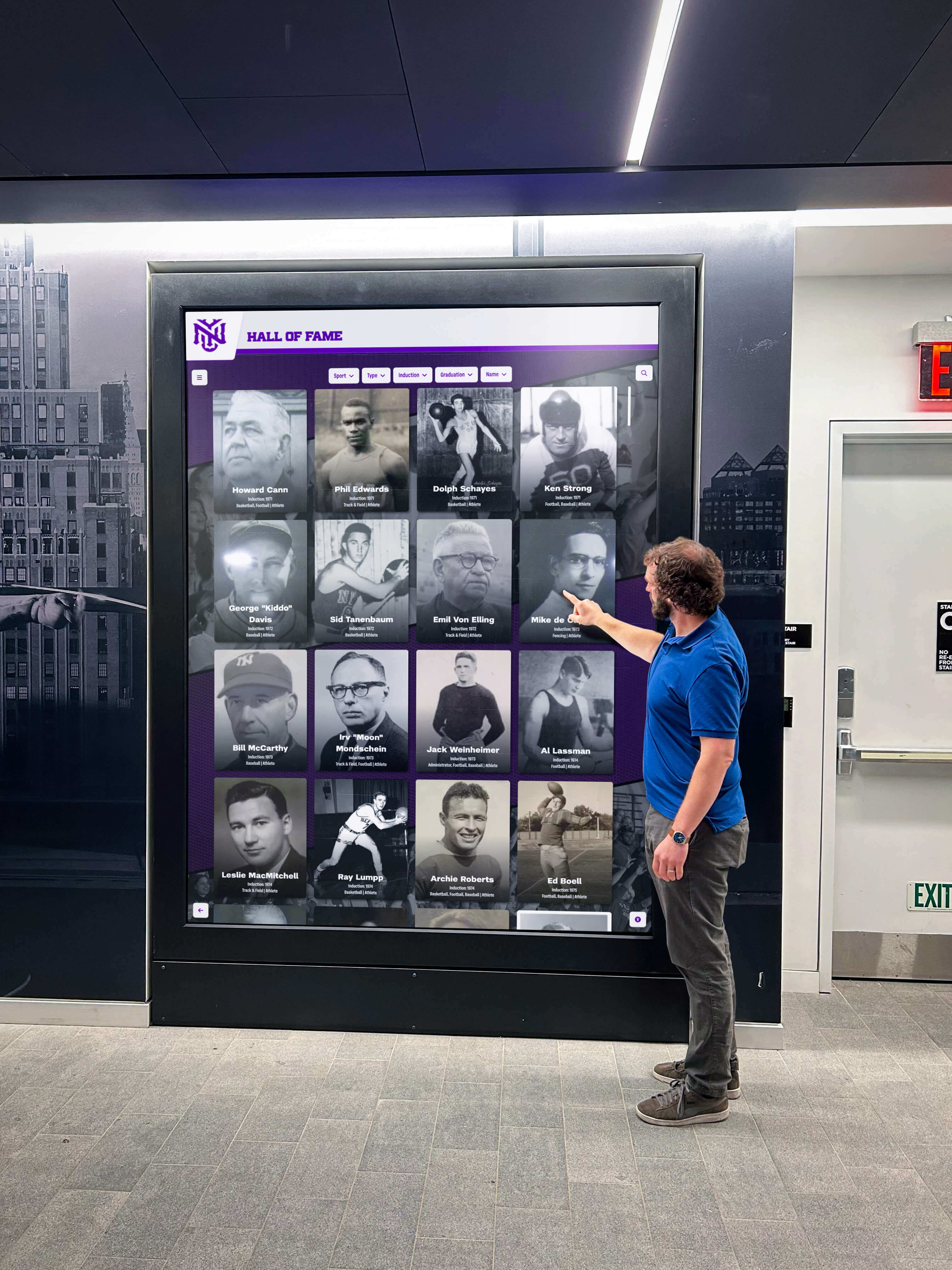
Recognition displays that serve interactive content for visitors and students require a clear path MTU — MSS clamping at the firewall is the most network-safe resolution for schools with VPN or WAN uplinks
VPN and WAN Tunnel Complications
School districts that route recognition display traffic through a centralized district-level firewall or VPN concentrator before it reaches the internet face compounded MTU reduction. A display at a school site connecting to a cloud-hosted recognition platform may cross:
- The school’s local LAN (MTU 1500)
- A site-to-district VPN tunnel (effective MTU ~1430–1450 after encapsulation overhead)
- The district’s WAN uplink (MTU may differ from 1500 depending on the ISP circuit type)
Each hop may reduce the effective payload size. The ping test from Step 2 identifies the minimum MTU across all hops — that is the value to use when setting the MSS clamp.
Platforms for virtual and hybrid hall of fame experiences that stream high-resolution gallery content to school displays are particularly exposed to district-level VPN MTU reduction. If the platform’s media assets load correctly from the district office but not from school sites, a VPN-induced MTU mismatch is the most likely explanation.
Printable Firewall Rule Checklist for PMTUD
Use this checklist when reviewing firewall rules with a network administrator:
- ICMP Type 3 (Destination Unreachable) is not blocked outbound from the display VLAN
- ICMP Type 3 Code 4 (Fragmentation Needed) is not blocked inbound from external addresses to the display VLAN
- TCP MSS clamping is enabled on the WAN interface if ICMP Type 3 Code 4 remains blocked for security reasons
- The MSS clamp value is set to path MTU − 40 (confirmed by the ping test in Step 2)
- VPN tunnel configurations specify the tunnel’s effective MTU to downstream devices
- No “deny all ICMP” rule is applied without a preceding allow for Type 3 Code 4
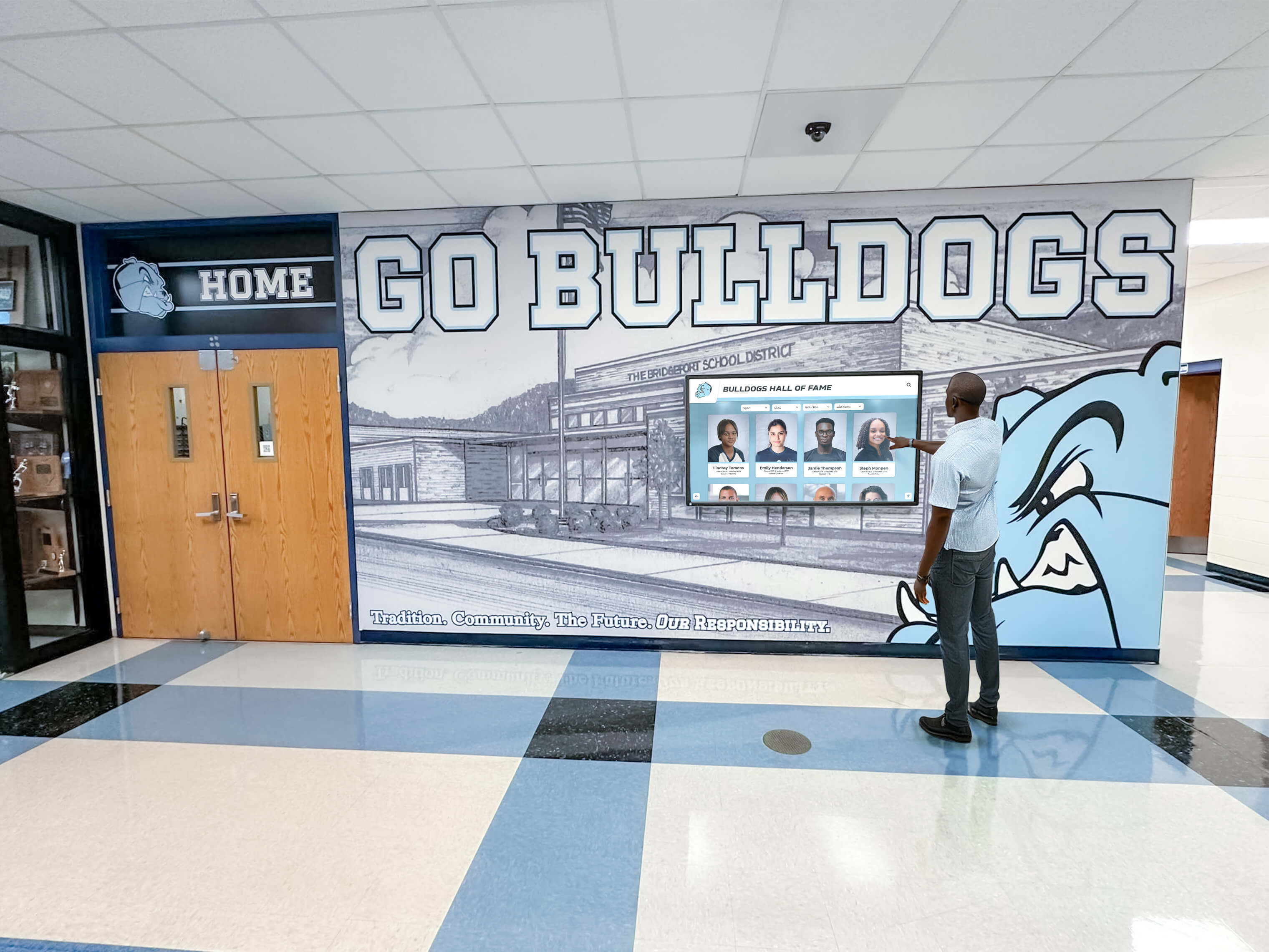
The firewall checklist above takes under five minutes to review with a network administrator and resolves the majority of recognition display media loading failures caused by PMTUD breakdown
After the Test: Related Network Checks
A passing PMTUD test confirms the path MTU is correctly configured and ICMP feedback is reaching the sender. If media loading failures persist after the PMTUD check passes, the following related checks address other network failure modes specific to school recognition display installations:
- Ethernet duplex and speed negotiation: half-duplex mismatches between the display’s NIC and the switch port cause packet collisions that mimic MTU black hole symptoms. A dedicated recognition display parallax error test and ethernet auto-negotiation review address this separately.
- DNS resolution: a display that resolves the content platform’s hostname to the wrong IP — common on split-horizon DNS setups — will establish a session that works at the packet level but delivers wrong content or fails TLS validation.
- TLS certificate validity windows: displays with drifted clocks reject valid TLS certificates. NTP synchronization should be verified as a companion step to any PMTUD test.
Chess club and small-group recognition display programs that rely on cloud-hosted recognition platforms are as exposed to PMTUD failures as large athletics installations — the failure mode does not scale with the size of the recognition program. Any display connecting to a remote content platform across a school firewall should be tested.
Once network-layer reliability is confirmed, digital hall of fame WCAG accessibility audits are the natural follow-on for schools working to ensure recognition content is both consistently delivered and fully accessible.
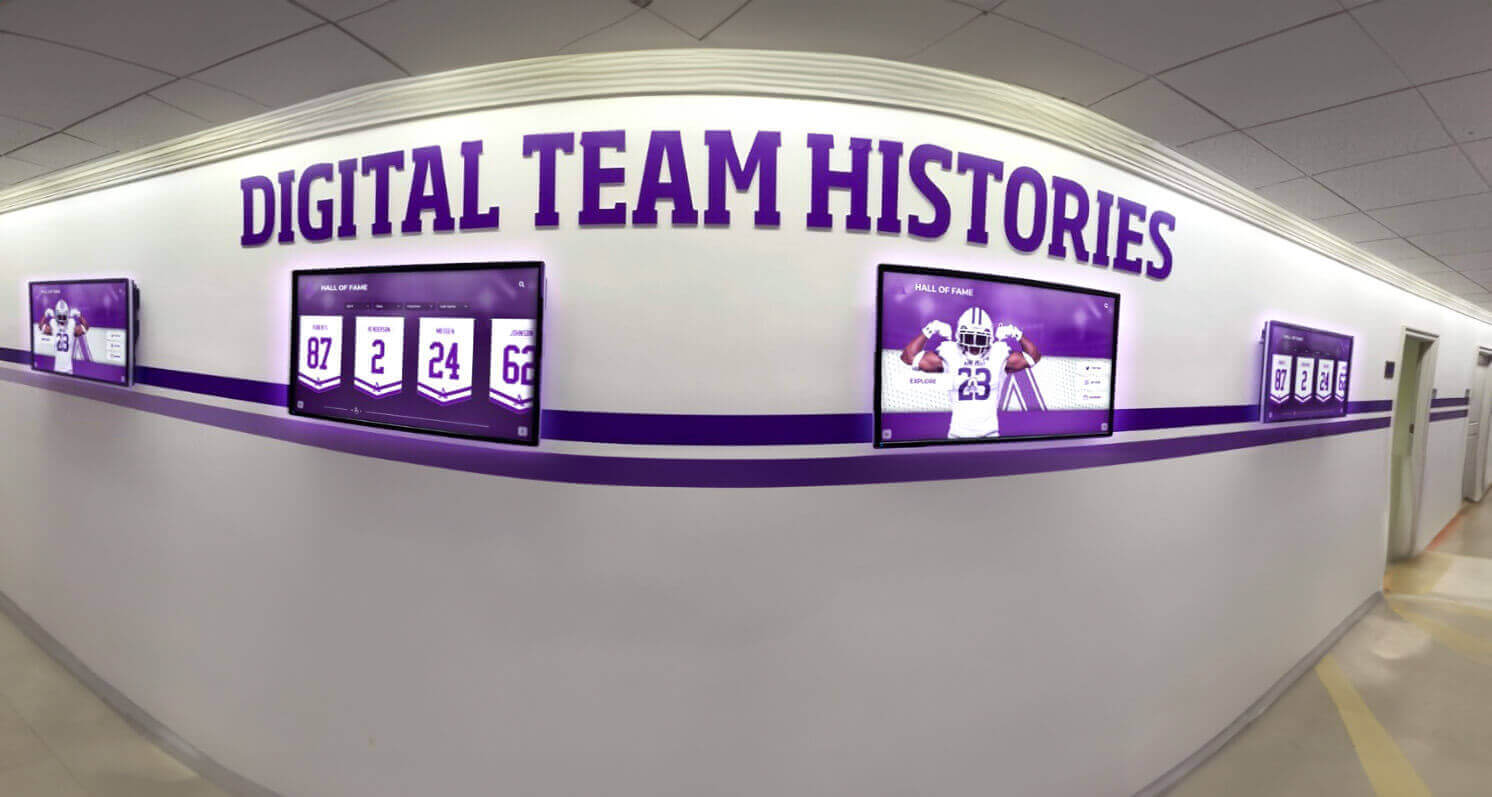
Multi-display recognition installations that serve content from a remote platform benefit from a full network stack review: PMTUD, NTP synchronization, DNS resolution, and TLS configuration each contribute to reliable content delivery
Prevent Media Loading Failures Before They Interrupt Recognition Events
A school recognition display that fails to load an athlete’s portrait during an induction ceremony, drops video during a senior night tribute, or shows blank panels during a donor recognition event creates a visible gap in an experience that your community worked hard to create. The recognition display path MTU discovery test in this checklist takes 20–30 minutes to complete. Running it during initial installation and after any network infrastructure change — new firewall rules, VPN configuration updates, VLAN restructuring, or WAN circuit changes — prevents the silent packet-drop failures that only surface at the worst possible moment.
Rocket Alumni Solutions designs recognition display systems that are built to perform reliably on the network conditions typical in school environments, with technical onboarding that includes display network validation as part of the setup process. If your school is evaluating a recognition display platform and wants to understand what a complete network readiness review looks like before installation, the team can walk through it with your IT staff.
Ready to see a recognition display that’s built for your school’s network?
Request a demo from Rocket Alumni Solutions to see how the platform performs in real school network environments — including schools with complex VPN, VLAN, and firewall configurations.