Intent: decide — School recognition display NTP clock synchronization determines whether the timestamps on scheduled content, event logs, and device sync reports reflect reality or quietly drift into inconsistency. A recognition display that publishes a scheduled induction announcement twelve minutes late, logs a content update at the wrong hour, or fires a rotating tribute on the wrong calendar date creates problems that compound over time: audit trails become unreliable, scheduled events misfire, and IT staff troubleshoot symptoms rather than the root cause.
Network Time Protocol (NTP) is the mechanism by which computers agree on the correct time. A school recognition display running on a Windows or Linux media player, a web-based touchscreen kiosk, or an embedded smart-display platform all depend on NTP to stay synchronized with the rest of the school network. When NTP is misconfigured or blocked by a firewall rule, the device drifts — slowly at first, then faster — until scheduled content fires at the wrong time, log entries cannot be correlated with real events, and content management system sync checks fail silently.
This checklist walks school IT coordinators, AV technicians, facilities teams, and athletic directors through every layer of NTP configuration for recognition display deployments: from the domain-level time hierarchy down to the individual display device, with verification commands, common school network failure modes, and a printable checklist for IT handoff.
School recognition display NTP clock synchronization is one of the least visible maintenance tasks in a digital display program — and one of the most consequential when it fails. A thirty-minute review of time configuration across your display network prevents scheduling and logging drift that only surfaces during events, when it is too late to fix quietly.

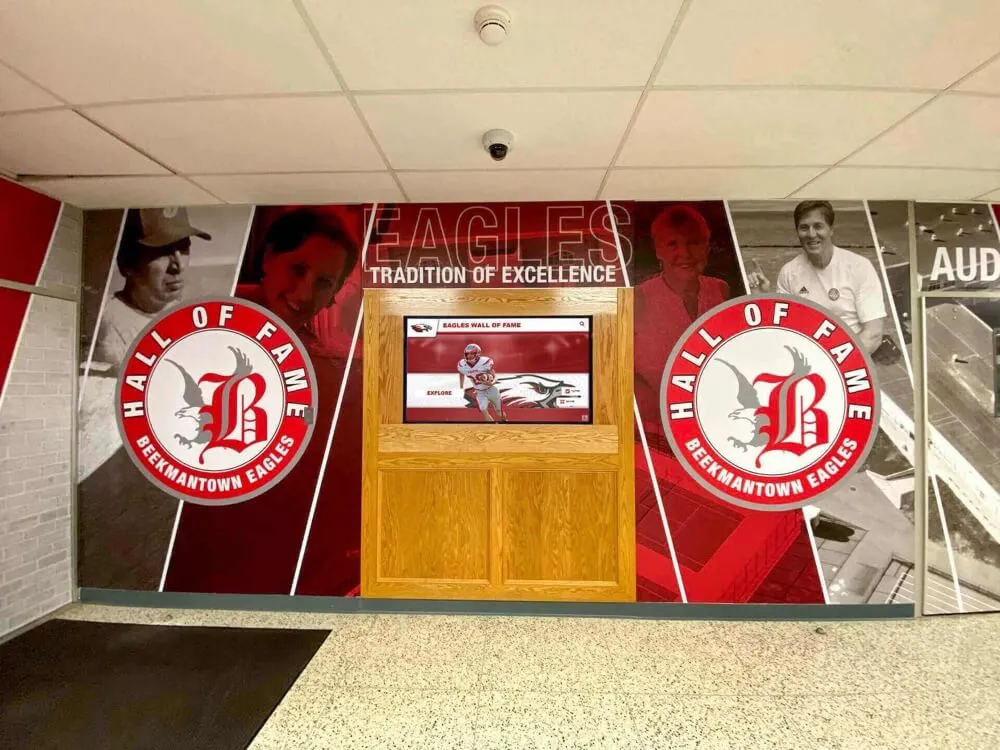
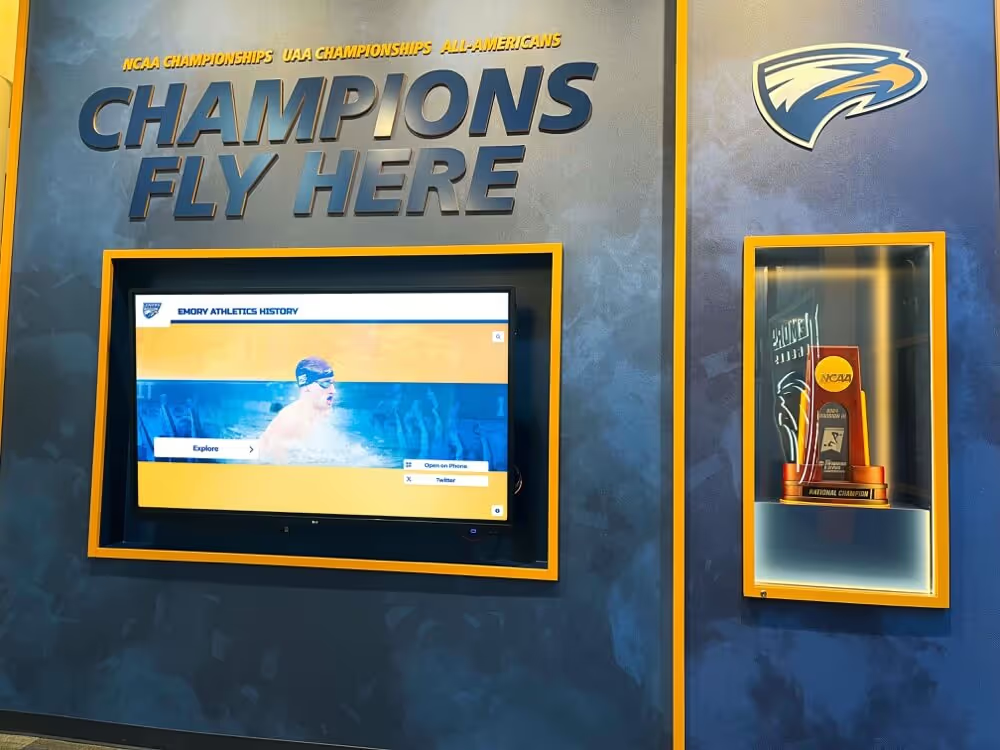
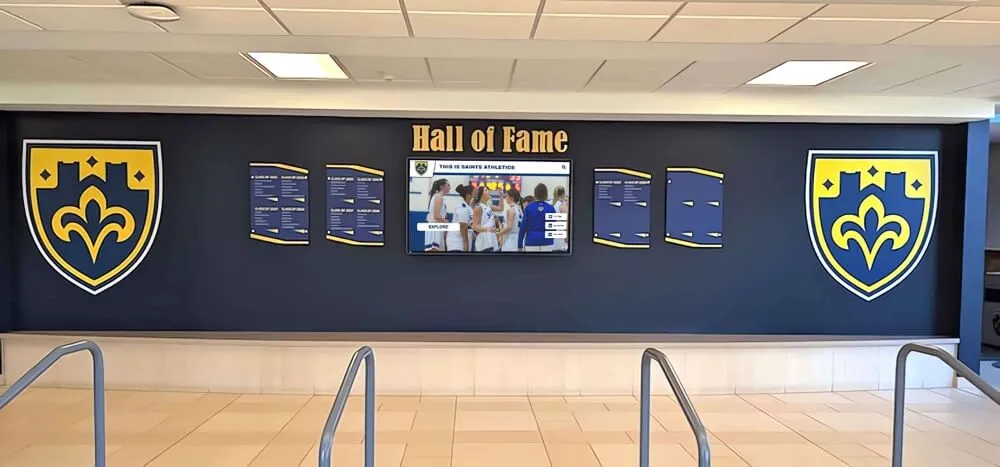
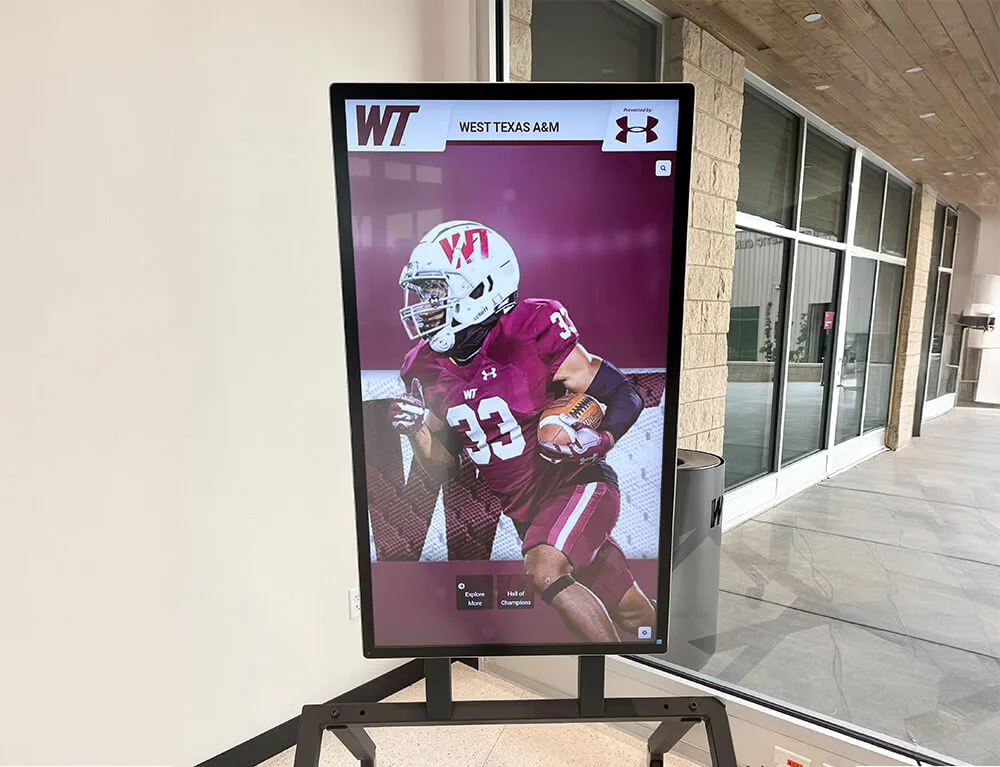
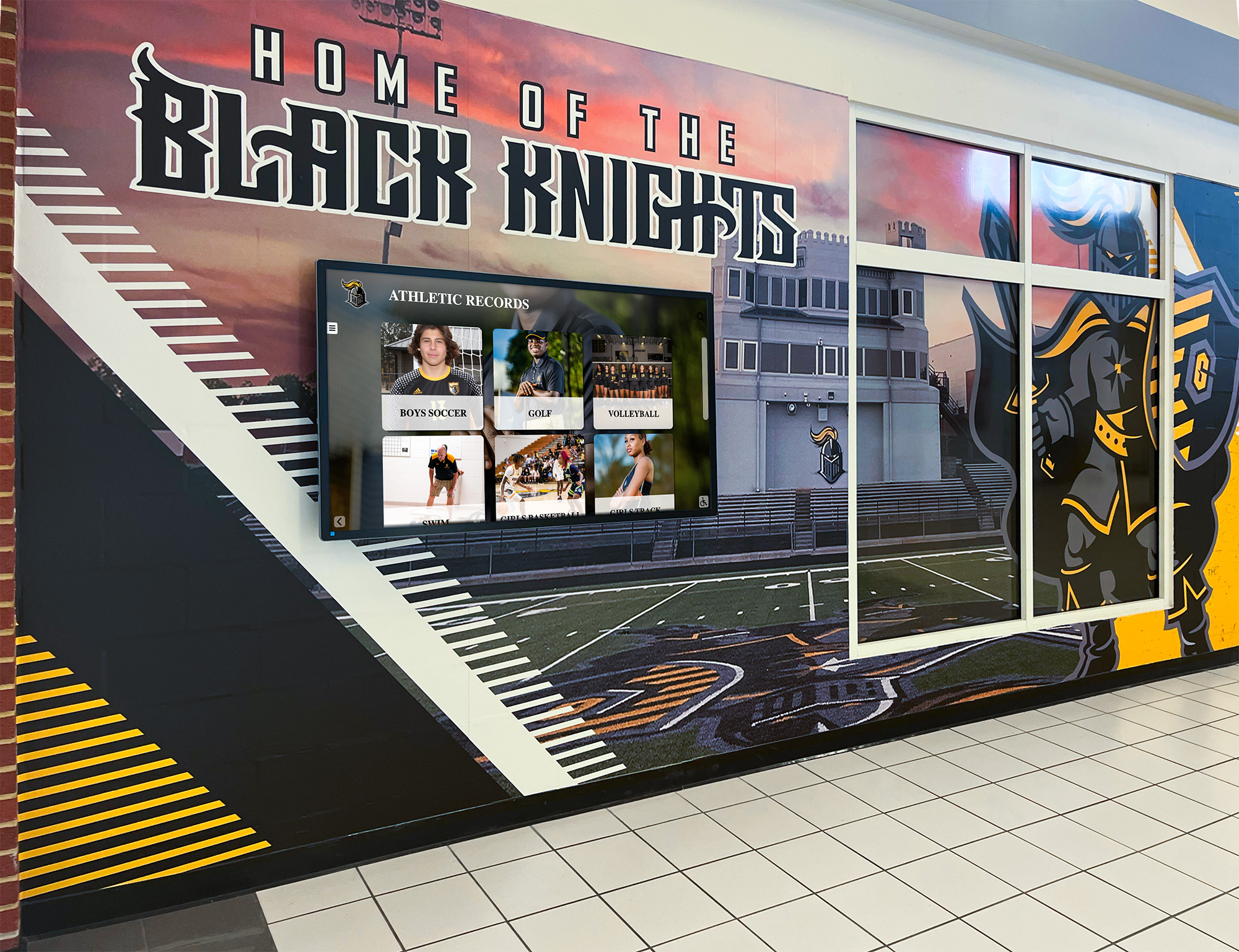
Recognition displays in school hallways serve scheduled content, live event logs, and synchronized induction timelines — all of which depend on accurate NTP clock synchronization to remain trustworthy
What NTP Clock Synchronization Means for School Recognition Displays
NTP keeps devices on the same time by having each device periodically query one or more time servers, compare the response against its local clock, and apply a small correction. The protocol is designed to work even over variable-latency networks: it measures round-trip delay and adjusts its correction to account for the time the packet spent in transit.
For a standalone office computer, NTP misconfiguration is a minor nuisance. For a school recognition display, the stakes are higher:
Scheduled content publishing: Content management systems for recognition platforms allow administrators to schedule specific items to appear at specific times — an induction announcement on the ceremony date, a senior recognition gallery for graduation week, a state-championship tribute on the anniversary of the win. All of those triggers depend on the display device’s clock matching the content platform’s clock. A device drifted by more than a few minutes will publish content late, early, or not at all.
Event log integrity: Recognition platforms generate logs of content updates, touchscreen interactions, and administrative changes. Auditing those logs requires timestamps that match the school’s other systems. A display device running twenty minutes fast produces log entries that appear to precede the administrative actions that caused them — which makes troubleshooting nearly impossible.
Certificate and TLS validation: Web-based recognition platforms communicate with display devices over HTTPS. TLS certificates carry validity windows. A device clock drifted more than a few minutes outside the certificate’s valid period will reject the connection as an invalid certificate, effectively taking the display offline until the clock is corrected.
Multi-display consistency: Schools running recognition content across multiple lobby and hallway displays expect synchronized transitions — content that rotates on all screens at the same moment. Displays with independent clock drift transition at slightly different times, producing a visible stagger across a hallway installation.
All-state athlete recognition programs that schedule announcement content around selection dates are directly exposed to this failure mode: a recognition display that publishes a day before the official announcement date, because its clock is off by 22 hours, creates a public relations problem that technical troubleshooting cannot easily reverse.
How School Networks Complicate NTP Synchronization
A general-purpose office or home network almost never has NTP problems because consumer routers include a built-in NTP client that keeps all devices synchronized transparently. School networks are more complex, and that complexity creates specific failure modes for recognition display devices.
Domain Time Hierarchy
Schools running Windows-domain infrastructure typically rely on Active Directory’s built-in time synchronization. The domain follows a hierarchy:
- The PDC emulator — the primary domain controller designated as the root time source — synchronizes with an external NTP server on the internet.
- All other domain controllers sync from the PDC emulator.
- Domain-joined workstations and servers sync from domain controllers automatically through the Windows Time Service (w32tm).
A recognition display device that is joined to the school domain will automatically inherit this hierarchy — if the domain time hierarchy itself is configured correctly. When the PDC emulator is not pointed at a reliable external NTP source, every device downstream drifts in unison. The displays look synchronized with each other but are collectively wrong relative to the real world.
A recognition display device that is not joined to the domain — common for standalone media player boxes, Linux-based signage players, and embedded display hardware — must have its NTP configuration set independently. It receives no automatic synchronization from the domain hierarchy.
Firewall Rules Blocking NTP Traffic
NTP uses UDP port 123. School network firewalls frequently restrict outbound traffic to a limited set of approved ports and protocols. If UDP 123 is blocked at the perimeter firewall, a non-domain display device cannot reach public NTP servers. The device falls back to its hardware clock, which drifts without correction.
This failure is silent: the display device shows a time (just not the right one), the content platform continues to accept connections (until the clock drifts far enough to cause TLS failures), and no obvious error message appears. The symptom — content publishing late or early — typically surfaces days or weeks after the firewall rule was applied.
VLAN Segmentation
Many schools segment their networks: student devices on one VLAN, administrative devices on another, AV and display hardware on a third. Recognition display devices placed on an AV or guest VLAN may not have routing access to the domain controllers or internal NTP servers on the administrative VLAN. Without that routing path, domain-joined display devices cannot sync from domain controllers, and non-domain devices must reach external NTP servers directly.
High school state championship bracket displays are often installed in gymnasiums or auxiliary spaces on separate network segments. If those segments lack NTP access, displays managing real-time bracket updates or scheduled tournament content will drift out of alignment with the administrative content platform.
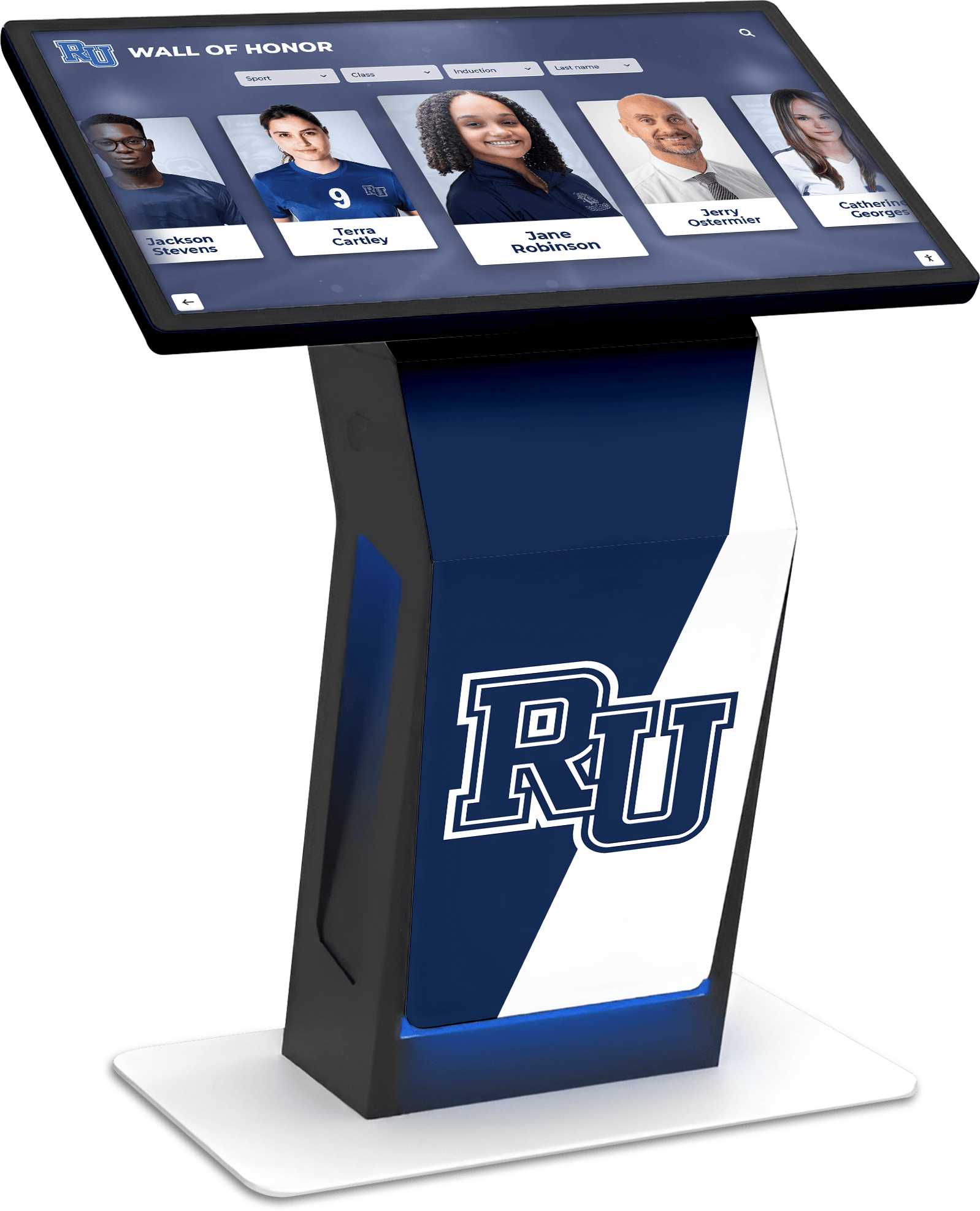
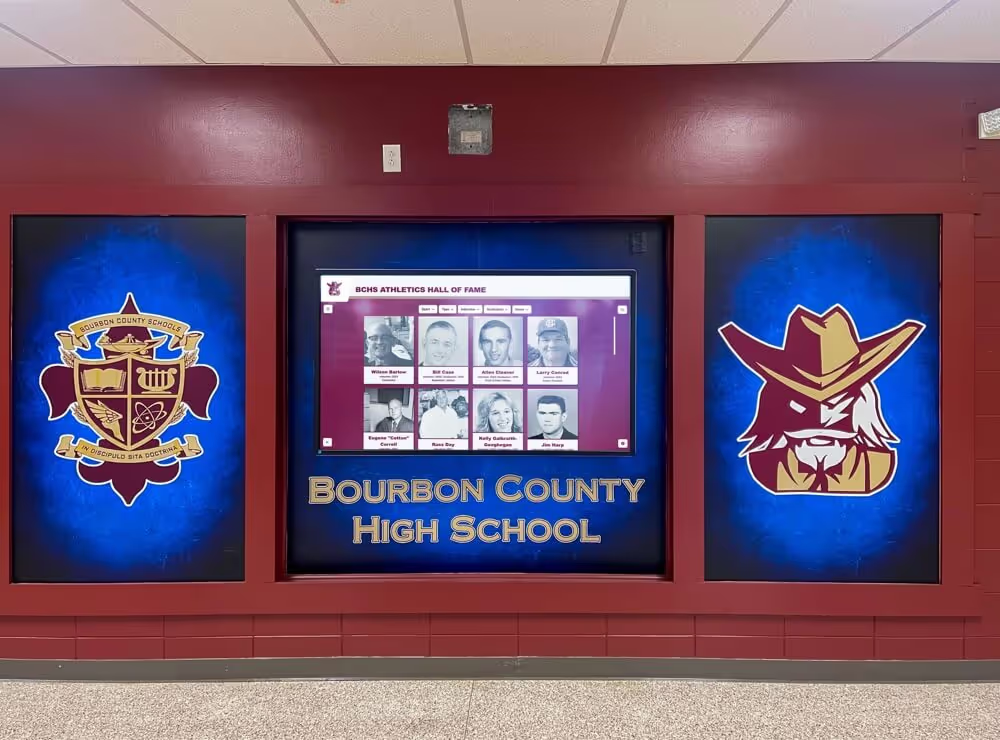
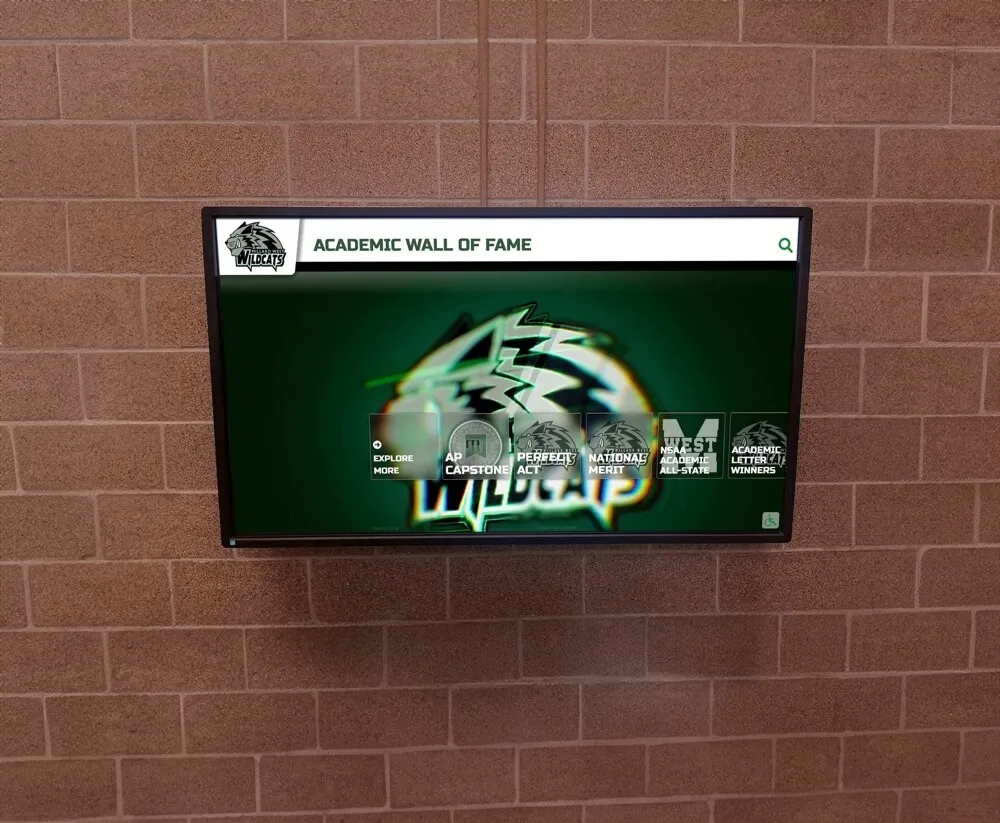
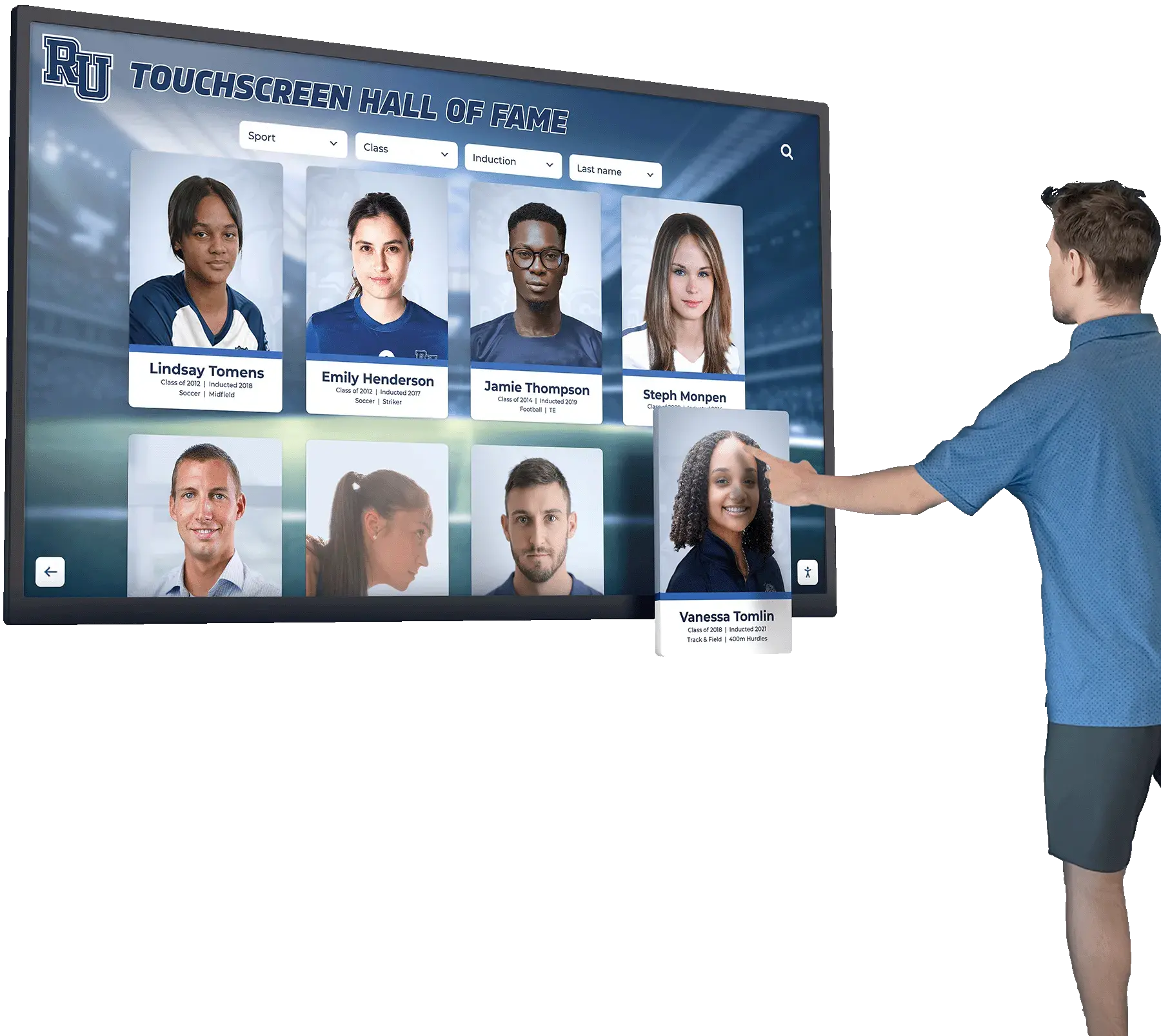
Interactive recognition kiosks that deliver scheduled induction content and event-triggered displays depend on NTP synchronization to fire content at the correct time — a drifted device clock disrupts scheduling silently
NTP Synchronization Reference: School Network Configuration Table
| Device Type | Default NTP Source | Common Failure Mode | Verification Command |
|---|---|---|---|
| Windows PC, domain-joined | Domain controller via w32tm | PDC emulator not syncing to external NTP | w32tm /query /status |
| Windows PC, workgroup (not domain) | time.windows.com (Microsoft) | UDP 123 blocked at firewall | w32tm /query /status |
| Linux media player (systemd-timesyncd) | NTP pool via systemd | Misconfigured /etc/systemd/timesyncd.conf | timedatectl status |
| Linux media player (ntpd) | Configured pool servers | Wrong pool or unreachable servers | ntpq -p |
| Android-based signage player | Google NTP servers | UDP 123 blocked; wrong time zone | Settings → Date & Time |
| Embedded smart display | Manufacturer default NTP | Manufacturer server unreachable on school net | Display settings menu |
| Network switch (for log timestamps) | Configured NTP server | NTP not configured; syslog timestamps unreliable | show ntp status (Cisco IOS) |
Step-by-Step School IT Checklist: Recognition Display NTP Clock Synchronization
Work through this checklist during initial display installation, at the start of each school year, and after any significant network change including firewall rule updates, VLAN restructuring, or domain controller changes.
Step 1 — Identify Every Recognition Display Device Type and Its NTP Path
Before testing any configuration, document what you have. List every recognition display device — including media players, kiosk controllers, and standalone smart displays — and classify each one:
- Domain-joined Windows device: Will inherit NTP from domain hierarchy. Verify the domain hierarchy itself is configured correctly (Step 2).
- Workgroup Windows device: Must reach an external NTP server directly. Verify UDP 123 is not blocked (Step 4).
- Linux-based signage player: Check whether it uses
systemd-timesyncdorntpd. Each has a different configuration file and verification command. - Android or embedded display: Verify in the device’s Date & Time settings whether automatic time synchronization is enabled and whether it has network access to its NTP source.
Record each device’s IP address, OS type, and domain membership. This inventory is the reference for every subsequent step. If you are adding NTP synchronization to a recognition program that already manages catholic honors student displays or multi-building recognition networks, the inventory step reveals which devices have been overlooked in previous IT reviews.
Step 2 — Verify the Domain Time Hierarchy (Windows Domain Environments)
For any domain-joined recognition display, the PDC emulator is the upstream dependency. Run this step on a domain controller with administrative access.
Identify the PDC emulator:
netdom query fsmo
Look for the line beginning PDC. That machine name is your root time source for the domain.
Check the PDC emulator’s NTP configuration:
On the PDC emulator itself, run:
w32tm /query /configuration
Look for Type: NTP and a NtpServer value pointing to an external time source. Acceptable external sources include:
time.windows.com(Microsoft’s public NTP pool)pool.ntp.org(public NTP pool project)- NIST time servers:
time.nist.gov,time-a.nist.gov - Your internet service provider’s NTP server if specified in your contract
If Type reads NT5DS (domain hierarchy) instead of NTP, the PDC emulator is syncing from another domain controller rather than an external source. This is the most common root cause of domain-wide time drift in school networks.
Correct the PDC emulator configuration:
w32tm /config /manualpeerlist:"time.windows.com,0x8" /syncfromflags:manual /reliable:YES /update
net stop w32tm
net start w32tm
w32tm /resync /force
Verify sync status after correction:
w32tm /query /status
Confirm Source shows the external NTP server and Last Successful Sync Time is recent (within the last hour).
Step 3 — Check Sync Status on Each Recognition Display Device
Windows display devices (domain-joined or workgroup):
On the display device itself:
w32tm /query /status
Key fields to check:
| Field | What to Look For |
|---|---|
Source | Should show a domain controller name (domain-joined) or external NTP hostname (workgroup) — not Local CMOS Clock |
Last Successful Sync Time | Should be within the past hour |
Phase Offset | Should be under 1 second; values over 5 seconds indicate a sync problem |
Root Delay | Should be under 200 ms on a school LAN connection |
If Source reads Local CMOS Clock, the device has lost NTP contact and is running on its hardware clock alone. This is the critical failure state.
Linux display devices (systemd-timesyncd):
timedatectl status
Check that NTP synchronized: yes appears. If NTP synchronized: no, run:
systemctl status systemd-timesyncd
Review the output for connection errors or misconfigured server addresses. The configuration file is /etc/systemd/timesyncd.conf — verify the NTP= line points to a reachable server.
Linux display devices (ntpd):
ntpq -p
Look for at least one peer row with an asterisk (*) in the leftmost column — that indicates the currently selected synchronization source. An asterisk on a peer means ntpd has established sync. If all rows show only +, -, or blank in the first column, ntpd has not yet selected a source or cannot reach any configured servers.
Step 4 — Verify UDP Port 123 Is Not Blocked
This step applies to any recognition display device that must reach NTP servers outside the school’s internal network — typically non-domain devices and any device on a guest or AV VLAN without internal NTP server access.
Test NTP connectivity from the display device (Windows):
w32tm /stripchart /computer:time.windows.com /dataonly /samples:5
If this returns five rows of offset data, UDP 123 is open to the target server. If it times out or returns an error, the port is blocked between the display device and the target.
Test NTP connectivity from the display device (Linux):
ntpdate -q pool.ntp.org
A successful response shows the server address and offset. A timeout means UDP 123 is blocked or the server is unreachable on that VLAN.
What to do if the port is blocked:
Work with your network administrator to implement one of the following:
- Open UDP 123 outbound from the display device’s IP or subnet to the internet for NTP traffic — the lowest-overhead solution.
- Deploy an internal NTP server on the administrative network and open routing between the display VLAN and the internal NTP server’s IP on UDP 123. This keeps time traffic internal and avoids opening outbound UDP 123 to the internet.
- Assign display devices to the domain VLAN with routing to domain controllers, allowing them to join the domain and inherit NTP automatically.
Option 2 — an internal NTP server — is the approach most school IT teams prefer for display networks with strict outbound traffic policies, because it minimizes firewall changes while providing reliable synchronization.
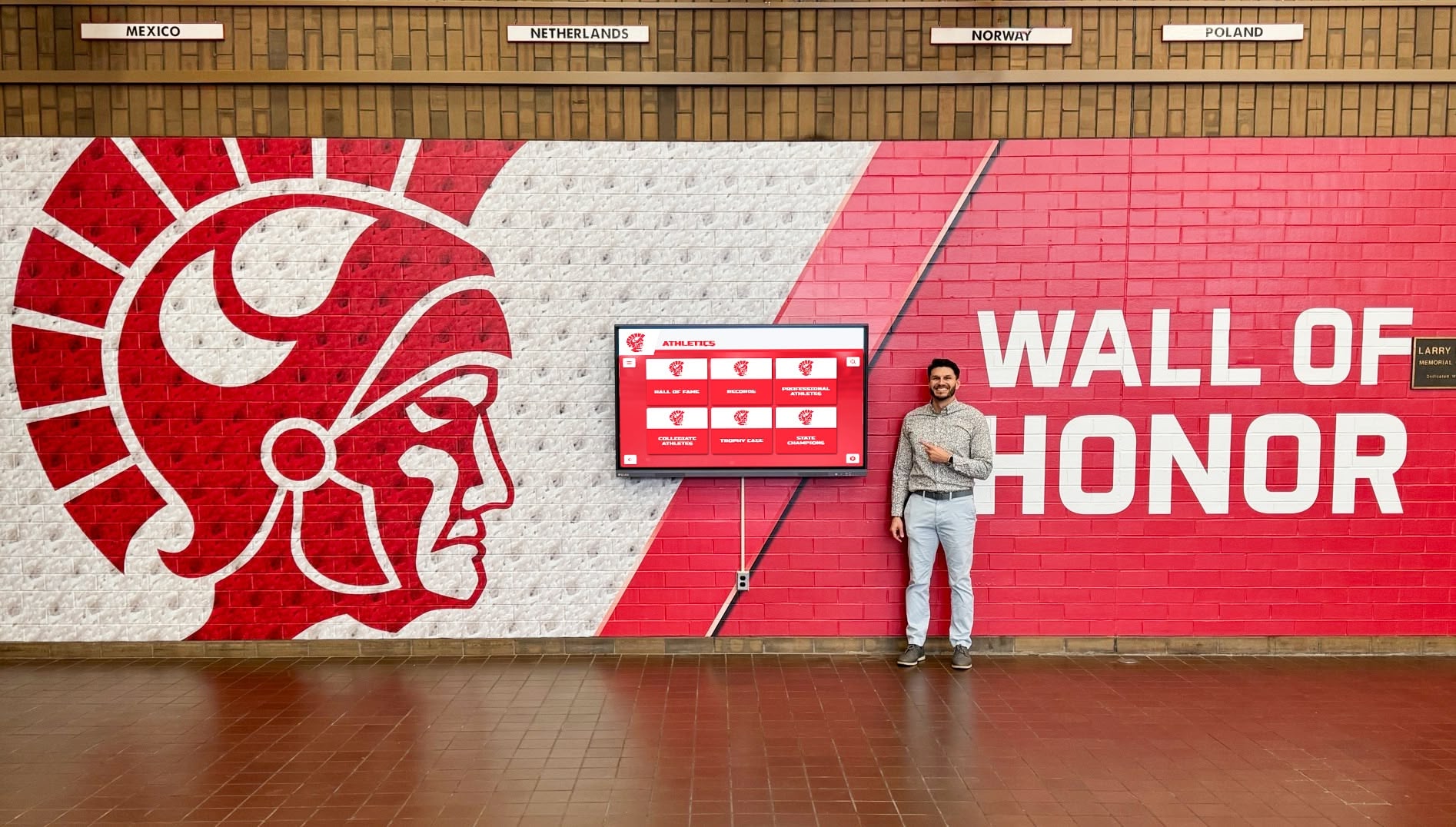
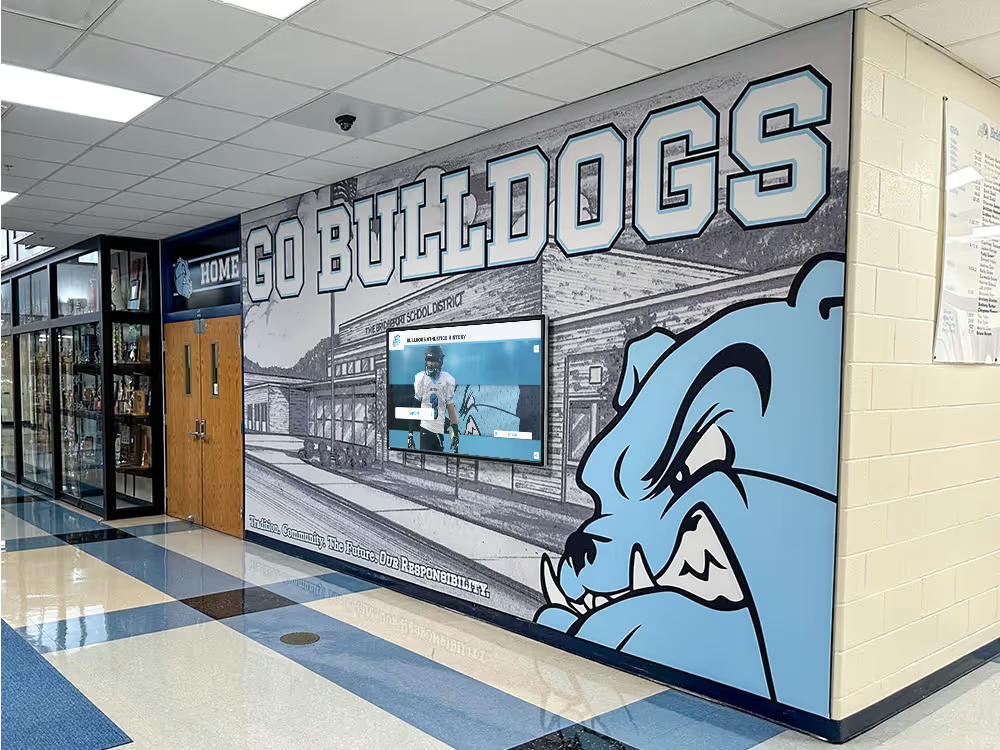
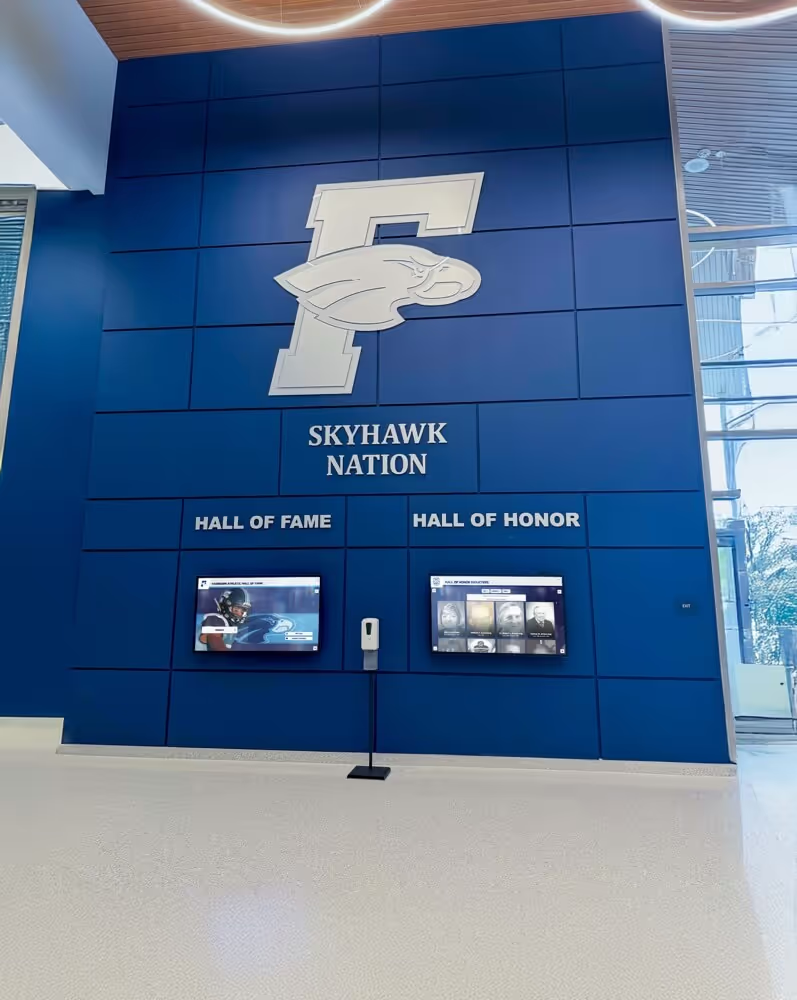
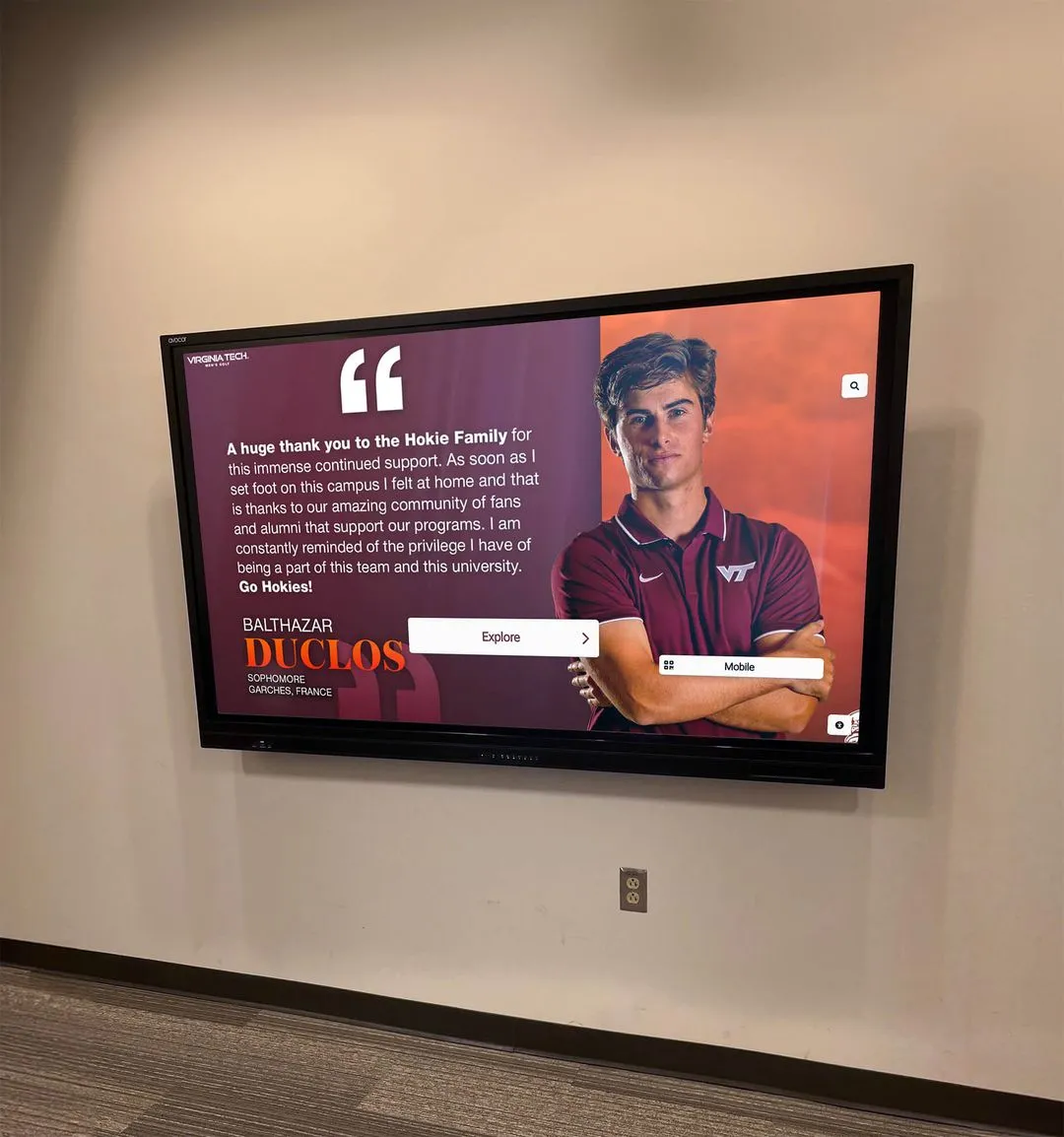
Recognition displays that show scheduled induction content and time-triggered tribute slides must synchronize their clocks reliably — IT teams that run NTP verification during initial installation avoid the scheduling failures that emerge weeks later
Step 5 — Set the Correct Time Zone on Every Display Device
NTP synchronizes UTC time. The display device’s time zone setting converts UTC to local time. A display device with a correct NTP sync but the wrong time zone will schedule content for the wrong local time — a failure that looks identical to an NTP problem on the surface.
Verify time zone on Windows:
tzutil /g
The output should match your school’s time zone, for example Eastern Standard Time or Central Standard Time. Set it if incorrect:
tzutil /s "Eastern Standard Time"
Verify time zone on Linux:
timedatectl
Check the Time zone: line. Set it if incorrect:
timedatectl set-timezone America/New_York
Verify time zone on embedded and Android displays:
Access the device’s Date & Time settings through the system settings menu. Confirm automatic time zone detection is enabled or that the correct zone is manually selected.
Document the correct time zone alongside the device inventory from Step 1.
Step 6 — Verify Time Accuracy Against a Known Reference
After confirming NTP configuration, check that each display device’s local time is actually accurate — not merely that NTP is running.
On Windows:
w32tm /stripchart /computer:time.windows.com /dataonly /samples:3
The offset column shows how far the local clock deviates from the reference. Values under one second are normal. Values over five seconds indicate that NTP is configured but has not yet corrected a large drift — wait for a forced resync:
w32tm /resync /force
On Linux (systemd-timesyncd):
timedatectl show-timesync --all
Review SystemTime and ReferenceTime — they should be within seconds of each other.
Manual cross-check:
Compare the recognition display’s system clock to a reference such as time.is or a synchronized smartphone. If the display shows a time more than one minute different from the reference after NTP correction, investigate whether the hardware clock (BIOS/CMOS clock on Windows, hardware RTC on Linux) is set correctly. A damaged CMOS battery causes a hardware clock to reset to a default date at every reboot, making NTP corrections temporary.
Step 7 — Configure Scheduled NTP Resync Logging
Many recognition platform support tickets about wrong-time content scheduling are caused by clocks that were correctly synchronized at installation but drifted without anyone noticing. Configuring a simple automated check catches drift before it affects content delivery.
Windows — log NTP sync events:
Windows logs NTP resync events in the System event log under Event ID 37 (time sync successful) and Event ID 29 (time sync failed). Set an alert in your school’s monitoring system to page IT staff when Event ID 29 appears on recognition display devices.
Linux — verify sync status via cron:
Add a daily cron job that writes NTP sync status to a log file and sends an alert if sync is lost:
0 6 * * * timedatectl | grep "NTP synchronized" >> /var/log/ntp-check.log
Reviewing this log during weekly IT checks catches drift before it accumulates to a problematic level.
Content platform sync reports:
Web-based recognition platforms that log content update events generate timestamps from their own server clock, not the display device’s clock. Compare server-side event timestamps against display-side event timestamps periodically. A growing discrepancy between these two clocks indicates that one of them has drifted — and which one has drifted tells you which side needs attention.
Hall of fame software platforms that include event logging for administrative changes, inductee additions, and content schedule modifications generate more useful audit trails when display device clocks and server clocks are aligned — a detail that matters particularly during grant reporting or program review cycles.
Step 8 — Document the NTP Configuration for Each Display
After completing verification and any corrections, record the following for every recognition display device in the installation:
- Device hostname and IP address
- OS type and version
- Domain membership status
- NTP source (server name or hostname)
- Time zone setting
- Last confirmed sync time and offset at time of documentation
- Date and technician name
Store this documentation in the same location as the display’s installation record — alongside the ethernet auto-negotiation test results and display calibration records if those have been completed. When a display is serviced, software-updated, or replaced, the NTP documentation enables fast reconfiguration without running the full checklist from scratch.
Recognition programs that manage time-sensitive content — interactive campus storytelling for admissions seasons, anniversary tribute slideshows, or donor recognition events scheduled around advancement campaigns — should treat NTP documentation as part of the content deployment checklist, not just an IT infrastructure task.
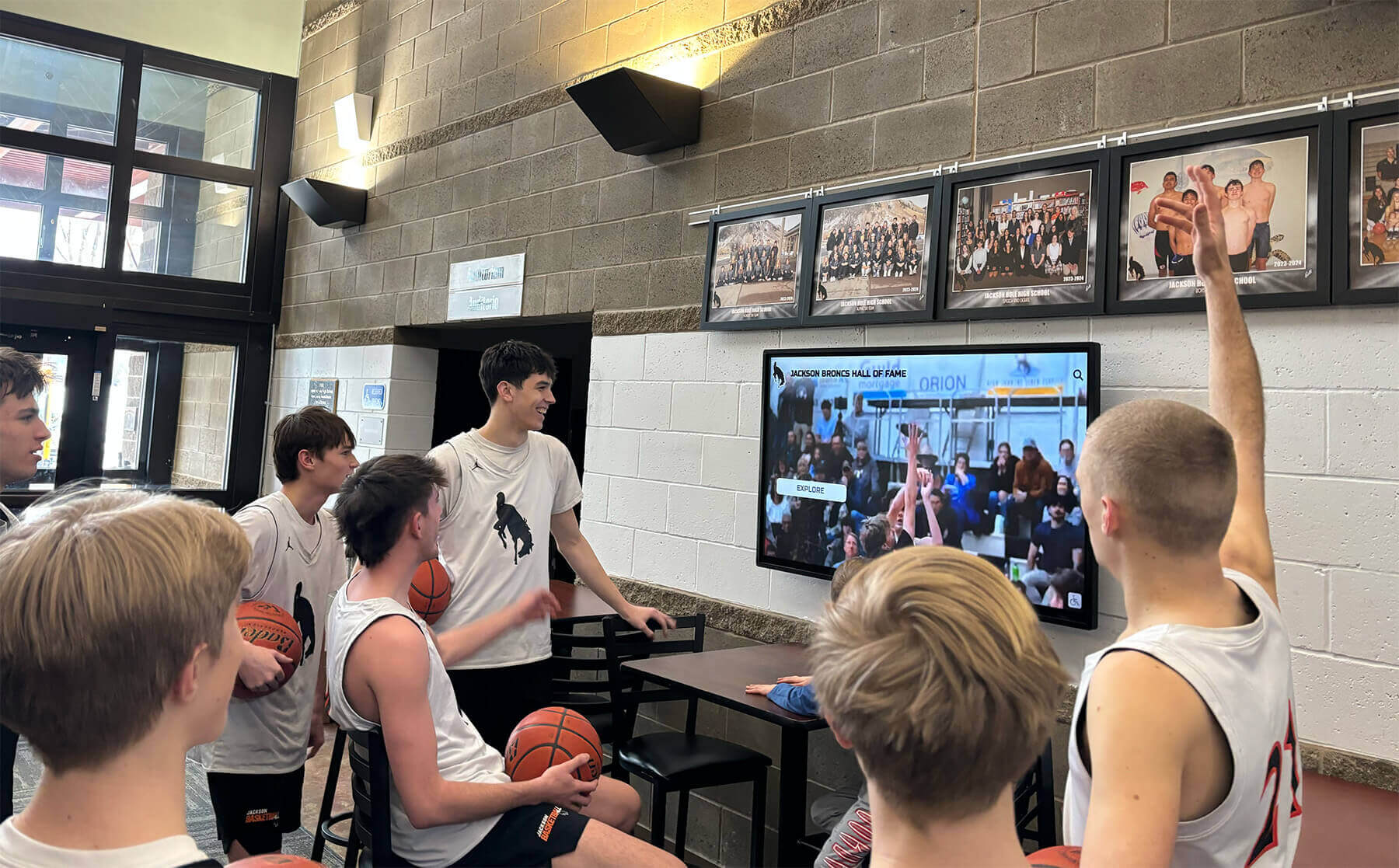
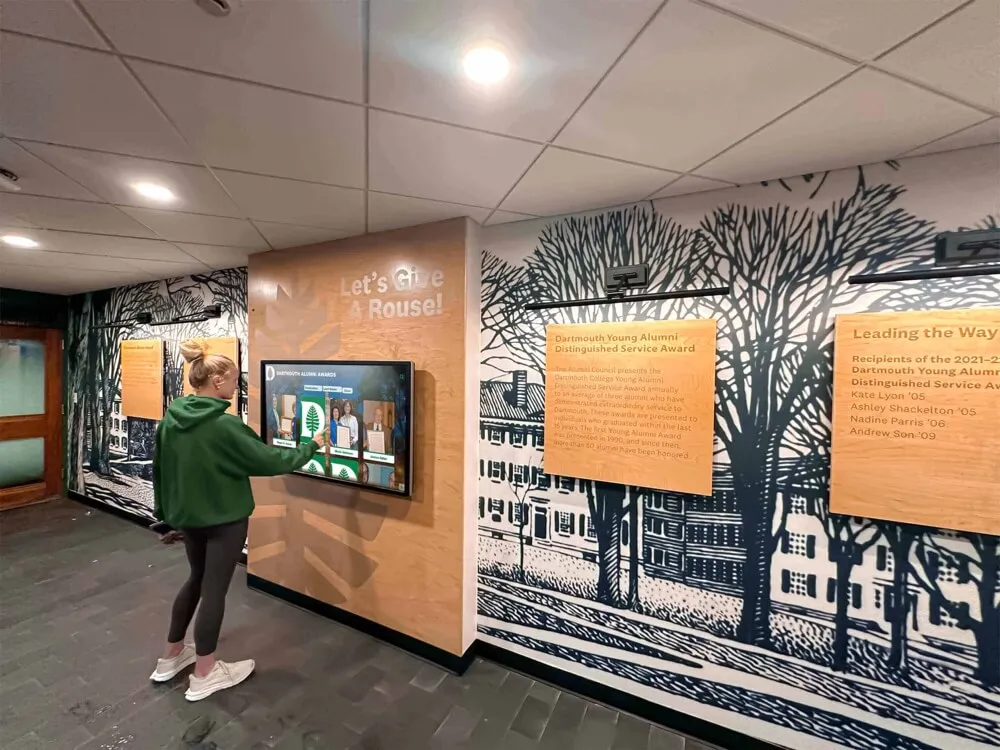
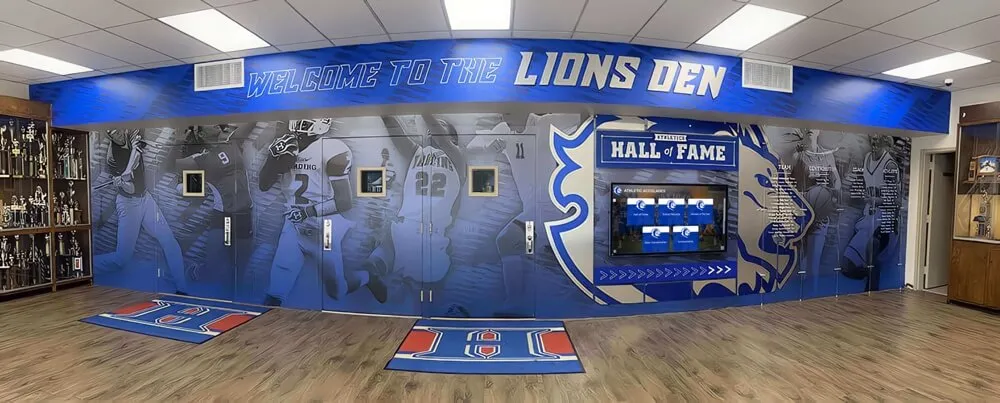
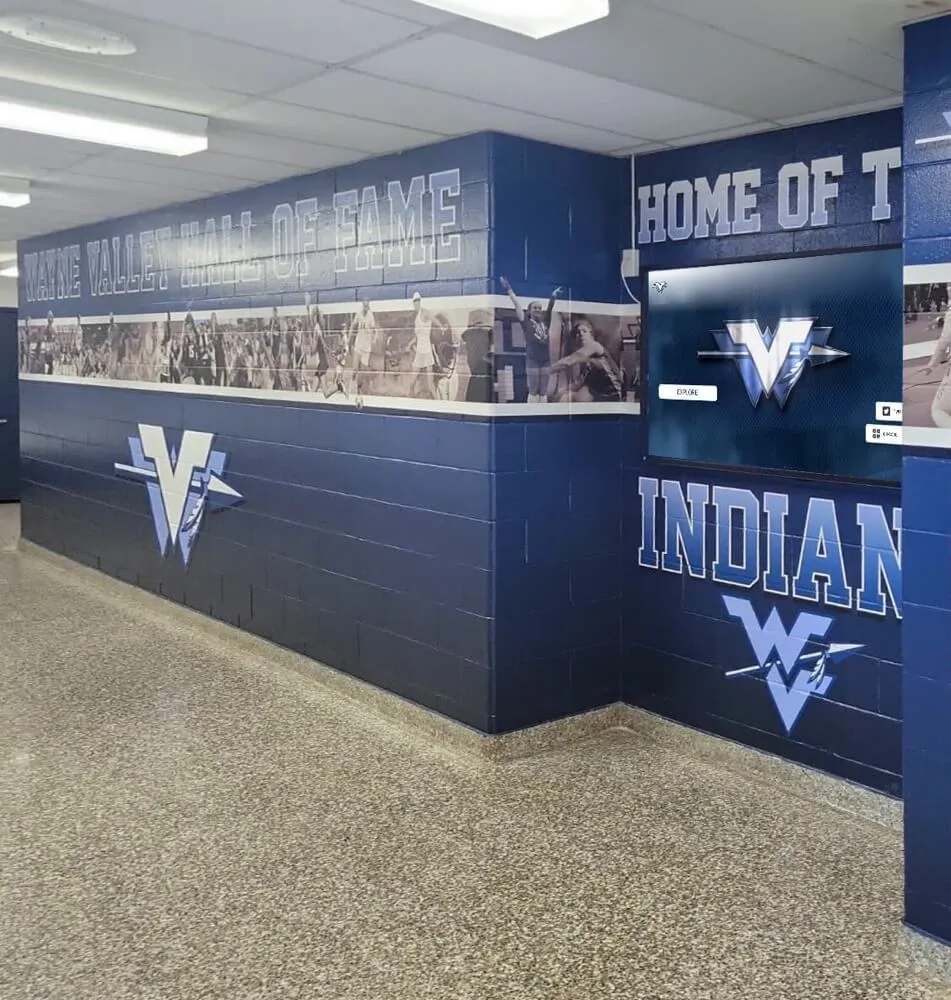
Lobby recognition displays serving scheduled athletic content and time-triggered event highlights depend on display device clocks synchronized to network time — NTP documentation ensures that time configuration is recoverable after any hardware or software change
Recognition Display NTP Clock Synchronization Master Checklist
Use this checklist during initial installation and at the start of each school year. Mark each item Pass, Needs Action, or N/A.
| Checklist Item | Status | Notes |
|---|---|---|
| Device inventory completed (OS type, domain status, IP for each display) | ||
| PDC emulator identified and confirmed syncing from external NTP source | ||
| Domain controller time hierarchy verified end-to-end | ||
| Non-domain display devices have NTP server explicitly configured | ||
| UDP port 123 confirmed open from display VLANs to NTP source | ||
w32tm /query /status shows named source (not Local CMOS Clock) on Windows devices | ||
timedatectl status shows NTP synchronized: yes on Linux devices | ||
| Phase offset under 1 second on all display devices | ||
| Time zone correctly set on every display device | ||
| Time zone matches content platform server time zone | ||
| Manual cross-check against reference time within 60 seconds | ||
| CMOS/hardware clock battery confirmed functional (not resetting to 1970 or 2001 on reboot) | ||
| NTP resync event alerting configured in school monitoring system | ||
| NTP configuration documented in display installation records | ||
| Scheduled content tested to publish within 60 seconds of intended time |
All items should reach Pass before the recognition display program is treated as production-ready. Needs Action items that involve firewall rules or domain configuration changes should be escalated to network administration before the display program launches.
What Happens When NTP Fails on a School Recognition Display
Understanding the real-world impact of time desynchronization helps prioritize the checklist above:
Scheduled induction announcements misfire: A recognition platform with scheduled content set to appear on a specific date will trigger that content based on the display device’s clock. A device drifted forward by 18 hours publishes tomorrow’s induction announcement today. A device drifted backward by 6 hours publishes this morning’s content in the late evening. Either scenario creates confusion and may require a public correction.
TLS certificate errors take the display offline: When a display device clock drifts more than approximately five minutes outside the valid window of the TLS certificate used by the recognition platform’s server, the display’s web client rejects the certificate. The display goes blank or shows an error page — and IT staff who are unfamiliar with time-related TLS failures may spend considerable time investigating the wrong cause.
Audit logs become unusable: Recognition programs that track content changes, administrator logins, and induction approvals for compliance or program review purposes depend on accurate timestamps. Log entries from a device with a drifted clock appear to precede or follow the actions that generated them, making the log unreliable for any audit purpose.
Multi-display stagger becomes visible: In a hallway installation with four panels showing rotating recognition content, each display independently syncs its content rotation to its own clock. Displays drifted by different amounts rotate at different moments — one panel transitions while the others continue, producing a visible, unprofessional stagger across the installation.
Athletic hall of fame programs that manage formal records — from championship year entries to institutional deaccession decisions — generate administrative documentation whose integrity depends on accurate timestamps across all systems. An NTP-synchronized display network supports that documentation integrity at the hardware level.
Frequently Asked Questions
Q: How often should school IT teams recheck NTP synchronization on recognition display devices?
At a minimum, run the verification commands in Step 3 at the start of each school year and after any significant network change including firewall updates, VLAN restructuring, and domain controller migrations. For recognition programs with scheduled content that fires on specific dates — induction announcements, anniversary tributes, graduation recognition slides — run a quick manual cross-check against a reference time one week before each scheduled event. This gives enough lead time to resolve any drift without affecting the event.
Q: Our recognition display is on a standalone Wi-Fi connection, not the school domain. Does NTP still apply?
Yes. A Wi-Fi-connected display that is not domain-joined must have its NTP source configured independently, typically through the operating system’s date and time settings. On Windows, this means verifying that the Windows Time Service is running and has a reachable NTP server configured. On Linux, verify the systemd-timesyncd or ntpd configuration. The Wi-Fi connection itself does not guarantee NTP access — confirm that UDP 123 is not blocked on the wireless network or the guest network the display is connected to.
Q: We have an embedded Android-based signage player for our recognition display. How do we verify NTP on that platform?
Most Android-based signage players use Android’s system Date & Time settings. Navigate to Settings → System → Date & Time and confirm that “Use network-provided time” or “Automatic date and time” is enabled. If the display is on a network that blocks the Google NTP servers Android uses by default (time.android.com and time.google.com), automatic sync will fail silently. Some Android signage platforms allow specifying a custom NTP server through their administration console — use an internal NTP server or an allowed external server if Google’s NTP endpoints are blocked.
Q: Why does our recognition display show the correct time in the OS but the content platform shows a different time?
This indicates that either the display device’s OS clock or the content platform’s server clock is desynchronized — or they are in different time zones. Check both:
- On the display device, run the NTP verification from Step 3.
- Check the content platform server’s NTP configuration using the same approach from Step 2 (treating the content platform server as you would a non-PDC domain machine).
- Verify that both the display device and the content platform server are set to the same time zone (Step 5).
The most common cause of this specific symptom is a content platform server running in UTC while display device clocks are set to a local time zone, producing a consistent offset equal to the UTC offset for that zone.
Q: After we corrected the NTP configuration, how long should we wait before testing that scheduled content works correctly?
After forcing an NTP resync (w32tm /resync /force on Windows or systemctl restart systemd-timesyncd on Linux), the device clock should correct within seconds to minutes depending on how far it had drifted. If the drift was large (more than 15 minutes), the Windows Time Service applies the correction in steps rather than all at once to avoid disrupting running applications. Wait at least 30 minutes after a large correction before scheduling a content test. For Linux with ntpd, a large drift may cause ntpd to step the clock immediately (a one-time jump) if the offset exceeds the stepout threshold (default 128 ms in many configurations); check ntpq -p to confirm synchronization is established before testing.
Q: Should the network switch in the IDF also be NTP-synchronized?
Yes. Switch clocks affect the timestamps on syslog events, SNMP traps, and port-level authentication logs. When display connectivity issues occur, correlating switch logs with display platform logs requires that both systems agree on the time. Configure your managed switches to use the same internal NTP server or domain controller time source as the rest of the school network. Most managed switches include a simple NTP client configuration accessible through the web management interface or CLI.
Quick Reference: NTP Verification Commands for School IT
| Platform | Command | What to Look For |
|---|---|---|
| Windows (domain-joined or workgroup) | w32tm /query /status | Source: not Local CMOS Clock; Phase Offset: under 1 second |
| Windows — force resync | w32tm /resync /force | No error output; run /query /status immediately after |
| Windows — PDC emulator config | w32tm /query /configuration | Type: NTP; NtpServer: external server |
| Linux (systemd-timesyncd) | timedatectl status | NTP synchronized: yes |
| Linux (ntpd) | ntpq -p | At least one peer with asterisk (*) in first column |
| Linux — force resync (timesyncd) | systemctl restart systemd-timesyncd | Then re-run timedatectl status |
| Linux — time zone | timedatectl | Time zone: correct zone string |
| Windows — time zone | tzutil /g | Correct Windows time zone name |
| NTP reachability test (Windows) | w32tm /stripchart /computer:time.windows.com /dataonly /samples:3 | Three rows of offset values returned |
| NTP reachability test (Linux) | ntpdate -q pool.ntp.org | Server address and offset displayed |
When every recognition display device on the school network maintains accurate NTP synchronization, scheduled content fires at the right moment, log entries tell an accurate story, and multi-display installations transition in unison. The checklist above takes under an hour for a typical school installation and produces documentation that supports every subsequent IT review.
For recognition programs managing inductee content, scheduled tribute slideshows, and time-sensitive event announcements across multiple display locations, NTP is foundational infrastructure — the kind that is invisible when it works and disruptive when it does not.
See a Recognition Display Platform Built for School IT Teams
Rocket Alumni Solutions delivers web-based interactive recognition displays with remote content management, scheduled publishing, ADA WCAG 2.1 AA compliance, and hardware guidance designed to integrate cleanly into school network environments — including domain-joined configurations and VLAN-segmented AV networks.
Book Your Demo