Intent: decide — A recognition display that loads championship rosters and alumni portraits without issue most of the day, then goes blank for 15–30 seconds at irregular intervals before reconnecting on its own, is showing a classic MAC address table aging symptom. The managed switch serving the display has flushed its learned MAC address entry for the display’s network interface before the display generated enough traffic to renew it. The switch briefly floods traffic — or drops unicast frames destined for the now-unknown MAC — and the recognition display loses connectivity until the switch relearns the address. The content management system logs a disconnection; the display shows a spinner or goes dark; then everything recovers without any administrator intervention, making the fault difficult to reproduce on demand and easy to misattribute to the display hardware or the content platform.
This checklist walks school IT coordinators, AV technicians, and athletic directors through a recognition display MAC address table aging test: how to locate the display’s MAC entry on the managed switch, how to observe aging behavior over time, how to detect MAC address flapping that compounds the problem, and how to adjust the aging timer so that intermittent content dropouts no longer interrupt trophy corridor kiosks, athletic hall of fame walls, or lobby recognition screens during school hours.
Running a recognition display MAC address table aging test takes 20–40 minutes and surfaces one of the more elusive causes of brief, self-resolving display outages — one that passes all standard ping tests, leaves no link-down alert in monitoring dashboards, and recurs unpredictably until the aging timer is tuned or the display’s traffic behavior is corrected.

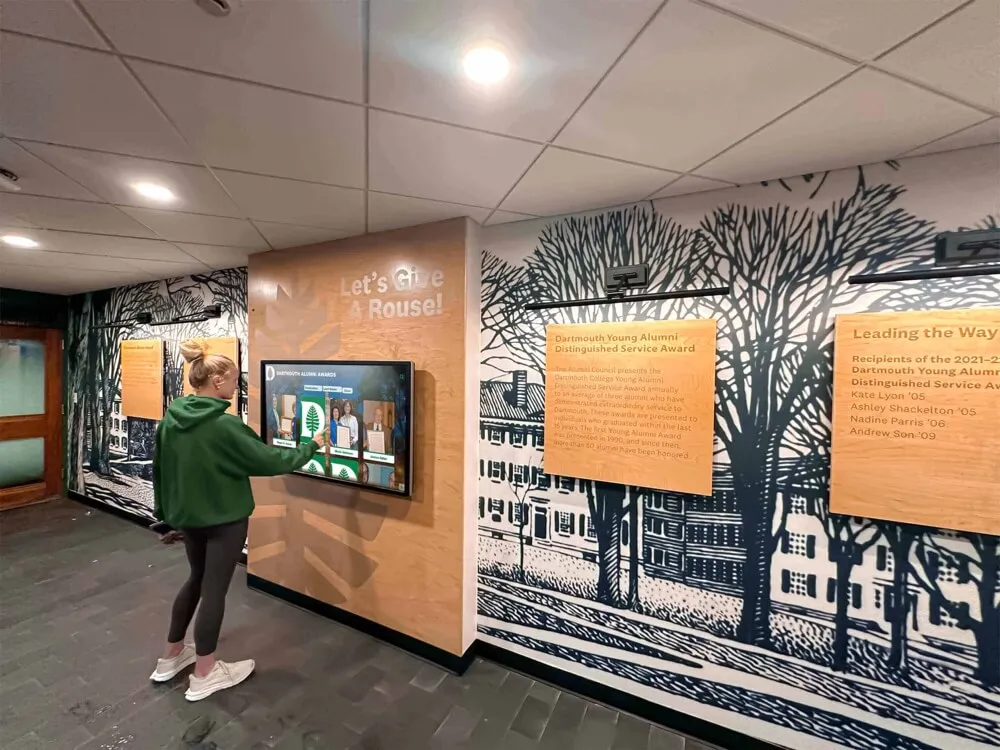
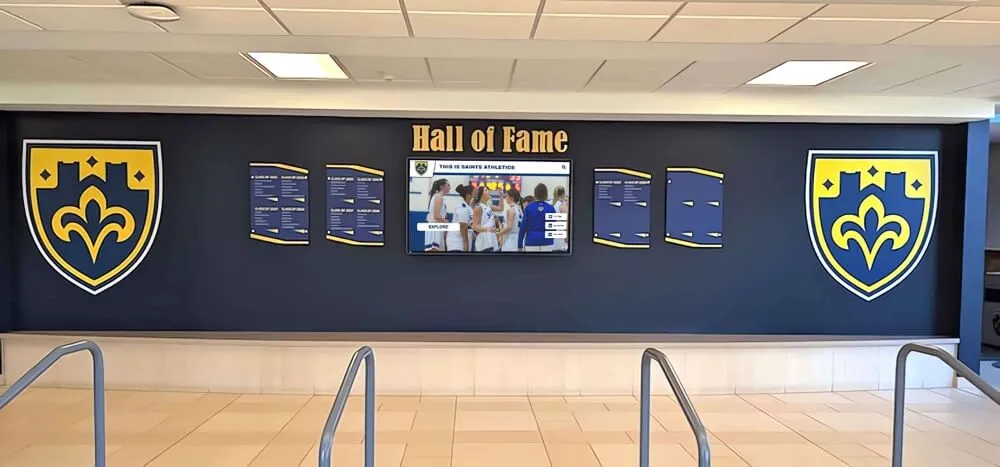
Multi-screen recognition installations that serve live content from a CMS are the environments where MAC address table aging problems appear most clearly — the display reconnects on its own, making the fault look random when it is actually systematic
What MAC Address Table Aging Is and Why It Matters for Recognition Displays
Every managed Ethernet switch maintains a MAC address table — sometimes called the content-addressable memory (CAM) table or forwarding table — that maps hardware (MAC) addresses to switch ports. When a frame arrives at a switch, the switch reads the source MAC address and records which port it came from. Future frames destined for that MAC are forwarded only to the correct port rather than flooded to all ports on the VLAN.
The MAC address table has a finite size, and switches do not hold entries forever. Each entry carries an aging timer. When the timer expires — the switch has not seen any traffic from that MAC address before the timer runs out — the entry is removed from the table. The next frame destined for that MAC must be flooded to all ports on the VLAN until the device responds and the switch can relearn the correct port.
The default aging timer on most managed switches ranges from 180 to 600 seconds, depending on the vendor and platform. For general-purpose workstation and server traffic, this range works without incident: computers generate enough background traffic — DHCP renewals, DNS lookups, keepalive packets — to refresh their MAC table entries many times per aging interval.
Recognition displays behave differently. A display that is actively rendering cached hall of fame content and is not being touched by a visitor may generate as little as a few ARP packets per minute — not nearly enough to refresh its MAC entry on a switch configured with a 180-second aging timer. The entry ages out, the switch floods the next unicast frame destined for the display, and if the display’s NIC does not respond immediately (power-saving mode, brief CPU spike, or slow ARP reply from the OS), the flood produces no relearning event and the frame is lost. The CMS connection drops, the display reconnects seconds later, and the incident is attributed to software instability.
Digital signage for schools covers the broader infrastructure requirements that recognition platforms depend on — MAC address table stability is a foundational layer that must be verified before blaming the content platform for what is actually a switch configuration mismatch.
How MAC Address Table Aging Affects Recognition Display Behavior
The failure mode is subtle because the display recovers on its own. The table below maps the most common observed symptoms to their MAC address table aging root cause:
| Observed Symptom | MAC Address Table Aging Cause |
|---|---|
| Display goes blank for 15–45 seconds, then reconnects without intervention | MAC entry aged out; switch flooded unicast frames; display NIC responded slowly; CMS session dropped and reestablished |
| Content updates arrive intermittently — some hourly syncs complete, some do not | Aging timer expires mid-sync; frames destined for display are flooded and partially lost before the MAC is relearned |
| Problem occurs most often in late afternoon when hallway traffic is low | Reduced network activity means the display generates less background traffic, accelerating effective aging |
| Touchscreen response lags after periods of inactivity | MAC entry aged out; the first touch-generated packets are flooded rather than forwarded; response arrives only after relearning |
| Problem disappears when a staff member’s laptop is plugged into the same switch segment | Additional devices generate more broadcast and multicast traffic that indirectly triggers MAC entry refresh on the same VLAN |
| Display is reliable on one VLAN but intermittent when moved to a different VLAN | VLANs can have independent aging timers on some switch platforms; the new VLAN has a shorter configured timer |
| Issue resolves after a switch reboot but returns within days | A reboot resets error counters and may temporarily increase ARP exchange frequency from the display OS reconnecting; aging mismatch reasserts once traffic settles |
The most reliable diagnostic signal is a periodic self-resolving outage pattern with a roughly consistent recurrence interval — matching the switch’s aging timer — combined with zero link-down events in the switch port log during the same window.
Hockey rink touchscreen recognition installations and other sports venue recognition displays that sit in environments with variable occupancy — full crowds on game nights, near-empty facilities on off-days — experience aging-related outages precisely during low-traffic periods when the display’s incidental background traffic is not enough to refresh the MAC entry at the configured interval.
Before You Begin: What to Gather
Collect the following before opening a switch management interface or terminal:
- Display MAC address — from the media player’s network settings, printed on the NIC label, or from the DHCP server’s lease table matched by IP address
- Display IP address — static or DHCP-assigned; needed to cross-reference the ARP table and confirm which MAC entry belongs to the display
- Switch make, model, and firmware version — MAC address table aging commands and timer configuration paths differ between Cisco IOS, HP/Aruba, Ubiquiti UniFi, Netgear, and other common school switch platforms
- Switch management access — read access is sufficient for Steps 1 through 4; write access is required for Step 6 to adjust the aging timer
- VLAN assignment of the display port — aging timers may be set per-VLAN on some platforms; knowing the display’s VLAN ensures you are checking and configuring the correct timer
- Approximate recurrence interval of observed outages — how often the display disconnects; this value, compared against the switch’s configured aging timer, is the primary diagnostic correlation
Recognition Display MAC Address Table Aging Test: Numbered Steps
Work through these steps in order. Each step produces a clear pass or fail indicator that tells you whether to adjust the timer, investigate MAC flapping, or look elsewhere.
Step 1 — Locate the Display’s MAC Address Entry in the Switch Table
Confirm the display’s MAC address is currently in the switch’s forwarding table and note which port and VLAN it is assigned to.
Cisco Catalyst switches (IOS):
show mac address-table address <display-MAC>
Replace <display-MAC> with the display’s hardware address in the format aabb.ccdd.eeff. Alternatively, look up all entries on the display’s port:
show mac address-table interface GigabitEthernet1/0/12
A healthy result shows one entry: the display’s MAC, the correct VLAN, and a DYNAMIC type.
HP / Aruba ProCurve switches:
show mac-address <display-MAC>
Or by port:
show mac-address ethernet A12
Ubiquiti UniFi switches:
Navigate to UniFi controller → Devices → [Switch] → Clients. The connected clients list shows the display’s MAC, IP, and port assignment if the entry is currently in the table.
Netgear managed switches:
Navigate to Switching → MAC Address Table → Search in the management GUI. Enter the display’s MAC address to confirm whether an active entry exists.
Result interpretation:
- Entry present with
DYNAMICtype: the switch has recently seen traffic from the display. Continue to Step 2 to check the aging timer value. - No entry found: the display’s MAC has already aged out at the moment of this check, or the display is not generating sufficient traffic. Run the test immediately after triggering a content sync from the CMS to ensure the display sends at least one frame before the query.
Step 2 — Check the Configured MAC Address Table Aging Timer
Verify what aging timer the switch is currently configured to use. Compare this value against the observed outage recurrence interval from your pre-test notes.
Cisco Catalyst switches (IOS):
show mac address-table aging-time
The output shows the aging time in seconds, typically 300 (5 minutes) by default. If the output shows separate values per VLAN, identify the row corresponding to the display’s VLAN.
HP / Aruba ProCurve:
show mac-age-time
The output shows the MAC age time in seconds. The default on most HP ProCurve models is 300 seconds.
Ubiquiti UniFi:
The global MAC aging timer is not directly configurable through the standard UniFi GUI as of current firmware versions. The default is 300 seconds on UniFi switching hardware. In some deployments, this may require adjustment via SSH to the switch operating system.
Netgear managed switches:
Navigate to Switching → Advanced → Dynamic MAC Address Table → Aging Interval in the management interface. The value is displayed in seconds.
Result interpretation:
- Aging timer is 300 seconds (5 minutes) and outages recur every 4–7 minutes: the timer is the direct cause. Move to Step 6 to increase the timer.
- Aging timer is 180 seconds (3 minutes) and outages recur every 2–4 minutes: same diagnosis, same resolution.
- Aging timer is 600 seconds or higher and outages recur far more frequently than that interval: aging alone is not the primary cause; investigate MAC address flapping in Step 5.
Step 3 — Verify the Display Generates Sufficient Keepalive Traffic
Before adjusting the aging timer, confirm whether the display’s operating system sends enough background traffic to refresh its MAC entry under the current timer. A display that renews its ARP and sends periodic keepalive packets will never trigger aging-related dropouts regardless of the timer value. A display that goes radio-silent between content deliveries is inherently vulnerable to aging.
Check ARP cache refresh behavior (from a workstation on the same VLAN as the display):
On Linux or macOS:
arp -a | grep <display-IP>
Wait for the workstation’s ARP entry for the display to approach expiration (typically 20 minutes on Linux, 10 minutes on macOS), then observe whether the display responds to the ARP refresh without delay. A response within 1–2 seconds indicates the display’s NIC is active and responsive. No response, or a response after 5–10 seconds, suggests the display’s NIC or OS is in a reduced-power mode between content deliveries.
Check for NIC power management on Linux-based media players (SSH into the display device):
ethtool -s eth0 wol g
NIC Wake-on-LAN settings can affect how aggressively the driver reduces power during idle periods. More relevant is checking whether power management reduces NIC responsiveness:
cat /sys/class/net/eth0/power/control
A result of auto means the kernel may reduce NIC activity during idle. Setting it to on ensures the NIC remains fully active:
echo on | sudo tee /sys/class/net/eth0/power/control
Result interpretation:
- Display responds to ARP requests within 1–2 seconds consistently: the NIC is responsive; the aging timer is the correct thing to adjust.
- Display takes more than 5 seconds to respond to ARP: NIC power management may be extending the relearning delay; address NIC power settings before or in addition to adjusting the aging timer.
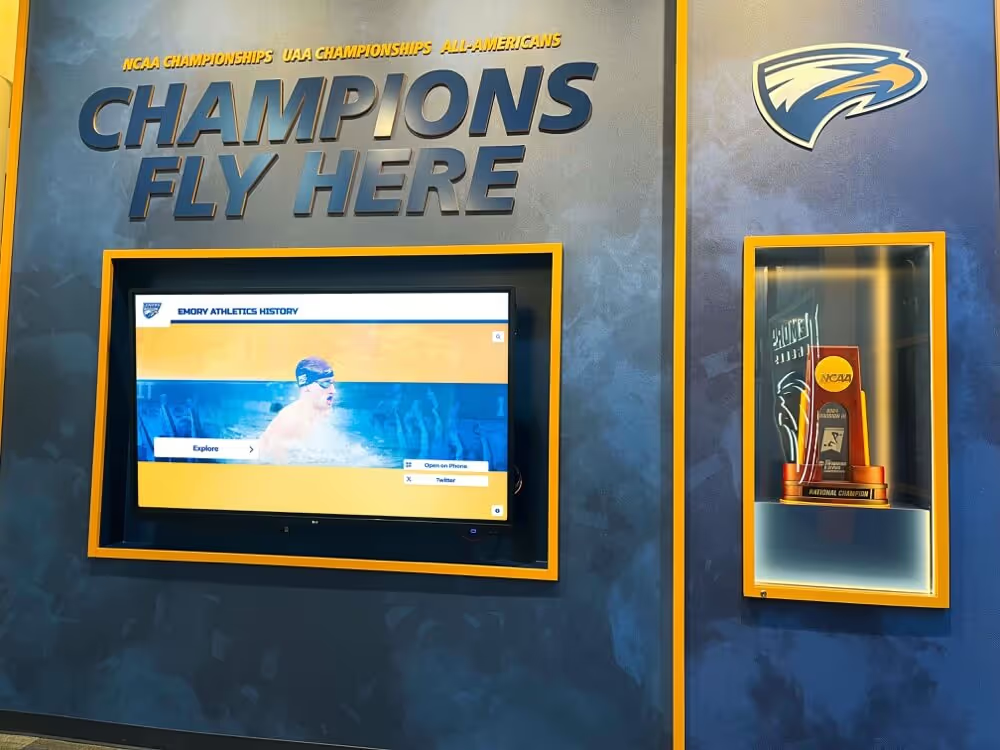
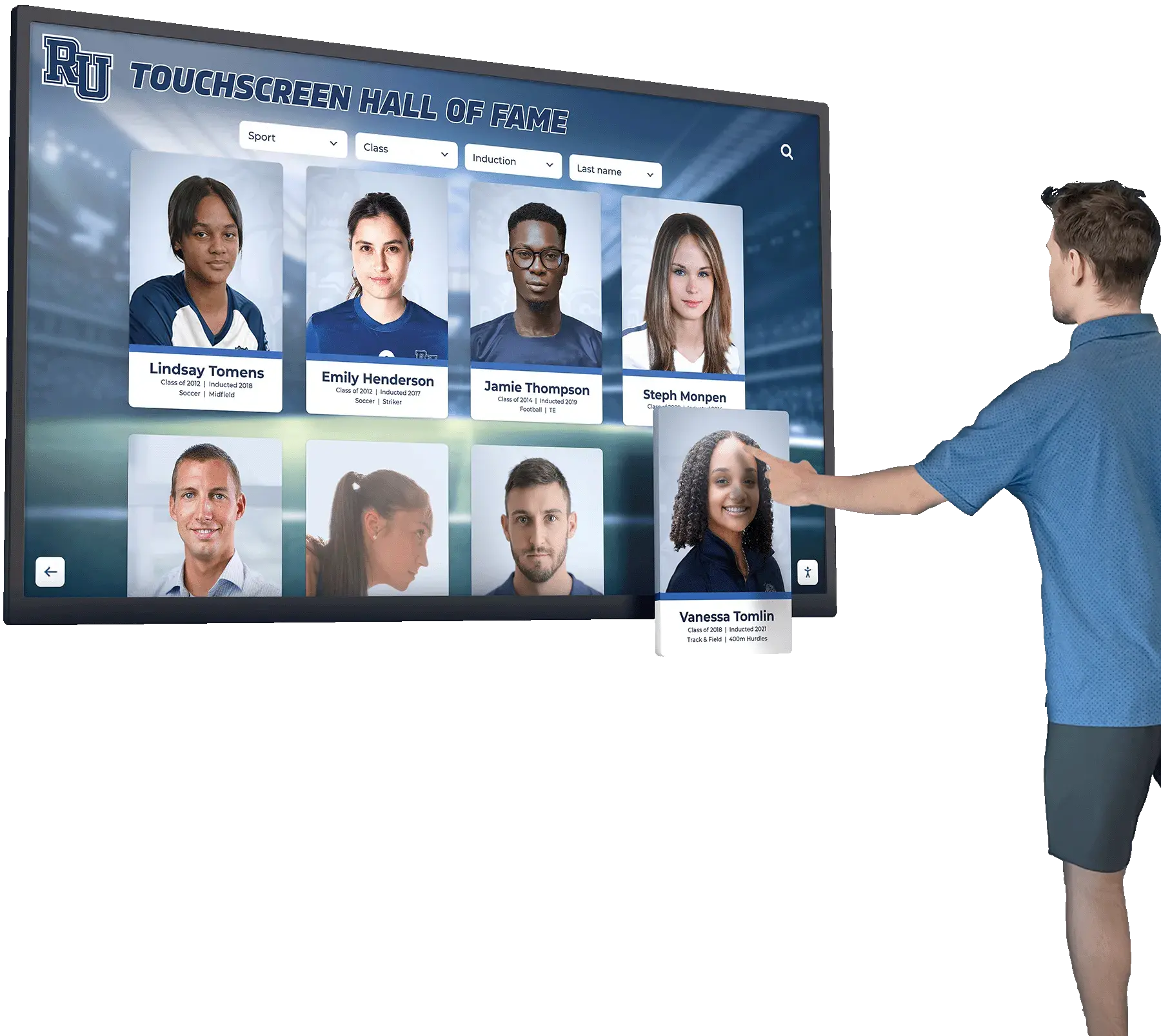
Trophy case kiosks that display static content for long periods between visitor interactions are especially vulnerable to MAC address table aging — the display generates almost no traffic between touches, and the switch ages out its entry
Step 4 — Observe the MAC Entry Age in Real Time
On platforms that expose the remaining age of each MAC table entry, observe the entry for the display device over a 5–10 minute window to confirm aging behavior directly.
Cisco Catalyst switches (IOS) — observe entry age:
The standard show mac address-table output does not show remaining age directly on most IOS versions. However, you can observe whether an entry is refreshed by running the command before and after triggering a known traffic event on the display:
- Note that the display’s entry exists in the table.
- Wait without triggering any display activity for a period equal to the configured aging time minus 30 seconds.
- Check whether the entry is still present.
- If absent: the display did not generate enough traffic to refresh the entry within the aging window. The mismatch is confirmed.
Aruba CX switches (ArubaOS-CX):
show mac-address-table | include <display-MAC>
ArubaOS-CX can display entry age via detailed output:
show mac-address-table detail
Alternative: use the switch syslog to observe MAC learns and flushes. Configure syslog forwarding to a central server and filter for MAC-move or MAC-flush log messages. On Cisco IOS:
debug mac-address-table notification
This debug output shows MAC entries being added and removed in real time, confirming the aging behavior without requiring timed manual checks.
Result interpretation:
- Entry disappears before the configured aging time would predict: the display is generating even less traffic than expected, or the switch is applying a shorter effective timer than the global configuration shows.
- Entry persists reliably: MAC address aging is not the cause of the observed outages; investigate MAC flapping, DHCP conflicts, or application-layer session timeouts instead.
Step 5 — Check for MAC Address Flapping
MAC address flapping occurs when the switch sees the same MAC address arriving from multiple ports within a short interval — for example, if the display’s MAC appears alternately on port 12 and port 15. Flapping causes the switch to alternately update its forwarding entry, resulting in frames being sent to the wrong port and producing outages that look similar to aging failures but recur far more rapidly.
Cisco Catalyst switches (IOS):
show mac address-table notification change
Look for MAC move notifications showing the display’s MAC address moving between ports. On Catalyst 3750/3850/9000 series:
show log | include MAC_MOVE
HP / Aruba ProCurve:
show log | include mac
Look for messages indicating a MAC address was seen on a different port than previously recorded.
What causes flapping on school recognition display networks:
- A network loop created by an unmanaged switch or an incorrectly configured access port connecting two switch ports
- A VoIP phone or PoE device with a built-in switch connecting the recognition display through its downstream port — the display’s traffic appears on the phone’s uplink port rather than the dedicated display port
- A display device with dual NICs (Ethernet and Wi-Fi both active) advertising the same MAC on two different network interfaces simultaneously — rare but possible on some embedded media players
Result interpretation:
- MAC flapping present: resolve the loop or dual-NIC conflict before adjusting the aging timer. An aging timer change will not fix flapping-related outages.
- No MAC flapping detected: proceed to Step 6 to adjust the aging timer.
Step 6 — Adjust the MAC Address Table Aging Timer
Once you have confirmed that aging, not flapping, is the root cause, increase the aging timer to a value that exceeds the longest observed idle period for the display device.
For recognition displays that generate minimal background traffic, an aging timer between 600 and 900 seconds (10–15 minutes) provides reliable coverage without holding stale entries long enough to cause forwarding problems on busy VLAN segments. For displays that are the primary active device on a dedicated AV VLAN, timers up to 1800 seconds (30 minutes) are reasonable on most school switch platforms.
Cisco Catalyst switches (IOS) — global timer:
mac address-table aging-time 900
write memory
Cisco Catalyst — per-VLAN timer (recommended when AV VLAN is separate from general traffic):
mac address-table aging-time 900 vlan 30
write memory
HP / Aruba ProCurve:
mac-age-time 900
write memory
Netgear managed switches:
Navigate to Switching → Advanced → Dynamic MAC Address Table → Aging Interval. Enter 900 and save. Changes on Netgear managed switches take effect immediately without a reload.
Ubiquiti UniFi (CLI via SSH to the switch OS):
configure
set protocols layer2-protocols mac-aging aging-time 900
commit
save
Note: UniFi switch CLI commands vary by firmware generation. Verify the command syntax against the specific firmware version installed on the device.
Important considerations when increasing the aging timer:
- A longer aging timer means stale entries persist longer on segments where devices are frequently disconnected and reconnected on different ports. On a dedicated AV VLAN serving only fixed recognition displays, this is not a concern. On a general-purpose student VLAN where devices roam between ports frequently, a very long aging timer can cause forwarding to the wrong port for longer after a device moves.
- Never set the aging timer to zero — on most switch platforms, a timer of zero disables aging entirely and the MAC address table can fill to capacity, causing the switch to flood all traffic.
- Per-VLAN configuration is always preferred for recognition displays on a dedicated AV VLAN. This avoids affecting aging behavior for workstations and student devices on other VLANs.
High school athletic department IT and budget planning frequently highlights the need to match network configuration to specific device classes. Recognition displays have traffic profiles that differ fundamentally from general-purpose computing devices — applying the same switch defaults to both leads to exactly these maintenance problems.
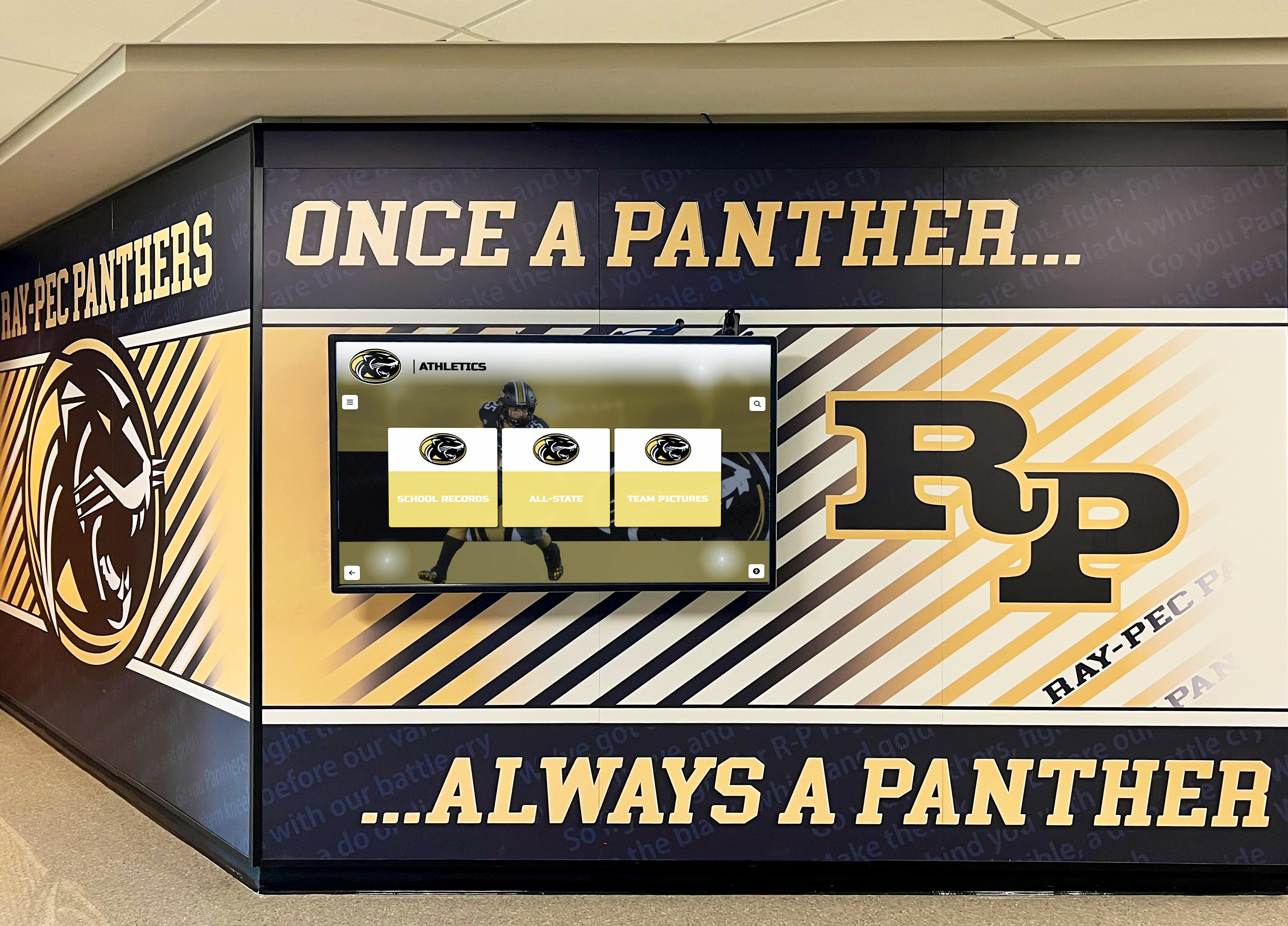
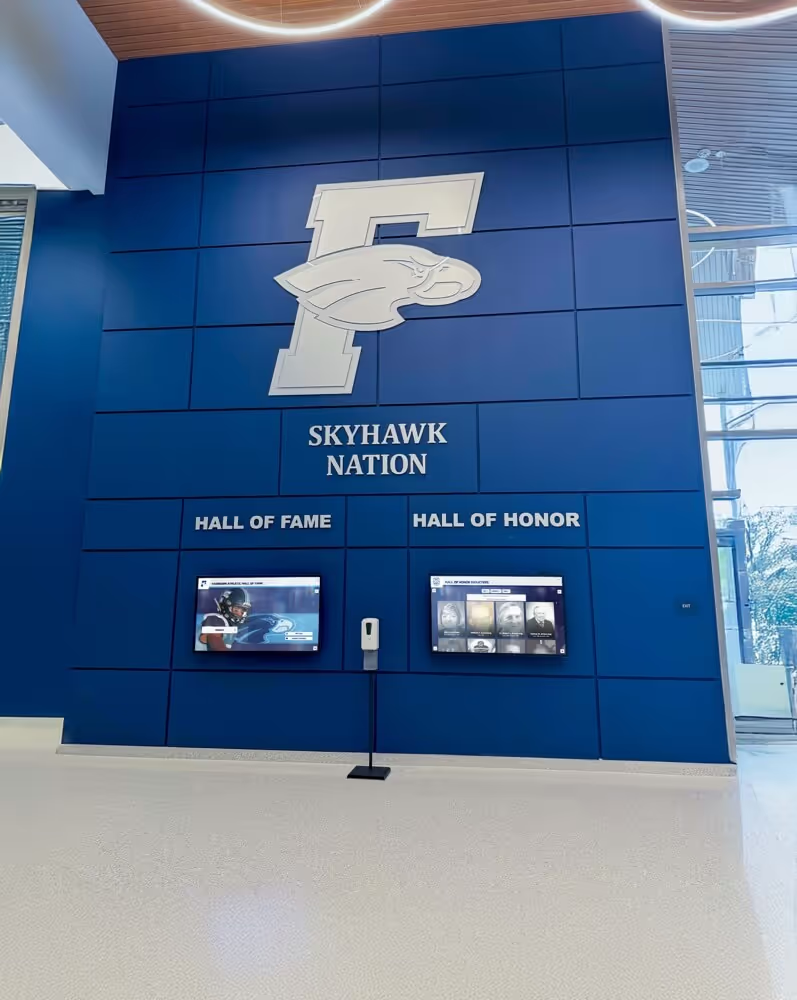
Hallway recognition screens that show static content between visitor arrivals require aging timer adjustments on the serving switch — a default 300-second timer may not be sufficient for displays with minimal background traffic generation
Step 7 — Verify the Fix and Monitor
After adjusting the aging timer, confirm the change took effect and monitor the display over a period exceeding the new aging timer value.
Verify the new timer value:
Rerun the aging timer check command from Step 2 and confirm the new value appears in the output:
show mac address-table aging-time
Confirm the display’s MAC entry persists:
Check the MAC address table at the beginning of the observation window:
show mac address-table interface GigabitEthernet1/0/12
Wait for a period equal to the old aging timer plus a 60-second buffer (for example, if the old timer was 300 seconds, wait 360 seconds). Run the same command again. The display’s MAC entry should still be present. If it has aged out, the display is generating even less background traffic than anticipated — investigate NIC power management from Step 3 and consider implementing a keepalive mechanism (see Practical Checks below).
Monitor for recurrence of outages:
Check the CMS platform for any disconnection events during the monitoring window. If the CMS logs zero disconnections over a period three times the old aging timer, the fix is confirmed.
Practical Checks: Ensuring Consistent MAC Table Presence
If increasing the aging timer alone does not fully resolve the outages — or if a very long timer is impractical on a shared VLAN — these additional measures help the display maintain a consistent MAC table entry:
| Method | How It Works | When to Use |
|---|---|---|
| Keepalive ping from a monitoring server | A network monitoring server sends a periodic ICMP ping to the display IP, generating traffic from the switch’s perspective that refreshes the MAC entry | When a monitoring server already exists on the same VLAN or reachable from a routed path |
| Static MAC address entry | The display’s MAC address is configured as a static (permanent) entry on the switch port, bypassing the aging timer entirely | When the display is on a dedicated port that will never be used by any other device |
| NIC power management disabled on media player | Prevents the display’s NIC from reducing activity during idle periods, ensuring the OS sends background ARP traffic at regular intervals | When the display OS supports NIC power management configuration |
| Increase CMS heartbeat frequency | Configure the content management platform to send more frequent status updates to the display, increasing the display’s traffic generation rate | When the CMS platform allows heartbeat or keepalive interval configuration |
A static MAC address entry is the most reliable long-term solution for recognition displays on dedicated switch ports — it removes the aging variable entirely and ensures the display’s forwarding entry never expires regardless of traffic patterns. The drawback is that static entries require manual maintenance if the display device is replaced with a unit having a different MAC address.
Screen uniformity testing for recognition displays and network-level tests like this one are complementary: both catch problems that pass casual inspection but degrade the visitor experience in ways that undermine the recognition program’s purpose. Running both checks at installation gives programs a complete readiness picture.
MAC Address Table Aging Timer Reference for Common School Switch Platforms
| Switch Platform | Default Aging Timer | Timer Configuration Command | Per-VLAN Support |
|---|---|---|---|
| Cisco Catalyst (IOS) | 300 seconds | mac address-table aging-time <seconds> | Yes — append vlan <id> |
| Cisco Catalyst (IOS XE) | 300 seconds | mac address-table aging-time <seconds> | Yes — append vlan <id> |
| HP / Aruba ProCurve | 300 seconds | mac-age-time <seconds> | No — global only |
| Aruba CX (ArubaOS-CX) | 300 seconds | mac-age-time <seconds> | Yes — per-VLAN |
| Juniper EX Series | 300 seconds | set vlans <vlan-name> mac-aging-time <seconds> | Yes — per-VLAN |
| Netgear Smart Managed | 300 seconds | Management GUI → Switching → MAC Address Table → Aging Interval | No — global only |
| Ubiquiti UniFi | 300 seconds | CLI: set protocols layer2-protocols mac-aging aging-time <seconds> | No — global only |
| TP-Link TL-SG2xxx | 300 seconds | Management GUI → L2 Features → MAC Address → Aging Time | No — global only |
For programs planning to document switch configurations as part of a recognition display installation record, note the aging timer value and VLAN assignment alongside the cable category, port speed, and duplex settings recorded during the ethernet link tests.
Common Aging-Related Pitfalls on School Recognition Networks
Short aging timers on VLANs inherited from general computing deployments. When a recognition display is added to an existing student or staff VLAN rather than a dedicated AV VLAN, it inherits the aging timer configured for that VLAN. IT teams optimizing that VLAN for roaming laptops — where shorter aging timers reduce stale forwarding entries after students move between rooms — may have set a 180-second timer that creates chronic outages for the stationary recognition display.
Aging timer reset after switch firmware updates. On some switch platforms, a firmware update restores the aging timer to the factory default even when a custom value had been set and saved. A display that ran reliably for months begins experiencing outages after a scheduled firmware update cycle, and the connection between the update and the new instability is not immediately obvious. Add aging timer verification to the post-update checklist for switches serving recognition displays.
Static MAC entry lost during switch configuration restore. If a switch configuration is restored from a backup taken before the static MAC entry was added, the entry is silently removed. The display reverts to dynamic aging behavior without any visible indication until outages begin. Document static MAC entries separately from switch configurations so they can be reapplied after any restore operation.
PoE midspan injectors inserting a layer-2 barrier. Some schools power recognition displays using PoE midspan injectors rather than PoE-capable switch ports. Certain midspan injector models perform MAC address translation, causing the display’s MAC address to appear as the injector’s MAC from the switch’s perspective. When the injector ages out of the switch table — or when the injector itself has an internal aging timer — the forwarding path breaks in ways that look identical to a standard aging failure but do not respond to changes in the switch’s aging timer.
Displays on 802.1X-authenticated ports experiencing EAP reauthentication aging. Schools with 802.1X port authentication for network access control may have reauthentication timers that interact with MAC aging. If a display’s 802.1X session is reauthenticated before the switch MAC entry ages out, the reauthentication generates traffic that incidentally refreshes the entry. If the timers are not aligned, a window can exist during which the MAC entry ages out between reauthentication events. Verify 802.1X reauthentication intervals alongside MAC aging timer values on any port serving a recognition display.
Syslog forwarding from managed switches is the most effective long-term monitoring approach for catching aging-related MAC moves and dynamic entry expirations as they happen — particularly useful when recognition displays serve events after hours when IT staff are not on-site to observe outage patterns directly.
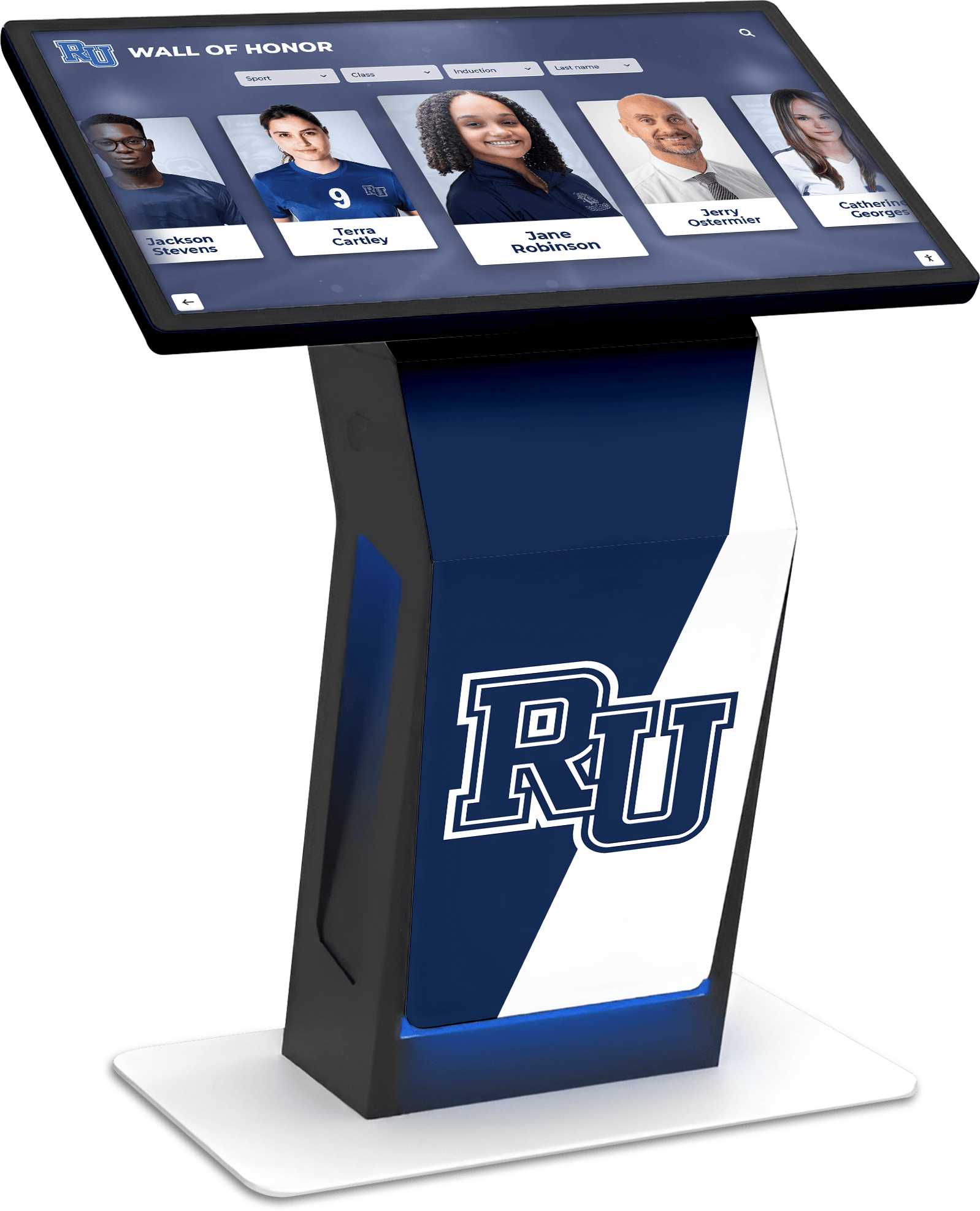
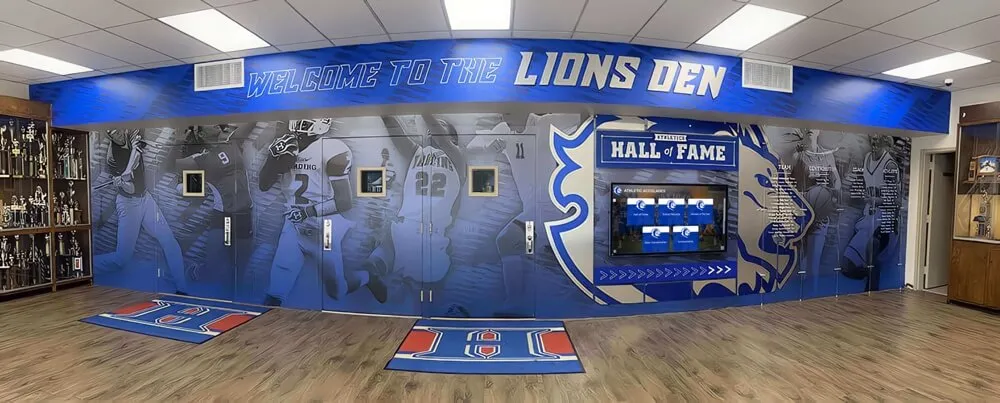
Honor wall kiosks that combine static trophy display with touchscreen interaction need MAC table stability to serve both the passive content delivery and the real-time touchscreen response without interruption
MAC Address Table Aging Test Checklist
Use this checklist during the test session with your network administrator. Print and complete it for each recognition display on a managed switch.
- Display MAC address confirmed — from NIC label, network settings menu, or DHCP lease table
- Display IP address confirmed and used to cross-reference ARP table before MAC table lookup
- Switch make, model, and firmware version noted for reference
- Display VLAN assignment confirmed — used to apply per-VLAN aging timer if applicable
- MAC address table entry located on the switch — port and VLAN match expected values
- Configured aging timer value confirmed via switch CLI or management GUI
- Observed outage recurrence interval compared to aging timer — values correlate or diverge noted
- ARP responsiveness test completed from workstation on same VLAN — display responds within 2 seconds
- NIC power management checked on Linux-based media players — set to
onif previouslyauto - MAC address table observed over a window equal to the aging timer — entry persisted or aged out noted
- MAC address flapping check completed — no MAC-move events for display MAC during test window
- Aging timer adjusted to 900 seconds (or 1800 seconds for dedicated AV VLAN) — or static entry added
- Aging timer change confirmed via switch CLI — new value matches intended configuration
- Display MAC entry confirmed present after a full old-timer interval has elapsed since the change
- CMS disconnection log reviewed — zero events recorded since aging timer adjustment
- Configuration change documented — new aging timer value, VLAN, switch port, and static entry status
When to Rerun the MAC Address Table Aging Test
Run the recognition display MAC address table aging test:
- At initial display installation — confirm the aging timer on the serving switch before declaring the display production-ready, particularly when the display is on a general-purpose VLAN
- After any switch replacement or firmware update — replacement hardware may have a different factory-default aging timer, and firmware updates may restore the timer to factory defaults even when a custom value was previously saved
- When intermittent brief outages are first reported — run the aging test before investigating display hardware, CMS platform stability, or content delivery configuration
- After adding a recognition display to a VLAN that previously served only workstations — the timer optimized for roaming laptops may not be appropriate for a stationary display
- After any 802.1X reauthentication policy changes — verify that the reauthentication timer remains aligned with the MAC aging timer on display ports
- When a switch configuration restore is performed — confirm that static MAC entries and custom aging timer values were restored correctly or reapply them manually
Award display systems for volleyball record boards and recognition programs spanning multiple sports benefit from the same MAC stability that allows displays to serve content reliably during low-traffic periods — the test is sport-agnostic and applies equally to any managed switch port serving a recognition display.
Frequently Asked Questions
Q: Does the MAC address table aging test apply to wireless recognition displays?
No. Wireless recognition displays connect to Wi-Fi access points, which manage their own association tables separately from the wired switch MAC address table. If a wireless display experiences intermittent outages, investigate Wi-Fi signal strength, 802.11 band selection, channel contention, and DHCP lease behavior rather than the wired switch aging timer. The test in this checklist applies only to wired Ethernet-connected displays.
Q: What is the safest aging timer value for a recognition display on a shared VLAN?
On a VLAN serving both recognition displays and general workstations, 600 seconds (10 minutes) is a practical compromise. It is long enough to prevent aging-related outages on a display that generates light background traffic, while short enough to avoid holding stale entries for more than 10 minutes after a device moves ports. If the VLAN is dedicated to AV and recognition display traffic only, timers of 900–1800 seconds are appropriate.
Q: Can a static MAC address entry cause problems if the display device is replaced?
Yes. A static entry binds a specific MAC address to a specific switch port. When the display device is replaced with a unit that has a different MAC address, the static entry for the old MAC must be removed and a new entry added for the replacement device’s MAC. If the old static entry is not removed, the switch will continue forwarding frames addressed to the old MAC to the display port even after that device is gone — which is harmless until another device with the same MAC joins the network elsewhere, at which point forwarding conflicts occur. Document static entries and remove them promptly when display hardware changes.
Q: Our switch is unmanaged. Can we still run this test?
Unmanaged switches do not expose MAC address table information or allow aging timer configuration. If a recognition display connects through an unmanaged switch, the unmanaged switch handles aging internally at its factory-default setting, which cannot be changed. In this case, the mitigation is to configure the managed switch upstream of the unmanaged switch and to rely on the NIC power management and CMS heartbeat approaches described in the Practical Checks section to ensure the display generates sufficient traffic to maintain its MAC presence at the managed switch level.
Q: How does this test relate to other network tests for recognition displays?
The MAC address table aging test addresses Layer 2 forwarding stability. It is complementary to — not a replacement for — the ethernet auto-negotiation test (which addresses link speed and duplex), jumbo frame compatibility tests (which address MTU consistency for large media delivery), and VLAN configuration verification. A complete network readiness check for a new recognition display installation should include all of these; the aging test is typically run when intermittent self-resolving outages appear that no other test explains.
Q: The CMS shows the display as offline for 20–30 seconds at a time, then it recovers. Is that aging?
A 20–30 second offline window is consistent with a MAC aging event followed by slow ARP relearning. If the offline interval exactly matches the aging timer or falls slightly above it — accounting for the time the switch spends flooding rather than forwarding while waiting for the display to send an ARP reply — MAC aging is the most likely cause. If the offline window is shorter (under 10 seconds) or longer (over 60 seconds) and the switch shows no MAC flapping, investigate DHCP lease issues, firewall session timeout rules, or CMS-side keepalive configuration instead.
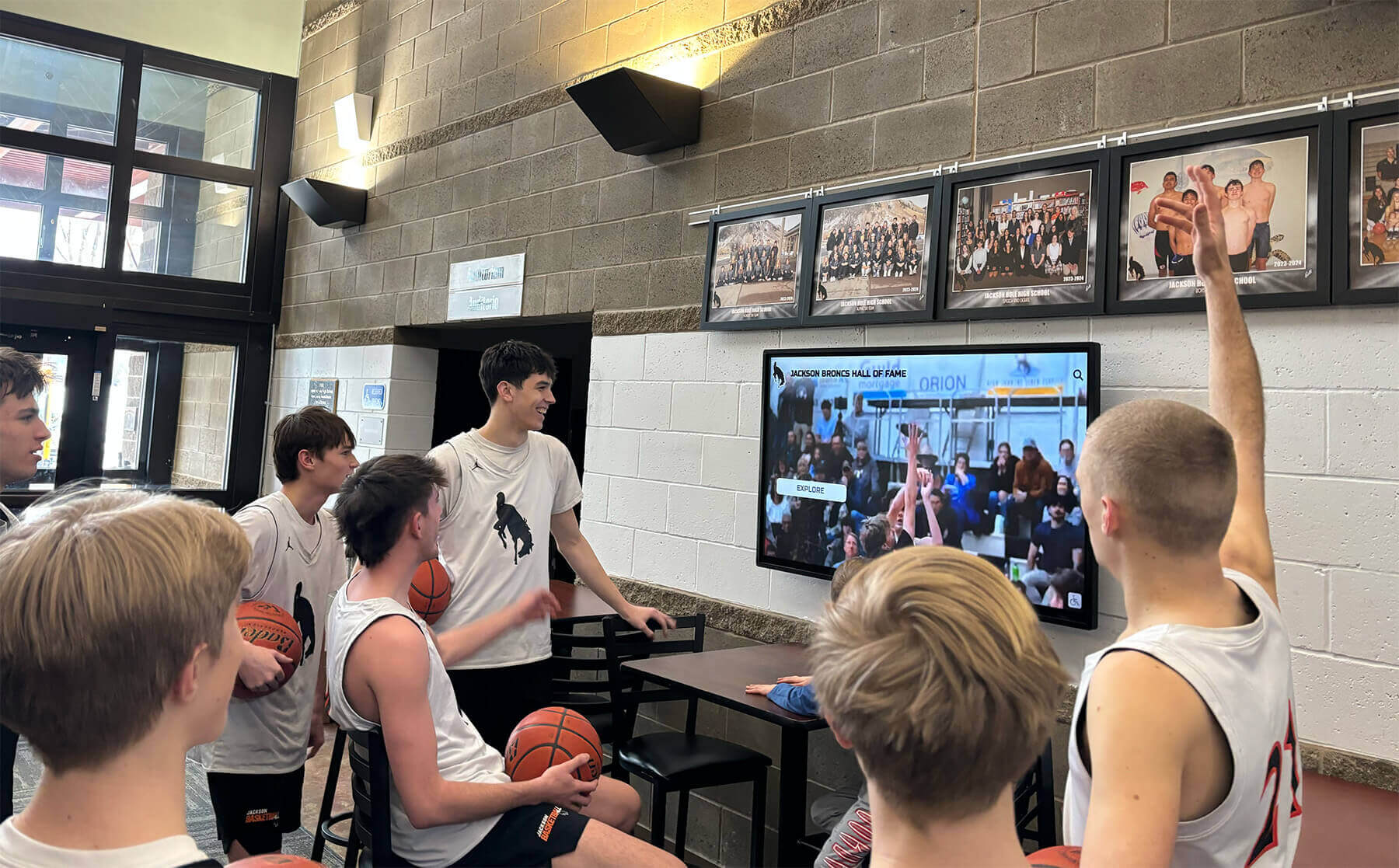
Lobby recognition screens that serve students and visitors throughout the school day need uninterrupted MAC table stability — a display that goes blank for 30 seconds during peak arrival time creates a visible failure that undermines the recognition program's impact
Stable Displays Create Warmer Communities
A recognition display cannot warm a school community if it intermittently goes dark. The 20–30 minute investment of a MAC address table aging test eliminates a root cause of self-resolving outages that resists diagnosis by conventional IT tools — one that produces no link-down alert, no switch error log entry, and no trace in the CMS platform beyond a brief disconnection event.
Running this test at installation, after any switch change, and whenever periodic outages appear gives school IT staff a concrete, fixable explanation for behavior that would otherwise lead to unnecessary display hardware replacements and unwarranted CMS support tickets.
Rocket Alumni Solutions builds recognition display systems with school network environments in mind, including managed switch configurations, AV VLAN deployments, and the traffic patterns typical of lobby and hallway display installations. The implementation process covers MAC table stability alongside MTU consistency, DHCP configuration, and content delivery readiness — so athletic directors, alumni leaders, and facilities teams have a complete network picture before the first visitor interacts with the display.
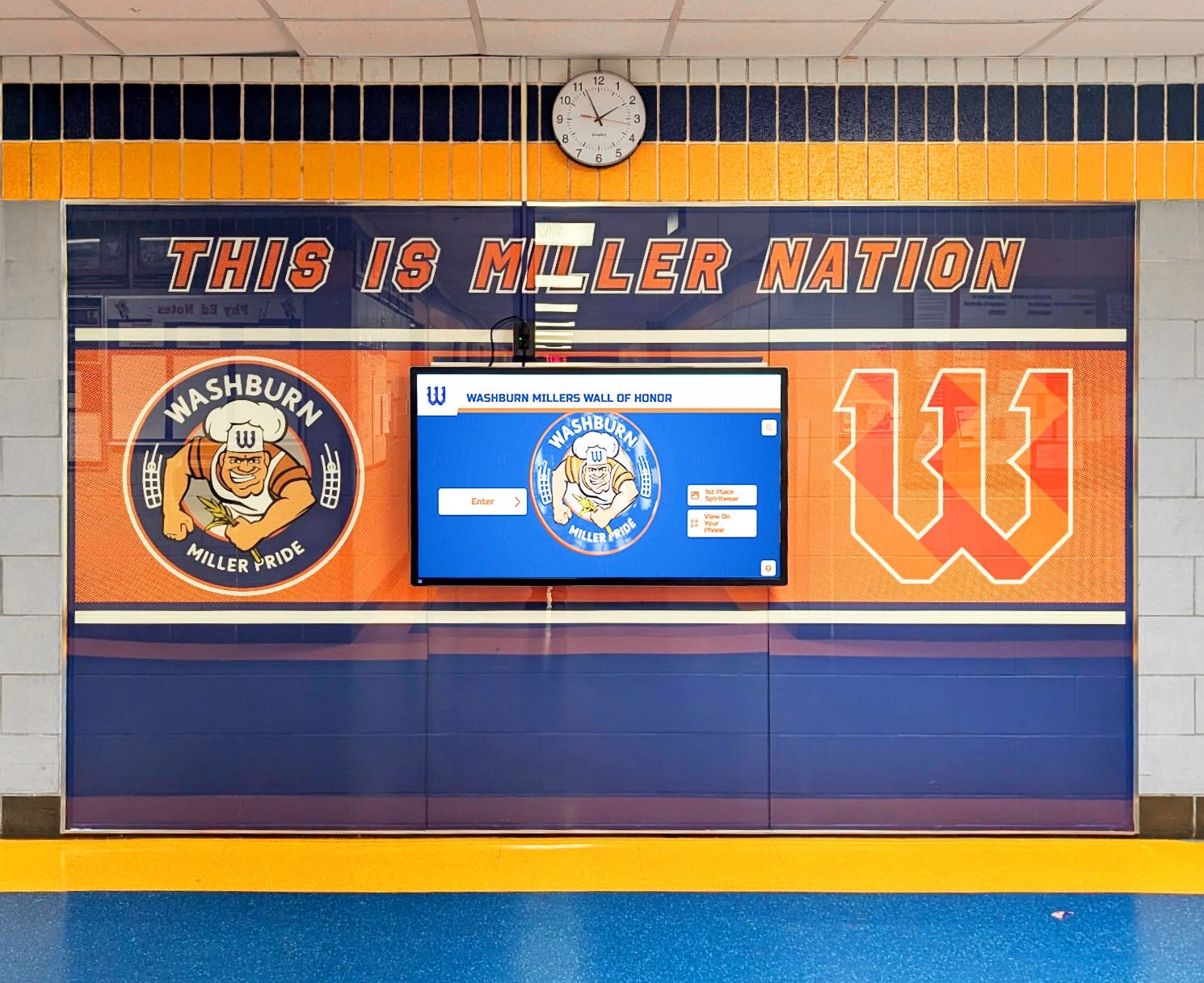
Wall of honor installations depend on MAC address table stability to deliver consistent recognition content throughout the school day — network-level tests are the foundation on which the display's visibility is built
Ready to see a recognition display built to perform reliably on your school’s managed network?
Schedule a demo with Rocket Alumni Solutions and see how athletic hall of fame walls, trophy corridor kiosks, and alumni recognition screens deliver consistent, uninterrupted content across managed school network environments.