Intent: decide — A recognition display that handles staff directory images and event schedules without issue but silently stalls on multi-gigabyte athletic highlight reels or large-format hall-of-fame gallery packages is exhibiting a classic jumbo frame compatibility failure. Somewhere between the content server and the display, a switch port or NIC is configured to transmit frames larger than the standard Ethernet maximum of 1500 bytes — but another device in the path cannot accept them. Those oversized frames are quietly discarded with no error message, no link indicator change, and no log entry on most school managed switches. The display shows a spinner, a progress bar frozen at a low percentage, or a gallery that loads twelve images and then stops.
This checklist walks school IT coordinators, AV technicians, and athletic directors through a recognition display jumbo frame compatibility test: how to determine whether jumbo frames are present anywhere on the delivery path, how to confirm that the display device and every switch in between are consistently configured, and how to resolve MTU inconsistencies before they surface during a recognition ceremony.
Running a recognition display jumbo frame compatibility test takes 30–45 minutes and eliminates one of the most misdiagnosed media delivery failures in school networks — one that passes all standard connectivity checks and only surfaces when large athletic video files or high-resolution gallery packages begin transferring.

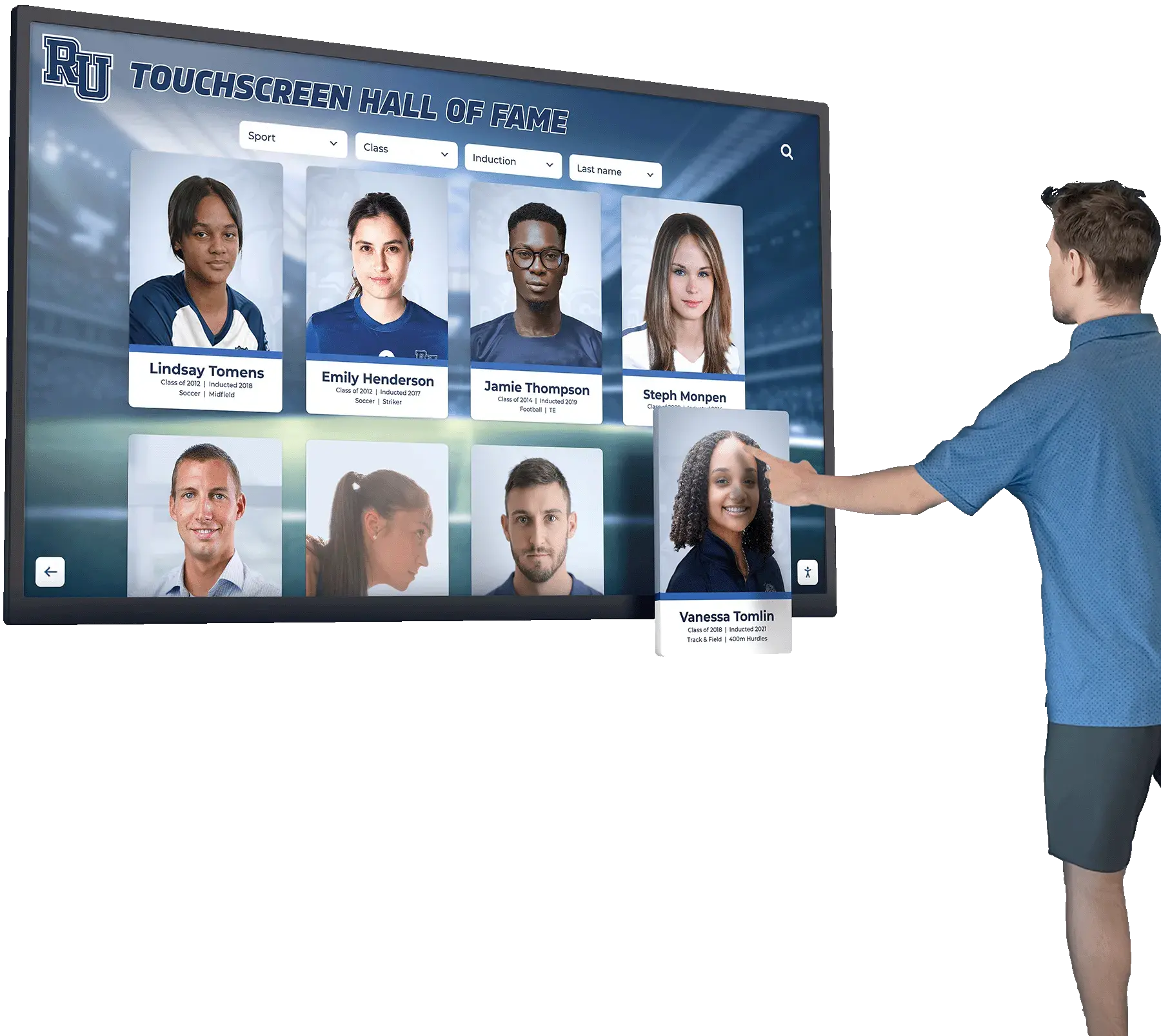
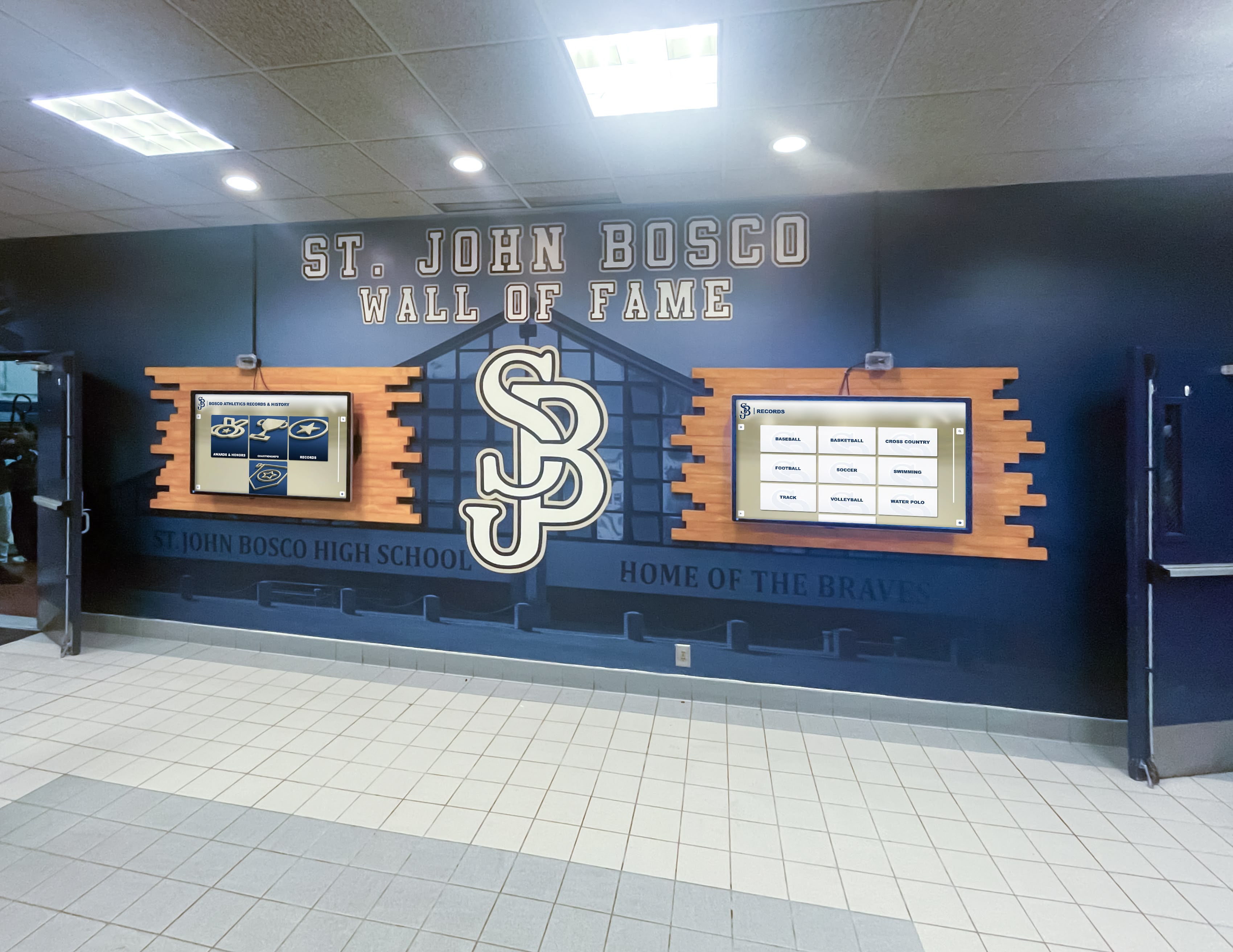
Multi-screen recognition installations that deliver large athletic video files and high-resolution image galleries are the most common site of jumbo frame compatibility failures — the problem passes all standard connectivity checks and only surfaces when large-payload media transfers begin
What Jumbo Frames Are and When Schools Encounter Them
Standard Ethernet frames carry a maximum payload of 1500 bytes — a value codified in the original IEEE 802.3 specification and supported by every network device manufactured since. Jumbo frames are Ethernet frames with a payload larger than that limit, most commonly 9000 bytes (9216 bytes including frame headers on some hardware). They were designed to improve throughput efficiency on high-bandwidth storage networks, NAS appliances, and video production environments by reducing the number of packets required to transfer large files and the per-packet CPU overhead on servers handling multi-gigabyte transfers continuously.
Schools encounter jumbo frames in recognition display environments through several predictable paths:
- A district-level NAS or media server used to host athletic video archives and hall-of-fame content libraries was configured with jumbo frames enabled for storage performance, and that configuration extended to the ports recognition displays connect through
- A network switch in the AV room or media center was purchased for a video production department where jumbo frames are standard practice and arrived with a 9000-byte MTU already set in its default configuration
- An IT vendor enabled jumbo frames during a server storage upgrade to improve file transfer performance without verifying that recognition display endpoints along the same VLAN support the same MTU
- A recognition display media player’s NIC driver defaults to a higher MTU on certain Linux kernel configurations, producing a mismatch with a switch infrastructure configured for standard frames
In each case, the jumbo frame setting is deliberate in its original context but creates an unintentional conflict with recognition display hardware or path devices that were never configured to match. The detection challenge is that standard network connectivity tests — ping with default packet sizes, link-status indicators, CMS reachability checks, and speed tests — all succeed at normal frame sizes. The failure appears only when the application begins requesting the large media objects that jumbo frames were enabled to accelerate.
Digital trophy wall installations that maintain large centralized libraries of athletic photography, video retrospectives, and hall-of-fame record graphics represent exactly this risk profile: the archive servers hosting those assets are frequently configured for high-throughput storage operations with jumbo frames enabled, while the display endpoints reading from them may not be.
How Jumbo Frame Mismatches Cause Media Delivery Failures
The failure mode produced by a jumbo frame mismatch closely resembles a Path MTU Discovery breakdown, but it originates from the sender rather than from a blocked ICMP feedback message. When a device transmits 9000-byte frames to a receiver that can only accept 1500-byte frames, the oversized packets are dropped at the receiving NIC or at the switch port between them. No ICMP error is generated. No retry occurs. The TCP stream stalls and the media transfer stops without explanation.
| Observed Symptom | Likely Jumbo Frame Cause |
|---|---|
| Large athletic video files stall under 5% transfer progress | TCP handshake packets succeed at standard size; first data frames at 9000 bytes are dropped |
| Portrait gallery loads 8–15 images then stops without error | Smaller images fit within standard-MTU packets; large gallery package exceeds receiver MTU |
| Content works from office workstations but not lobby displays | Office NICs match server jumbo frame setting; lobby display NICs do not |
| Rebooting the content server temporarily restores media delivery | TCP session restarts with clean MSS negotiation; fails again on next large transfer |
| Failure affects only content from on-premises NAS, not cloud CMS | NAS configured for jumbo frames; cloud platform uses standard 1500-byte delivery |
| Transfer progress stalls at the same byte count every time | Buffer depletes at the MTU boundary; no ICMP feedback to trigger retransmission at smaller size |
The most reliable diagnostic signal is size-dependent failure: if still images under 500 KB load correctly but video files or multi-image gallery packages do not, jumbo frame incompatibility is the first hypothesis to test — ahead of bandwidth limits, cabling faults, and display hardware replacement.
Athletic recognition programs that honor standout athletes like Gatorade Player of the Year nominees typically assemble high-resolution photo packages and video tribute files that are among the largest payloads a recognition display regularly requests — schools preparing this type of content should run the jumbo frame compatibility test before the ceremony date rather than after.
Before You Begin: What to Gather
Collect the following before opening any terminal or switch management console:
- Content server or NAS IP address — the server or appliance delivering media assets to the display
- Display device IP address — from the display’s network settings or DHCP server lease table
- Network path description — whether the display is on the same LAN as the content server or connects across a WAN link, VLAN boundary, or VPN tunnel
- Switch make, model, and management access — to review port MTU settings on every switch between the display and the content server
- A workstation on the same VLAN as the display — for initial oversized ping tests before SSH access to the display device is established
- Display device operating system — to determine whether SSH is available for a device-local MTU check
Knowing the network path before running the first test determines how many switch hops need checking. A display on the same LAN as the content server has two or three switch hops at most. A display that fetches content across a WAN link, VPN tunnel, or district-level routing boundary may cross five or more hops, each capable of introducing an MTU inconsistency.
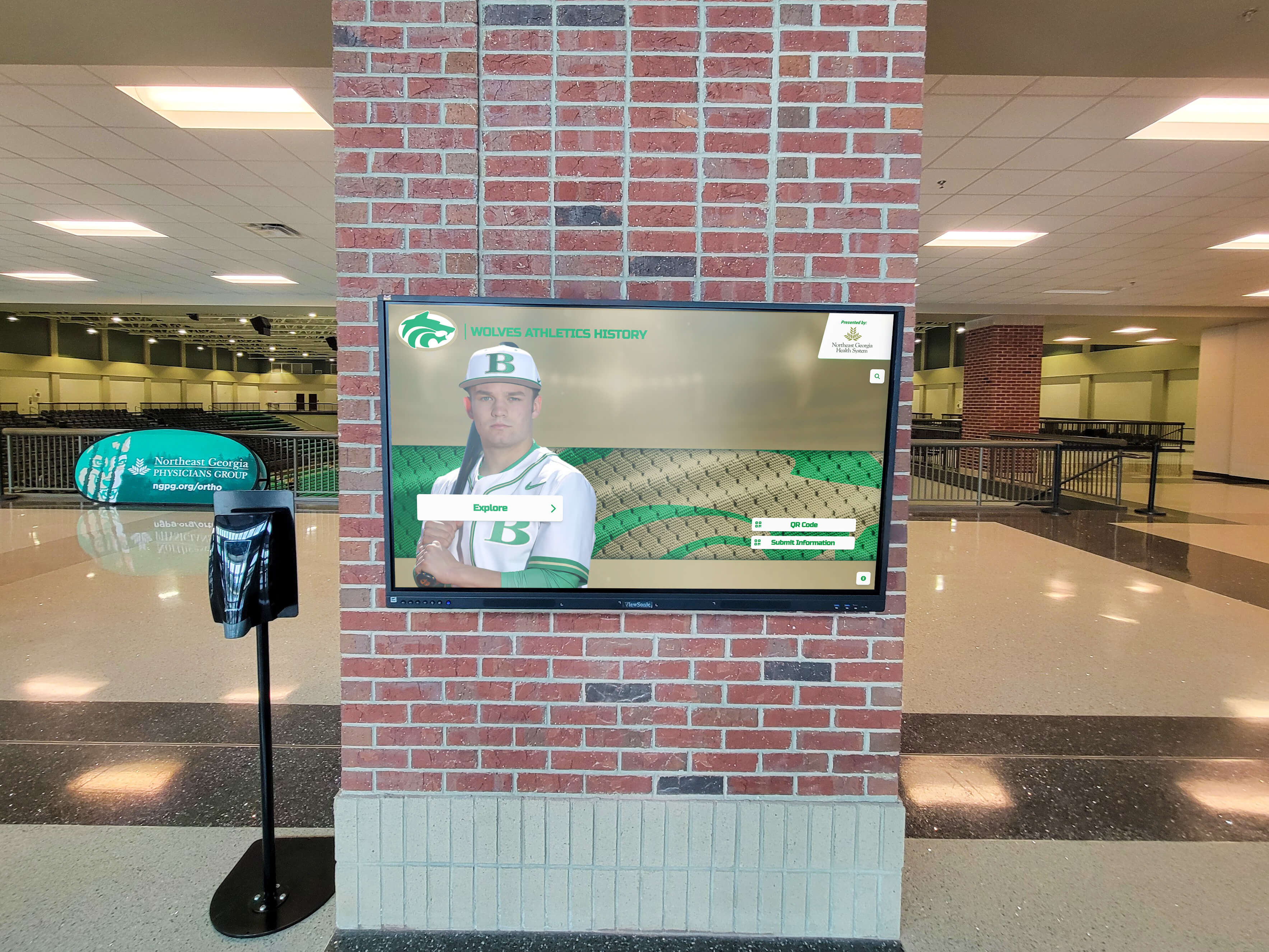
Arena and lobby recognition displays that pull large video and image packages from local servers or NAS appliances require MTU consistency across every switch between the storage system and the display — one misconfigured port silently drops all large-payload transfers
Recognition Display Jumbo Frame Compatibility Test: Numbered Steps
Work through these steps in order. Each step produces a clear pass or fail indicator that determines whether to proceed or move directly to resolution.
Step 1 — Confirm Whether Jumbo Frames Are Enabled on the Content Server or NAS
Before testing the network path, determine whether jumbo frames are actually in use on the sending device. This step rules out the case where large files fail for an unrelated reason and confirms that jumbo frames are present on the path before proceeding.
On a Linux-based NAS or media server:
ip link show
Look for the mtu value on the primary Ethernet interface. A value of 9000 or 9216 confirms jumbo frames are enabled. A value of 1500 means the server operates at standard MTU and jumbo frame incompatibility is not the cause of the failure — investigate PMTUD, DSCP marking, or bandwidth capacity instead.
On a Windows Server:
Get-NetAdapterAdvancedProperty -DisplayName "Jumbo Packet"
A Value of 9014 or 9000 confirms jumbo frames are enabled on the adapter. A value of 1514 or Disabled means the server is not transmitting jumbo frames.
On a Synology, QNAP, or similar NAS appliance:
Log in to the management interface, navigate to Control Panel → Network Interface → Edit, and check the MTU field. A value of 9000 confirms jumbo frames are enabled on the NAS.
Result interpretation:
- Server MTU is 1500: jumbo frame incompatibility is not the cause. Move to a PMTUD or DSCP verification checklist instead.
- Server MTU is 9000: continue to Step 2 to verify that the display device and all switches in the path support the same MTU.
Step 2 — Check the MTU Setting on the Recognition Display Device
Verify that the recognition display’s media player NIC is configured to match the content server’s MTU.
On a Linux-based media player (via SSH):
ip link show eth0
The mtu field in the output shows the current setting. If the server is at 9000 and the display shows 1500, any frame larger than 1500 bytes from the server will be dropped at the display NIC.
On a Windows-based media player:
netsh interface ipv4 show interfaces
Check the MTU column for the primary Ethernet interface. A value of 1500 versus the server’s 9000 confirms the mismatch without needing to run a packet capture.
On a ChromeOS or proprietary media player without shell access:
Run the workstation ping test from Step 4 on a device connected to the same switch port as the display. The workstation result represents the segment behavior. If the workstation’s MTU matches the server and media loads fine from the workstation, the display device itself is the point of mismatch.
Result interpretation:
- Display MTU matches server MTU (both 9000 or both 1500): the endpoints agree. Continue to Step 3 to verify the switch path.
- Display MTU is 1500 and server MTU is 9000: the mismatch is confirmed at the display NIC. Continue to Step 5 to choose between enabling jumbo frames on the display or disabling them on the server.
Step 3 — Check MTU Configuration on Every Switch in the Path
Jumbo frame support requires end-to-end consistency — every device in the path, not just the endpoints. A switch port configured for 1500-byte frames in a jumbo frame environment will silently drop every frame above 1500 bytes without generating a log entry on most managed switch platforms.
Cisco Catalyst switches (IOS):
show interfaces GigabitEthernet1/0/12
Look for the MTU value in the output. The default MTU 1500 bytes confirms the port is at standard MTU. To enable jumbo frames system-wide on Cisco Catalyst:
system mtu jumbo 9000
write memory
reload
Note: the system mtu jumbo command requires a switch reload to take effect on most Catalyst platforms.
HP / Aruba ProCurve switches:
show interfaces brief
Check the MTU column per port. Enable jumbo frames at the global level:
jumbo-frame
Ubiquiti UniFi managed switches:
Navigate to UniFi controller → Devices → [Switch] → Ports → [Port] → Advanced. Look for the Jumbo Frame toggle. UniFi switches support per-port configuration; enabling jumbo frames on one port does not enable it on all ports in the path automatically.
Netgear managed switches:
Navigate to Switching → Advanced → Jumbo Frames in the management GUI. The setting is typically global across all ports when enabled.
A consistent jumbo frame path looks like this:
| Device | MTU Setting |
|---|---|
| NAS / content server NIC | 9000 |
| Server-side switch port | 9000 |
| Core or distribution switch uplink | 9000 |
| Display-side switch port | 9000 |
| Recognition display NIC | 9000 |
If any row shows 1500 while the others show 9000, every frame larger than 1500 bytes is dropped at that device with no notification to either endpoint.
Digital archives for schools, colleges, and universities that centralize athletic photography and historical video in NAS-based repositories need to verify MTU consistency across every switch between the archive server and any connected recognition display before the archive goes live — otherwise the first large-file retrieval from a display endpoint fails silently.
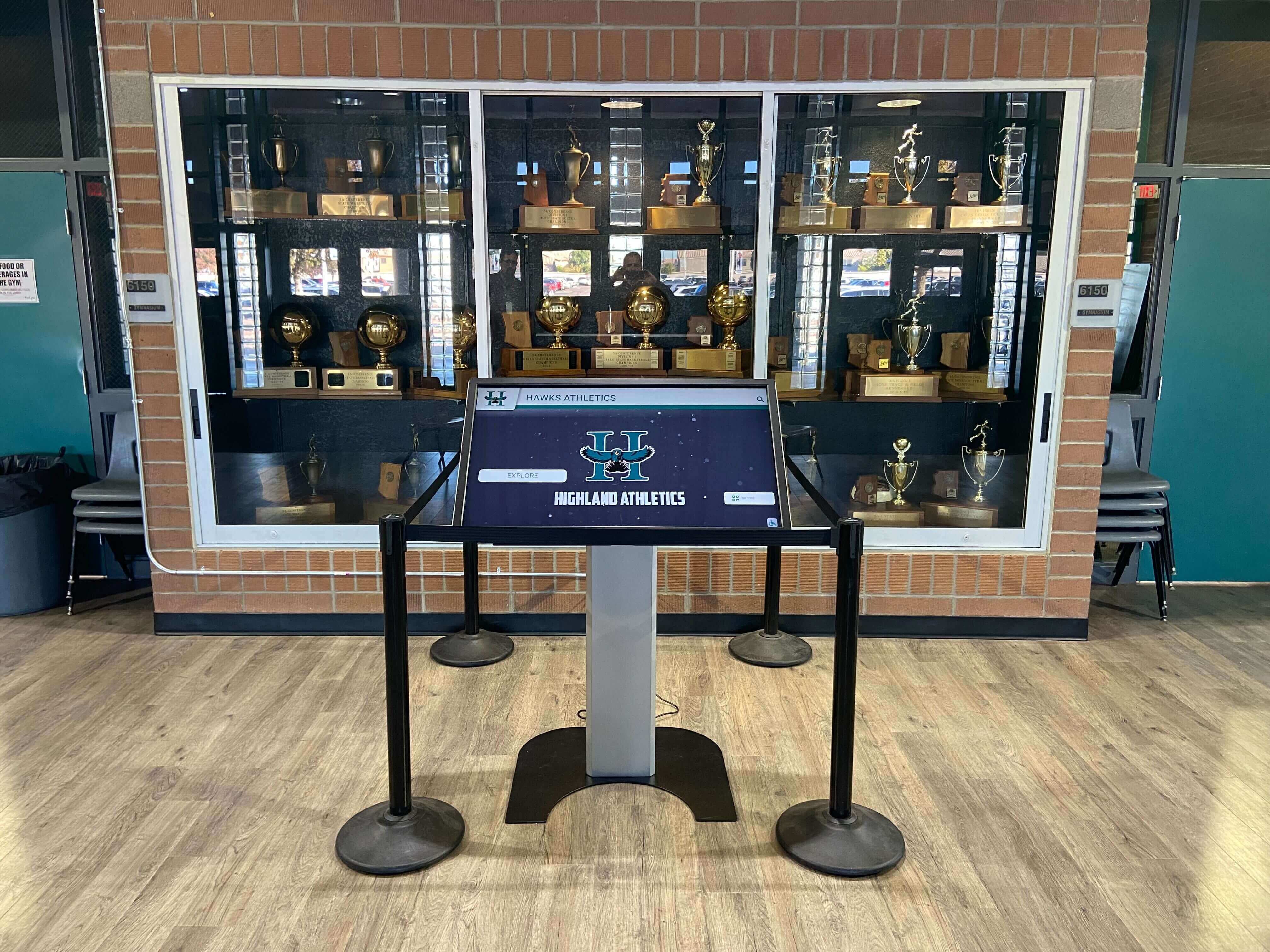
Trophy case and lobby recognition kiosks that pull content from a local NAS require consistent MTU settings on every switch between the storage system and the kiosk — a single standard-MTU port in a jumbo frame path silently drops all oversized frames
Step 4 — Run an Oversized Ping Test to Detect the Actual MTU Boundary
After reviewing device and switch configurations, confirm the actual path behavior with a packet-level test. Oversized ping tests reveal silent drop points that configuration reviews miss — particularly when a firmware update reset a switch’s jumbo frame setting or when a switch reports jumbo support globally but silently caps traffic on a specific port.
On Linux or macOS (workstation on the display VLAN, or SSH into the display device):
Test the full jumbo frame size:
ping -M do -s 8972 <content-server-IP>
The 8972-byte payload plus 28 bytes of ICMP and IP headers equals exactly 9000 bytes — the standard jumbo frame size. If the path supports 9000-byte frames end-to-end, this command returns normal round-trip times.
Test the standard Ethernet MTU boundary:
ping -M do -s 1472 <content-server-IP>
The 1472-byte payload plus 28 bytes equals 1500 bytes. This should succeed on any functioning Ethernet path. Binary search between the two sizes to pinpoint the actual MTU boundary:
ping -M do -s 4000 <content-server-IP>
ping -M do -s 2000 <content-server-IP>
ping -M do -s 1500 <content-server-IP>
On Windows:
ping -f -l 8972 <content-server-IP>
ping -f -l 1472 <content-server-IP>
The -f flag sets the Don’t Fragment bit. A timeout or “Packet needs to be fragmented but DF set” response at 8972 bytes confirms the path cannot carry jumbo frames.
Result interpretation:
| 8972-byte Ping | 1472-byte Ping | Interpretation |
|---|---|---|
| Succeeds | Succeeds | Path supports jumbo frames end-to-end |
| Fails | Succeeds | At least one device does not support jumbo frames |
| Fails | Fails | Path MTU is below 1500 — a separate PMTUD or WAN circuit issue |
| Succeeds from workstation; fails from display device | Succeeds | Display NIC does not support jumbo frames; workstation NIC does |
Step 5 — Determine Whether to Enable Jumbo Frames Consistently or Revert to Standard MTU
Once the test results identify the mismatch, decide on the resolution approach before making configuration changes.
Enable jumbo frames consistently across all devices (all at 9000 bytes) when:
- Every device in the path — server NIC, all switch ports, display NIC — supports 9000-byte MTU (verify hardware specifications before enabling)
- Recognition display traffic is on a dedicated AV VLAN isolated from general student and staff traffic (mixing jumbo frame devices and standard-MTU devices on the same segment creates compatibility issues)
- The content path does not cross any WAN link, internet connection, or VPN tunnel that does not support jumbo frames
Revert all devices to standard 1500-byte MTU when:
- The display device’s NIC does not support jumbo frames — common on consumer-grade digital signage players and some embedded media player hardware
- Any switch in the path cannot be reconfigured (unmanaged switches, switches in another department’s control, or switches without jumbo frame support in their firmware)
- The content path crosses a WAN link, VPN tunnel, or internet segment where jumbo frames are not supported
- Mixed device types on the same VLAN make consistent jumbo frame deployment impractical
In school environments, reverting to standard 1500-byte MTU across all devices is almost always the safer resolution. Standard MTU is supported universally, requires no configuration consistency maintenance across future hardware changes, and introduces no risk of disrupting other devices on the same network segment. The throughput benefit of jumbo frames on recognition display content delivery is marginal compared to the operational cost of a misconfigured path discovered during a ceremony.
College commitment day digital display boards that pull graphics packages, athlete portraits, and signing-day video from shared school servers are especially exposed to this risk — if the shared server is in jumbo frame mode, every other device that fetches content from it faces the same compatibility question simultaneously.
Step 6 — Apply the Resolution and Verify
To disable jumbo frames on the content server or NAS (Linux):
sudo ip link set eth0 mtu 1500
To persist the change across reboots using NetworkManager:
nmcli connection modify <connection-name> 802-3-ethernet.mtu 1500
nmcli connection up <connection-name>
To disable jumbo frames on a Windows Server:
Open Device Manager → Network Adapters → [Adapter] → Properties → Advanced → Jumbo Packet → set to Disabled.
To disable jumbo frames on a NAS appliance:
Navigate to the MTU setting in the management interface and change the value from 9000 to 1500. The path: Control Panel → Network Interface → Edit on Synology; Network & Virtual Switch → Network Interface on QNAP.
To enable jumbo frames consistently on a Linux media player (if enabling rather than reverting):
sudo ip link set eth0 mtu 9000
Persist with NetworkManager as shown above, substituting 9000 for 1500.
After applying the change, re-run the verification ping from Step 4:
ping -M do -s 1472 <content-server-IP>   # Should succeed
ping -M do -s 8972 <content-server-IP>   # Should fail cleanly if path reverted to 1500
Then trigger a full large-file media transfer on the recognition display: play a multi-minute athletic video, sync a full portrait gallery, or load a complete seasonal highlight package. Monitor the transfer for 3–5 minutes to confirm it completes without stalling.
After resolving a jumbo frame mismatch, verify the fix with a full large-file media transfer — including multi-minute video content — during peak network hours to confirm the resolution holds under load
Pass/Fail Summary Reference
Use this table to map your test results to the appropriate resolution:
| Server MTU | Display NIC MTU | Switch Path MTU | 8972-byte Ping | Diagnosis | Resolution |
|---|---|---|---|---|---|
| 9000 | 9000 | 9000 all hops | Succeeds | PASS — full jumbo support end-to-end | None required |
| 9000 | 1500 | 9000 | Fails | Display NIC cannot receive jumbo frames | Disable jumbo on server (preferred), or enable on display if NIC supports it |
| 9000 | 9000 | One hop at 1500 | Fails | Switch in path drops oversized frames | Enable jumbo on that switch, or revert all devices to 1500 |
| 1500 | 1500 | 1500 | Fails with message | Standard MTU path — jumbo frames are not the issue | Investigate PMTUD, DSCP marking, or bandwidth separately |
| 9000 | 1500 | 1500 | Fails | Server jumbo; display and path at standard | Disable jumbo on server (safest resolution for most schools) |
| 9000 | 9000 | 9000 LAN + WAN link | Fails beyond WAN | WAN does not support jumbo frames | Disable jumbo on server NIC, or apply MSS clamping at WAN boundary |
Common Jumbo Frame Pitfalls on School Networks
Jumbo frames enabled on storage VLANs and inherited by AV segments. A district IT team may enable jumbo frames on a storage VLAN to improve NAS backup performance, then later add AV endpoints or recognition display VLANs that connect through the same aggregation switch with jumbo frame trunk ports. The recognition display inherits the jumbo frame environment without it ever being intentionally configured that way.
NIC driver or OS updates resetting the display device MTU. On Linux-based media players, kernel or NIC driver updates occasionally reset the MTU to the driver default, which varies by manufacturer. A display correctly set to 1500 bytes may silently jump to 9000 bytes after an unattended system update, introducing a new mismatch with switch infrastructure configured for standard frames.
Unmanaged switches capping frames at 1500 bytes in a jumbo frame path. Schools that add inexpensive unmanaged switches to an AV closet — common when a department self-funds a display installation — may insert a silent 1500-byte cap into a path that otherwise supports jumbo frames. Unmanaged switches do not expose an MTU configuration and do not log dropped frames.
Wi-Fi access points bridging at standard MTU. Recognition displays that connect via 802.11 Wi-Fi rather than Ethernet are bridged at standard MTU by the access point, regardless of the wired LAN’s jumbo frame configuration. A Wi-Fi-connected display never receives jumbo frames, and any server sending 9000-byte frames silently fails for that display while succeeding for wired endpoints on the same VLAN.
VPN tunnels reducing effective MTU below 1500 bytes. School district VPN tunnels typically reduce the effective payload MTU to 1400–1450 bytes due to encapsulation overhead. If recognition display traffic routes through such a tunnel, neither standard 1500-byte frames nor jumbo frames deliver reliably without TCP MSS clamping at the tunnel endpoint — a separate configuration from jumbo frame settings.
Class of 2026 digital showcase content — including graduation photo galleries, senior highlight videos, and four-year retrospectives — represents some of the largest media payloads a recognition display handles in any academic year. Schools that have not tested jumbo frame compatibility during the year encounter the failure for the first time during end-of-year ceremony preparation, when time for troubleshooting is shortest.
Hallway recognition displays that serve end-of-year gallery content — graduation photos, senior tributes, and multi-year retrospectives — transfer some of the largest media payloads a school display handles, making jumbo frame compatibility a higher-stakes check than it appears for standard-load content
Jumbo Frame Compatibility Checklist
Print this checklist and use it during the test session with your network administrator:
- Content server or NAS MTU confirmed (
ip link show, NAS management interface, orGet-NetAdapterAdvancedProperty) - Display device NIC MTU confirmed (
ip link show eth0via SSH, or workstation proxy test from same switch port) - Each switch in the path checked for port MTU setting (
show interfacesor management GUI per switch) - Unmanaged switches in the path identified — assume standard 1500-byte MTU cap for any unmanaged device
- Oversized ping test run from workstation on display VLAN — 8972-byte and 1472-byte results recorded
- Oversized ping test run from display device directly if SSH access is available — results compared to workstation
- WAN links, VPN tunnels, and Wi-Fi hops identified in the path — all treated as standard-MTU boundaries
- Resolution decision documented: enable jumbo frames consistently, or revert all devices to 1500 bytes
- MTU configuration change applied and verified with
ip link showor device management interface - Verification ping confirms expected path behavior post-change
- Full large-file media transfer — at least one video file over 100 MB — completed without stalling on the display
- Test repeated during peak network hours to confirm stability under concurrent network load
Recognition programs that add large video and gallery content to existing displays should run the full checklist — including the oversized ping test from the display device and the peak-hours confirmation — not just the initial configuration review
When to Rerun the Jumbo Frame Compatibility Test
Run the recognition display jumbo frame compatibility test:
- At initial display installation — confirm end-to-end MTU consistency before going live, especially when the display connects to any NAS or media server on the school network
- After any switch replacement or switch firmware update — replacement hardware may arrive with different default MTU settings, and firmware updates can reset jumbo frame configuration to platform defaults
- After a NAS, media server, or storage appliance upgrade — new storage hardware may enable jumbo frames by default even if the previous device did not
- After adding any new switch, access point, or network device to the content delivery path — new devices must be verified for MTU compatibility before they carry recognition display traffic
- When large-file media loads fail after a period of reliable operation — a network change elsewhere in the school or district may have introduced an MTU inconsistency that was not present before
- Before adding video content to a display that previously served only still imagery — larger transfer payloads expose MTU mismatches that never manifested when all content fit within a few standard-MTU packets
Retirement and end-of-career recognition content for long-serving educators and staff typically includes multi-decade photo collections and tribute video packages — often the largest personal-recognition content a school display serves. If the display was originally deployed for athletics records and has not been tested with large content payloads, a jumbo frame incompatibility may not surface until the retirement ceremony itself.
Deliver Athletic Video and Recognition Media That Loads Every Time
A recognition display that silently fails to load a coach’s retirement video, drops frames on an athlete’s senior night tribute, or stalls halfway through a championship highlight reel during a ceremony creates a visible gap in an experience the school community worked hard to produce. The recognition display jumbo frame compatibility test in this checklist takes 30–45 minutes to complete. Running it at initial installation and after any network infrastructure change — switch replacements, NAS upgrades, firmware updates, or VLAN reconfigurations — catches the silent packet-drop failure mode before it appears at the wrong moment.
Rocket Alumni Solutions designs recognition display systems built for the network conditions typical in school environments, including schools with NAS-based content repositories, jumbo frame storage VLANs, and mixed-MTU switch infrastructure. The platform’s implementation process includes network readiness guidance covering MTU consistency, PMTUD behavior, and storage network integration as part of display commissioning — so IT staff and athletic directors have a clear network readiness picture before content goes live.
Ready to see a recognition display built to perform on your school’s network?
Schedule a demo with Rocket Alumni Solutions to see how athletic video and recognition media deliver reliably across school network configurations — including NAS-based content storage and complex managed switch environments.