Intent: decide — When a school’s recognition display goes blank mid-morning or shows stuttering content during an awards ceremony, the culprit is often not the display hardware or the content platform—it is a network link problem hiding in the wiring closet. Ethernet auto-negotiation is the handshake protocol that determines how fast and in what mode two networked devices communicate. When that handshake produces a mismatch, the display’s connection becomes unreliable in ways that generic IT troubleshooting tools rarely surface.
This checklist walks school IT coordinators, AV technicians, and athletic directors through a recognition display ethernet auto-negotiation test from first symptoms to confirmed resolution. The steps are sequenced so teams can work through them without deep networking expertise, escalating only if the initial checks don’t resolve the problem.
A display showing championship rosters, all-state athletes, or alumni recognition content is only as reliable as its network link. Running a systematic recognition display ethernet auto-negotiation test takes roughly 20–30 minutes and eliminates one of the most common causes of intermittent display dropouts before more expensive hardware swaps are attempted.

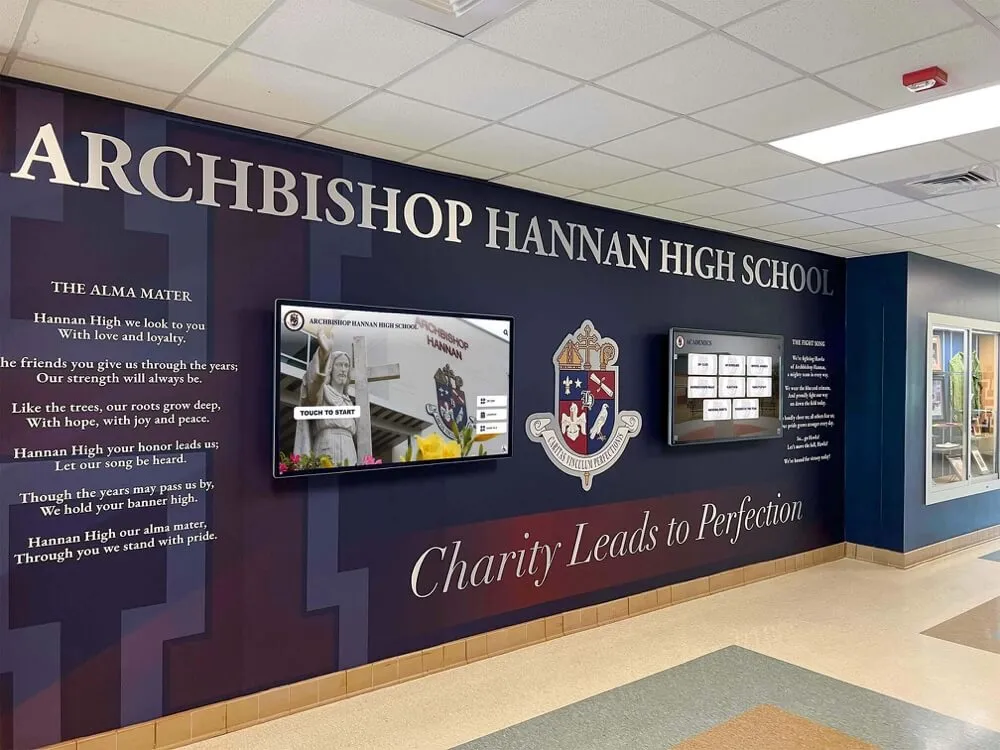
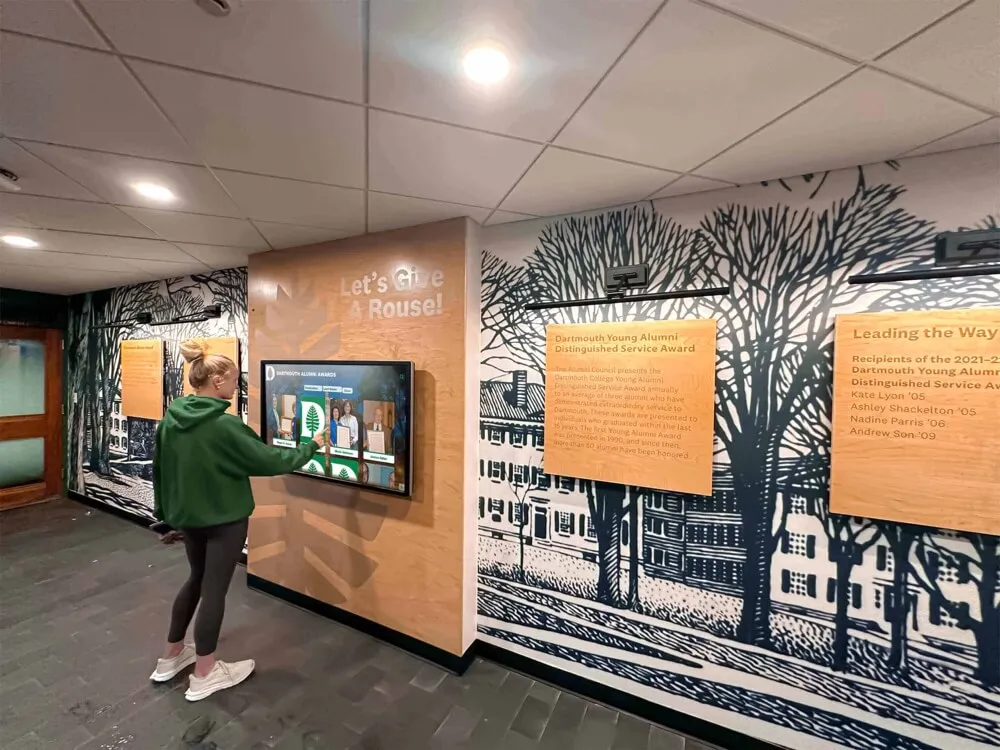
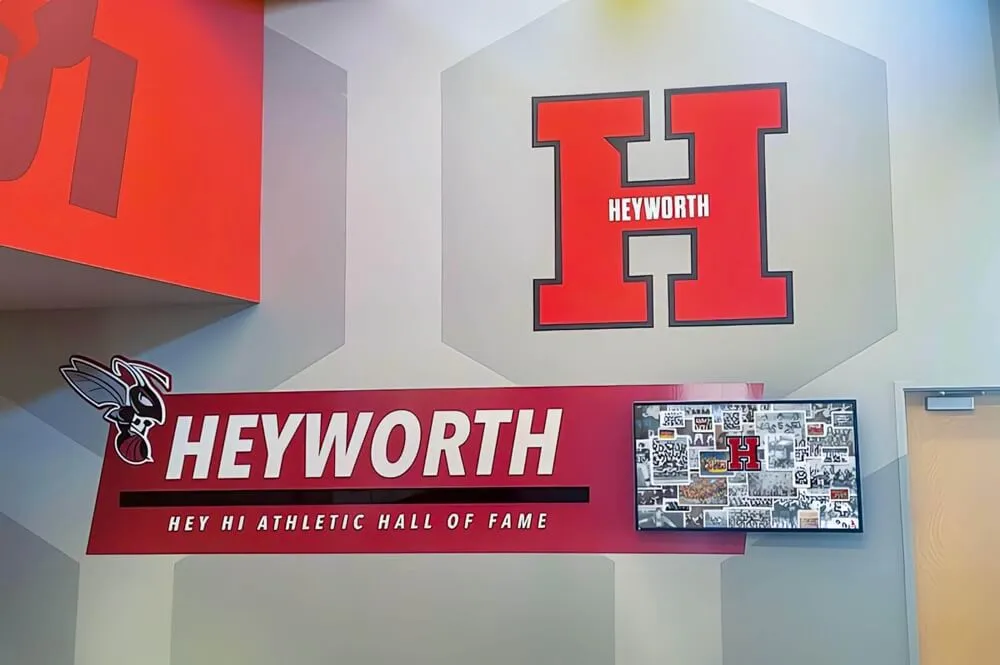
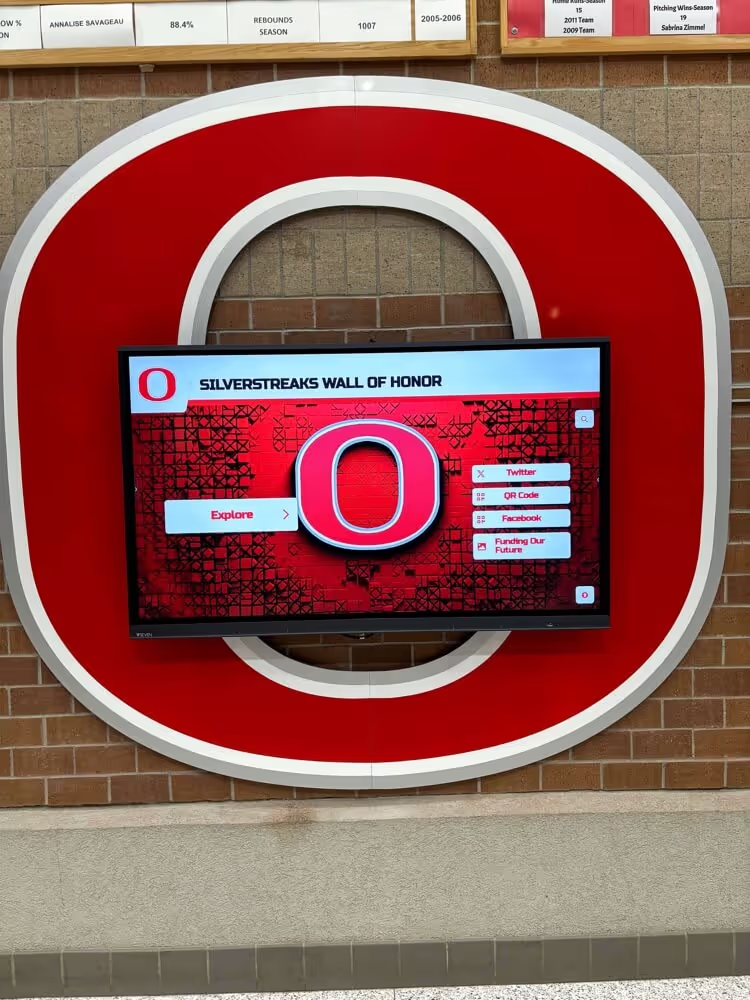
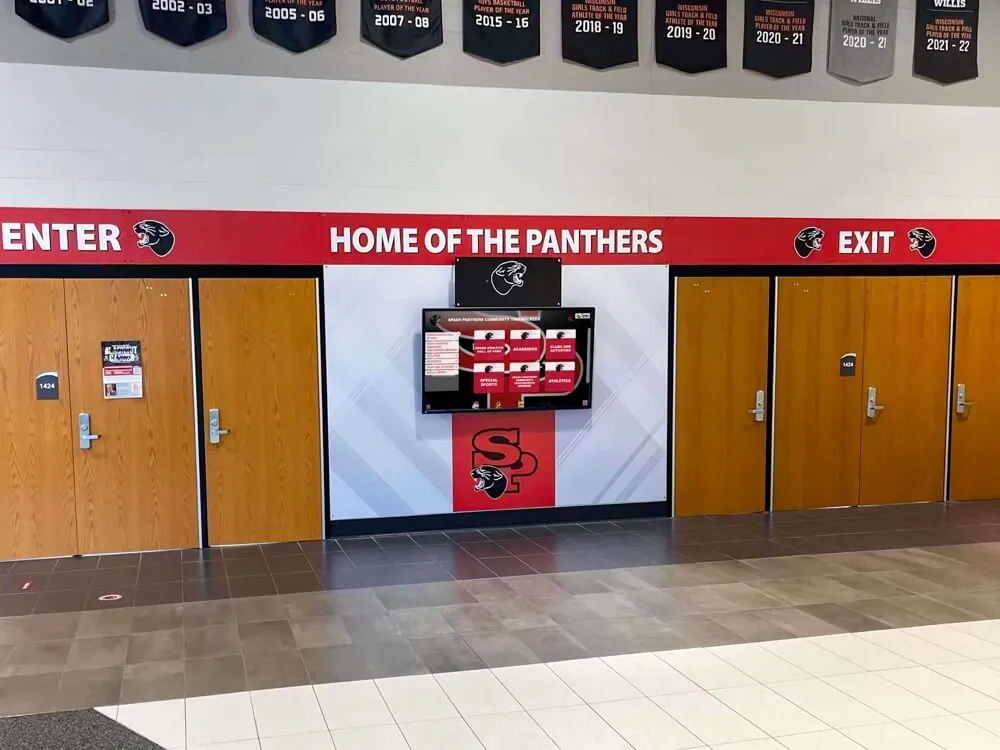
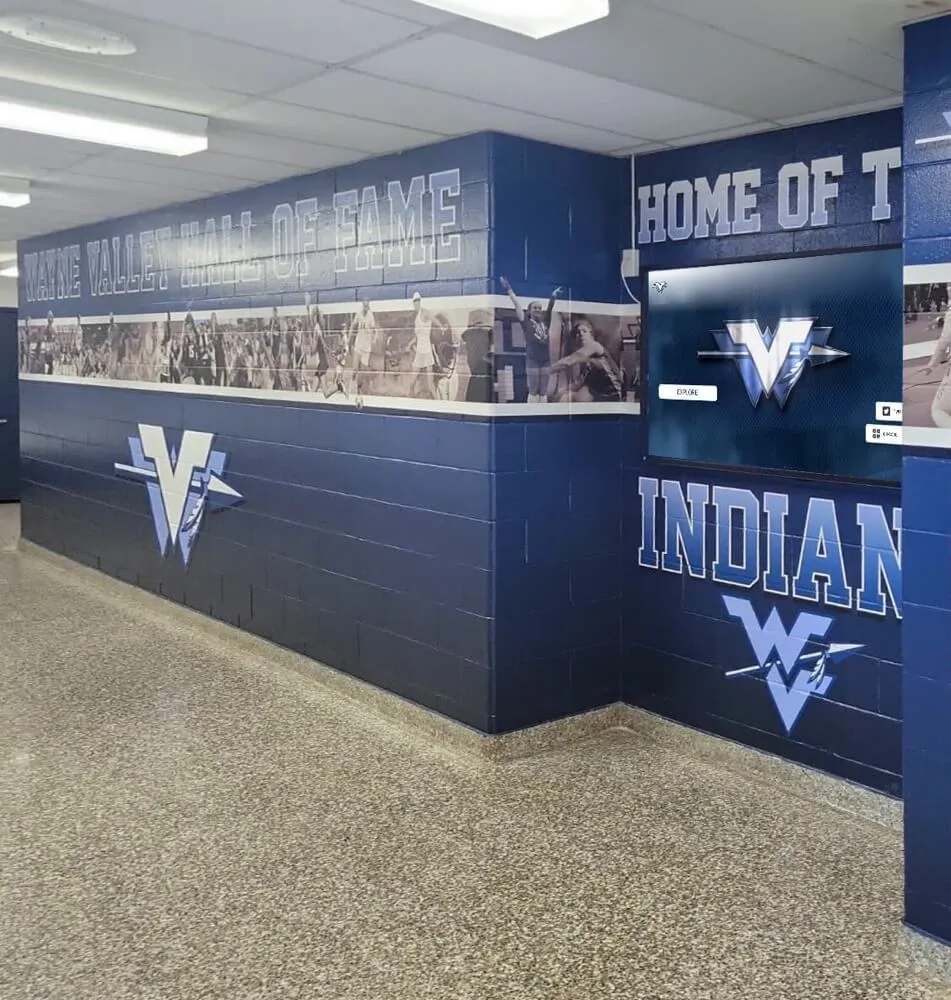
Lobby and hallway recognition displays depend on stable ethernet links—a duplex mismatch can interrupt content delivery without triggering any obvious error message on the display itself
What Ethernet Auto-Negotiation Is and Why It Matters for Recognition Displays
Ethernet auto-negotiation is the mechanism defined in the IEEE 802.3 standard that allows two connected devices—a display media player and a network switch port, for example—to advertise and agree on the highest shared speed and duplex mode. Typical options are 10, 100, or 1000 Mbps, each at half- or full-duplex.
Why mismatches occur in school environments:
- Older managed switches with ports manually configured during a previous installation left in a non-default state
- Replacement display media players with factory defaults that differ from the units they replaced
- Long cable runs (over 55 meters on Cat5e for Gigabit, or approaching 100 meters for Fast Ethernet) degrading signal enough to trigger negotiation fallback to a lower speed
- Aging patch cables or connector crimps causing intermittent negotiation resets
What a mismatch looks like on a recognition display:
| Symptom | Likely Cause |
|---|---|
| Intermittent blank screen or content freeze | Duplex mismatch generating packet collisions |
| Content thumbnails load slowly or never populate | Speed negotiated to 10 Mbps instead of 100 or 1000 |
| Display reconnects to CMS every few minutes | Link instability from sustained error accumulation |
| Network icon shows connected but content won’t update | Half/full duplex conflict on a busy switch port |
| Problem worsens during arrival periods or events | Collision errors compounding under heavier shared network load |
Schools running web-based interactive recognition platforms are especially vulnerable. Even a brief duplex mismatch can drop the session to the content management server, interrupt touchscreen responsiveness, or block scheduled content updates from reaching the display. Schools that have already addressed display-side signal configuration—such as HDMI CEC setup for recognition screens—often discover that remaining disconnection issues originate upstream at the switch port rather than in the display itself.
Before You Start: What to Gather
Collect the following before opening any command-line tools or accessing the switch:
- Display MAC address — found in the display’s network settings menu or on a label attached to the media player
- IP address — static or DHCP-assigned; visible in the display’s network information panel
- Switch name and port number — the physical port where the display’s ethernet cable terminates in the wiring closet or IDF
- Cable category — Cat5e, Cat6, or Cat6A (printed on the cable jacket at intervals)
- Cable run length — approximate distance from the switch to the display
- CMS platform name — so you can verify whether the platform logs connectivity events for that display
Having this information before starting prevents repeated trips between the display location and the wiring closet during the test.
School Network Troubleshooting Checklist: Ethernet Auto-Negotiation Test
Work through these steps in order. Each step tells you what to look for and what to do when you find a problem.
Step 1 — Check the Physical Link Indicators
At the switch:
- Confirm the port LED is solid green (link active). A blinking amber LED indicates a 10 Mbps or error-state link on most managed switches.
- If the LED is off, the cable is carrying no signal—test the cable before proceeding to later steps.
At the display or media player:
- Confirm the ethernet port’s link LED is lit. Most commercial media players show a solid LED for an active link and a blinking LED for traffic.
If the physical link is absent, replace or re-seat the cable and retest before continuing. Ethernet auto-negotiation cannot occur on a dead or open cable.
Step 2 — Access the Switch Port Statistics
Log in to the switch management interface (web GUI or CLI) and navigate to the port connected to the display. Look for:
| Value to Check | What a Healthy Link Shows |
|---|---|
| Port speed | 100 Mbps or 1000 Mbps (not 10 Mbps) |
| Duplex mode | Full-duplex |
| CRC errors | Zero or near-zero |
| Input errors | Zero or near-zero |
| Collisions | Zero (collisions must not appear on full-duplex links) |
| Output drops | Zero |
Non-zero collision counts on what should be a full-duplex port is the clearest single indicator of a duplex mismatch. On Cisco IOS-based switches, run:
show interfaces GigabitEthernet0/X
Look for the Duplex and Speed lines in the output. A result showing half-duplex when the display’s NIC is set to auto-negotiate full-duplex confirms the mismatch. Juniper, HP/Aruba, and Netgear managed switches expose equivalent information through their respective CLIs or web interfaces under port status or interface detail views.
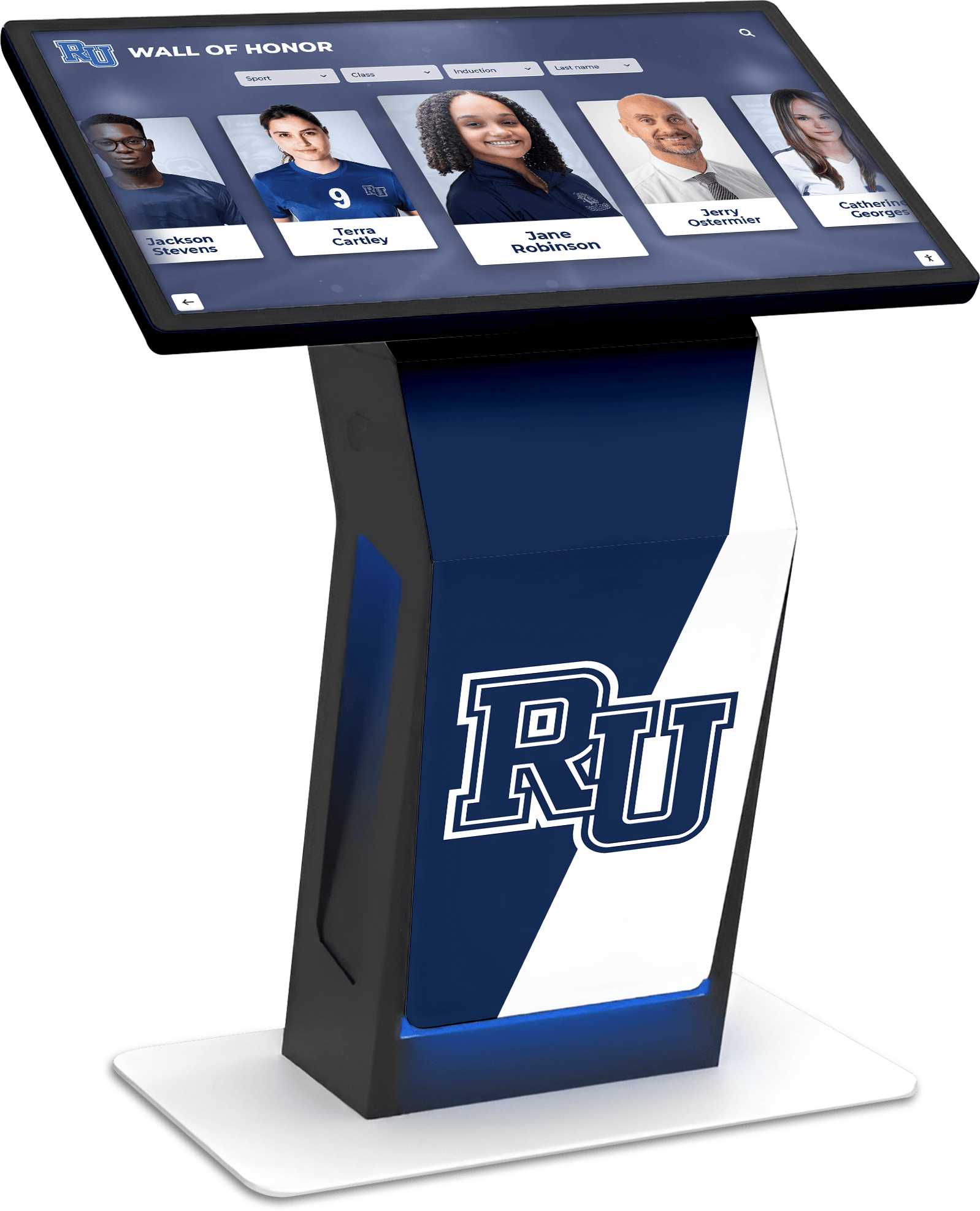
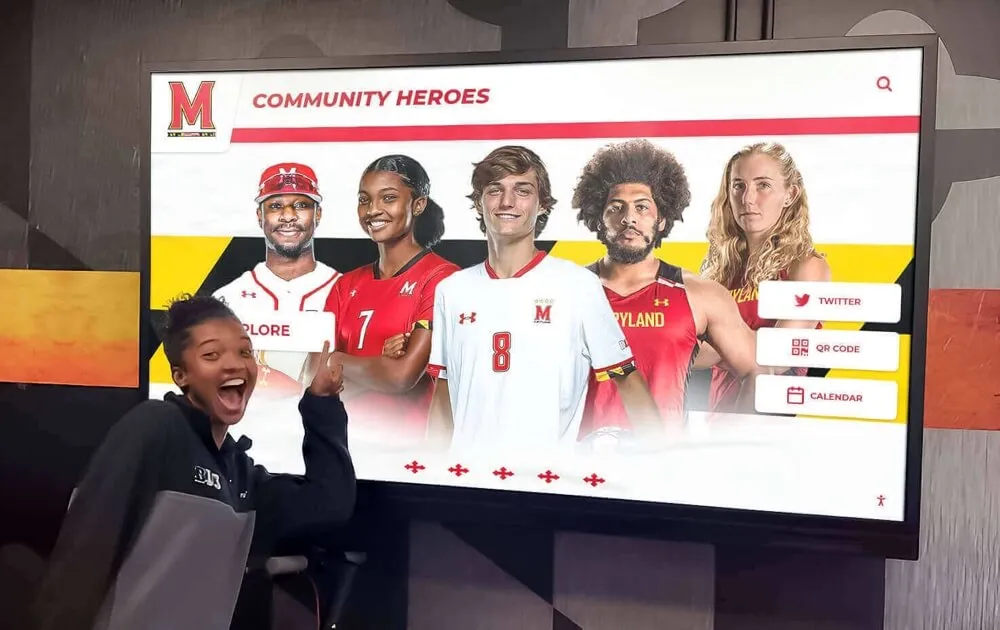
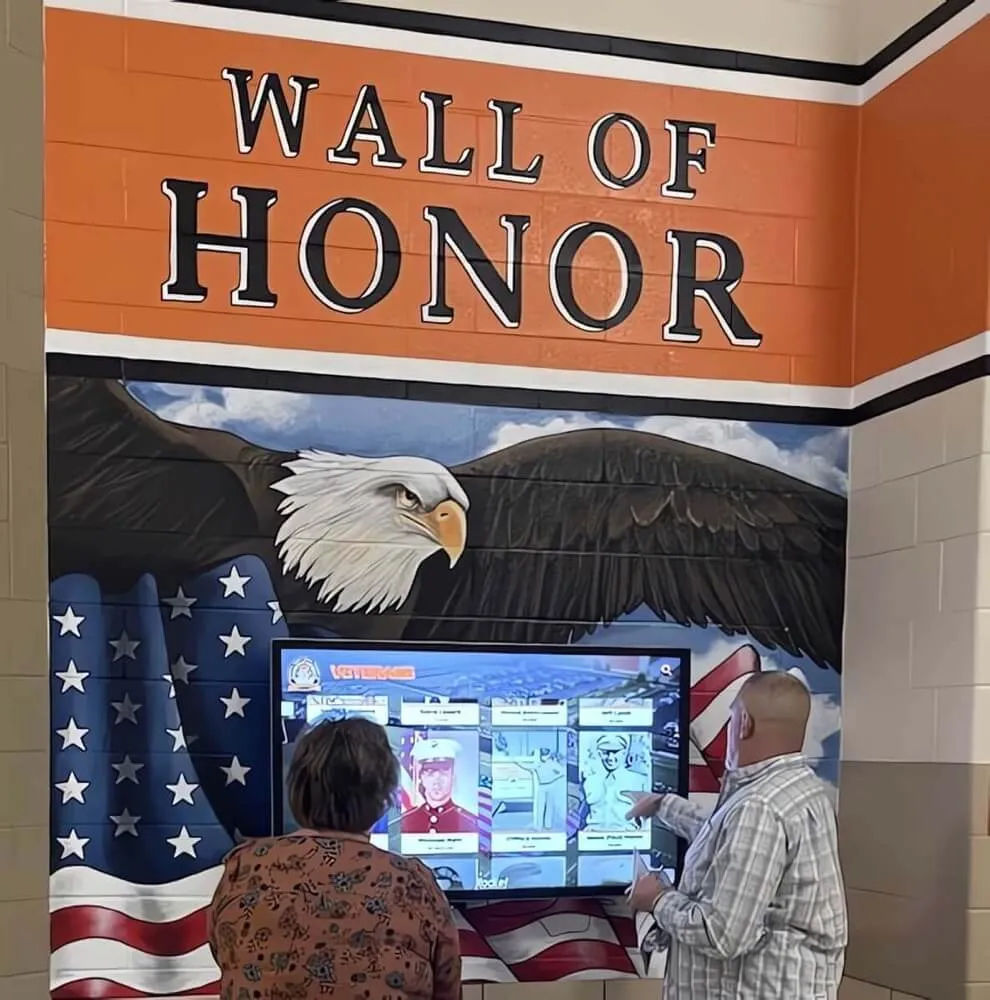
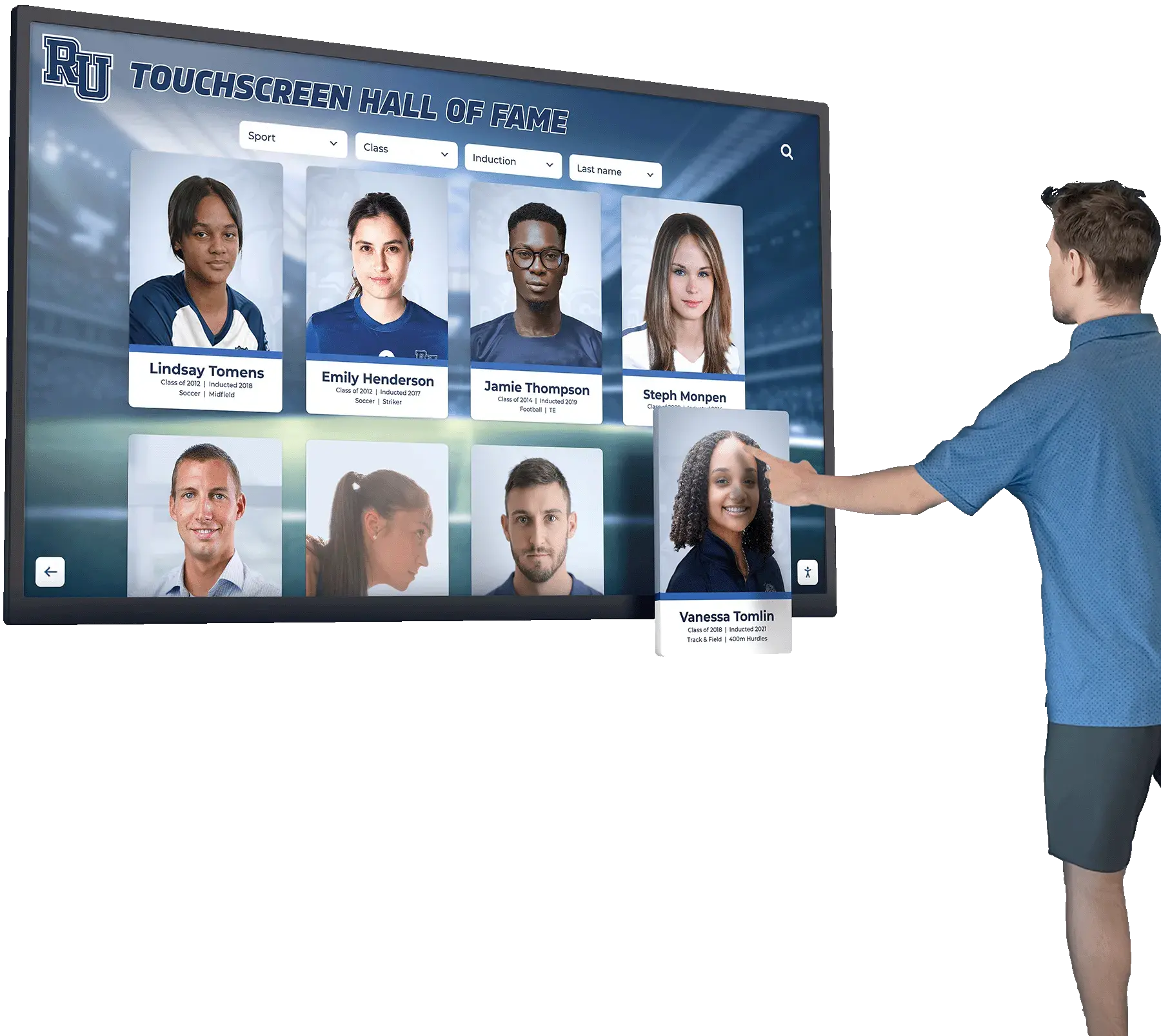
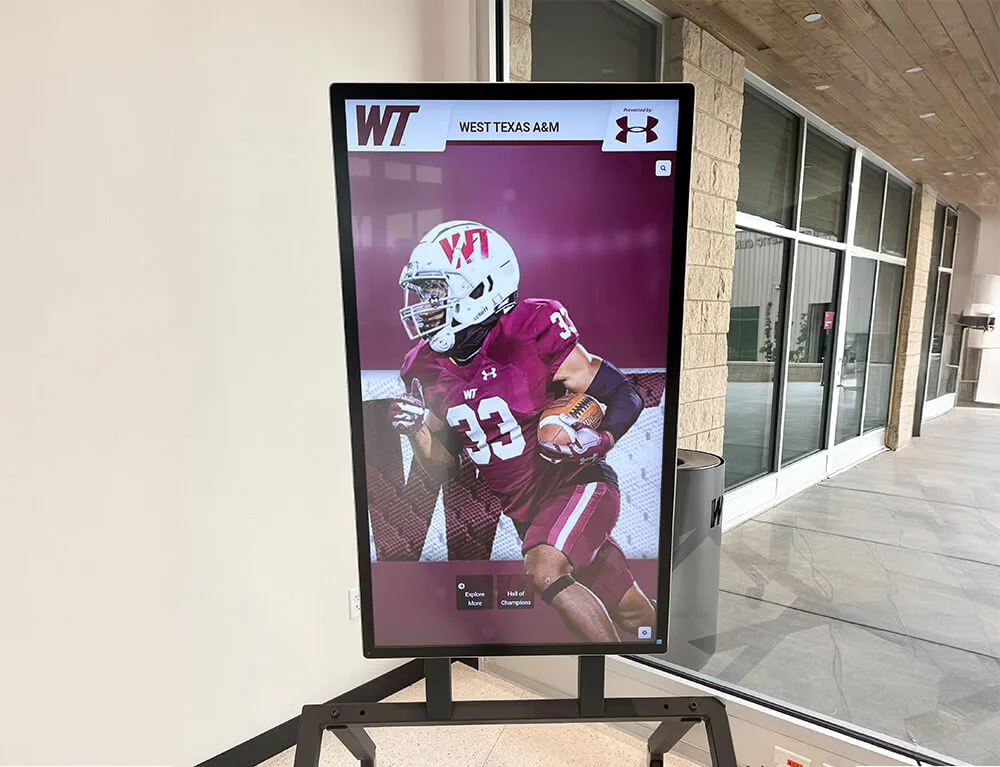
Touchscreen recognition kiosks require stable full-duplex ethernet links to maintain real-time CMS connectivity and deliver responsive touchscreen interaction for students and visitors
Step 3 — Check the Display-Side Negotiated Speed
On Linux-based media players (common in commercial display systems):
Connect via SSH or a local terminal and run:
ethtool eth0
Look for:
Speed: 100Mb/sorSpeed: 1000Mb/s— notSpeed: 10Mb/sDuplex: Full— notDuplex: HalfLink detected: yes
On Windows-based media players:
Open PowerShell and run:
Get-NetAdapter | Select-Object Name, LinkSpeed, FullDuplex
A FullDuplex: False result on a port that should be full-duplex confirms the mismatch from the device side.
On display systems without shell access:
Check the network status screen in the display’s settings menu. Most commercial displays and media players show the negotiated link speed in their network information panel, typically under Settings > Network > Status or similar.
Step 4 — Compare Both Sides
Use this comparison table during the test:
| Device | Reported Speed | Reported Duplex |
|---|---|---|
| Switch port | _____ | _____ |
| Display / media player | _____ | _____ |
If both sides show the same speed and full-duplex, auto-negotiation succeeded and the link is healthy. If they differ—or if either side shows half-duplex—you have confirmed the mismatch.
Step 5 — Test Cable Quality
A degraded cable can cause auto-negotiation to fall back to a lower speed even when both devices are correctly configured. Use a cable tester or certifier to verify:
- Wiremap: all 8 conductors connected in the correct pinout with no opens, shorts, or crossed pairs
- Length: under 100 meters for both 100 Mbps and 1000 Mbps on Cat5e or better; under 55 meters for Gigabit on Cat5e in high-noise environments
- Attenuation and crosstalk: a cable certifier provides these measurements; a basic continuity tester does not
Recognition displays installed in school lobbies, gymnasium entrances, or trophy corridors are often at the far end of long runs from a remote IDF. Cable degradation over several years—particularly at connector terminations—is the most common root cause of intermittent auto-negotiation failure in installations that initially tested clean.
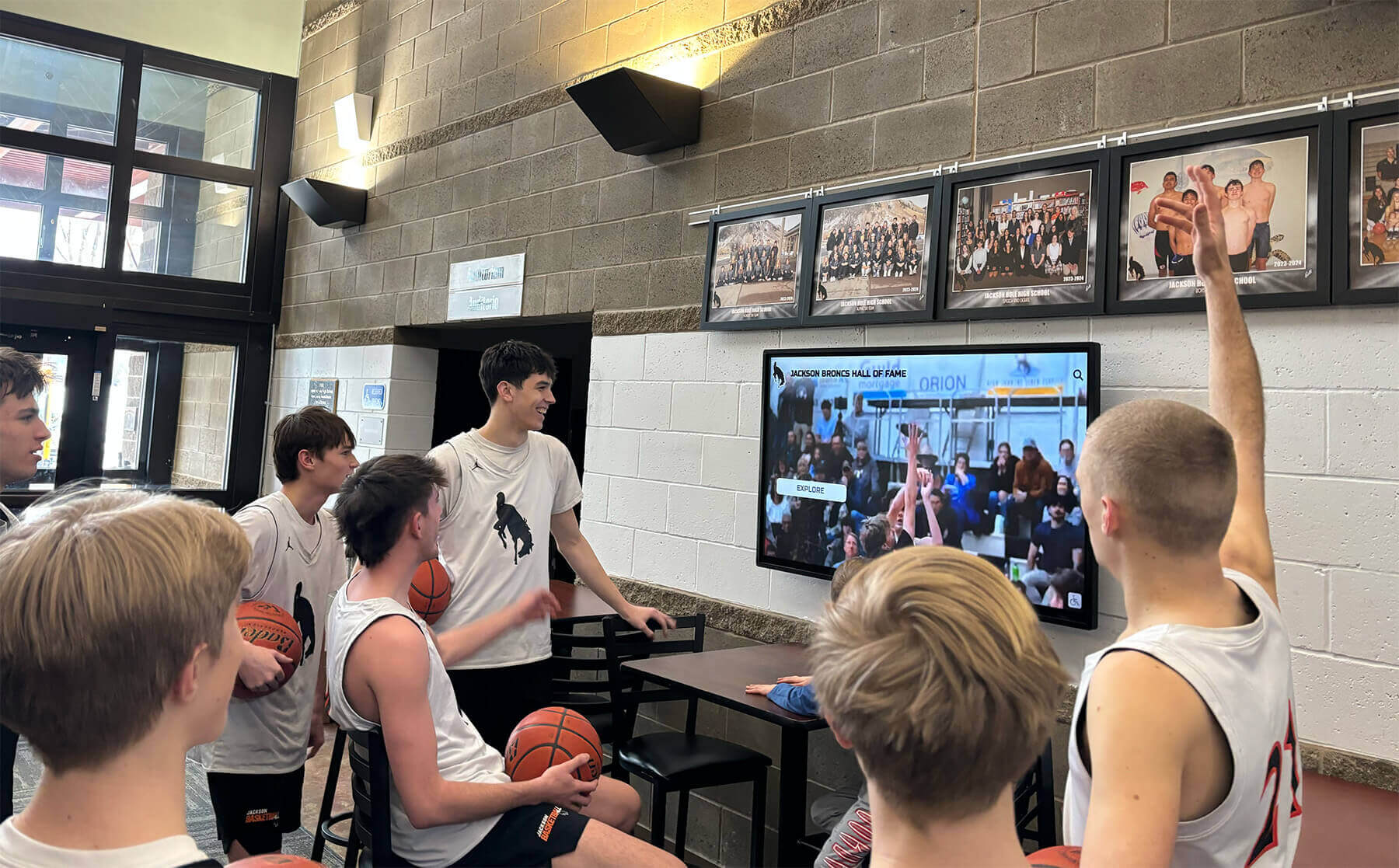
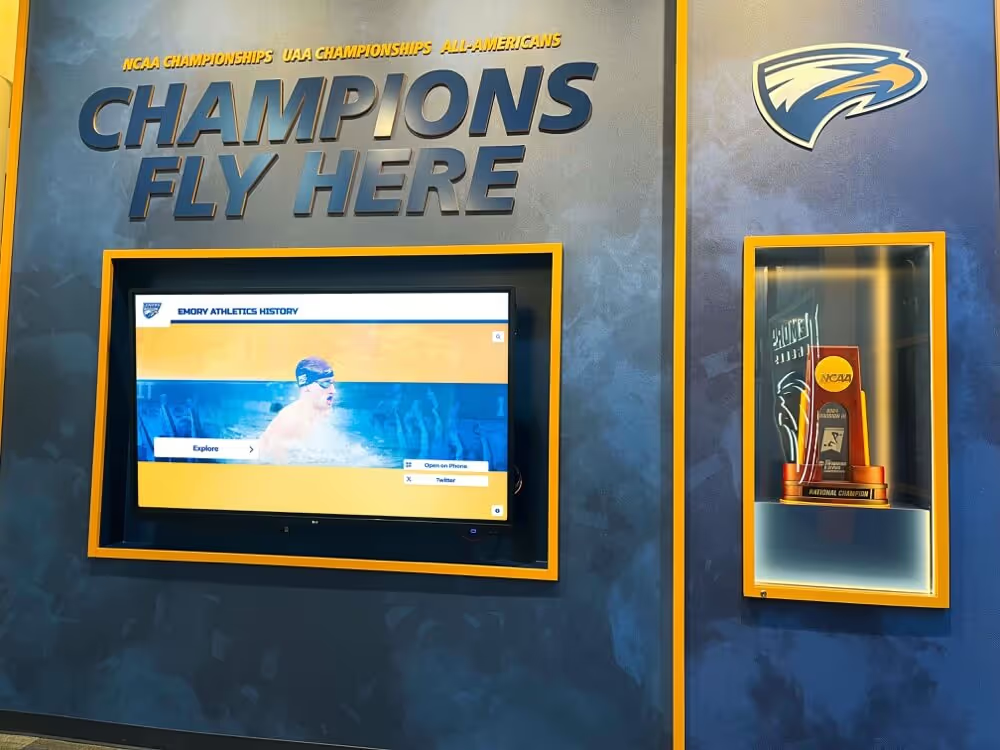
Lobby displays carrying live recognition content require stable Fast or Gigabit Ethernet links—degraded cables cause negotiation fallback that limits throughput and reliability simultaneously
Step 6 — Resolve the Mismatch
Option A — Re-enable auto-negotiation on both sides (preferred)
If one or both sides were manually configured, set both the switch port and the display’s NIC to auto-negotiate:
Switch CLI (Cisco IOS example):
interface GigabitEthernet0/X
 speed auto
 duplex auto
Display NIC (Linux ethtool):
ethtool -s eth0 speed 1000 duplex full autoneg on
Allow 5–10 seconds for the link to re-establish, then recheck the switch port statistics for speed, duplex, and error counts.
Option B — Hard-set both sides to matching speed and duplex
When auto-negotiation fails repeatedly—common with older NICs or legacy unmanaged switches—hard-set both ends to identical values:
Switch:
interface GigabitEthernet0/X
 speed 100
 duplex full
Display NIC (Linux):
ethtool -s eth0 speed 100 duplex full autoneg off
Critical rule: Never hard-set one side while leaving the other on auto-negotiate. A hard-set port does not send auto-negotiation frames, so the auto-negotiate side cannot determine the correct duplex—it will default to half-duplex, recreating exactly the mismatch you are trying to fix.
Step 7 — Clear Error Counters and Monitor
After applying the fix:
- Clear the switch port error counters (on Cisco:
clear counters GigabitEthernet0/X). - Allow the display to run normal content for 15 minutes.
- Re-check the switch port statistics for CRC errors, collisions, and input errors.
- Zero counts after 15 minutes confirms the mismatch is resolved.
- Document the final speed, duplex settings, cable category, and switch port assignment in your display maintenance log.
Step 8 — Verify Display Stability Through the CMS
Confirm the recognition content platform registers the display as online and current:
- Log in to the display’s CMS and confirm the display appears connected
- Trigger a manual content sync to verify data flows without timeout
- Check platform connectivity logs (if available) for any disconnection events following the fix
- If the display uses touchscreen interaction, verify responsiveness returns to normal
Schools managing multiple recognition displays—lobby kiosks, athletic hall of fame walls, trophy corridor screens, entrance installations—benefit from recording switch port assignments and negotiated settings for each display at the time of installation. That documentation reduces a future troubleshooting cycle from hours to minutes.
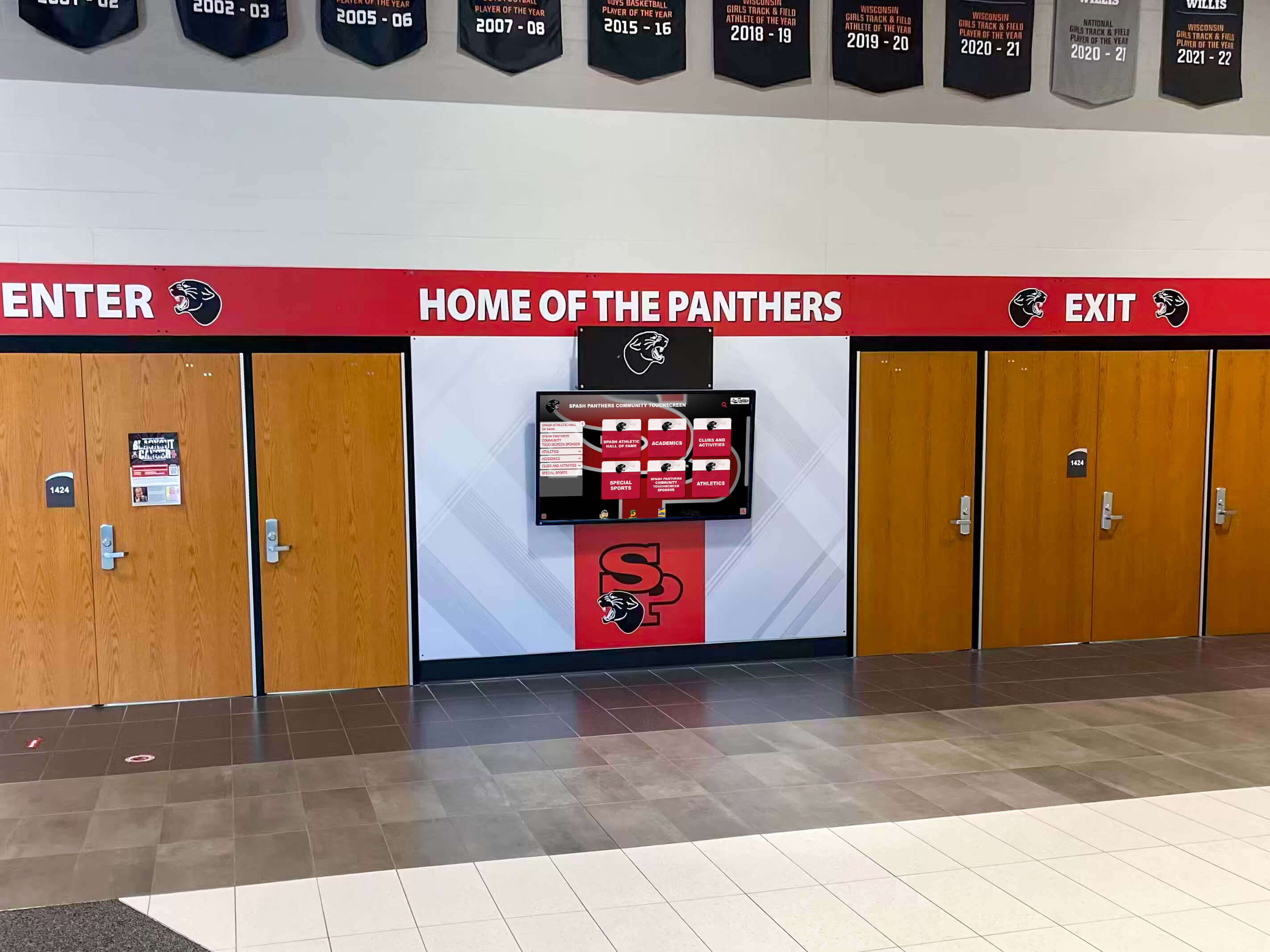
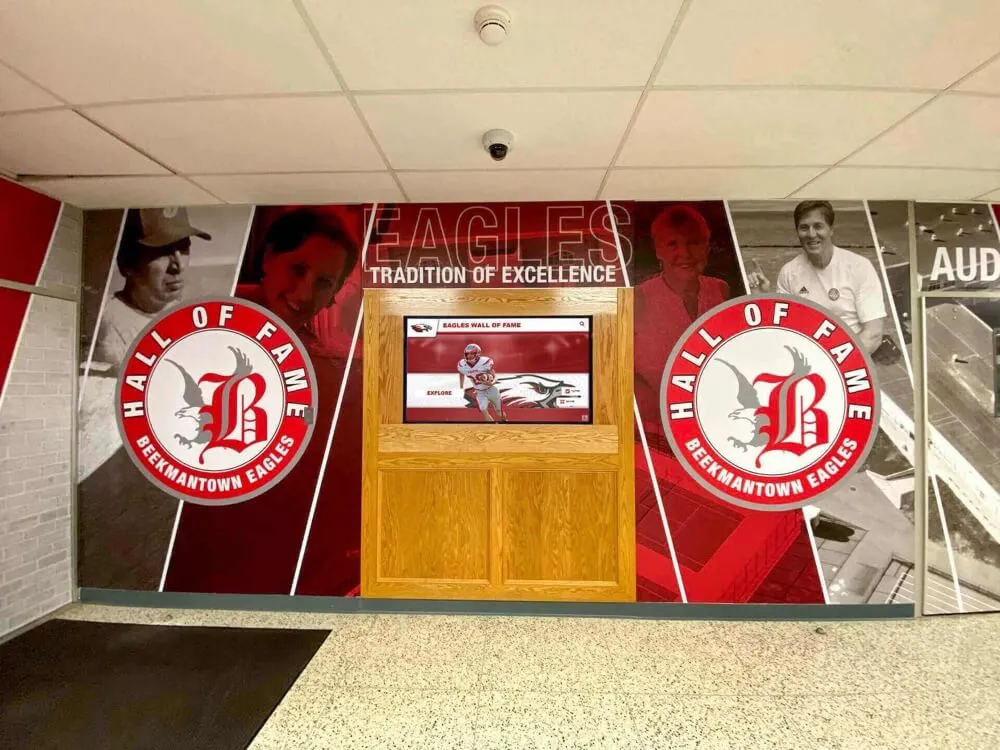
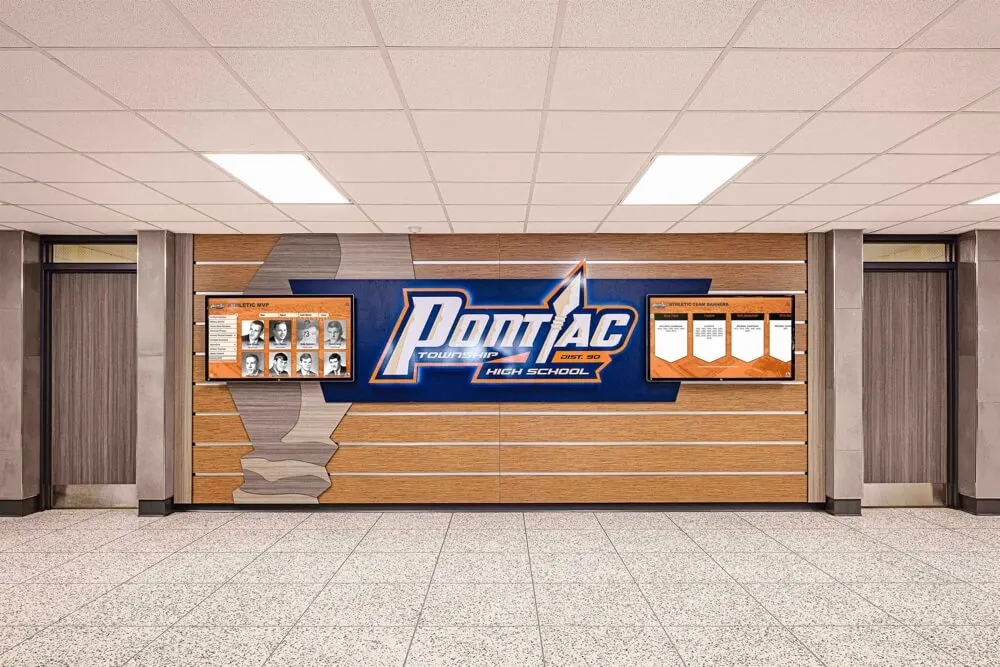
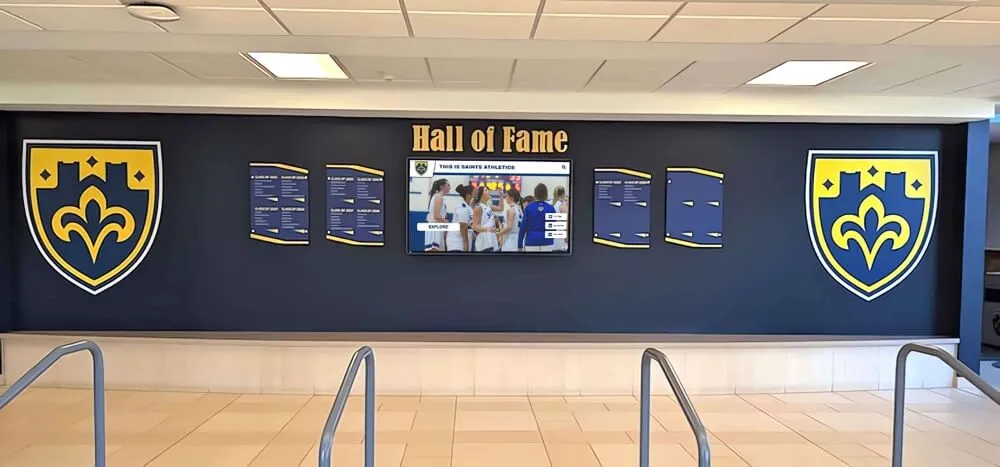
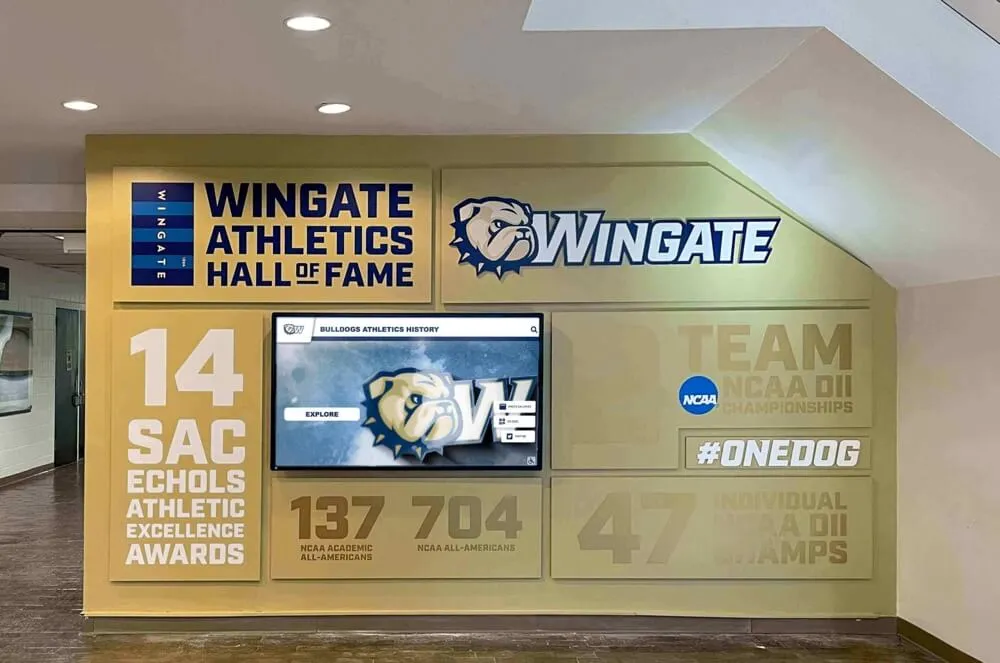
Entrance and lobby recognition displays are among the most visible touchpoints in any school building—network link reliability directly affects the impression they make on prospective families, alumni, and community members
Frequently Asked Questions
Q: Does ethernet auto-negotiation affect wireless-connected recognition displays?
No. Auto-negotiation is a wired ethernet protocol. Wireless displays associate via Wi-Fi, which uses its own rate-negotiation and association mechanisms. If your recognition display connects over Wi-Fi, direct troubleshooting toward signal strength, channel congestion, and 802.11 band selection rather than the steps above.
Q: How often should we run a recognition display ethernet auto-negotiation test?
A baseline check at installation and after any wiring closet or switch change is sufficient for most schools. If a display shows intermittent disconnection symptoms, run the checklist immediately. For high-visibility installations—athletic hall of fame walls, alumni recognition kiosks, trophy corridor screens—consider adding a link statistics review to a quarterly IT walkthrough.
Q: Can a Power over Ethernet (PoE) switch cause auto-negotiation problems?
PoE itself does not interfere with auto-negotiation; the data and power layers operate independently on the same cable. However, a PoE budget overrun—too many powered devices on one switch—can cause a switch to disable or throttle individual ports, which looks like a link problem. Check the switch’s PoE power report if the display powers on and off unexpectedly alongside the link symptoms.
Q: Our display is connected to a managed switch installed by an outside vendor. Can we still access port statistics?
Most managed switches offer read-only access to port statistics without requiring write permissions. Contact the switch vendor or your district network team for read credentials. Steps 1 through 4 of this checklist are fully executable with read-only access. Document your findings before requesting a configuration change from whoever owns write access.
Q: What link speed does a typical school recognition display actually need?
A single web-based recognition display showing high-resolution photos and video typically needs 5–15 Mbps of sustained throughput during content updates. Fast Ethernet (100 Mbps, full-duplex) provides ample headroom. Gigabit Ethernet adds comfortable margin for displays receiving frequent updates or acting as the source for multiple output screens. The concern in this checklist is not bandwidth volume—it is link stability and duplex consistency that determine display uptime.
Q: We confirmed the link is healthy but the display still disconnects from the CMS. What else should we check?
If switch port statistics show zero errors, correct speed, and full-duplex, but the display still loses its CMS session, investigate:
- DHCP lease conflicts causing the display’s IP address to change unexpectedly
- Firewall or VLAN rules blocking traffic between the display VLAN and the CMS server subnet
- DNS resolution failures if the display uses a hostname rather than a static IP to reach the server
- CMS-side session timeouts dropping idle display connections before a reconnect retry occurs
These are network policy and application-layer issues distinct from the physical link problem this checklist addresses.
Connecting Network Stability to Recognition Program Quality
A recognition display is only as effective as its uptime. School lobbies, gymnasium entrances, and hallway corridors carry a school’s recognition story—championship records, all-state rosters, alumni profiles, donor acknowledgments—to every community member who walks through the building. When a display goes dark because of a preventable network configuration issue, that story stops.
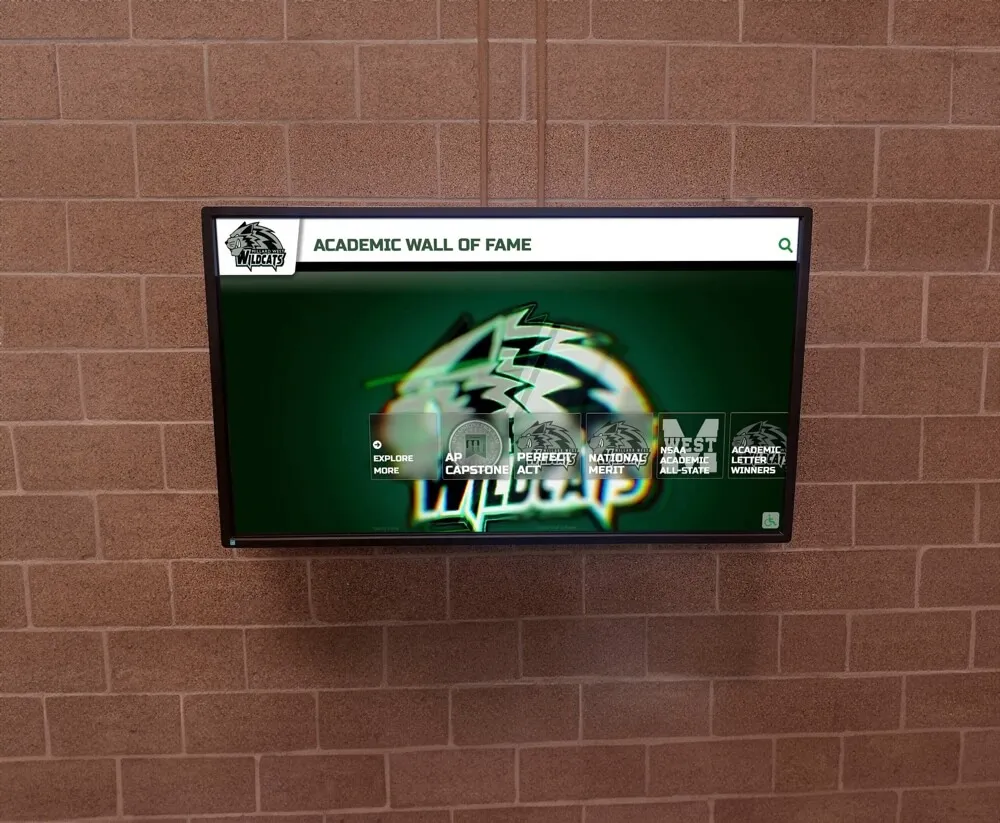
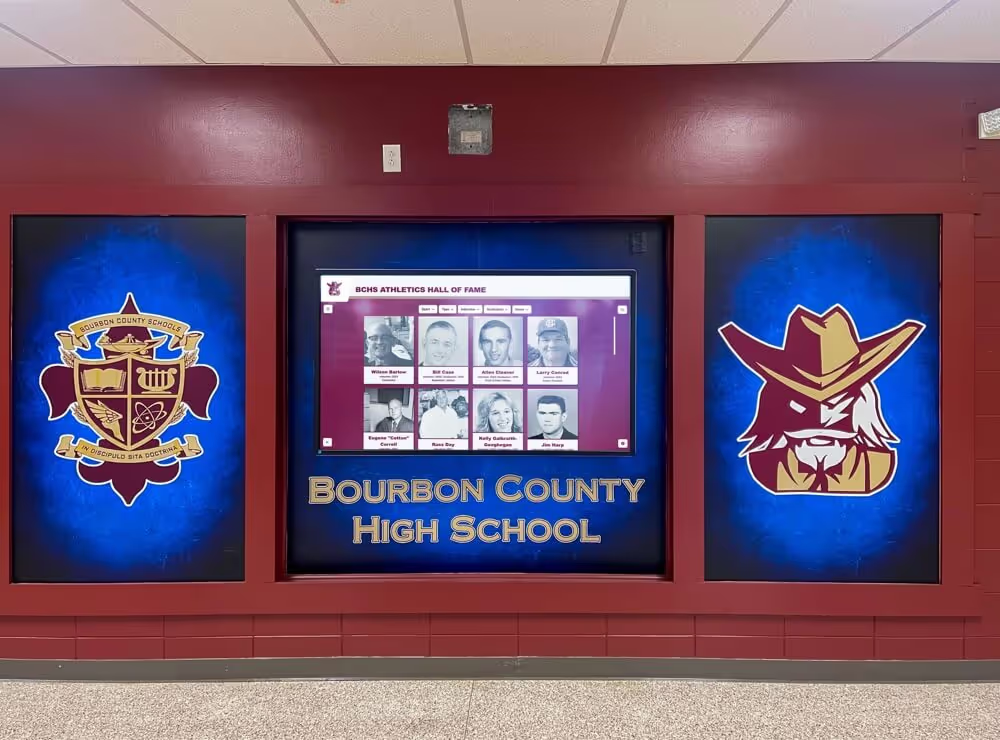
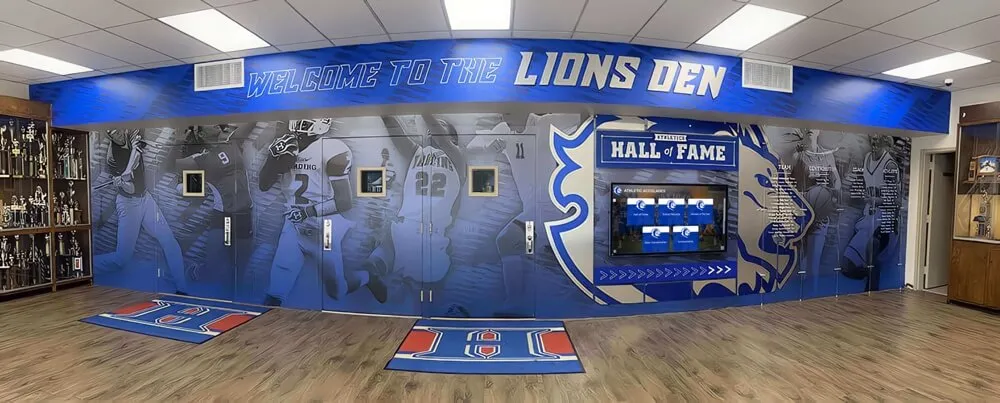
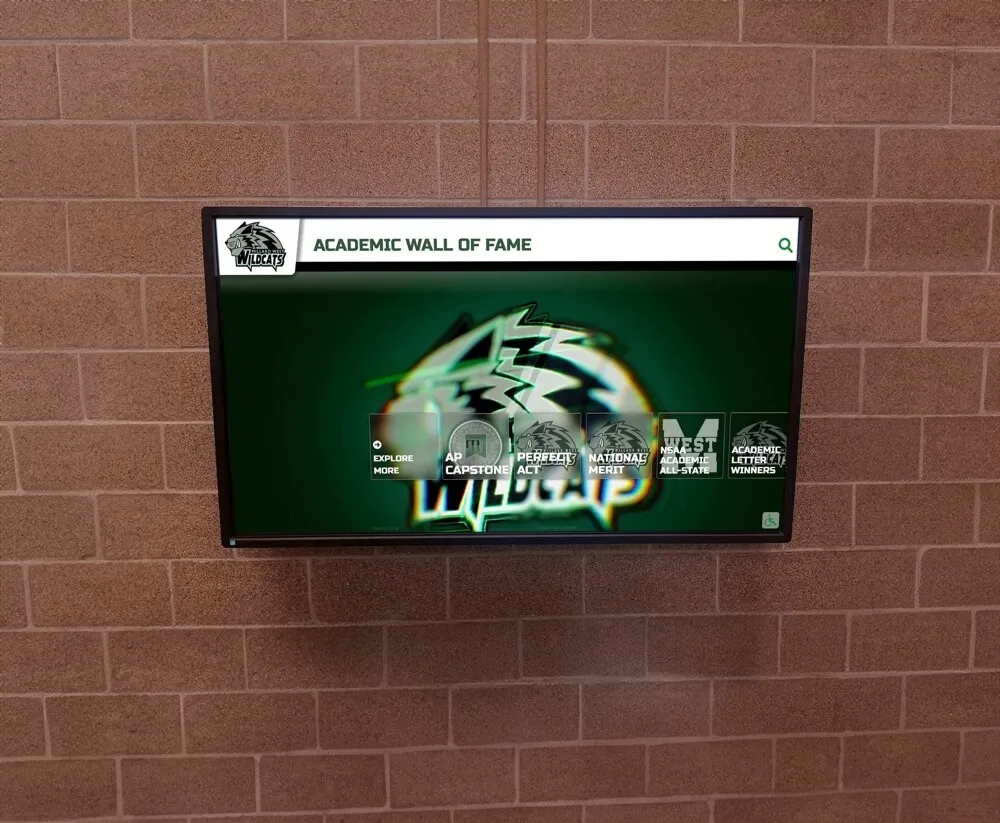
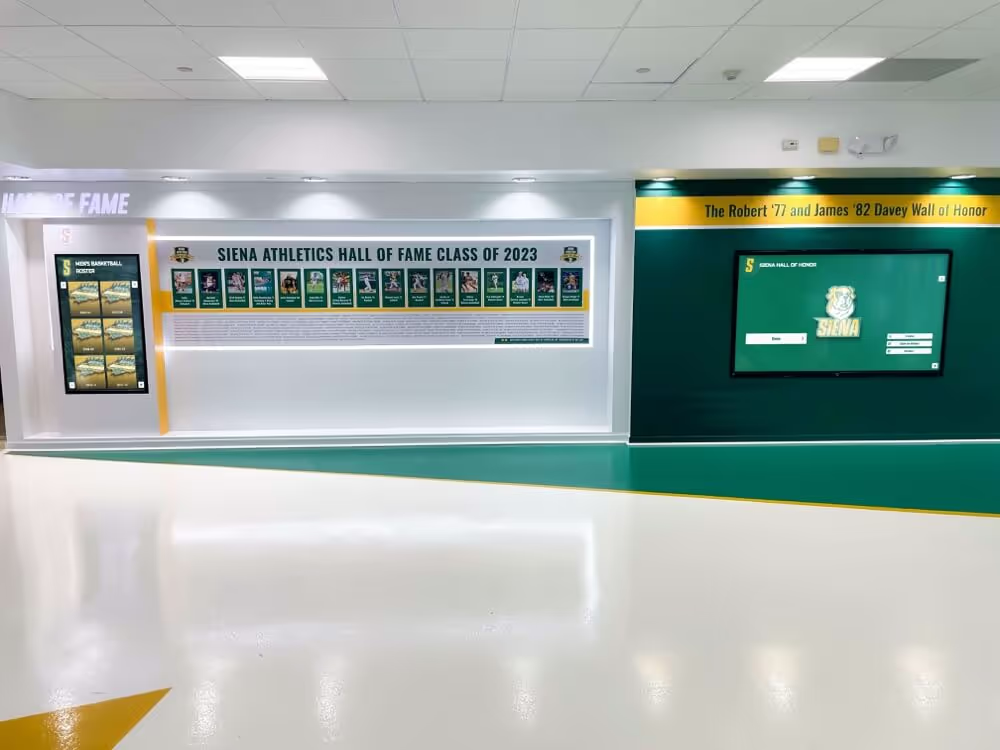
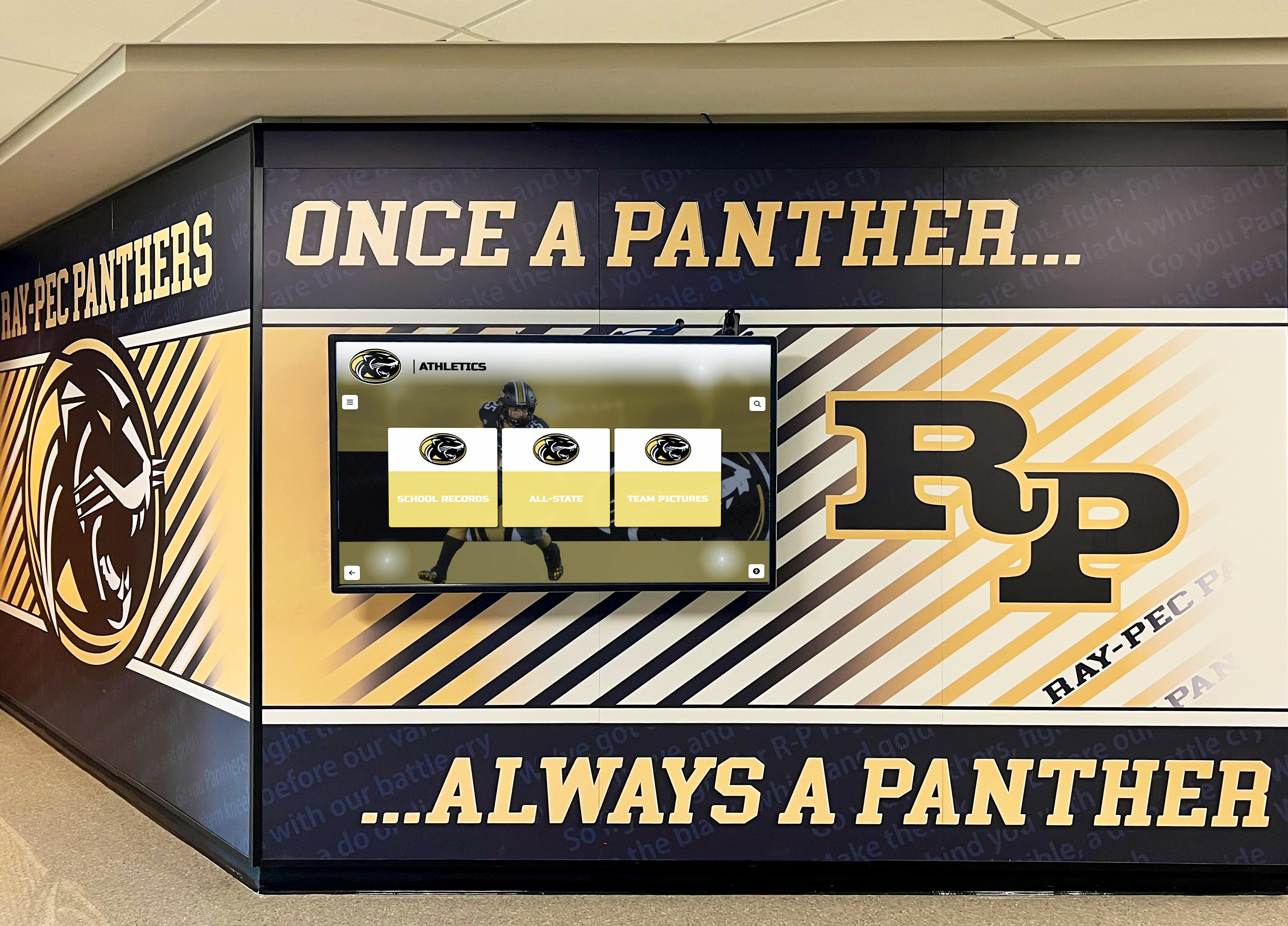
Academic and athletic walls of fame depend on consistent ethernet connectivity to display current recognition content and respond reliably to touchscreen interaction throughout the school day
The recognition display ethernet auto-negotiation test in this checklist is a 20–30 minute investment that eliminates the most common wired-network cause of display interruptions. Paired with installation documentation—switch port assignments, cable categories, run lengths, negotiated speed and duplex for each display—it gives school IT and AV teams a repeatable foundation for maintaining uptime across an entire facility.
Network infrastructure is the delivery layer. The recognition content, data organization, and long-term archive management that make displays valuable sit above it. Resources like the athletic award database surrogate key policy address how to structure recognition records for long-term consistency, while the athletic banquet planning checklist covers the program-level coordination that recognition platforms support.
Schools building media-rich recognition archives—oral histories, video tributes, audio recordings of coaches and alumni—also need stable network delivery for those assets. The athletic archive audio transcription guidelines from TouchWall detail how schools are extending recognition archives into audio and transcript formats, all of which require reliable display connectivity to reach visitors and community members effectively.
For programs evaluating how to present recognition content within limited physical space, the championship banner vs. digital trophy case comparison outlines trade-offs that also affect infrastructure choices—a digital case on a managed network requires this kind of connectivity planning, while a physical banner does not. Programs expanding recognition scope to cover sport-specific awards programs, such as baseball recognition ideas, will find that broader content scope puts additional throughput demands on display links during content update cycles.
Annual recognition events create temporary spikes in display content updates as programs refresh rosters and inductee information before ceremonies. The annual alumni golf event planning guide shows how recognition programs extend across both physical events and digital displays simultaneously—both depend on network reliability to deliver the experience community members expect. For programs planning multi-year infrastructure upgrades as part of a recognition program capital budget, booster club prepaid expense scheduling provides a framework for aligning network and display hardware investments with fiscal-year planning cycles.
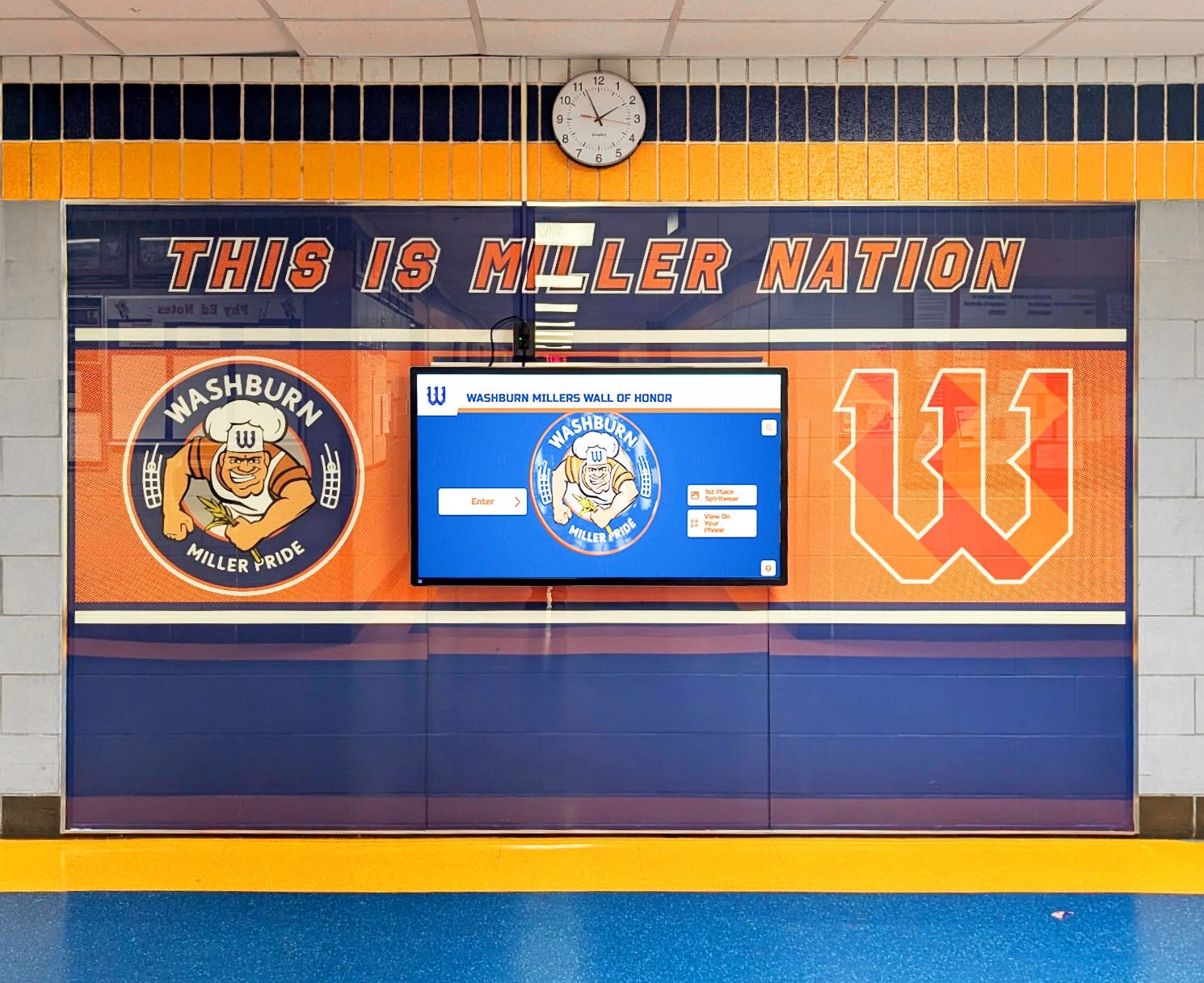
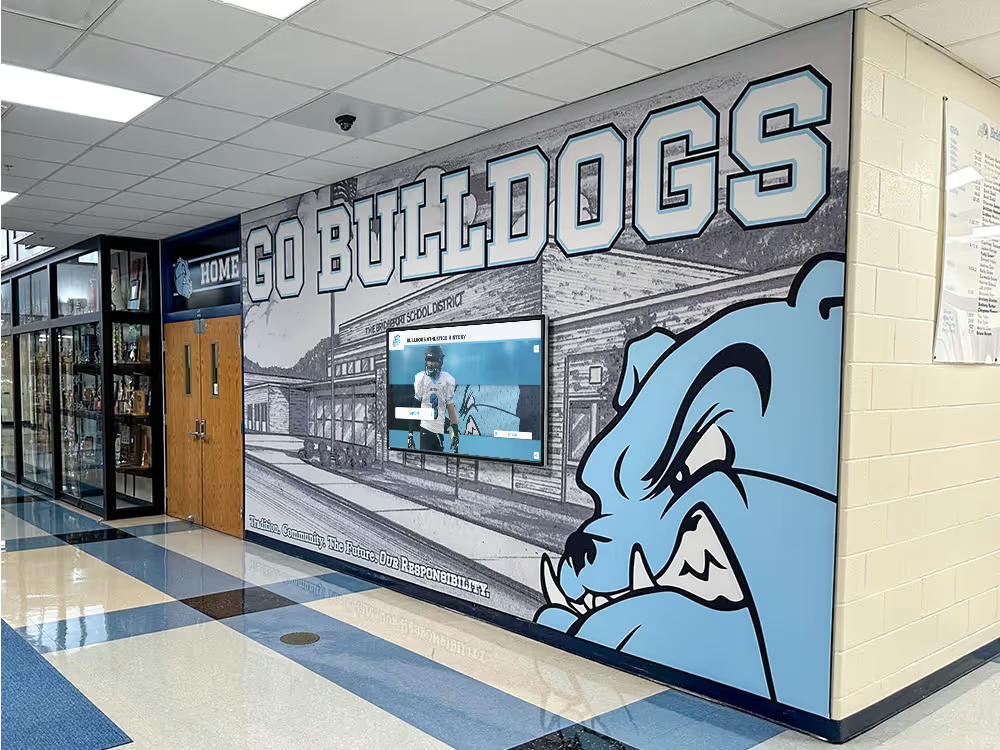
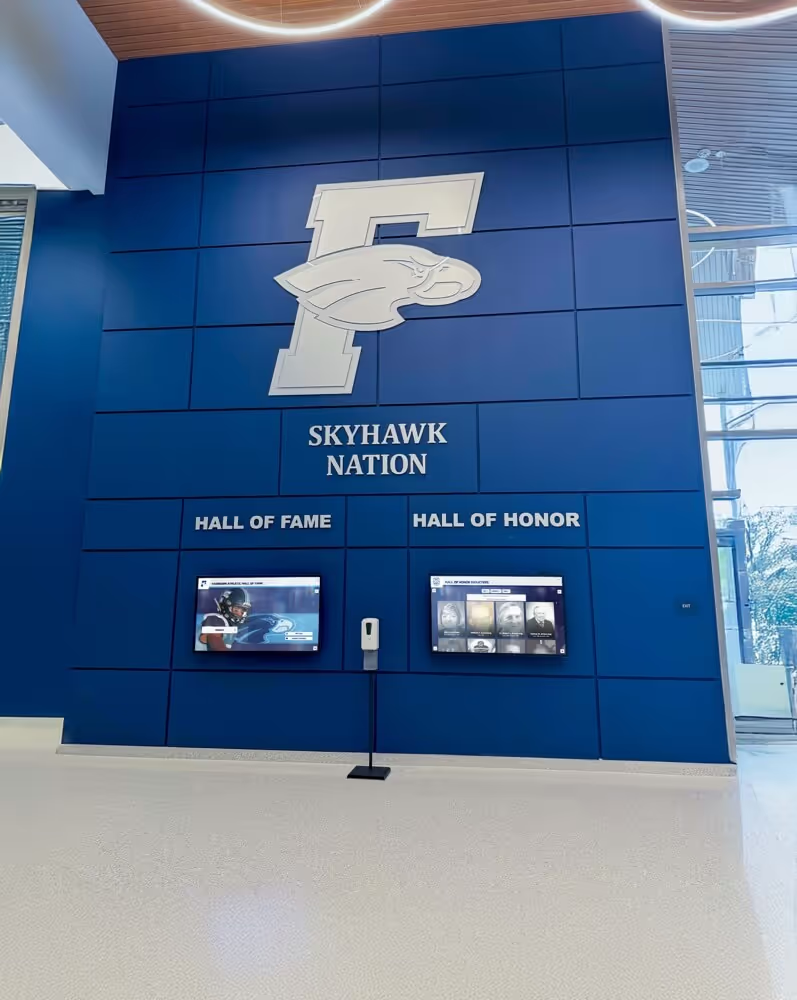
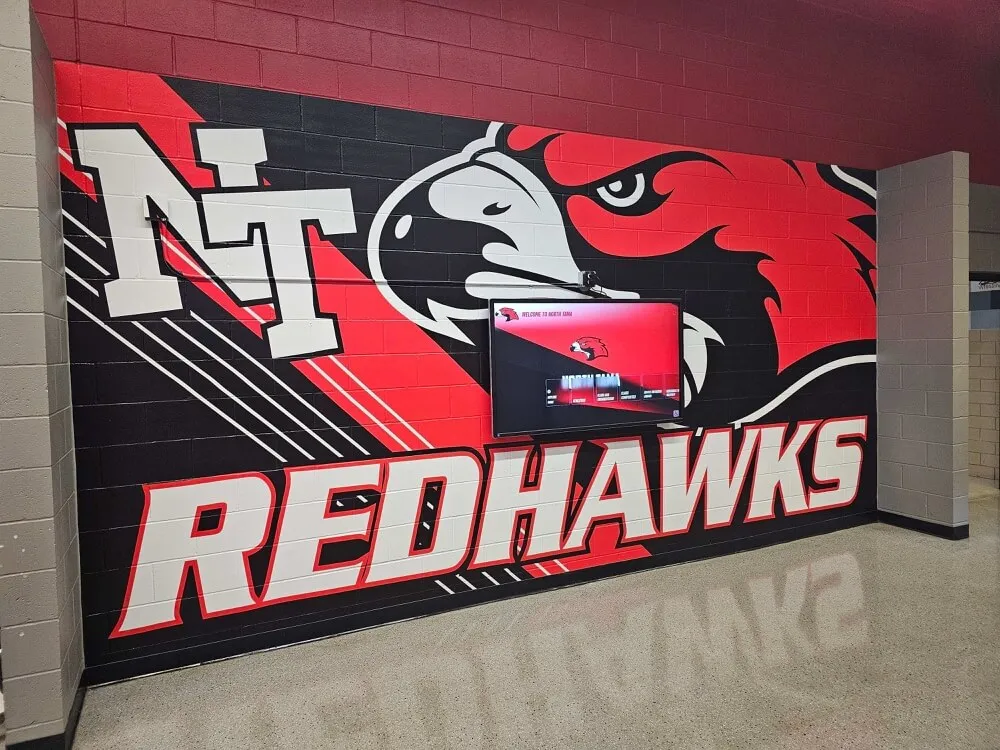
Wall of honor installations require stable full-duplex ethernet links to maintain continuous CMS connectivity and deliver the recognition experience these displays are built to provide throughout the school year
Quick Reference: Ethernet Auto-Negotiation Test Commands
| Task | Tool / Location | What to Look For |
|---|---|---|
| Physical link present | Port LED at switch and display | Solid green LED, no amber |
| Switch port statistics | Switch GUI or show interfaces CLI | 100/1000 Mbps, Full-duplex, zero collisions, zero CRC errors |
| Linux NIC status | ethtool eth0 | Speed: 100Mb/s or 1000Mb/s, Duplex: Full, Link detected: yes |
| Windows NIC status | PowerShell Get-NetAdapter | LinkSpeed ≥ 100 Mbps, FullDuplex: True |
| Re-enable auto-negotiation | Switch CLI + ethtool -s ... autoneg on | Both sides negotiate same speed and full-duplex |
| Hard-set both sides | Switch CLI + ethtool -s ... autoneg off | Identical speed and duplex values on both ends |
| Verify fix | Switch show interfaces after 15 min | Zero collisions, zero CRC errors, zero input errors |
| Confirm CMS connectivity | CMS admin panel | Display shown as online; manual sync completes without timeout |
When recognition displays stay connected, a school’s story stays visible. A stable ethernet link is the foundation—everything from touchscreen responsiveness to real-time content updates depends on getting that layer right before troubleshooting anything else.
If you are evaluating or expanding your school’s recognition display program, see how Rocket Alumni Solutions delivers reliable, web-based recognition displays built to integrate cleanly with standard school network infrastructure.