Intent: decide — A recognition display that stutters through a basketball highlight reel, freezes during a senior night video tribute, or drops frames on a live athletic event stream is not necessarily a hardware problem or a bandwidth problem. It is often a Quality of Service problem: video packets are arriving at the school’s network with no priority marking, competing for bandwidth equally with routine file downloads and background software updates, and losing that competition at the worst possible moments. DSCP marking — the mechanism that tells every switch and router in the path to treat video frames as high-priority traffic — is the fix, but only when it is actually being applied to the packets the display is receiving.
This guide walks school IT coordinators, AV technicians, and athletic directors through recognition display DSCP marking verification for athletic video traffic: what DSCP marking means in practice, how to capture packets and read the marks, and how to interpret pass and fail results so the right configuration change is made the first time.
Recognition display DSCP marking verification confirms that QoS priority labels are present on video packets when they arrive at your display hardware — and that the network is honoring those labels by giving video traffic preferential queuing over lower-priority flows.

Athletic video content on lobby recognition displays competes with every other network flow on the school LAN — DSCP marking is the mechanism that instructs the network to give video frames priority treatment
What DSCP Marking Is and Why It Matters for Athletic Video
DSCP stands for Differentiated Services Code Point. It is a 6-bit field in the IP packet header that carries a priority label assigned by the sender or by a network device along the path. When a switch or router is configured to honor DSCP marks, it places packets with high-priority marks into a queue that is served before lower-priority queues during periods of congestion. Packets with no mark — or with the default mark of zero — go into the best-effort queue and wait their turn.
Athletic video traffic is the category most sensitive to queuing delay on school networks. A 1080p highlight reel requires sustained throughput of 4–8 Mbps. A live-streamed athletic event from a remote platform peaks higher. Both are intolerant of the burst delays that best-effort queuing introduces during the high-traffic periods that coincide with school recognition events: the cafeteria filling up, students streaming video on personal devices, and the building’s background traffic reaching its daily peak.
Without DSCP marking in place, the recognition display’s video traffic is invisible to the network’s QoS policy. Every packet is treated equally, which means video packets are delayed whenever any other traffic competes for the same uplink bandwidth.
The most commonly used DSCP values for video traffic are:
| DSCP Value | DSCP Name | Decimal | Hex (IP ToS byte with ECN=0) | Use Case |
|---|---|---|---|---|
| 46 | EF (Expedited Forwarding) | 46 | 0xB8 | Real-time video, live streams |
| 34 | AF41 (Assured Forwarding) | 34 | 0x88 | Streaming video, tributes, highlights |
| 36 | AF42 | 36 | 0x90 | Video with medium drop tolerance |
| 38 | AF43 | 38 | 0x98 | Video with higher drop tolerance |
| 26 | AF31 | 26 | 0x68 | Business-critical data, signage CMS |
For recognition displays serving athletic video content — highlight reels, game summaries, senior night tributes, live-event streams — EF (46) or AF41 (34) are the appropriate target values. The verification steps below confirm whether these marks are present on packets captured at the display’s network interface.
How DSCP Marking Failures Manifest on Athletic Recognition Displays
Most DSCP problems are invisible until network congestion exposes them. The symptoms are indistinguishable from bandwidth shortfalls without packet-capture evidence:
| Observed Symptom | Likely DSCP-Related Cause |
|---|---|
| Athletic highlight video buffers during class change or lunch periods | Video traffic unmarked; competing with peak user traffic in best-effort queue |
| Senior night tribute plays smoothly in staff preview but stutters at the ceremony | Staff lounge network less congested; gym network fully loaded and honoring no QoS priority |
| Live-event stream from a remote platform drops frames every 30–60 seconds | Platform marks EF; school switch strips or ignores marks; video falls to best-effort |
| Video loads immediately after a network reboot but degrades within minutes | QoS works during low-traffic startup; fails as competing traffic fills best-effort queue |
| Still images load correctly but video is unreliable | Images are smaller and less bandwidth-sensitive; video requires sustained priority |
| Problem is only present during school hours, not evenings or weekends | School-hour congestion reveals QoS gap; off-hours traffic is low enough that best-effort suffices |
Schools planning athletic recognition displays with sport-specific content should include DSCP verification in the network readiness checklist before installation — the failure mode is predictable once the display goes live during peak network hours.
Before You Begin: What to Gather
Collect the following before opening any terminal or firewall console:
- Display’s IP address — from the display’s network settings panel or the DHCP server’s lease table
- Content platform hostname or IP — the server delivering video to the display (cloud-hosted CMS, streaming platform, or local media server)
- Your switch’s make, model, and management access — to review QoS trust policies on the port the display connects to
- Firewall or router access — to review DSCP remarking or stripping rules at the perimeter
- A workstation or laptop on the same VLAN as the display — for initial packet capture before confirming shell access to the display
- tcpdump or Wireshark — installed on the workstation or accessible via SSH on the display’s media player
Having a workstation on the same network segment as the display lets you capture traffic at the nearest possible point, minimizing the chance that an intermediate switch rewrites marks before capture.

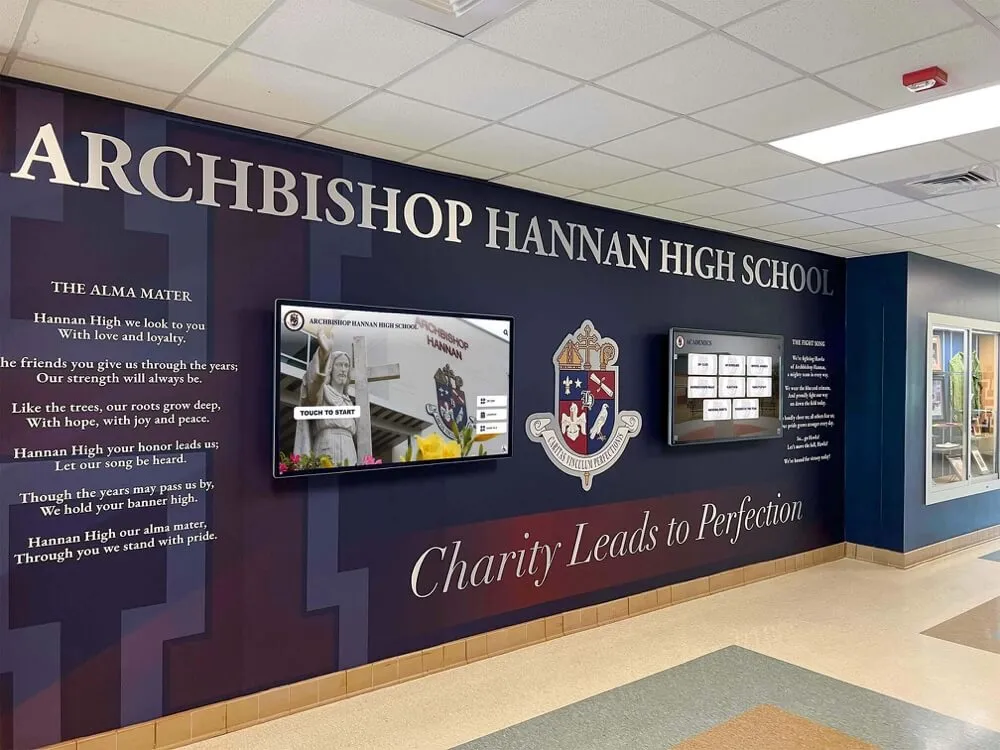
Athletic recognition displays in lobby and corridor installations load video content across the same network infrastructure that carries all other school traffic — DSCP verification is the tool that confirms whether the network is treating that content with appropriate priority
Recognition Display DSCP Marking Verification: Numbered Steps
Work through these steps in sequence. Each step produces a clear pass or fail result that determines whether to proceed or move to resolution.
Step 1 — Identify the Intended DSCP Marking Policy
Before capturing any packets, determine what DSCP value your content platform or CMS is supposed to apply to video traffic.
Check the content platform’s documentation or support portal for QoS guidance. Cloud-hosted recognition platforms may:
- Mark video streams with EF (DSCP 46) by default
- Mark video with AF41 (DSCP 34) as a conservative choice for school networks
- Apply no DSCP marking and rely on the school’s network to classify and mark traffic
- Offer a configuration option for DSCP marking that must be enabled
If the platform applies no marking, your network must classify and mark video packets using a policy based on destination IP, destination port, or DSCP Application-Based QoS. Document the intended mark value before proceeding — you need it to interpret the packet capture in Step 2.
If your school uses a managed switch with QoS configured, check whether the switch is configured to trust DSCP marks arriving from the display network, or whether it is configured to trust only CoS marks from 802.1p headers (common on campus LANs that use VLAN-based QoS rather than IP-based QoS).
Step 2 — Capture Packets at the Display’s Network Interface
This is the core verification step. Trigger a video load on the recognition display — start a highlight reel, open a video tribute, or begin a live stream — then run the packet capture simultaneously.
On a Linux or macOS workstation on the same VLAN (or via SSH on the display):
Capture all traffic between the display and the content platform while displaying the DSCP value in the IP header:
sudo tcpdump -i eth0 -v -n host <content-platform-IP> 2>/dev/null | grep -E "tos 0x[0-9a-f]+"
The -v flag causes tcpdump to print the ToS byte for every packet. Look at the tos field in the output. A representative capture line looks like:
IP (tos 0xb8, ttl 51, id 54321, ...) <content-platform-IP>.<port> > <display-IP>.<port>: ...
The tos 0xb8 value is DSCP EF (46) with ECN bits set to zero. tos 0x88 is DSCP AF41 (34).
To filter for only DSCP-marked packets (any non-zero DSCP value):
sudo tcpdump -i eth0 -n '(ip[1] & 0xfc) != 0' host <content-platform-IP>
To filter specifically for EF-marked (DSCP 46) packets:
sudo tcpdump -i eth0 -n '(ip[1] & 0xfc) == 0xb8' host <content-platform-IP>
To filter specifically for AF41-marked (DSCP 34) packets:
sudo tcpdump -i eth0 -n '(ip[1] & 0xfc) == 0x88' host <content-platform-IP>
Using Wireshark instead of tcpdump:
Apply the display filter ip.dsfield.dscp != 0 to show only DSCP-marked packets. Add the ip.dsfield.dscp column to the packet list view to read the DSCP value directly from each row without opening individual packets.
Step 3 — Read the Packet Capture Results
Pass result — DSCP marks present and correct:
IP (tos 0xb8, ttl 49, ...) 203.0.113.10.443 > 10.10.5.42.52318: ...
IP (tos 0xb8, ttl 49, ...) 203.0.113.10.443 > 10.10.5.42.52318: ...
IP (tos 0xb8, ttl 49, ...) 203.0.113.10.443 > 10.10.5.42.52318: ...
Every video packet from the content platform carries tos 0xb8 (EF, DSCP 46). The network has the information it needs to prioritize this traffic — provided the switch and firewall are configured to honor the marks (Step 4 confirms this).
Fail result A — All packets have tos 0x00 (no DSCP marking):
IP (tos 0x0, ttl 49, ...) 203.0.113.10.443 > 10.10.5.42.52318: ...
IP (tos 0x0, ttl 49, ...) 203.0.113.10.443 > 10.10.5.42.52318: ...
The content platform is not marking video packets, or an upstream router or firewall is stripping the marks. Video traffic is treated as best-effort on the school network. Resolution requires either enabling DSCP marking on the platform or configuring the school’s network equipment to classify and mark video traffic based on IP and port.
Fail result B — DSCP marks present at capture but video still buffers:
IP (tos 0xb8, ttl 49, ...) 203.0.113.10.443 > 10.10.5.42.52318: ...
Marks are present at the display NIC, but the switch is not honoring them. Proceed to Step 4 to check whether the switch port is configured to trust incoming DSCP marks.
Fail result C — Mixed marking across packets in the same video stream:
IP (tos 0xb8, ttl 49, ...) 203.0.113.10.443 > 10.10.5.42.52318: ...
IP (tos 0x0, ttl 49, ...) 203.0.113.10.443 > 10.10.5.42.52318: ...
IP (tos 0x88, ttl 49, ...) 203.0.113.10.443 > 10.10.5.42.52318: ...
The content platform is inconsistently marking packets, or two different content servers are delivering different parts of the stream with different policies. The mixed marks mean some video packets are prioritized and others are not — an inconsistent QoS treatment that produces the intermittent buffering symptom.
Step 4 — Verify the Switch Is Honoring DSCP Marks
Packet-level marks are meaningless unless the switch connected to the display’s port is configured to read and act on them.
Check the switch port QoS trust configuration (Cisco IOS example):
show running-config interface GigabitEthernet1/0/12
Look for a mls qos trust dscp line. If you see mls qos trust cos or no trust statement at all, the switch is ignoring incoming DSCP marks and assigning all packets to the default queue regardless of mark value.
Correct configuration for a display port (Cisco IOS):
interface GigabitEthernet1/0/12
 description recognition-display-lobby
 mls qos trust dscp
On HP/Aruba ProCurve switches:
show qos port 12
Look for DSCP priority in the trust mode. If it shows None or 802.1p, the switch is not trusting DSCP.
On Ubiquiti UniFi managed switches:
QoS trust settings are configured per-network in the UniFi controller under Settings → Networks → [Network Name] → Advanced → DSCP Marking. Verify that DSCP is enabled and that the switch is not configured to remark traffic to a different value.
Interactive touchscreen directories and recognition kiosks that share switch infrastructure with athletic recognition displays should be on ports with consistent QoS trust policies — a single misconfigured switch port will make DSCP verification results unreliable if you are capturing traffic that crosses that port.
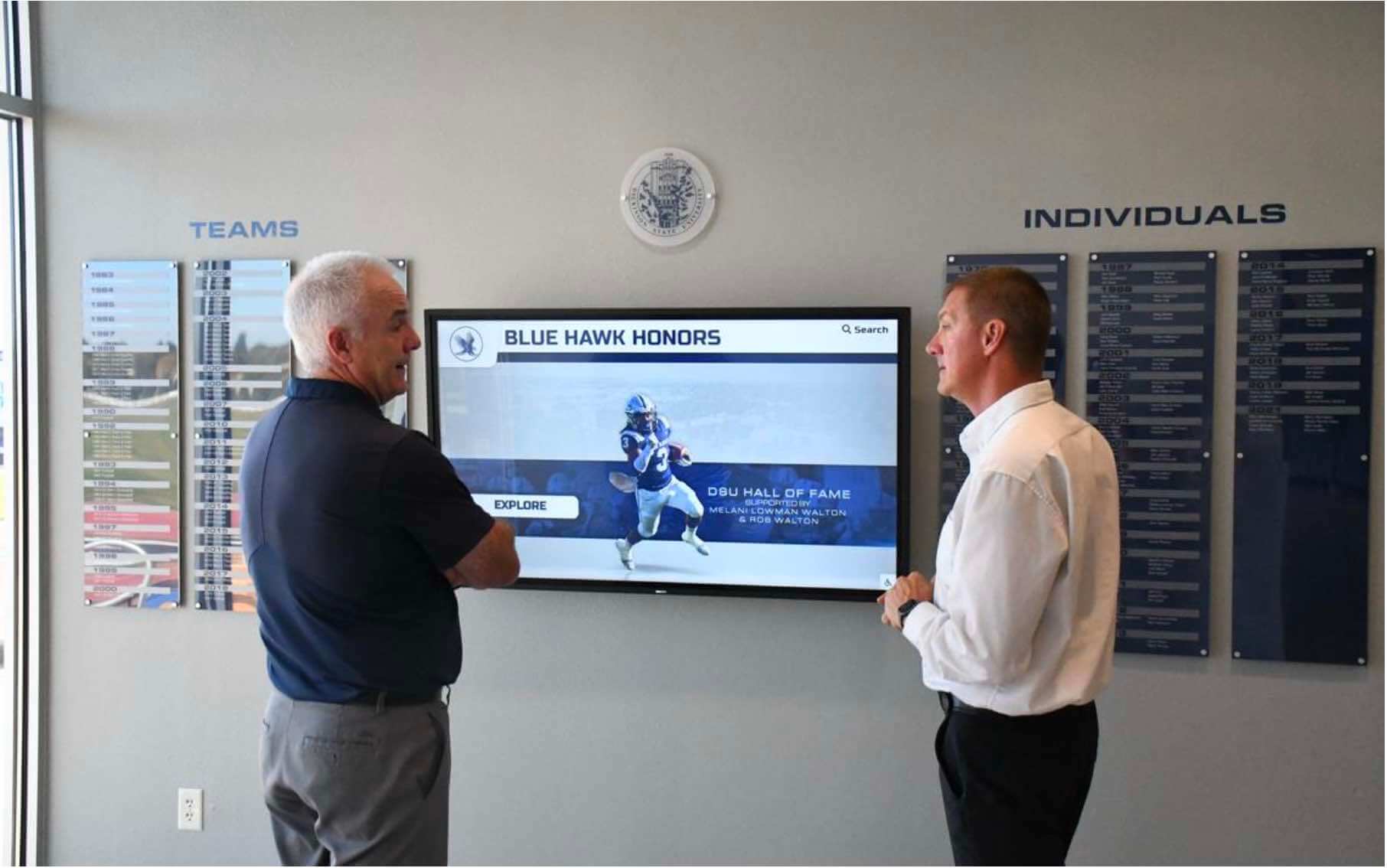
Verifying switch QoS trust settings requires access to the managed switch configuration — the network administrator and athletic director should review these settings together during initial display commissioning
Step 5 — Check the Firewall or Router for DSCP Stripping
Some school perimeter firewalls are configured to strip or remark DSCP values on outbound or inbound traffic as a security or simplification measure. If video packets arrive at the display with tos 0x00 but the content platform is confirmed to be marking them, a firewall rule is clearing the marks in transit.
Common firewall DSCP stripping behaviors to check:
| Firewall Platform | Where to Check |
|---|---|
| Cisco ASA / Firepower | `show running-config |
| pfSense / OPNsense | Firewall → Traffic Shaper → Limiters and Queues — check whether any queue is remarking traffic |
| Fortinet FortiGate | config firewall policy → inspect diffserv-forward and diffserv-reverse settings |
| Palo Alto | Security policies → check QoS profile — if DSCP is set to 0, marks are being stripped |
| Sophos XG | Traffic shaping policies — verify that video traffic classes are not being remarked to CS0 |
If the firewall is stripping DSCP marks, the fix depends on whether the firewall should be marking the traffic itself (using an Application-Based QoS policy that classifies video by destination or port) or passing through marks applied by the content platform. Either approach is valid — the important outcome is that video packets arrive at the display’s switch port with the correct DSCP value.
Step 6 — Verify Queuing Is Applied at the Uplink
DSCP marks on packets at the display NIC are only effective if the network applies differentiated queuing at the points of congestion. For school recognition displays, the critical queuing point is the WAN uplink — the connection from the school LAN to the internet or to the district WAN. If the school’s uplink router or firewall does not have a QoS policy that maps DSCP values to service queues, the marks have no practical effect.
Check the WAN interface QoS policy:
On a Cisco router acting as the school’s internet gateway:
show policy-map interface <WAN-interface>
Look for class maps that match DSCP EF and AF4x values, and queue definitions that give those classes priority scheduling (LLQ, CBWFQ, or similar).
A passing queuing configuration example (Cisco IOS):
policy-map SCHOOL-WAN-QOS
 class DSCP-EF
  priority percent 20
 class DSCP-AF41
  bandwidth percent 15
 class class-default
  fair-queue
A failing queuing configuration (marks present but not honored):
policy-map SCHOOL-WAN-QOS
 class class-default
  fair-queue
All packets fall into class-default regardless of DSCP value. The marks are present but have no operational effect.
Digital shadow box and sports memorabilia recognition displays that serve primarily still imagery are less affected by uplink QoS gaps than athletic video displays — still images are less delay-sensitive and fit entirely within a few TCP segments. Athletic video displays are the use case where uplink queuing configuration directly determines visible quality during peak network hours.
Pass/Fail Summary Reference
Use this table to interpret your verification results and identify the correct resolution:
| Capture Result | Switch Trust | Uplink Queuing | Diagnosis | Resolution |
|---|---|---|---|---|
| tos 0xb8 or 0x88 on video packets | DSCP trusted | Priority queue active | PASS — DSCP is working correctly | None required |
| tos 0x0 on all video packets | Any | Any | Platform not marking, or firewall stripping | Enable platform DSCP marking, or configure firewall to mark based on IP/port |
| tos 0xb8 on video packets | CoS only or None | Any | Marks present but switch ignoring them | Change switch port trust to mls qos trust dscp |
| tos 0xb8 on video packets | DSCP trusted | No priority queue | Marks honored at switch; not queued at WAN | Add priority queuing policy at WAN uplink |
| Mixed tos values in single video stream | Any | Any | Inconsistent platform marking | Contact platform support; implement endpoint-based classification as fallback |
| tos 0xb8 at workstation; tos 0x0 at display | Any | Any | Intermediate device remarking packets | Trace the path hop-by-hop to find the remarking device |
Common DSCP Pitfalls on School Networks
VPN tunnels encapsulating and clearing marks. IPsec VPN tunnels that route recognition display traffic through a district concentrator frequently encapsulate IP packets inside a new outer header. Unless the VPN is configured to copy the inner DSCP value to the outer header, the marks that the content platform applied are invisible to any QoS policy on the tunnel path.
Switch uplink ports configured to trust CoS instead of DSCP. Campus switches connected to upstream aggregation switches often default to trusting 802.1p CoS marks rather than IP DSCP marks. A display port configured to trust DSCP is still effectively in best-effort if the uplink drops the DSCP-based queue assignment before the packet reaches the WAN.
Unmarked traffic from HTTPS content platforms. Cloud-hosted recognition platforms that deliver media over HTTPS on port 443 may not mark DSCP because it is uncommon for consumer-oriented content delivery networks to set QoS marks. If your content platform does not mark traffic, you must classify video traffic at the school’s network edge using port 443 destination-based matching — but this is difficult to make specific when other HTTPS traffic shares the same port.
QoS policy applied to wrong interface direction. QoS service policies on Cisco IOS are applied to an interface in a specific direction: inbound or outbound. A policy applied outbound on the WAN interface affects traffic leaving the school to the internet. For video streaming from a remote platform to a school display, the bottleneck is the inbound direction — content flowing from the internet into the school’s WAN port. Verify that the priority queue policy is applied inbound on the WAN interface, not just outbound.
mDNS service discovery on school recognition display networks is a separate configuration concern from DSCP marking, but the two interact on managed switch networks where VLAN boundaries affect both multicast traffic propagation and QoS trust policy scope.
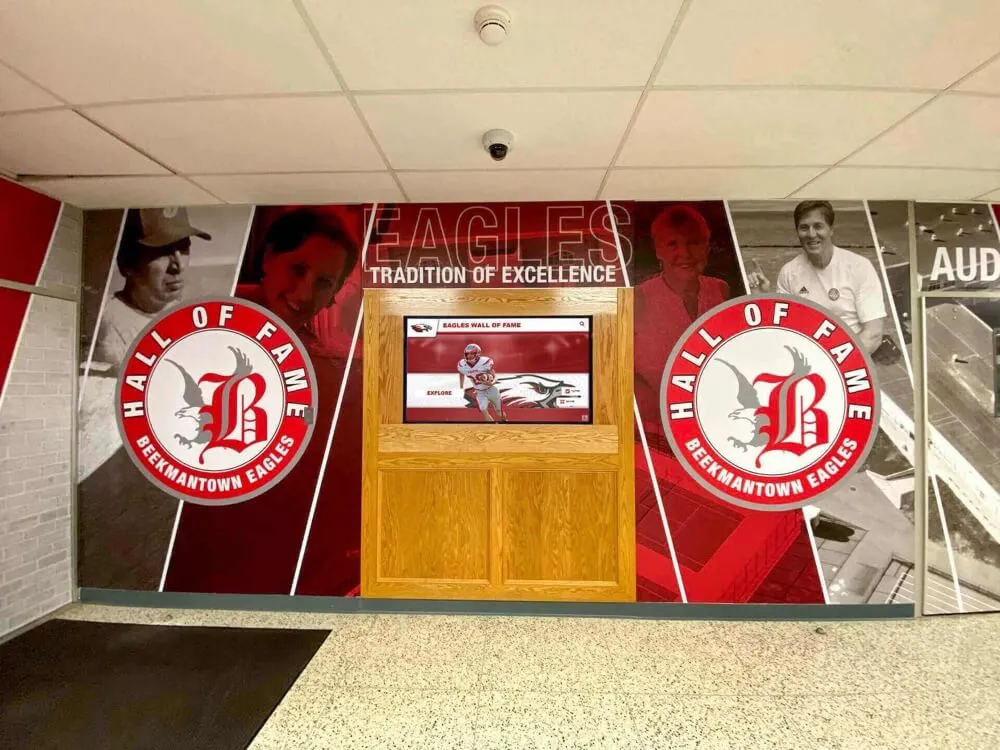
Recognition displays in athletic corridors serve video content to the highest-traffic areas of the school building — QoS pitfalls like VPN encapsulation and wrong-direction policy application are particularly impactful in these installations
DSCP Marking Verification Checklist
Print this checklist and use it during the verification session with your network administrator:
- Content platform DSCP marking policy documented (value and whether marking is enabled)
- Packet capture run during active video playback —
tosvalue recorded for video stream packets - DSCP value in capture matches expected value from platform documentation
- Switch port serving the display configured with
mls qos trust dscp(or equivalent for your switch vendor) - No upstream switch rewriting DSCP marks on inter-switch uplink ports
- Perimeter firewall not stripping or remarking DSCP on inbound video traffic
- WAN uplink QoS policy maps DSCP EF and/or AF4x to a priority or guaranteed bandwidth queue
- VPN tunnel configured to copy inner DSCP to outer header (if display traffic routes through VPN)
- QoS policy applied in the correct direction on the WAN interface (inbound for cloud-hosted video)
- Verification repeated after any firewall rule changes, VPN reconfiguration, or switch firmware updates
Related Network Verification Steps
A passing DSCP verification result confirms that video packets are correctly marked and that the network is honoring those marks through priority queuing. If athletic video quality issues persist after the DSCP verification passes, these related checks address other network failure modes:
Bandwidth capacity. DSCP marking prioritizes video traffic relative to other traffic — it does not create bandwidth that does not exist. If the WAN uplink is fully saturated even with priority queuing applied, the queuing policy ensures video is first in line but cannot guarantee sufficient throughput if no headroom exists at all.
Jitter and latency. Live athletic event streams and real-time tribute playbacks are sensitive to jitter as well as bandwidth. Use ping -i 0.2 <content-platform-IP> to measure latency variation during peak network hours. A jitter value above 30–40 ms on a video stream will cause visible playback artifacts even when DSCP marking and queuing are correctly configured.
Content delivery network routing. Cloud-hosted recognition platforms typically serve media from the nearest CDN node to the school’s IP address. If the CDN routes the display to a distant server, the round-trip time may be too high for smooth streaming regardless of QoS configuration. Confirm the CDN routing by running traceroute <content-platform-hostname> and checking that the first few hops resolve to nearby geography.
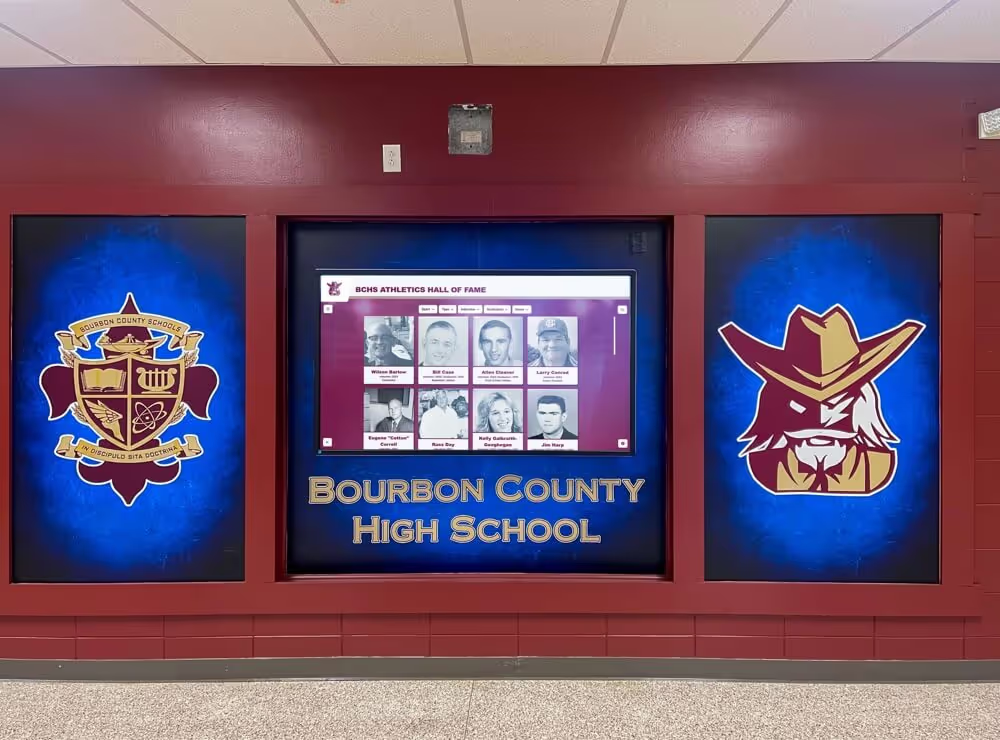
Athletic hall of fame displays that need to scale across unlimited screens without per-screen cost increases are especially dependent on reliable network QoS — when the same athletic video asset is simultaneously serving multiple display endpoints across a school, the aggregate bandwidth demand is multiplied by the number of screens, making DSCP-based queue management proportionally more critical.
Once network-layer QoS is confirmed, digital hall of fame accessibility audits are a natural follow-on step to ensure the recognition content itself meets WCAG standards for all school community members who interact with the display.
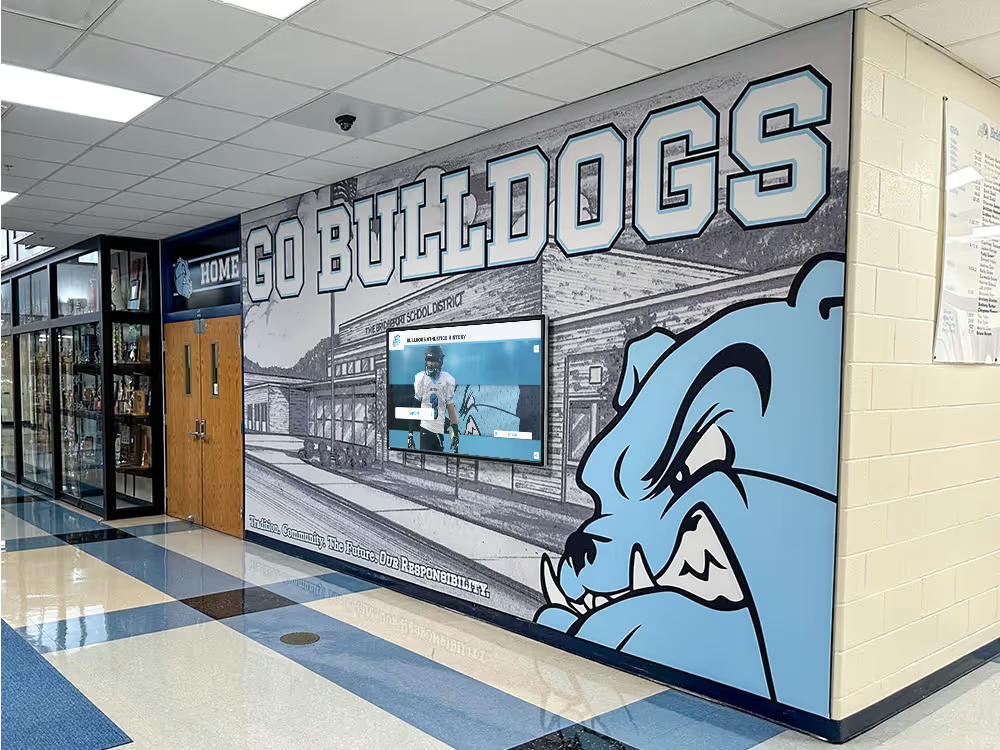
Multi-sport recognition kiosks that serve video content for football, basketball, and other athletic programs benefit from verified DSCP marking — the same QoS configuration protects all video traffic, not just a single sport or content type
When to Rerun DSCP Verification
Run the recognition display DSCP marking verification checklist:
- At initial display installation — before going live, confirm the full QoS path from content platform to display NIC
- After any firewall rule changes — new security policies frequently include DSCP-affecting rules that were not intended to impact recognition display traffic
- After VPN reconfiguration or a new WAN circuit — both change the encapsulation and routing path that DSCP marks travel
- After switch firmware or configuration updates — QoS trust settings sometimes revert to defaults after firmware updates on managed switches
- When video quality degrades after a period of stable operation — a network change elsewhere in the school or district infrastructure may have introduced a new stripping or remarking rule
School athletic recognition programs tied to yearbook and sports history archives that add video content to their recognition displays for the first time should treat DSCP verification as a commissioning task, not an afterthought — the video content is what most likely to surface QoS gaps that were invisible when the display served only still imagery.
Deliver Athletic Video That Performs When It Matters
A recognition display that buffers during a basketball highlight, drops frames during a senior night video tribute, or stalls on a live-event stream undermines the community moment the athletic program worked to create. DSCP marking verification takes one to two hours to complete properly and eliminates the most common network-layer cause of athletic video quality failures — before those failures occur during events.
Rocket Alumni Solutions builds recognition display systems designed for reliable operation on school networks, including schools with complex VPN topologies, district-level WAN routing, and shared-uplink environments where QoS configuration directly determines video quality. The platform includes guidance for network readiness validation — including DSCP and QoS configuration — as part of the implementation process.
Ready to see recognition display video that performs reliably on your school’s network?
Schedule a demo with Rocket Alumni Solutions to see how athletic video content and recognition displays perform in real school network environments — including schools with VPN, VLAN, and managed switch QoS configurations.