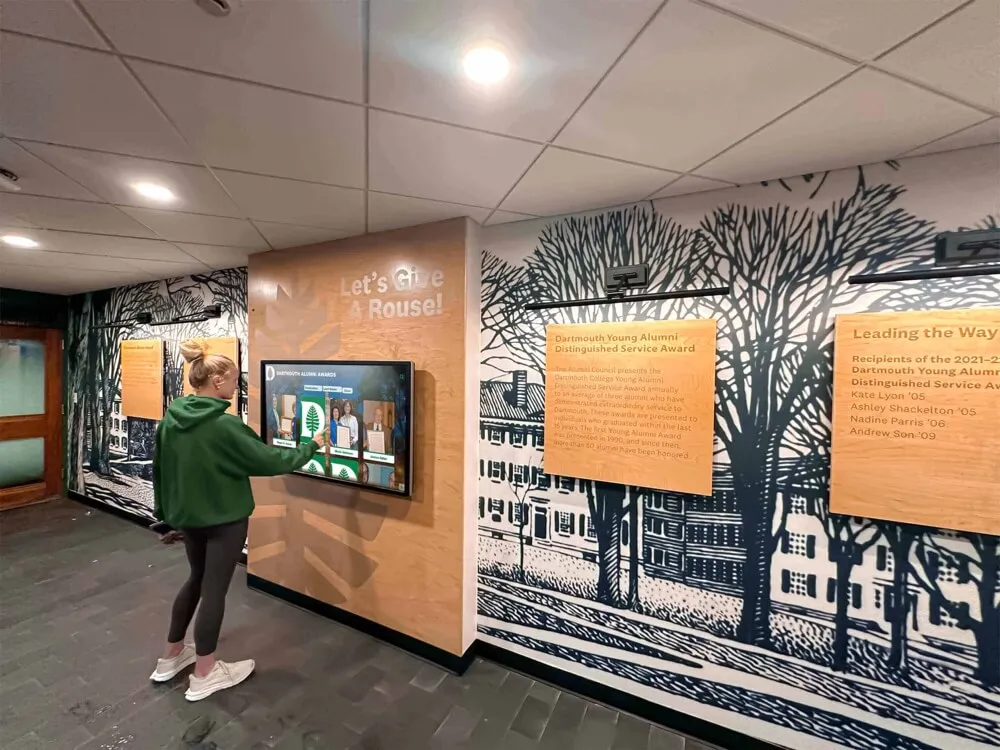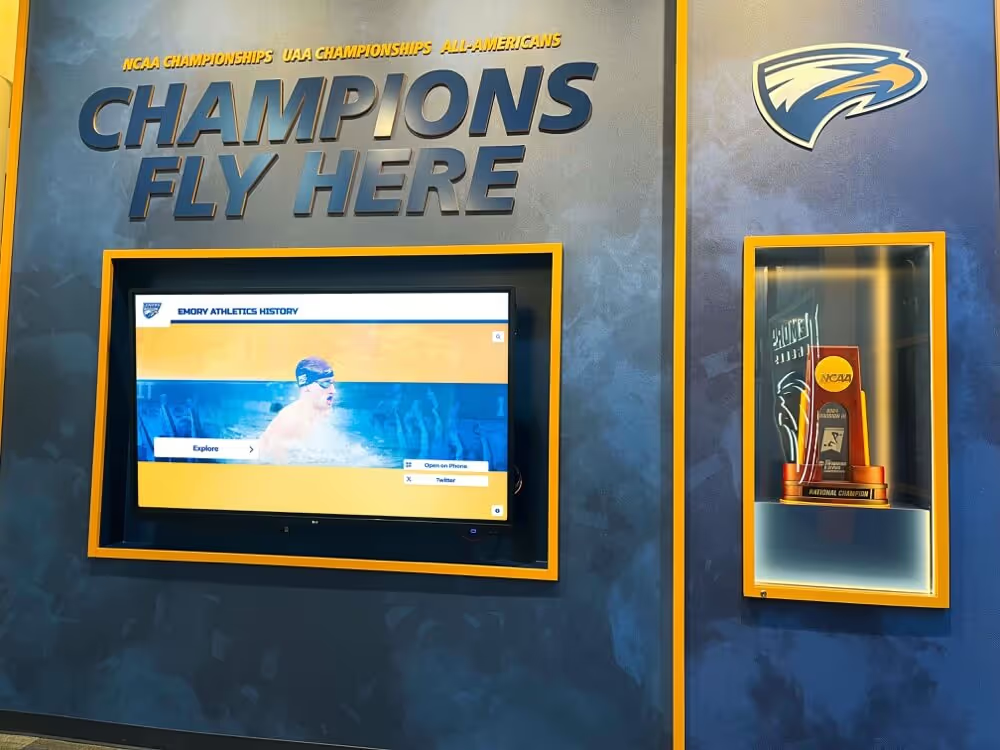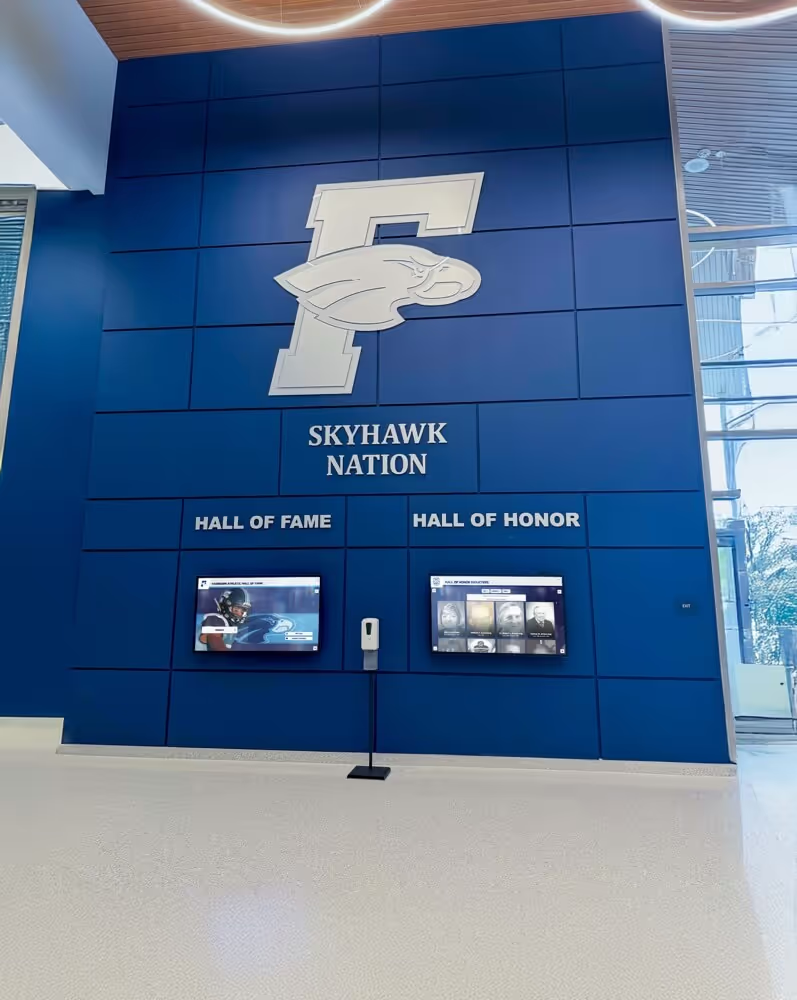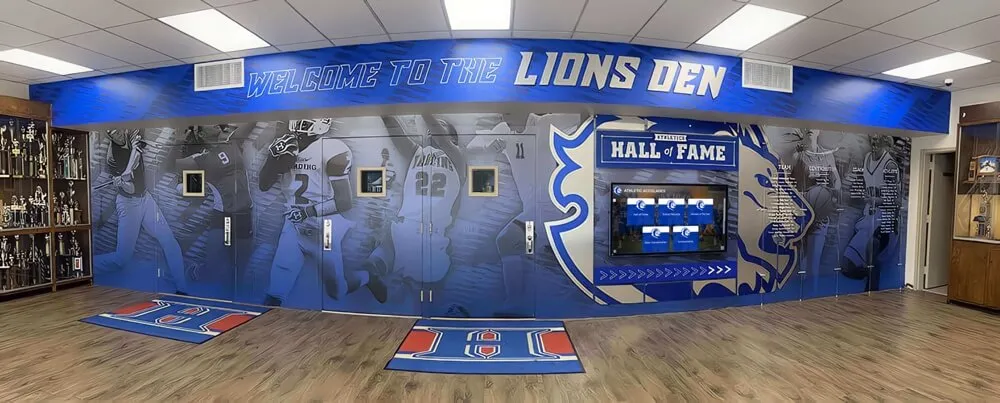
Intent: decide — Recognition display color temperature calibration determines whether the hall of fame portraits, school colors, and athletic records on your lobby or gym screen look accurate under your building’s actual lighting, or whether they appear orange, blue, or washed out to every visitor who walks past. Color temperature—measured in Kelvin (K)—is the most commonly skipped adjustment in school display installations and the most common reason a newly launched recognition system looks “off” to community members who know exactly what those faces, jerseys, and school colors should look like.
Lobbies and gymnasiums present different calibration challenges. A front lobby typically combines warm incandescent or halogen accent lighting with cool overhead LEDs, creating a mixed-light environment where display white balance needs deliberate adjustment. A gymnasium may run high-intensity fluorescents or metal halide fixtures with a strong green or blue cast that makes portrait skin tones look unnatural on an uncalibrated display. In both settings, the stakes are high: parents, alumni, athletes, and administrators scrutinize recognition content closely because it represents real people and genuine accomplishments.
This guide walks AV coordinators, IT staff, facilities teams, and athletic directors through a practical color temperature calibration workflow designed for school recognition displays—from understanding panel and ambient color specs to step-by-step adjustment and ongoing maintenance.
Recognition display color temperature calibration is not a one-time setup task. Ambient lighting in school buildings changes with seasons, fixture upgrades, and daylight through windows—and each change can push a well-calibrated display back toward inaccurate output. Building a repeatable calibration process protects every inductee portrait, championship banner, and awards graphic from the silent drift that affects unchecked displays.

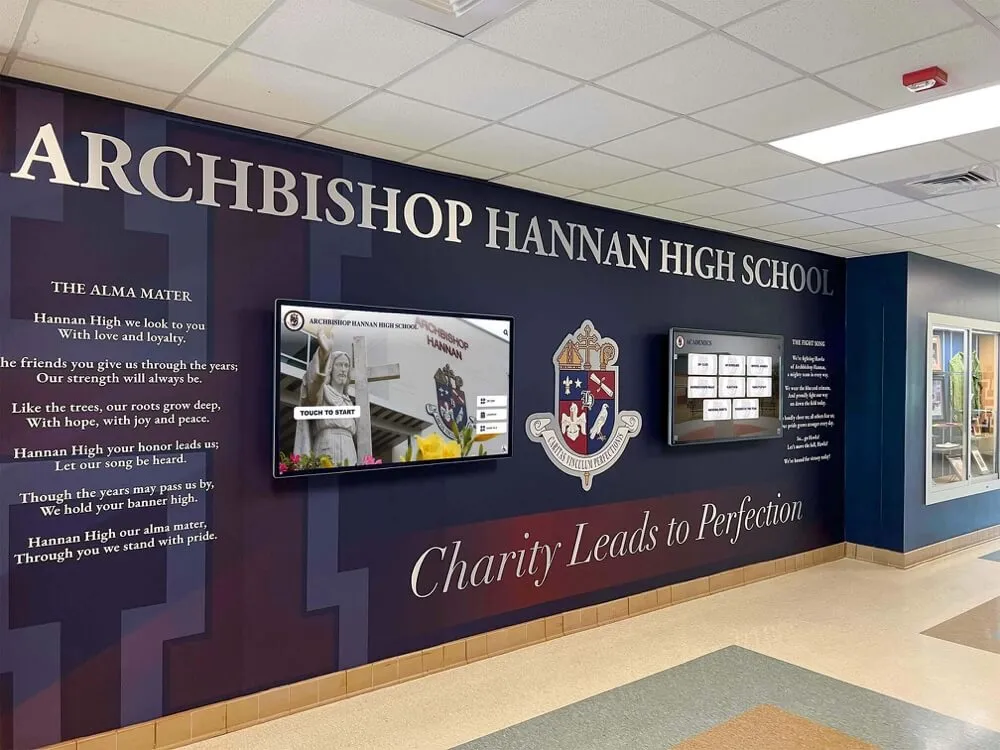
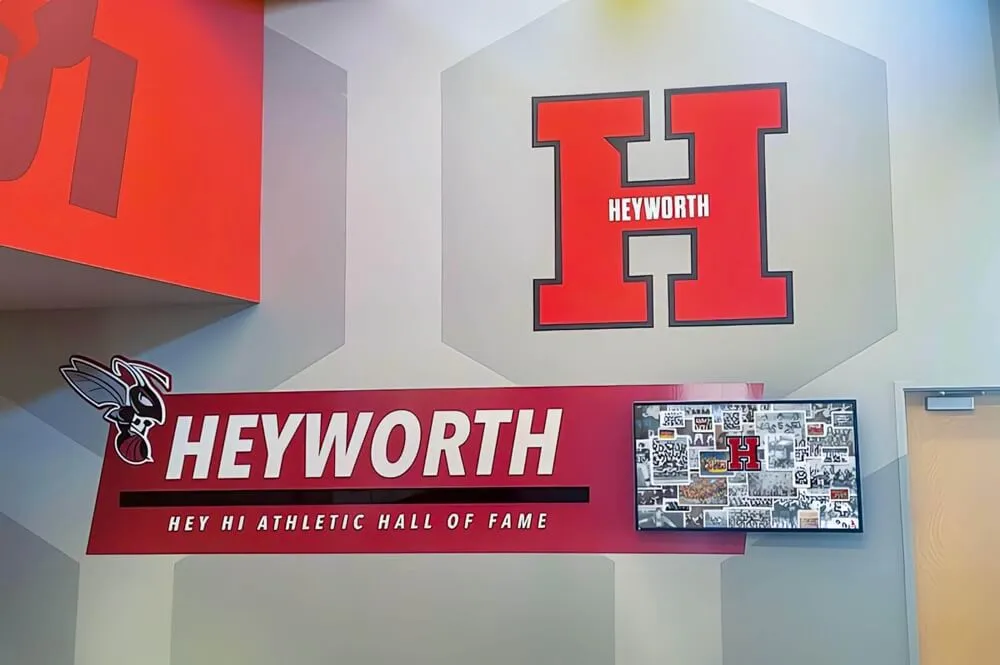
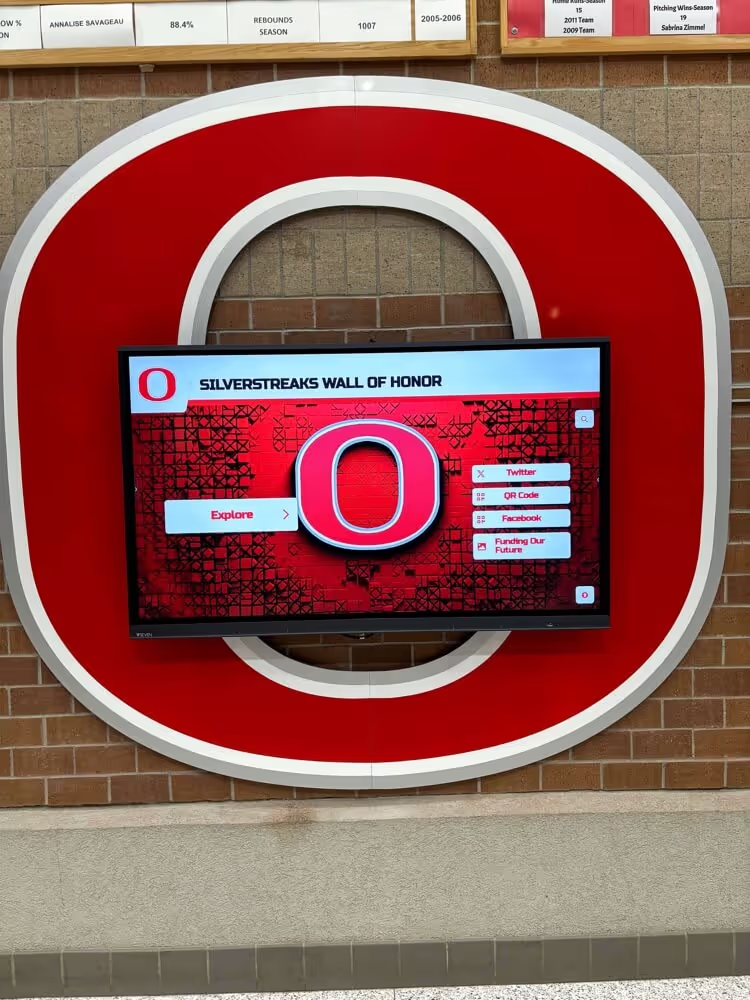
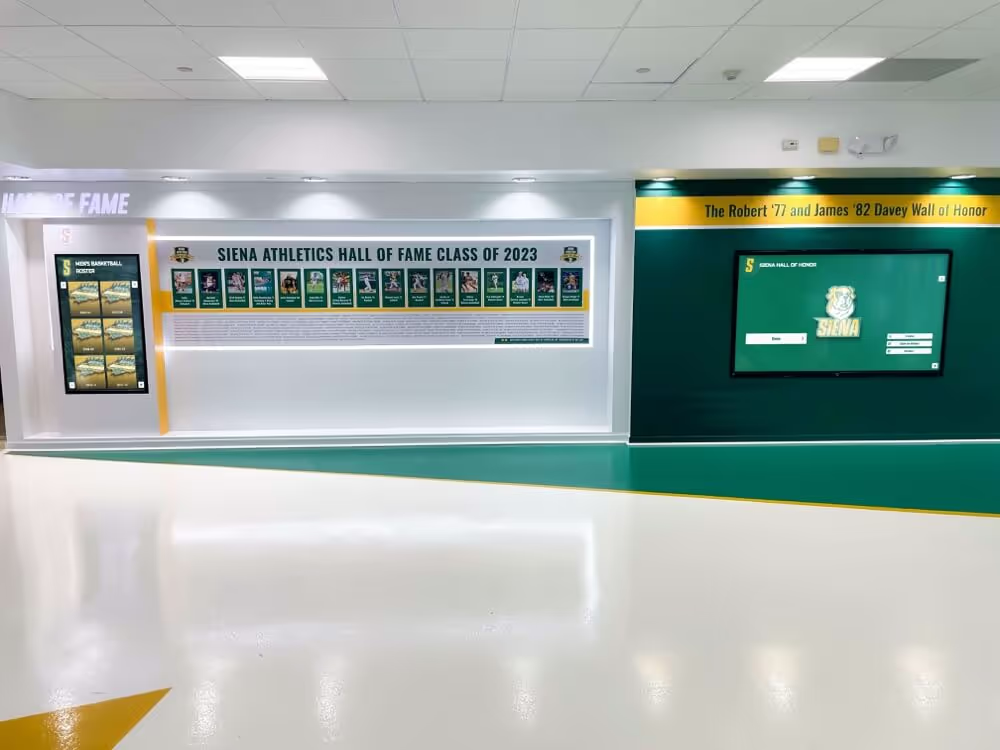
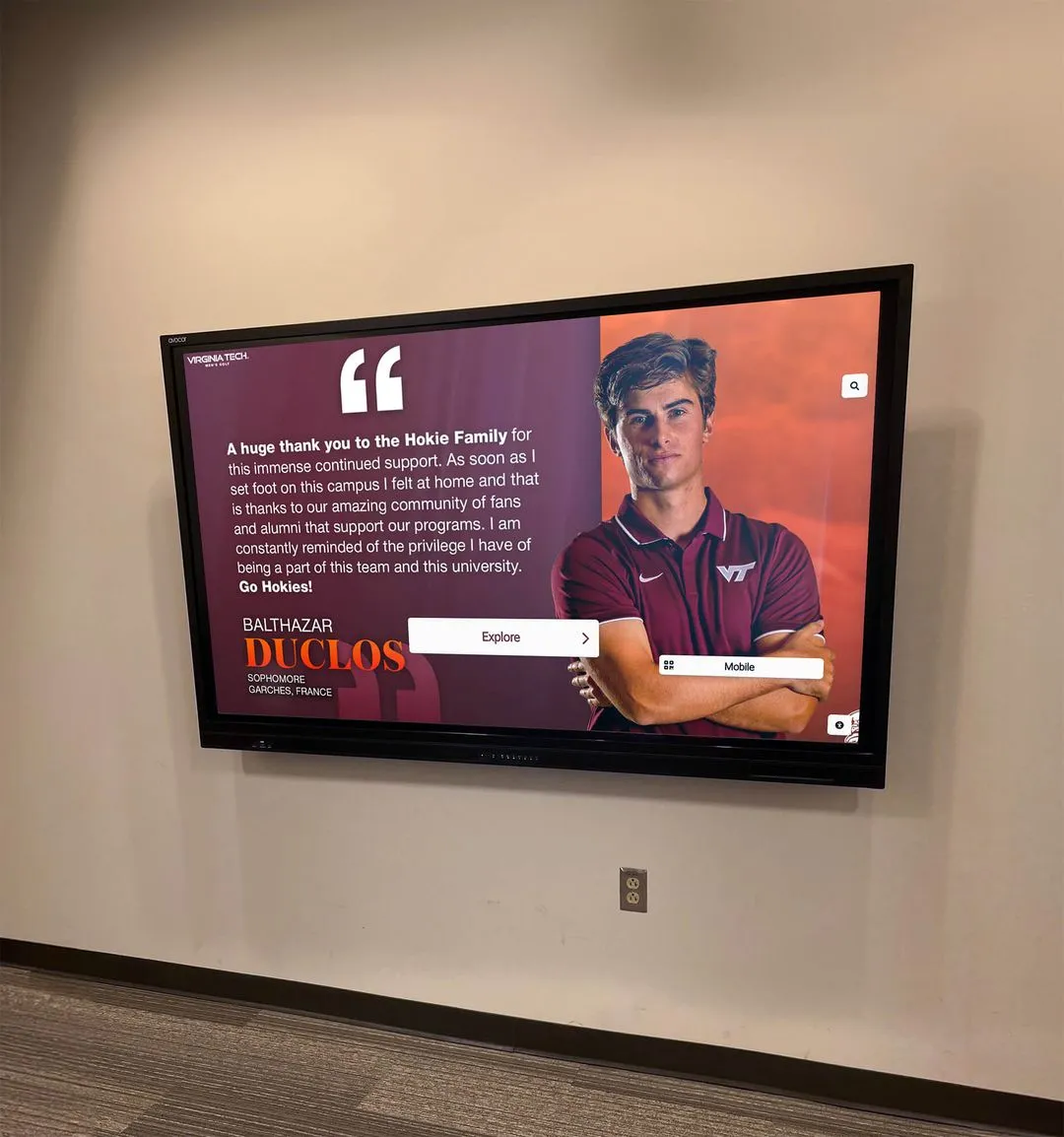
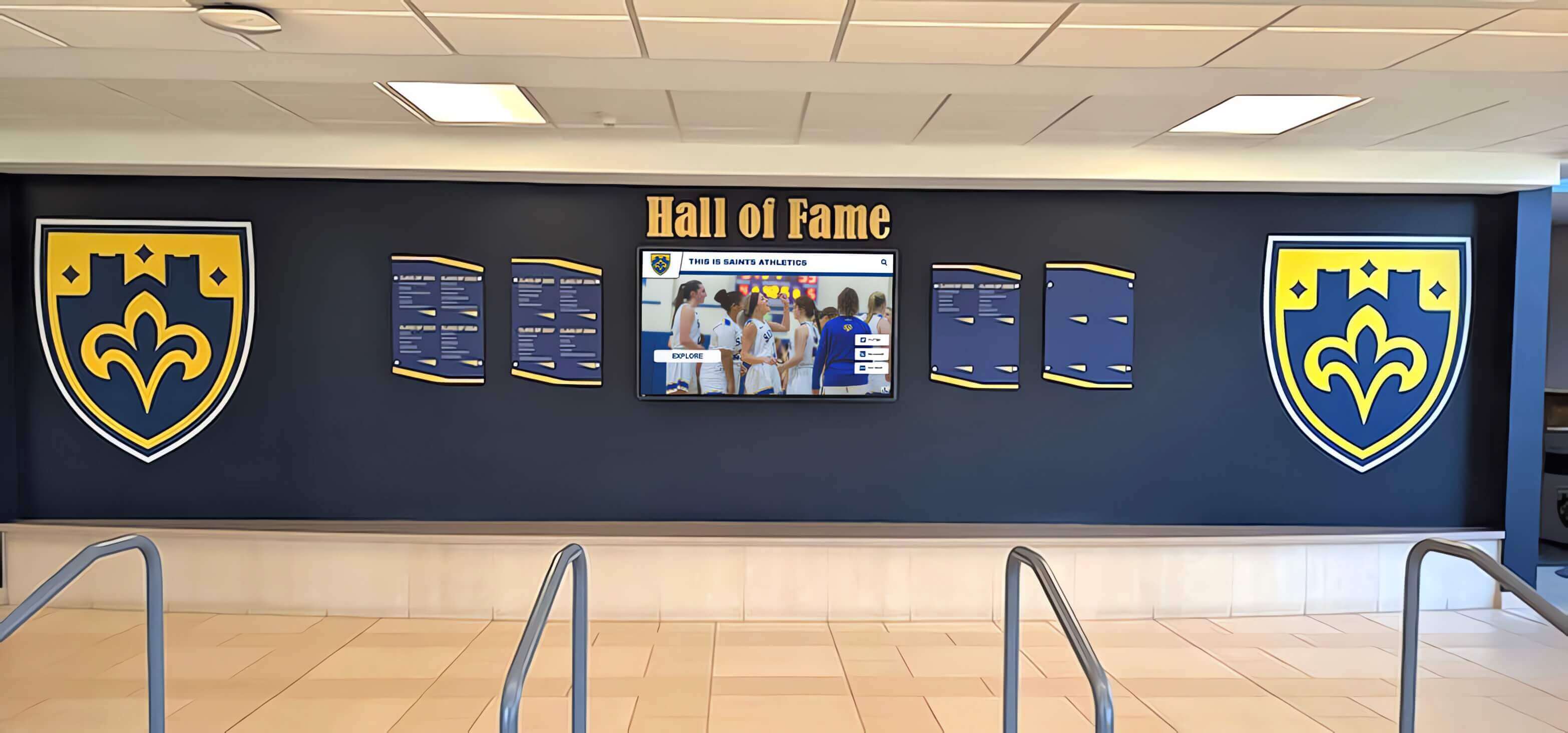
Lobby recognition displays must render school colors accurately under mixed ambient lighting—color temperature calibration aligns what the display produces with what the human eye expects in that specific space
What Color Temperature Means for Recognition Displays
Color temperature describes the warmth or coolness of light, expressed in Kelvin. Lower Kelvin values (2700–3000 K) produce warm, amber-toned light similar to incandescent bulbs. Higher values (5000–6500 K) produce cool, blue-toned light similar to overcast daylight or modern cool-white LEDs. Recognition displays typically ship from the factory set to a white point near 6500 K, which looks accurate in a neutral, controlled viewing environment but can appear harsh, blue, or cold inside the warm-toned lobby spaces many schools favor.
For recognition displays, the practical implications are:
- Portrait accuracy: A display set too cool (high K) makes skin tones look pale, bluish, or unhealthy in inductee portraits—a jarring effect for families viewing images of athletes and graduates they know personally.
- School color rendering: School colors mixed from warm pigments (golds, burgundies, oranges) shift toward desaturated or green-tinged tones on displays with incorrect white balance.
- Trophy and hardware photography: Polished metallic surfaces in trophy images reflect ambient color casts, making a gold trophy look silver or a bronze award look gray on an improperly calibrated display.
- Archival and vintage content: Older photographs already carry color characteristics from their original film or print process. Adding display color shift compounds the inaccuracy, pushing old team photos toward tints that undermine the archival integrity of the recognition program.
Understanding school digital signage implementation starts with recognizing that display hardware and ambient environment interact continuously—color temperature calibration is where that interaction is managed rather than left to chance.
How Lobby and Gym Lighting Creates Different Calibration Challenges
Recognizing the typical lighting profiles of school lobbies and gymnasiums helps calibration teams understand what they are adjusting toward and why.
Front Lobbies
School lobbies often combine multiple light sources:
- Warm accent lighting: Recessed halogen or LED warm-white fixtures (2700–3000 K) over trophy cases, display alcoves, and reception areas create the inviting, warm atmosphere that photographers call “golden hour” light.
- Cool overhead task lighting: Troffer or linear LED fixtures (4000–5000 K) over circulation areas maintain visibility without the warmer glow of accent zones.
- Variable daylight: Glass entry doors and clerestory windows introduce uncontrolled daylight (5500–6500 K or higher) that shifts throughout the day and across seasons.
A recognition display installed in a lobby corner near warm accent lighting will look dramatically different at 8 a.m. with morning sun and cool overhead LEDs than at 6 p.m. during an athletic awards banquet when warm accent lights dominate. Calibration for a lobby should target the lighting conditions present during peak recognition events—typically late afternoon and evening programs when the community is most present.
Gymnasiums
Gymnasium lighting creates a different challenge set:
- Metal halide fixtures (older gyms): Produce a bluish-white light with a distinct green component. Metal halide CCT typically measures 4000–4500 K but reads cooler perceptually because of its spectral spike in the green channel.
- LED retrofit fixtures (newer gyms): LED gymnasium fixtures range from 4000–6000 K depending on the specific product installed. Schools that recently converted from metal halide often find that recognition displays render differently under new LEDs because the spectral signature changed even when nominal CCT stayed similar.
- Bleacher viewing positions: Elevated bleacher angles change how ambient light strikes the display and how the viewer’s eye adapts to the scene. A display calibrated from floor level may read slightly cooler or warmer from the first bleacher row.
Athletic team room design for recognition and recruiting relies on lighting and display quality working together—the same principle applies to gymnasium recognition displays that must perform under game conditions when the widest community audience is present.
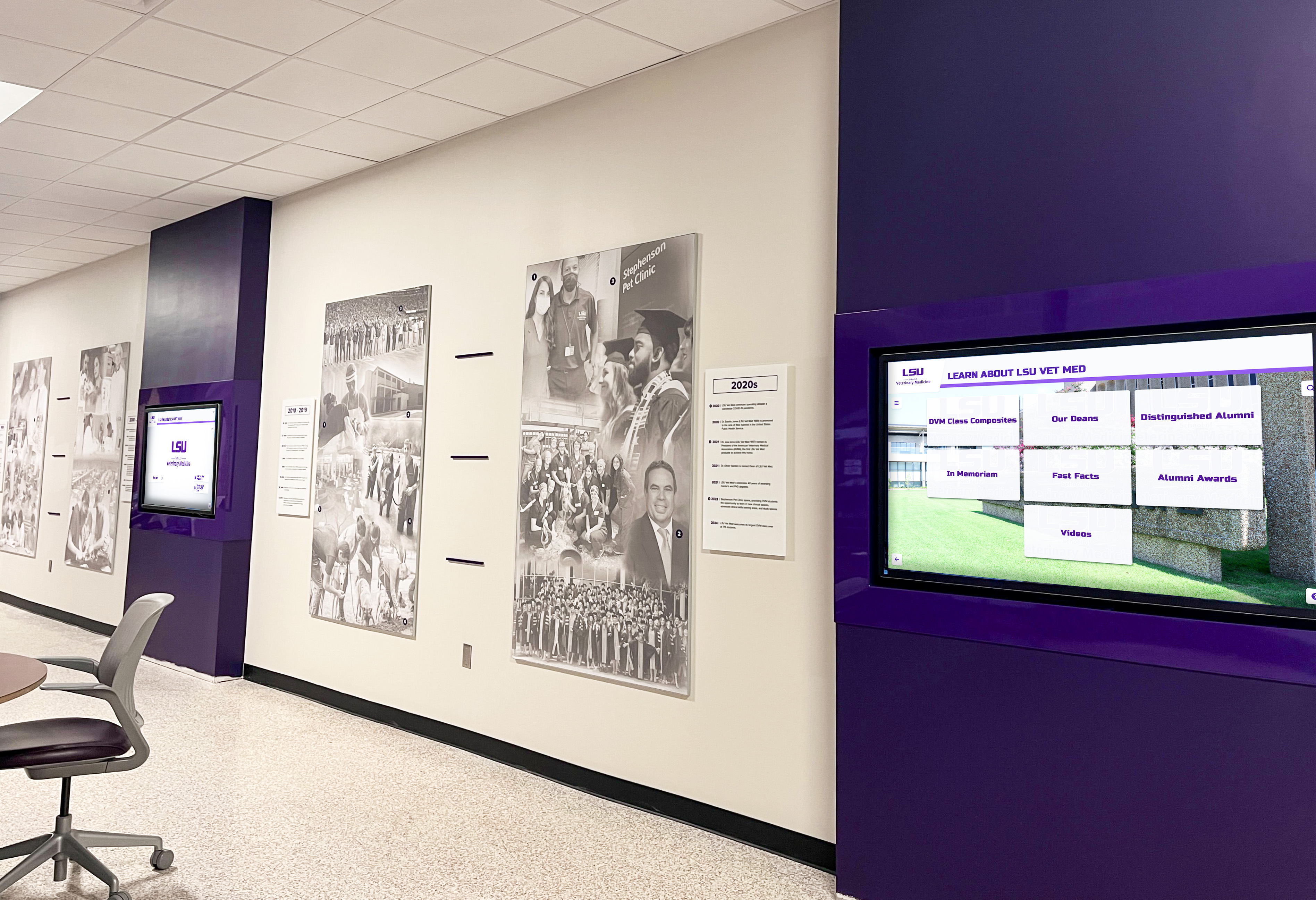
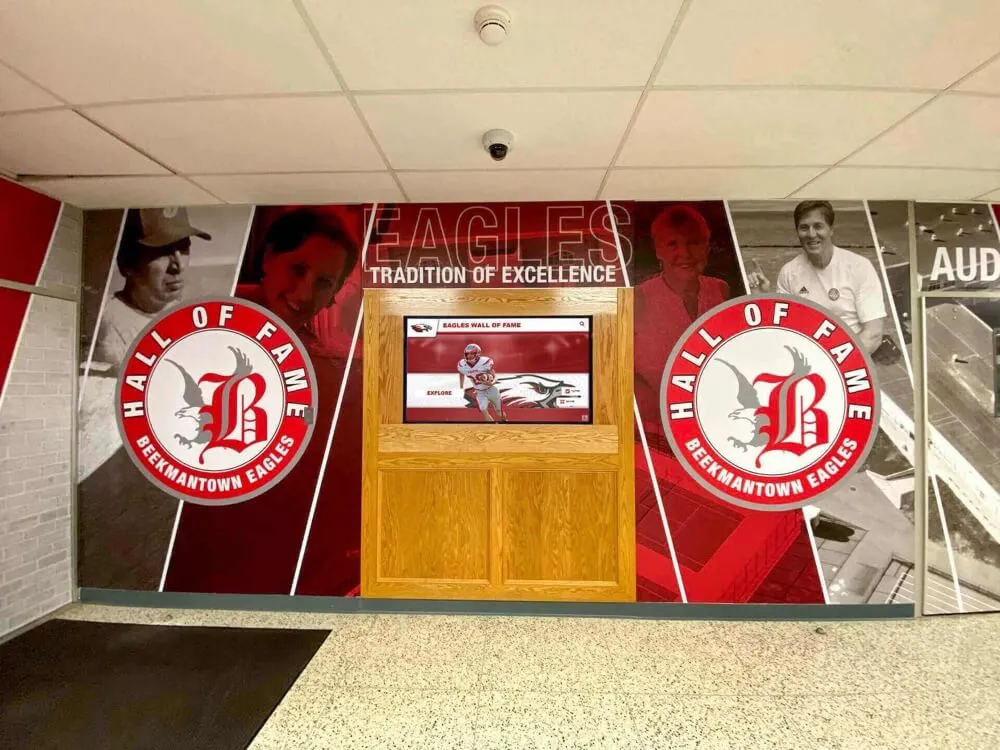
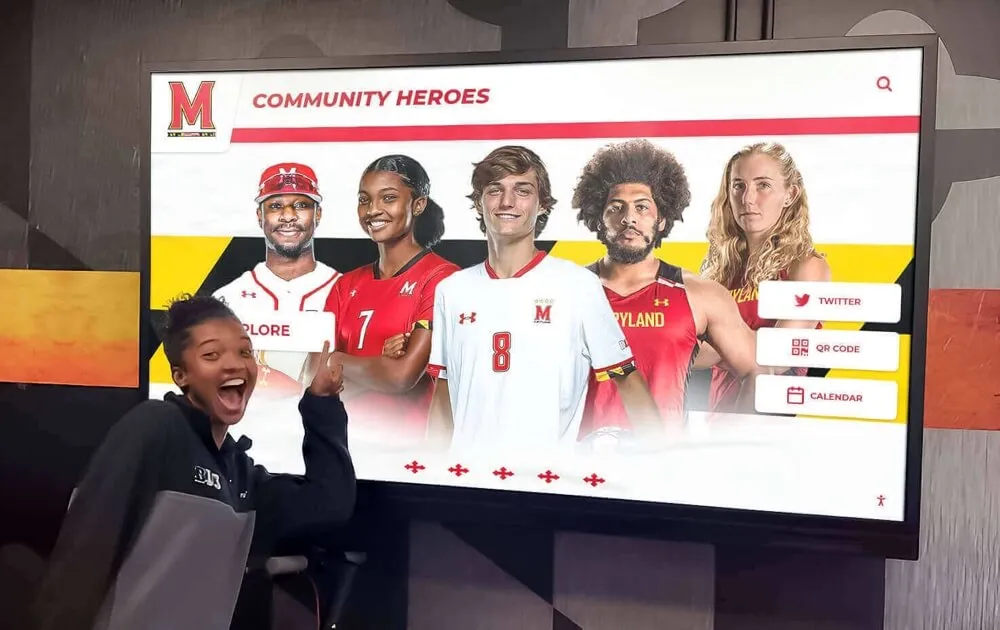
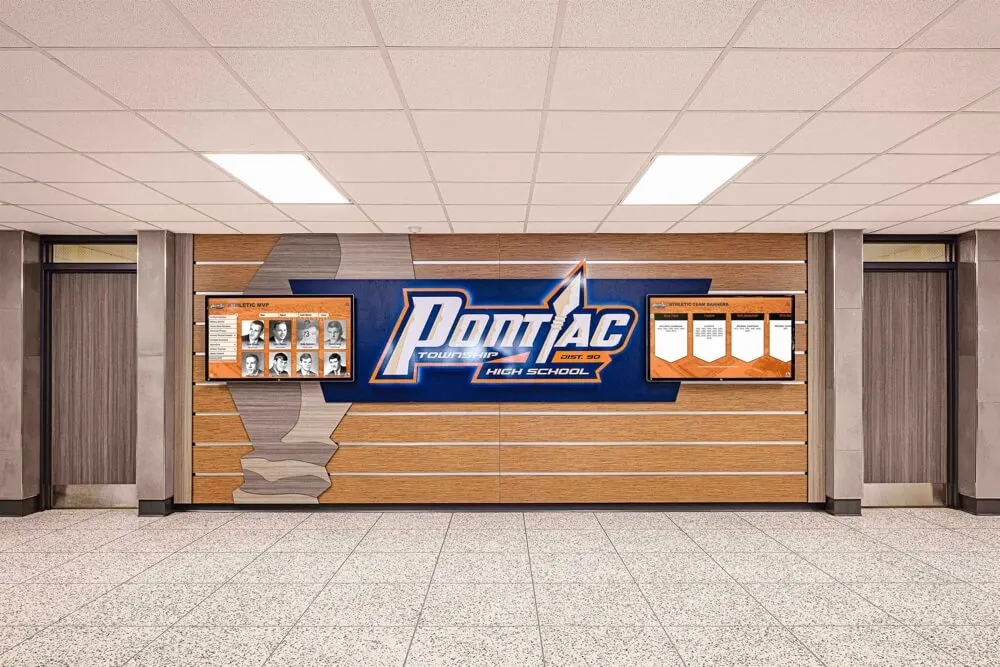
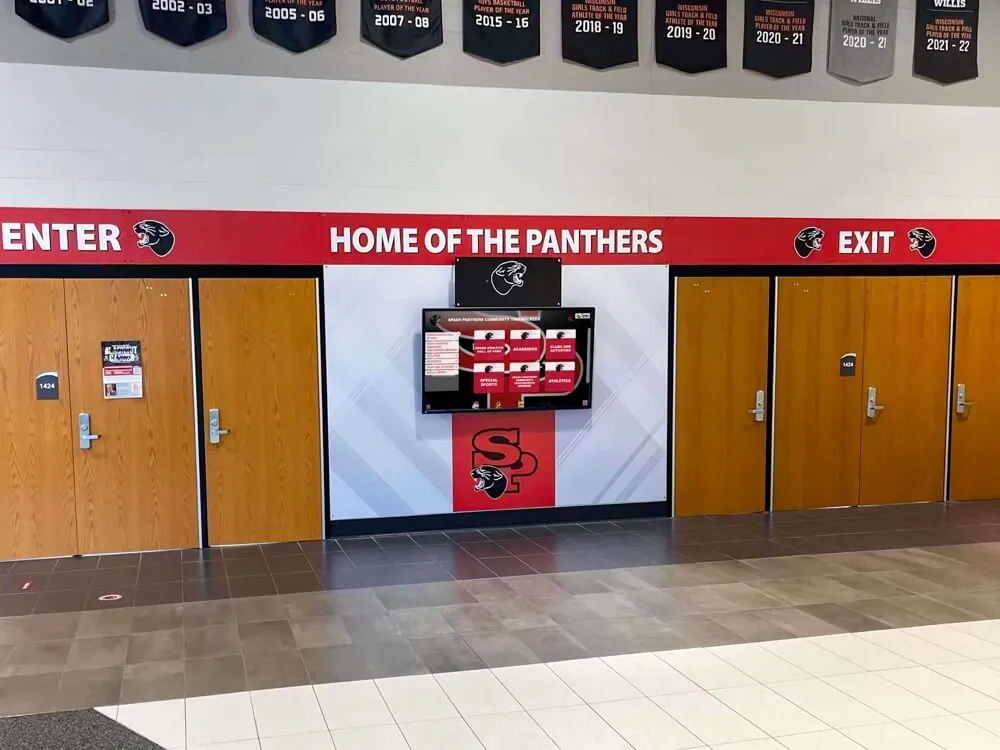
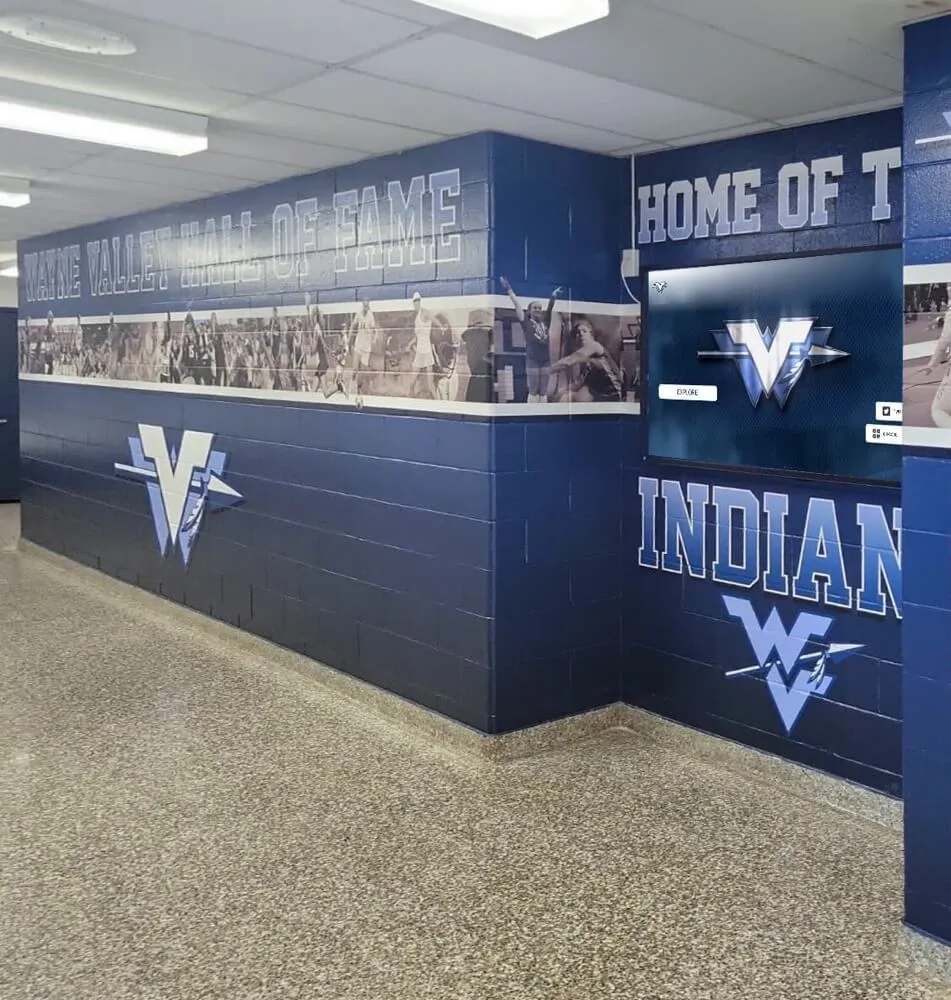
Hallway recognition displays can inherit strong color casts from overhead fluorescent or LED fixtures—color temperature calibration compensates for those casts so school colors and portraits render accurately regardless of fixture type
Color Temperature Reference Table for School Recognition Spaces
| Space Type | Typical Ambient CCT | Display Target White Point | Priority Content to Check |
|---|---|---|---|
| Front lobby — warm accent lighting | 2700–3000 K | 5000–5500 K | Portrait skin tones, gold/burgundy school colors |
| Front lobby — mixed or cool overhead LEDs | 4000–4500 K | 5500–6000 K | School color accuracy, trophy metallic tones |
| Gymnasium — metal halide fixtures | 4000–4500 K (green-shifted) | 5500–6000 K, reduce green channel | Skin tones, white jerseys and uniforms |
| Gymnasium — LED retrofit, cool white | 5000–6000 K | 6000–6500 K | Archival photography, warm school colors |
| Gymnasium — LED retrofit, neutral white | 4000–4500 K | 5500–6000 K | Portrait backgrounds, school seals and marks |
| Athletic hallway — fluorescent tubes | 3500–4000 K | 5000–5500 K | Text legibility, trophy case photography |
| Athletic hallway — LED panels, warm | 2700–3500 K | 4500–5500 K | Vintage archival photos, aged portrait scans |
Use this table as a starting point before touching display controls. Measure ambient CCT with a colorimeter or phone-based light-meter app if available, or estimate from fixture manufacturer specifications. The “display target” column describes the display’s white point setting, not the absolute visual output—the combination of display white point and ambient color produces the perceived result in the space.
Step-by-Step Recognition Display Color Temperature Calibration
Run this workflow on each display individually during initial installation, after any fixture change, and at the start of each school year before the recognition season begins.
Before You Start
Gather the following materials:
- A test image showing a neutral gray card (18% gray, RGB 128/128/128), a sample inductee portrait with realistic skin tones, and a panel of school colors at full saturation
- Access to the display’s on-screen display (OSD) controls
- Access to the media player’s display driver settings (for PC-based players)
- A smartphone with a screen-color measurement app if available
- The physical installation space configured as it will be during events (lights on, shades or blinds in typical position)
Step 1 — Establish the Ambient Lighting Baseline
Before touching the display, assess the room lighting. Turn on every fixture that will be active during normal recognition program use—not just overhead lights, but accent lighting, case spotlights, and any decorative fixtures. Note whether natural light through windows is a significant factor at the times recognition events typically occur.
Identify the primary direction and color of ambient light falling on the display surface itself. Light directly striking the display face competes with display luminance and shifts perceived color temperature. This is distinct from general ambient light in the room, though both matter.
Step 2 — Load the Test Image Set
Load your test images on the display at native resolution (typically 1920×1080 or 3840×2160 for 4K installations). Display the neutral gray card first. Under normal room lighting, the gray card should appear neutral—neither warm nor cool, neither green nor magenta. If it appears visibly tinted, the display needs color temperature adjustment.
Record what you see before making any changes. The most common observations:
- Gray appears warm (orange/amber) → display white point is too low, or ambient warmth exceeds display luminance
- Gray appears cool (blue/teal) → display white point is too high; common with factory defaults in warm lobbies
- Gray appears green → likely influenced by metal halide or older fluorescent ambient; reduce the green channel in OSD color settings
Step 3 — Adjust Display White Point in OSD
Access the display’s OSD via panel buttons or the remote control. Navigate to the color temperature or white balance setting. Most commercial displays offer:
- Preset options: Warm (≈3000 K), Standard (≈6500 K), Cool (≈7500 K), Native, or User
- Manual RGB gain adjustment: Allows independent adjustment of red, green, or blue channels in percentage steps
- sRGB or Content Mode: Locks color output to sRGB specifications, useful when source content is produced in sRGB
For lobby displays near warm accent lighting, start by selecting “Warm” or dropping the blue channel by 5–10 points in manual RGB mode. For gymnasium displays, start at “Standard” (6500 K) and adjust the green channel down by 3–8 points if using metal halide fixtures.
Step 4 — Confirm With Portrait and School Color Test
After adjusting white point, display the portrait test image. Skin tones should look natural—neither orange, pale blue, nor green. Compare the portrait to the same image on a calibrated laptop monitor positioned beside the recognition display if possible.
Then display the school colors panel. School gold should look gold, not yellow or bronze. School navy or royal blue should look true to brand specification, not teal or purple. If colors shift significantly from expectations, return to OSD settings and make incremental RGB gain adjustments in the direction opposite to the unwanted cast.
Academic achievement award displays in high school settings depend on color accuracy for portrait galleries, award graphics, and school color consistency—the same calibration logic that improves athletic recognition displays applies equally to academic honor walls and scholar programs.
Step 5 — Document the Final Settings
Record every OSD setting change and the ambient lighting conditions present during calibration. Store this documentation with the display’s installation record. When the display is serviced, updated, or reset to factory defaults, this record enables accurate recalibration without running the full diagnostic from scratch.
The minimum documentation to save:
- Display make, model, and serial number
- Firmware version at time of calibration
- Color temperature mode and any manual RGB gain values set
- Ambient fixture type and CCT (or fixture description if CCT is unknown)
- Date and name of calibrating technician
Step 6 — Calibrate Each Display Individually
Multi-screen installations—common in athletics hallways and gym lobbies—require individual calibration of each panel. Screens from the same purchase order can have slight panel-to-panel variation. Set all screens to identical OSD values, then compare them side by side. Adjust individual units as needed so the row of displays reads as consistent when viewed from across the hallway.
Consistency across a multi-panel installation matters especially when one continuous recognition content layout spans multiple screens. A school color band that shifts from warm gold on the left panel to yellow-green on the right panel undermines the professional quality the recognition program is designed to project.
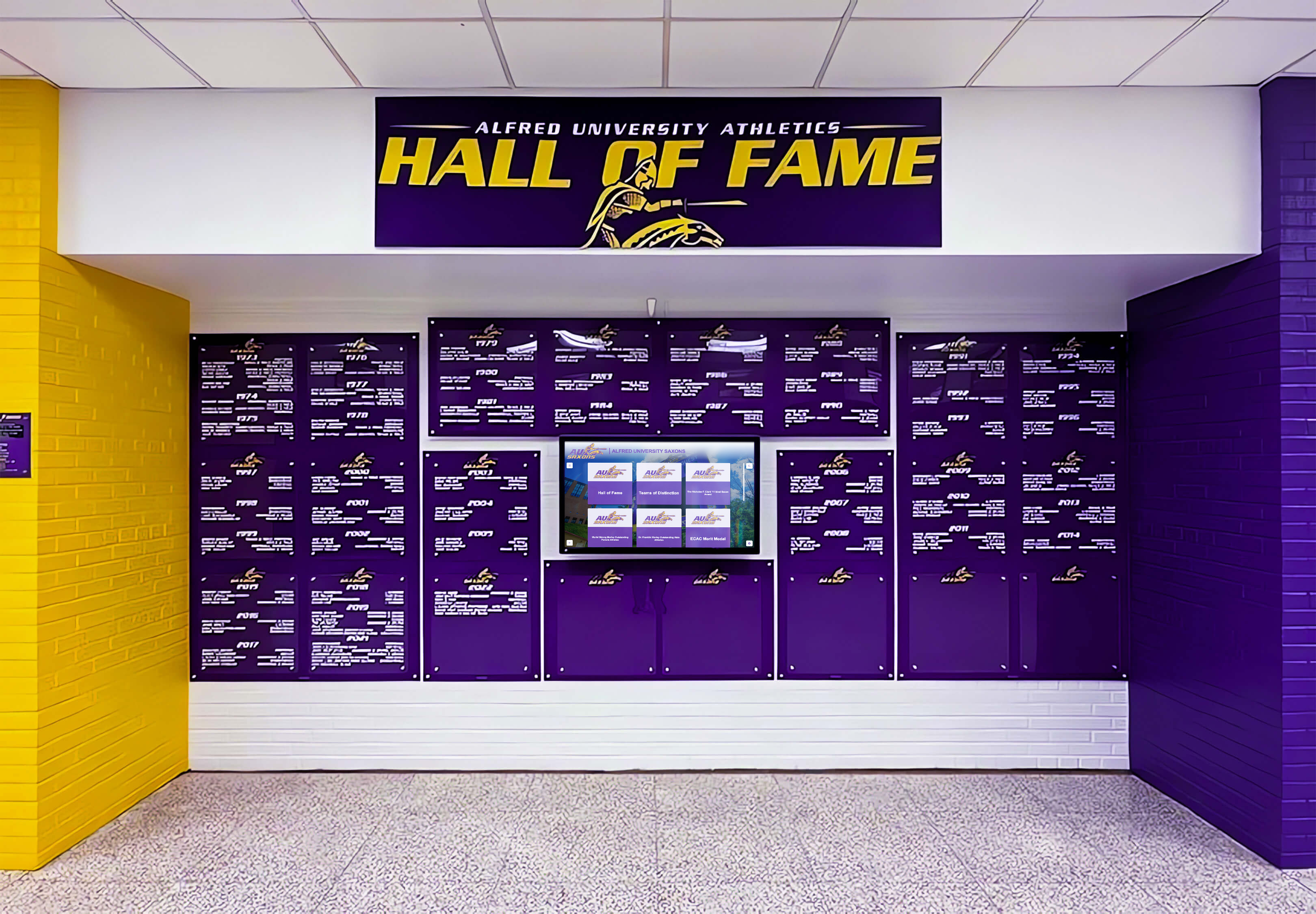
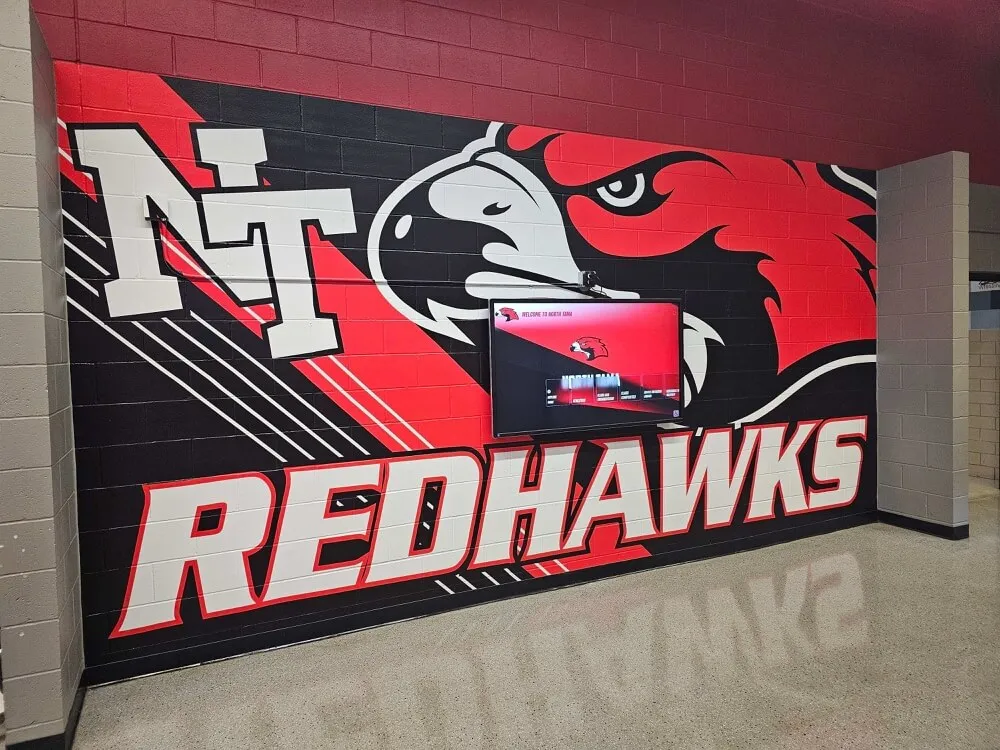
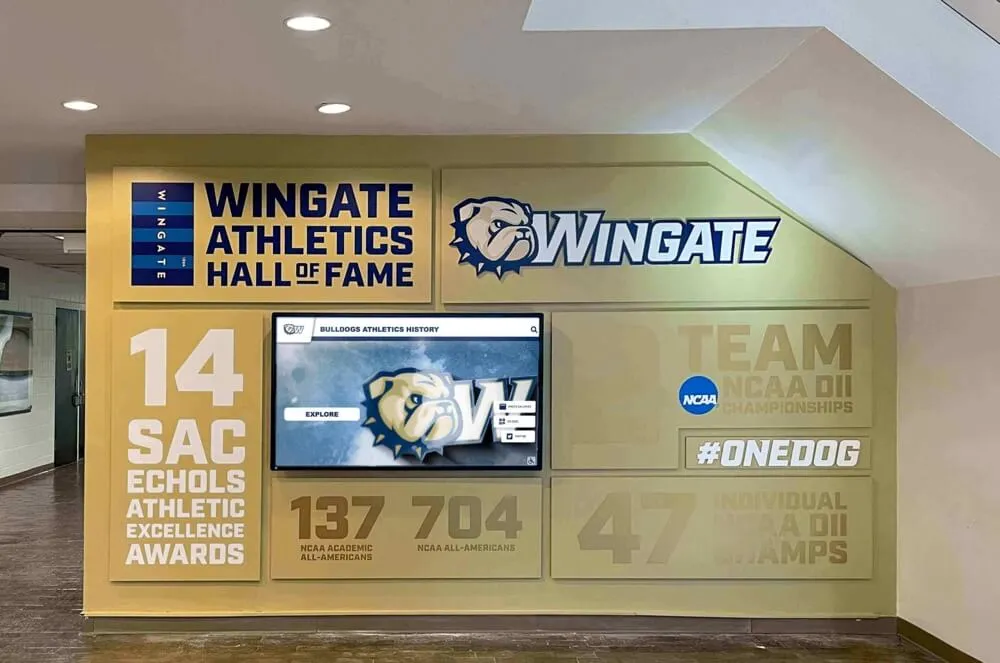
Multi-screen recognition installations require individual calibration—school color accuracy must be consistent across every panel for the installation to read as a unified, professional space
Where Color Temperature Problems Surface Most in School Recognition Content
Inductee Portrait Galleries
Portrait photography in recognition programs covers decades of changing photographic technology. Older film prints scanned for the archive carry warm, amber-shifted characteristics. Digital portraits from professional photographers are typically edited for standard daylight white balance. Smartphone-captured informal event photos vary widely. When these content types display on a single recognition screen, an uncalibrated display amplifies the inconsistencies—some portraits look warm and natural while others look pale and cool, creating an uneven, unprofessional impression.
Calibrating to a neutral white point (5500–6000 K) provides the most consistent rendering across mixed-vintage portrait content. Overly warm calibration (below 5000 K) flatters warm-toned older prints while making recent digital portraits look orange. Overly cool calibration (above 7000 K) makes older prints look dated and washed while making recent digital portraits look clinical.
Honoring educational leaders and longtime administrators through recognition displays typically involves formal portrait photography taken across different eras—exactly the content type most sensitive to consistent color temperature calibration across update cycles.
Senior and Graduate Displays
Senior portrait and graduate recognition content is among the most scrutinized material on any school recognition display. Families who see a graduation portrait expect colors and skin tones to look as they remember them—which is close to natural daylight rendering. High school graduate display programs work best when the display’s white balance aligns with how professional graduation photographers deliver their final images: neutral to slightly warm, in the 5500–6500 K range.
Athletic Action Photography
Sports photography under gymnasium lighting—especially metal halide or older fluorescent fixtures—often carries a strong blue-green cast baked into the original image from shooting conditions. When these images display on a recognition screen also under gymnasium lighting, the color cast compounds unless the display is adjusted to compensate. Skin tones in basketball, wrestling, and swimming photos are particularly vulnerable to this compound shift.
Track and field recognition archives that include outdoor action photography present a different scenario: outdoor sports photos are typically shot under natural daylight (5500–6500 K) and look most accurate on displays calibrated in that same range, making them easier to display accurately than indoor gymnasium photography.
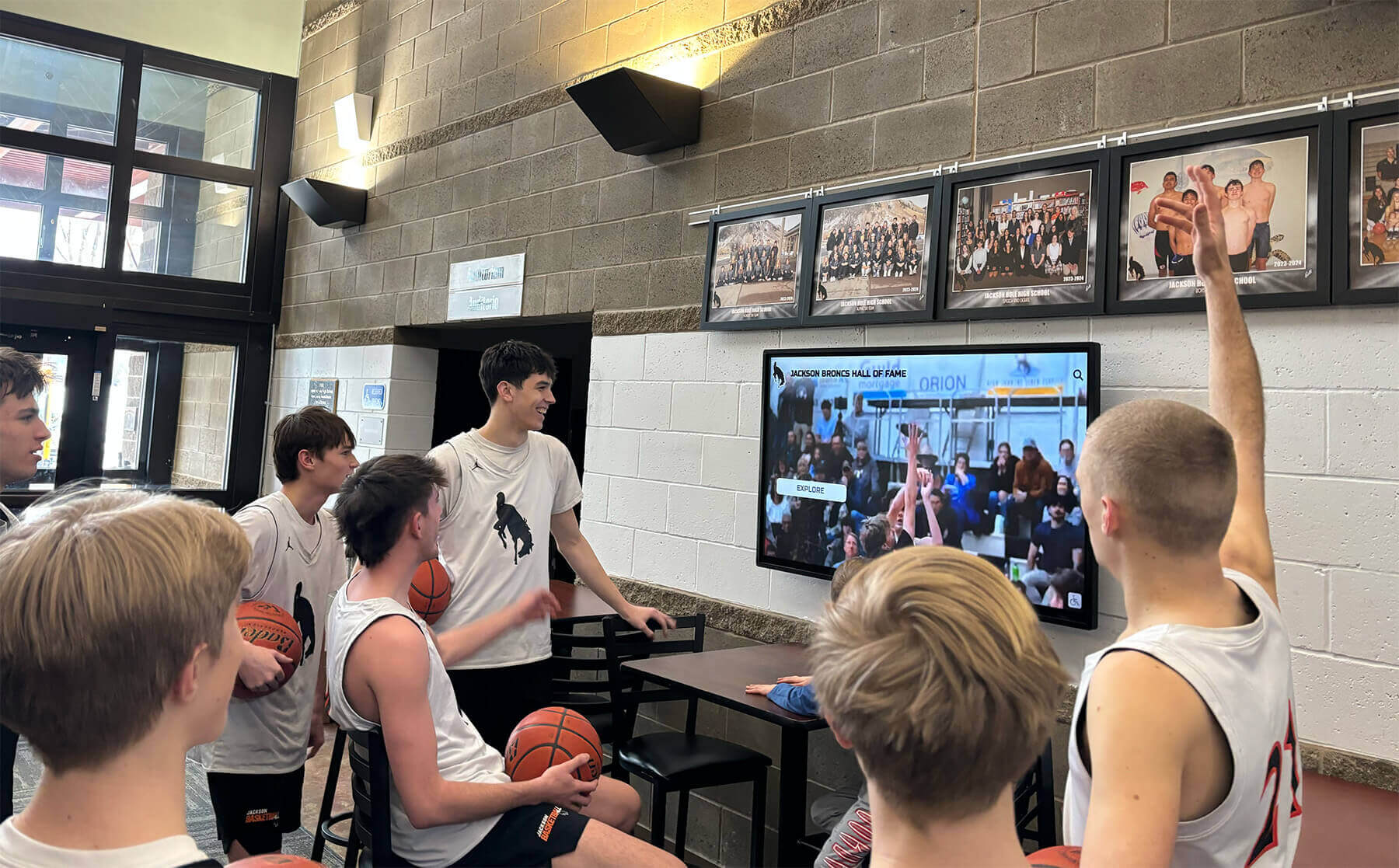
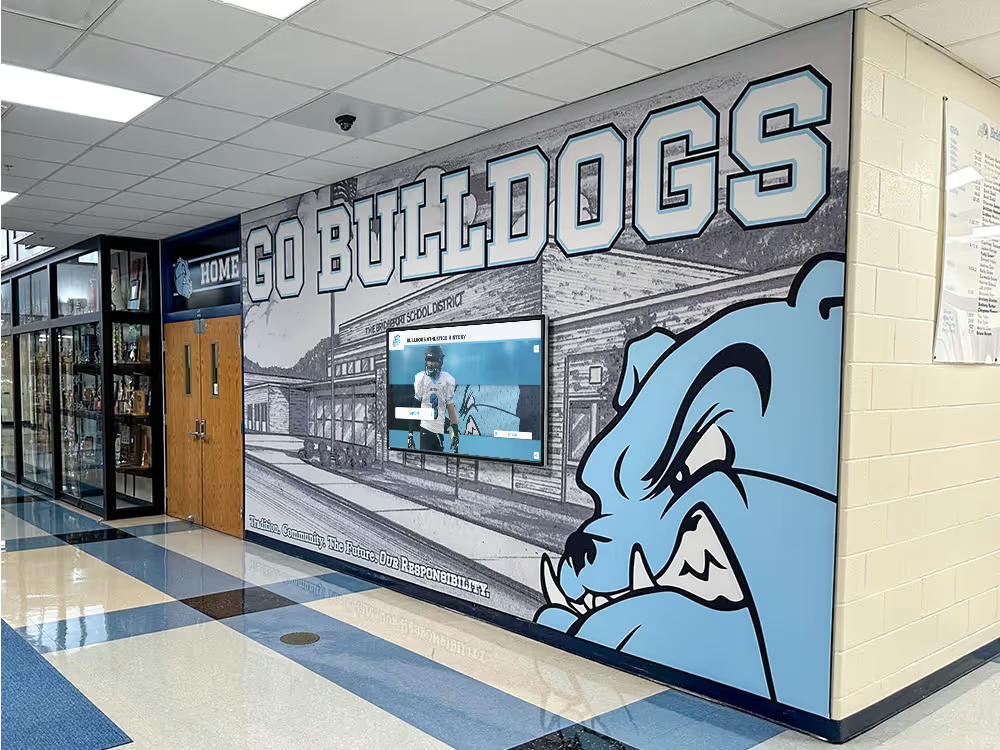
Athletic content displayed in gym lobbies must account for the ambient lighting conditions present during game events—calibrate for the lighting conditions active when the largest audience is present
Academic Recognition Boards
Academic recognition content—dean’s list displays, honor roll boards, valedictorian galleries—tends to emphasize text, formal portraits, and institutional colors. The academic recognition programs that present this content in hallways or lobby kiosks are often viewed by prospective families and community visitors who measure display quality against professional office or commercial standards. A cool-running display in an academic recognition context can look sharp and authoritative; a display running too warm may compromise text legibility on dark backgrounds. Calibrate toward neutral white for academic content that combines dense text with formal portraiture.
Dean’s list recognition is one of the most frequently revisited content types in academic recognition systems—parents, students, and alumni return repeatedly to confirm honorees and review year-by-year lists. Consistent color temperature across update cycles ensures the display looks authoritative and trustworthy every time.
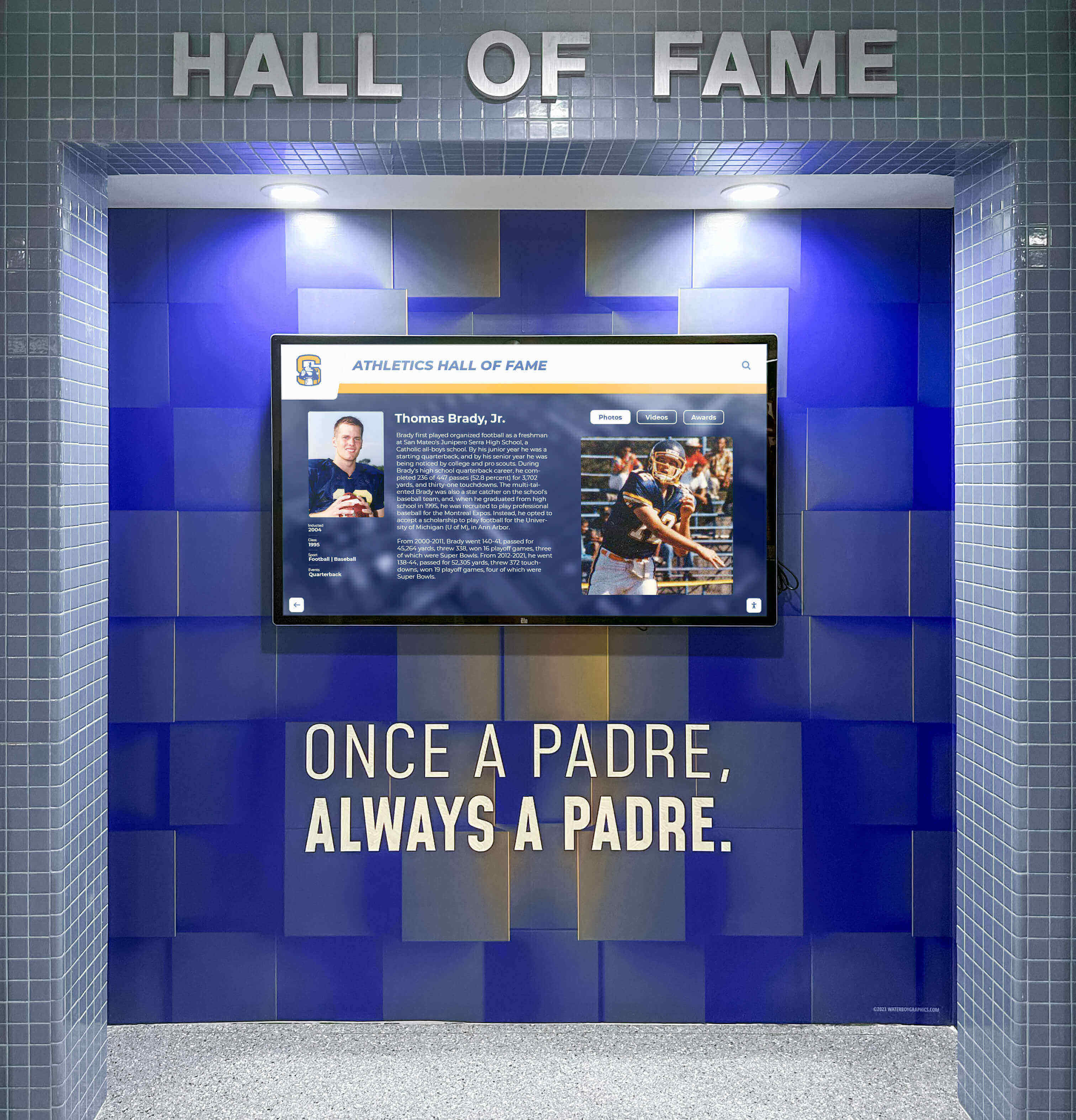
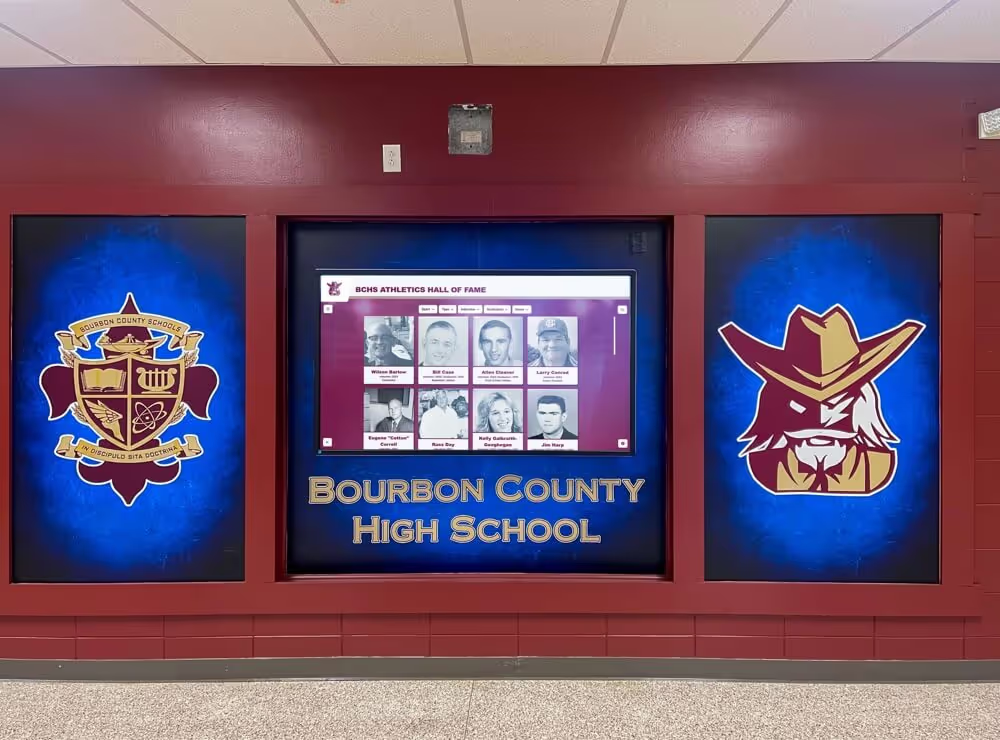
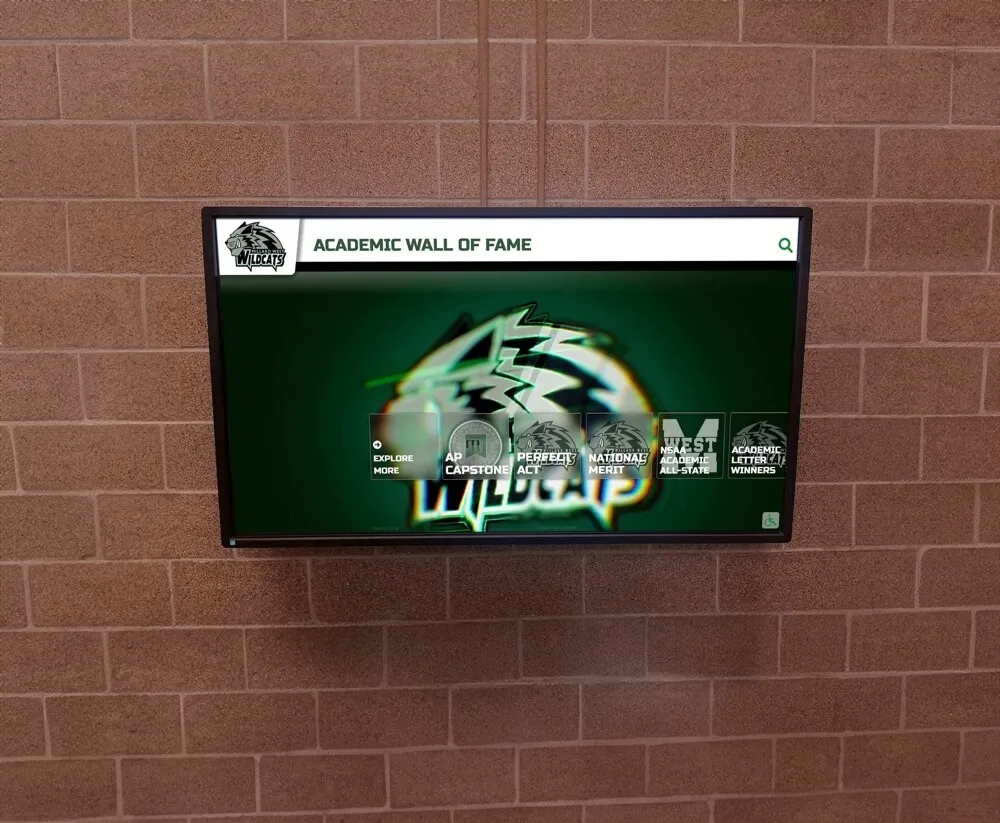
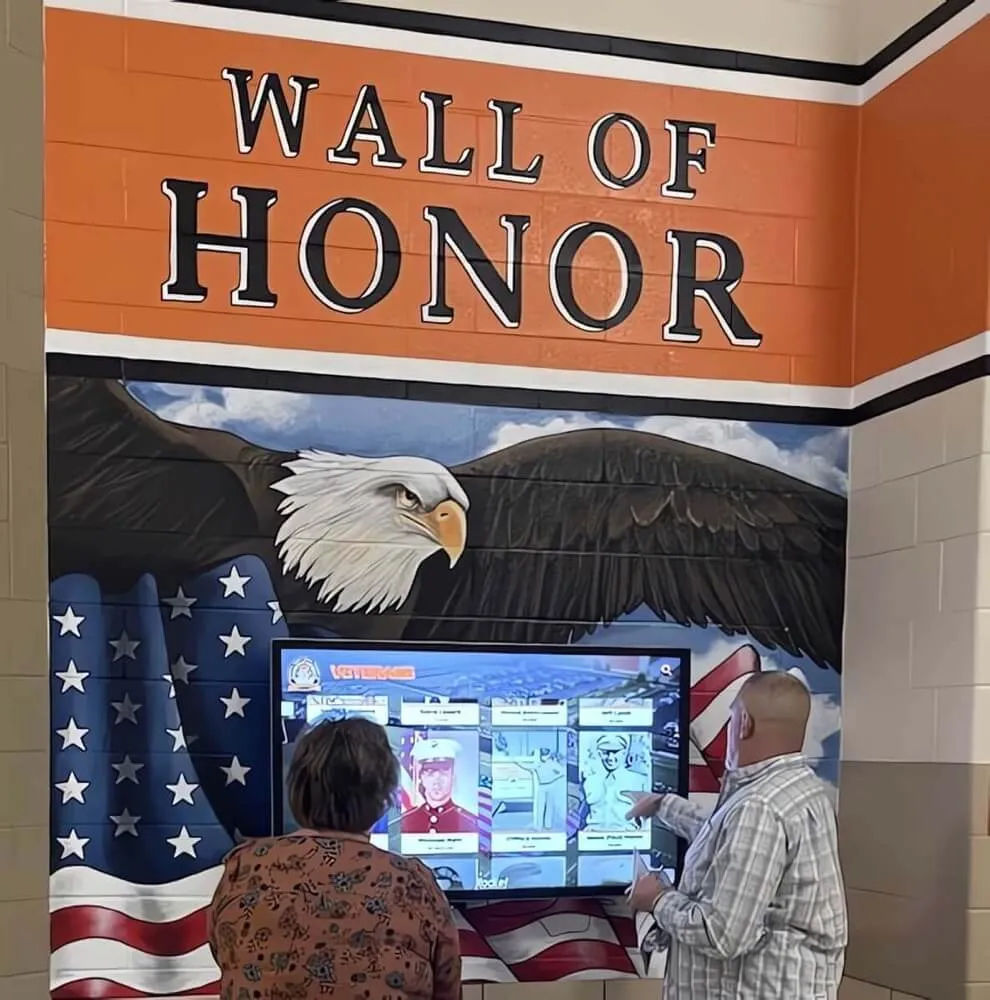
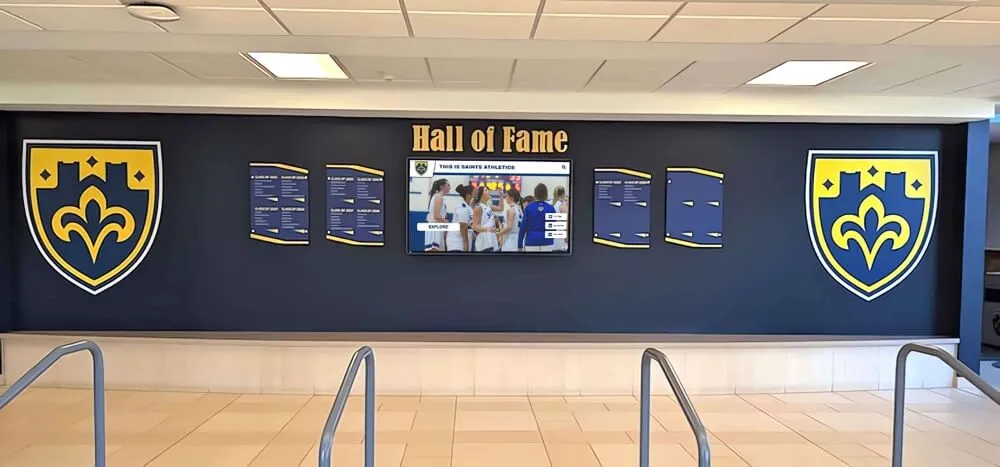
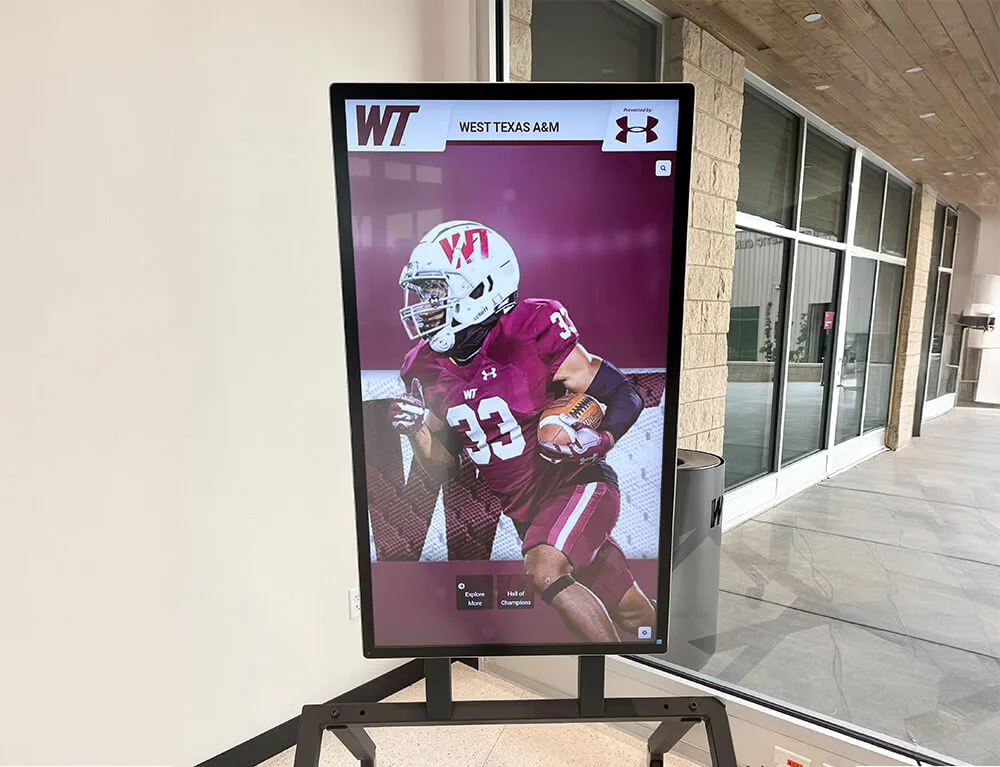
Wall-mounted recognition screens must render school colors and portrait backgrounds accurately under the specific fixture type in each installation—calibrate on-site under the actual ambient conditions rather than relying on factory defaults
Maintaining Calibration Over Time
Color temperature calibration is not a set-and-forget process. Several environmental and hardware factors cause drift:
Lighting fixture changes: LED retrofit projects, bulb replacements, and seasonal fixture additions all alter ambient CCT. Run a recalibration check after any significant lighting change in the recognition display space.
Display panel aging: LCD panel backlights shift slightly warmer over their lifespan as LED elements age. A display calibrated at installation may need the white point adjusted cooler by 200–500 K after two to three years of operation to maintain the same visual result.
Operating system and driver updates: Windows Update and GPU driver updates occasionally reset display color output profiles to system defaults, which reintroduce factory calibration settings over customized values. After any major driver update, verify that OSD settings remain at their recorded calibration values.
Seasonal daylight changes: Schools in northern latitudes see significant daylight angle and intensity changes between fall and spring. A lobby display calibrated in September under low autumn sun may look noticeably different in January when winter light enters the windows at a steeper angle. Re-evaluate calibration at the start of each semester.
A practical maintenance schedule for recognition display color temperature calibration:
| Check Point | Trigger | Action |
|---|---|---|
| Initial calibration | Display installation | Full workflow; document all OSD settings |
| Annual check | Start of school year | Compare gray card to documented settings; adjust if drifted |
| Post-lighting change | Any fixture replacement or addition | Repeat ambient assessment; recalibrate as needed |
| Post-update check | Major OS or GPU driver update | Verify OSD color settings match installation documentation |
| Event check | Day before major recognition event | Quick gray card and portrait confirmation; adjust if needed |
Frequently Asked Questions
What Kelvin setting should I start with for a school lobby recognition display?
Most school lobby recognition displays calibrate well at 5500–6000 K as a starting white point. This range renders natural skin tones accurately, keeps school colors from shifting too warm or too cool, and holds up under the mixed ambient lighting typical of school entries. Adjust from that baseline using the gray card test—move warmer if the display still looks blue against your lobby lighting, cooler if it still looks amber.
How do I measure color temperature in my gym or lobby without professional equipment?
Fixture manufacturers typically publish CCT data for their products—check the fixture model number against the spec sheet. If fixture information is unavailable, most modern smartphones can approximate ambient CCT using apps that measure color temperature via the rear camera. These readings are approximate but sufficient for starting-point calibration decisions when professional colorimeters are not available.
Why does the same display look different at 8 a.m. versus 6 p.m.?
Natural light entering through windows changes the effective ambient color temperature throughout the day and across seasons. Morning light often enters at lower angles with a warmer cast; afternoon and evening vary by season and orientation. A lobby with significant window exposure benefits from secondary calibration profiles—one for daytime use and one for evening recognition events—if the hardware supports profile saving.
Does white balance calibration affect text readability as well as image color?
Yes. Displays running too warm produce white text backgrounds that appear cream or yellow, reducing contrast against dark text. Displays running too cool produce stark, harsh white backgrounds that can cause eye fatigue in viewing sessions. A calibrated neutral white improves both portrait accuracy and text-based recognition content readability, which directly affects how long community members engage with the display.
How do touchscreen recognition displays handle color temperature differently than passive screens?
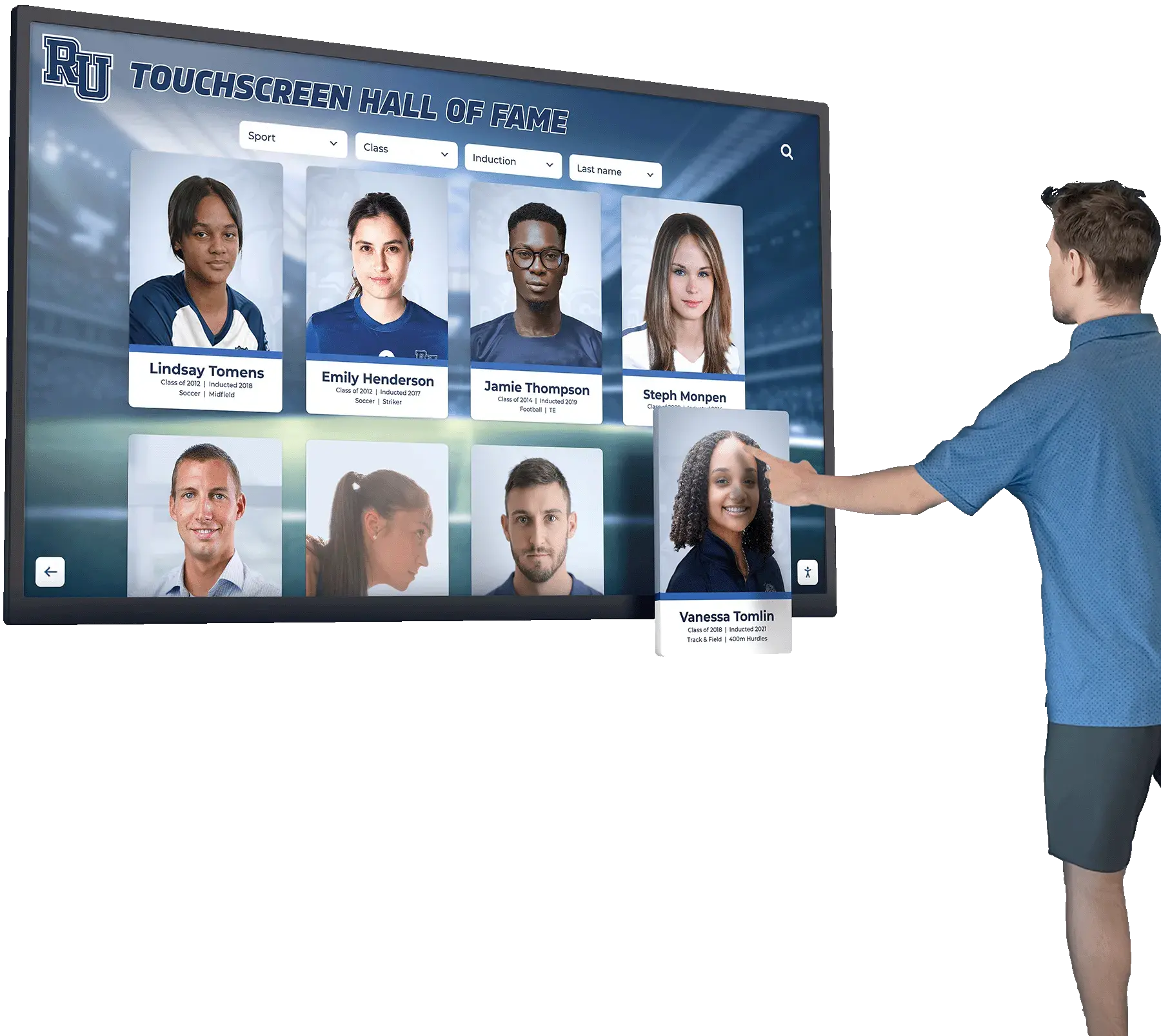
Touchscreen recognition platforms that run through a web browser rely on the browser’s color management layer, which typically maps content to the display profile automatically. The display OSD calibration still applies—browser color management corrects for display profiles, not for uncalibrated OSD settings. Calibrate the OSD correctly first; web-based recognition content will then benefit from the correct baseline automatically.
Should I recalibrate if the school gets new LED gym lighting?
Yes, without exception. LED retrofit fixtures typically have a significantly different spectral distribution than the metal halide or fluorescent fixtures they replace, even at similar rated CCT values. A display calibrated for metal halide gymnasium lighting will almost certainly need adjustment after an LED retrofit. Run a full gray card and portrait test the day after new fixtures are activated.
Which content type is hardest to calibrate for in a school recognition display?
Mixed-era portrait galleries are the most difficult content type because each era of photography carries its own color characteristics. A single calibration setting that renders a 1985 film portrait accurately may make a 2023 digital portrait look slightly warm. The best compromise is neutral calibration at 5500–6000 K and standardizing source image processing so that historical scans and new digital portraits are color-corrected to a common baseline before upload.
Conclusion
Recognition display color temperature calibration is the step that determines whether an athletic hall of fame, honor roll board, or senior gallery looks like a professionally managed program or like an unchecked screen. The workflow is structured but not complicated: establish the ambient lighting baseline, load test content, adjust white point and RGB gain in the display OSD, confirm with portraits and school colors, and document everything.
The investment is modest—thirty minutes per display on installation day, and fifteen-minute check-ins before major recognition events. The return is accurate portrait rendering, faithful school color reproduction, and athletic photography that looks as compelling on the display as it did when captured. Every family who sees their student’s portrait rendered accurately receives a clear signal that the school takes recognition seriously—and that signal extends to every inductee, every honor roll student, and every graduate featured in the program.
For facilities coordinators managing recognition displays across multiple venues, building a maintenance calendar that includes post-lighting-change recalibration and annual-start checks prevents the gradual drift that leaves a display looking noticeably different from installation day without anyone being able to identify exactly when or why the change occurred.
Accurate color is not a luxury in recognition programs. It is the medium through which schools communicate care, respect, and institutional pride—one calibrated display at a time.
See a Recognition Display Built for Accurate Color
Rocket Alumni Solutions delivers web-based interactive recognition displays designed for school lobbies, hallways, and gymnasiums—with remote content management, ADA WCAG 2.1 AA compliance, and hardware guidance that supports accurate color temperature from day one.
See a Demo