Intent: decide — A recognition display color-banding test is the fastest way to confirm that your school hall of fame, sports archive, or awards screen will look sharp before it goes live for students, coaches, and visitors. Color banding—the stepped, striped appearance in what should be smooth gradients—turns a polished athletic portrait into something that looks printed on a budget office printer. Run this test during installation, not after the ribbon-cutting.
Gradient problems surface most often in the backgrounds behind inductee portraits, the sky and turf in sports photography, the metallic sheen on trophy and award graphics, and the skin-tone transitions in formal graduation photos. When these areas show visible bands of color instead of smooth transitions, the display undermines the sense of pride and warmth that recognition programs are meant to create. Digital warming depends on visual quality as much as content depth—an archive that looks pixelated or banded signals neglect rather than celebration.
This guide explains what causes color banding in recognition displays, how to isolate whether the problem sits in the source image, the media player, or the screen itself, and how to resolve it before launch using a checklist any administrator or IT staff member can follow.
Before a school hall of fame goes live, visual quality checks protect the institution’s investment and ensure every inductee portrait, championship banner, and archival photograph looks as polished as the community it honors. A recognition display color-banding test takes fifteen minutes and catches problems that would otherwise embarrass the recognition program for years.

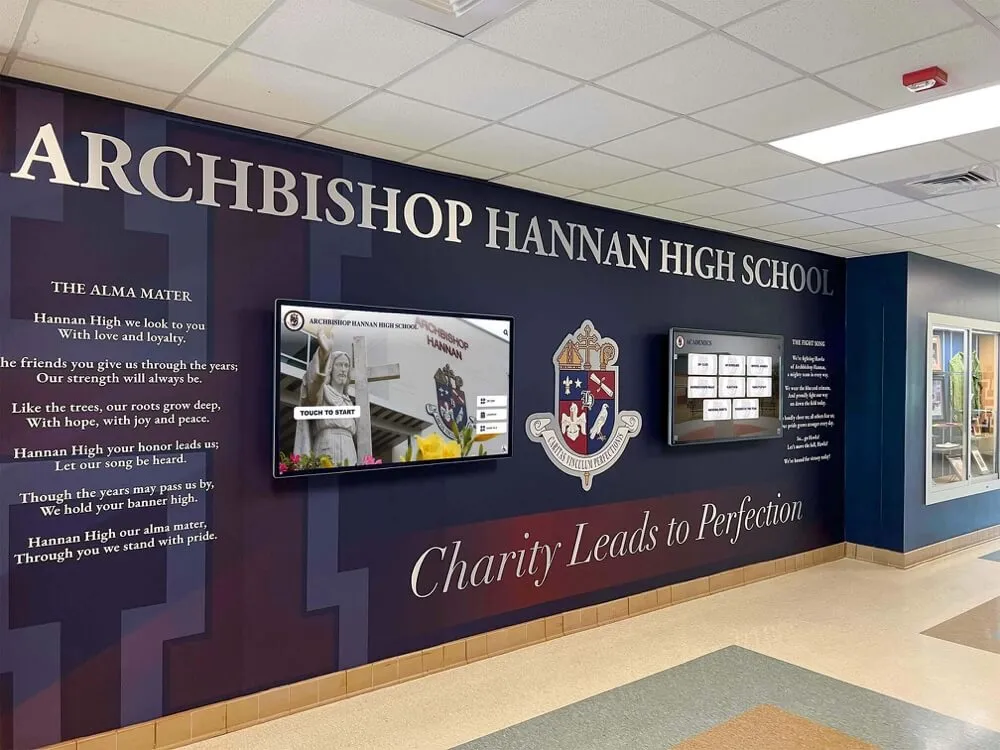
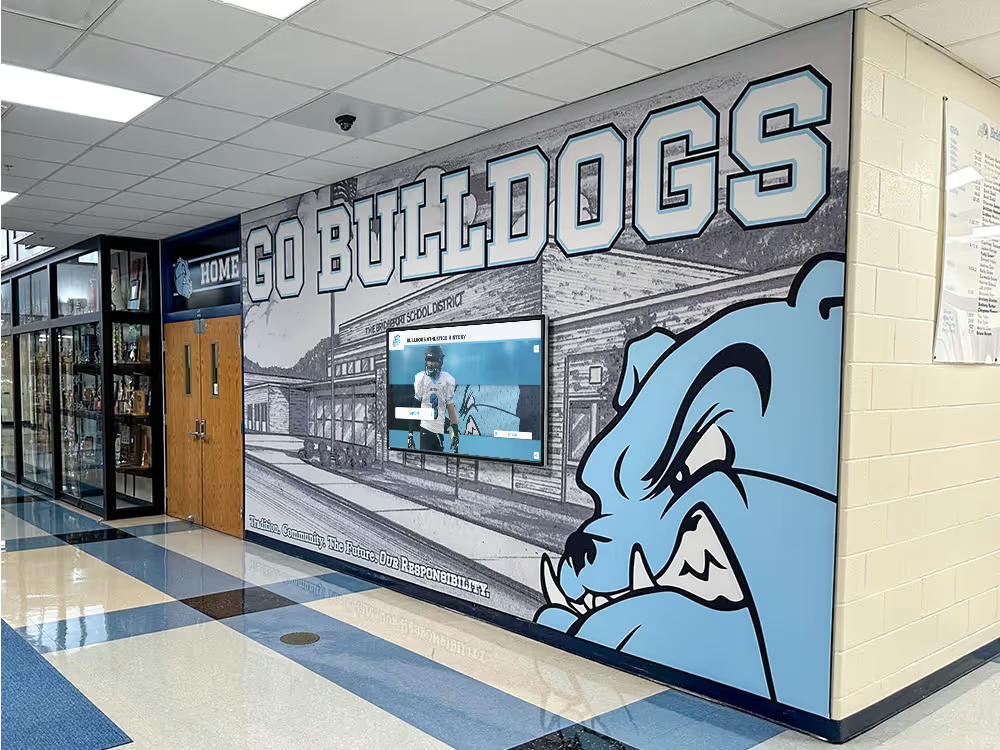
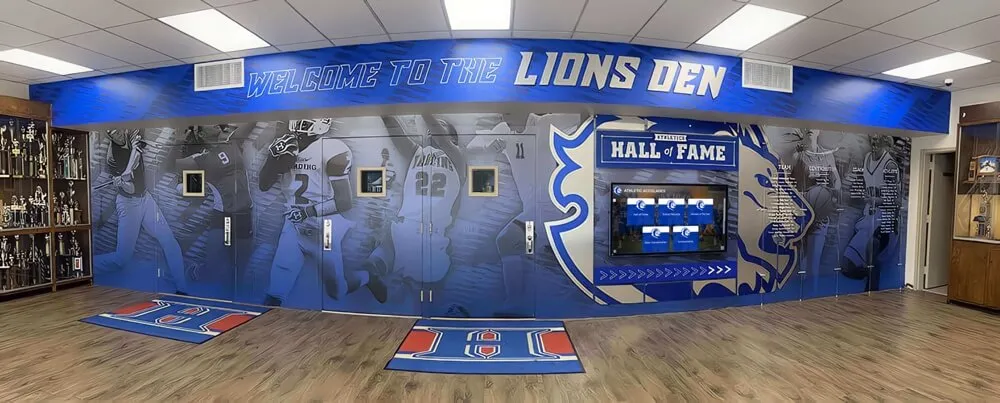
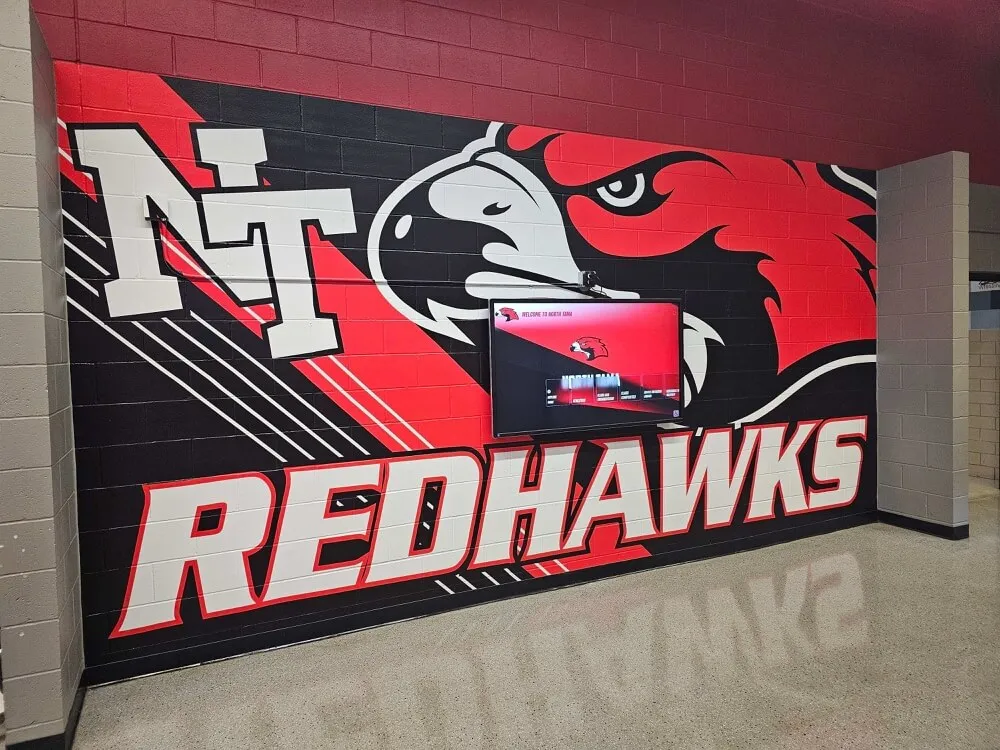
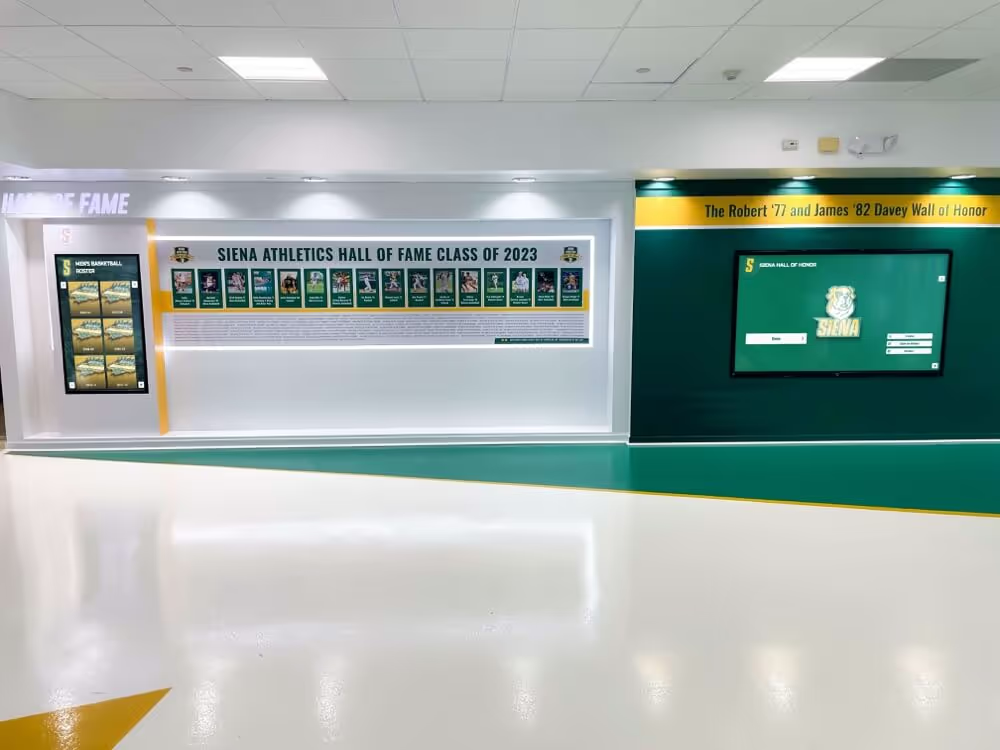
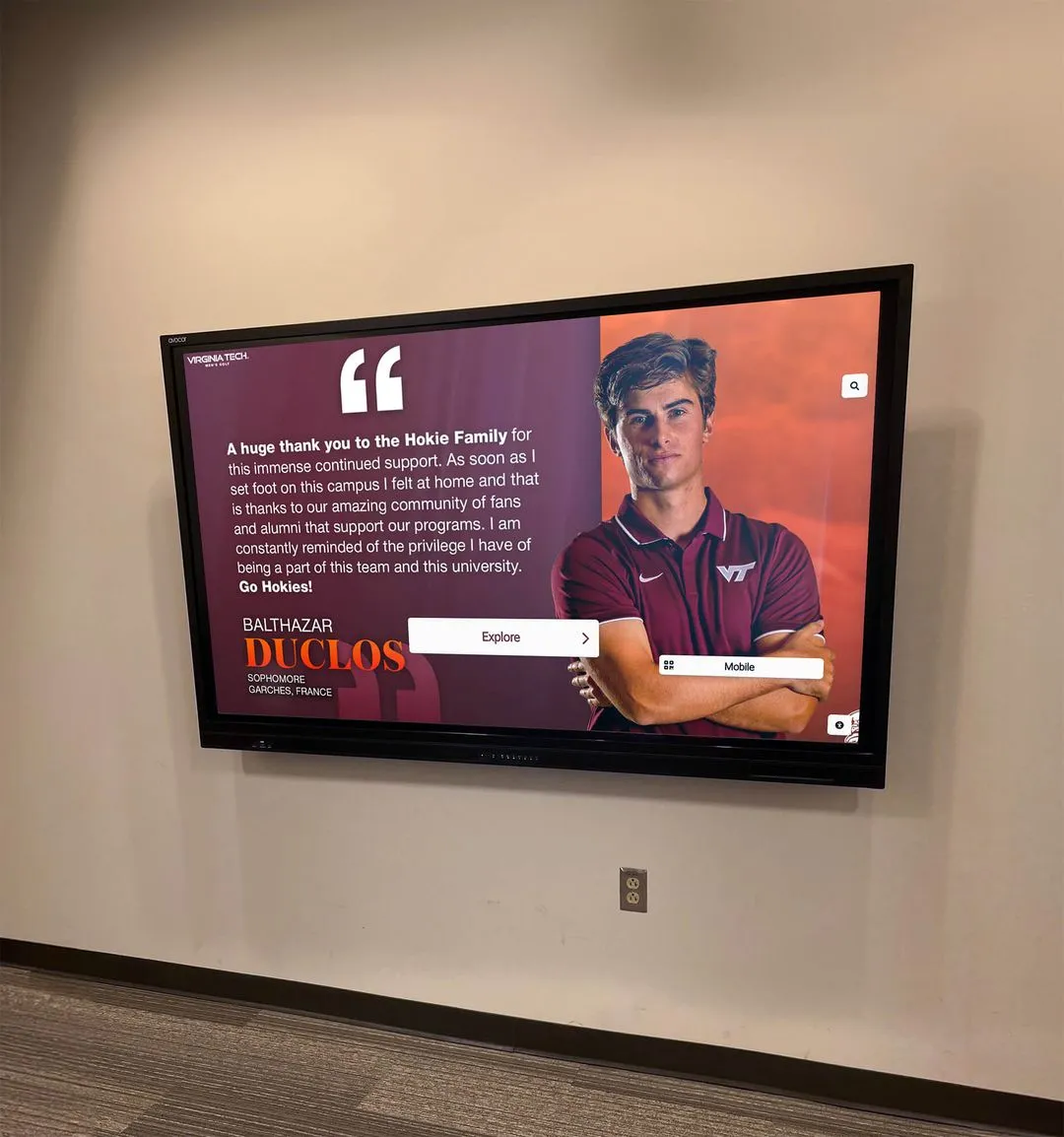
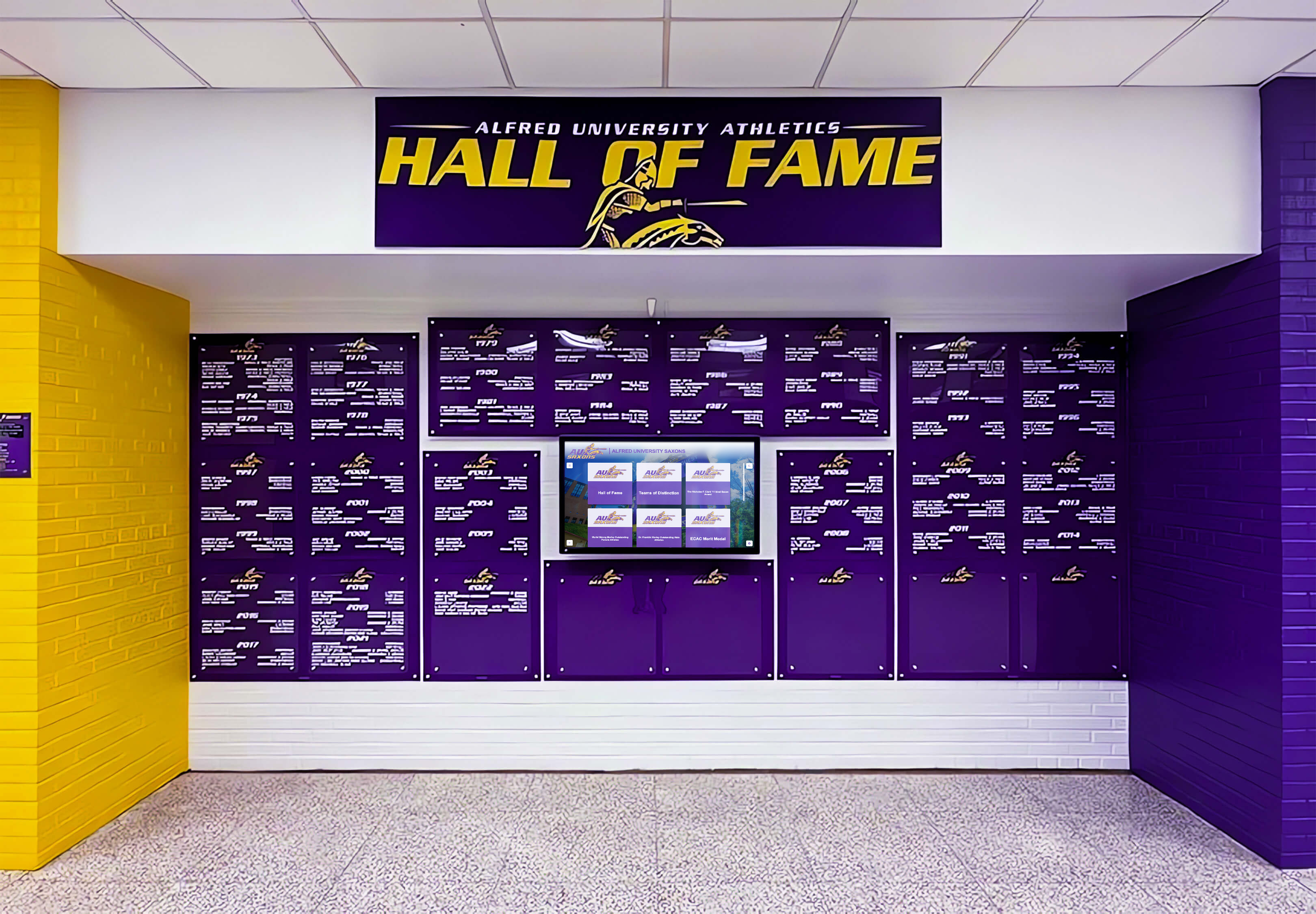
Hall of fame displays with strong color gradients—such as school colors transitioning across a background—expose color banding problems immediately during installation testing
What Is Color Banding in a Recognition Display?
Color banding is visible stair-stepping or striping in areas that should display as smooth, continuous gradients. Instead of a seamless transition from light blue sky to deep blue, a banded display shows five or six distinct color bands with abrupt jumps between them. The effect is immediately noticeable even to non-technical viewers—it looks like a compressed PDF on a low-quality screen rather than a professional digital display.
For school recognition programs, inductee portrait backgrounds, athletic action photography, trophy graphic overlays, and archival graduation images all rely on gradient rendering for their professional appearance. When those gradients band, the entire recognition display communicates low quality regardless of how carefully the content was curated or how significant the achievements being honored.
Digital signage for schools must meet a higher visual standard than generic lobby screens because recognition content is personal—families and alumni scrutinize photos of individuals they know and care about. A banded portrait of a Hall of Fame inductee is a visible flaw that diminishes that person’s moment, even if the cause is purely technical.
The Three-Layer Diagnosis: Source, Player, Display
Color banding can originate from three separate components in a recognition display chain. Identifying which layer is responsible determines the fix and prevents administrators from replacing expensive hardware when the problem is actually a JPEG export setting.
The table below is designed for fast triage during an installation walkthrough:
| Component | Test Method | Banding Present? | Likely Cause | Resolution |
|---|---|---|---|---|
| Source file | Open the image in a photo editor at 100% zoom on a trusted monitor | Yes, even in the editor | Low bit-depth export, heavy JPEG compression, or quantized original scan | Re-export at JPEG quality 90+ or PNG-24; re-scan archival originals at 16-bit |
| Media player / PC | Display the same file full-screen on the presentation computer before connecting to the recognition screen | Yes on the player monitor | GPU outputting limited-range color (16–235), 6-bit driver setting, or outdated driver | Update display driver; switch color range from “limited” to “full” (0–255) in GPU settings |
| Recognition display | Show a known-good gradient test image directly from a calibrated source | Yes even with gradient test | Panel bit depth set low in OSD, dithering disabled, or low-quality panel | Enable dithering in display OSD; confirm panel is true 8-bit; upgrade cable to HDMI 2.0 or DisplayPort 1.4 if needed |
This isolation logic works whether you are managing a single corridor kiosk or a multi-screen athletics hall of fame wing. Start at the source and move downstream—most banding problems resolve before you touch the display hardware at all.
Step-by-Step Recognition Display Color-Banding Test
Run this test during initial hardware setup, after any media player software update, and whenever a new image library is added to the recognition platform.
Before You Start
Gather a smooth gradient test image: a JPEG or PNG showing a 1920×1080 gradient from pure black (RGB 0,0,0) to pure white (RGB 255,255,255). Create one in any photo editing application using the gradient tool—it takes under two minutes. Also prepare a real inductee portrait with a clean studio background for a second test pass.
Step 1 — Test the Source File
Open the gradient test image in a photo editing application on a desktop monitor you trust. Zoom to 100 percent and examine the gradient transition in normal room lighting. A properly saved file shows no visible steps. If banding is already visible here, the source file is the problem—re-export at higher quality before proceeding to the display.
Step 2 — Test the Media Player Output
Move to the computer that will drive the recognition display. Display the same gradient test image full-screen without connecting to the recognition screen yet. Look at the PC monitor output carefully. If banding appears here but was absent in Step 1, the problem is with the GPU driver, the color output profile, or the operating system display settings.
Common fixes at this stage:
- Set GPU color output to 8-bit or 10-bit in driver settings (avoid 6-bit + FRC where possible)
- Switch color range from “limited” to “full” in GPU driver settings (NVIDIA Control Panel, AMD Radeon Software, or Intel Graphics Command Center)
- Update the display adapter driver to the current stable release
- Check that the operating system color profile is set to sRGB rather than a narrower gamut profile
Step 3 — Test the Recognition Display at Full Resolution
Connect the media player to the recognition screen and display the gradient test image at the screen’s native resolution. Observe the gradient under the ambient lighting conditions of the actual installation space—hallway overhead lighting, gymnasium fluorescents, and lobby spotlights all affect perceived banding differently.
If banding now appears but was absent in Step 2, the problem is in the display or its connection settings. Check:
- HDMI or DisplayPort cable quality (older HDMI 1.4 cables limit bit depth at higher resolutions; HDMI 2.0 and DisplayPort 1.4 support 10-bit color at 4K)
- Display OSD settings for “bit depth,” “dithering,” or “color format” (enable dithering if available)
- Whether the screen is a true 8-bit panel or a 6-bit+FRC budget panel (verify in the panel specifications sheet)
Step 4 — Confirm With Real Recognition Content
After the gradient test passes, display a real inductee portrait at full screen. Focus on the background, any sky visible in sports photography, and skin-tone transitions. Note any locations where banding appears. Compare the same image on the PC monitor—if the PC looks clean but the screen bands, the display hardware is the constraint.
Step 5 — Document and Log Results
Create a one-page record noting screen model, cable type, GPU driver version, color output settings, and test results. This documentation saves hours when troubleshooting after a future software update resets color settings—a common occurrence with Windows Update and some display driver auto-updates.
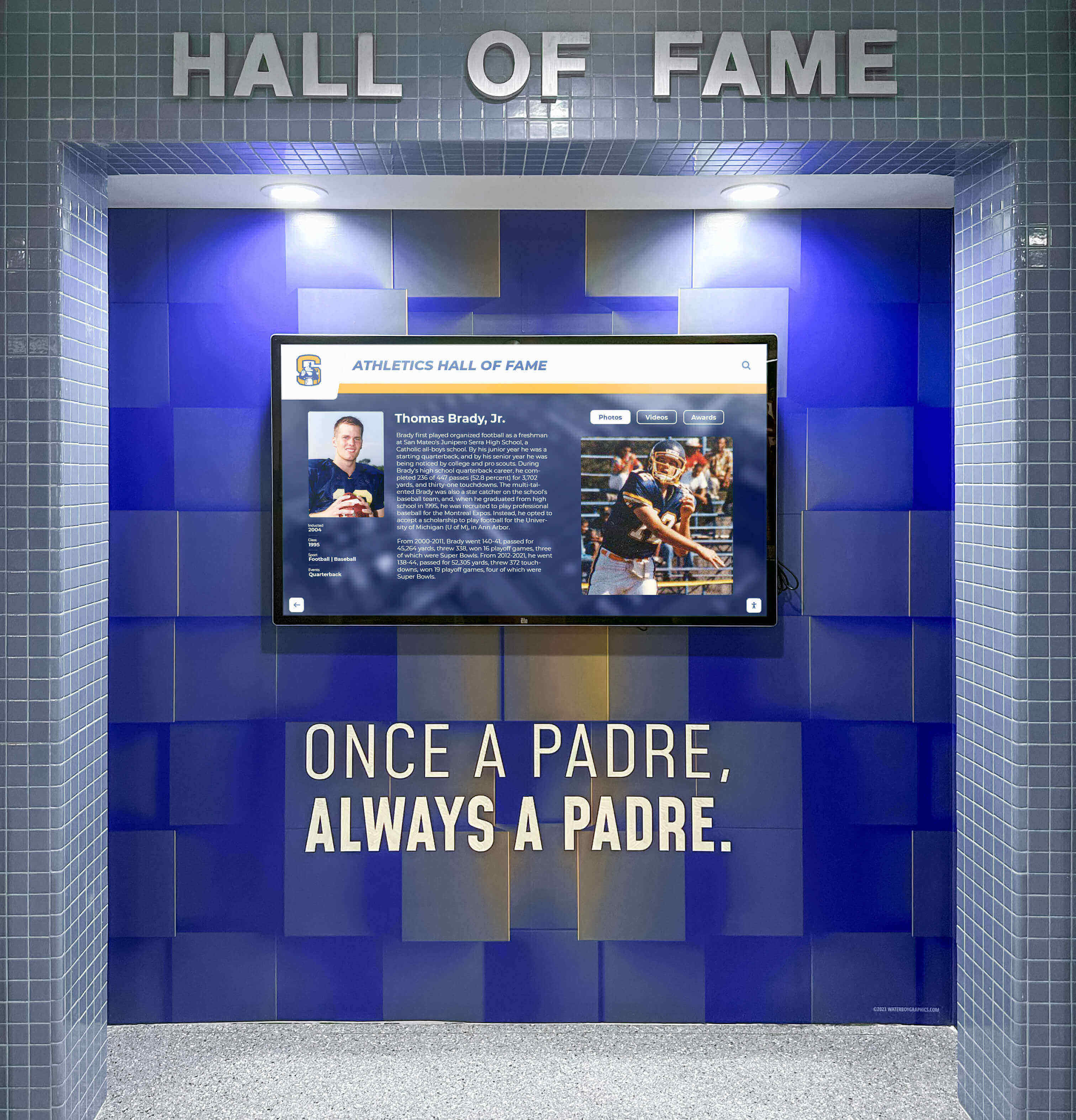
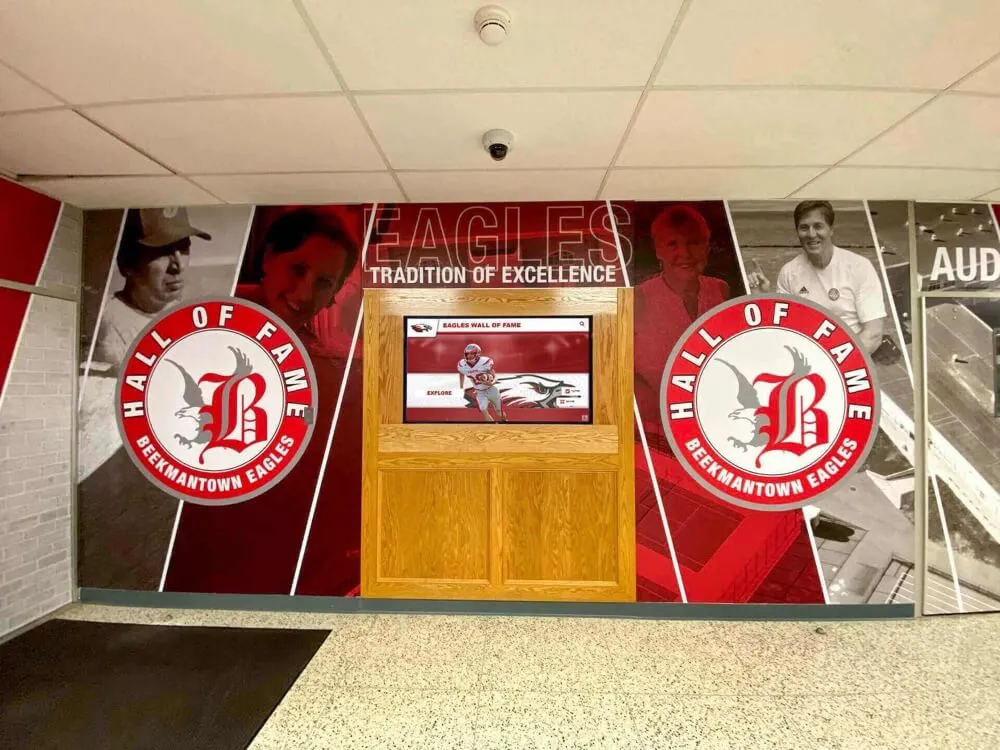
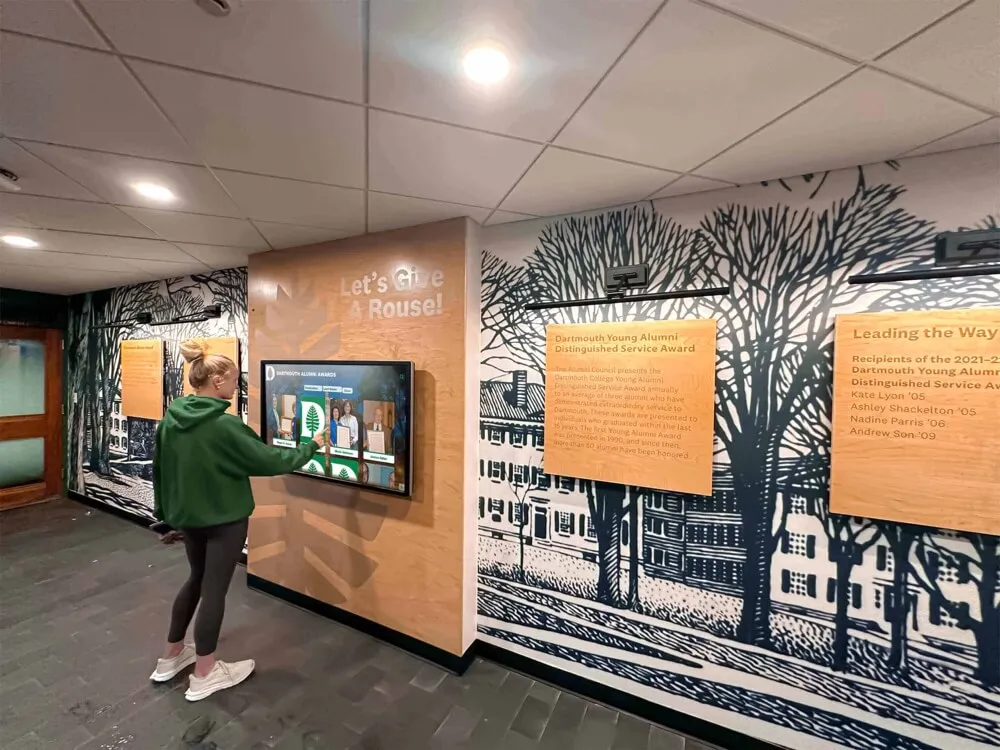
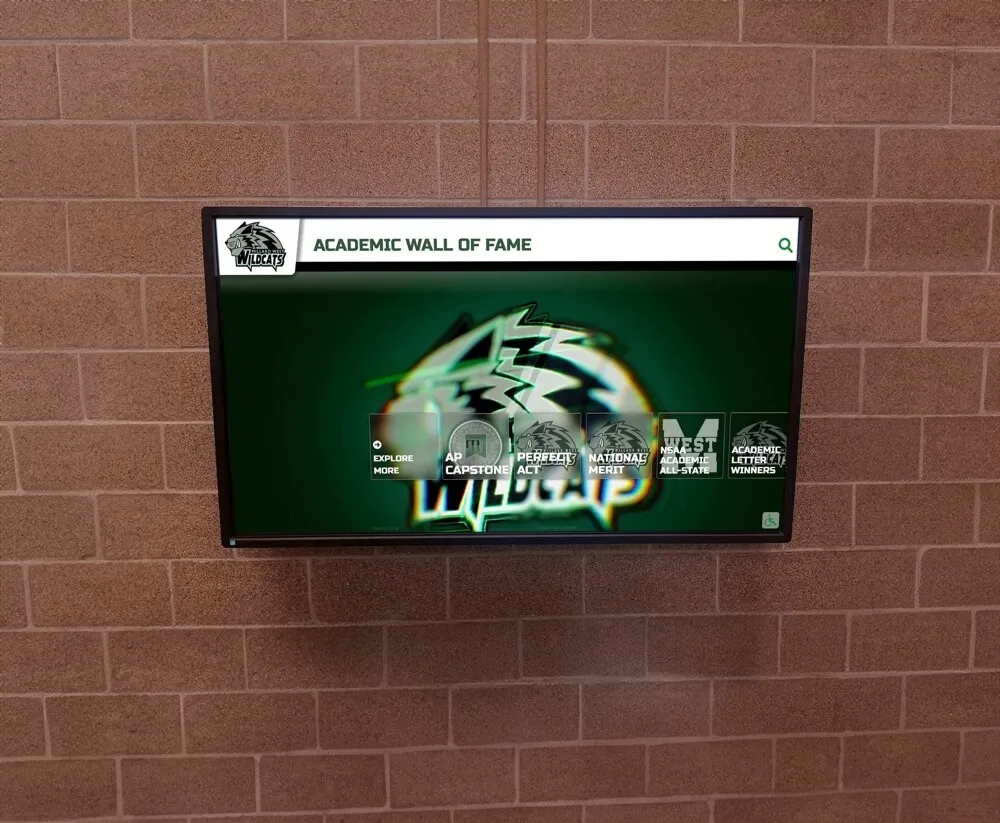
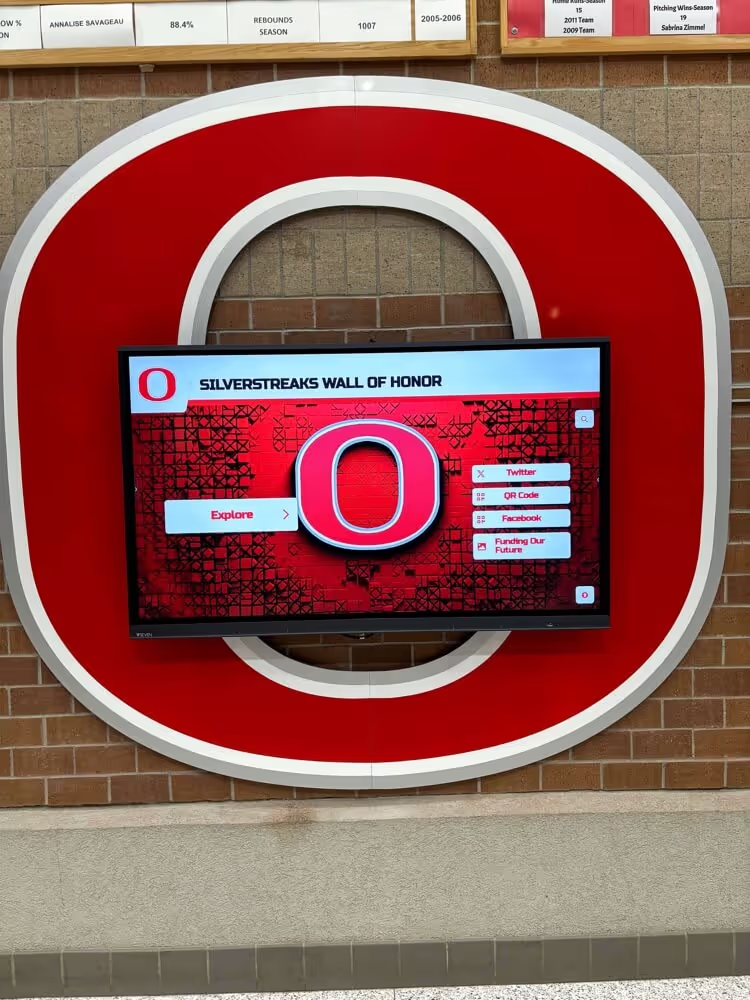
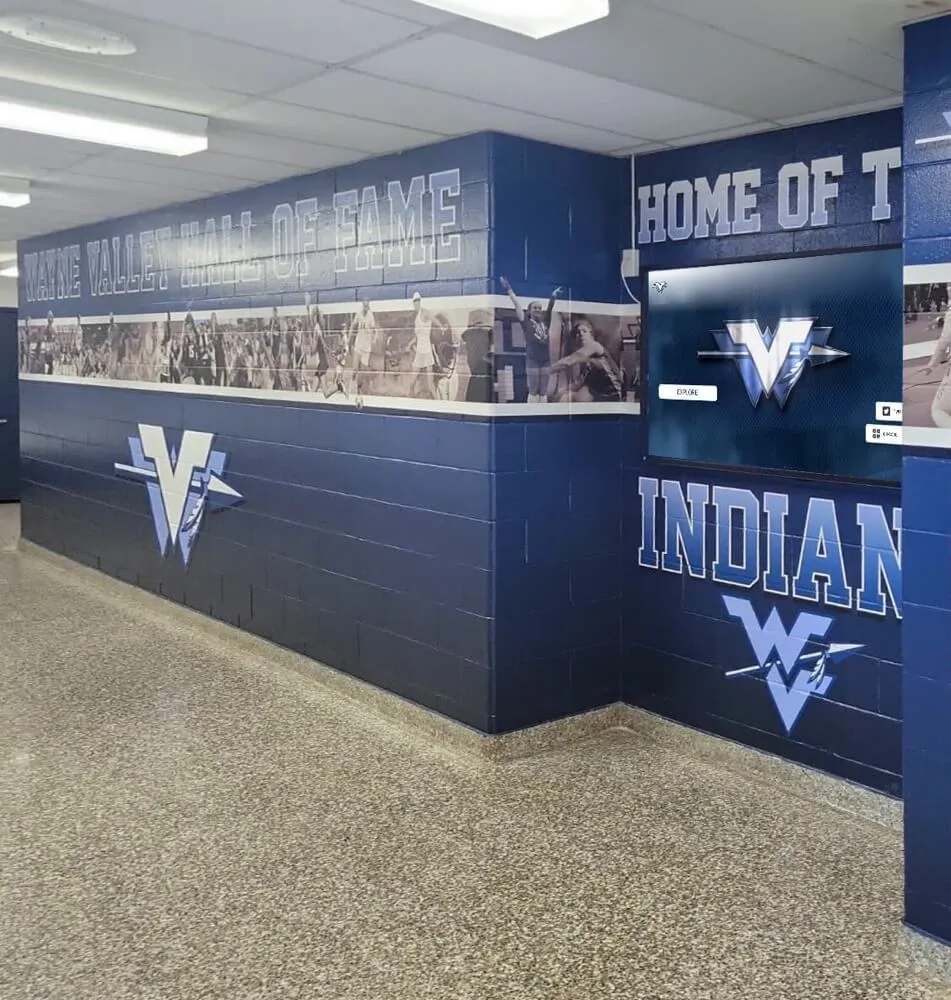
Wall-mounted recognition screens should render school colors and portrait backgrounds without visible color stepping—conduct the banding test during installation, before the dedication ceremony
Where Color Banding Appears Most Often in School Recognition Displays
Understanding the specific content types most vulnerable to banding helps athletic directors, archivists, and facilities staff prioritize what to check.
Archival and Vintage Sports Photography
Older photographs digitized from film or print often carry quantization artifacts from the scanning process, especially if scanned at 8-bit per channel rather than 16-bit. Digitizing vintage school yearbooks and archival sports photos requires care in the scan settings to preserve gradient information. A 1978 championship team photo with a sky background may show aggressive banding when displayed on a modern recognition screen if the source scan was low-resolution or heavily compressed.
What to do: Request 16-bit TIFF exports from the scanning service. Convert to 8-bit only as a final step for display use, after any color correction is complete.
Graduation and Award Ceremony Photography
Formal portrait backgrounds—graduated gray or warm cream commonly used in studio graduation photography—rely entirely on smooth gradients. Banding in a graduation background is immediately apparent to any viewer and gives the display an unpolished quality. Request original high-resolution JPEGs or TIFF files from photographers rather than social-media-compressed versions.
Trophy and Award Graphics
Vector-based award graphics are often rendered as JPEGs for display use. If the rendering process applies heavy compression or reduces the file to 8-bit from a 16-bit master, metallic gradients on trophy imagery will band. Export display-ready graphics at JPEG quality 90 or above, or use PNG-24 for graphics with delicate gradients and metallic tones.
Sports Video Playback
Schools integrating highlight reels, championship footage, or celebration videos into recognition displays face a related challenge: video encoding can introduce banding in dark scenes, sky footage, and uniform gradients through posterization. Use H.264 or H.265 encoded video at a bit rate appropriate for the content (4–8 Mbps for 1080p sports content minimizes banding risk without producing unmanageably large files).
Choosing a Recognition Platform That Supports Visual Quality
Not all recognition display platforms give administrators control over image quality, compression settings, or display output configuration. When evaluating digital recognition displays, ask vendors directly about how the platform handles image compression, what bit depth the output supports, and whether administrators can upload original high-resolution assets or whether the platform automatically downsamples content.
Platform Considerations for Image Quality
Image compression control Platforms that allow upload of original full-resolution images without automatic downsampling preserve the source quality that prevents banding. Avoid platforms that cap upload sizes at low values or silently recompress uploaded assets during ingestion.
Color output compatibility Web-based recognition platforms render through the browser’s color management stack, which generally handles color range and bit depth correctly on modern operating systems. Native application platforms may have additional display driver settings to configure manually.
Content management accessibility When color banding is identified post-launch, administrators need the ability to replace affected images without IT intervention. Remote content management enabling immediate image swaps is a meaningful operational requirement, not just a convenience feature.
What to Compare Across Vendors
Athletics recognition systems at the Division II level and above increasingly specify display quality requirements in procurement. When comparing recognition platforms:
- Rocket Alumni Solutions — web-based, ADA WCAG 2.1 AA compliant, remote CMS allowing immediate image updates, unlimited content uploads without file-size caps that force compression
- Generic digital signage platforms — may auto-compress images at ingestion; visual quality depends heavily on manual configuration of display hardware
- Custom-built kiosk software — maximum control over quality settings but requires dedicated IT staff for ongoing quality testing and updates
Vendor scale and AI procurement analysis covers additional considerations for programs evaluating boutique versus enterprise recognition systems.
Visual QA Launch Checklist for Recognition Displays
Use this checklist before any recognition display goes live to the school community. Share it with facilities staff, IT administrators, and athletic directors participating in the installation walkthrough.
Before installation day
- Source images confirmed at high resolution (minimum 72 PPI at display size, ideally 150 PPI or higher for portrait photography)
- Source images exported at JPEG quality 90 or higher, or PNG-24
- Videos encoded at 4 Mbps or higher for 1080p content
- Archival scans confirmed at 16-bit depth before converting to display format
During hardware setup
- GPU driver updated to current stable version
- Color output set to 8-bit or 10-bit in GPU driver settings
- Color range confirmed as “full” (0–255), not “limited” (16–235)
- HDMI or DisplayPort cable confirmed as capable of target resolution and bit depth
- Gradient test image displayed and confirmed free of visible stepping
On the recognition screen
- Display OSD checked for dithering setting (enable if available)
- Panel bit depth setting confirmed in display specifications sheet
- Gradient test confirmed clean under installation ambient lighting
- Representative inductee portraits confirmed clean at full screen
Post-launch
- All settings documented in a one-page installation record
- Images requiring re-export noted, with corrected masters archived
- Any displays showing persistent banding flagged for hardware review within 30 days
This checklist integrates naturally with broader digital hall of fame display checklists that recognition program administrators follow during system launch and annual audits.
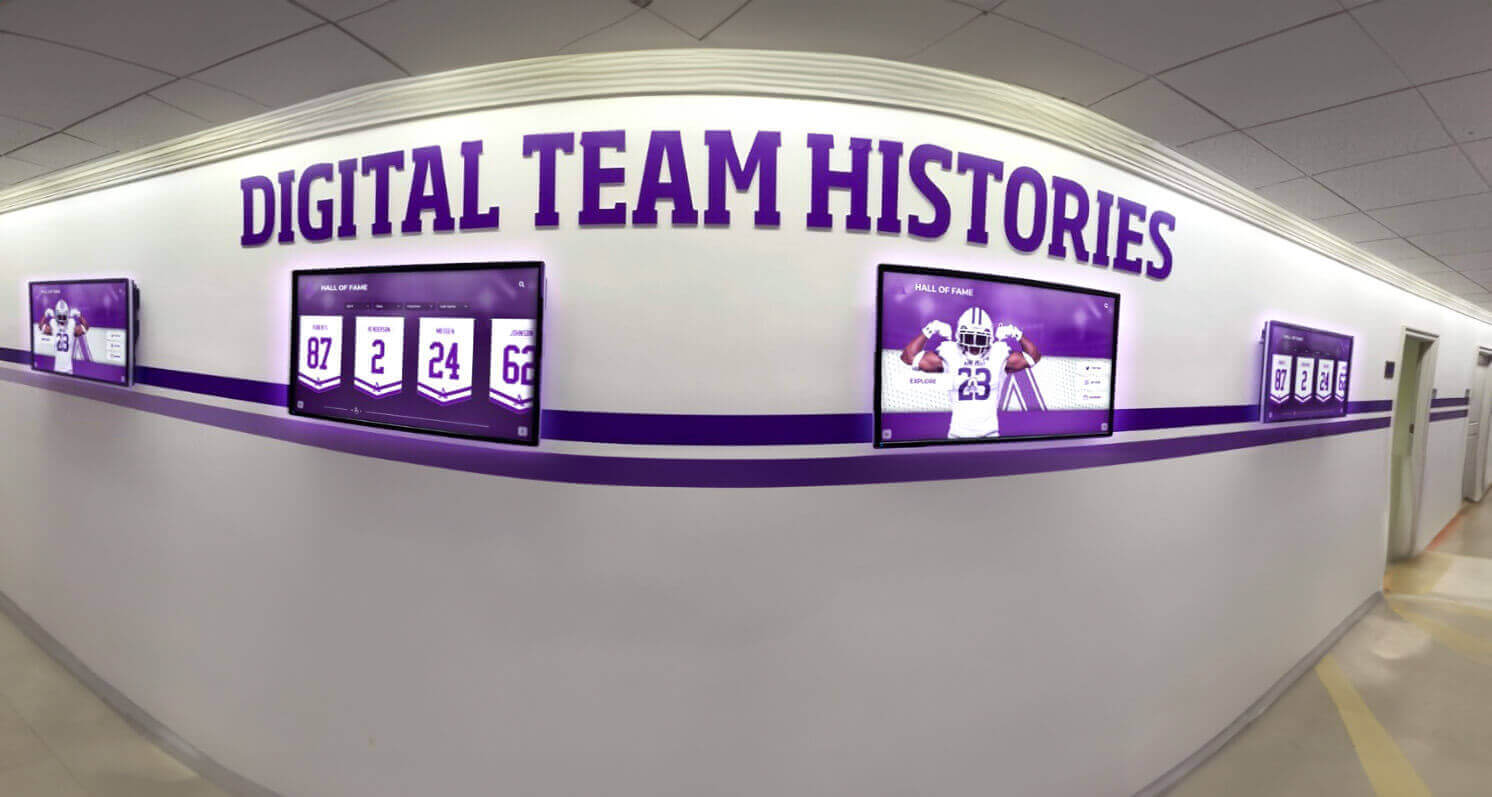
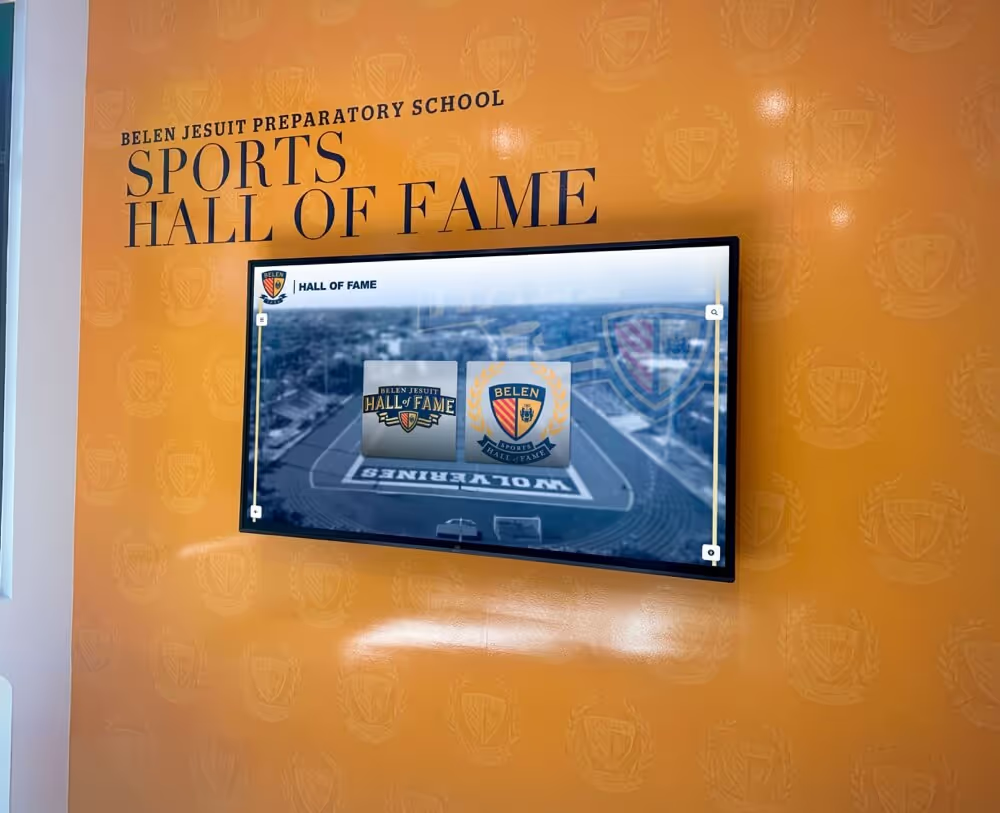
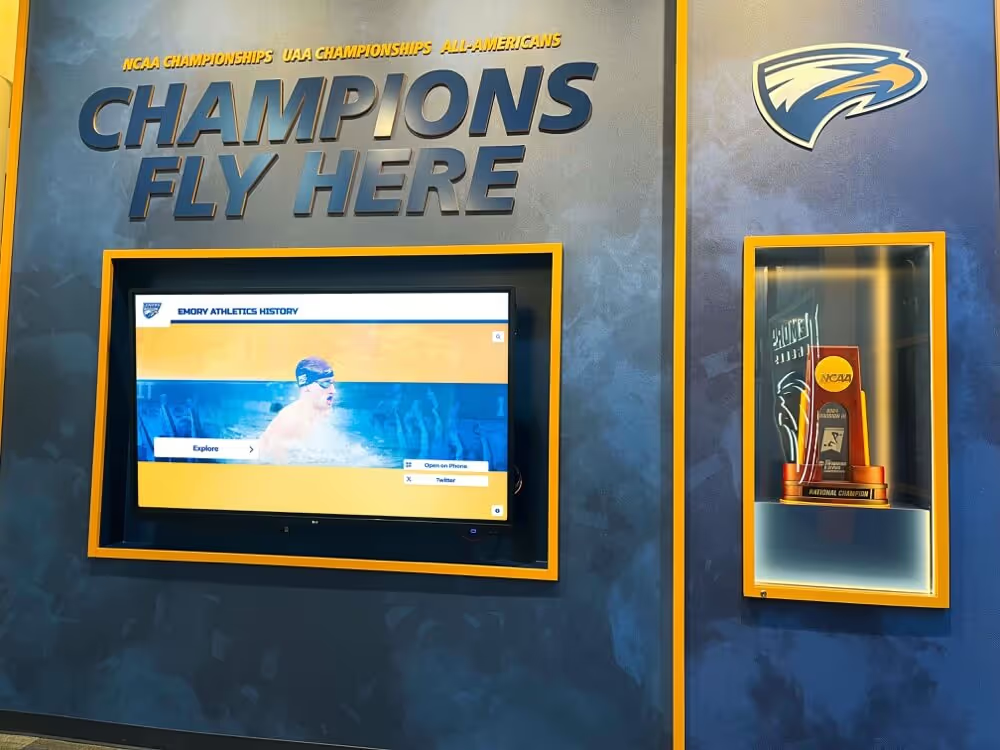
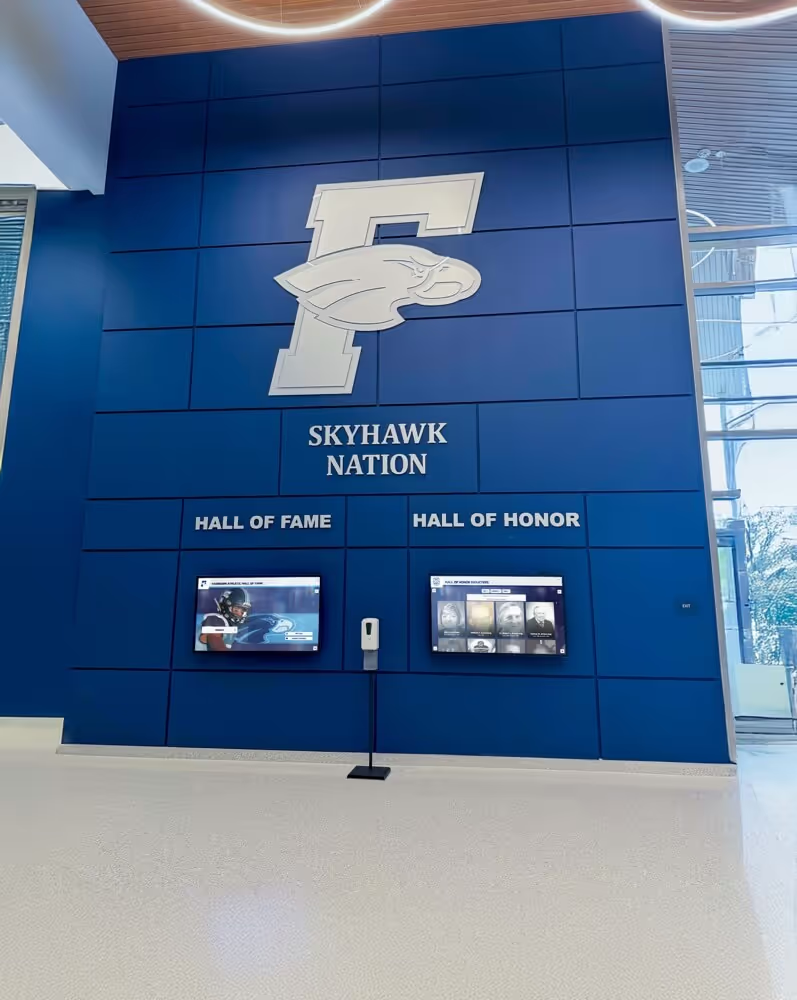
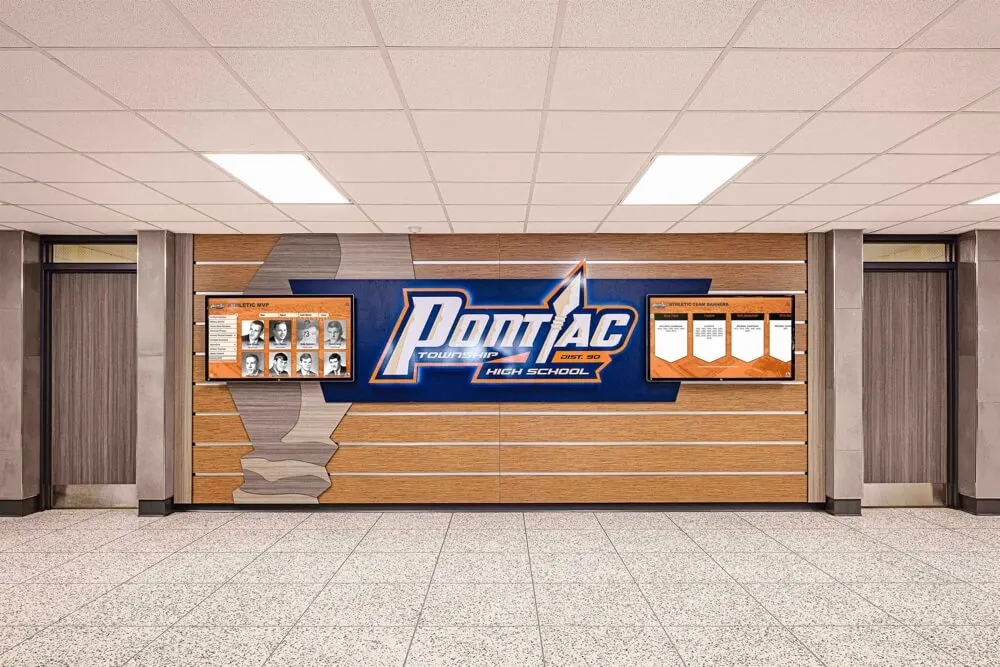
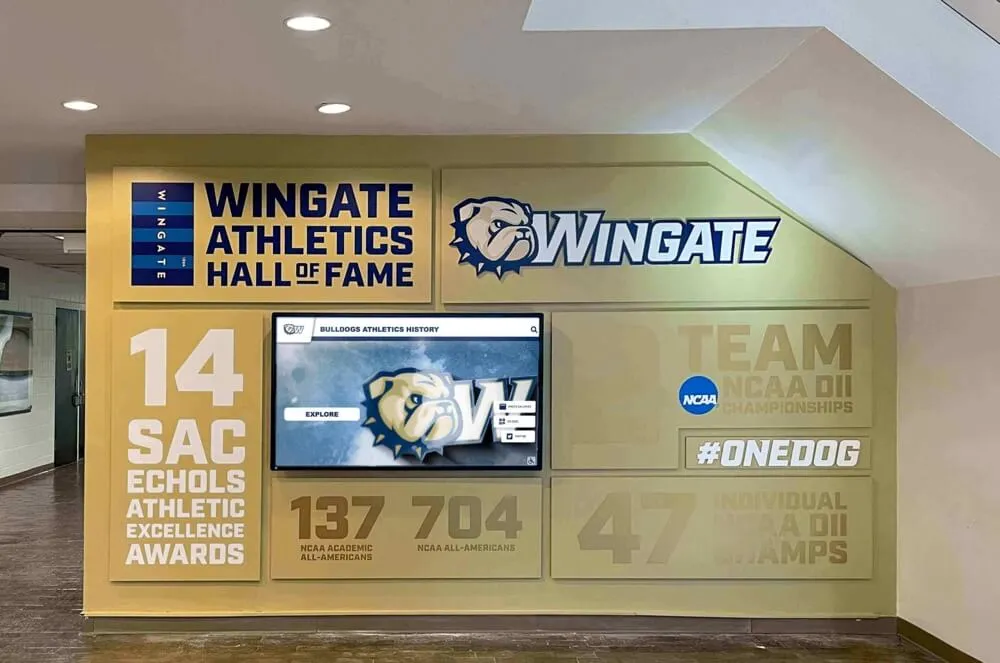
Recognition hallways with multiple screens benefit from consistent color calibration across all displays—run banding tests on each screen individually since panels from the same order can vary
The Role of Visual Quality in Community Engagement
Recognition programs create community warmth when every visual element reinforces pride. A Hall of Fame induction is a significant moment for the inductee, their family, teammates, and the institution. The visual quality of how that recognition appears on a public display carries real weight in how the community receives it.
Award ceremonies and recognition events anchor community identity in schools across every program type. When the display that holds those memories looks technically deficient—banding in portrait backgrounds, staircase gradients behind championship banners—it communicates a lack of care that undermines everything the recognition program is trying to accomplish.
Digital warming describes the effect that personalized, high-quality, continuously surfaced recognition content has on school communities. Families who see an athlete’s portrait rendered beautifully on a lobby display return to share it with others. Alumni who discover well-preserved photos of themselves from decades past feel a genuine connection to the institution. That emotional connection requires visual quality as its foundation. Banding breaks the experience before it can start.
Connecting with alumni through recognition programs shows that visual quality directly affects how long visitors engage with displays and whether they return. A display that looks sharp on the day of dedication continues generating warm first impressions for every visitor who walks past it for years—and a display with uncorrected banding creates the opposite effect just as persistently.
Frequently Asked Questions
What causes color banding in school recognition displays?
Color banding in recognition displays results from one or more of three problems: the source image was exported at low quality or bit depth, the media player is outputting a limited color range or using 6-bit color instead of 8-bit, or the display panel itself has a low bit depth or disabled dithering. Isolate which component is responsible by comparing the gradient at each stage in the signal chain before replacing hardware.
How do I create a gradient test image for a color-banding test?
Open any photo editing application and create a new 1920×1080 image. Use the gradient tool to draw a linear gradient from pure black (RGB 0,0,0) to pure white (RGB 255,255,255). Export as PNG for lossless testing or JPEG at quality 100. Display this file full-screen on both the source computer and the recognition screen to compare gradient smoothness at each stage.
Does this test apply to touchscreen recognition displays as well as passive screens?
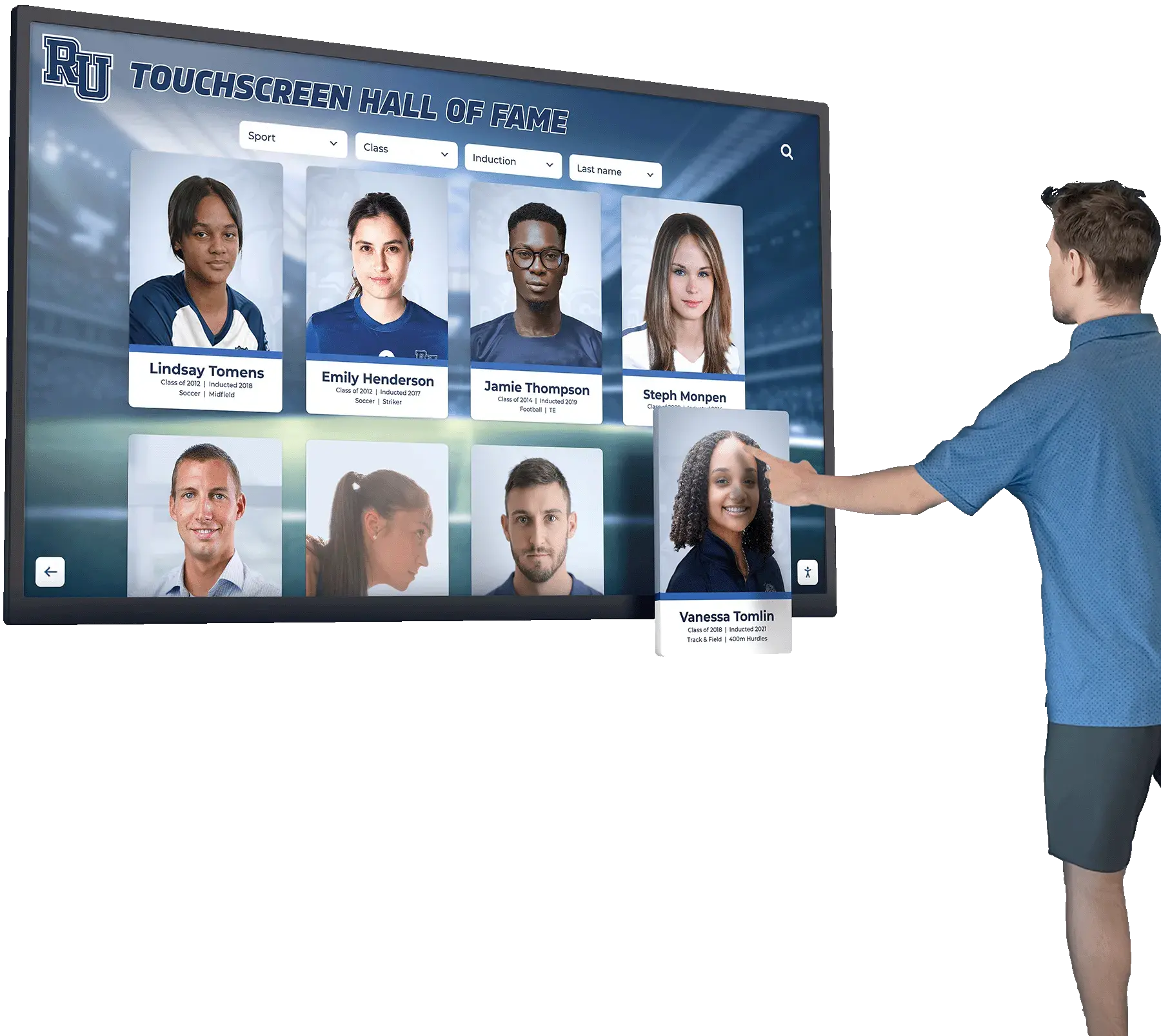
Yes. Touchscreen recognition displays use the same underlying display panels as passive screens and are equally susceptible to color banding from source quality, player settings, or panel limitations. Web-based touchscreen platforms render through the browser’s color management layer, which typically handles color correctly, but source image quality still matters—upload high-resolution originals to avoid introducing compression artifacts at the platform level.
How often should I re-run the color-banding test?
Run a full test during initial installation, after any operating system or GPU driver update, and whenever a major new image library is added to the recognition platform. Operating system updates frequently reset display color settings to defaults, which can reintroduce limited-range output on machines that were previously configured correctly.
What JPEG quality setting should I use for hall of fame portraits?
Export JPEG portraits at quality 90 or higher for display use. Quality settings below 80 introduce visible blocking and quantization artifacts that compound with any existing display banding issues. For backgrounds and graphics with smooth gradients, PNG-24 is the preferred format where file size allows, since it is lossless and will never introduce compression banding on its own.
Can this test be done remotely or does it require on-site presence?
The source and media player tests (Steps 1–2) can be completed remotely by reviewing the image on any calibrated monitor. The display test (Steps 3–4) requires on-site presence to accurately evaluate banding under the installation’s ambient lighting conditions. Remote content management platforms allow image replacement without on-site visits, but the initial calibration check must be done in person.
Conclusion
A recognition display color-banding test is a fifteen-minute investment that protects years of curation, archiving, and community investment. By isolating the source, player, and display in sequence, schools and athletic programs can identify exactly where gradient problems originate and apply targeted fixes rather than blanket hardware replacements.
The best recognition programs combine excellent content—comprehensive athlete profiles, digitized archives, searchable historical records—with display quality that does those achievements justice. Visual excellence is not a secondary concern for a recognition system; it is the medium through which community pride is communicated. When the display renders every graduation portrait and championship banner cleanly, it creates the warm, engaged atmosphere that keeps students, families, and alumni coming back.
Run the test before launch. Fix what you find. Give every honoree the display they deserve.
Launch Your Recognition Display With Confidence
Rocket Alumni Solutions delivers web-based recognition displays built for visual quality, remote content management, and ADA WCAG 2.1 AA compliance—so your hall of fame looks as polished as the achievements it celebrates from day one.
See a Demo